 Photos Recovery

Beware Of Fraud Calls & Emails
It has come to our notice that certain people/companies may be impersonating Systweak Software and/or other reputed companies, and are contacting users to promote their services in our name via fake emails and calls.
Please note Systweak Software does not make any unsolicited calls nor sends emails to anyone regarding errors on devices or internet browsing or any such other device issues.
We urge you to beware of any such scammers and request you to NOT call back any number provided in the email or via caller ID in case you receive any unsolicited calls or emails.
Please reach out to us at report@systweak.com in case you come across any such scammers and fraudsters impersonating Systweak Software.


Systweak Photos Recovery / Getting Started / User Interface - Photos Recovery
User Interface - Photos Recovery
The home screen of Photos Recovery software is intuitive, easy to use, and interactive. When the recovery tool is launched, you see a screen with two tabs:
- 1. Hard Drive - Shows all the disk drives. Click the radio button next to the drive that you wish to scan for lost pictures, audios, or videos.
- 2. Partitions - Show disk partitions and help scan and restore deleted data.
- 3. Removable Drive - Attach the removable drive to the PC and select it to scan for missing images, audios, or videos.
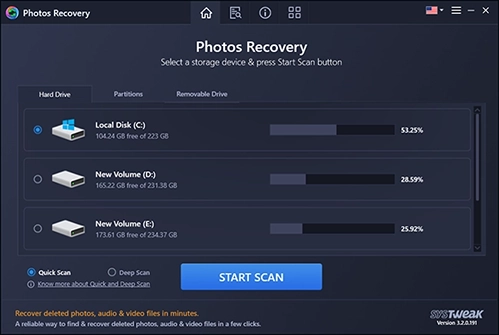
Two scanning modes:
Adjacent to the blue Start Scan button you see two scanning options Quick Scan and Deep Scan. Using either of these options you can perform scanning and recover deleted or lost photos, audios, or videos.
- Quick Scan- as the name suggests it is faster than Deep scan and it looks for recoverable photos, audio, or videos that were permanently deleted using Shift + Delete.
- Deep Scan - this scan type is in-depth and thorough. If you have lost an image, audio, or video file due to hard disk formatting and corrupt drive use this method. Deep Scan performs a systematic sector-wise scan, helping recover the maximum number of deleted pictures, audio, or video files.
Deep Scan is a time-consuming process, so you will have to wait for it to finish processing.