


Are you facing difficulty with your Prolific USB serial adapter and encountering the PL2303 phased-out error/pl2303hxa phased-out error? Luckily, you are reading the right post that will help fix the issue and will make the yellow exclamation mark disappear.

What is Prolific PL2303?
A USB-to Serial adapter cable connects your PC to the devices with serial ports, like PLC (Programmable Logic Controller). When a device is connected to the computer, Windows automatically installs corresponding drivers. These drivers help Windows read the device and communicate with it. In some cases, Windows fails to install the compatible drivers, and you face issues like PL2303 phased-out error. This article focuses on fixing it.
Causes for PL2303 Windows Driver Error
- Outdated USB drivers
- Corrupt Universal Serial Port driver
- Missing USB driver
While the exact reason is unknown, you can try the solutions below to fix the issue.
Must Read: Fix “MTP USB Device Driver Failed” Problem for Windows 11, 10, 8, 7
Ways to Fix the Prolific PL2303 Driver Error – Windows 11/10
Fix 1 – Roll Back The Prolific USB driver
Keeping drivers updated is recommended to ensure the connected device works with maximum functionality and without any. However, sometimes driver updates can also cause problems. You must roll back drivers and install the compatible update in such cases. With that being said, after upgrading the PC to the latest version of the Prolific USB driver, if you are facing issues, follow these steps to roll back the driver and re-install the driver.
Note : Unplug the serial adapter and re-plug after following the steps explained below.
1. Right the Start button > select Device Manager from the context menu.

2. Double click Ports (COM & LPT) > select PL2303HXA PHASED OUT SINCE 2012, PLEASE CONTACT YOUR SUPPLIER
> right-click > select Update driver.

3. Select Browse my computer for drivers.
4. Choose Let me pick from a list of available drivers on my computer.

5. Select previous version > Next.

6. This will automatically install the selected driver.
7. Reconnect the driver once the process is finished to see how things go.
Must Read: Solve The “Wi-Fi connected but no internet” Problem in Windows PC?
Fix 2: Troubleshoot the Driver Was Not Successfully Installed
Different error codes explain the problem. The driver was not successfully installed, which explains the chip is counterfeit. To stop piracy, the manufacturer shows this error message. Protect yourself and your PC from this error code and ensure the update is compatible with the Windows (32-bit or 64-bit you are running. Below we explain different ways to fix the issue.
Fix for Windows 64-bit
To fix the issue with Prolific pl2303 USB to Serial Adapter on Windows, follow these steps:
- Download PL2303_64bit_Installer.exe from the official website and save it.
- Detach all the connected USB to Serial adapter > double click the setup file.
- Follow the instructions you see on the screen.
- Restart your computer and get the USB up and running.
Even after following the steps above, if the problem persists, go to Device Manager and check the version and date of the driver.
1. Press Ctrl + X > Device Manager.

2. Double click Port (LPT COM) category > right-click Prolific USB to Serial > Properties.
3. Click the Driver tab here; the version should be 3.3.2.102 with a date. If you are running a 32-bit version of Windows, it should be 2.0.2.8.
4. If the date is incorrect, you must update the driver. To do so, you can use the third-party driver updater software – Advanced Driver Updater.
Automatic Way to Update Prolific PL2303 driver
If time or technical skills are your constraints, you can automatically update Prolific USB to the serial driver with Advanced Driver Updater. The tool will automatically read your PC details and find the compatible driver updater for the PL2303 driver. To use it, follow these instructions:
1. Download and install Advanced Driver Updater.

2. Launch the tool and click the Start Scan Now button to scan the PC for outdated drivers.

3. The scan will take depending on the number of connected devices.

4. To manually install the updated version of the Prolific driver, click the Update driver link – for the Free version) However, if you are a registered user, things are simple; by clicking the Update All to update all outdated driver, you can get the job done instantly.

5. Restart the PC when done.
6. Now try connecting the device should not face any problem.
How To Download PL2303 Driver On Windows PC?
If you want to download the PL2303 drivers on a Windows PC, then you have to visit the official website and download the latest version. We have explained all the steps that you need to carry out.
1. Navigate to the official website of Prolific Technology.
2. Scroll down until you see the “Drivers & Software” section.
3. Click on the Download button under this section, and a compressed file of 24MB will be downloaded to your computer.
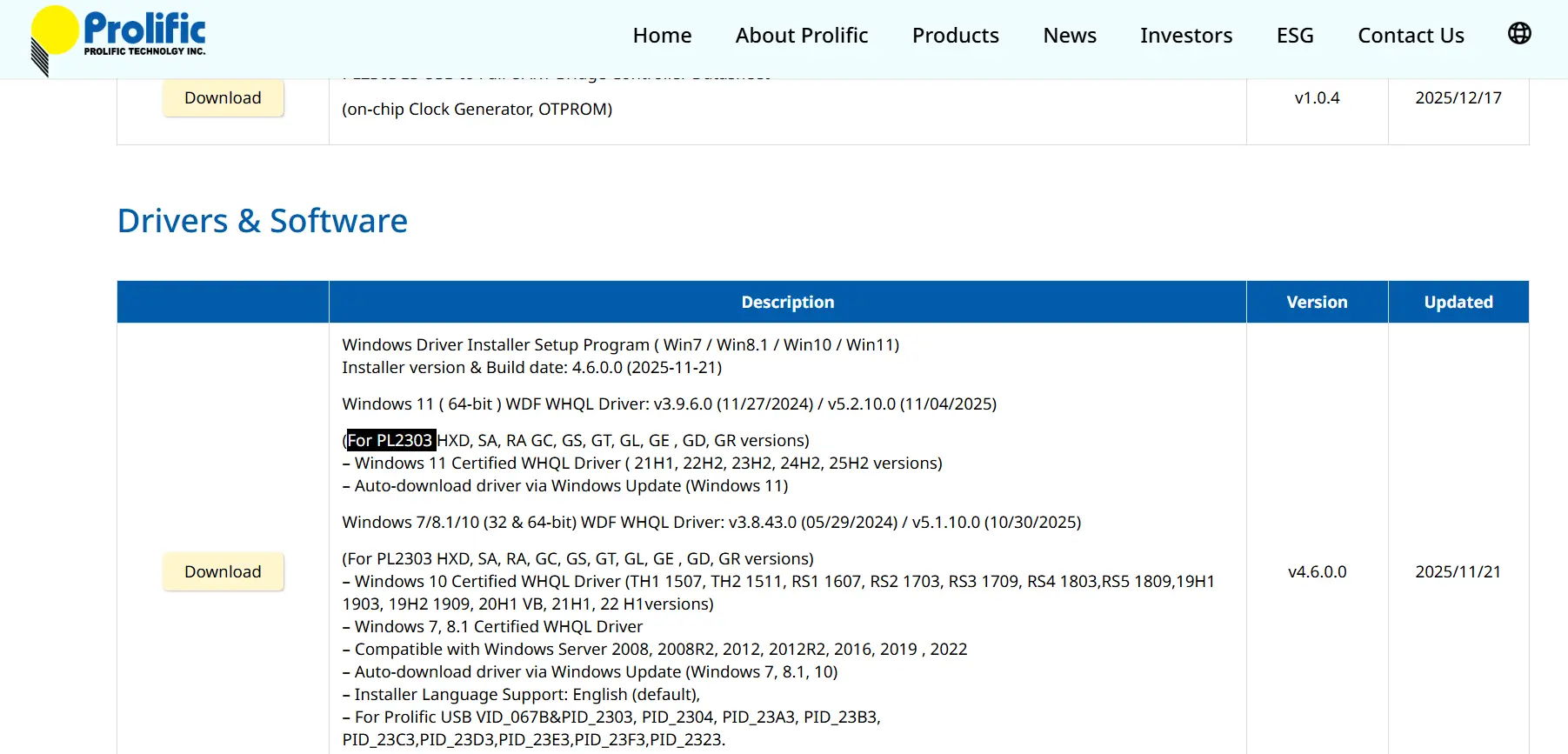 4. Right-click the zip file and extract the contents to a new folder.
5. Scan through the contents and double-click on the installer executable file.
6. Follow the onscreen instructions to complete the installation process.
6. Restart your PC and check the device connected to PL2303.
Scroll down on the official page to carry out a successful PL2303hxa phased-out driver download for older Windows versions like Windows 8 and 7.
With the help of the above solutions, you can update the driver and fix the Prolific USB to Serial driver not working on Windows 11/10. The manual steps might be a bit overwhelming and confuse you. But there’s nothing to worry about. Just follow the step-by-step instructions. Also, you can use Advanced Driver Updater, the driver updating tool for Windows will help resolve the issue.
Frequently Asked Questions (FAQs)
1. What is the use of PL2303?
The PL2303 is a translator between the USB port and older devices that use TTL, RS-232, or other serial communication standards. It allows the modern PC’s USB ports to communicate to older serial devices.
2. Is PL2303 not supported by Windows 11?
All newer versions of PL2303, like PL2303GC or PL2303GT, etc are supported by Windows 11 OS. This is because Prolific has developed Windows 11 WHQL-certified drivers that are available to download from the official website or via Windows Update.
However, older PL2303 chip variants like PL2303TA, PL2303HXA, etc have reached the end-of-life stage and are not supported by Windows 11. They will generate an error message like “This is not Prolific PL2303” on Windows 11.
3. Is RS232 faster than USB?
Not at all, the RS232 is slower than USB when compared in terms of data rate. Take a look at the table below.
| Technology | Speed |
| RS-232 | 9.6 kbps to 115.2 kbps |
| USB 1.1 | 12 Mbps |
| USB 2.0 | 480 Mbps |
USB is a thousand times faster than RS232.
4. Can a USB be converted to RS232?
Yes, a USB can be converted to RS232 by using a USB-to-RS232 adapter. This adapter contains a small converter chip, namely PL2303 that can help translate RS232 to USB by converting data into serial signals and repeats the process vice versa.
Related:
Fix ASUS Bluetooth Driver Not Working
Update Realtek Bluetooth Driver – Windows 11,10
Fix AMD Ryzen Master Driver Not Installed Properly
Realtek Audio Console in Windows 11, 10, 8, 7






Thank you very much.
useful for me.