
Introduction
Whether Street Fighter 6 crashes when launching or freezes during the game, these problems might ruin your gaming experience and even your rank in the game. Luckily, in most cases, the reason behind the crashes is the fact that some drivers or game files are outdated or corrupted. Let us discuss the efficient methods to fix this issue.
Why Does Street Fighter 6 Keep Crashing?
Some of the causes for which the game becomes unstable on Windows 11 are:
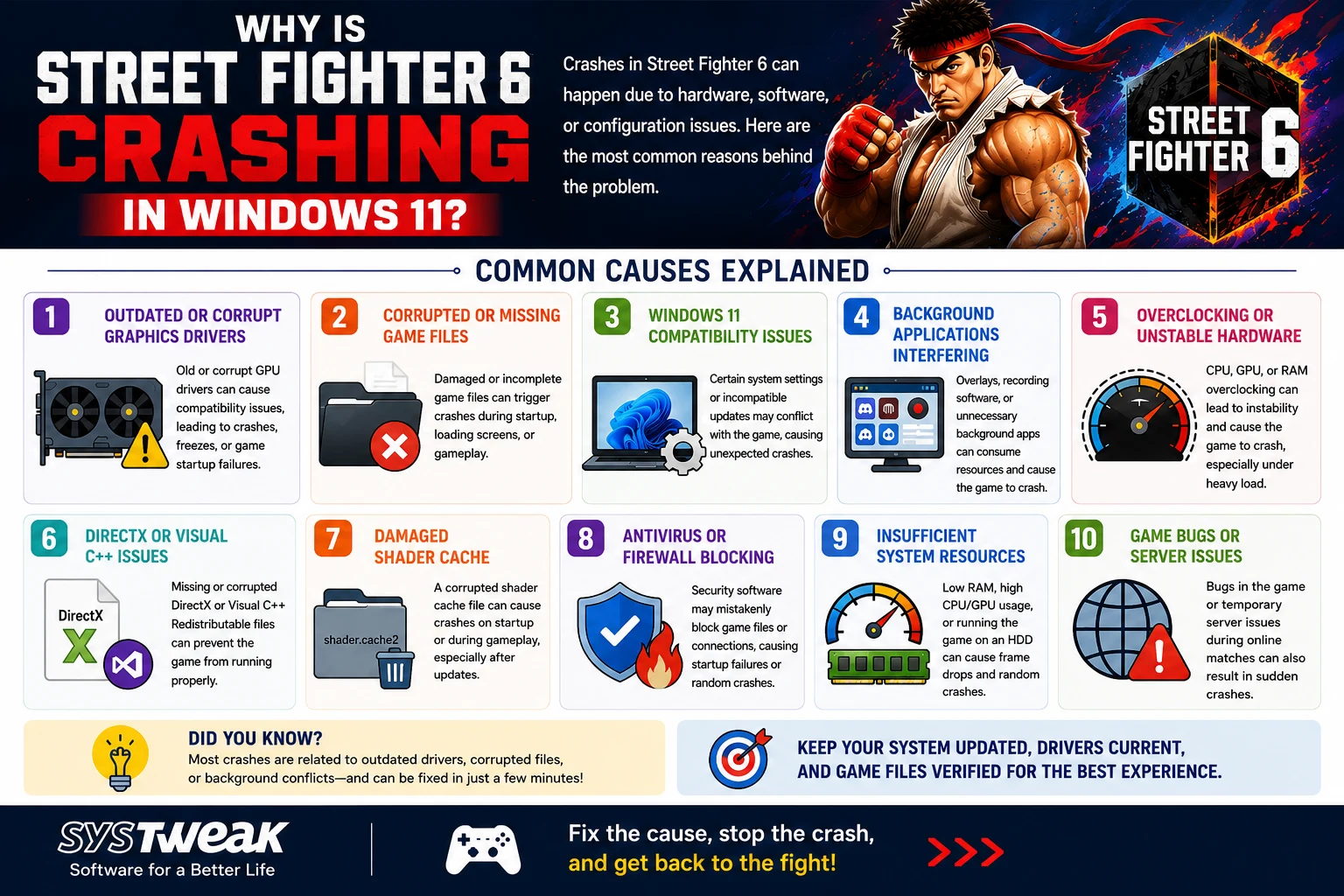
- Corrupt or missing game files
- Outdated graphics drivers
- Windows compatibility issue
- Background programs interfering with the game
- Overclocked processor/GPU
- DirectX and Visual C++ errors
- Broken shader cache
- Antivirus blocking game files
- Inadequate system resources
Capcom further suggests that verifying game files, Windows updates, and graphics driver updates, and minimizing background programs should be considered while debugging stability issues.
Solutions To Fix Street Fighter 6 Crashing in Windows 11
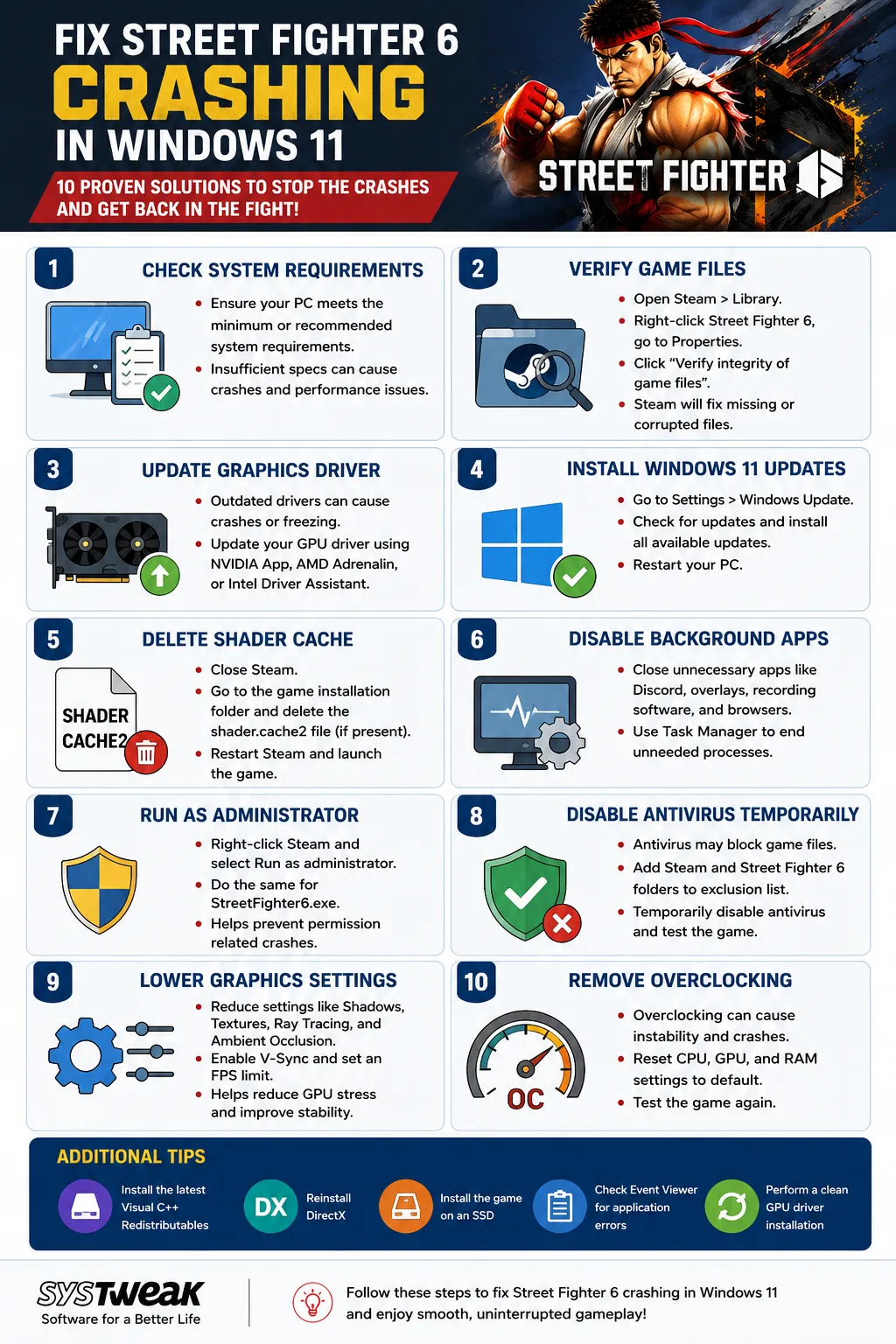
Fix 1: Check the System Requirements
Before making use of more complicated solutions, make sure that the system meets the minimum requirements for running the game.
Minimum Requirements:
OS: Windows 10/11 (64-bit)
Processor: Intel Core i5-7500/Ryzen 3 1200
Memory: 8 GB
Graphics Card: GTX 1060 or RX 580
DirectX 12
SSD is recommended
Running the game with specifications less than recommended may cause random crashes and poor performance.
Fix 2: Verify the Game Files
Another reason why games crash is due to corrupt files. Here are the steps that you have to take:
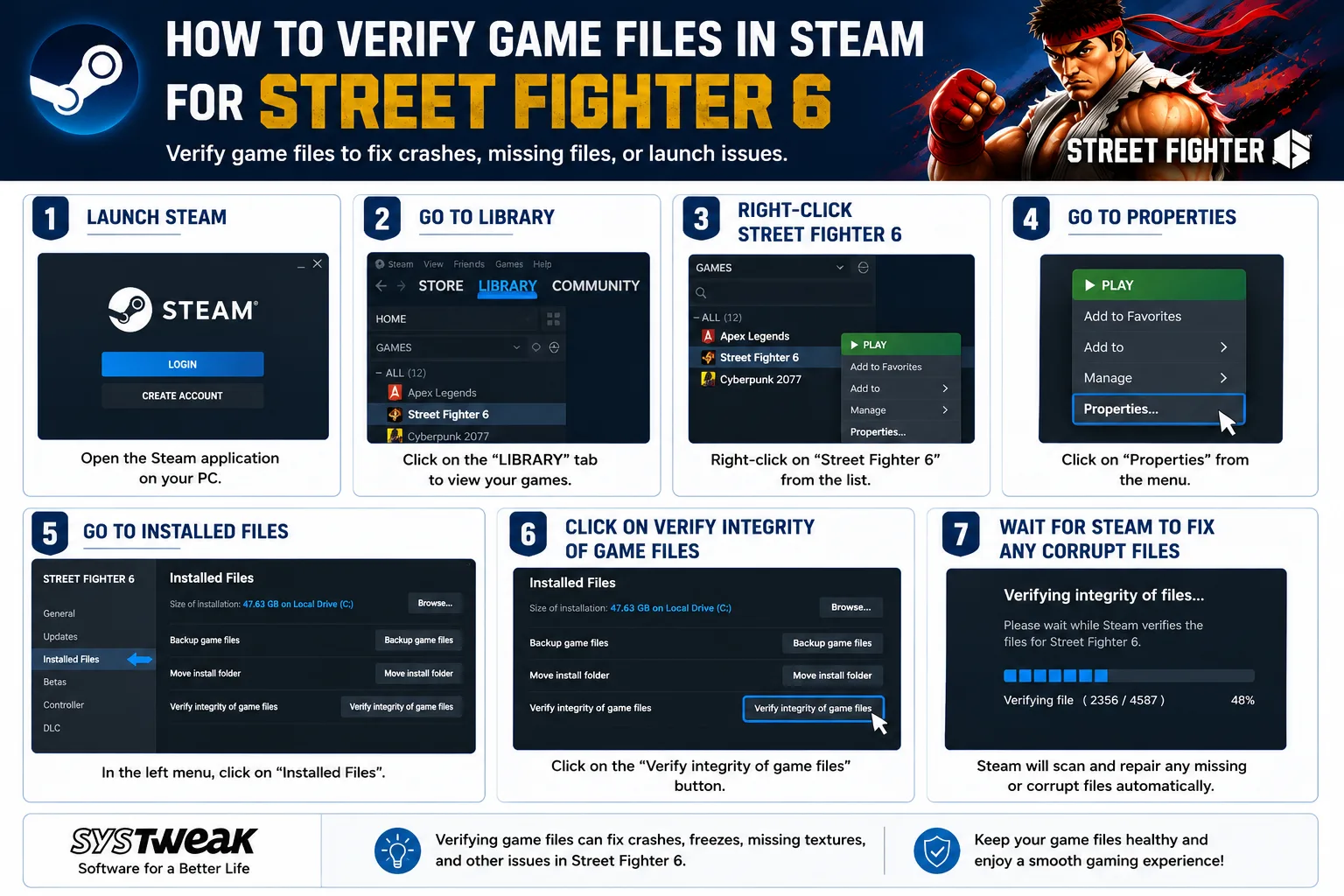
1. Launch Steam.
2. Go to Library.
3. Right-click Street Fighter 6.
4. Go to Properties.
5. Go to Installed Files.
6. Click on Verify Integrity of Game Files.
7. Wait for Steam to fix any corrupt files.
According to Capcom, this solution works since there are instances when corrupt files are fixed via Steam Verification.
Fix 3: Update Your Graphics Driver
Update drivers using Device Manager
1. Press Win + X to access the Power menu and select the Device Manager option.
2. In the window that opens for Device Manager, you can expand the option Display Adapters.
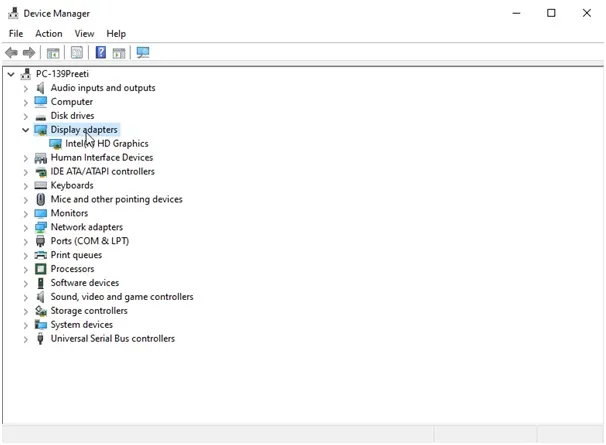
3. Your Graphics card would be listed under the Display Adapter section. Right-click on it.
4. Click on Update driver.
5. Wait for the process to complete and restart your PC.
How To Fix Graphics Card Not Detected by Windows
Update drivers using the OEM Website
1. Go to the website of your device’s manufacturer (like Dell, HP, and Lenovo).
2. Go to the support or driver downloads page.
3. Input the device model or serial number to get the required drivers.
4. Get the latest drivers and firmware/BIOS updates for your device.
5. Double-click the downloaded file to begin installation and follow the prompts on screen.
6. Restart the computer after installing the software.
Update Drivers Using Advanced Driver Updater
1. Download and install Advanced Driver Updater.

2. Open the app and click on the Start Scan Now button.
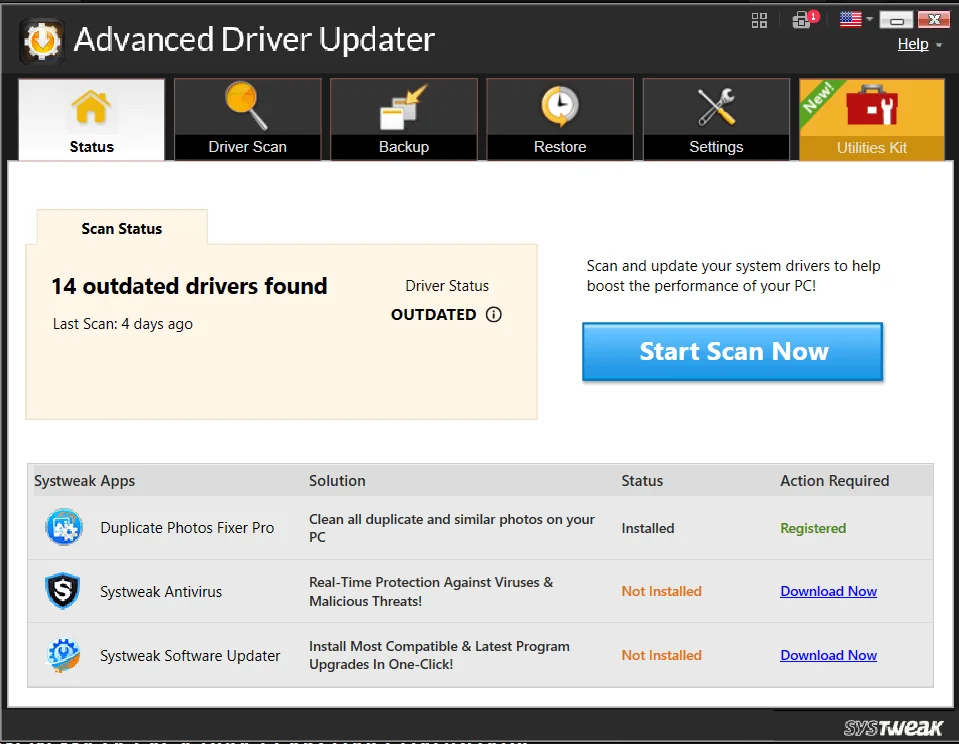
3. A list of driver anomalies will appear on the screen.
4. Locate the Graphics Driver among the list and click on the update link next to it.
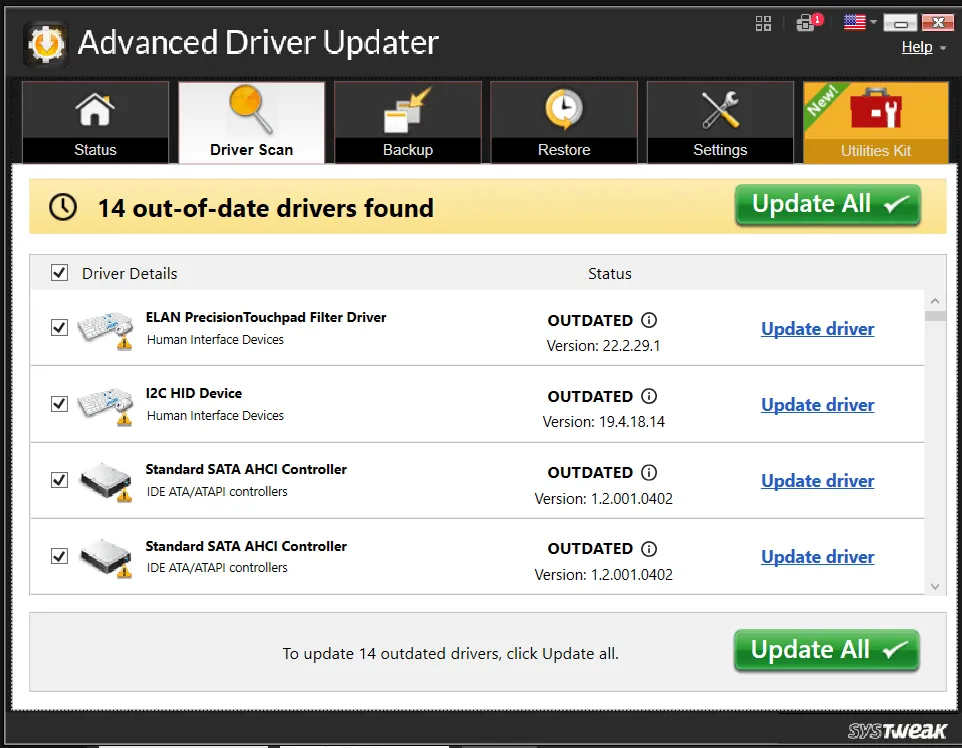
5. The update process will now begin. Reboot your PC once the update is completed.
Fix 4: Install the Latest Windows 11 Updates
Microsoft provides updates that help make games compatible and improve their graphics stability. Below are the steps that should be followed in order to update Windows 11.
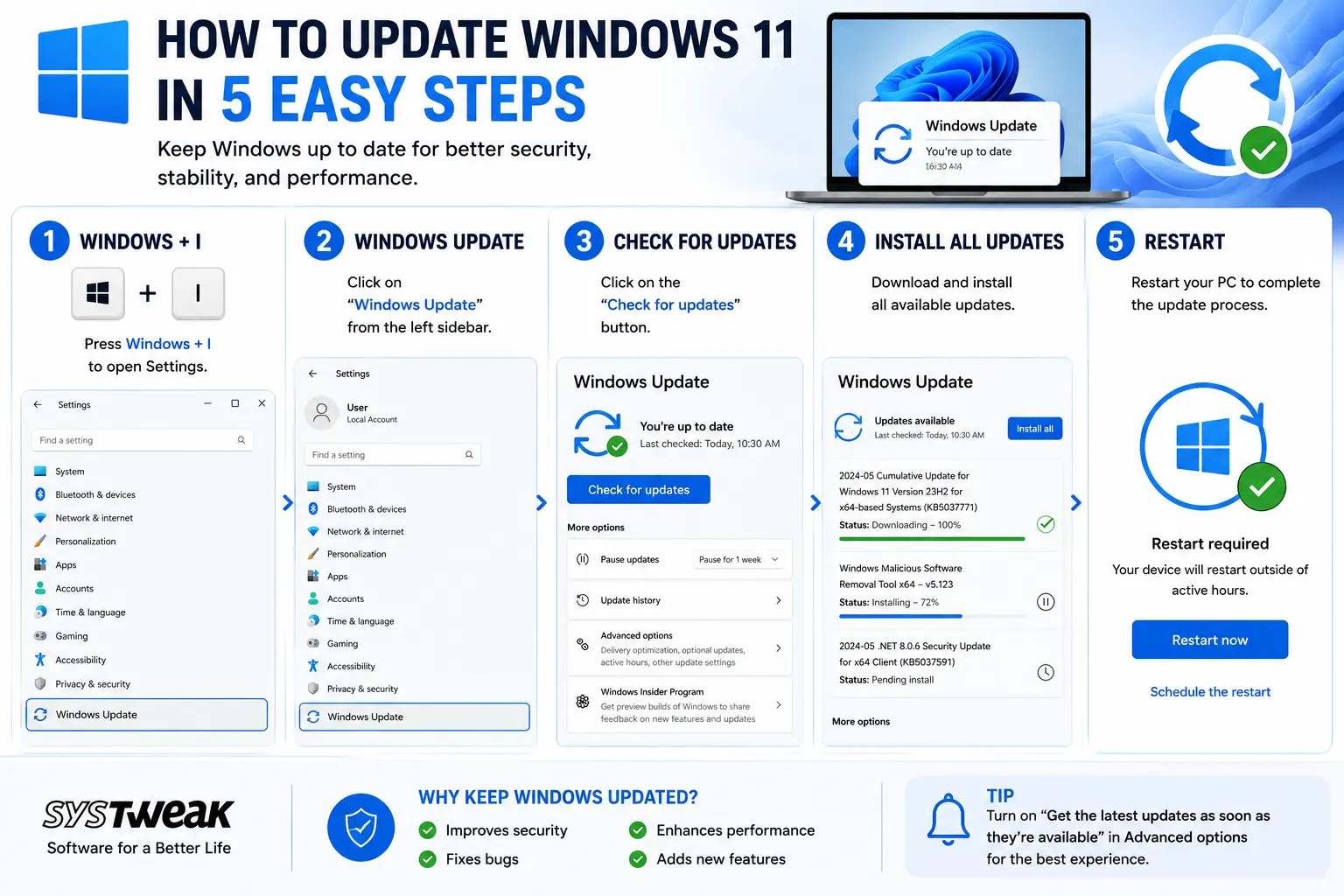
1. Press Windows + I to open the Settings window.
2. Click on the Windows Update tab in the left panel.
3. Next, click on the Check for updates button in the top right section.
4. Install all updates
5. Restart the PC for the changes to take effect.
Updating Windows may fix issues regarding compatibility with new games.
How to Fix Graphics Card Shows as Microsoft Basic Display Adapter
Fix 5: Delete the Shader Cache
A malfunctioning shader cache can either stop Street Fighter 6 from starting up or crash repeatedly after updates to the game. These steps will help solve the problem.
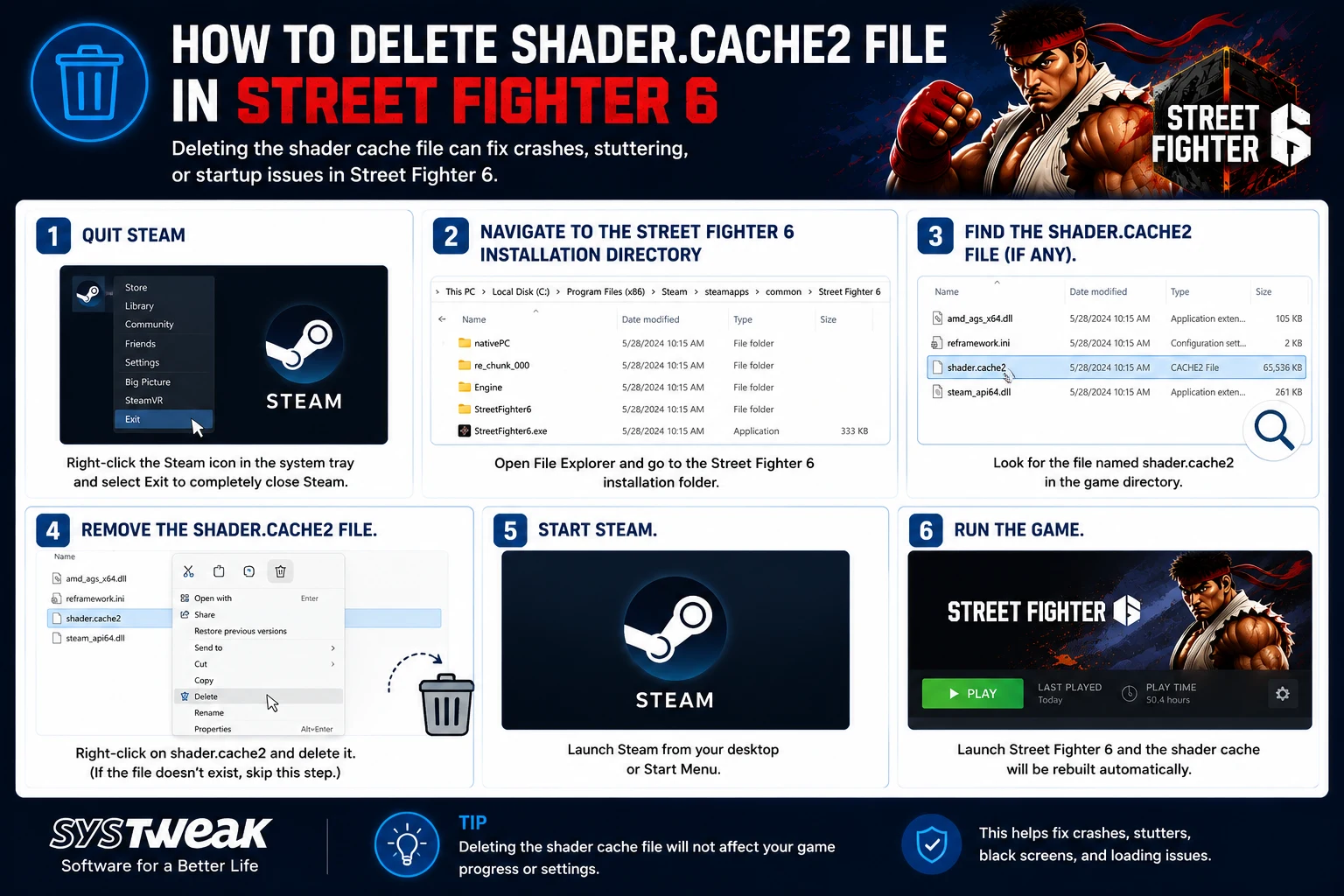
1. Quit Steam.
2. Navigate to the Street Fighter 6 installation directory.
3. Find the shader.cache2 file (if any).
4. Remove the shader.cache2 file.
5. Start Steam.
6. Run the game.
Several gamers have found that rebuilding the shader cache fixes the crashing problems after updating the game.
Fix 6: Disable Background Applications
Background applications can cause disruption while you play the game. These applications include:
- Discord Overlays
- MSI Afterburner
- RGB Software
- OBS Studio
- Web browser tabs
- Recording software
- Overlays from third parties
Here is what you need to do.
1. Press Ctrl + Shift + Esc.
2. Open Task Manager.
3. Terminate unnecessary processes.
4. Relaunch Street Fighter 6.
Background Apps Grayed Out on Windows? Here’s What You Can Do!
Capcom also advises minimizing such resource-intensive background applications.
Fix 7: Run Steam And Street Fighter 6 As Administrator
Administrator permissions allow avoiding crashes due to restricted access. Follow these steps:
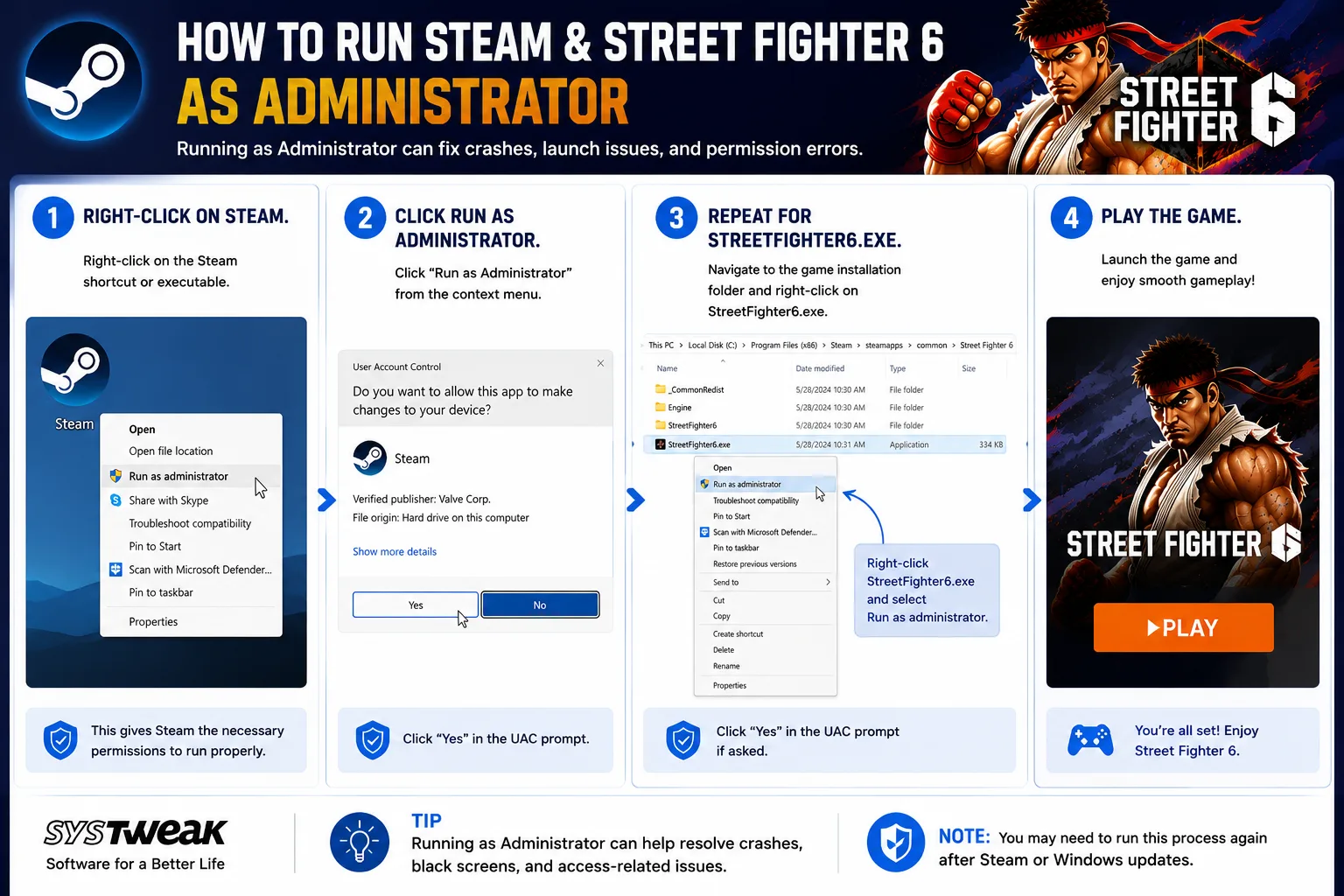
1. Right-click on Steam.
2. Click Run as Administrator.
3. Repeat for StreetFighter6.exe.
4. Play the game.
You can also make permanent changes using administrator mode in the Compatibility tab of the executable properties.
Fix 8: Turn off Antivirus Temporarily
Sometimes, the antivirus detects files of the game and may block them. To overcome this issue, you can turn off the Antivirus temporarily and add these folders as exceptions to your antivirus exclusions:
- Steam directory
- Street Fighter 6 directory
- Steam AppData directory
Antivirus detection is one of the causes cited by Capcom for game failure to launch.
Note: Make sure to turn on your antivirus later.
Fix 9: Lower Graphics Settings
Having high graphics will put strain on the GPU, particularly when the amount of VRAM used is nearly reaching its maximum. The values of the following should be reduced.
- Texture Quality
- Shadows
- Ambient Occlusion
- Ray Tracing
- Volumetric Effects
The following should also be enabled.
- V-Sync
- FPS Limit
Reduce settings to lessen the stress on the GPU and avoid system crashes.
Fix 10: Remove CPU or GPU Overclocking
Overclocking may appear stable in benchmarks but can trigger crashes in demanding games.
If you’re overclocking:
- GPU
- CPU
- RAM (XMP/EXPO)
Restore default BIOS or tuning software settings and test the game again.
Bonus: When Is It a Game Bug?
However, there are instances where crashes occur because of the game’s own bugs, not yours. Intel reported that there were some crashes and TDR (timeout) errors on Intel Arc cards due to gameplay or matchmaking. They recommend looking out for future updates to the software or driver.
If crashes occur right after a game update:
- Wait for the next patch.
- Read the comments on Steam forums.
- Visit the official Capcom support forum.
- Provide crash logs to Capcom.
Conclusion
Game crashes in Street Fighter 6 on Windows 11 are mostly due to corrupt game files, old or incompatible drivers, shader cache, software conflicts, or graphics settings. Through file verification, updating drivers and shader cache deletion, disabling background software, and updating your Windows operating system, you can solve most crashes without having to reinstall your game.
Should none of the steps work, it is best to prepare all necessary crash data to contact Capcom Support for better identification of hardware- or game-related crashes.