


Is your computer not “recognizing the external drive?” Does the “USB connected to your PC not show up?” Is the “Flash drive not detected by the PC?”
If you are struggling with any of these issues, here is a list of workable ways to fix these issues.
USB is a popular technology that allows connecting various devices to the PC. Setting it up is quite easy. However, when the USB is plugged in but does not show up, the actual struggle starts. This can happen due to several reasons such as damaged USB, outdated drivers, incorrect file system, device conflict, faulty hardware, or issues with partitions.
“BrianKindly” a user created a question on community – Various people provided a solution and most of them said as there are a no compatible drivers for this device” the problem is encountered. In this blog, you will find multiple working solutions, that will help resolve the issue.

Pinpointing the exact reason is not easy. However, by following the fixes below, you can fix the issue of the thumb drive not showing up.
Why Does The “USB Device Not Recognized” Occur On Your Windows PC?
The Universal Serial Bus is a port available on all PCs to connect external devices or peripherals to the computer. These can include, flash disks, pen drives, external hard drives, etc. The USB Drive not showing or not recognized error appears when the storage device you have connected to your PC via USB, does not appear in the File Explorer or Disk Management window. Here are a few reasons as to why this error occurs on windows PC.
- The USB drive is not properly connected to the PC.
- The USB drive is broken.
- Unable to properly load USB software onto the system.
- The drive may be infected by malware.
- A low system battery might make Root hub settings unrecognize the drive.
- Windows is out of date.
- Hardware compatibility.
- No partition & drive letter is assigned to the USB drive.
|
Note : Finding your USB Driver in Device Manager can be a little tricky sometimes, as it can appear in more than one way.
|
How To Fix USB Drive Not Showing Up?
The issue of the USB drive not showing up or the computer not recognizing the external hard drive can be fixed differently. However, before we get into the technical details, let us perform some basic troubleshooting.
Method 1 : Perform Basic USB Checks
Step 1: Restart PC – Most errors you face on Windows result from system malfunctioning. Therefore, to fix the problem, the first step should be to restart the computer.
Step 2: Update Windows – If restarting the PC doesn’t help, update your Windows. This will install the patches that will fix any known issues and bugs. To do so, follow these steps:
- Press Windows + I to open Windows settings.

- Click Update & Security.

- Windows Update > click Check for update.

- The system will now check for available updates. If any are available, they will be automatically downloaded.
- Download and install them to run the latest version.
- Restart your computer to save changes.
Step 3: Connect USB to Other Port – Corrupt or dead USB port can be why the USB device is not recognized. To check it, try connecting the USB to an alternate port and see if it helps.
Step 4: Check if the power button is on – Some USB drives have an external power button, which, if disabled, leads to the pen drive not showing. To fix it, check if your drive has one and enable it.
Step 5: Check the USB drive for physical damage – If the USB device you are connecting has a crack or a bed, it could be a reason for the USB stick not showing up. In this case, contact a technician.
Step 6: Check for USB device compatibility – Sometimes, the USB does not show up because it isn’t compatible with the PC. Using a USB 3 on a USB 2 port is common. However, some USB 3 devices need a compatible and powerful port. If you face issues with the computer not recognizing the external hard drive, you should check the device manual and compatibility information.
If these basic fixes didn’t help with PC not detecting the external hard drive, follow the other fixes explained below.
Check This- How to Download Apple Mobile Device USB Driver for Windows 11,10,8,7
Method 2 : Assign Drive Letter
If the connected USB stick is visible in Disk Management but not in File Explorer, it means the drive is readable, but due to outdated drives, drive letter conflict, and file system errors, you are facing this error. Below we explain the method to resolve the USB stick not showing.
- In the Windows search bar, type My PC.
- Select best search results > select Manage.

- Right-click the USB drive under Disk Management > and select Change Drive Letter and Paths.

- Next, click Add.

- By default, the available drive letter will be selected. Click Ok to assign it. However, if you want to assign a drive letter of your choice, choose it from the drop-down menu > and click Ok.

Method 3 : Change USB Root Hub Settings
To save power, sometimes, the system disables the connected USB. To confirm this is not the case, check and alter USB Root Hub settings.
- Press Windows + X > select Device Manager.
- Go to Universal Serial Bus controllers.

- Double-click to expand it > right-click USB Root Hub (USB 3.0) > select Properties.

- Click the Power Management tab > and uncheck the box next to Allow the computer to turn off this device to save power. Click Ok.

- Now try to connect the USB and see if it is readable.
Method 4 : Update USB Driver
Outdated, missing, and problematic USB drivers also cause the flash drive not to show up. To fix it, update the USB drivers.
Device drivers can be updated manually through the Device Manager built-in Windows utility, manufacturer website, or via optional updates (Windows Update). Alternatively, you use Advanced Drive Updater to update drivers automatically.
Manually updating drivers requires technical knowledge, time, and patience. Therefore, if you want a simple and effective way, use Advanced Driver Updater. Below we explain how to use the best driver updater and update outdated drivers.
- Download and install Advanced Driver Updater.

- To start the scan and detect outdated drivers click Start Scan Now.

- The scanning will take a minute or so to complete. Wait for it to finish; you can update outdated drives after that.

- Analyze scan results and update drivers. The trial users must click Update Driver next to it, while the Paid users can use the Update All button.

- Wait for the driver update to install.
- Restart the PC to apply changes.
See This- How To Download and Update Qualcomm USB Driver for Windows 10
Method 5 : Roll Back Driver & Scan for Hardware Changes
After updating the drivers, whether manually or automatically, we suggest you scan for hardware changes. To do so, follow these steps:
- Press Windows + X and select Device Manager.

- Next, locate Universal Serial Bus Controllers and click on it to view the context menu
- Choose Properties and in the new window, click on the Driver tab.
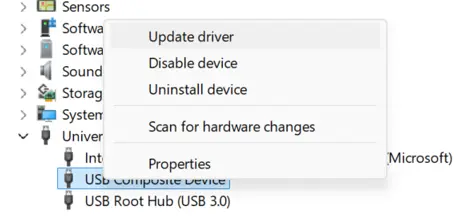
- Click on the Rollback Driver button if available and follow the online steps.
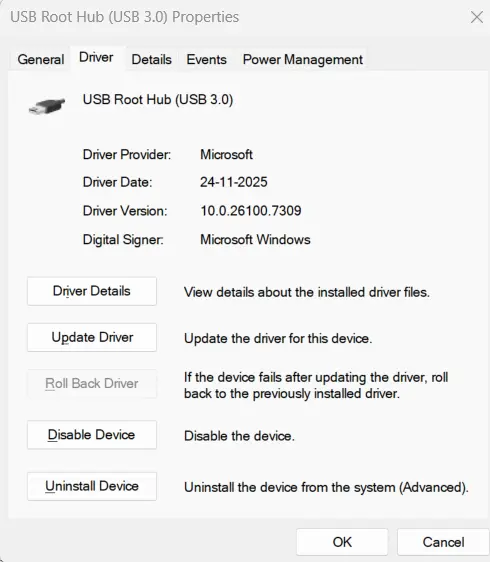
- If that does not work, click the Action tab > Scan for hardware changes.

- Windows will now look for a USB stick and hope you can see it.
Method 6 : Reinstall USB Controllers
If the USB drive is corrupt or unstable this method will help fix it.
- Press Windows + X > select Device Manager.

- Double-click on the Universal Serial Bus controllers category and expand it.

- Look for the connected USB device > select it > click Uninstall device.

Now restart your PC. The controller driver will be automatically reinstalled, and you can see the USB drive.
Method 7 : Disable USB Selective Suspended Settings
The selective suspend settings in the power options automatically disconnect the USB and make it unrecognizable. To disable it, follow these steps:
- Press Windows + X > select Power Options.

- Click Additional power settings.

- This will open a new window. Here, click the Change plan settings option.

- Click Change advanced power settings in the next window.

- In the Power settings window, locate USB settings. Double-click on it to expand options.
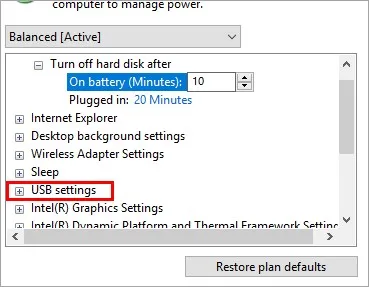
- You will now see the USB selective suspend setting. Click on it; you will see two settings On battery and Plugged in. Disable the settings for both options.

- Click Apply > Ok to save changes.
See this : Power Surge Detected on the USB Port – Fix it
Method 8 : Reinstall Manufacturer Software
Experts have stated that in some cases, if the USB Drive is not showing up, then you can try to install the manufacturer’s software. Some USB devices also include a CD or instructions to download a particular software before you connect it to the PC. Follow the instruction exactly as they appear to connect the USB device to your computer.
Method 9 : Modify Windows Registry Settings
The Windows Registry Editor is the hierarchical database of all Windows Settings. We suggest that you make changes to the Windows Registry only if you understand the below-mentioned steps mentioned below completely. Also, we recommend taking backup of your Registry before making any changes.
Steps To Take A Backup Of Your Registry
|
1. Launch the Windows Registry Editor.
2. Copy and paste the following path in the address bar of the Registry Editor.
HKEY_LOCAL_MACHINE\SYSTEM\CurrentControlSet\Services\USBSTOR
3. The Registry Editor will navigate to the required key. In the right panel, look for the “Start” key.
4. Right-Click on the Start key and choose Modify to open the Edit box.
5. In the Value Data field, type 3 and press the OK button.
6. Close the Registry box and restart the PC.
Method 10 : Install Chipset Drivers For Your Motherboard
This works because chipset drivers help Windows talk correctly to your motherboard’s USB controller — the part that manages USB ports.
1. Identify the brand/model of your PC or motherboard.
2. Visit the Manufacturer’s Support Site.
3. Enter the exact model in the search bar, choose the operating system and navigate to the Drivers section.
4. Find and Download the Chipset Drivers.
5. Double-click on the file downloaded, and the installation process will begin.
6. Click on the positive responses to install the drivers on your computer.
7. Reboot your PC and check.
Editor’s Tip : Preventive Measures For USB Drive Not Showing Up
1. Always Care For The USB Device by following these steps
- Use the “Safely Remove Hardware” feature to disable the USB Drive.
- Ensure that the devices remain protected and clean
- Do not attempt any physical damage to cables and ports
2. Windows Operating System Maintenance
- Update your Windows OS regularly
- Keep your drivers updated.
- Optimize your Windows PC by cleaning junk and unwanted files.
3. Use Backup Procedures
- Keep data backups
- Always make sure that you have more than one storage solution
- Consider Cloud backup options for anywhere access to your data
The above fixes will help troubleshoot USB not showing. However, if the steps didn’t, you must either replace the USB stick or format it.
Before buying a new one, if you want to format and give it a try, follow these steps:
Double-click This PC > right-click the connected USB > select Format. Click the Start button to begin the process.

This should help fix the issue of the USB drive not being recognized. Please let us know which method helped in fixing the problem.
Practical steps are shown in this video-

Frequently Asked Questions
You can perform a simple test by attaching the smartphone charging cable to test if the phone is charging or not. If yes then the USB port is working fine, then focus on the troubleshooting steps to make your USB drive function properly.
Recommended-
How to Download USB PnP Sound Device DriversSound Device Driver
How to Download USB Mass Storage Device Driver on Windows 11
How to Install USB 3.0 Drivers on Windows 10





Can someone help me. When I connected my Sandisk flash drive to my computer. It showed a yellow exclamation mark and fails to show me the drive content. It is an empty drive and I have to use it. I have connected it on several USB ports, but the error seems to be the same.
Sarah Jones.
Please check what exactly is the yellow exclamation sign is about, it may be showing an error when you hover over it and later you can try to troubleshoot the error. Usually it is a driver related error hence we recommend you try and update all your USB drivers to check if it resolves the issue. You can use the Advanced Driver Updater to do the same.
THANK YOU! Fixed my problem by changing the root hub settings. Would not recognize a slide scanner plugged into USB before the change.
This blog post is an absolute lifesaver! ? I’ve been struggling with my USB drive not showing up for days, and stumbling upon this article was like finding a treasure map! ?️ The step-by-step solutions provided here are so easy to follow, even for someone like me who’s not super tech-savvy. ?? I’ve already tried a couple of the troubleshooting methods mentioned, and lo and behold, my USB drive magically reappeared! ✨? Thank you so much for sharing these valuable tips. I’ll definitely be keeping this page bookmarked for future reference. ??
Lenovo 16 Tb USB3.1 I think. Was working perfectly until I plugged it into Panasonic Smart TV. I should have read more of the instructions which say 160 GB to 6 TB. Anyhow it failed to format. When put back in PC to format it again it can not be seen. Shows in Device manager tree as USB Mass Storage Device but doesn’t show in any other window so I can’t get it to format. Drivers are all up to date. Have uninstalled etc. Scanned for hardware changes. Not the end of the world as not an expensive item, but it’s always good to fix something after breaking it. Still Looking for ideas.
Dear Trevor
Thank you for writing to us.
As a work around we suggest that you try connecting the USB to another PC to check if it appears there. Sometimes a PC may read a wrongly installed driver as correct but may malfunction while displaying the device correctly. If you can access the drive via another system, use it to format and reconnect to current PC and it should work fine. Also if you can find the drivers for it, you should try disk manager utility to check if the disk appears there.
Hope this will help.
Thanks and Regards