


Developed by Intel in the mid-1990s, SM Bus is an inexpensive communication device for motherboards. In short, it provides a two-wire interface between the system and power-related components for communications.
Also, SM Bus monitors voltage and temperature and can send a certain number of error messages when a problem occurs. This makes SM Bus an integral part of the system.
With that being said, you need to pay attention if you see a question mark or a yellow warning sign next to the SM Bus Controller in the Device Manager. This might be a sign of an outdated driver.

Important : Windows does not provide native driver support for the chipset included on the system board.
This post will discuss how to Download and update SM Bus controllers for Windows 11, 10, 8, and 7.
What Is the SMBus Controller Used For And Where Is It Available
The System Management Bus or SMBus is a path on the PC’s motherboard that is used for hardware monitoring like temperature, voltage, fan speed, etc., and Power/Battery management, which involves safe charging, battery health, and charge level.
It is built into the motherboard and cannot be seen. It is like a hidden wiring behind the wall and is used to connect all the components internally.
What Does The SMBus Controller Do, And List Common Symptoms Involving It
It plays an important role in managing the computer from inside. this covers activities like monitoring hardware health, controlling power, measuring battery data, and enabling communication between the chipset and low speed components like RAM, thermal sensors, etc.
When the SMBus is faulty, missing, or faces driver issues, the following symptoms can be observed.
- Yellow exclamation mark in Device Manager.
- Fans running at full speed or Overheating warnings.
- Battery percentage is not updating correctly.
- Sudden sleep or shutdown events.
- Random freezes or unexpected restarts.
- Status messages like “Drivers for this device are not installed (Code 28)”.
- Errors during system startup related to hardware monitoring appear on the screen.
What Are Key Aspects Of SM Bus Controller?
It is a part of the computer’s hardware which speaks to all the hardware components and manages them. We have listed a few important aspects of SM Bus controller.
- This controller is a central link between the CPU and other components and used the I²C protocol.
- It can read data from different sensors like voltage, temperature and fans. It can also enable or disable thermal control, and fan curves to provide overheating protection.
- The SMBus communicates with smart batteries and charging controllers, as well as carries out reporting of charge level, battery health, and power status to the OS
- It reads SPD (Serial Presence Detect) data from RAM modules and helps BIOS/UEFI configure memory correctly during boot.
- It works with embedded controllers that handle power button events, sleep and wake states, and thermal and fan behavior.
- It requires proper chipset drivers to function correctly.
- The SMBus uses error checking and strict timing rules, prioritizing predictable, stable communication over bandwidth.
- It handles small packets of critical data.
The SMBus supports safe throttling, shutdowns, and power transitions, as well as preventing hardware damage by enabling early system responses
The Easiest Way to Download and Update SM Bus controller driver
Updating drivers manually requires time, patience, and computer skills. Due to this, most people fear updating drivers. However, this problem can be easily dealt with Advanced Driver Updater software. The powerful driver updater in no time detects outdated drivers and updates them easily. You don’t have to provide any information. The tool automatically lists outdated drivers and allows you to update the ones you want. To try it, click the button below to download it.

3 Best Ways to Download/Update SM Bus Controller in Windows PC
Method 1: Manually Download SM Bus controller Windows 10/11
To avoid any problems caused due to outdated SM Bus drivers, Intel keeps updating them. You must visit Intel’s official website to get the latest driver update.
1. Once there, click Download Center

2. Select your product or use the search bar to look for Intel drivers and software.
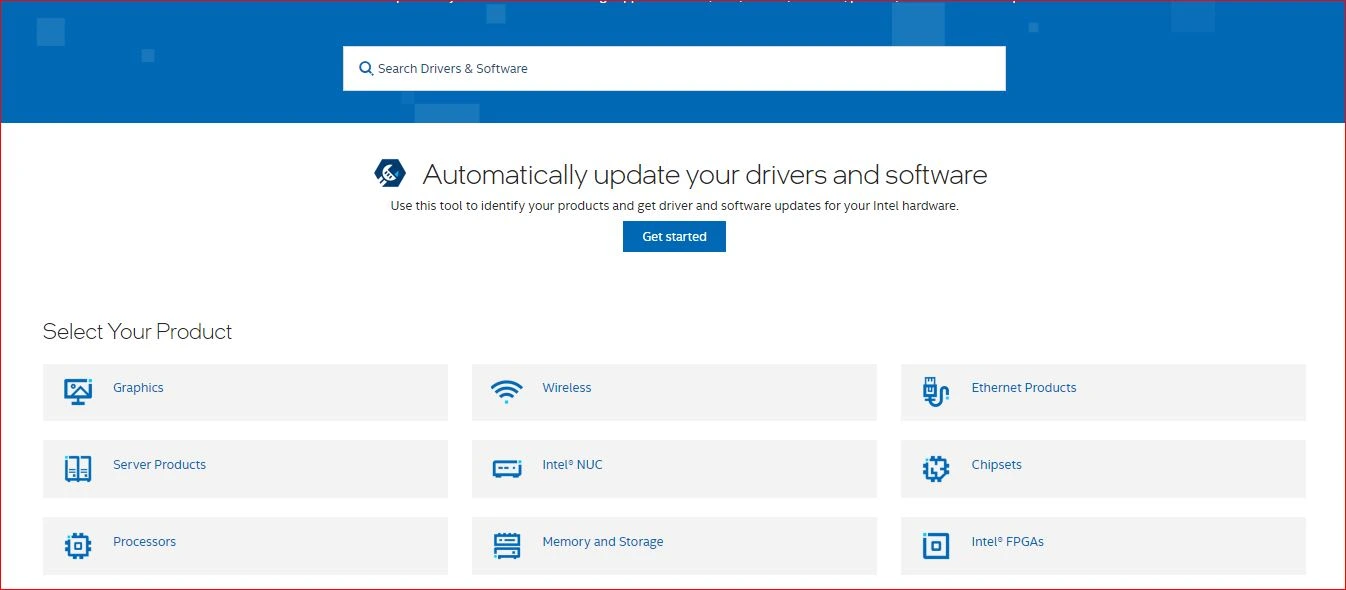
3. Once the correct driver for your system is downloaded, double-click the setup file and follow on-screen instructions to install the driver.
4. Restart the system to apply changes.
You will not see the yellow warning sign next to SM Bus Controller in the Device Manager.
However, if you cannot find a driver on Intel’s website, we have an easy way. Try using the Device Manager or the Advanced Driver Updater.
Method 2: Update The SMBus Controller Driver Using The Device Manager
The Device Manager is an inbuilt tool available in the Windows OS to update the drivers by downloading and installing the latest driver version updates from the Microsoft Server. The only limitation is that it may take weeks or even months for Microsoft to check and approve third-party drivers and upload them to their servers. Here is what you need to do.
1. Press Win + S and type “Device Manager”.
2. In the search results, locate Device Manager and click on it to launch the tool.

3. Now, locate SM Bus Controllers and click on Update Drivers.
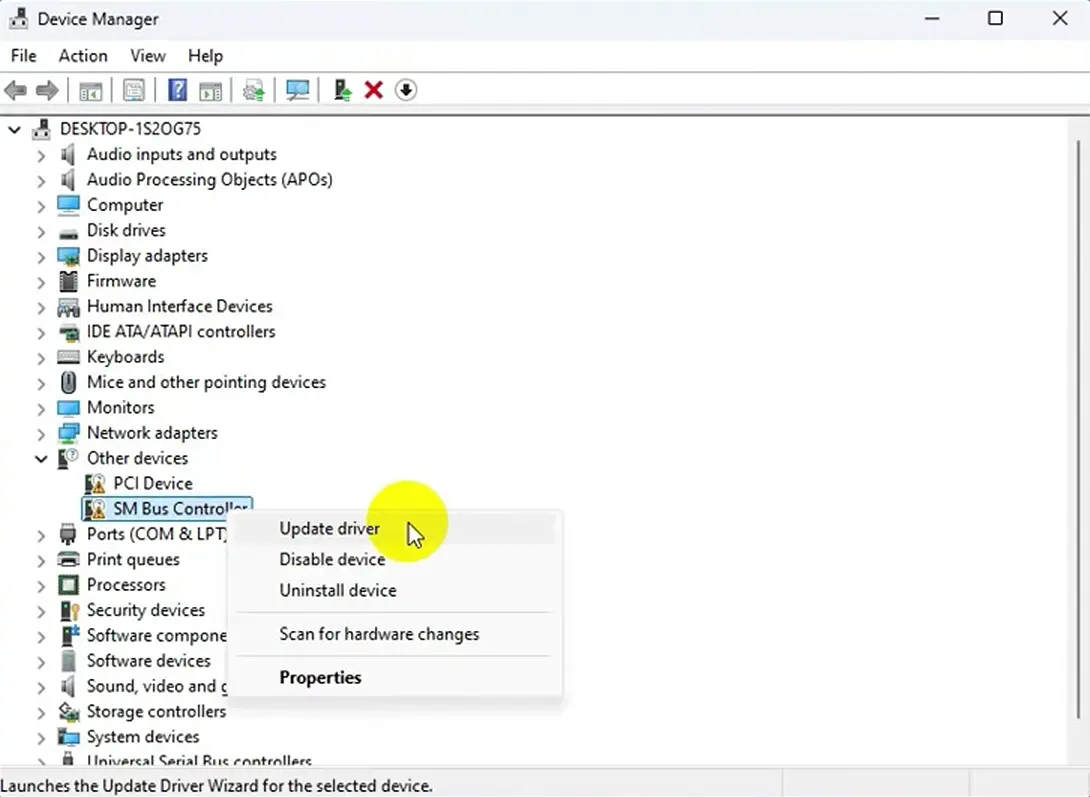
4. Click on “Search Automatically For Drivers”.
5. Follow the onscreen steps and restart the PC after the driver has been updated.
Method 3: Automatically updating SM Bus Controller driver Windows 7 64-bit (Recommended)
If you cannot find the SMBus Controller driver for Windows 7,8,10,11 or find it difficult to install driver updates manually, don’t worry. Use Advanced Driver Updater to identify outdated drivers and update them in a few clicks.
Advanced Driver Updater scans to identify outdated, problematic, and corrupt drivers, showing the latest and most compatible driver updates. Moreover, you don’t need to know the exact operating system and device details to use this product. Also, the risk of downloading incorrect driver updates is eliminated.
Also, before updating drivers for security reasons, Advanced Driver Updater takes a backup of old drivers. This helps restore the driver (if anything goes wrong).
Using its Free or Pro version in a few clicks, you can update SM Bus Controller driver Windows 7 64-bit and Windows 10.
To use it, follow the steps below:
1. Download and install Advanced Driver Updater
2. Run the best driver updating tool for Windows.
3. Click Start Scan Now to perform the scan and detect problematic drivers.

3. View the scan results and click Update All to update all outdated drivers. However, if you are using the trial version, click the Update driver option next to the device that reads SM Bus Controller. This will automatically download the correct and latest driver update.

The trial version allows updating one driver at a time. This means you will have to update all outdated drivers one by one.
- Wait for the process to finish.
- Restart the system to apply changes; any problem you faced due to SM Bus Controller should now be fixed.
How to Fix Missing SMBus Controller Driver
Some experts have suggested using the Device Manager to fix the missing SMBus controller driver. Here are the steps that you need to follow to download/update SM Bus controller driver.
1. Press Win + R to open the RUN box, type “devmgmt.msc” and click on the OK button.
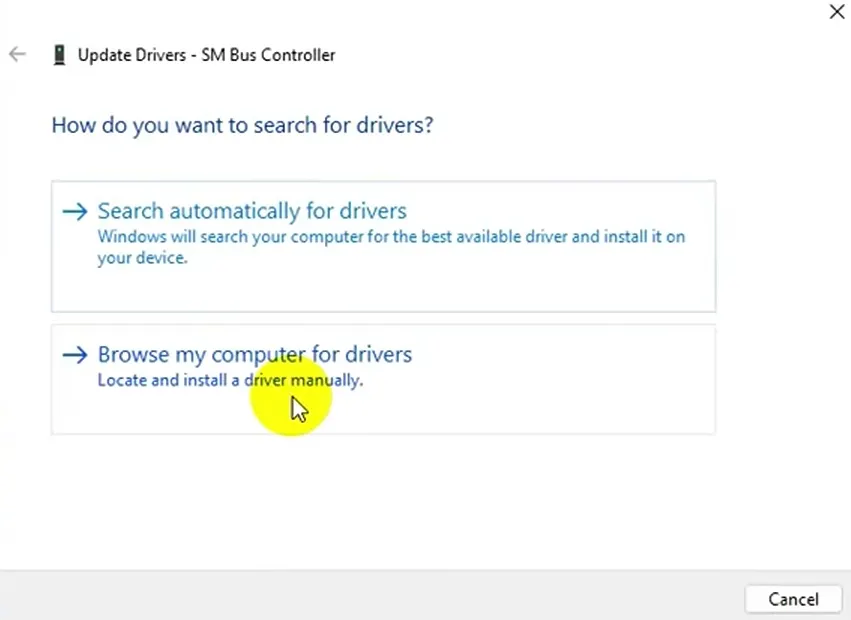
2. In the Device Manager window, right-click on the SMBus controller and choose Update Driver.
3. Next, choose the “Browse My Computer For Drivers” option.
4. Click on the “Let me pick from a list of drivers…” option.
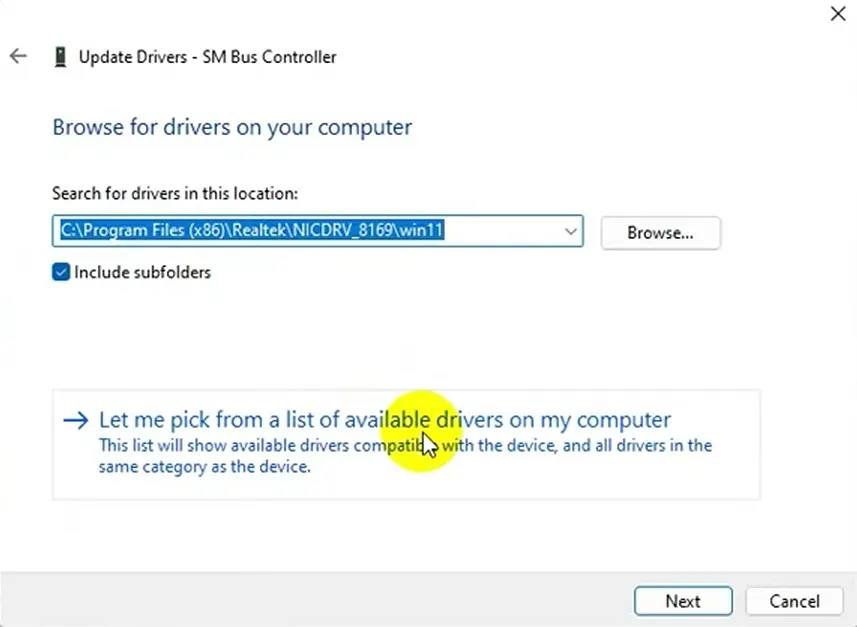
5. Scroll down to locate System Devices, select it, and click on the Next button.
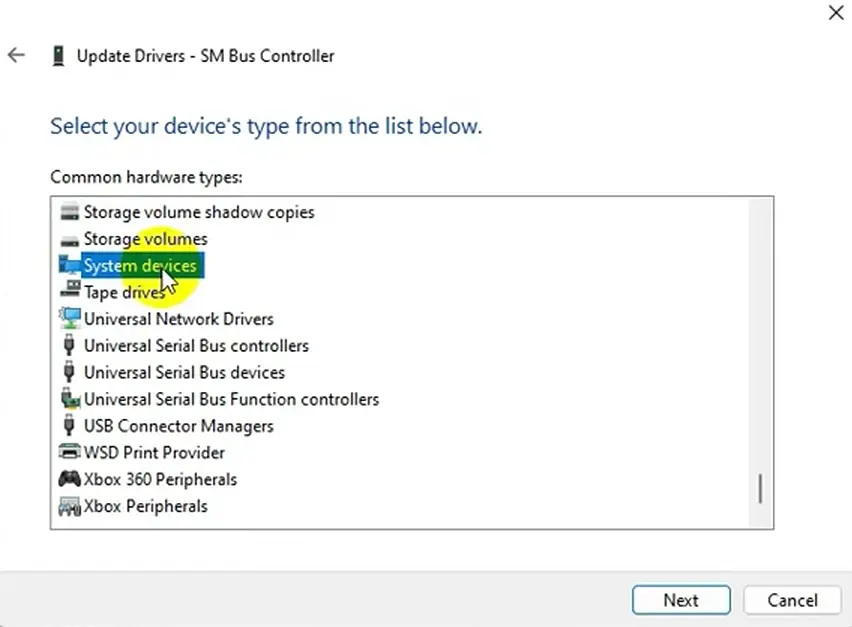
6. In the next window, choose Intel under Manufacturer in the left panel.
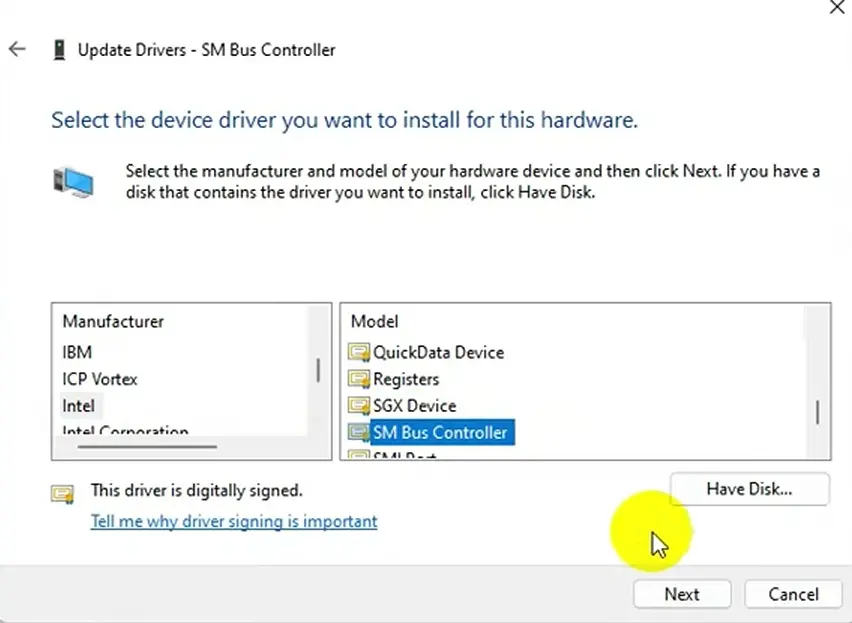
7. In the right pane, select SM Bus Controller and Model and click on Next.
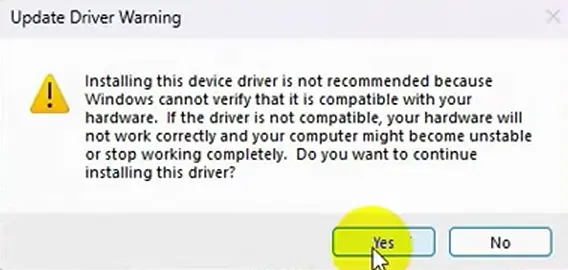
8. Click on Yes in the final prompt box and exit all windows.
9. Restart the PC, and your issue will be resolved.
How to Fix Issues with the SM Bus Controller Driver on Windows PC ?
If you face issues after downloading and updating the SMBus controller drivers, then we have listed below quick troubleshooting fixes that will resolve the issue in no time.
Method 1: Uninstall SMBus Controller
If updating the driver doesn’t work for you, try uninstalling the driver. To do so, follow these steps:
1. Right-click Start menu > select Device Manager.
2. Go to Other devices > right-click SM Bus Controller > Uninstall device > Uninstall.
3. Reboot the PC.
Method 2: Roll Back Driver
Sometimes even after updating the driver, you might face an issue due to a bug. To fix it, let us try reverting the driver to the stage when it used to work perfectly.
1. Launch Device Manager > Other devices.
2. Right-click SM Bus Controller > Properties.
3. Click the Drivers tab > Roll Back Driver.
If the option is greyed out, you are using an outdated driver. Try updating it if not updated. Alternatively, you can try performing Clean Boot.
Method 3: Perform a Clean Boot
A third-party app will likely create a problem if none of the above solutions have worked. Therefore, we suggest performing a Clean Boot. To do so, follow these steps:
1. Press Windows + R to open the Run window.
2. Type Msconfig > press Enter key.
3. Click General tab > Selective Startup > check mark all three options Load system services, Load startup items, and Use original boot configuration.
4. Click the Services tab > checkmark the box next to Hide All Microsoft Services > Disable all.
5. Click Apply > Ok > restart PC and see if this helps.
Conclusion:
You can easily update the driver on your Windows machine using these steps. The manual method is time-consuming and requires patience, but the automatic method is easy, quick, and effective.
Moreover, Advanced Driver Updater comes with a 60- day money-back guarantee and doesn’t involve the risk of downloading incorrect drivers.
Also, it comes with an exclusion list and an option to schedule driver scanning. All this helps automate the process and keep drivers updated without recalling that a driver update is required.
If you face any problems using the product can contact support by sending an email to support@systweak.com. The trained technical team will help resolve all the queries.
We hope you find the information helpful and can update the sm bus controller driver on your Windows. Do share your feedback with us in the comments section.





I like every post in this blog. Really a nice work has done. I appreciate the blog owner