 Advanced Disk Recovery

 Getting Started
Systweak Photos Recovery / Getting Started / User Interface - Photos Recovery / Getting Familiar with Buttons
Getting Familiar with Buttons
The top bar of the user interface (trial version) contains 4 icons:

The top bar of the user interface (registered version) contains 4 icons:

Home - clicking it returns you to the Home screen.

Scanning - if a scan is performed clicking it will show scan results.

About - displays product information like - Current Version, Status (Registered or not), Support Email address, Website URL, EULA, Privacy Policy, and more.

However, if you are using the trial version instead of the information icon  you see a key icon
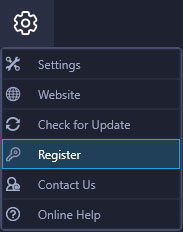
Settings - Clicking the Settings  gives you various options : Settings , Website, Check for Update, Register and Contact Us. Clicking each opens a new window to perform designated actions.

Getting Familiar with Settings Options
A brief explanation of options you will see when clicking Settings  are as follows:
|
Settings |
To configure general, filter options, scanning method and scan options, click Settings option. |
|
Website |
Click Website to redirect to the official website. |
|
Check for Update |
Click this option to check for product updates (available if any) |
|
Register |
Click Register to activate Photos Recovery using the key you purchased. |
|
Contact Us |
By clicking Contact Us, you can submit your query to the technical team for assistance. |



Getting familiar with other buttons
|
|
Clicking START SCAN will begin the scanning process. |
|
|
To view scan results sorted by Name, Date and Size, click List View. |
|
|
Click this button to get a Tree View scan performed. Note: Tree View can only be seen when the scan is completed. |
|
|
Using this bar you can search for the lost picture from the scan results. |
|
|
Get the metadata information about the deleted photos under this tab. |
|
|
Under this tab see you a preview of deleted pictures detected by Photos Recovery. |
|
|
Click this button to recover selected deleted images. |
|
|
Click this button to run Photos Recovery on default settings. |
|
|
Click this button to Apply and save the changes made to Photos Recovery, settings. |


