 Photos Recovery


Systweak Photos Recovery / How to Use Photos Recovery / Previewing Scan Results
Previewing Scan Results
Photos Recovery shows the preview of the lost or deleted images, audio, or video files in either List View or Tree View.
From the top bar, select the view in which you would want to see the scanning results i.e., List View or Tree View.
If you select List View you will see scan results displayed with three columns:

- Name
- Date
- Size
Right-pane will show a preview of the images, audio, or video files and below it, you can see the File Metadata.

However, if you select Tree View the screen will be divided into three sections.
The Left pane will show a hierarchical structure of the folder.

The upper half shows a preview of the selected images, audio, or video files.

Clicking View Details next to the images, audio, or video files, shows file Metadata.

The pane below Preview shows the Name, Date, and Size of the scanned deleted images, audio, or video files.
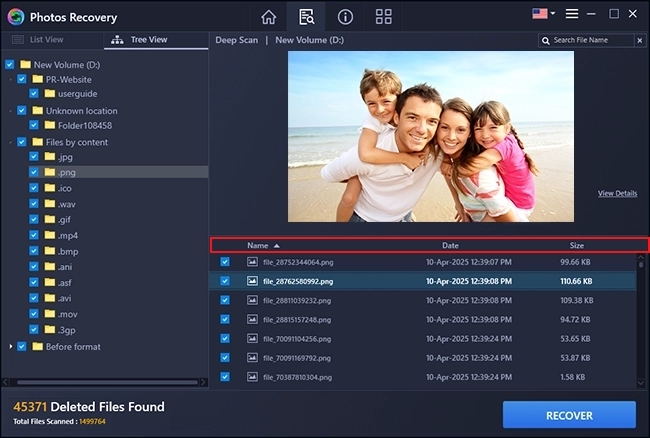
To preview a file:
Once the scanning is done, to see a preview of scanned images, audio, or video files select the images, audio, or video files from the bottom list (if Tree View) as shown below:

However, in the list view you can preview the selected images, audio, or video files in the right pane.

If your desired file/folder is not listed in Quick scan results, we recommend running the Deep Scan option.
Photos Recovery does not show a preview of deleted images, audio, or video files.
There may be multiple reasons why a preview of a file may not be available. Possible reasons for failed preview are listed below:
1. File Format Preview is Not Supported
Photos Recovery can show previews of most image, audio and video file formats. However, if detected images, audio, or video files are corrupt or overwritten the application will display a 'No Preview Available' image.


2. Selected File is Corrupt or Damaged
If the file for which you want to see the preview is either corrupt or damaged, then the application will display the 'No Preview Available' image.
3. Header Information is not Available
When there is corruption in the header information of a file, it makes the file unreadable; hence preview of such files is not available in the application.
4. File Size is Too Big for Preview
If the size of a photo is too big, in such cases, a preview of those files is not available as they are too large to load.
For audio and video files, you will not be able to preview audio and video files that are more than 500 MB in size.
For photos, the limit for preview is 50 MB, i.e., you will be unable to see previews of photos that are more than 50 MB in size.
NOTE: Recovery of deleted photos, audio, or video files is still possible even if their preview is not available. It is recommended to recover the deleted photos, audio, or video files and then try to view them.