
There’s nothing more frustrating than gearing up for Halo: Campaign Evolved that’s been out for almost a week now to find out it won’t launch and when it does it crashes. You click Play nothing happens and you are staring at the login screen with some codes on it. These issues are surely a deal breaker but this doesn’t mean they can’t be fixed or something is wrong with your PC. They can be fixed by correcting the settings, updating drivers, fixing network issues and following a few other solutions enlisted in this guide.
Before you start applying the fixes, confirm that your PC meets system requirements
System Requirements for Playing Halo: Campaign Evolved
Most of the time the game crash is not caused by a bug, it is the hardware mismatch. Rather than giving a single minimum spec Halo support has published four tiers for Windows users.
Windows 10 22H2 64-bit or Windows 11
100GB of SSD storage
1. Low: When you are okay running the game at (1080p/60 FPS) your system should have these hardware:
- AMD Ryzen 5 3600 or Intel Core i7-10700K
- RTX 2060 Super / RX 6600 / Arc A580
- 8GB VRAM
- 16GB RAM
2. Medium: For running the game at 1440p/60 FPS you need:
- AMD Ryzen 7 5700X or Intel Core i5-12600K
- RTX 3070 / RX 7600 XT
- 8GB VRAM
- 16GB RAM
3. High: Recommended settings for the 4K gameplay at 60 FPS you need:
- AMD Ryzen 7 7700 or Intel Core i7-12700K
- RTX 3080 Ti / RX 9070
- 12GB VRAM
- 32GB RAM
4. Ultra (4K/60 FPS)
- AMD Ryzen 9 7900X or Intel Core i9-13900K
- RTX 4080
- 16GB VRAM
- 32GB RAM
How to Check Your System Specification?
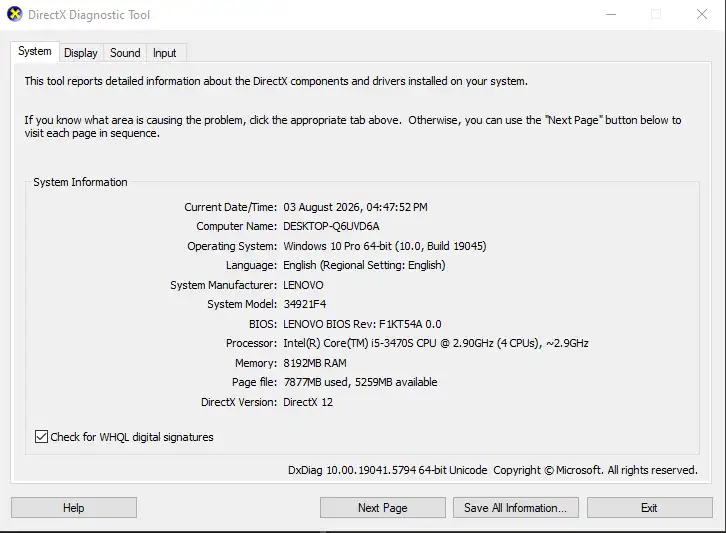
1. Press Windows key and in the search bar type dxdiag and press the Enter key.
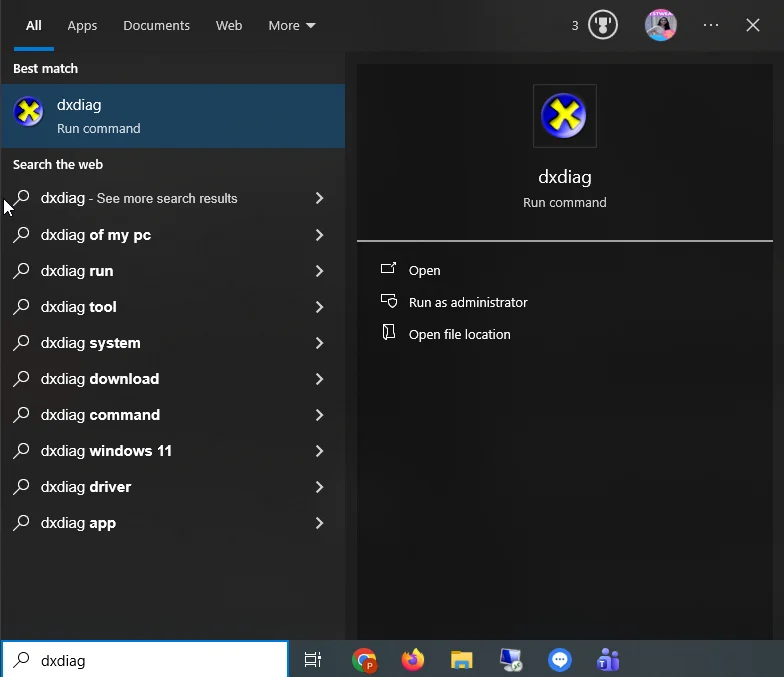
2. Under System tab check for CPU and installed RAM.
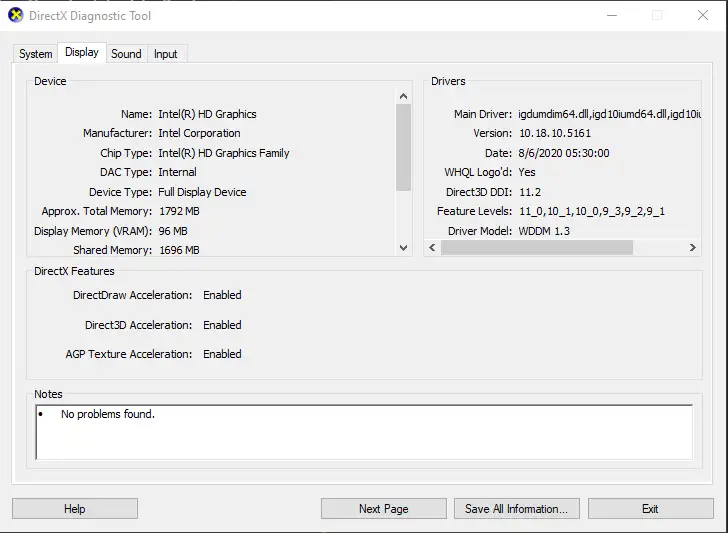
3. Click Next Page to see the GPU name and current driver version under Display.
Reasons for Halo Keeps Crashing, Is Stuck At Sign-In and Doesn’t Launch
When Halo instead of crashing after the game load, is stuck at sign-in you see phonetic alphabets each having a different cause. Here we explain them and other error messages in detail:
- ALPHA or “Login To Steam Required”: Steam is not running, or the signed in account is incorrect.
- BRAVO: You are signed into incorrect Playstation Network accounts and trying to launch the game.
- CHARLIE, DELTA, ECHO: There is an issue with the network connection and it cannot reach Halo’s servers.
- FOXTROT: Your player profile is not correctly set up.
- GOLF, HOTEL: There is a service issue with Halo on the backend.
- INDIA, MIKE: Your account does not have all the required permissions. Check the status at enforcement.xbox.com.
- JULIETT: Your Steam or PSN account linked to a different Microsoft account.
- KILO: The player profile is linked with a different platform account then in use. It is the reverse of JULIETT.
- “Account is signed in elsewhere” the game is already running on another device with the same account you are logged into.
- “Failed due to timeout” account-linking session has expired.
- “Cross-play Status Conflict” cross-platform play is disabled.
Tested Solutions to Fix Halo Campaign Evolved Not Working or Crashing
Now that you know about different error codes and what causes them let’s learn how to fix them and get Halo Campaign Evolved working on PC
Fix 1: Verify Game Files
This step helps detect corrupted or incomplete files without a full reinstall. To do so, follow these steps:
On Steam:
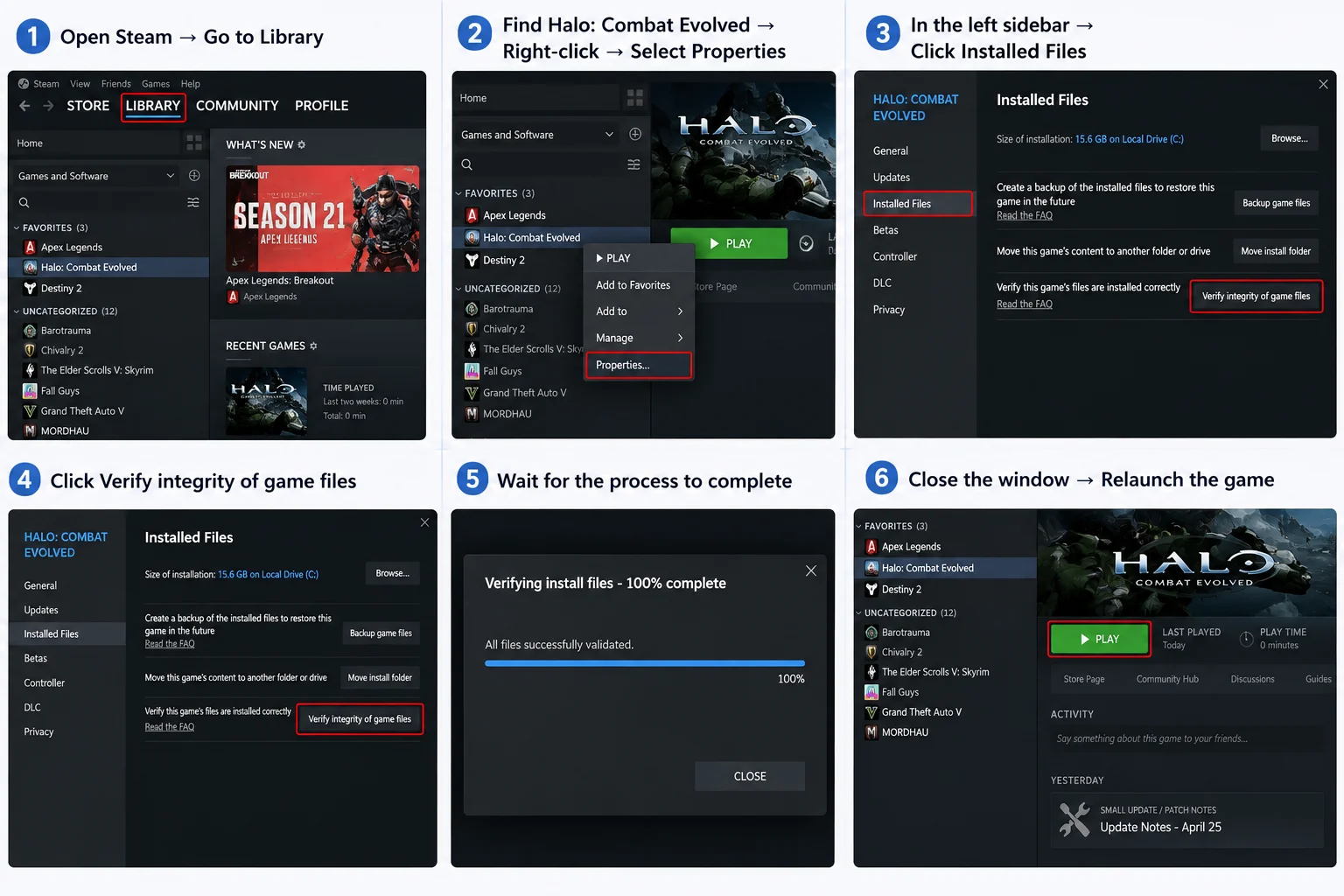
1. Open Steam > Library.
2. Right-click Halo: Campaign Evolved in your library > select Properties.
3. Click Installed Files in the left sidebar.
4. Click Verify integrity of game files.
Wait for the process to finish and re-launch the game.
On the Xbox app:
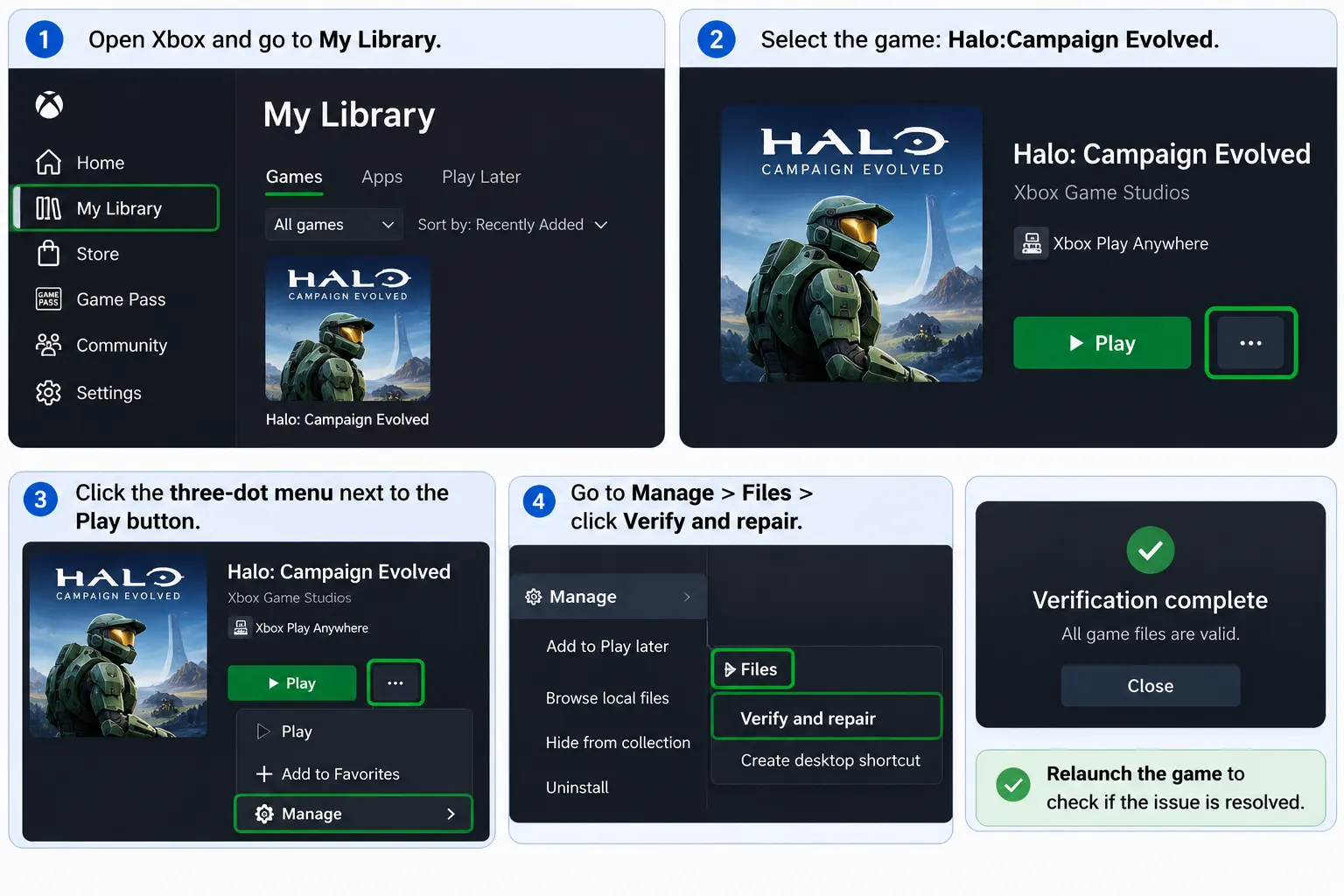
1. Open Xbox and go to My Library.
2. Select the game: Halo:Campaign Evolved.
3. Click the three-dot menu next to the Play button.
4. Go to Manage > Files > click Verify and repair.
Fix 2: Launch the Game Correctly
When you launch the game by clicking HaloCampaignEvolved.exe directly from the Steam installation folder you face sign-in failure, performance issues and the game freezes as it doesn’t connect to Steam. To fix it follow these steps:
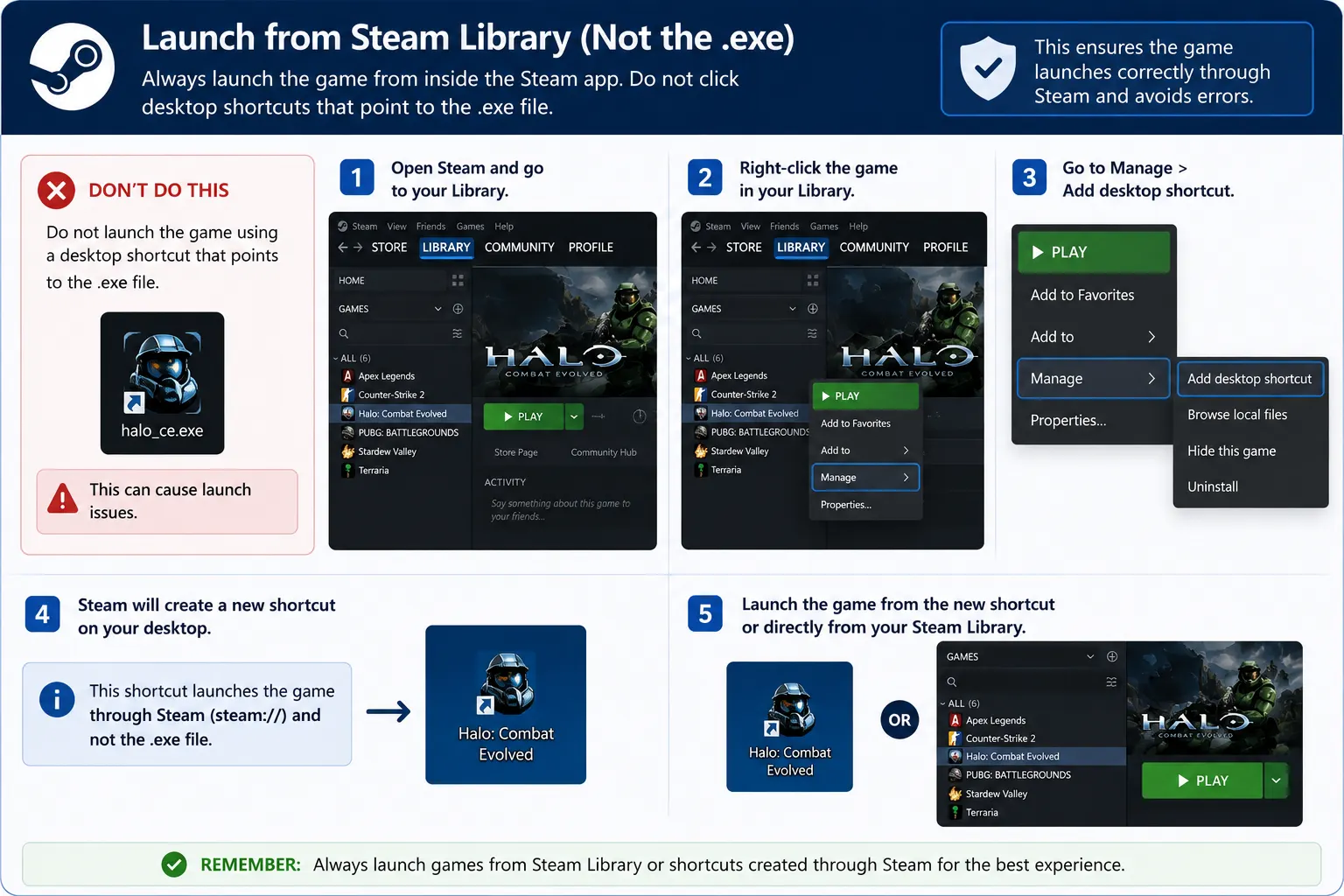
1. Launch from the Steam library inside the Steam app not the .exe.
2. Do not click the desktop shortcut that points at the .exe.
3. Create a new shortcut from inside Steam – right-click the game in your library, Manage > Add desktop shortcut.
Fix 3: Update Driver
Ensure you are running recommended drivers as a generic driver update can cause issues. If you have NVIDIA the driver should be 610.88, AMD 26.6.1, and Intel 32.0.101.8861.
To install recommended driver update follow these steps:
NVIDIA
1. Visit nvidia.com/en-us/drivers and look for your GPU model. You can also use the NVIDIA app if you have it.
2. Download and install driver version 610.88
3. Once installed, clear shader cache. Open the NVIDIA app> go to Settings > General, and select Clear Cache.
Alternatively, press Windows + R > copy and paste %LOCALAPPDATA%\NVIDIA\DXCache clear the data again copy and paste %LOCALAPPDATA%\NVIDIA\GLCache in the Run window and clear all the folders.
4. Restart your PC and relaunch the game.
AMD – Recommended driver 26.6.1:
1. Visit amd.com/en/support/download/drivers.html and select your GPU.
2. Install driver version 26.6.1
If you are running the later version you will have to roll back to 26.6.1 as it will help fix the issue.
Intel – Recommended driver 32.0.101.8861:
1. Visit intel.com and search Downloads for Intel Arc Graphics Windows driver.
2. Install version 32.0.101.8861
To check the exact GPU and driver version again open dxdiag. Press Windows key and type dxdiag in the search bar. Go to the Display tab and check the details.
In addition to this to keep your drivers updated you can use a driver updating utility called Advanced Driver Updater.

Fix 4: Update BIOS
If you have Intel 13th or 14th generation CPU update BIOS to fix crash before the splash screen:
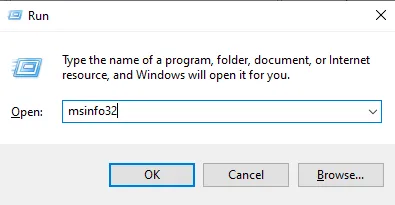
1. Press Windows key + R, type msinfo32, and press Enter.
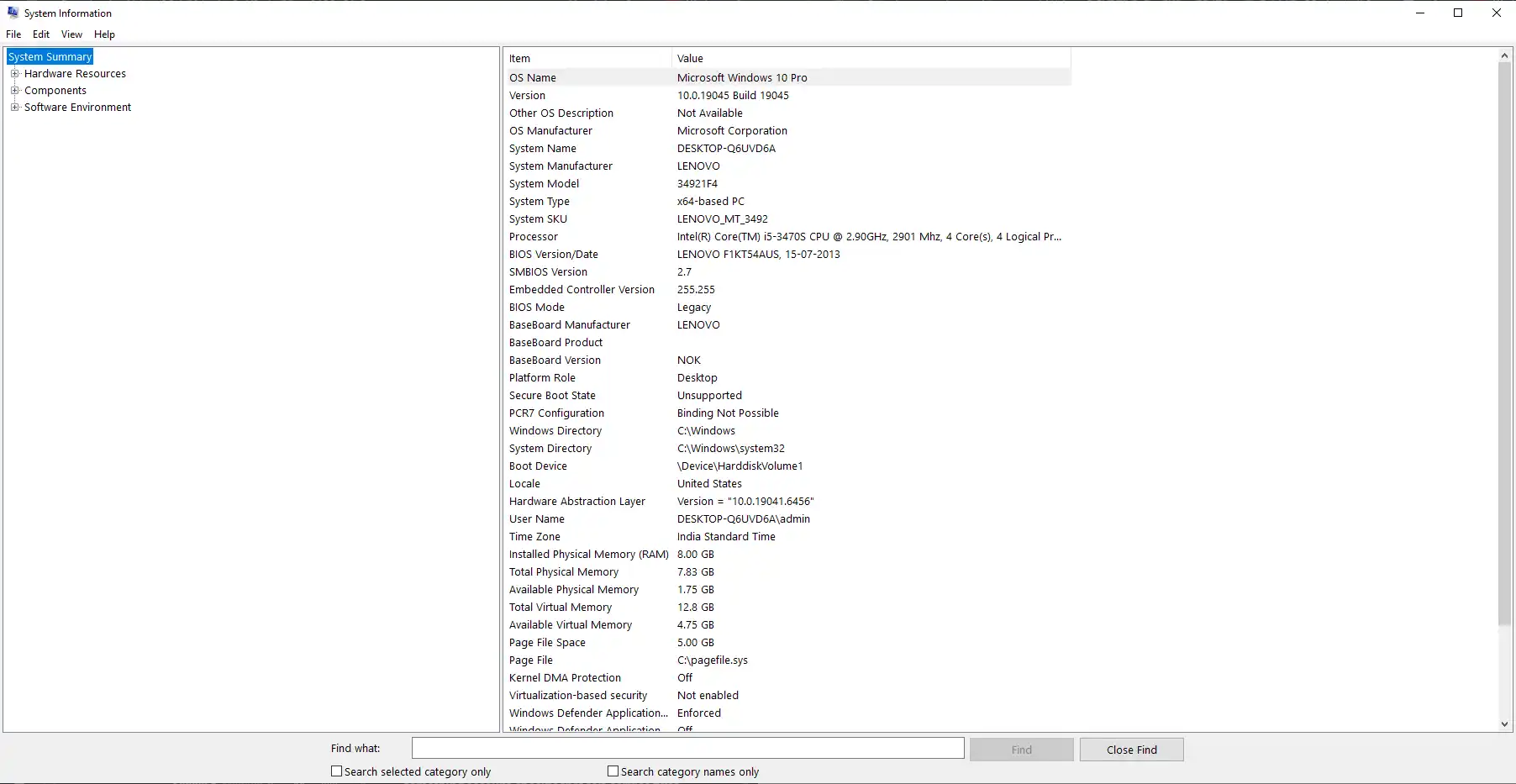
2. Here, on the System Summary page look for current BIOS Version/Date and your motherboard model. Note it down.
3. Visit motherboard manufacturer’s site (ASUS, MSI, Gigabyte, ASRock, or your prebuilt PC’s manufacturer.) Look for the exact model number, and download the latest BIOS.
4.Follow manufacturer’s specific BIOS update tool and instructions.
Fix 5: Disable VSynch – AMD GPU crash
When on an AMD GPU your in-game frame rate is set below a quarter of your monitor’s refresh rate, you can face a crash. To fix it follow these steps:
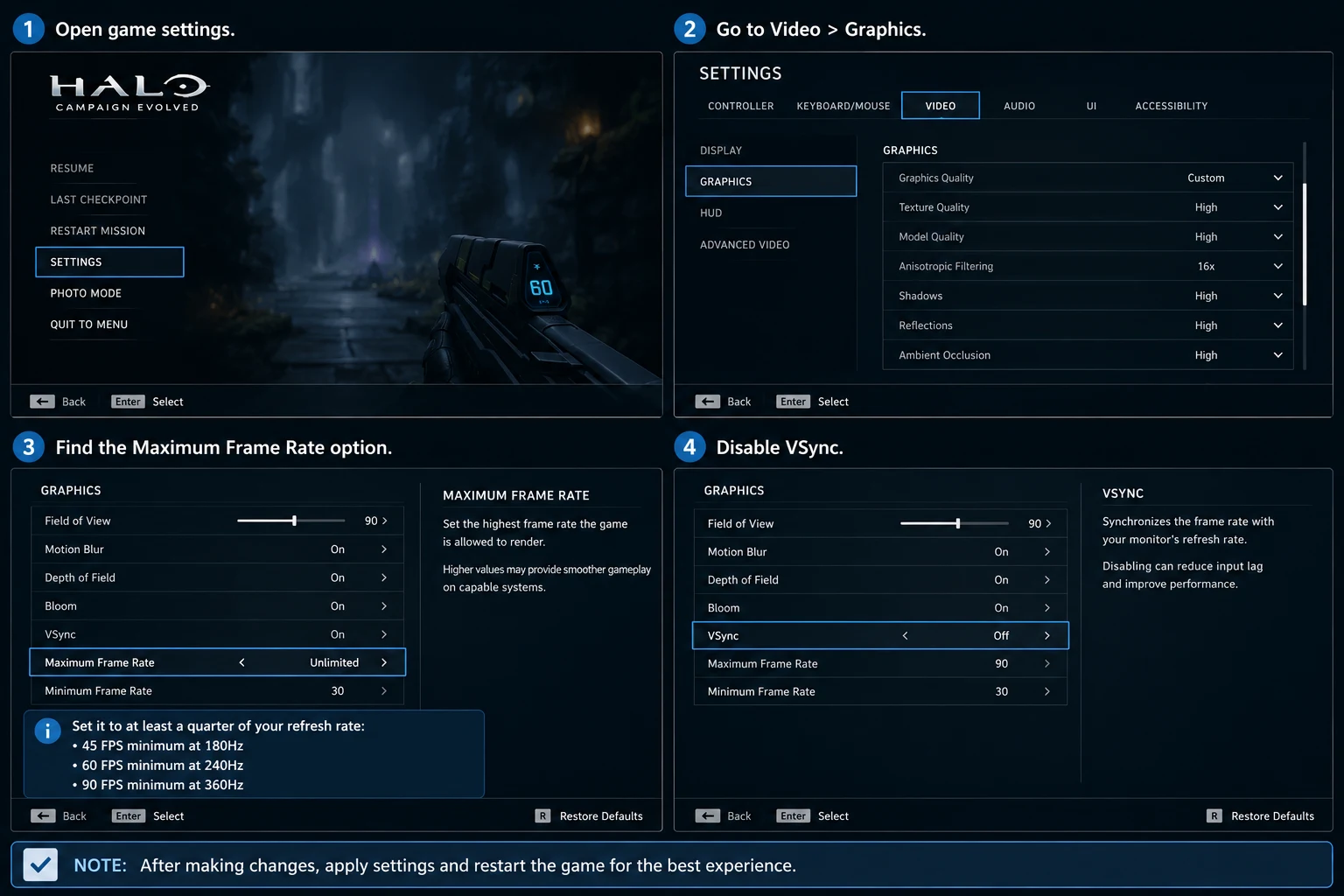
1. Open game settings. Go to Video > Graphics
2. Find the Maximum Frame Rate option
3. Set it to at least a quarter of your refresh rate: 45 FPS minimum at 180Hz, 60 FPS minimum at 240Hz, 90 FPS minimum at 360Hz
4. Disable VSync
Fix 6: Disable Overlays and Background Software
Disable Steam Overlay, Discord’s overlay, MSI Afterburner, RivaTuner Statistics Server, and RGB lighting as they are responsible for the crash.
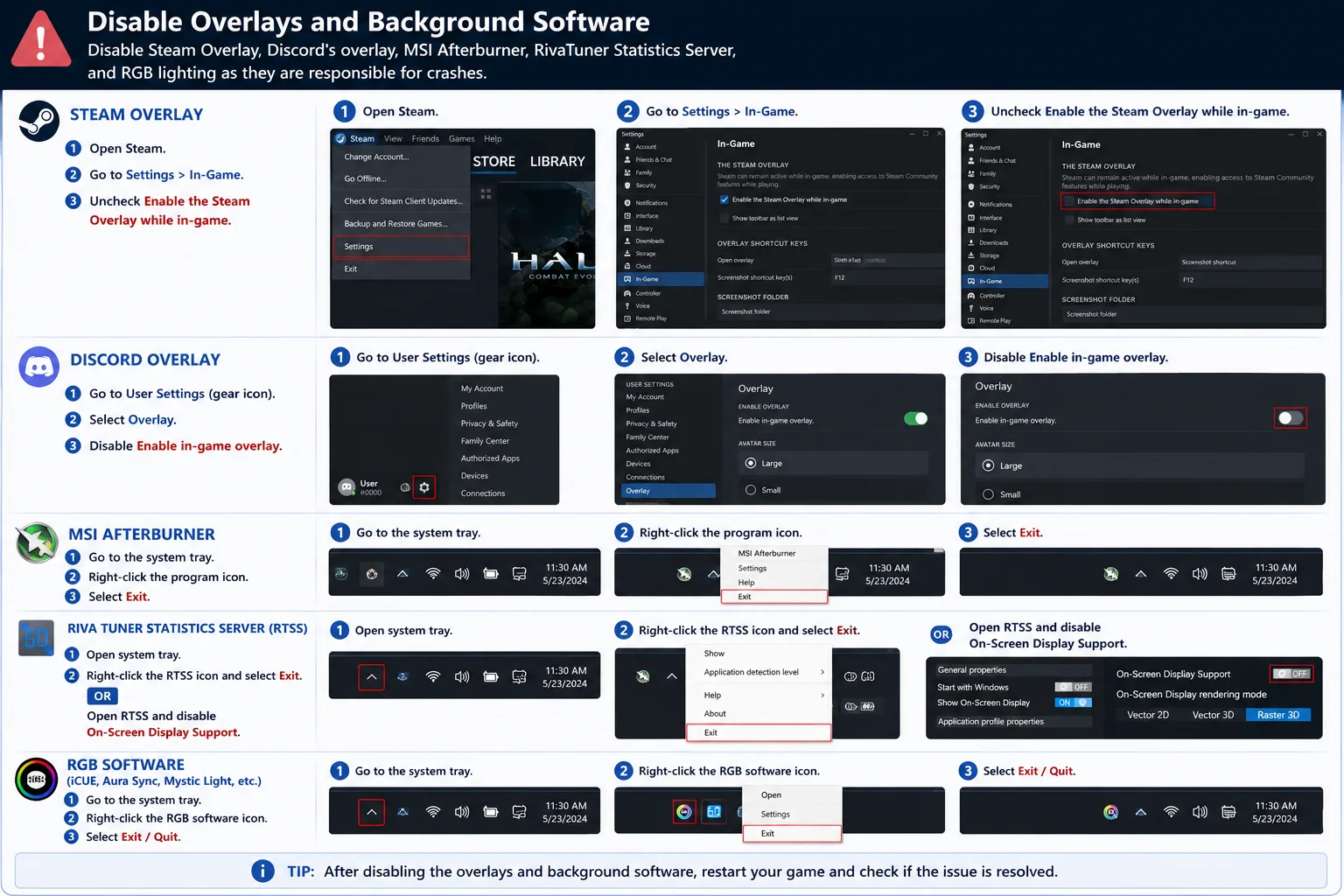
Steam Overlay:
1. Open Steam go to its Settings > In-Game.
2. Uncheck Enable the Steam Overlay while in-game
How to Fix Steam Overlay Not Working
Discord Overlay:
1. Go to User Settings (gear icon) > Overlay, and disable Enable in-game overlay.
MSI Afterburner:
1. Go to the system tray.
2. Right-click the program icon and select Exit
RivaTuner Statistics Server (RTSS):
1. Open system tray.
2. Right-click the RTSS icon and select Exit,
3. Alternatively, open RTSS and disable On-Screen Display Support.
RGB software (iCUE, Aura Sync, Mystic Light, etc.):
1. Close the application from the system tray.
Fix 7: Repair Visual C++ and DirectX
If there is no error message and the game crashes before you can even see a menu, it can be due to damaged Visual C++ Redistributables or DirectX components. Repair them to fix the issue:
Visual C++ Redistributables:
1. Press Windows + I to go to Windows Settings > Apps > Installed apps on Windows 11 (or Apps & features on Windows 10).
2. Search for Microsoft Visual C++.
3. Uninstall all listed versions.
4. Download and reinstall the latest x64 and x86 packages from Microsoft’s official Visual C++ Redistributable page
5. Restart your PC
DirectX:
1. Press Windows key + R, type dxdiag, and open it.
2. Under System tab check the DirectX version it should read DirectX 12.
3. If it is older, run Windows Update to get the latest version.
[FIXED] DirectX 12 Is Not Supported on Your System
Fix 8: Check the Download
Some players when Steam is still unpacking encrypted files in the background think the preload was completed which causes issues. To ensure the game is completely downloaded, check downloads.
1. Open Steam, go to Downloads, and confirm the queue is empty.
2. If it is but the game won’t start, pause and resume the download forcing Steam to double-check the install.
Important : If you are playing Two Betrayals mission: destroying the Banshee immediately after the first generator will not let the game move ahead. To prevent this from happening, leave the Banshee alone until the objective changes.
How to fix Halo Campaign Evolved is Running but is Stuttering or Dropping Frames?
When the game is launching fine but the performance is not as expected before uninstalling try making following changes in the settings > Video in-game:
1. Go to Graphics, and set Upscaling to DLSS, FSR, or XeSS.
2. Set the quality level to Balanced or Quality.
3. Lower Global Illumination and Shadow Quality from Ultra to Medium
4. Remove the cap from XeSS Frame Generation or switch to FSR or DLSS Frame Generation.
5. Open your GPU control panel (NVIDIA Control Panel or AMD Software). Go to the Power Management or Graphics settings, and set Prefer Maximum Performance.
6. These fixes will help get the game running smoothly.
Frequently Asked Questions
Is Halo Campaign Evolved still not working?
After following all the fixes explained above like verifying game files, updating driver, repairing Visual C++ and other if the game is still not working check official Halo Support and Xbox Support accounts for the server status. If there is a server issue nothing will help. However if everything is correct and you try all the steps but no luck contact Halo Support ticket.