
You tried pressing Shift+Tab and Alt+Tab, but nothing happened. The friends list, browser, or chat you want Steam to overlay isn’t opening, and there’s no error message to explain why. Now what?
Steam overlay not working is a common issue faced by Steam users, and there is no single reason for it. Sometimes it is because the settings were changed. At other times, it is a hotkey conflict with Discord or other overlays running in the background. Sometimes it’s a driver, a permissions mismatch, or a game running in a display mode.
The fixes below will explain how you can handle these issues without reinstalling Steam and get it working again.
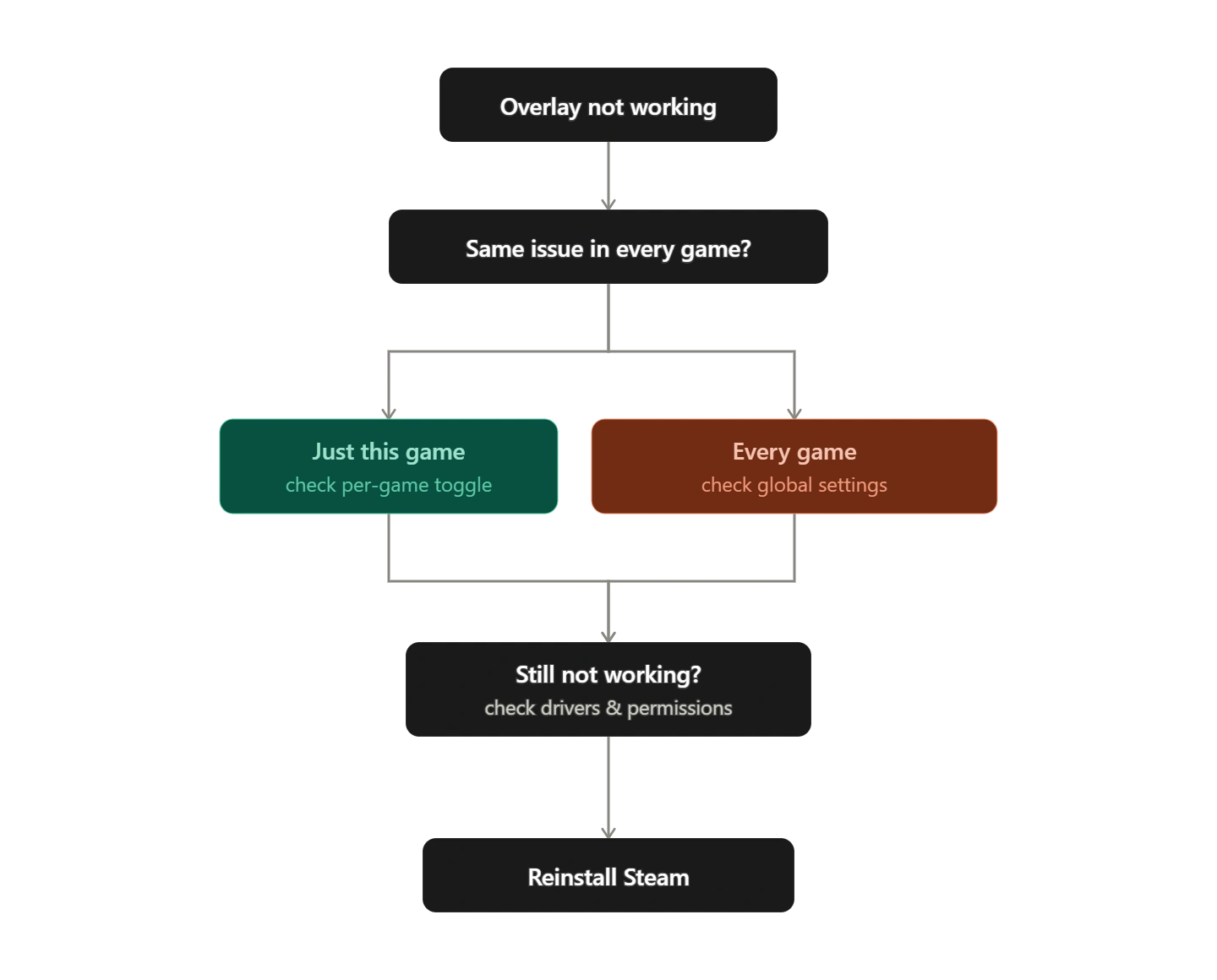
What causes the Steam overlay not to work on Windows 11,10 and older versions?
- Disabled overlay for single or all games.
- Shift + Tab hotkey conflict caused by other apps like Discord, GeForce Experience, MSI Afterburner, and Razer Synapse.
- Game display mode is blocking full screen.
- Outdated GPU driver.
- Both Steam and GameOveralyUI.exe do not have the same permissions.
- Corrupt game files.
- Outdated Steam client.
- Old overlay cache data.
These causes have nothing to do with one another. This is why a fix that might have worked for your friend when facing the Shift+Tab issue may not work for you. Hence, you will need to apply each fix in the order given until you find the one that works for you.
Fixes for Steam In-Game Overlay Not Working
Solution 1: Enable Steam Overlay while in-game
1. Open Steam.
2. Click Steam in the top menu > go to Settings.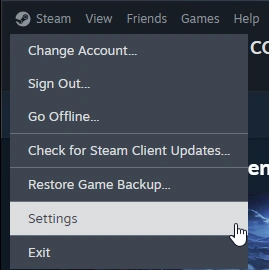
3. Click the In-Game option present in the left pane.
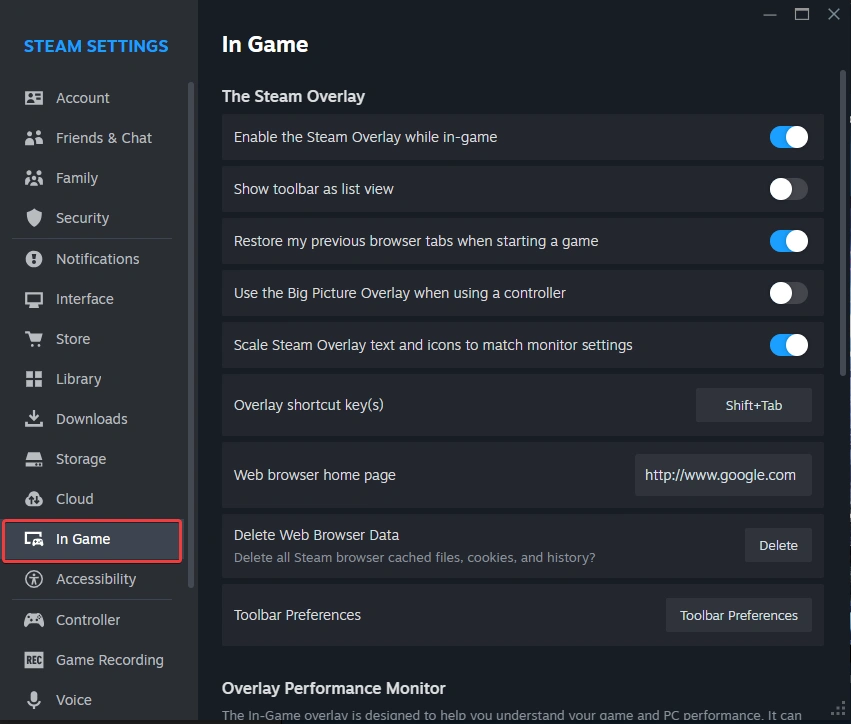
4. Check if the Steam Overlay while in-game is enabled or not. If disabled, enable it. However, if it is enabled, disable it and click OK.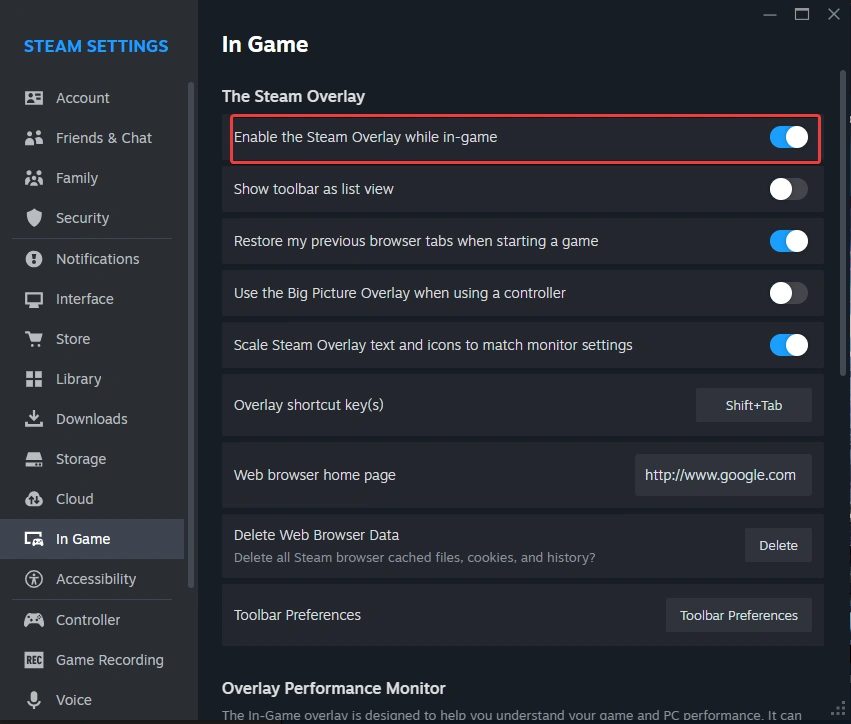
5. Again, go to settings and enable it.
This will refresh the setting and might solve the issue.
Solution 2: Enable overlay for each game
1. Go to your game Library in Steam.
2. Right-click the game where the overlay is not working.
3. Select Properties > under General, look for “Steam Overlay while in-game”,
4. Enable it and also check the overlay settings for other games. If it is not working even for a single game, it is most certainly what is preventing the Steam overlay from working.
Enabling the setting in the individual game is mandatory, as it won’t work if it is only enabled in Steam settings.
Solution 3: Fix Hotkey Conflicts
Even after enabling overlay in Steam settings and individual games, if Shift+Tab is not working, it seems another program is using the same hotkey combination. To fix it, follow these steps:
1. Open Steam.
2. Go to Settings.
3. Click In-Game from the left panel and check what is set as Overlay Shortcut Key(s).
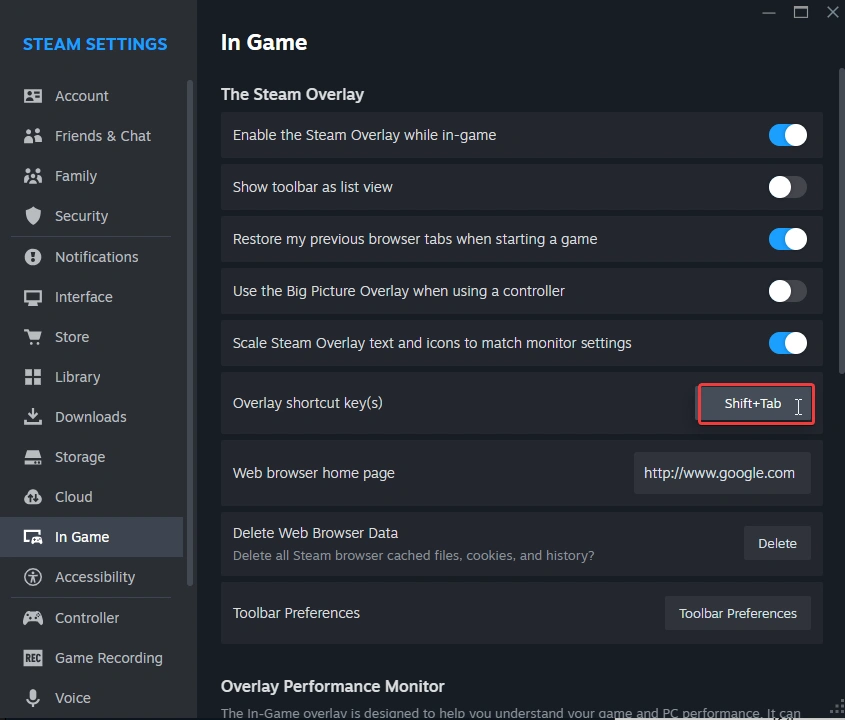
4. If no one has changed it, it will be Shift+Tab.
5. Now check if applications like Discord, NVIDIA GeForce, MSI Afterburner/RivaTuner Statistics Server, or Razer Synapse are running in the background. If so, they can be the reason because they also use the same hotkey.
6. To rule out the cause, close each of these applications one at a time in Task Manager (Ctrl+Shift+Esc).
7. Now relaunch after closing each one to see if the overlay is working.
8. If it does, you know which app is causing the conflict. You can either keep the app closed or set a new unused hotkey.
9. To do so, click the hotkey. This will open a new window.
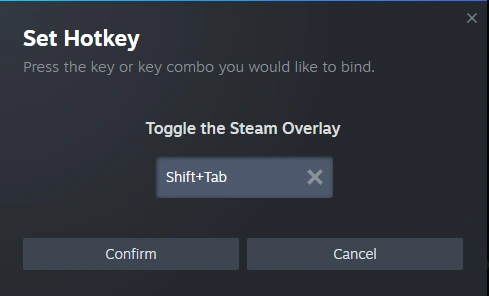
10. Here, press the new key (e.g., Alt+O) or any key you want, then click Confirm.
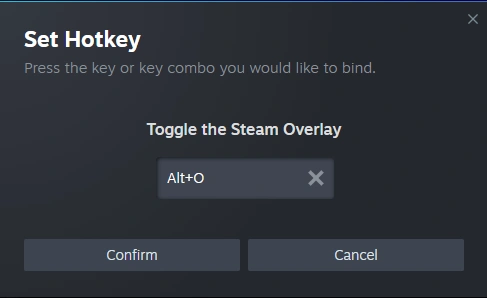
This way, both apps can run simultaneously.
Solution 4: Switch from Fullscreen to Borderless Windowed
If the overlay stops working when running the game in exclusive full-screen, switch to windowed mode. It is more reliable and compatible with overlay. To test if it works, follow these steps:
1. Go to the game’s display or video settings. Launch the game and go to its in-game Settings or Options menu.
2. Look for Display, Video, or Graphics settings.
3. Now find Display Mode. The name may vary depending on the game to “Fullscreen,” “Windowed,” “Borderless Windowed,” or “Windowed Fullscreen.”
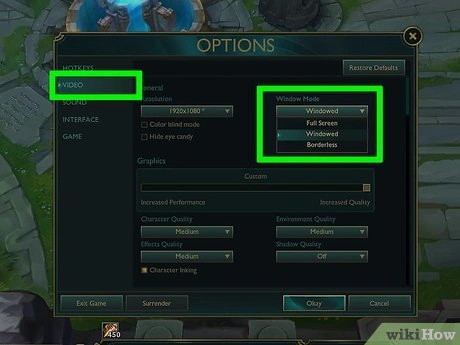
4. Switch from Fullscreen to Borderless Windowed / Windowed Fullscreen
5. Apply the changes, try Shift + Tab, and test the overlay shortcut.
If the game has no in-game option, check the Windows settings:
1. Right-click the game’s shortcut or its .exe.
2. Go to Properties > Compatibility.
3. Check Disable fullscreen optimization.
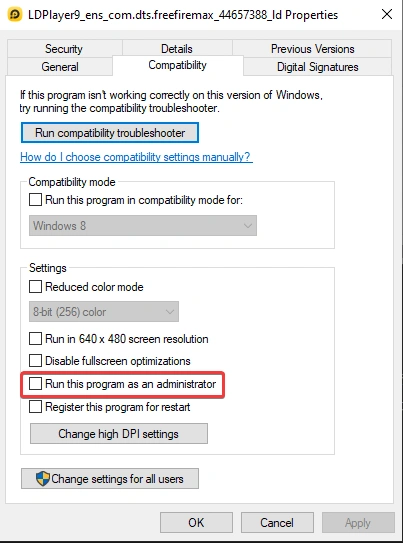
4. Click Apply and relaunch the game to see if the shortcut works.
Solution 5: Update Outdated GPU Driver
An outdated driver can be updated through Windows Update, from the manufacturer’s website, or with a driver-updating tool like Advanced Driver Updater.
If you are manually updating, you first need to get the details for your GPU.
1. Right-click the Windows icon > select Device Manager.
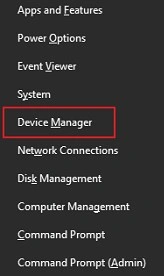
2. Double-click Display adapters.
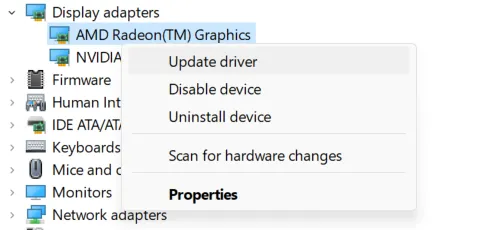
Here you will see the GPU model details that you will need to update via the manufacturer’s website.
Method 1: Windows Update
This free way to update drivers often fails to give the latest update.
1. Press Windows + I to open Windows Settings.
2. Go to Windows Update > click Advanced options > Optional updates (sometimes driver updates appear here from regular updates)

3. Select the driver to install and click Download and install. Restart the PC.
Method 2: Manufacturer Website
This is also a free method, but here the risk is greater as you need to select the right GPU model and Windows version.
1. Visit the manufacturer’s website for the GPU installed, such as NVIDIA, AMD, or Intel.
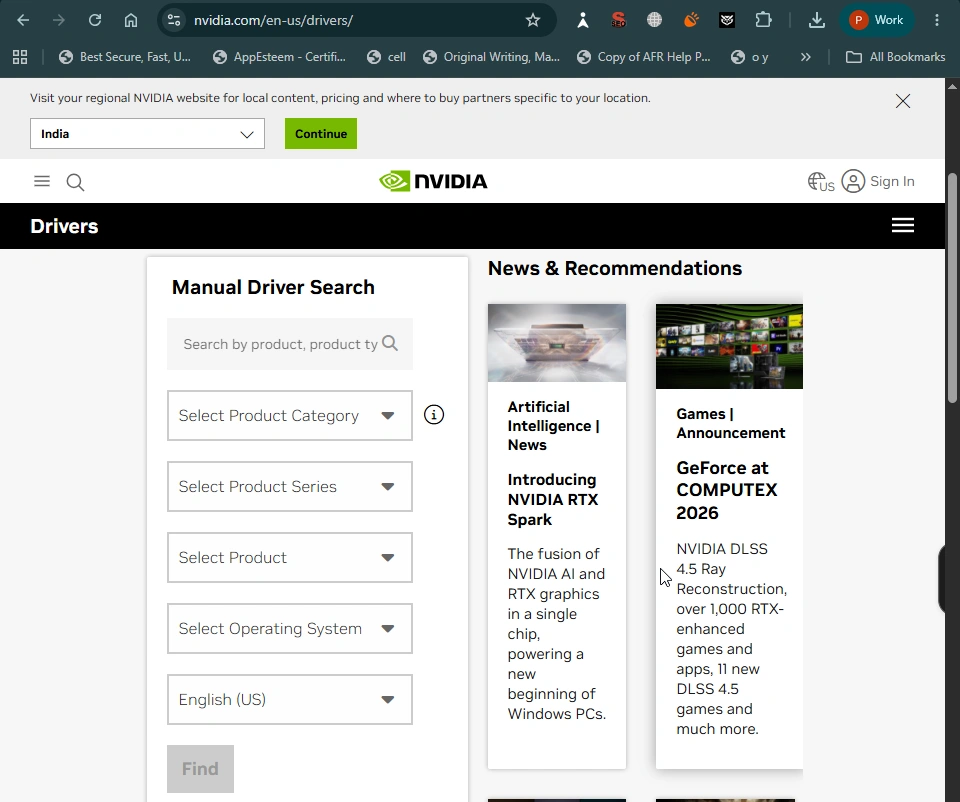
2. Select the exact GPU model and the Windows version. If there is an auto-detect tool, use it.
3. Download the setup file and install the driver update.
4. Restart the PC and test the overlay.
Method 3: Driver Updating Tool
1. Download and install Advanced Driver Updater.

2. Launch the tool and click Start Scan Now.
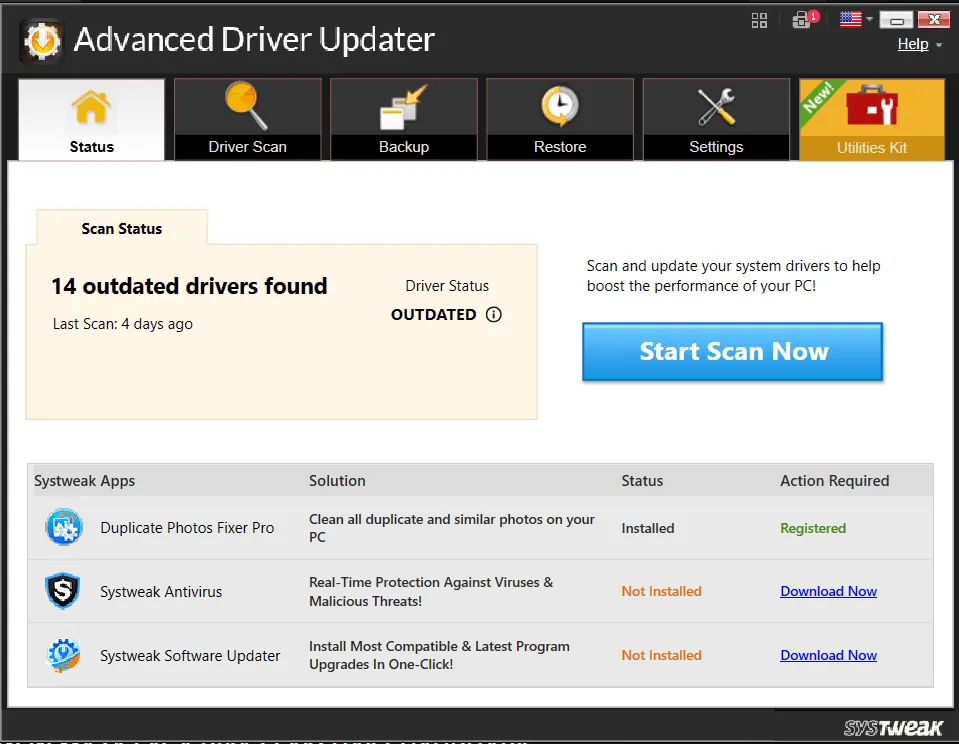
3. Wait for the scan to finish, and review the detected outdated drivers.
4. If you are using the free version, click Update next to the driver causing the issue. However, with the paid version, you can update all outdated drivers at once.
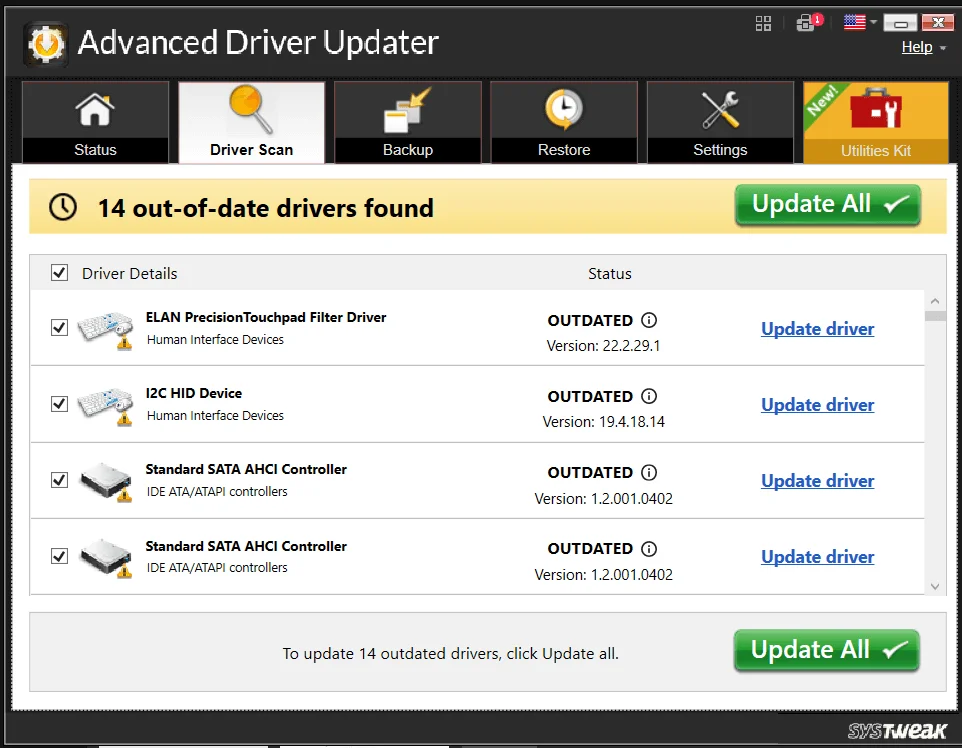
5. Restart the PC to save changes and test the overlay.
Solution 6: Check Admin Permissions
Steam.exe and GameOverlayUI.exe are two files responsible for the overlay function. If either of them lacks administrator privileges, you will encounter an issue.
1. Completely close Steam, even from the system tray.
2. Press Windows + E to open File Explorer.
3. Go to the Steam folder (usually C:\Program Files (x86)\Steam).
4. Right-click Steam.exe, select Properties.
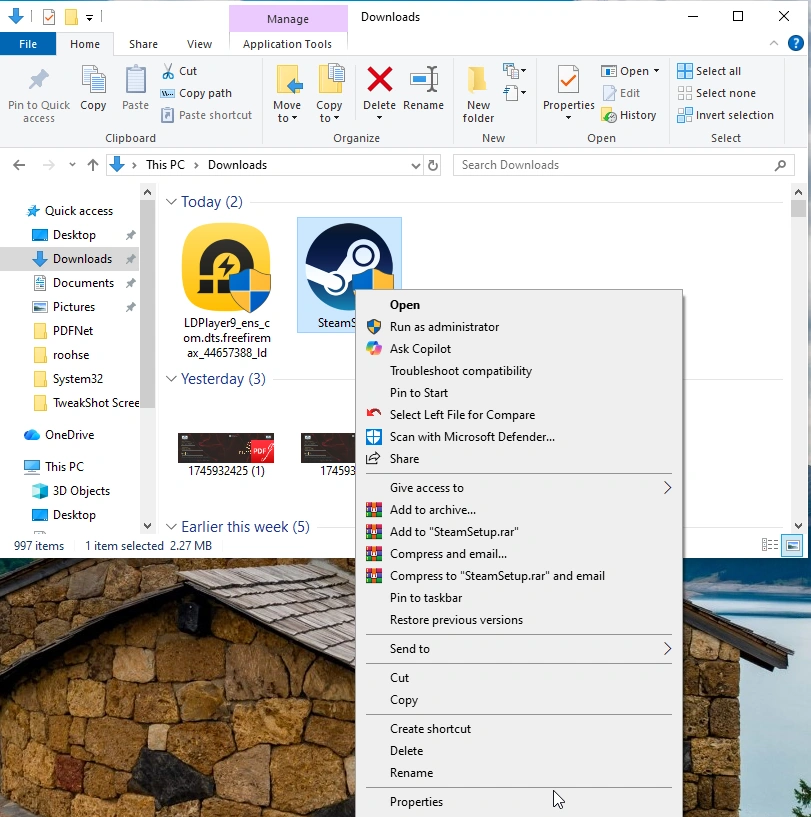
5. Click the Compatibility tab and check Run this program as an administrator.

6. Do the same for GameOverlayUI.exe in the same folder.
7. Apply the changes, relaunch Steam, click when you get the User Account Control (UAC) prompt, and test the overlay in-game.
Solution 7: Disable GPU Accelerated Rendering in Web View
1. Launch Steam.
2. Click Steam > Settings > Interface > Advanced > uncheck Enable GPU-accelerated rendering in web views.
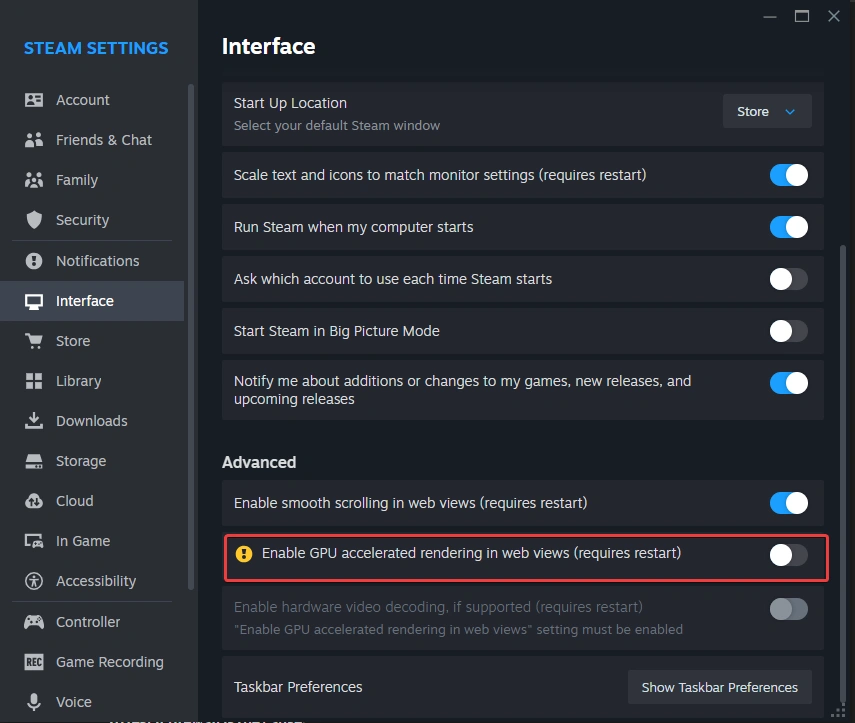
3. To apply changes, click Restart Now and try the overlay.
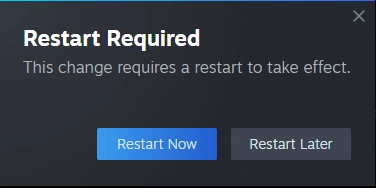
When enabled, this setting controls how the overlay’s browser-based elements work. Once disabled, it resolves the overlay, which silently stopped responding after a Steam client update, even when every other setting is fine.
Solution 8: Verify Game File Integrity
Corrupt or missing game files can also cause the same issue as incorrect settings.
1. Open Steam > click Library.
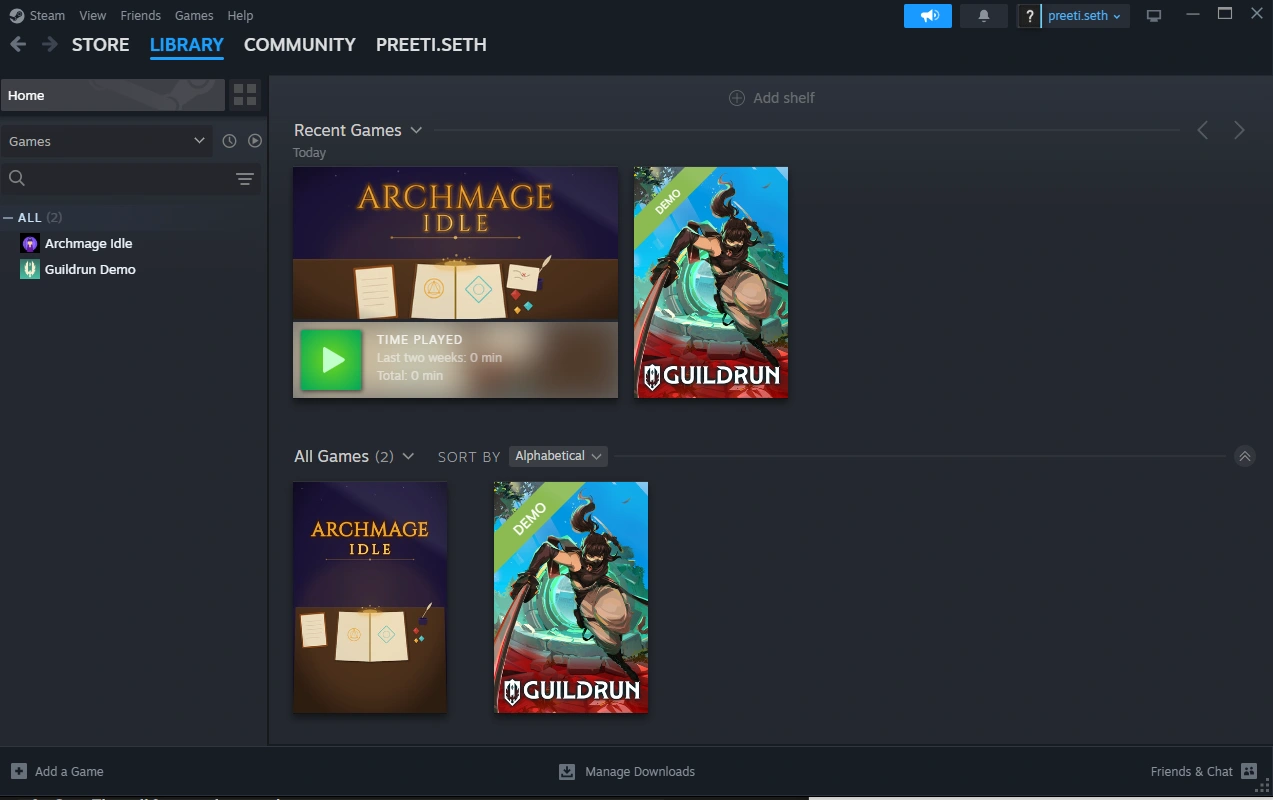
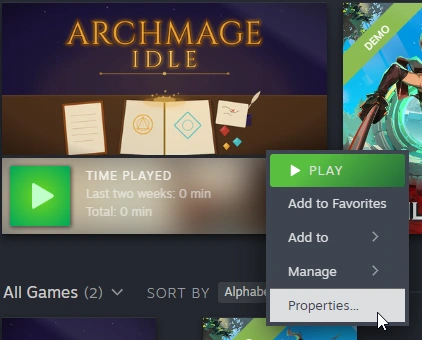
2. Right-click the affected game and select Properties.
3. Click the Installed Files tab in the left sidebar and click Verify integrity of game files.
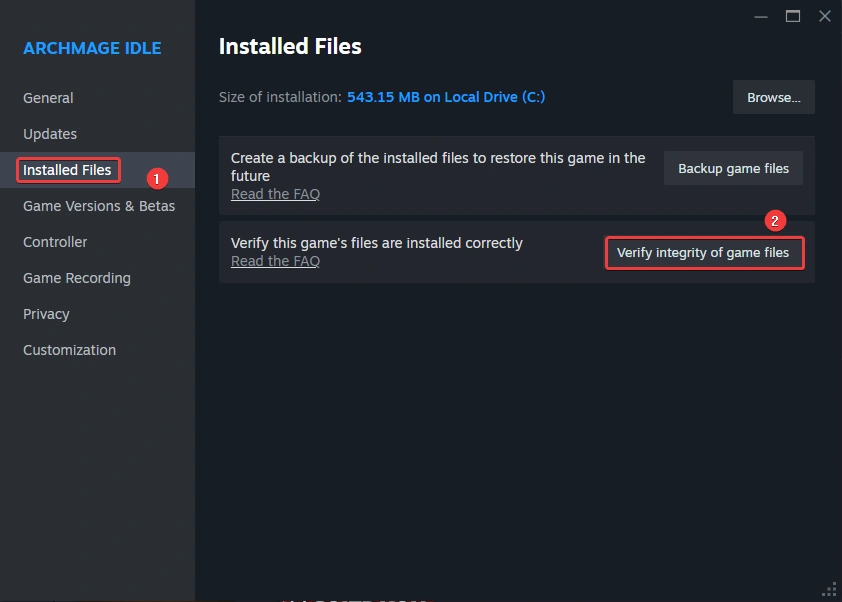
4. Let Steam check local files against its servers. This can take a few minutes, depending on game size.
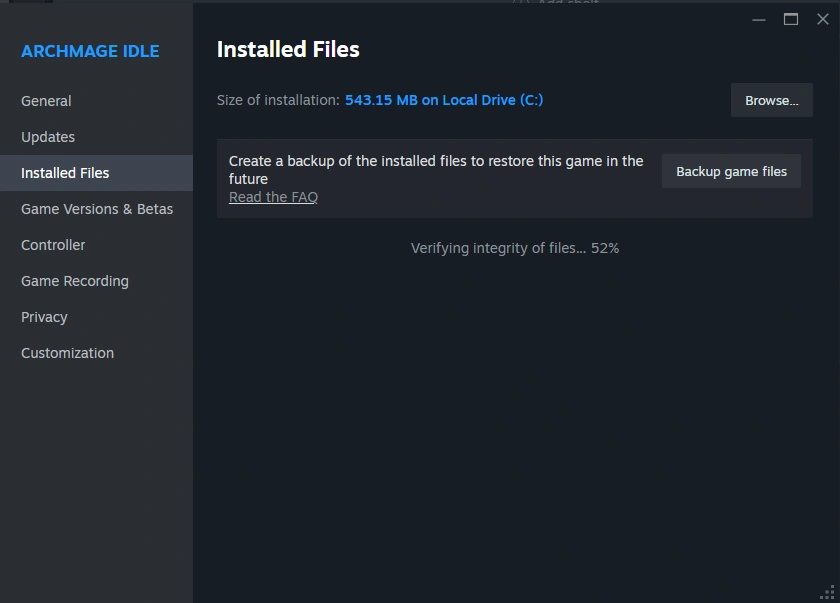
5. When it finishes, you will see either “all <number of files> validated” or it will list how many files it replaced.
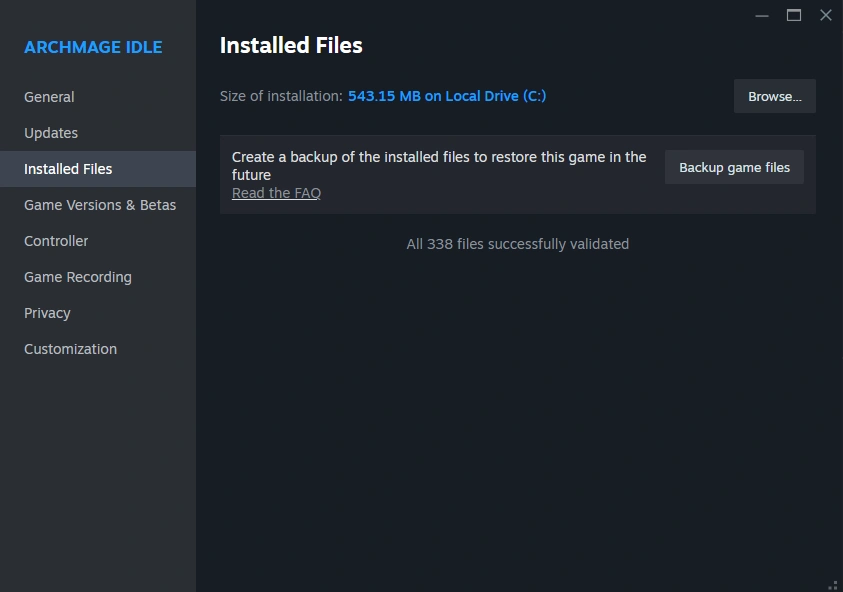
6. Relaunch the game and test the overlay.
Solution 9: Disable Firewall and Antivirus
To see if the firewall is the cause:
1. Type Windows Security in Windows search, select the right result, and click to open it.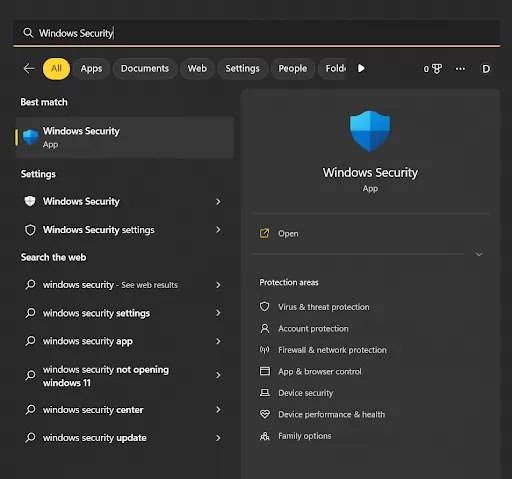
2. Click Firewall & network protection.
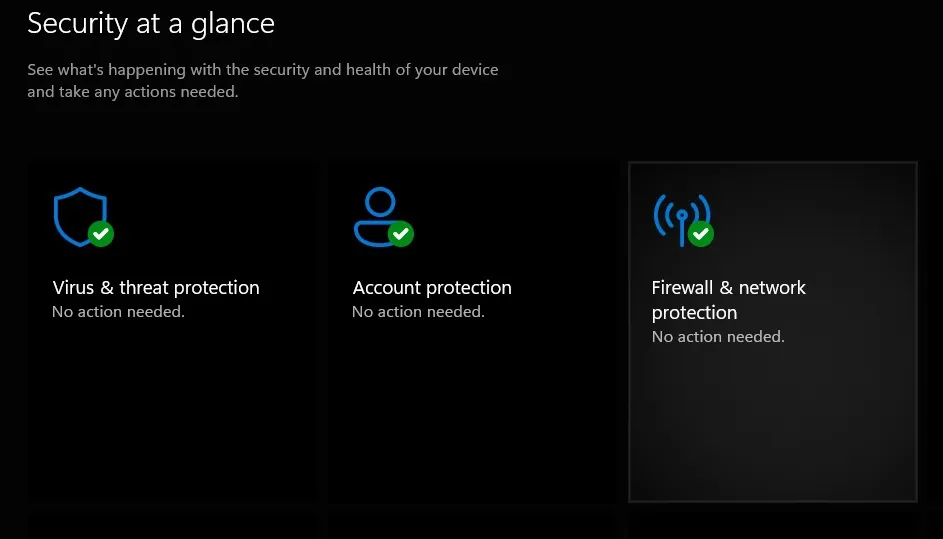
3. Click the network profile you see as active. It is either Domain, Private, or Public. In this case, it is a public network.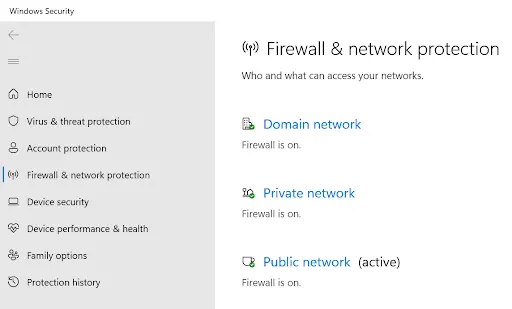
4. Disable Microsoft Defender Firewall by moving the toggle from right to left. Click Yes when you get the User Account Control prompt.
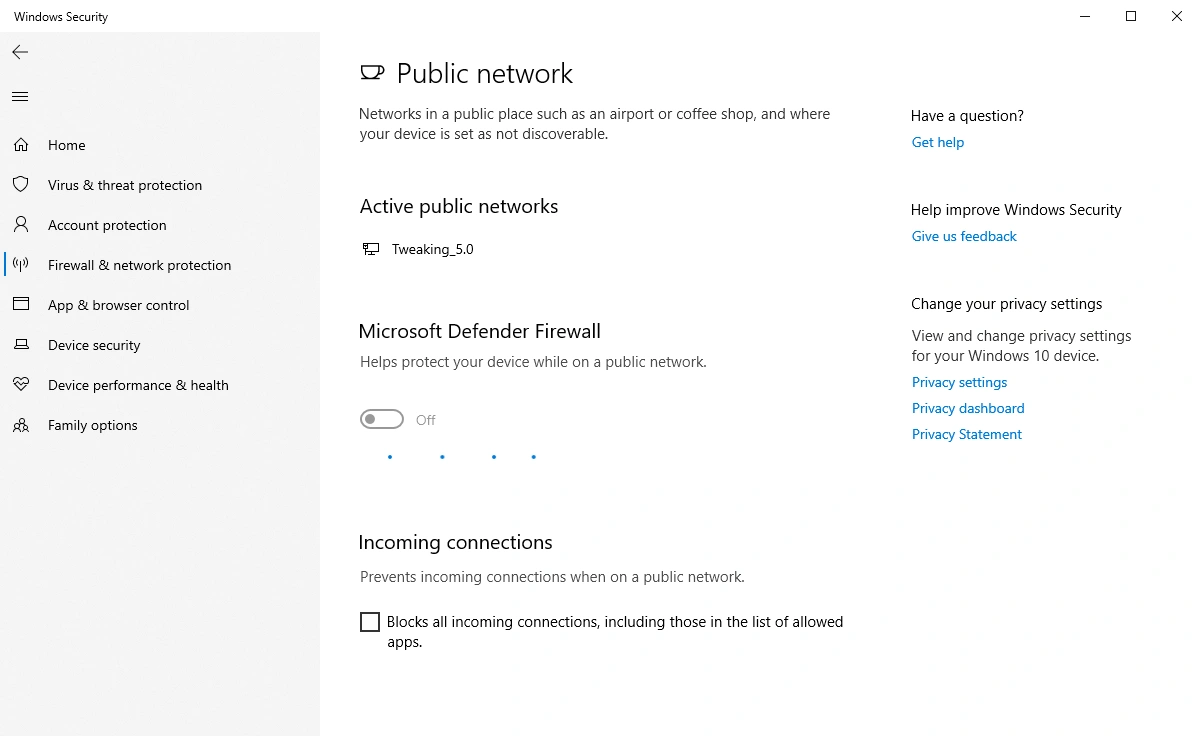
5. Launch the game and test the overlay.
If this fixes the issue, add Steam to the firewall’s exclusion list and enable the firewall.
Step to add to the exclusion list
1. Go to Windows Security > Firewall & network protection, click Allow an app through firewall.

2. Click Change settings (you need admin permission to perform this step).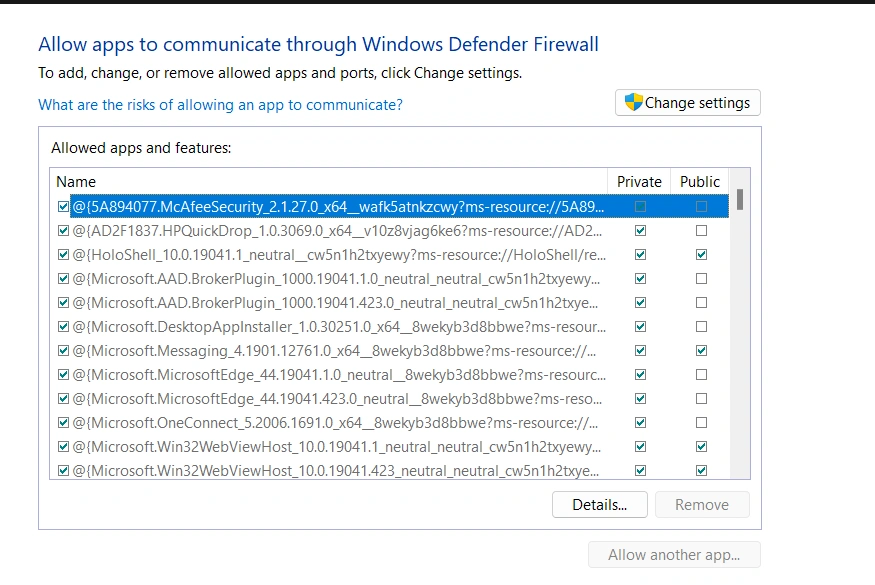
3. Click Allow another app.
4. Browse to steam.exe in your Steam install folder, and click Add.
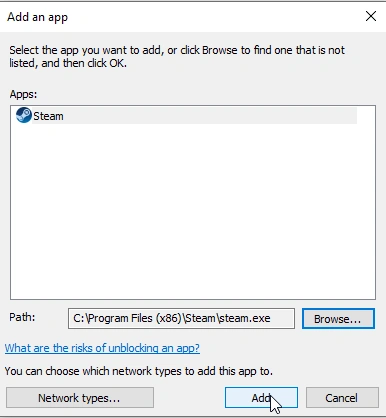
5. Check both Private and Public boxes next to Steam and click OK.
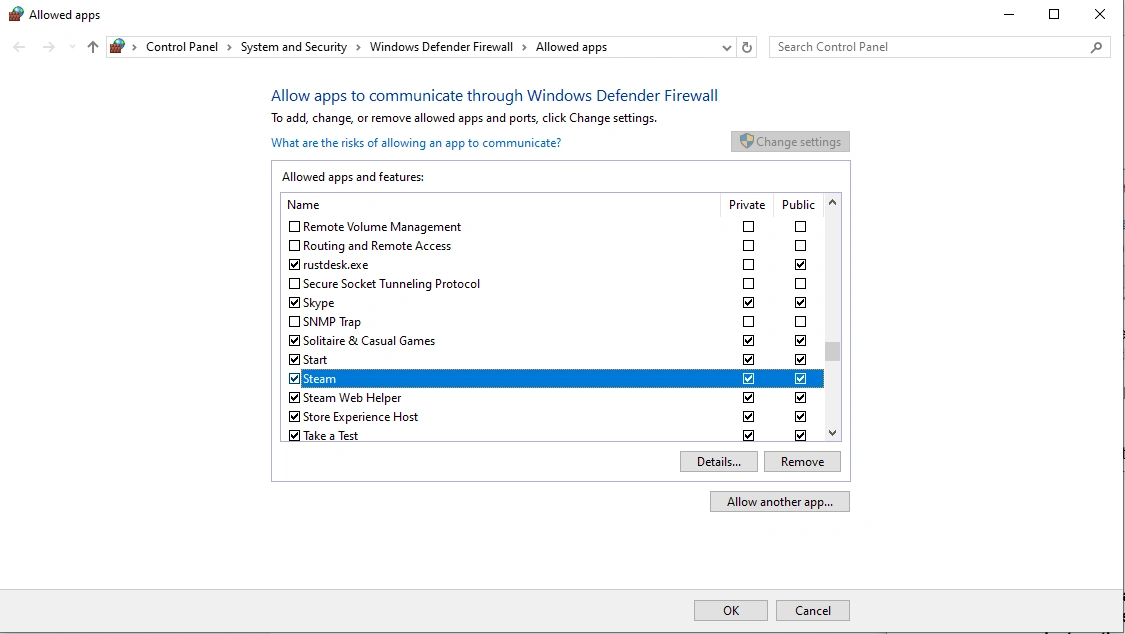
If you use any third-party antivirus software, go to its settings and add Steam to its exclusion list.
Solution 10: Reinstall Steam
If nothing has worked so far, then you will have to reinstall Steam to clear corrupted client files that couldn’t be fixed during the integrity check.
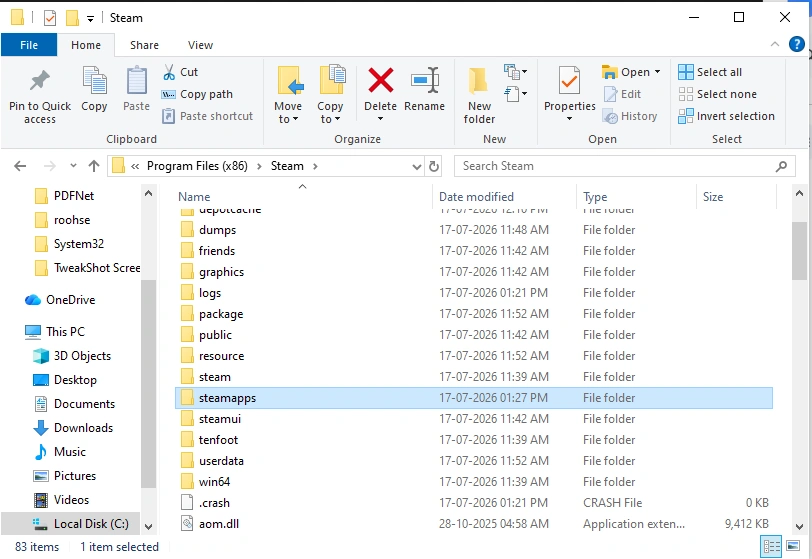
This is the last step because this will delete all installed games and cache. Therefore, before uninstalling, back up your Steamapps folder.
1. Go to C:\Program Files (x86)\Steam. By default, it is installed here, unless you changed the location.
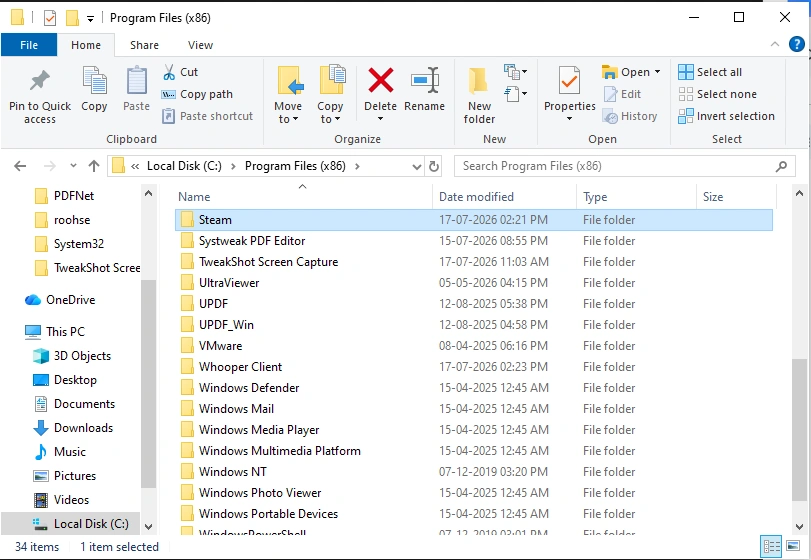
2. Copy the steamapps folder to another location.
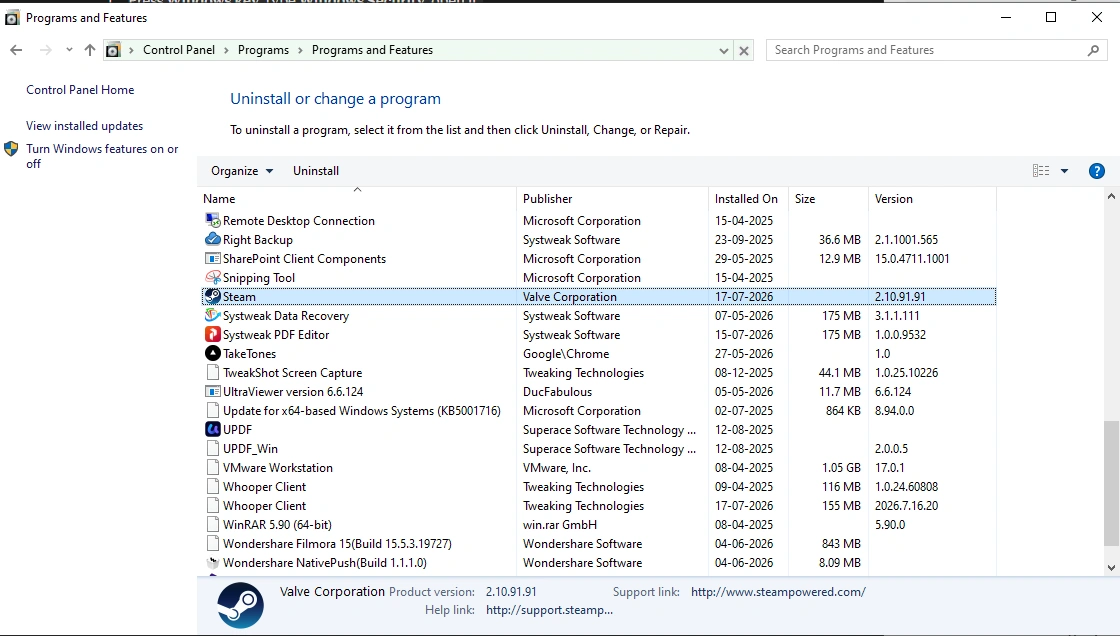
3. Then go to Control Panel > Programs > Uninstall a program > select Steam > Uninstall > confirm the action.
4. Restart your PC, re-download, and install Steam from steampowered.com.
5. Copy the backed-up SteamApps folder and paste it into the new Steam directory.
6. Log in and test the overlay.
Frequently Asked Questions
Wrap Up
Usually, Steam overlay problems are caused by several factors. Therefore, you need to follow the fixes in order to find the right one for your problem. Reinstalling will not solve the issue if it is caused by corrupt game files, incorrect settings, an outdated GPU driver, or overlay settings and permissions. Hence, follow the steps to fix the issue and get the Steam overlay working again without struggling.