
Is your monitor going black for a second suddenly when you are using it for work, games, or browsing the Internet? Such an issue is not always convenient, especially when it occurs unexpectedly. In some cases, your display will turn back again immediately, while in other ones, you will have to move the cursor, plug in your display cable, or restart your PC.
In case if your monitor randomly goes black for a second, it might be caused by outdated graphics drivers, bad cable connections, inappropriate refresh rate, Windows power settings, or hardware issues. In the same way, the problem might occur in case if your screen randomly goes black for a second. Display connection and graphics settings troubleshooting techniques will be helpful. This guide explains how to fix your random monitor black outs in Windows 11.
Why Does My Monitor Randomly Go Black?
A monitor that temporarily goes dark is caused by either software or hardware issues. Some common causes are as follows:
- Graphics driver issues
- HDMI/DisplayPort/USB-C cables loose or faulty
- Incorrect refresh rate/resolution
- Windows Power Settings
- Faulty graphics card drivers
- Interference with third-party programs
- GPU overheating
- Faulty monitor/graphics card
- Temporarily glitchy Windows
- Multimonitor setup issues
The first step before performing more complex troubleshooting is to determine if the issue exists only for specific programs or throughout the Windows desktop environment.
How To Fix a Monitor Goes Black Randomly
1. Check the Display Cable and Connections
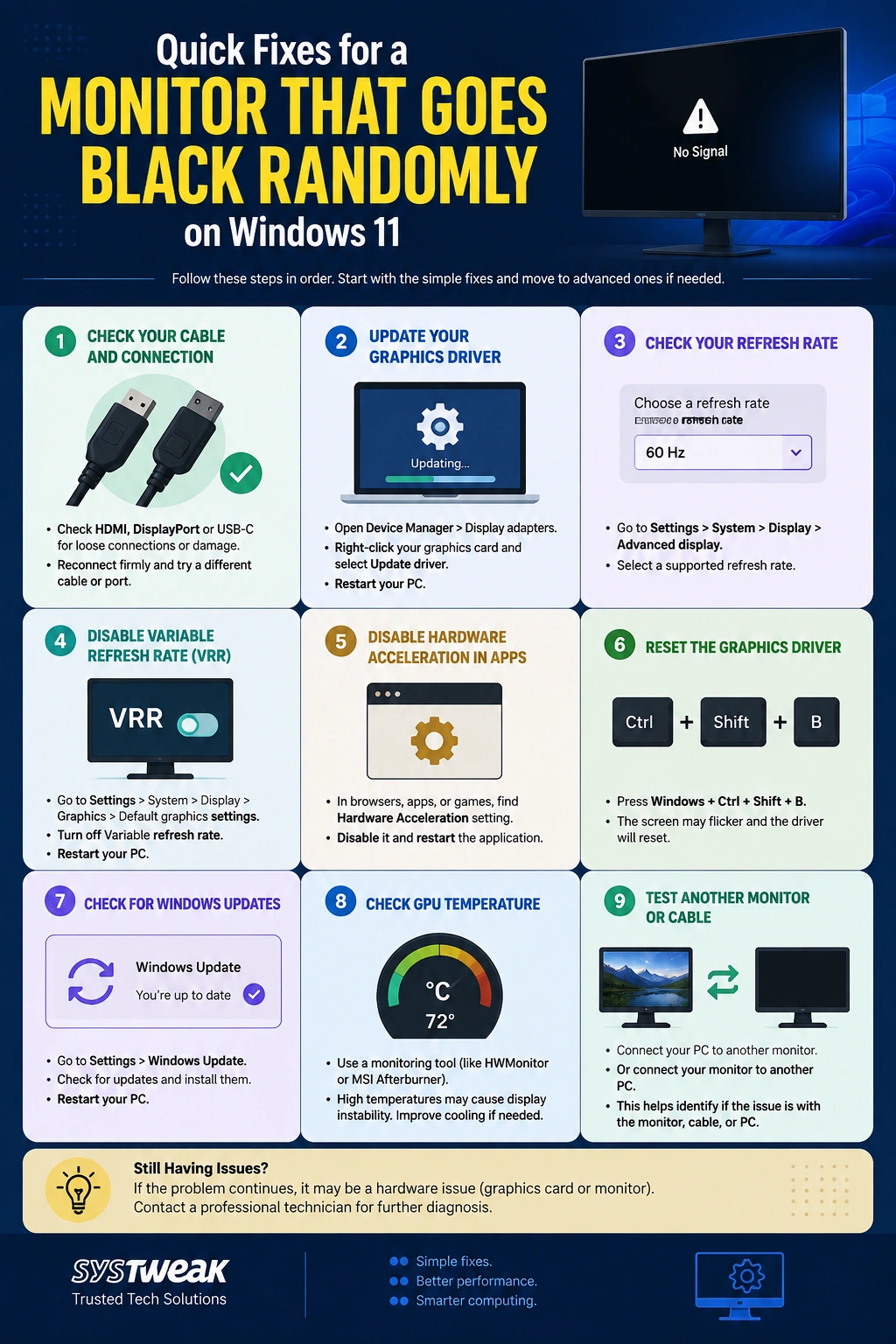
Loose display cable is one of the simplest reasons to overlook. In case of a temporary loss of connectivity, Windows will stop sending a signal to the monitor. Turn off your PC and monitor first. Unplug the HDMI, Display Port or USB-C cable from both ends. Check the connectors for any visible signs of damage or dirt.
Reconnect the cable tightly and ensure that it is securely plugged into place. Try:
- New display cable.
- Another port on the graphics card.
- A different port on the monitor.
- New monitor if possible with your PC.
In case the black screen goes away using another cable, it is likely that the previous cable was faulty.
PC Turns Off Randomly But No Overheating: Causes & Fixes!
2. Update Your Graphics Driver
Outdated or corrupt graphics drivers will also affect your computer screen momentarily. Installing an updated graphics driver should help fix compatibility and display issues. Here’s how to install an updated driver:
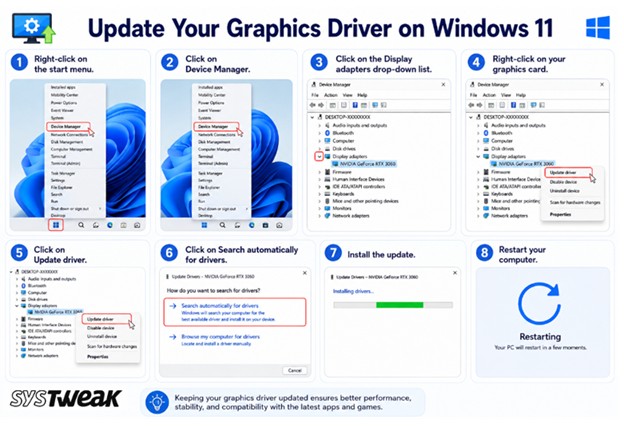
1. Right-click on the start menu.
2. Click on Device Manager.
3. Click on the Display adapters drop-down list.
4. Right-click on your graphics card.
5. Click on Update driver.
6. Click on Search automatically for drivers.
7. Install the update.
8. Restart your computer.
Alternatively, you can visit the official site of the GPU manufacturer for the latest drivers or use Advanced Driver Updater.
Update Drivers Using Advanced Driver Updater.
1. Download and install Advanced Driver Updater.

2. Open the app and click on the Start Scan Now button.
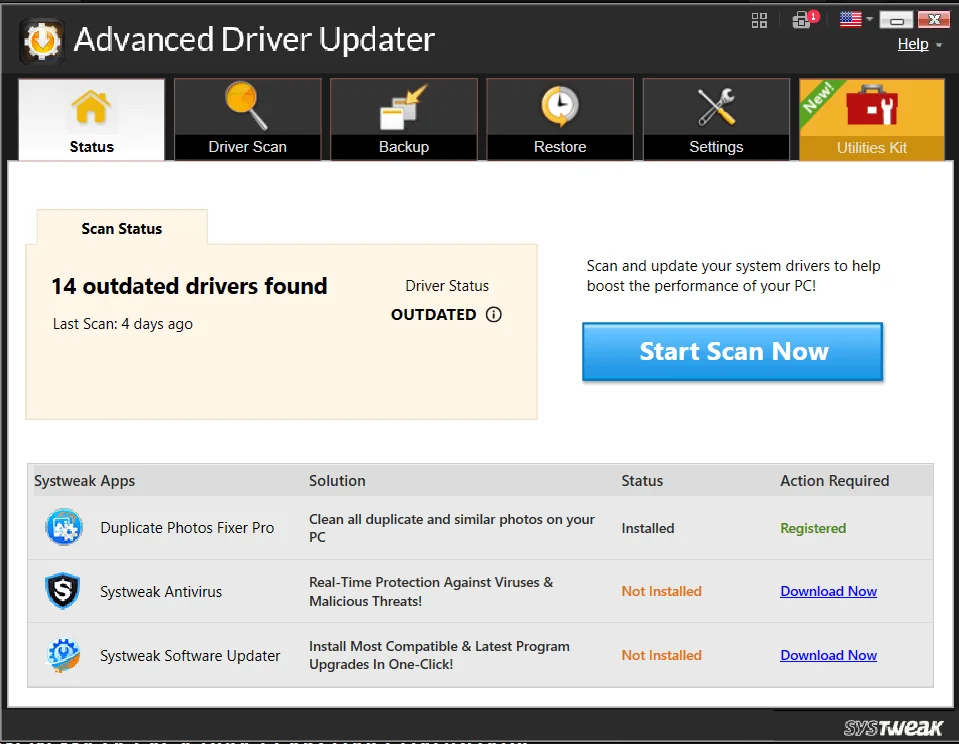
3. A list of driver anomalies will appear on the screen.
4. Locate the Drivers that require updates among the list and click on the update link next to it.
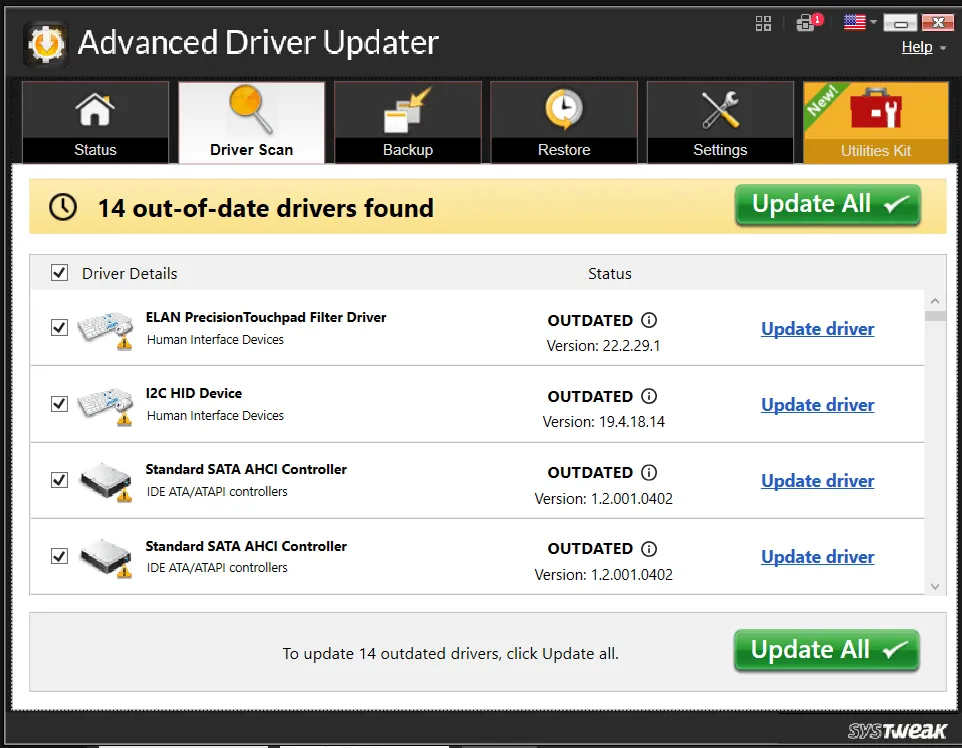
5. The update process will now begin. Reboot your PC once the update is completed.
3. Check Your Monitor’s Refresh Rate
Incorrect or unsupported refresh rate may sometimes lead to flickering or black screen issue. Steps to find out the refresh rate include:
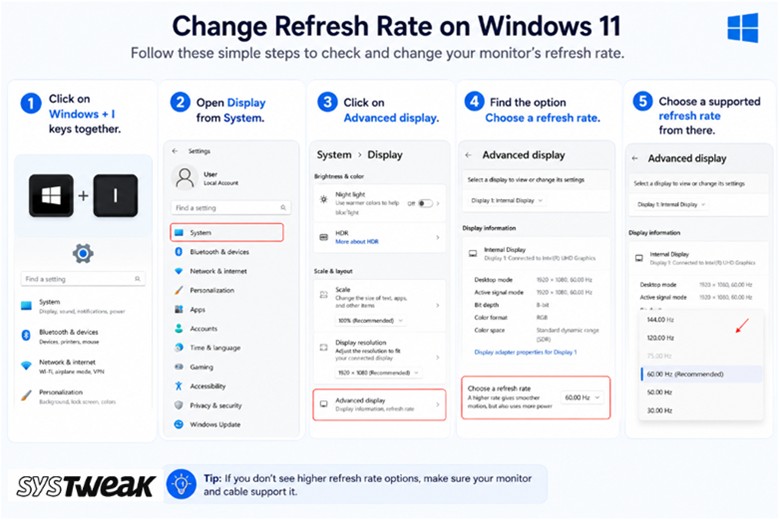
1. Click on Windows + I keys together.
2. Open Display from System.
3. Click on Advanced display.
4. Find the option Choose a refresh rate.
5. Choose a supported refresh rate from there.
If you have made changes to your refresh rate or resolution in recent times, revert back to recommended settings and see if the issue persists.
4. Disable Variable Refresh Rate
Variable Refresh Rate (VRR) may help in improving the gaming experience, but there may be problems related to the compatibility of VRR with the display monitor, graphics driver, and operating system (Windows). Here is how you may check the setting:
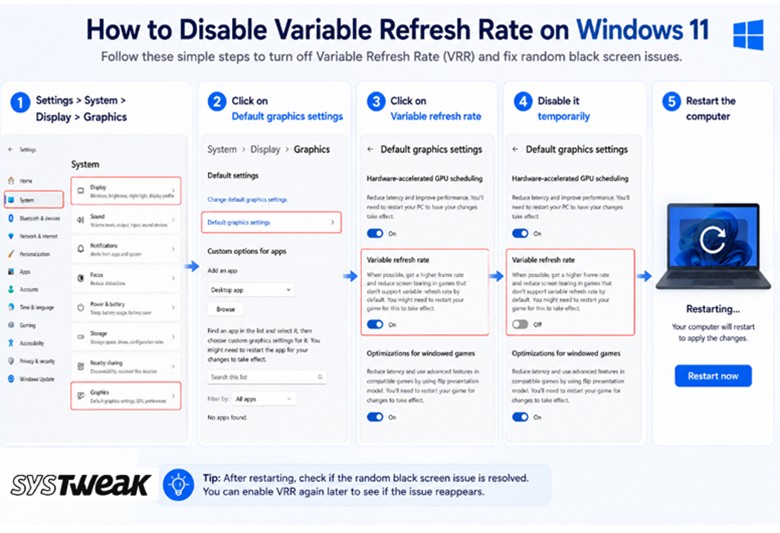
1. Settings > System > Display > Graphics
2. Click on Default graphics settings
3. Click on Variable refresh rate
4. Disable it temporarily
5. Restart the computer
And then check if the black screen problem occurs or not.
5. Disable Hardware Acceleration in Problematic Apps
In case you have a screen that blacks out on its own for a second, but this happens only when you work with a certain application, hardware acceleration might be causing the problem. Programs such as browsers, messengers, video players, etc. use hardware acceleration in order to render content.
What Is Discord Hardware Acceleration? (And Why It May Be Giving You Issues)
To solve the problem, you need to go to settings of the application in question and find the Hardware Acceleration or Use hardware acceleration when available setting and turn it off.
6. Turn Off Power-Saving Display Settings
Display can be set to automatically turn off after some time of inactivity. While this is not likely to result in blacking out when the PC is being used, tweaking power options may help avoid any power management issues.
Settings > System > Power & battery > Screen and sleep
Configure screen and sleep according to your needs. When doing the test, choose a bigger number before turning the display off. In case the issue happens when the PC is idle, you should particularly consider these options.
7. Reset the Graphics Driver
If there’s an abrupt blackout in the screen that resumes back after a second or two, consider restarting the graphics driver.
Press Windows + Ctrl + Shift + B
Windows will try to reset the graphics driver. There might be a beep sound and the screen might flicker for some moments. The above-mentioned key combination can be quite helpful if the display driver becomes unresponsive temporarily without needing a system restart.
8. Check for Windows Updates
Microsoft frequently comes out with new versions of Windows with bugs, drivers, and improvements. Here is how you can look for updates:
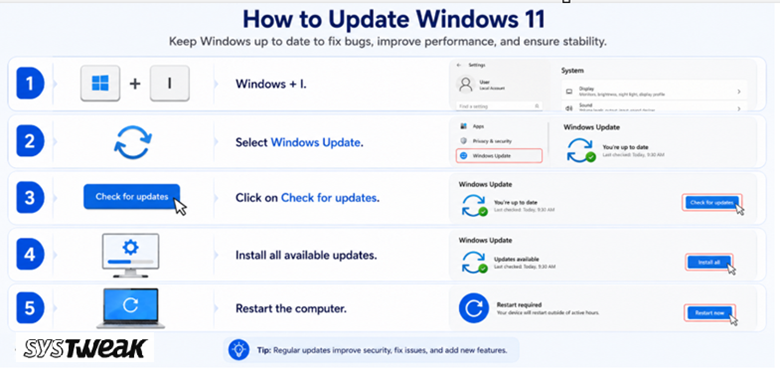
1. Windows + I.
2. Select Windows Update.
3. Click on Check for updates.
4. Install all available updates.
5. Restart the computer.
After updating Windows, test if there are still black displays occurring.
9. Test the Monitor and Graphics Card
If none of the above solutions help fix the problem, consider checking the hardware component.
Connect the monitor to another PC. If the monitor goes off, the problem might be in the monitor itself, in the cable, or in the connection to electricity.
Alternatively, you can connect a different monitor to your Windows 11 PC. If it works fine without any problems, the original monitor should be checked or even replaced.
When dealing with desktop computers that use a separate graphics card, make sure the card is connected and that all the connections of the card are connected securely.
10. Check for Overheating
When a graphics card gets too hot, there will be screen instability, particularly while gaming and other processes involving the GPU.
In case the screen goes black mostly in high-performance tasks, use a good hardware-monitoring application to check the temperature of your GPU. It is also important to ensure that your computer has sufficient airflow and the fans/vents are not clogged with dust.
No Display? GPU Fans Not Spinning? Try These Fixes
Conclusion
Monitor that suddenly goes blank for a second may result from either a simple reason like a loose cable or more complicated ones like graphics driver issues or problems with computer hardware. Begin by trying basic troubleshooting actions like connection check, system update, and the installation of a new graphics driver. After that, try refresh-rate settings, variable refresh rate, hardware acceleration, and power management.
When your monitor blanks out for a second frequently, testing another cable or monitor will allow you to understand if the cause of black-outs is hardware or software related. When the screen blanks out for a second just while running certain programs, concentrate on them.
Using the approach described above, you will be able to identify the cause of your issue and get Windows 11 monitor working correctly.