


Is Steam download slow on your PC? Chances are that the issue lies in the system rather than with the internet connection. For gaming enthusiasts, laggy computers and low internet speeds are the worst nightmares. Steam is one of the most popular game clients for gaming on a Windows PC. Having slow download speeds on Steam can bother a user, considering all the updates and downloads go through the Steam client only.
Slow Steam Downloads: Understanding the Issue
Steam download slow has been a genuine concern for several users. The issue is all over the place, as you can find multiple discussions from across the forums, including the internal community of Steam. Here’s a thread from the Steam Community discussing the Slow Downloads.

The issue is genuine; many users also came forward to share their experiences.
One of the users said –

While others had their concerns –

All in all, the entire community is interested in understanding how to fix the slow download speed on Steam. If that is one of your concerns, do not worry; in this post, we have curated a list of ways you can fix the slow downloads on Steam.
Check out the next section for solutions!
Why Does The Slow Download Speed On Steam Occur?
There are many reasons for slow downloads on Steam. These can include reasons due to errors on a user’s computer or issues with Steam’s download server. We have listed the most common reasons for slow downloads on Steam.
Overcrowded Steam Servers
During festive discounts and sales or new game launches, millions of gamers are trying to download games from Steam’s servers. The overcrowded servers face congestion and cannot handle too many requests at once.
Mismatch Download Region
If you have selected the wrong download region, then you might face slow download issues.
ISP Throttling or Low Bandwidth
Some ISPs divert bandwidth from users trying to download large files, making their downloads sluggish. This also occurs if you have a slow or low bandwidth plan.
Bandwidth Consumed By Other Apps
Did you know that playing a game on Steam may not consume much of your bandwidth, but downloading that game requires every bit of bandwidth possible? If you are running other apps in the background that are consuming bandwidth, then your Steam downloads will be slow. It can also occur if multiple devices are using the same internet connection.
Steam Restrictions
Most gamers do not know that Steam also applies download limits that can be changed from Steam’s settings. You need to check if you have accidentally placed a cap on Steam downloads.
Hard Disk Issues
When game data is being downloaded, it is unpacked and written to the HDD continuously. If your hard disk is old, slow, or nearly full, then downloads will appear to be slower even when the internet offers higher speeds.
VPNs, firewalls, or antivirus software
Third-party software such as VPNs, firewalls, and antivirus software can reduce download speeds due to over-scanning of downloaded data, encryption and decryption processes, and longer paths through multiple servers.
How to Fix Slow Steam Downloads on Windows? 11 Ways!
Before we get started with the fixes, ensure you have a working internet connection and a high-speed plan so that it is not a concern. To get a decent speed for downloading games from Steam, ensure that the internet connection is fine and that you do not have to worry about connectivity issues.
You can start with the fixes once you have taken care of the connection.
Fix:1 Allow Maximum Bandwidth to Steam
First, you should shut down all the network-hogging applications on your PC. These include parallel downloads, updates, etc. Close unnecessary tabs on your browsers, pause your downloads, and shut down the applications that may be using the network.
You can manually close the tabs and pause the downloads on your computer. However, you may use the Task Manager to identify network applications. To stop these apps from bothering your download speeds on Steam, all you have to do is –
Step:1 Press Ctrl+Shift+Esc simultaneously to bring up the Task Manager on your desktop.
Step:2 In the Task Manager window, click on the Network tab to sort the running applications based on their network use.
Step:3 Select the highest network using the application (other than Steam) and click on End Task to stop the application.
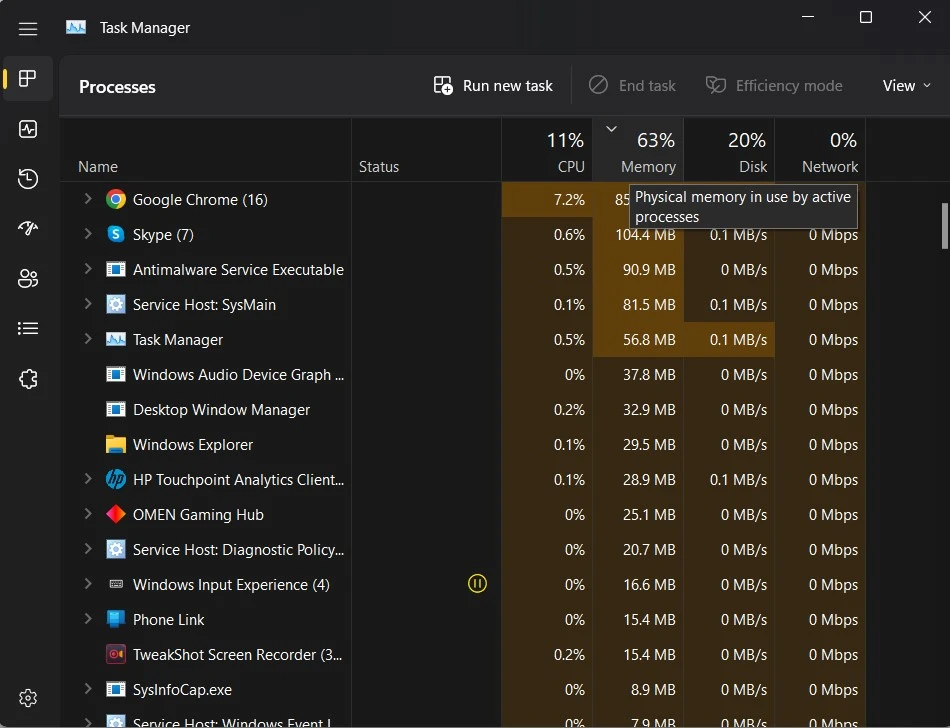
This way, you can easily get rid of network-hogging apps, ensuring more bandwidth for your Steam downloads.
Note : Web Browsers consume most of the bandwidth, especially Google Chrome. We recommend you close all the browser-related processes and check if the faster Steam download speed prevails.
Fix:2 Disable Metered Connection Settings
A metered connection is a setting in Windows that allows you to save on your internet bandwidth by keeping the usage under a cap. It stops background downloads and updates, in particular, to save bandwidth for browsing.
You may observe lower speeds in the background if you use a metered connection. Disabling it may allow you to enhance the download speed on Steam.
Step:1 Press Win + I to open the System Settings window.

Step:2 From System Settings, navigate to Network & Internet settings using the left pane.

Step:3 In Network & Internet Settings, Click on the current network, i.e., Wi-Fi.

Step:4 In Wi-Fi options, Click on Properties.
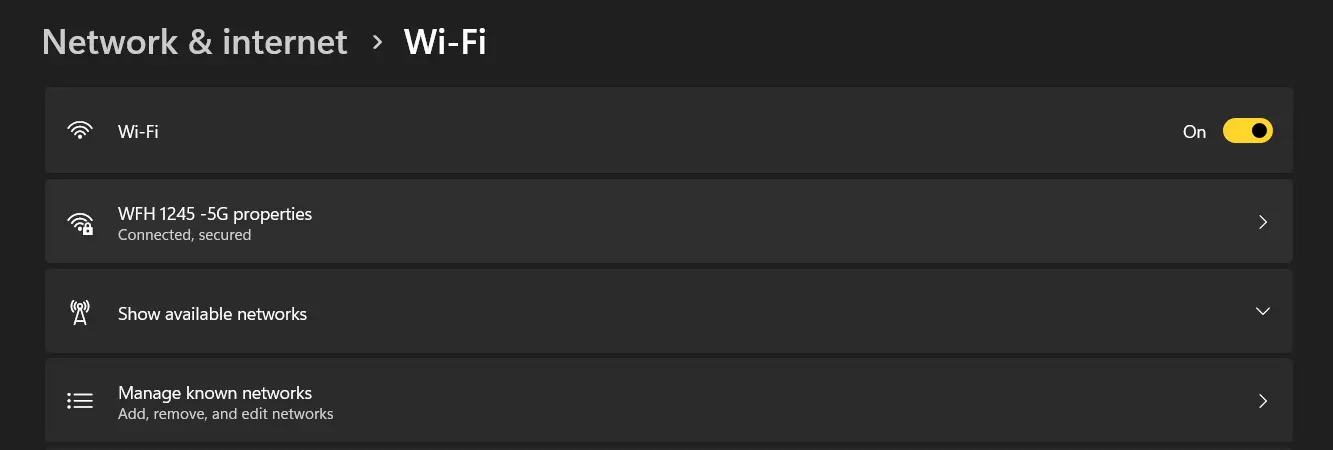
Step:5 After opening the Properties, you may find the toggle to metered connections. Turn it OFF if it’s ON.

After making this change, check the download speed in Steam, as it might fix the issue of slow download speeds in Steam.
Fix:3 Set High Priority To Steam
Experts recommend that you can set a high priority for the Steam app, giving it better access to system resources. Here are the steps that you need to follow –
Step:1 Open Steam App.
Step:2 Press Ctrl + Shift + Esc to open the Task Manager.
Step:3 Look for Steam.exe process and right-click on it.

Step:4 Choose Go To Details from the context menu.

Step:5 In the Details tab, search for Steam and right-click on it.

Step:6 Hover your mouse over Set Priority and choose High.
This will ensure that the Steam app will have more priority over other apps on your PC.
Fix:4 Clear Steam Download Cache
Download cache is another aspect that may affect your download speeds on the platform. Simply clear the cache to see if it helps. You can find the clear option simply by navigating through the Steam settings. Here’s how –
Step:1 Open Steam on your desktop.
Step:2 In Steam, click on the Steam option from the top left corner of your screen.
Step:3 From the dropdown menu, after clicking on Steam, you may find settings. Click on it to open.
Step:4 In settings, look for Downloads in the left pane. Navigate to download settings by clicking on it.
Step:5 You can Clear the download cache in the settings. Simply use that option to clear the download cache on your Steam desktop.
Once you have cleared the download cache, restart the download showing a lower speed than expected. This should do the trick for you. However, if it did not, do not worry; we also have other fixes.
Fix:5 Make Sure Steam Bandwidth is Not Limited
Steam also allows its users to limit the download bandwidth to allow room for other applications on the PC. If, by chance, you had kept a limit while setting it up, the download speeds will be limited. To ensure these issues do not occur, ensure there’s no bandwidth cap.
To check simply –
Step:1 Open Steam on your desktop.
Step:2 In Steam, click on the Steam option from the top left corner of your screen.
Step:3 From the dropdown menu, after clicking on Steam, you may find settings. Click on it to open.
Step:4 In settings, look for Downloads in the left pane. Navigate to download settings by clicking on it.
Step:5 In Settings, you may find Download Restriction settings.
Step:6 There’s a dedicated field for Limit Bandwidth among those settings. Ensure that it is toggled OFF by de-selecting it.
Fix:6 Check for Network Adapter Driver Updates
If none of the Steam settings helped you enhance your Steam download speeds, then there’s a possibility that the network adapter on your PC is not fetching enough bandwidth. It happens when the driver for the same is outdated.
Keeping these drivers updated is often a point of concern for many users. That is because the traditional method is not that efficient. Using the Device Manager to find driver updates is a time-consuming process that no one wants to engage in.
Hence, issues like Steam download slow and other internet problems occur on a Windows PC. If you aim to finish things up faster and keep the network driver updated, we recommend using Advanced Driver Updater.
It is a dedicated tool that allows you to update drivers from across the system in just a single click. It works in 3 steps –

1. Scan the PC for outdated drivers.

2. Check the scan results to learn which are the outdated drivers.

3. Update them all in a single click
All you have to do is download the application on your PC and run it. The rest is done by a single click from your end, simplifying the complex process of updating drivers!
Fix:7 Switch To Ethernet

Some experts have suggested that switching to Ethernet can help increase download speed over a Wi-Fi connection. It is not always clear why this happens, but a wired connection is recommended over wireless, especially when playing games.
Fix:8 Disable Antivirus Temporarily
Sometimes, antivirus can interfere and reduce download speed, especially if it marks an app as a false positive. To identify this, we need to disable the antivirus software temporarily and check if the speed improves. If you are using a third-party antivirus, then you may follow the relevant steps to disable it. For Windows Security, follow these steps.
Step:1 Press the Windows key and type Windows Security.
Step:2 Click on the result with the same name under best match.
Step:3 Next, click on Virus & Threat protection.

Step:4 Click on Manage Settings.

Step:5 Slide the toggle button under Real Time Protection towards left to disable it.

Step:6 Exit all Windows and launch the Steam app.
Step:7 Try downloading the game and check if the speed improves.
Fix:9 Change Your Download Region
No one can tell if the server or region that has been selected by Steam automatically is free or the busiest one. We suggest that you change the region and choose a different server to improve Steam download speeds.
Step 1: Open Steam → Settings → Downloads
Step 2: Under Download Region, select a nearby but different location
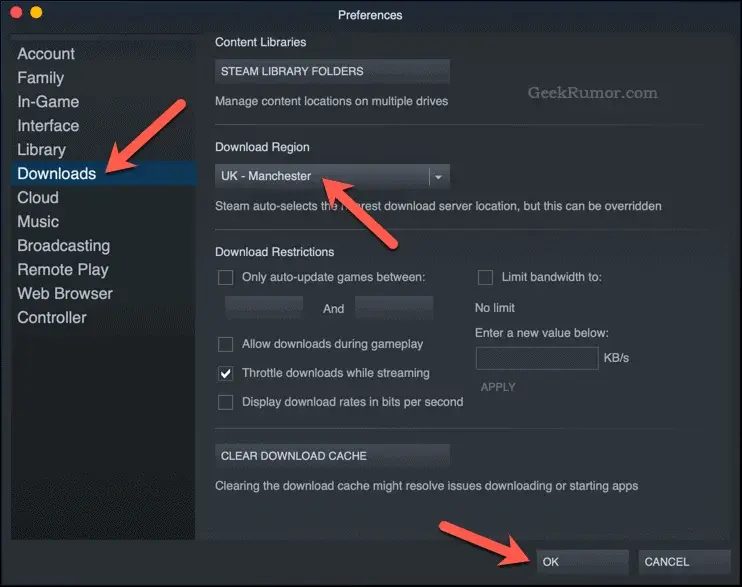
Step 3: Restart Steam
Note : Try 2 or 3 regions to find the quietest lane.
Fix:10 Flush DNS and Reset Network
Sometimes the network just needs a polite reset. Here is what you need to do.
Step 1: Open Command Prompt as Administrator
Step 2: Copy and paste the following commands, one by one, each followed by the Enter key.
ipconfig /flushdns
netsh winsock reset
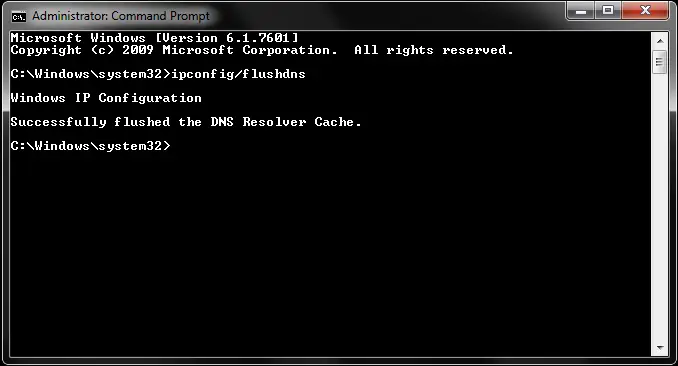
Step 3: Restart your PC
Fix:11 Power Cycle your Modem/Router
Most ISPs recommend that you power boot your modem/router at least once a day to avoid network congestion. All you have to do is turn off the modem/router for 1 minute and then power it back on.
Bonus: How To Test Your Current Internet Download Speed?
It is a simple process to test your current internet speed by following the steps mentioned below.
Step 1: Navigate to Speedtest.net on your default browser or click the link.
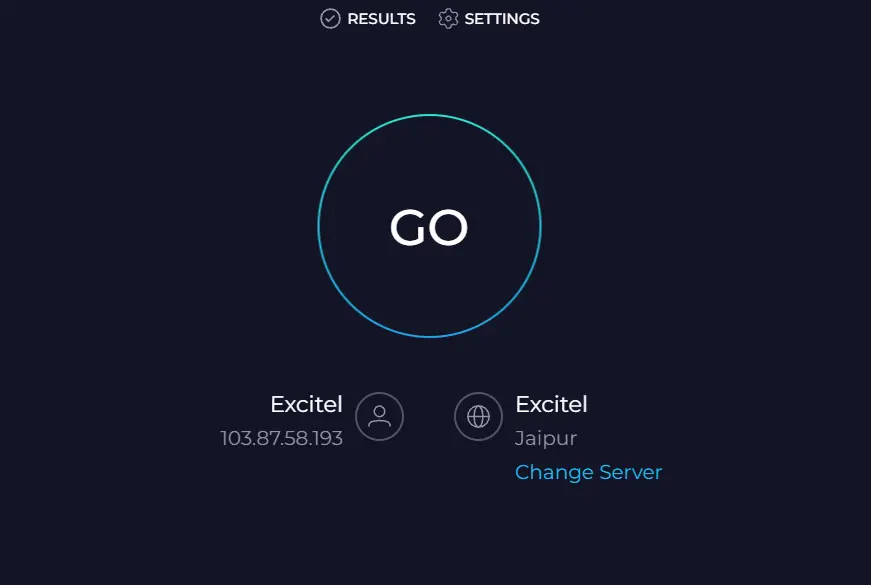
Step 2: Click on the GO button and wait for the results.
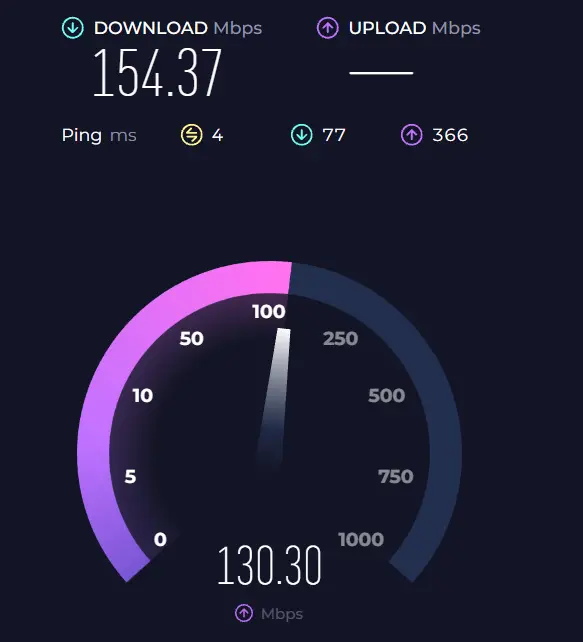
Step 3: You will get the results of your current Download & Upload speed within minutes.
Frequently Asked Questions
Slow Steam Download Speeds FIXED!
Besides these fixes, you can always try disconnecting and reconnecting your internet connection to see if that boosts the speed. Also, if you are using a VPN, remove it and then download the file as VPN servers often reduce the speed.
Hope these fixes assist you in enhancing your Steam download experience. That’ll be all for this post. Catch you in the next one! Peace.
Recommended :
Why Is My Internet Speed Slow & How to Fix It
How to Fix Slow Buffering Despite a High-Speed Internet





 Free Download
  Secure Download




I have a Gig connection and everything else runs at that Gig. Steam DL limit is turned off. Im not sure what else to do here
Dear Sir/Mam,
Thank you for writing to us.
Please note not all download speed is determined by your internet or service provider. Sometimes the content providers also throttle transfers through threading. However, if that is not the case we suggest disabling Ethernet connection or wireless (from adapter settings) and re-enable it. Secondly, go to Steam settings > Downloads tab > scroll down and click “clear Download Cache” > log out and re-login. The problem should be solved. If this doesn’t help either disable IPv6 and Steam should work just fine.
Thanks and Regards