


When you connect a smartphone or a tablet to a PC, do you face misconfigured drivers responsible for connecting to the PC error?
In this post, we will discuss this issue and discuss how to fix MTP device driver Failed or not working and how to fix it.

What is an MTP USB Device?
Media Transfer Protocol (MTP) is a standard protocol for transferring audio files using Windows Media Player and similar applications. In most smartphones, it only works when your Android device is unlocked.
What is the Need for Updating MTP Driver?
If the MTP USB driver for Windows 7 64-bit, Windows 10, and Windows 11 fail to install or is broken, you can transfer easily media files from an Android phone.
Reasons for MTP USB device driver problem
- Incorrect MTP device setting.
- Outdated drivers.
- Issues with Android MTP driver
How to Download & Install MTP Driver on Windows?
The Media Transfer Protocol drivers, or MTP drivers, are a set of software programs that allow Windows to connect to media devices like Cameras, Android phones and tablets, and media players. These devices are connected to the Windows PC via USB and appear as Unknown devices if the MTP driver is not installed or configured properly. In some cases, users may not see the device at all, even though it is connected to the PC. Here are the steps to download and install MTP drivers on a Windows PC.
Microsoft has provided a default MTP driver on Windows 10 and Windows 11 versions, which means that the device will automatically connect. However, if the driver is outdated or corrupted, then you will need to follow these steps.
1. Connect your phone/device with a USB data cable (not just a charging cable).
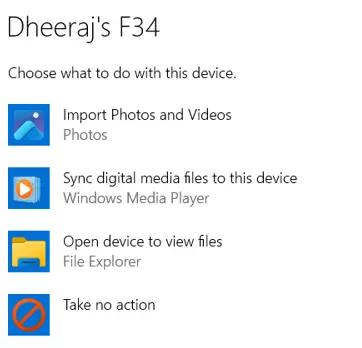
2. Unlock your phone.
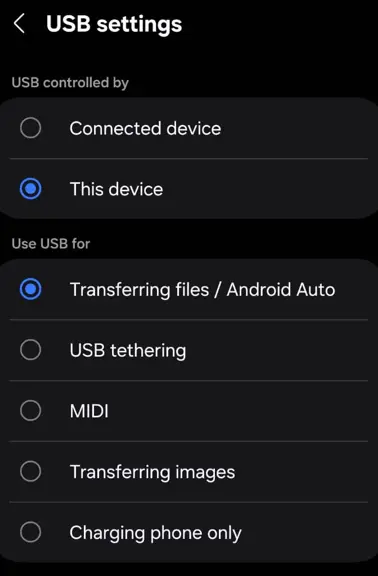
3. On Android, open the notification panel → Tap USB Preferences → Select Transferring Files (MTP).
4. Windows will automatically install the MTP driver.
If the device does not connect or is displaying issues then you must manually install the driver by following these steps.
1. Right-click on the Start button and select Device Manager.
2. In the new box, look for something like Portable Devices, Other Devices, Android Device, or Unknown Device.
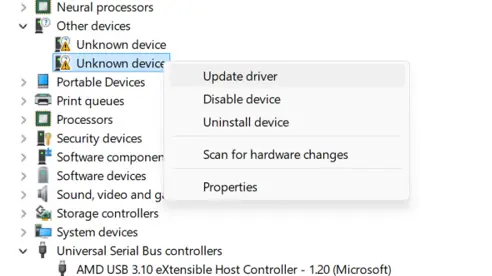
3. Right-click on what you find and choose Update Driver from the context menu.
4. Select Browse my computer for drivers
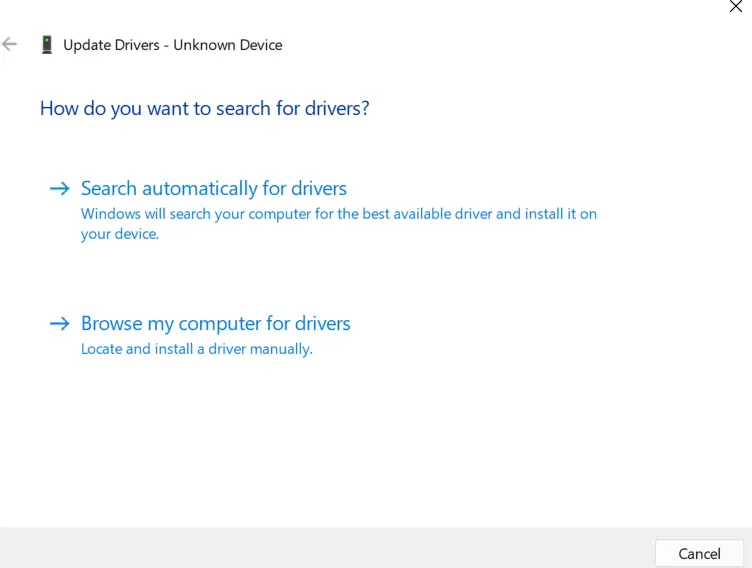
5. Select Let me pick from a list of available drivers
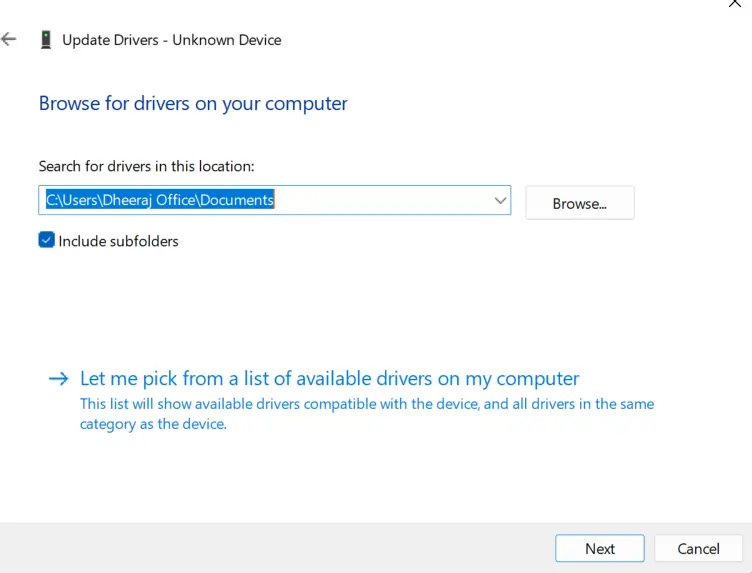
6. Choose MTP USB Device → Next
7. Windows will install the built-in driver.
Different Ways to Fix “MTP device failed” Error Windows
We’ll learn how to fix the MTP USB Device driver issue. Before proceeding, let’s check the hardware to ensure it has nothing wrong. Try connecting the device to an alternate USB port and see if you still encounter the error. If the hardware is working fine, enable debugging settings and move ahead with fixes:
Fix 1: Update MTP USB Driver
If the hardware is working fine, there is likely some issue with the driver. To get the latest driver update for MTP USB, you can use Device Manager or go to the manufacturer’s website. The manual process is lengthy, and patience and technical skills. Also, searching for the latest driver update on your own involves risk. Using Advanced Driver Updater, you can avoid these issues.
To use the tool, all you need to do is, follow the instructions given below:
1. Click the button below to get the driver updater for Windows that will help update unstable drivers.

2. Install and run the tool.
3. To perform the scan click Start Scan Now and let the scan process finish.

4. Analyze scan results and update the driver. If you are re-directed to the purchase page, use the Update driver link, as you can update one driver at a time using the FREE version. However, register Advanced Driver Updater and click Update All if you have the key and update all outdated drivers.

5. Restart the PC after downloading, installing, and updating the driver.
Now try connecting the device; you should not face the problem. Also, you should be able to notice a significant performance boost on Windows.
Fix 2: Change UAC Setting Through Command Prompt
Sometimes the MTP USB error is caused by the UAC restriction. To modify it, follow these steps:
1. Run elevated Command Prompt (as an administrator)
2. Type the following command – net localgroup Administrators local service /add and execute it.

3. Next, connect the Android device and check that the issue should be fixed.
Fix 3: Fix Corrupt Registry Settings
Broken or invalid registry entries can also cause MTP USB failed errors. Therefore, we will need to fix everything we need to fix the registry settings.
Note : Before making any changes to the Windows registry, backup all registry keys. For that, open Registry Editor using the Windows search. Go to File>Export. Now save the registry file (.reg file) to the desired location.
1. In Windows search, type Registry Editor and open it.
2. Up next in the address bar type following location – HKEY_LOCAL_MACHINE\SYSTEM\CurrentControlSet\Control/Class
3. Now, search for the Portable Device folder. For this, press Ctrl + F to get the search box > and start searching.

4. Once the folder is located, check if there’s a key named UpperFilters. If you can find it > delete the key and reboot the PC.

In case there’s no such key, move to the next fix. This is not the solution for you.
Fix 4: Run Hardware & Device Troubleshooter
You must use the command line to run the hardware and device troubleshooter. To run it, follow these steps:
1. Run Command Prompt as administrator.
2. Type the following command – msdt.exe -id Device Diagnostic
3. Now proceed and run the tool
4. Restart the PC and see if it helps or not.
Fix 5: Manually Install wpdmtp.inf
1. Open Run windows by pressing Windows + R.
2. Type %systemroot%\INF.

3. Search for wpdmtp.inf > right-click select Install

4. Restart the computer > reconnect the device and see if it works or not.
Fix 6: Wipe Cache Partition
Note : Cleaning Cache Partition will only remove temporary junk none of your data or files will be affected.
1. Restart the Android phone in Recovery Mode. To boot into Recovery Mode, press & hold the Volume down button, followed by pressing & holding the power button.
2. When you see the Recovery Mode release the buttons.
If this doesn’t work for you, search for the steps to boot into recovery mode for the phone’s model number you are using.
- Select WIPE CACHE PARTITION using the volume buttons.
- After selecting the right option, press the Power button to perform the desired action.
- Restart your Android device and try connecting the phone to the PC.
Fix 7: Install MTP Porting Kit
If nothing has worked for you, try installing MTP Porting Kit to troubleshoot the MTP USB driver not working error. Follow these steps to install the kit:
1. Visit Microsoft download center > download MTP Porting Kit.
2. Run the installation file and follow the instruction on the screen.
3. Connect the device.
This should solve the problem.
Note : If MTP Porting Kit is already installed, you need to update it.
Fix 8: Update MTP Driver via Windows Update (Best for Windows 11)
1. Open Settings and click on Windows Update tab in the left panel.

2. Click Advanced Options.
3. Select Optional Updates.
4. Look for MTP, Portable Devices, or USB Device Driver.
5. Install all available driver updates by click on the Download & Install button.
Fix 9: Install Media Feature Pack (Required for Windows 10/11 “N” Editions)
If your Windows version is Windows 10/11 N, MTP will NOT work until the Media Feature Pack is installed.
1. Go to Settings → System → Optional Features (Scroll down in the right section)
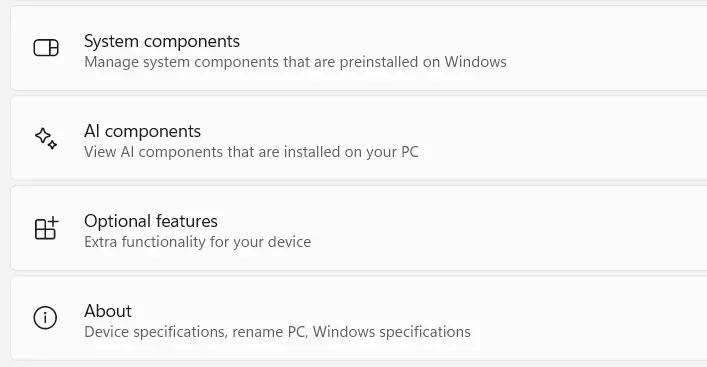
2. Click More Windows Features.

3. Search Media Feature Pack.
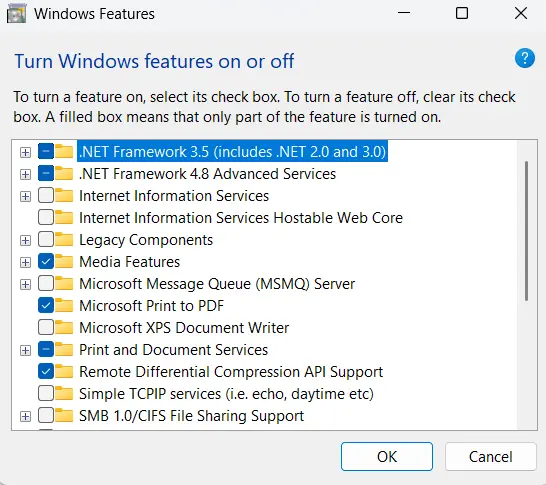
4. Install it.
5. Restart your PC
Fix 10: Change USB Mode on Your Android Phone
Your phone may be in “Charge Only” mode. Hence, you need to change it to MTP mode.
1. Connect your phone with a USB cable
2. Pull down the notification panel
3. Tap Charging this device via USB
4. Choose File Transfer (MTP)
If the file Transfer option is missing, enable Developer Options.
- Go to Settings → About Phone → tap Build Number 7 times
- Open Developer Options
- Enable USB Debugging
- Set Default USB Configuration → File Transfer
Fix 11: Use a Different USB Cable or Port (Most Common Fix)
If you are using Bad or corrupted cables, then you will get no MTP services. Here is what you need to check.
1. Use the original phone USB cable
2. Avoid USB 3.0 ports on older PCs
3. Try USB 2.0 port
4. Check for dust inside USB port
5. If charging works but file transfer doesn’t → cable issue.
Fix 12: Enable MTP via Command Prompt (Advanced Fix)
1. Press Win + R and type services.msc followed by Enter.

2. Ensure these services are running in the Services box.
- Windows Mobile Hotspot Service
- Portable Device Enumerator Service
- Shell Hardware Detection
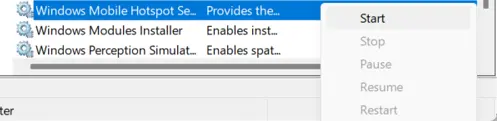
3. If not, then right-click and choose Start.
Wrap Up:
MTP driver is needed in Windows. When it fails, you face issues when transferring files from media devices. To handle this, you can use Advanced Driver Updater to keep drivers updated. In addition, follow the steps mentioned above.
Also, in the comments section, please let us know which fix worked for you.
Read Also:
How To Fix ADB Device Not Found Error on Windows 11, 10, 8 and 7





Thanks, THe second Step worked.