


Are you facing issues with the occasional mouse cursor freezing on the screen? The cursor stuck is a common problem that appears regularly on thousands of PCs. Some users get frustrated with the sudden stoppage of the mouse cursor, while others make peace with it as it starts working after a little pause. There are multiple reasons behind the same; similarly, there are fixes too.
In this post, let us look at some of the ultimate fixes to resolve the mouse frozen on a laptop in the left corner or cursor stuck in the middle of the screen. We will also try to understand what exactly causes the error in the first place.
So without further ado, let’s get started!
Wired vs Wireless Mouse Which is Better for Laptop
The Wired Mouse – as the name suggests – is a mouse with a wire connected to your PC. This is the biggest limitation of the wired mouse, and it restricts the movement of the user. A wired mouse is older then wireless mouse, but it requires no batteries to function. It offers a lag-free connection and great performance, especially while gaming.
A Wireless mouse gets rid of the wire, making it easy for users to navigate. However, it uses Bluetooth technology to connect to the PC, which means you cannot go beyond 10 meters. The walls, doors, and other obstructions might weaken this signal well in range of 10 meters. But it is ideal for casual use and laptops, provided you regularly change batteries.
| Key Differences at a Glance | ||
| Feature | Wired Mouse | Wireless Mouse |
| Connection | USB cable | Bluetooth / USB receiver |
| Latency | Very low | Slight |
| Power | No battery needed | Battery or rechargeable |
| Portability | Lower | Higher |
| Setup | Instant | Pairing needed sometimes |
Why Does the Mouse Cursor Freeze on the Windows PC Screen?
When the cursor is stuck, the first thing that comes to mind is that the PC is lagging. However, many users have shared that other system components, such as the keyboard and other input devices, worked fine, while the mouse cursor is stuck in the right corner of the screen. The problem appears too complicated, considering everything works fine, but it’s more straightforward when you understand what’s causing it.
Take a look at potential reasons causing mouse cursor problems on your computer –
- Issues with the connection of your mouse and computer
- Trackpad errors related to a malfunctioning
- Outdated/Corrupt mouse drivers
- Improper mouse cursor settings and configuration
- System file errors
The mouse cursor stuck in the center of the screen is a condition that may appear if any of these issues are present on your PC. All these issues are regular problems that can appear quickly on any computer and be fixed easily. All you need to do is identify what exactly is causing the error.
But it’s OK if you cannot identify the root cause of mouse cursor stuck issues, as we have a list of fixes that you can try one by one on your PC to fix the error.
Before you start we suggest you restart the PC, as most of the times it helps fix a lot of issues. If you have tried and it did not work check out the next section for others fixes.
Read Also: How to Fix Logitech Mouse Lagging in Windows 11, 10
Mouse Cursor Stuck on Windows PC – 8 Fixes
Fix #1 Check Fn Keys
Sometimes, while using the device, users unknowingly press a combination of keys that locks their trackpad. If the mouse keeps freezing out of nowhere, chances are you have locked it accidentally. Try the following Fn key combinations to resolve the issue and check if it works –
- Some laptops have highlighted touchpad keys, so press the function key + the touchpad to ensure the trackpad is unlocked.
- If you do not have a highlighted key, try the following combination:
Fn Key + F5
Fn Key + F7
Fn Key + F8
Fn Key + F9
Try these combinations to see if the mouse cursor starts working or not. If not, check out other fixes in the list.
Fix #2 Check Mouse Settings & Configuration
Sometimes a specific update can result in misconfiguration of your mouse settings. Checking them and keeping them to their basics might help you easily resolve the cursor freezing issue. Here’s how you do it –
Step 1: Press Windows + R to open the run search.
Step 2: In the Run search box, use the command “control” to open Control Panel.

Step 3: Ensure the view is set to icons and not Category in the Control Panel.
Step 4: You may find a dedicated icon for the mouse. Click on it

Step 5: A pop-up window appears that has all the basic and advanced controls to configure your mouse cursor.

Step 6: Open the Pointer Option tabs to find pointer settings.
Step 7: Ensure that all the settings are optimal. If you find it confusing, check the image below to find the optimal settings for your mouse pointer.

Read Also: Fix – Keyboard Input Lag Issue on Windows 11/10
Fix #3 Update Drivers for Your Mouse
If you are facing mouse frozen on laptop issues after an OS update, there are chances that your mouse drivers have become outdated. It is crucial to keep them updated, as without proper drivers, no device can function properly.
There are multiple ways to update any driver on a Windows PC, but not all are efficient. Considering its flaws, this might come as a shock, but even the internal Windows Driver Update utility is not the best way to approach driver updates. The biggest one is its ability to identify the lack of updates automatically.
You have to manually go to the Device Manager and check for updates for all the devices individually if the driver updates are missed or not sent by Windows.

To avoid such delays in updates and offer you ease of access, we recommend that you use the Advanced Driver Updater. Here’s how the tool works –
Step 1: Download the application from the link given below.

Step 2: Initiate the app to find the Start Scan Now option.

Step 3: Click on Start Scan Now to start scanning for outdated drivers.
Step 4: Once the scan is over, a list of all the outdated drivers appears.

Step 5: Click on the Update All option to upgrade them in minutes.
Now the choice is yours!
Fix #4 Ensure The Trackpad Hardware is Working Properly
If the “mouse pointer gets stuck in the corner” error appears on your laptop, you first need to identify if the trackpad of your PC is working correctly or not. To do so, simply follow the given steps –
Step 1: Go to the Start menu of your PC and search for Mouse settings
Step 2: Open the found result, and it will take you to the internal settings for your mouse.

Step 3: Click on Additional mouse settings to find a pop-up window that shows all the settings and options for your mouse cursor.

Step 4: Go to the Hardware Tab in the pop-up.

Step 5: Check the hardware status and ensure that it says the device is working properly.
Fix #5 Check System for Corrupt System Files & Other Errors
If none of the fixes could help you with the mouse cursor stuck, there are solid chances that the issue is caused due to system file errors. While a PC getting stuck has the least probability, it can not be completely ruled out.
The best way to handle such a situation is to run a quick SFC scan on your PC.
Here’s how you do it –
Step 1: Go to the start menu on your PC and type CMD
Step 2: This will fetch the results for the command prompt utility on your PC. Click on Run as Administrator to open the CMD.

Step 3: Use the command scannow/sfc in the Command Prompt.

Step 4: The command will try to identify and fix all the system file errors.
Step 5: Once the scan is completed, restart your PC.
After trying all 8 fixes, we are sure you can resolve the mouse frozen on laptop in any orientation. Make the most of your hardware resources by identifying the core issues with them and identifying a suitable fix. Most users were facing the mouse getting stuck on the screen due to outdated drivers. Hence, we recommend updating drivers if you do not know what’s causing the issue. Download the Advanced Driver Updater today to make the most of your device components.
Fix #6 Run Hardware Troubleshooter
Step 1: Press Win + R to launch the RUN window.
Step 2: Copy and paste this command and hit the Enter key.
msdt.exe -id DeviceDiagnostic
Step 3: A Window will open where you have to click the Advanced link.

Step 4: Make sure that the “Apply Repairs Automatically” box has been checked.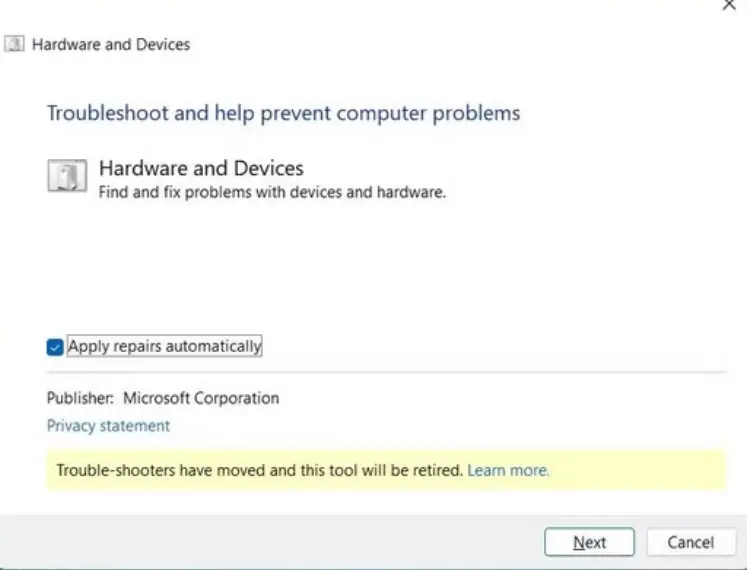
Step 5: Click on the Next button and adhere to the onscreen instructions.
Step 6: Reboot your Computer.
Fix #7 Update or reinstall mouse drivers
Open Device Manager > Mice and other pointing devices, then update or uninstall and restart.
Fix #8 Disable USB power saving
In Device Manager, turn off power-saving for the USB Root Hub by following these steps.
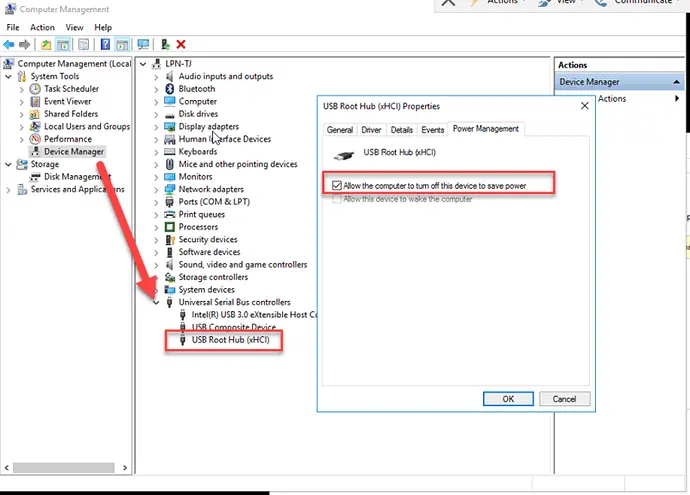
Step 1: Press Windows + X → click Device Manager
Step 2: Expand “Universal Serial Bus controllers.”
Step 3: Right-click USB Root Hub & Select Properties
Step 4: Go to the Power Management tab
Step 5: Uncheck “Allow the computer to turn off this device to save power.”
Step 6: Click OK
Step 7: Repeat these steps for every USB Root Hub listed
Step 8: Restart your PC
Bonus Feature – Troubleshooting Mouse Issues on HP & Apple Devices
A misbehaving mouse can turn smooth clicks into a patience test. Whether you’re on Windows, an HP laptop, or an Apple device, these steps help bring the cursor back to life.
1. Fix Mouse Issues on HP Laptops
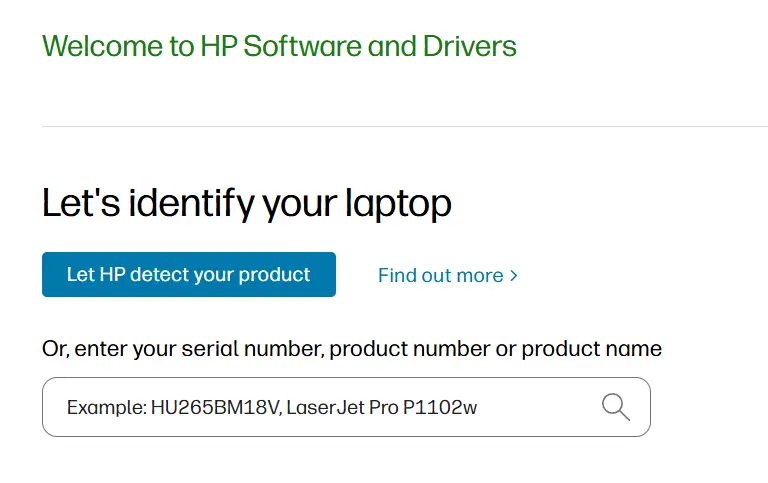
Update HP touchpad/mouse drivers
Download the latest drivers from the HP Support website.
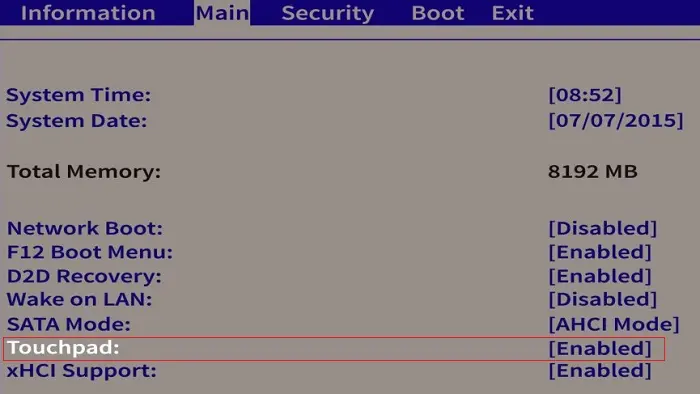
Check BIOS settings
Ensure the touchpad or external mouse is enabled.
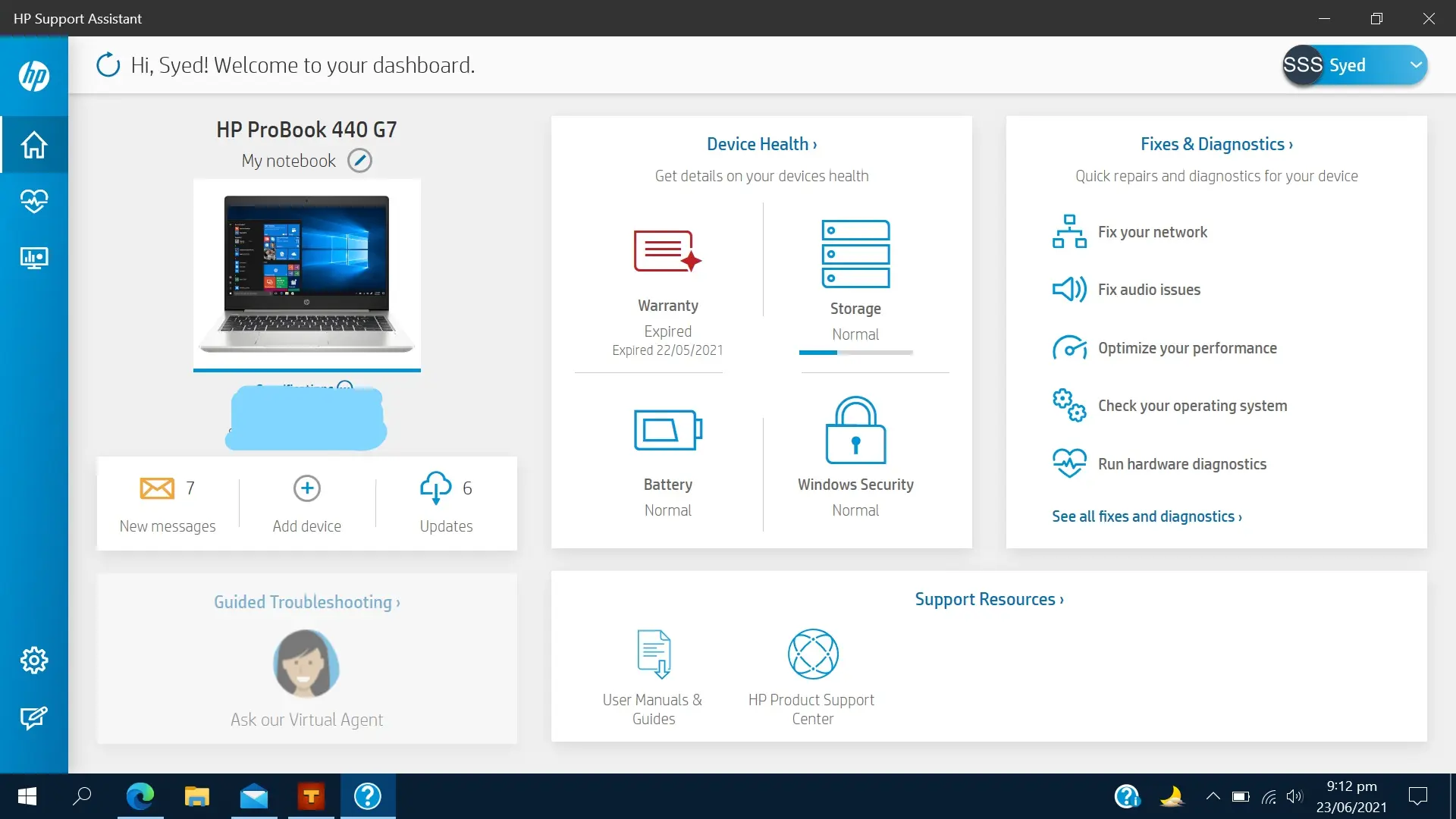
Use HP Support Assistant
Run the HP support assistant software to identify and fix issues.
2. Fix Mouse Issues on Apple Computers
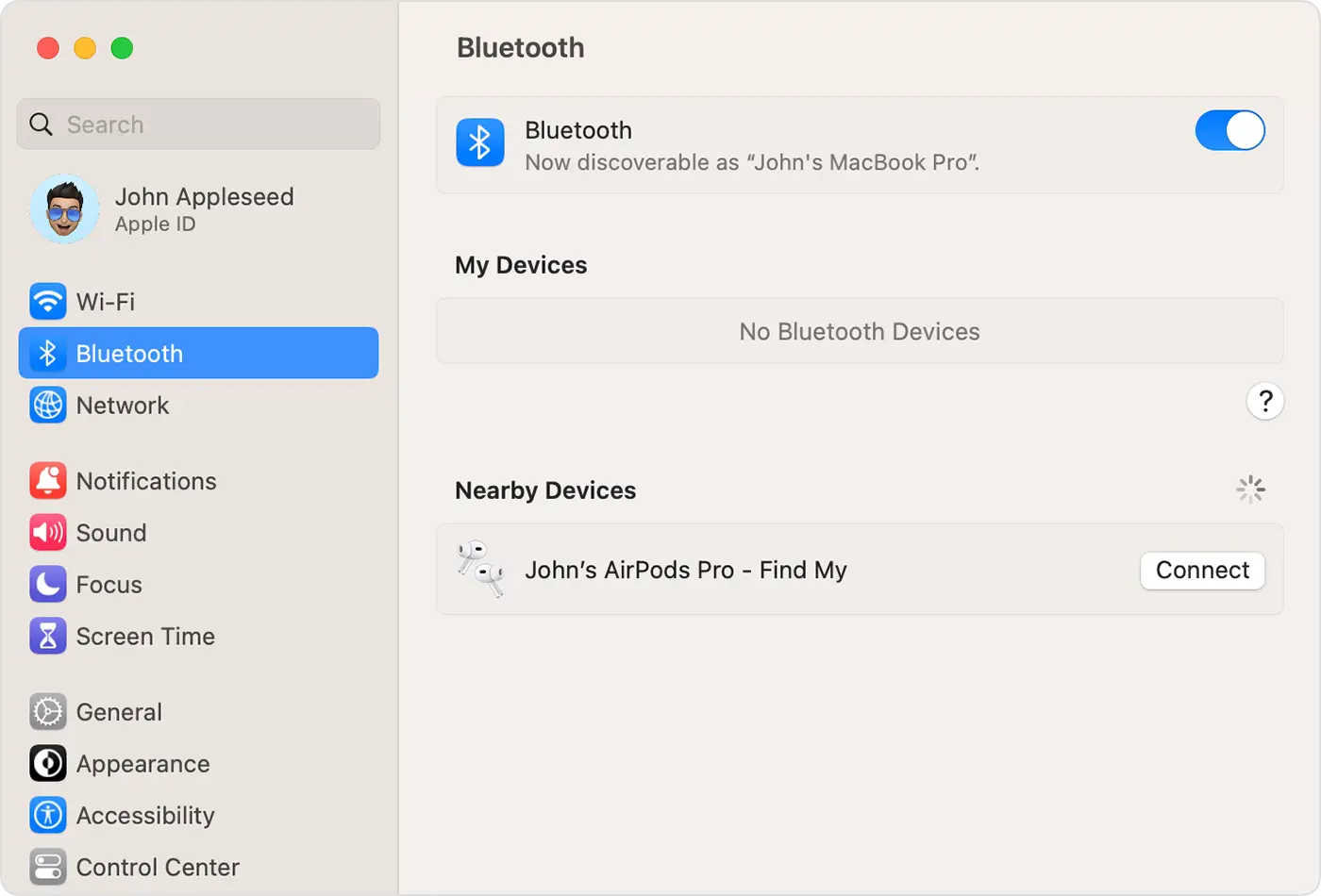
Check Bluetooth settings
Go to System Settings and locate the Bluetooth to reconnect the mouse.
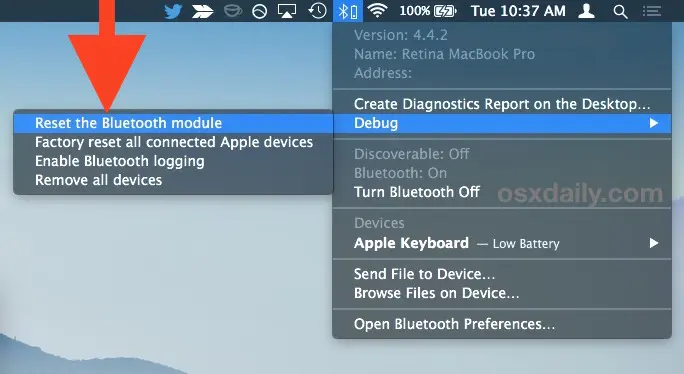
Reset the Bluetooth module
Turn Bluetooth off and on, then re-pair the mouse.
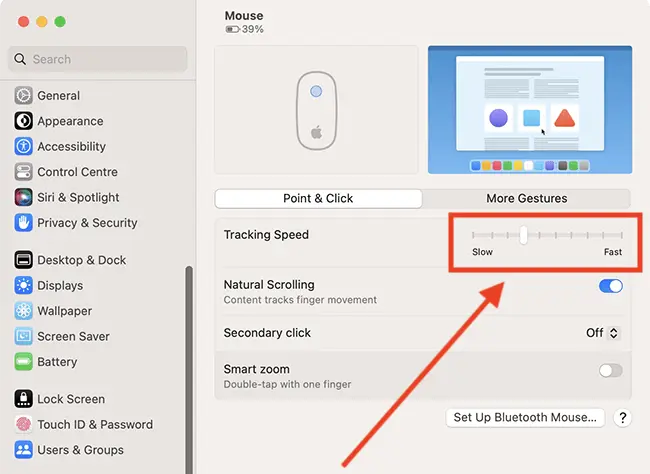
Adjust tracking speed
Open System Settings > Mouse and fine-tune movement and clicks.
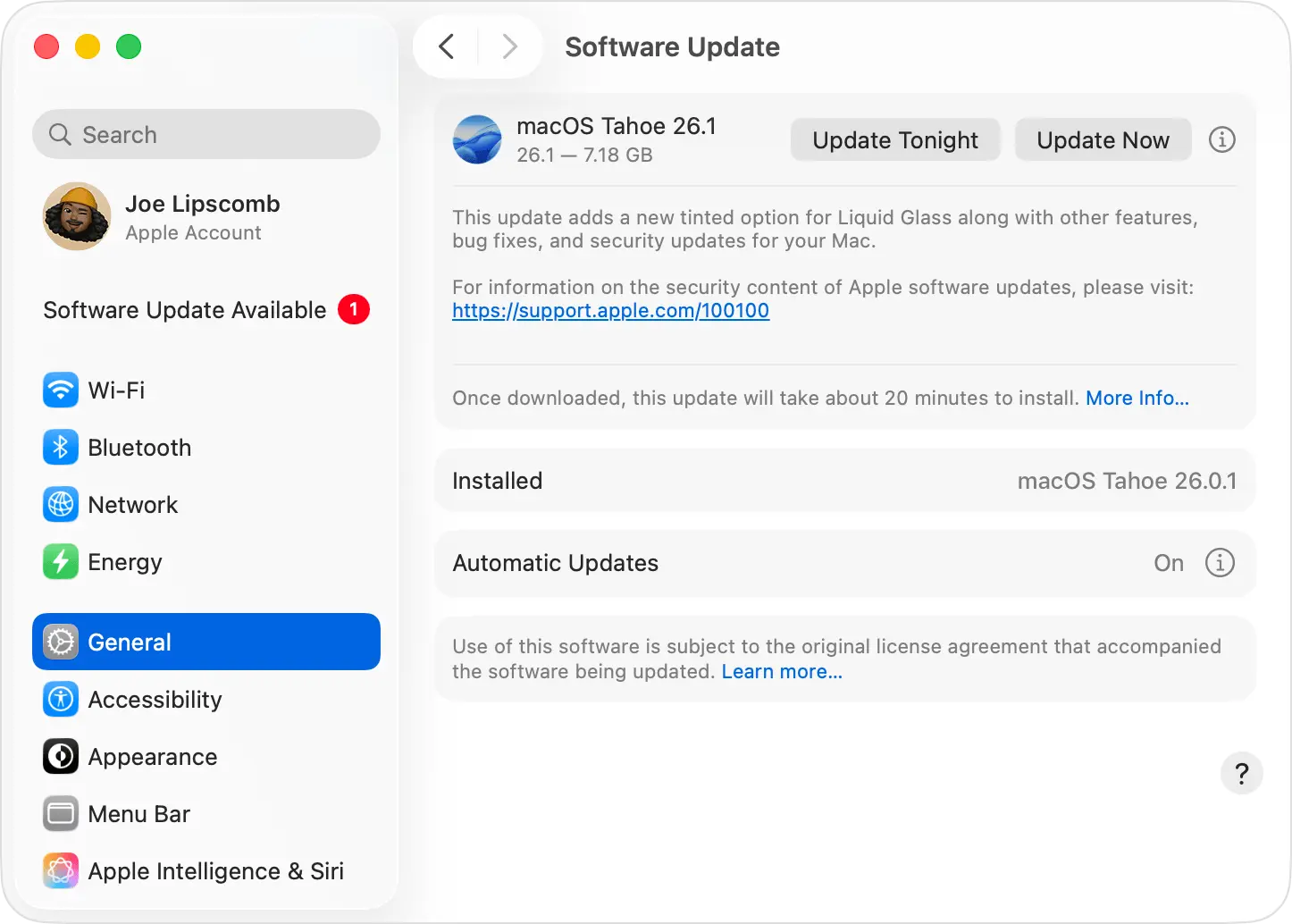
Update macOS
Software updates often resolve input bugs.
Hopefully, the post helps you with mouse cursor stuck issues on Windows. That’ll be all for this one. Thanks for reading. Good luck!
Frequently Asked Questions
Q1. Can Virus or Malware Freeze The Mouse Cursor?
The mouse cursor freezing issue can occur due to a malware or virus infection. If this is the case, then we recommend you run a virus scan using Windows Security or any other third-party real time antivirus solution like Systweak Antivirus, Norton, McAfee, etc.
Q2. Can High CPU Usage Cause Mouse Cursor to Freeze?
If your CPU usage is 100% then all the system resources are occupied in one task or another. You will notice an overall lag while using the computer like Windows and apps taking forever to open, mouse cursor freezing for few seconds and lagging in movement etc.
Q3. Can the mouse cursor freeze issue occur due to a faulty mouse on a Windows PC?
Yes, hardware issues can result in mouse freeze or stuck on your Windows laptop/desktop. Try using this mouse on a different PC to determine if it is working properly or not. You can also use a different mouse on your PC to determine if the previous mouse was faulty or not.
Recommended:
Wireless Mouse Not Working ? Yes, What to Do
[Fixed] Mouse Cursor is Not Showing on Laptop



 Free Download
  Secure Download




Also should add restart your computer. This works most of the time.
Dear Randy,
Thank you for the suggestion.
We will update our post.
Thanks and Regards
This is helpful, thank you.
My question was requested re an iIpadvnot a computer
Dear Barbara,
Thank you for writing to us.
To help you resolve the issues, I request you please share it in detail. In addition we suggest you to send an email with the details to the support team at support@systweak.com for assistance.
Thanks and Regards
Thank you, Dishank. The second solution and a reboot solved the problem for me. More than a week on from benefitting from your services, my mouse continues to work perfectly.
Steve Garnsey
Dear Steve,
Glad to hear that your problem is resolved.
Thanks and Regards