


If you are facing problems like a black screen, pixels appearing on the screen, RGB color tint, or white noise, follow the troubleshooting guide & learn how to update video drivers.
The device driver holds the information required for hardware devices to communicate with the software or operating system. However, issues with the display, sound, Wi-Fi, Bluetooth, etc., occur after updating Windows or reinstalling it. In such cases, updating the drivers listed below is the best solution as it helps fix video issues, Wi-Fi, and other problems.
There are 3 best ways to update video drivers. You can choose any to install the update for video drivers on Windows 10.
3 Reliable Ways to Update Video Drivers
Video drivers can be updated automatically and manually. If you are short on time and don’t like lengthy processes, we recommend trying – Advanced Driver Updater. This professional driver updating tool automatically detects outdated drivers and shows the most compatible and recent updates.
However, if you are the DIY type and want to do everything independently, go with manual ways.
Note : Updating drivers manually involves risk. Therefore, when doing so manually, ensure the right driver is downloaded based on the operating system's version and device details.
Once you decide how you want to update video drivers on Windows 10, proceed further.
1. Automatic Way to Update Video Card driver
Various third-party driver updating tools are available in the market, but not all are safe to use. Therefore, using a trusted and reliable driver updating tool that provides a large database & the option to backup and restore drivers is the best option.
You need to understand only the best driver updating tool can automatically detect problematic drivers and install compatible updates. An incorrect driver update can cause frequent freezes, lags, and other issues.
Therefore, to avoid such issues, we recommend using Advanced Driver Updater.
Follow these steps to learn how to update Video Card Drivers On Windows 10
1. Download and Install Advanced Driver Updater

2. Run the application and click Start Scan Now

3. The driver updating tool will scan the system for faulty, corrupt, and outdated drives.

4. Wait for the scan to finish.
5. Click the Update Driver button next to Graphics or video card to install the update. If you are using the registered version, take advantage of the Update All button to update all outdated driver.

6. Let the process finish.
7. Restart Windows and apply changes.
2. Manual Ways to Update Drivers
If you want to download and install the driver manually, follow the steps below:
1. Updating video drivers via Windows Update
The latest video drivers can be downloaded and installed through Windows Update. Follow the steps to learn how to do it.
1. Press Windows + R to open the Run window. Type devmgmt.msc and press Enter key.
2. In the Device Manager window, go to Display adapters. Double-click on it > select the graphics card > right-click > Update driver.
Note : Depending on the version of Windows, on some machines, it might appear as Update Driver Software.
3. Select Search automatically for updated driver software from the pop-up window. Windows will now look for video driver updates.
4. If an update is available, it will be installed automatically.
Note : This process can be repeated to update multiple graphics card drivers.
Tip : If you get the message “The best drivers for your device are already installed,” click Search for updated drivers on Windows update. Check for available Windows updates if any are available). However, if you are running the latest version of Windows, click View options updates > double click Driver Updates > see if an update for the Video card driver is available or not. If it is there, selects it and click Download and install.


3: Download and Install New Drivers from the Manufacturer’s site
You can try this method if you have time and computer skills.
To know about the version of Windows 10, you are using press Windows + R > msinfo32 > ok.

Get details about the PC model number from the new window that opens. In my case, Lenovo 34921F4 > below it, you can see system type X64 and OS Name.

After collecting this information, let’s gather information about graphics cards and manufacturers. To do so, follow the steps below:
1. Press Windows + R to open the Run window
2. Type devmgmt.msc > Enter
3. This will open Device Manager
4. Look for the Display adapters section; double-click to expand it.
5. Select the graphic driver you wish to update > right-click > Properties
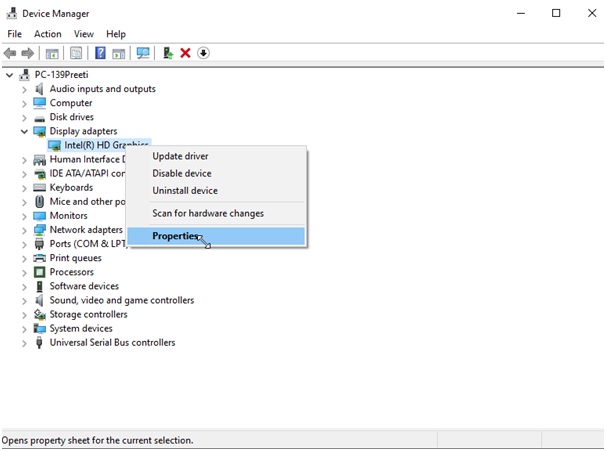
6. Click the Driver tab followed by the Details tab to collect all the driver information
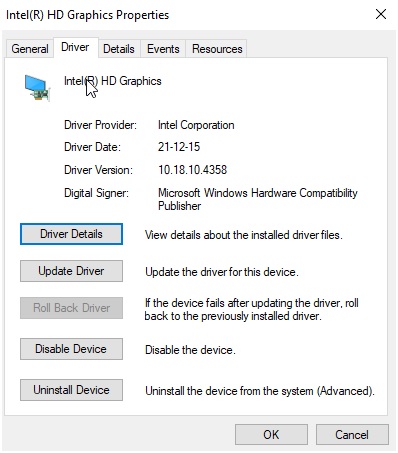
Following the above steps will give all the driver-related information.
Once you have all the information visit the manufacturer’s site or the support page to download the driver update. After that, double-click the .exe file to install the update. However, if the update is in the form of a zip file, extract it and install the driver update. Restart your PC after updating the video driver.
Solution – How To Update Video Drivers on Windows 10
We hope you got the answer to How to Update Video Card Drivers on Windows 10. You can use any of the above methods to update the video drivers. However, if you don’t have enough time and patience, the automatic way is a smart decision. Advanced Driver Updater automatically identifies outdated drivers and shows the most compatible updates. If you have any questions, please drop that in the comments sections. Moreover, for any product-related queries, you can contact our support team at support@systweak.com.






2 thoughts on “How To Update Video Drivers On Windows 10”