
Google Docs is one of the most popular word processors that is used by millions across the globe. It is an online word processor, which means the person has to be connected to the internet to access the document. Also, sharing documents in DOC format is not recommended; we would rather suggest PDF format. Did you know that you can convert your Google Doc to a PDF document in 3 different ways? We have covered all methods for convert and save Google Document into PDF in this guide. Without further ado, let us begin.
Note : It is not possible to make changes to a PDF document without a PDF editor app. Hence, we suggest that you read and make all the changes required before converting your Google Doc to PDF format.
Why Should You Convert a Google Doc to PDF Format?
The Google Doc word processor is a great tool for writing, but when it comes to sharing, there is nothing better than the PDF format. Here are a few reasons why.
- The PDF format preserves fonts, images, spacing, page breaks, and other features exactly as designed.
- PDF documents can open on various devices and will appear in the same manner as intended.
- This format is used for official documentation like resumes, reports, invoices, and manuals.
- Users cannot perform any sort of editing unless using advanced PDF editor software.
- PDFs support password protection, encryption, and permission settings.
- PDFs are lightweight, email-friendly, and print exactly as expected.
- This format is stable and hence preferred for long-term archiving.
- You can apply digital signatures to a PDF, making it suitable for formal workflows.
How to Convert/Save a Google Doc to PDF?
There are three ways to convert, and all the methods lie within the Google Docs word processor app.
| Download As PDF | You can simply download your Google Doc in PDF format. |
| Print To PDF | You can print the document as a PDF. |
| Email To PDF | You can email your Google Doc as a PDF. |
We have explained all three methods with detailed steps below.
Method 1: Download The Google Doc As PDF
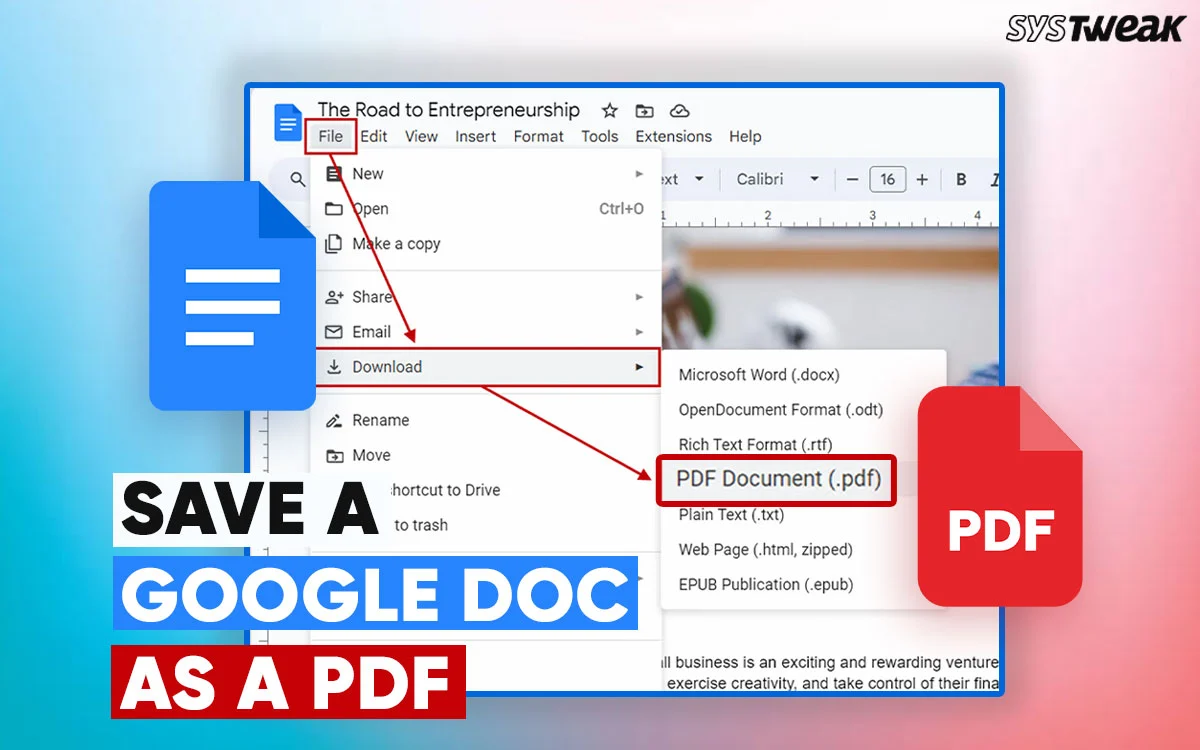
Google Docs allows users to download their documents in different formats, such as DOCX, PDF, HTML, EPUB, etc. Here are the steps for this simple method.
1. Launch Google Docs on your favourite browser
2. Open the document you wish to save as a PDF
3. Click on the File tab in the top-left corner.
4. Next, hover the mouse cursor over Download and select PDF Document.
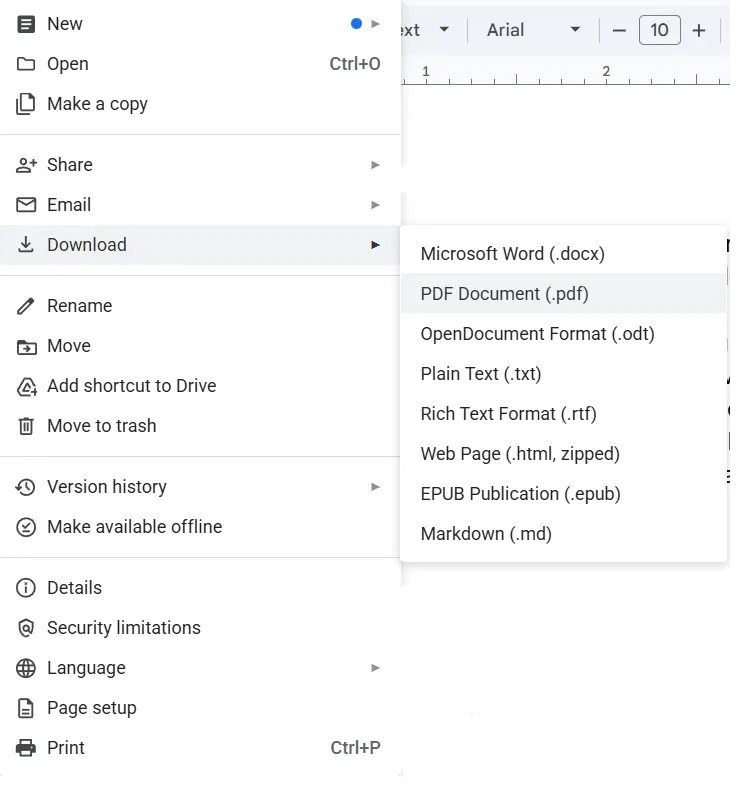
5. The document will be downloaded as a PDF file in your default download folder. Now cut the document from the download and select the location where you want to save it.
Method 2: Print The Google Doc As PDF
If the above method does not work for you due to some sort of glitch, then you can save your document as a PDF using the Print option. Here is what you need to do.
1. Open the Google Doc app and load your document.
2. Click on the File tab and choose Print, which is the last option.
Note : You can also press Ctrl + P on the document screen to open the Print dialog box.
3. In the next window, locate the Destination box and choose the Save As PDF option.
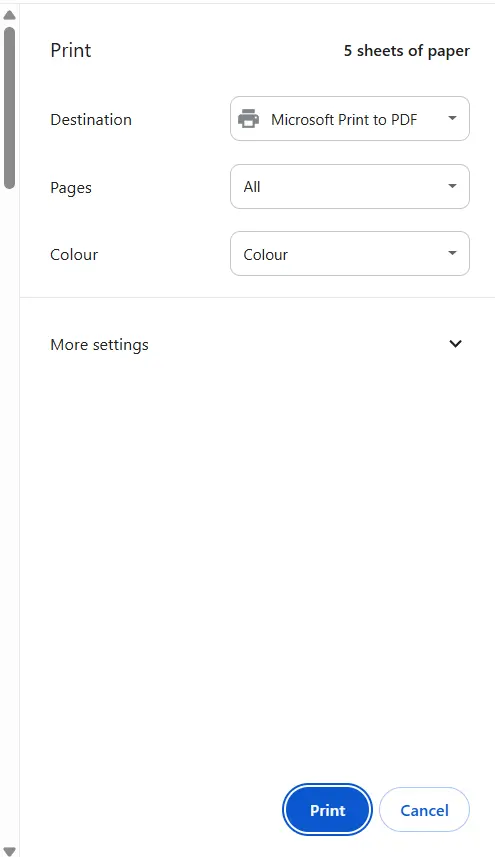
4. Choose the location where you wish to save your PDF file, and also specify a name for it.
5. Click on the Print button, and your PDF document is ready to share.
Read Also : Can’t Print PDF in Windows from Browser? Here’s What to Do!
Method 3: Email The Google Doc As PDF
The final method to convert Google Docs to PDF is to share the document as a PDF via Email. This will not create a PDF document on your PC. Here are the steps.
1. Launch the Google Doc app and select your document.
2. Click on the File tab and choose Email.
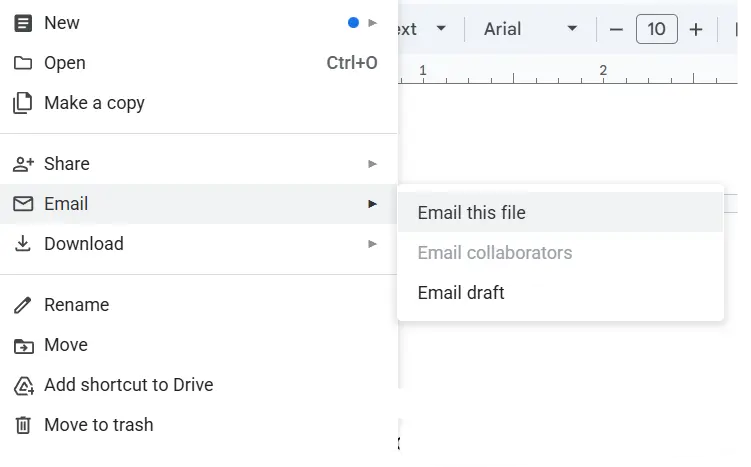
3. Fill in the details required and choose the File Type as PDF.
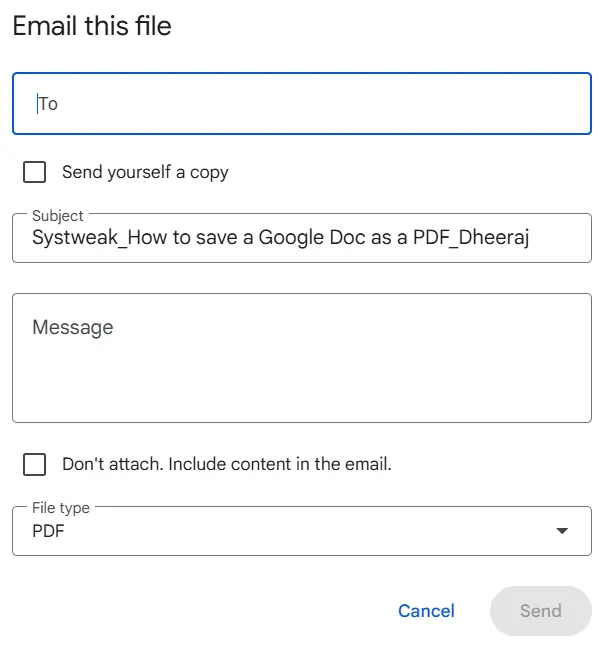
4. Click on the Send button.
Bonus: How to Edit a PDF Document After Conversion from Google Docs?
It is difficult to edit a PDF document without a PDF Editor app. However, if you have access to the original Google Docs file, then you can make changes in the document and save it as a PDF again. But if you have deleted or lost the Google Doc file, then you need to use the Systweak PDF Editor app to make changes to your PDF document.
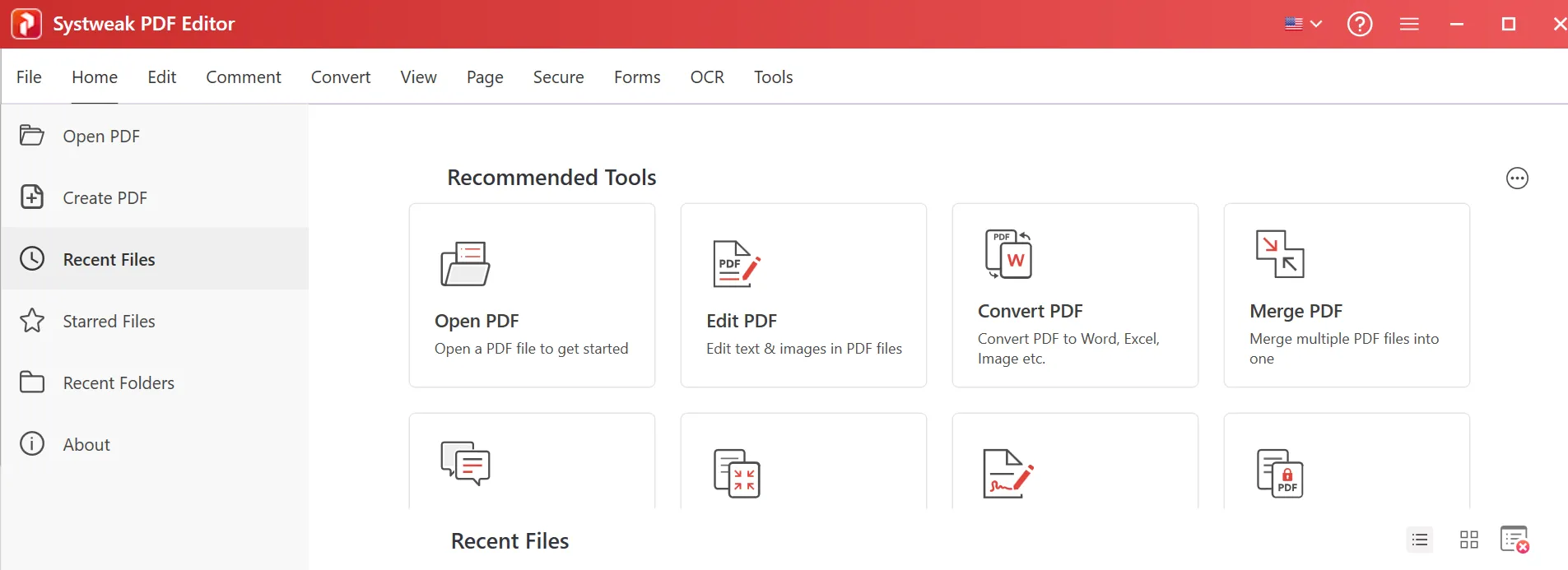
Systweak PDF Editor is a PDF editing and managing application that allows users to make changes to the PDF document that were once thought to be impossible. It is also available at an economic price as compared to the highly overpriced Adobe Photoshop. Here are a few features of Systweak PDF Editor.

Edit PDF Documents : You can change the text of any PDF document after applying OCR to it using this app.
Annotate Documents : This software can be used to add comments, highlight text, draw shapes, and underline important text to the PDF birthday card.
Add Images : You can add images to any PDF document using this software.
Rotate, Rearrange, Add, or Delete pages : Systweak PDF Editor allows users to manage the PDF by making changes to the pages within the PDF.
Misc Features : Users can compress, digitally sign, and password-protect any PDF document.
Conclusion: Have you Saved Your Google Doc as a PDF?
We have explained all the methods to save the Google Doc as a PDF document. We prefer using the first method of downloading the document as a PDF. You can use any of the methods you prefer. As for editing the PDFs, Systweak PDF Editor has been tried and tested by our team of experts. Do share your experience and queries in the comments section below, and we will get back to you.