We all use PDF documents for various types of work. However, have you come across PDF files that are too large to store or share? A PDF file with a lot of content, high-quality images, and a large number of pages will have a huge file size, making it difficult to share with others. Ebooks, agreement files, exam papers, college notes, medical reports, etc., are all great examples of where huge PDFs are used. All these documents must be shared, but their sizes often make it difficult to share them.
The only solution that comes to mind is compressing the PDF. But many people do not know how to compress a PDF file or fear that compressing a PDF might reduce the quality and blur the images within the PDF. This blog will help readers understand different ways to compress the PDF file without compromising the quality.
Why Do You Need To Compress A PDF File?
A PDF document contains a lot of information in the form of text, images, graphs, notes, etc. However, the more the content, the larger the file size of the PDF, which makes it difficult to share and store. Here are the major reasons why to compress any PDF file.
- Compressed PDFs can easily be shared by significantly reducing their size. When you send a compressed PDF via e-mail or on a cloud service, it becomes easier as you do not cross the file size limit determined by these services.
- Compressed PDFs have a smaller file size, which means you’ll be able to upload them faster, download them faster, and ultimately spend less time just waiting for the process to complete..
- There are limits to the amount of storage you can have on your laptop, phone, or cloud storage. Therefore, if you can lower the size of your PDF documents, you can store more PDFs without worrying about running low on storage space.
- When a large PDF is opened on a phone, it can be difficult to read and manage. By compressing the PDF, it will open faster and work better when viewed on a mobile device.
- Large PDFs can cause apps to run slower or freeze completely (especially in older devices). Compression helps to improve how quickly documents will open, scroll through, and allow for a better overall experience for users.
How To Compress PDF Files Offline
Offline PDF tools are programs that can be installed on your PC. These programs work without the internet and ensure that your PDF documents remain on your PC itself. Here are a few pros and cons of using offline PDF compressing tools.
✅ Pros
- Strong Privacy & Security as your files never leave your device.
- No internet required to compress PDF files.
- Faster performance because processing happens locally.
- No file size limits, as offline software can handle large files without upload restrictions
- Offline PDF tools usually offer powerful capabilities like OCR, batch processing, annotations, and full editing control.
❌ Cons
- Offline tools must be updated from time to time.
- Download and Installation is required
- Offline PDF tools are limited to devices where they have been installed.
Offline Tool 1: Use Systweak PDF Editor
Systweak PDF Editor is an offline PDF editing tool that allows users to make changes to any PDF with features like editing, annotating, watermarking, signing, filling forms, protecting, and compressing PDF documents. This program does not upload your PDF files to any foreign server and ensures that your PDF files are compressed on your PC without needing the internet, making sure that your documents remain private and secure.
Here are the steps to use this program.
1. Download, install, and launch the Systweak PDF Editor.

2. Click the Compress PDF option from the home screen.
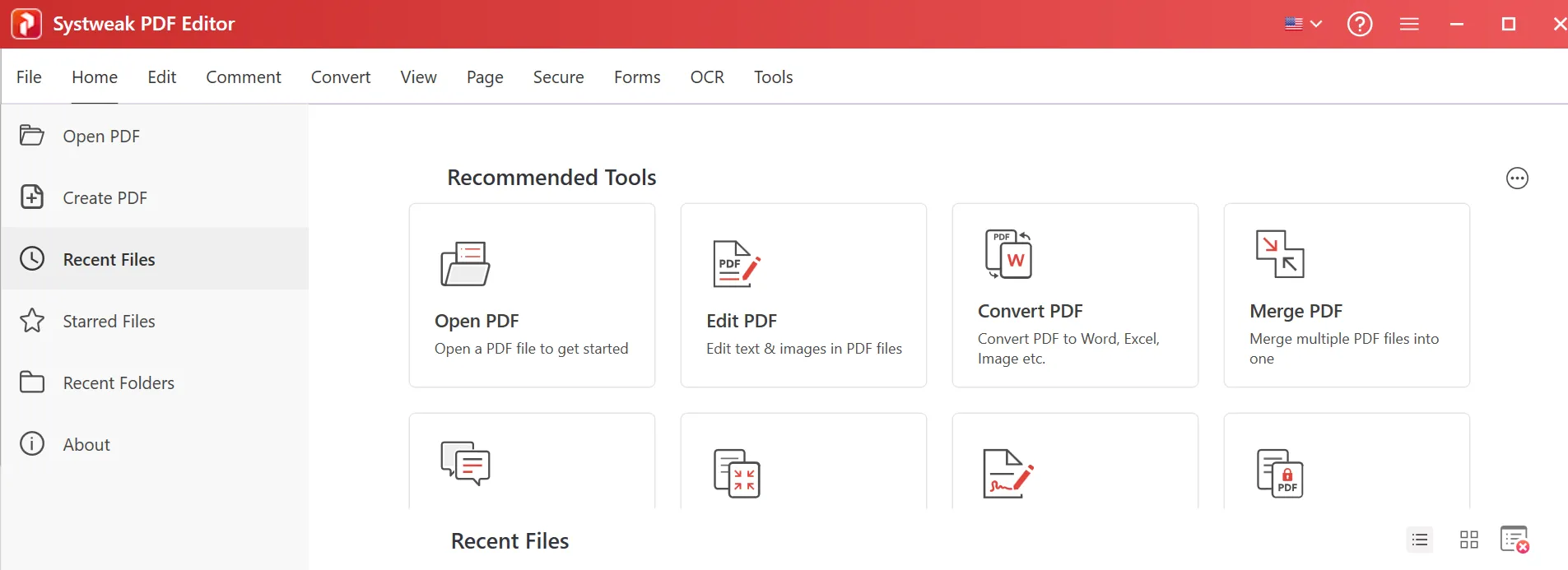
Or
You can click the Tools tab at the top and choose the Compress tab.

3. Browse to the location where the PDF is stored and select it.
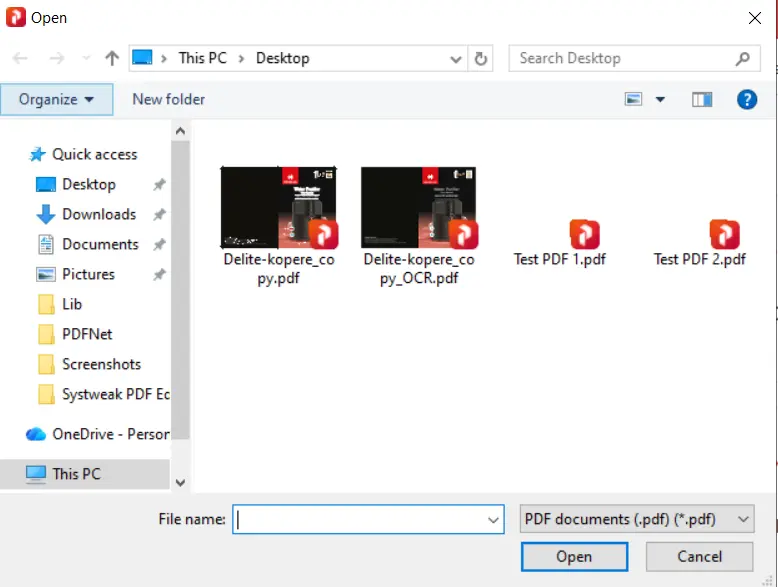
4. The PDF will now be added to Systweak PDF Editor.
5. To start the compression process, click Compress PDF
6. Select the compression method and again click Compress. There are five different methods to choose from.
Method 1: High Compression. This method delivers the lowest file size with the lowest quality.
Method 2: High Compression. This method provides a lower file size with standard quality.
Method 3: Medium Compression. This method provides a medium file size with better quality.
Method 4: Low Compression. This method delivers a large file size with the highest quality.
Method 5: High Compression using the Image method. The final method helps users to convert PDF pages to low-quality images for higher compression.
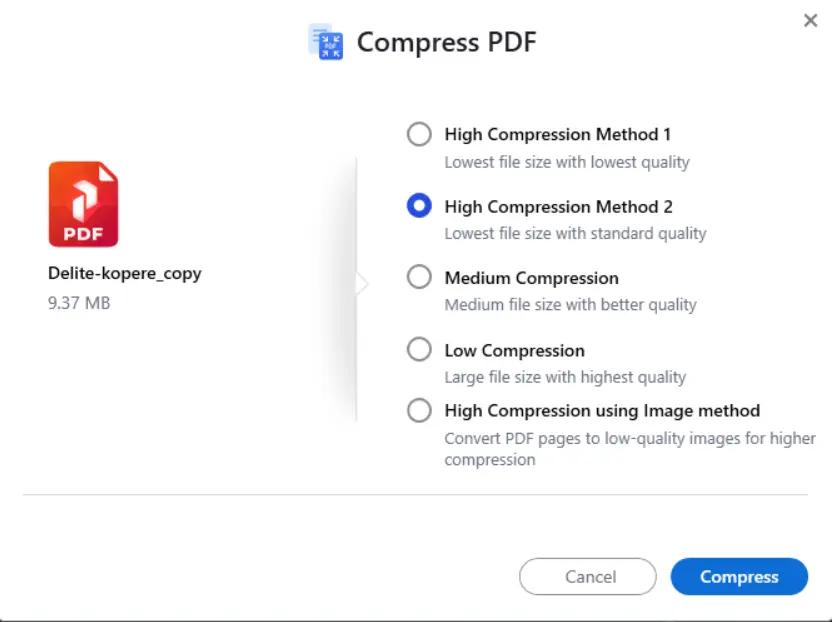
7. Choose the location where you wish to save the compressed PDF and click on Save.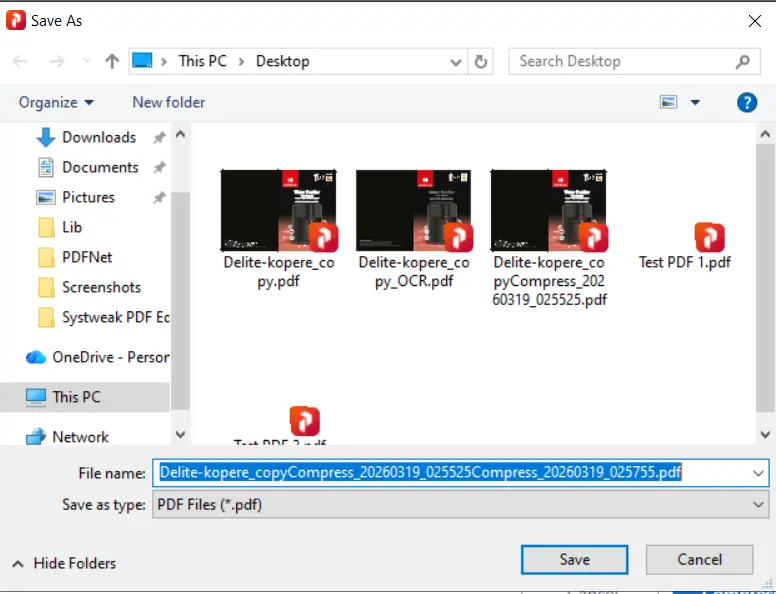
8. Save the PDF after compression, and you are ready to use the PDFs.
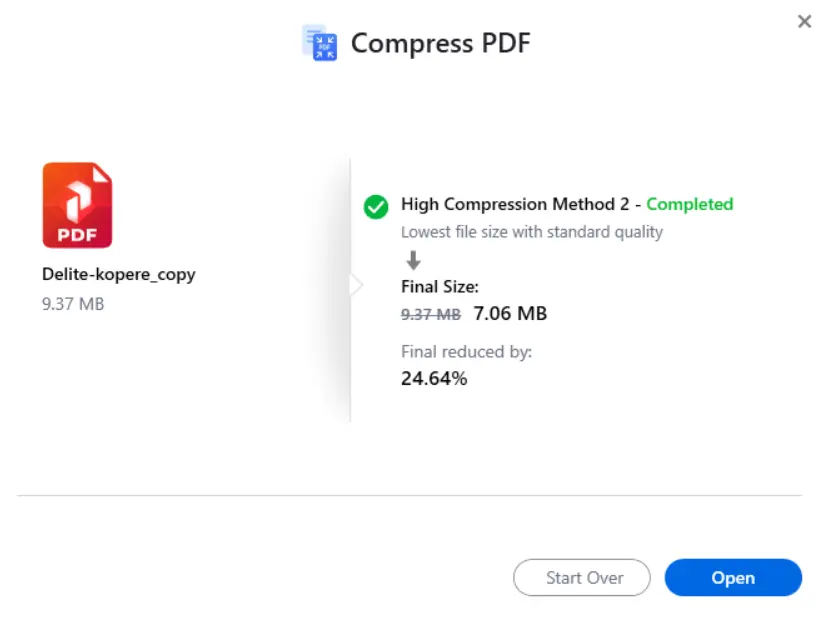
9. After the PDF has been compressed, you can click on the Open button to view the PDF and check the quality.
Offline Tool 2: Adobe Acrobat
1. Open your PDF in Adobe Acrobat.
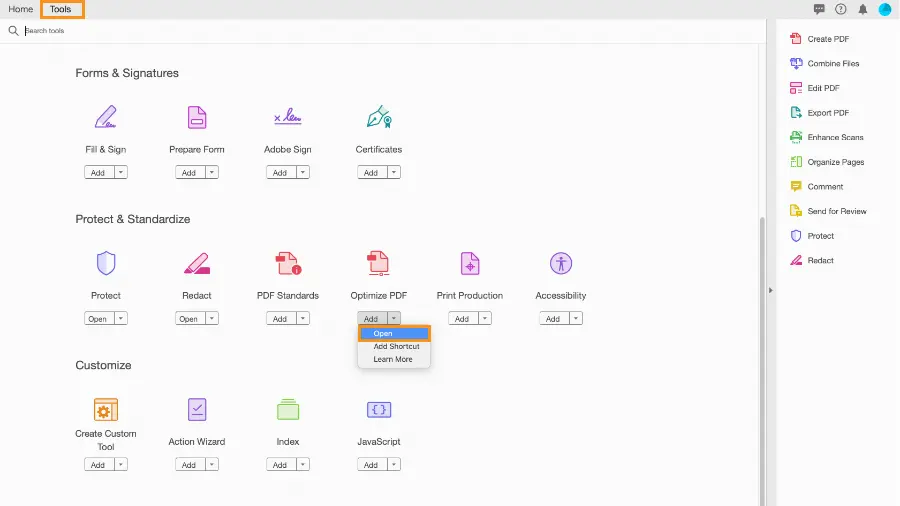
2. Click the tools tab in the top-left corner.
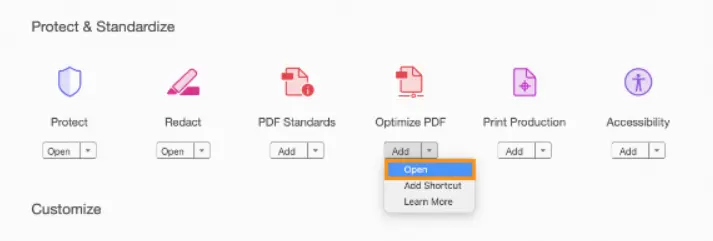
3. Click on the Add drop-down and choose Open.

4. Select Reduce File Size or Compress PDF.
5. Click OK.
6. Save the compressed file in your desired location.
How To Compress PDF Files Online?
If you wish to compress PDF file online free, then we have many online web-based tools that can optimize the PDF file size and reduce it. We have tried most of the online PDF editor tools and have listed the best tools for your convenience.
Note : When you use an online PDF tool to edit and make changes to your PDF, you have to upload your PDF file to the tool’s server to a cloud-based storage, with no guarantees that your file will not be used by someone or when it will be deleted from the server. This is not recommended for private files that contain confidential information.
✅ Pros
- Use directly in a browser without downloading software
- Many online websites give tools that offer basic features at no cost
❌ Cons
- Files are uploaded to external servers, compromising the privacy of the document
- Upload restrictions on large PDFs
- Won’t work without a stable internet connection
- Advanced tools are often locked behind paywalls
- Depends on internet speed and server load
- Free tools may include ads or pop-ups
Online Tool 1: I Love PDF
The first online tool that you can use to compress PDF file online free is I Love PDF. This is a quick, free, easy-to-use tool that you can use to carry out basic PDF modifications, including optimizing PDF file size.
1. Click here to navigate to the I Love PDF page.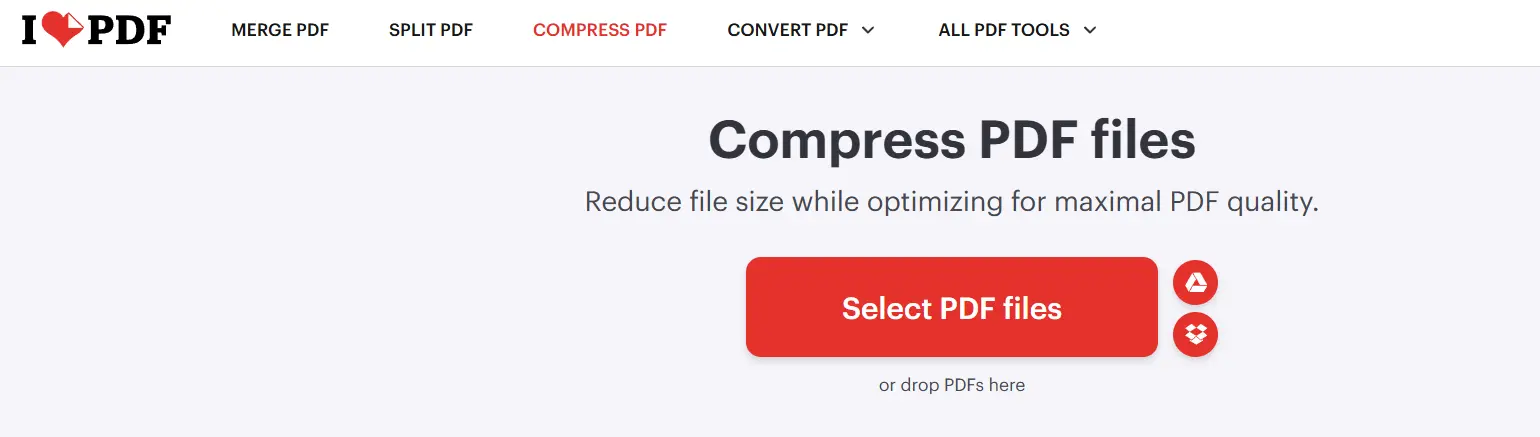
2. Click on the Select PDF Files button and choose the files that you wish to compress.
3. The PDF file will now be uploaded to the online server of the I Love PDF tool.
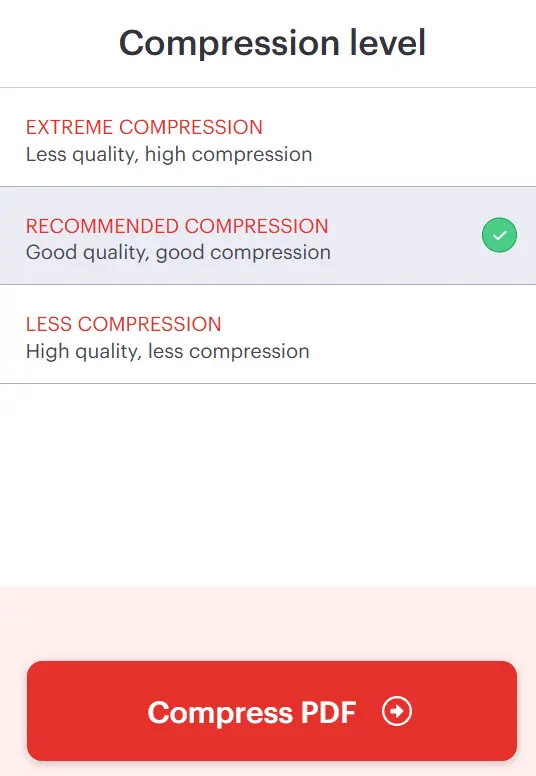
4. Choose the Compression level and click on the Compress PDF button.
5. Wait for the process to complete.
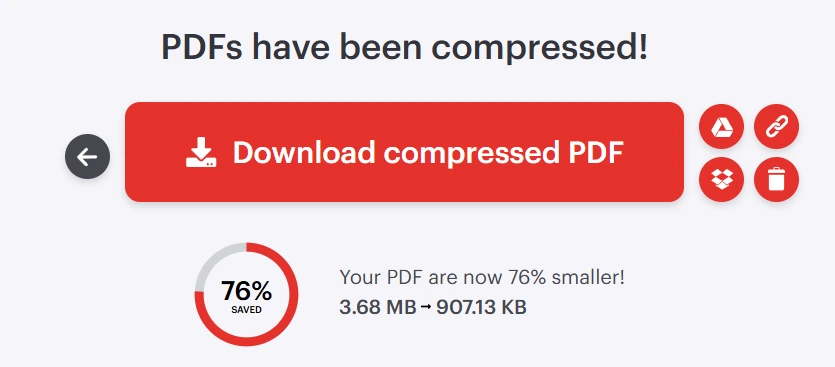
6. Click on the Download Compressed PDF button to download the new compressed PDF file to your default downloads folder.
Online Tool 2: PDF24 Tools
The next tool to compress PDF file online free is the PDF24 tools website. This online web tool allows users to reduce PDF file size Windows, along with other functions like merge, split, convert, protect, compare, web optimize, redact, and extract PDF. Here are the steps to use this tool.
1. Navigate to the PDF24 Tools website.
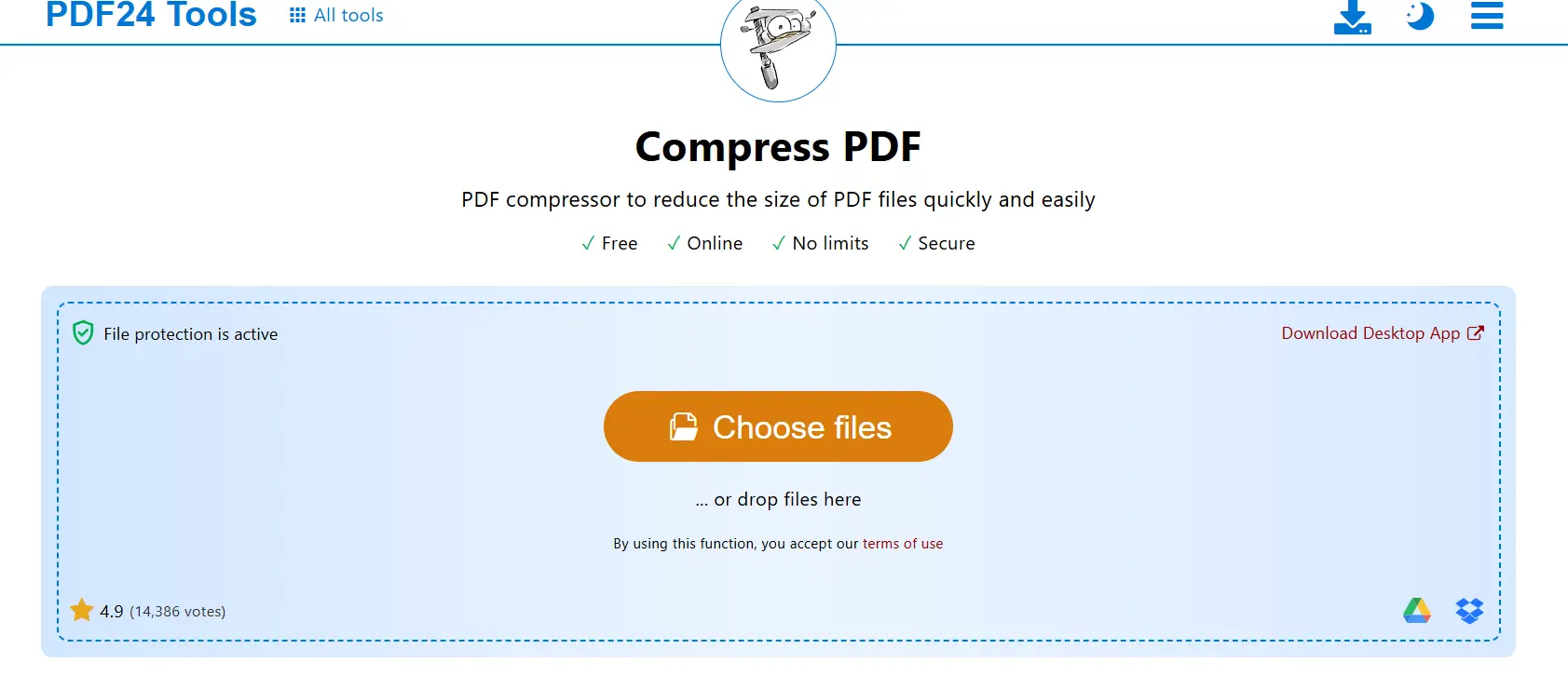
2. Click on the Choose Files button to select the PDF files that you wish to compress.
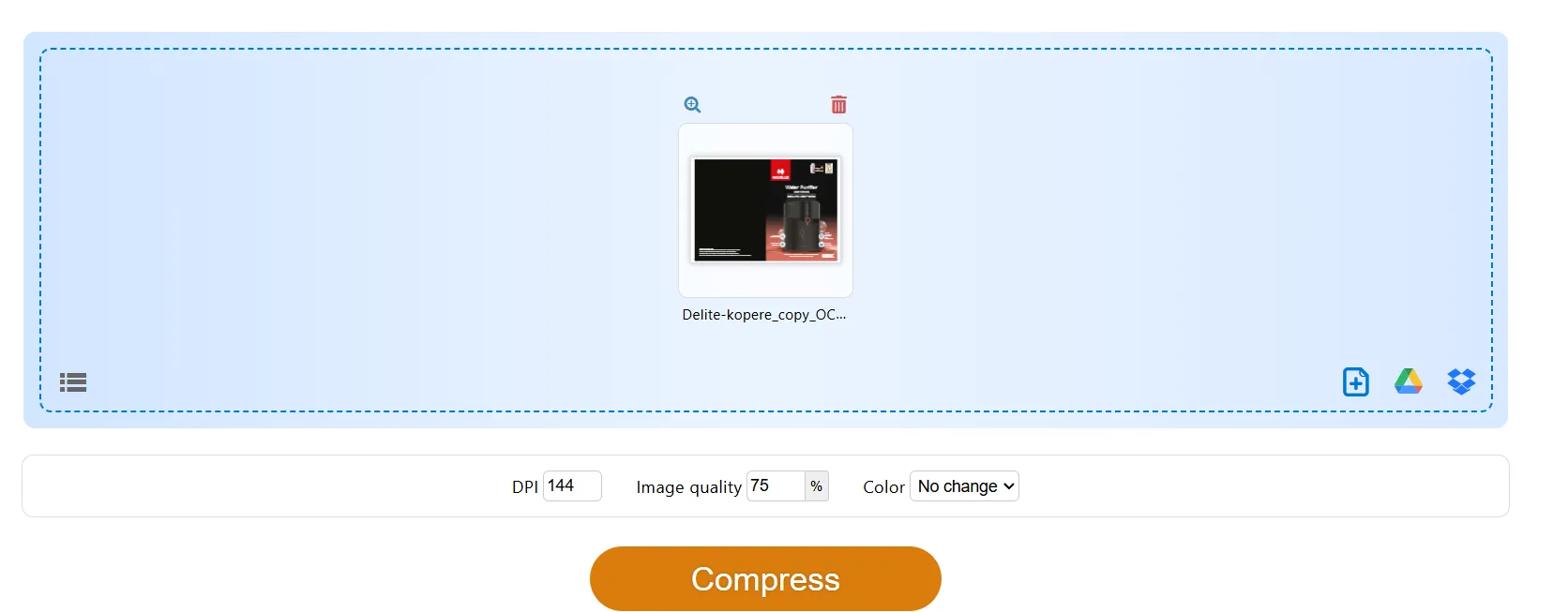
3. After the file has been uploaded to the server, click on the Compress button to begin the size reduction process.
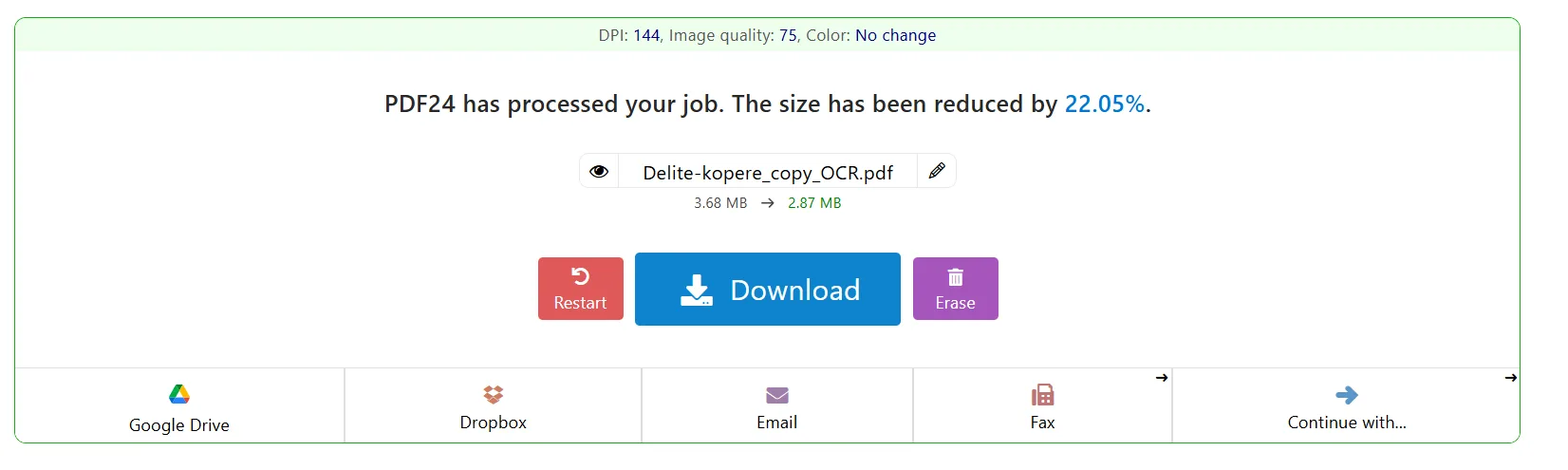
4. Click on the Download button, and the new reduced PDF file will be downloaded to the default Downloads folder.
Bonus Tip: Add Document to Compressed Zipped Folder
If you do not want to compress your PDF files but want to be able to share them as they are, then you could try to add them to a compressed folder. The person receiving the compressed or zipped folder can then extract the PDF document without reducing the actual size of the PDF.
Here’s how you can compress the file and add it to the zipped folder.
1. Open File Explorer and look for the file you want to compress.
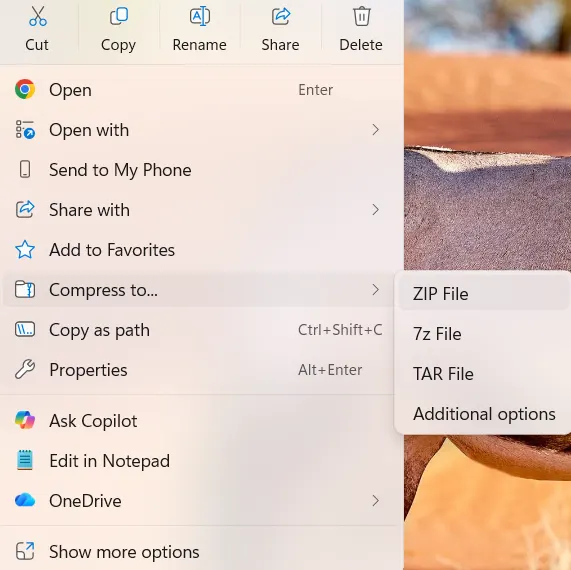
2. Select the file and right-click on it to open the quick access menu.
3. Click on Compress to, and another menu will expand.
4. From the expanded menu, select a Zip file and click on it.
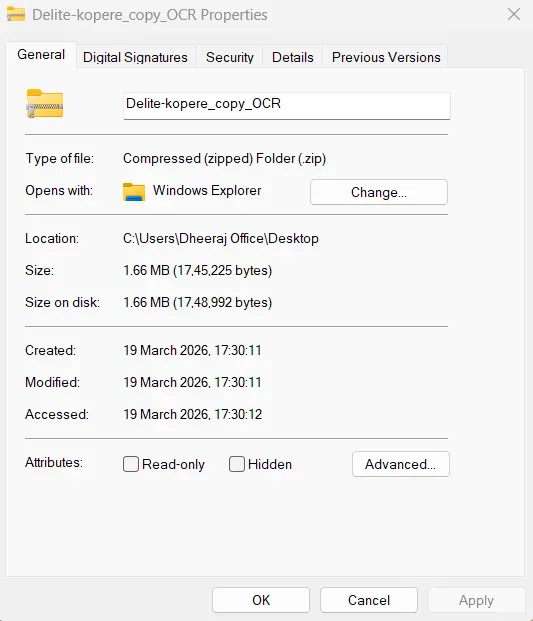
5. Once the zipped folder is created, you can right-click on it to check its properties and identify if the size was reduced to what you desired.
6. Finally, you can share the compressed folder if the size has been reduced to what your sharing app permits.
Conclusion: Compress PDF On Windows Is Now Easy
We have explained all the possible methods to compress PDF files on Windows, with offline and online methods. The choice of use of the method is up to you. We suggest that you do not use the Online methods if you value the privacy and secrecy of your PDF document. Between the offline methods, Systweak PDF Editor is a fantastic choice not only to compress the PDFs but also edit and make other changes to your PDF documents.
Recommended : How to Send Large PDF Files Via Email [2 Easiest and Quickest Ways]