Are you looking for a way to get the Canon G2010 printer to work with your computer?
Canon G2010 is an all-in-one printer with a decent printing speed at an affordable price. However, your computer needs to have the Canon G2010 printer driver to use it, as device drivers are the software that is the primary communication link between a device and the operating system. You can install this Canon printer driver for Windows 7 32-bit or other versions.
This article will tell you how to download the Canon G2010 driver and install it for Windows 10. We will talk about an automatic driver updater for Windows – Advanced Driver Updater, which makes it easier. Let us get started.
Check This- How to Install Canon MF3010 Printer Driver
Why Update Canon Driver?
To resolve any issues caused due to outdated, missing, or corrupt drivers, you must update your Canon drivers.
Methods to Download/Update Canon G2010 Driver
1. Download From The Manufacturer’s Website
Below are the steps to install the Canon G2010 driver in Windows 10 64-bit manually:
Step 1: Go to the official website of Canon to get the driver for your Canon G2010 printer.

Step 2: Confirm the model name and number; after that, you can check the Operating system for your computer from the information provided on this page.

Step 3: Now, click the Download button and run the file on your computer.
This is the easy process of downloading the Canon G2010 driver setup for 64-bit on your computer and updating the Canon printer driver.
You can use the official website to download the Canon G2010 driver and follow the above steps to install its driver for the Windows 10 64-bit OS. However, if you find this confusing and want a simpler solution, move to the following method.
Read This- How to Update Canon Printer Driver on Windows PC
2. Update using Advanced Driver Updater
Advanced Driver Updater is a simple application to install and update device drivers on your Windows PC. It supports installing new drivers and updating outdated drivers. It can download the Canon G2010 driver (the latest version) and update it regularly on your computer. Besides detecting outdated drivers, it can list all the outdated software on your computer.

Features of Advanced Driver Updater –
- Large database
- Quickly backs up the drivers to prevent compatibility issues.
- Supports various devices under all categories.
- Allows the restoring of drivers to the previous working stage if a driver update is incompatible with the OS.
- Keeps all drivers synchronized with the latest version when available.
- Automatically resumes the connection in case of any interruption in the connection.
- Installs all drivers from the cloud for faster updates.
- Allows scheduling scans for the detection of outdated drivers.
- Driver exclusion list that prevents updating any unused drivers.
- It helps in keeping your PC optimized with up-to-date drivers.
How to Use Advanced Driver Updater to Find Outdated Drivers?
First, you must download and install Advanced Driver Updater. Then, follow the steps to Install Canon G2010 Driver in Windows 11, 10, 8, and 7 using Advanced Driver Updater.
Step 1: Download Advanced Driver Updater from the download button –
Step 2: Run the downloaded file and complete the installation following the on-screen instructions. Remember to grant it the necessary permissions to interact with the system.

Step 3: Once the installation is completed, launch Advanced Driver Updater. Click the Start Scan Now button to scan your computer for outdated and missing drivers on the Home screen.

Step 4: Advanced Driver Updater will begin the scan and show the results in a few minutes.
Step 5: A list of missing and outdated drivers will appear. Click on the Update Driver button to download and install the driver for the particular driver. You can quickly locate the Canon G2010 printer driver and download and install it on your computer.

Step 6: Once you download the Canon G2010 driver, restart your computer as Advanced Driver Updater prompts.
Step 7: You can easily use your Canon G2010 printer with your computer as the driver is installed and lets the printer communicate with the PC.
3. Update Using The Device Manager
The Device Manager is an inbuilt tool that helps scan and update drivers on Windows. Here are the steps to update drivers using this tool.
Note : Make sure that the printer is connected to your PC and turned on.
Step 1: Press Win + X to open the Power menu.
Step 2: Choose Device Manager from the options.
Step 3: In Device Manager, find and expand Printers.

Step 4: Locate Canon G2010 under Printers and make a right-click on it.
Step 5: In the context menu, choose Update driver.
Step 6: Select Search automatically for drivers
Step 7: Windows will search for the latest driver update on its servers and install it automatically.
Step 8: Restart your computer for the changes to take place..
Bonus Tip :
Microsoft engineers roll out updates for Windows OS users to ensure that they receive security patches, bug fixes, driver updates, new features, and more. The users have to check for updates regularly and ensure that they keep their Windows updated at all times. Here are the steps to update Windows.
Step 1: Press Win + I to open the Windows Settings.
Step 2: Click on the Windows Update Tab in the left pane section.
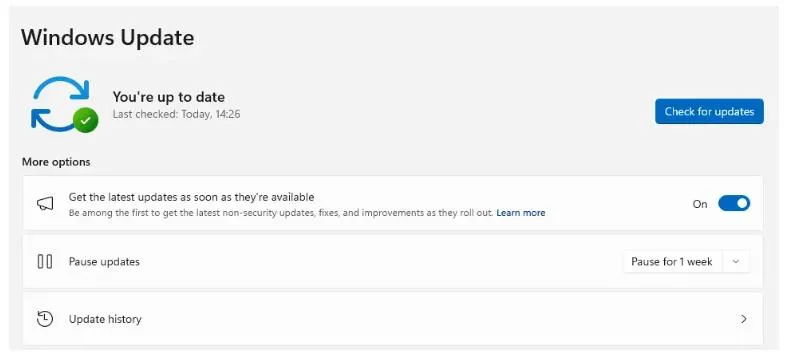
Step 3: Next, click on the “Check For Updates” button in the right panel.
Step 4: Windows will now connect to the Microsoft Servers and check for updates. If the updates are found, then it will download and install them on your computer.
Step 5: Click on the Check for Updates button again to make sure that no updates are remaining. Repeat this process twice or thrice.
Step 6: Next, click on Advanced Options.
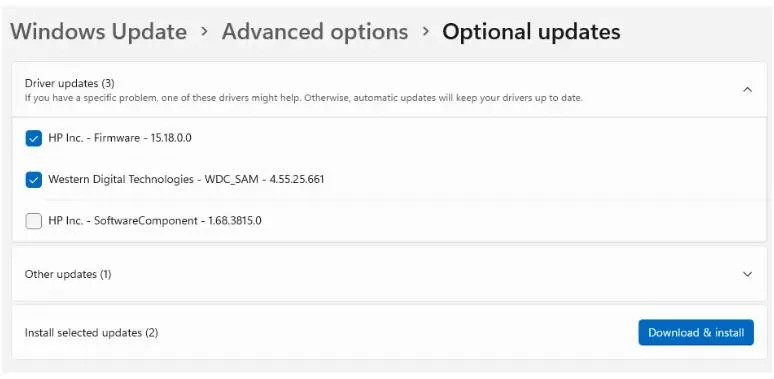
Step 7: Now, click on Optional Updates.
Step 8: Finally, click Driver Updates and select the drivers you wish to update.
Step 9: Click on the Download & Install button and wait for the update process to complete.
Step 10: Reboot the PC.
Conclusion:
You can follow the methods to download the driver for the Canon G2010 driver on your PC. You can use the manual method, where you can go to the manufacturer’s website to download the driver and follow the steps for installation. We recommend installing a driver updater such as Advanced Driver Updater to easily install Canon printer drivers for Windows 10 and other versions.
Advanced Driver Updater, developed by Systweak Software, can install and update the outdated drivers in your Windows PC. It has an intuitive interface, is relatively easy to use, and can schedule the scan regularly. In addition, you can use it to create a backup of the old drivers so that if the updated ones do not work correctly, you can return to the older versions. We hope the article was helpful and solved the queries you had regarding the Canon G2010 printer driver.
FAQ-Canon G2010 Driver
Related:
How To Download & Update Canon MG3620 Driver In Windows 11,10