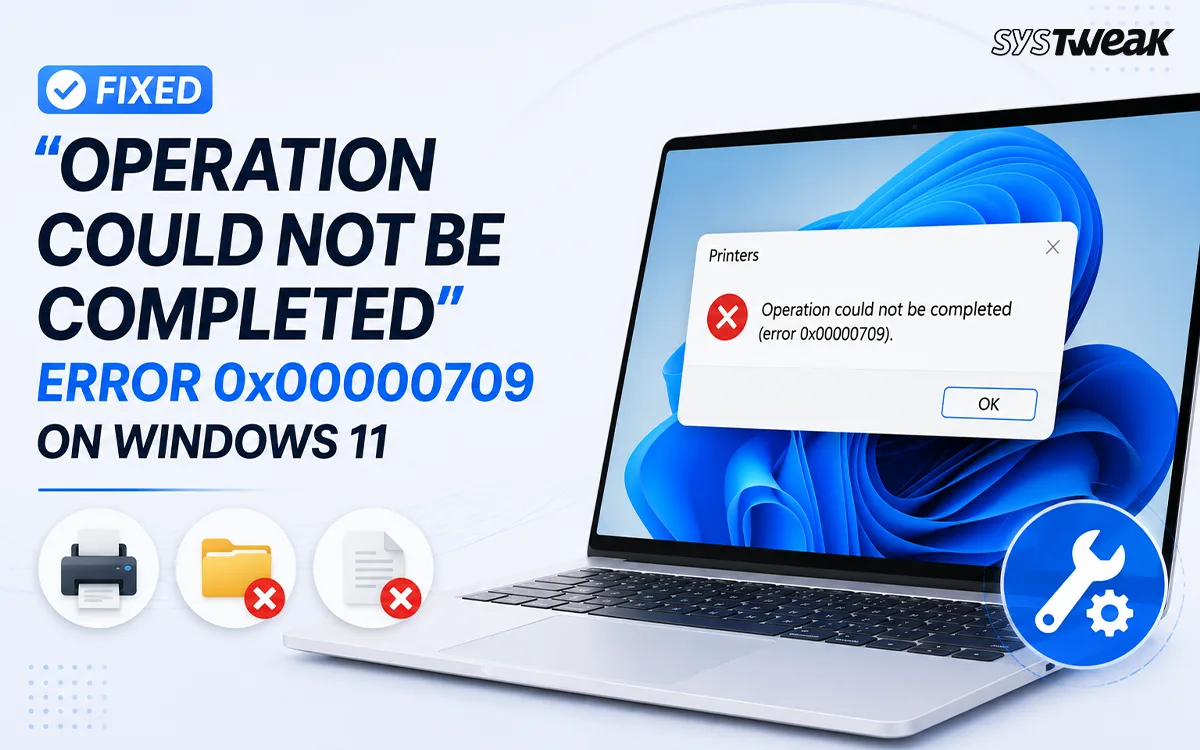

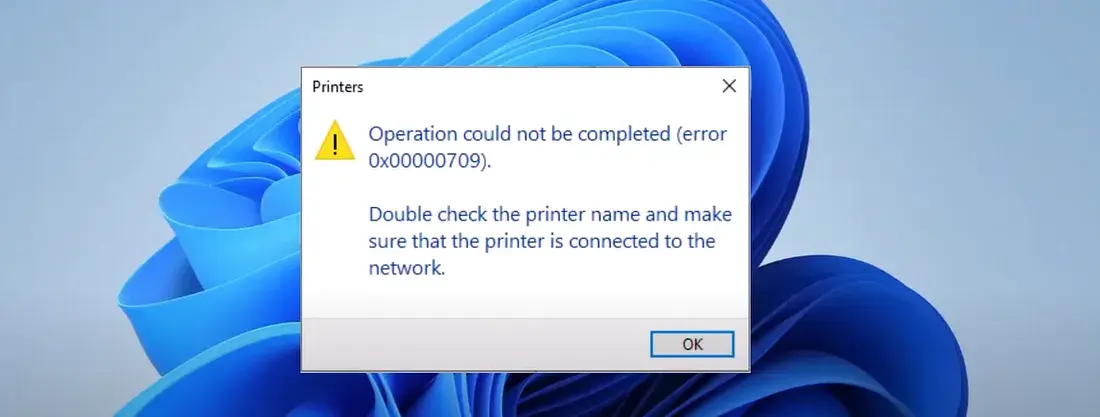
You try to set or use your default printer, and Windows stops you cold with “Operation could not be completed (error 0x00000709). Double check the printer name and make sure that the printer is connected to the network.” The printer is on, it’s connected, and other devices on the same network print to it just fine. The “Error 0x00000709” is becoming increasingly common since Microsoft introduced changes into how windows handles shared printers, specifically after their “Windows 11 22H2” update and it still shows up on Windows 10 for a few of the same underlying reasons. There are a couple of other reasons for which the “Error 0x00000709” might occur as well. Here’s how to work through the fixes in order.
| Fix | Windows Version | Difficulty |
| Remove duplicate printers | All versions | Easy |
| Printer troubleshooter | All versions | Easy |
| RPC protocol switch (Group Policy) | Windows 11/10 Pro or Enterprise | Medium |
| RPC protocol switch (Registry) | Windows 11/10 Home | Hard (registry edit) |
| Registry permission fix | All versions | Hard (registry edit) |
| Reinstall printer driver | All versions | Medium |
| Uninstall recent update | All versions | Easy |
What Causes Error 0x00000709
The most frequent trigger is a change Microsoft made in Windows 11 22H2, which switched the default connection method for shared printers from named pipes to RPC over TCP, a protocol some networks and printer setups don’t handle the same way. Beyond this update, you may see this error if you have two or more printers on your system and Windows unable to decide which one should be default, when the registry key controlling your default printer has incorrect permissions, or when a print server’s hostname is longer than 15 characters. Less commonly, a corrupted printer driver, a specific botched Windows update, or, in server environments, connecting to a printer via a CNAME DNS alias record instead of its actual hostname can also produce this same message.
Fixes for Printer Error 0x00000709 on Windows 11 and 10
Fix 1: Remove Extra or Duplicate Printers
If you have more than one printer installed, Windows sometimes can’t decide which one to treat as default, and that confusion shows up as this error.
- Go to your computers Settings > Bluetooth & Devices > Printers & Scanners.
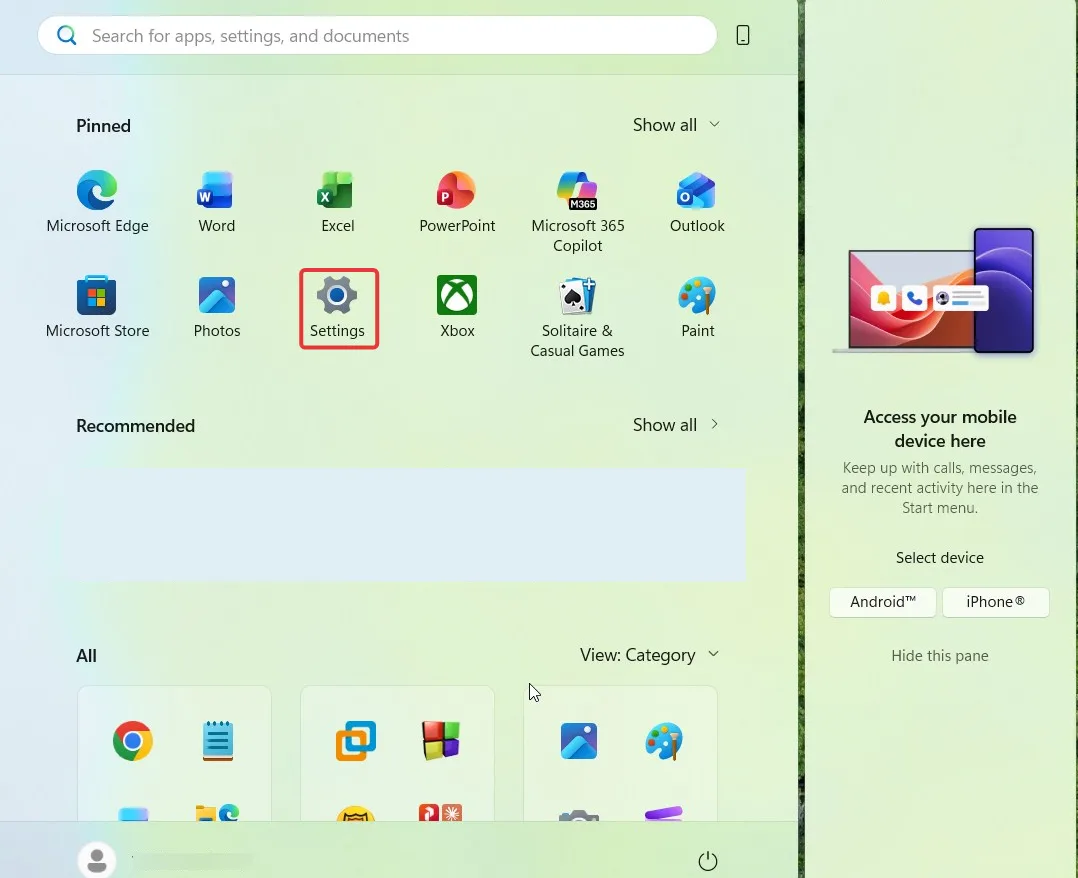
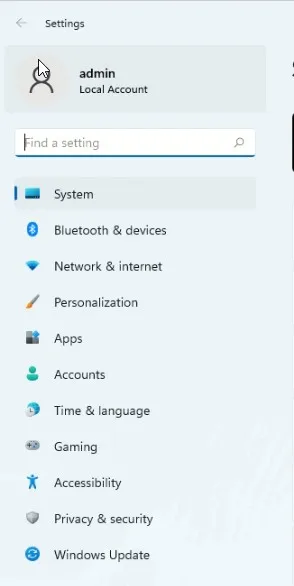
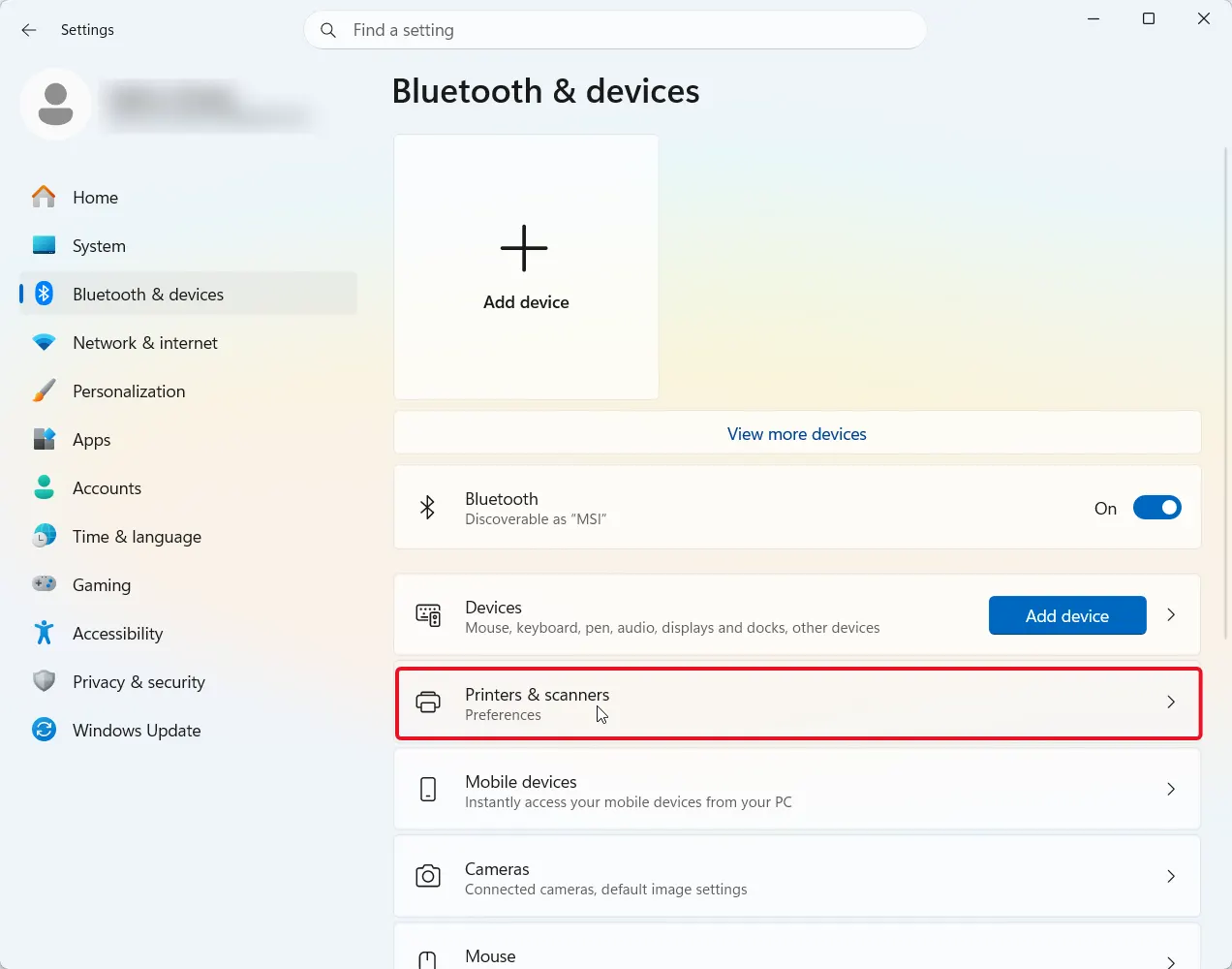
- Remove all printers you do not currently plan to print from and keep the one you intend to use as your primary (default) printer.
- Unplug any unused USB printers from the USB ports on your computer and disable any WI-Fi printers you no longer need saved.
Fix 2: Run the Printer Troubleshooter
Windows has an integrated diagnostic tool to look for and report on some of the most common driver, security or communications problems with the print system.
- Right-click the Start button and select Settings.
- Navigate to the System area within Settings, and scroll down to find “Troubleshoot” in the right-hand column.
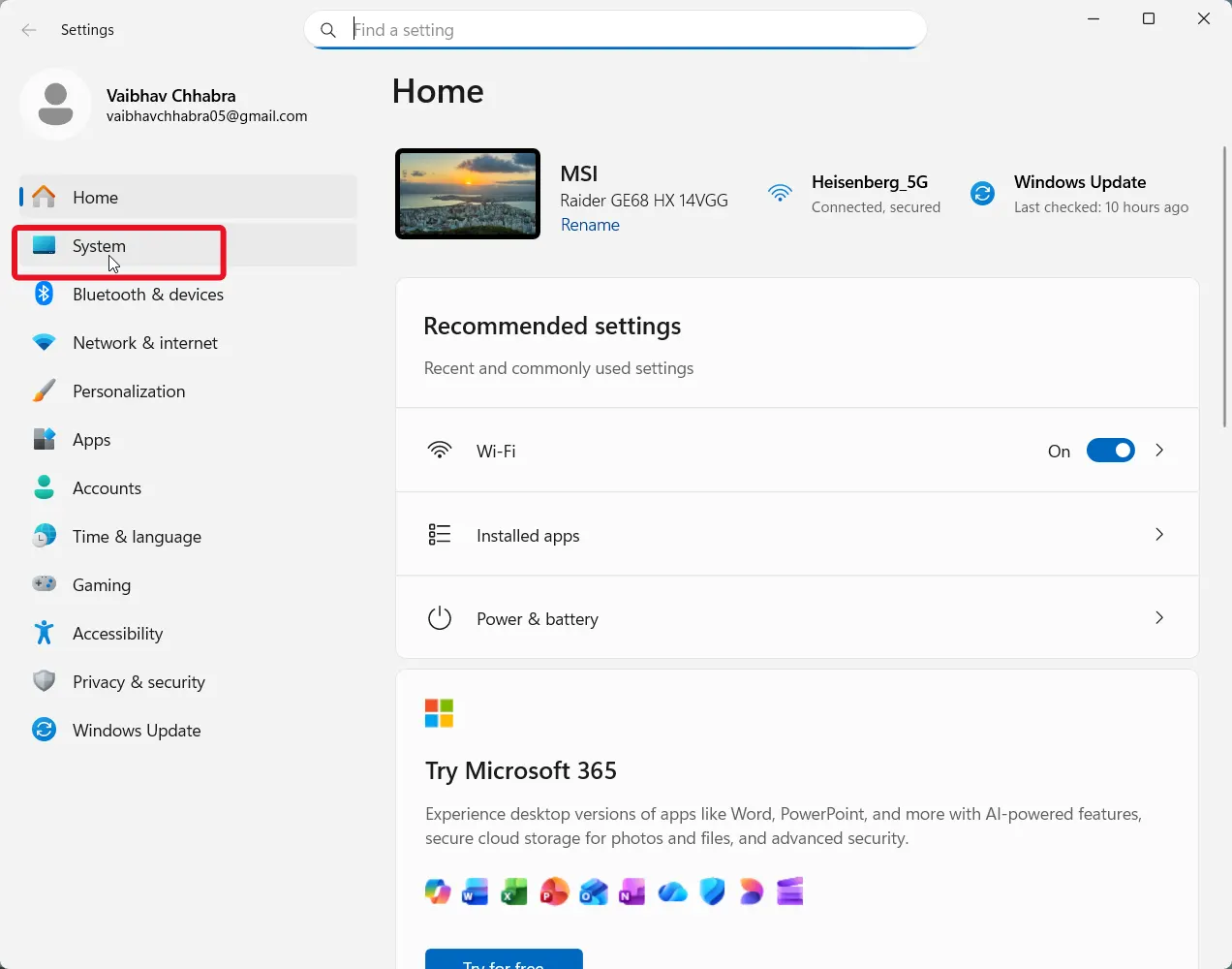
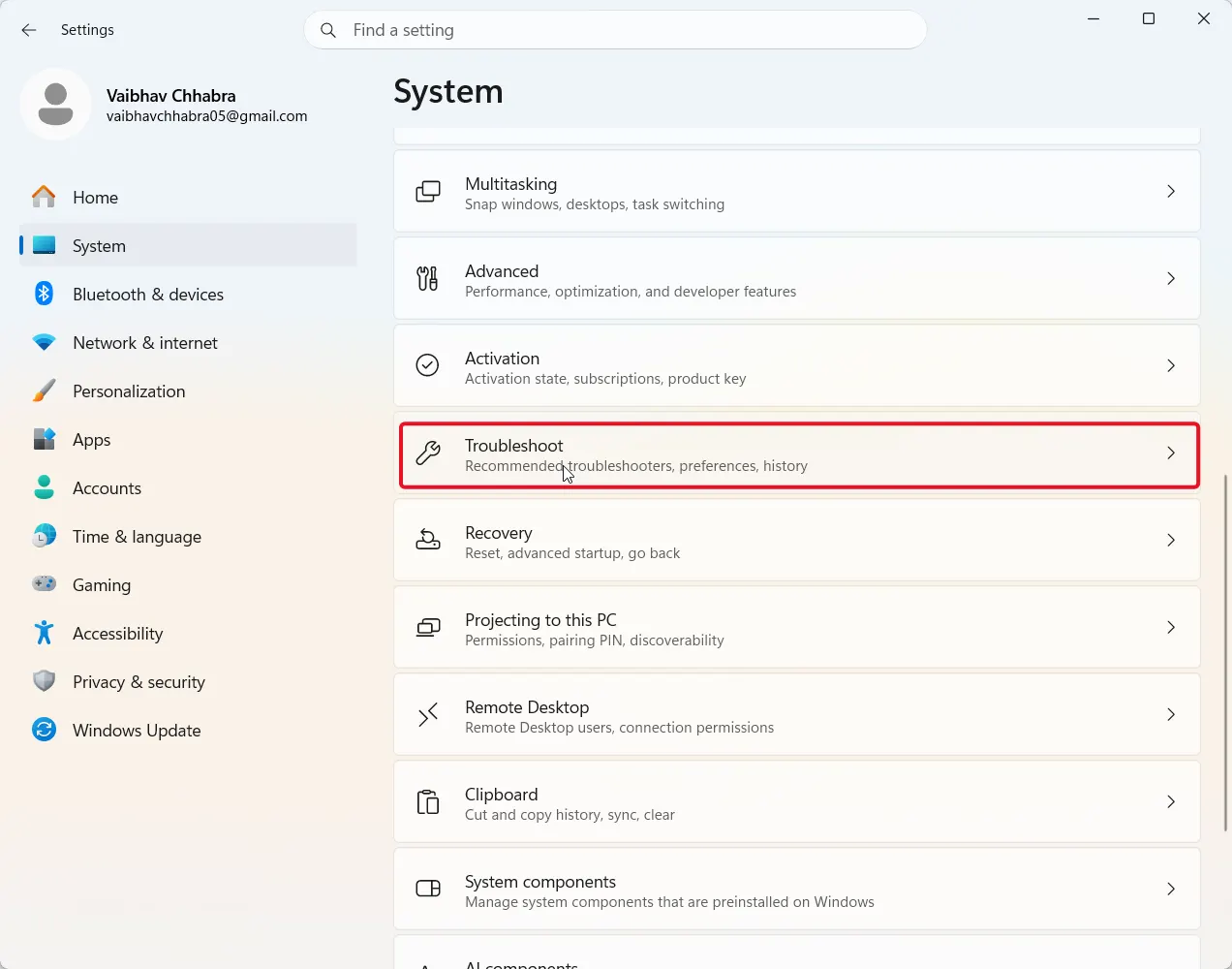
- Click Troubleshoot. Click other troubleshooting options. Find “Printer”, and run the Print Troubleshooter.
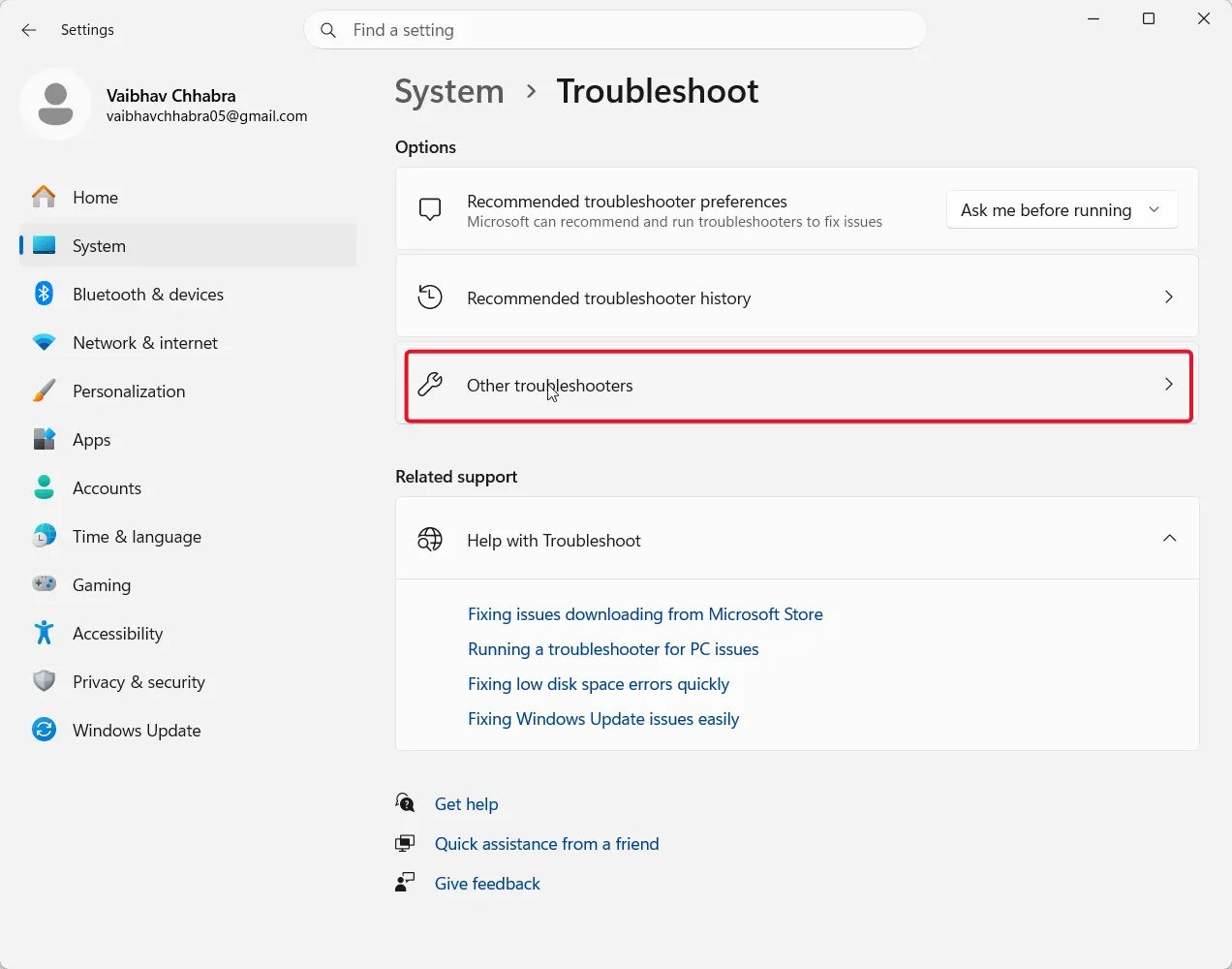
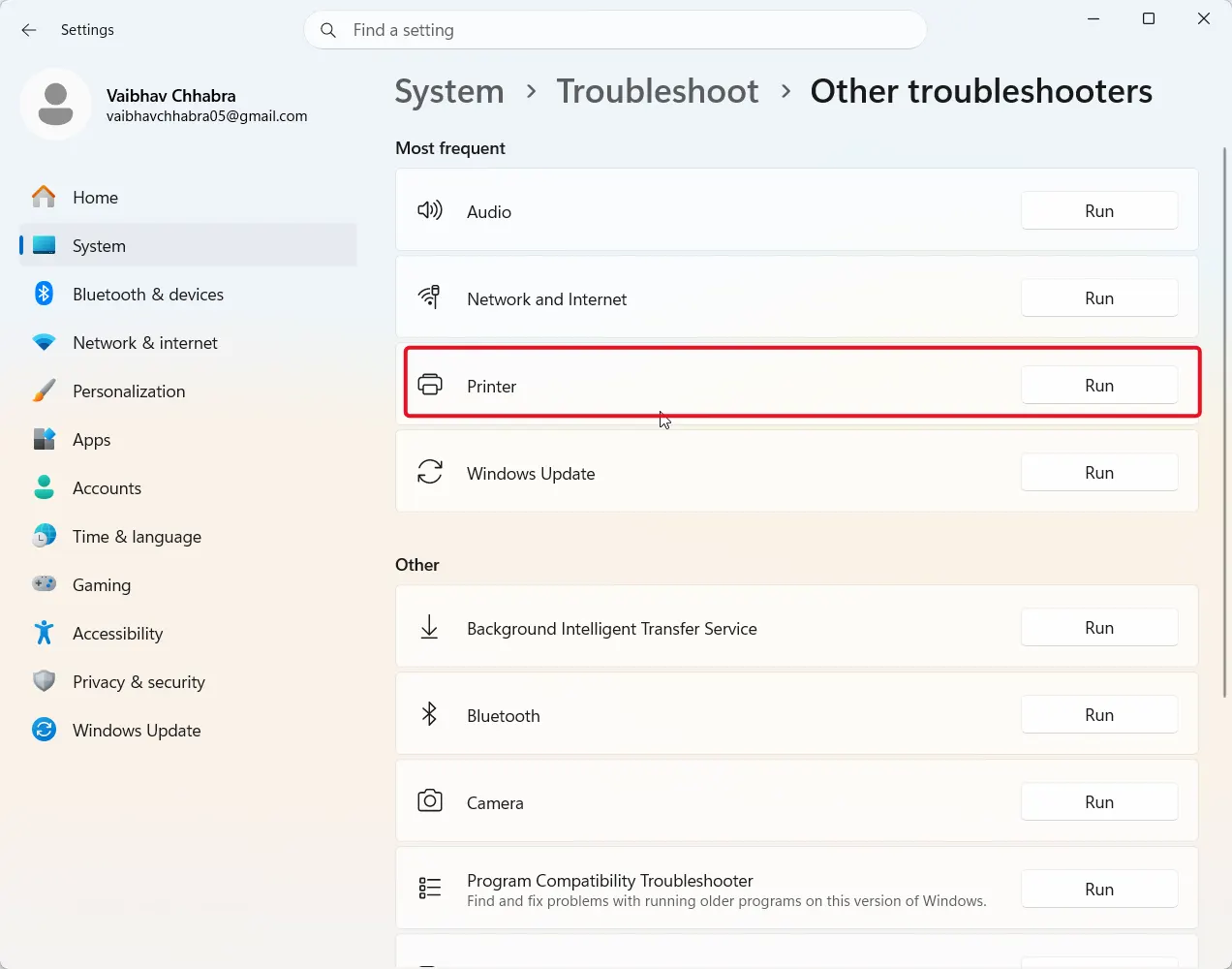
Let it finish and apply any fix it suggests, then try setting your default printer again.
Fix 3: Switch the RPC Protocol (Windows 11 Pro or Enterprise)
Registry Warning: The next two fixes involve editing the Windows Registry. Modifying it incorrectly can cause serious system instability. Back up your registry keys before proceeding, as described in step 1 below.
Since the 22H2 update is the most common trigger, switching the RPC connection method back to named pipes resolves this for most people on Pro or Enterprise editions.
- To open Group Policy Editor (gpedit) type “gpedit.msc” in the run dialog box and press enter.
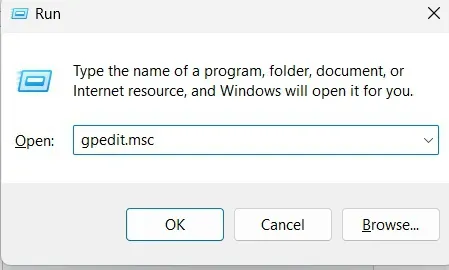
- Navigate to Computer Configuration > Administrative Templates > Printers.
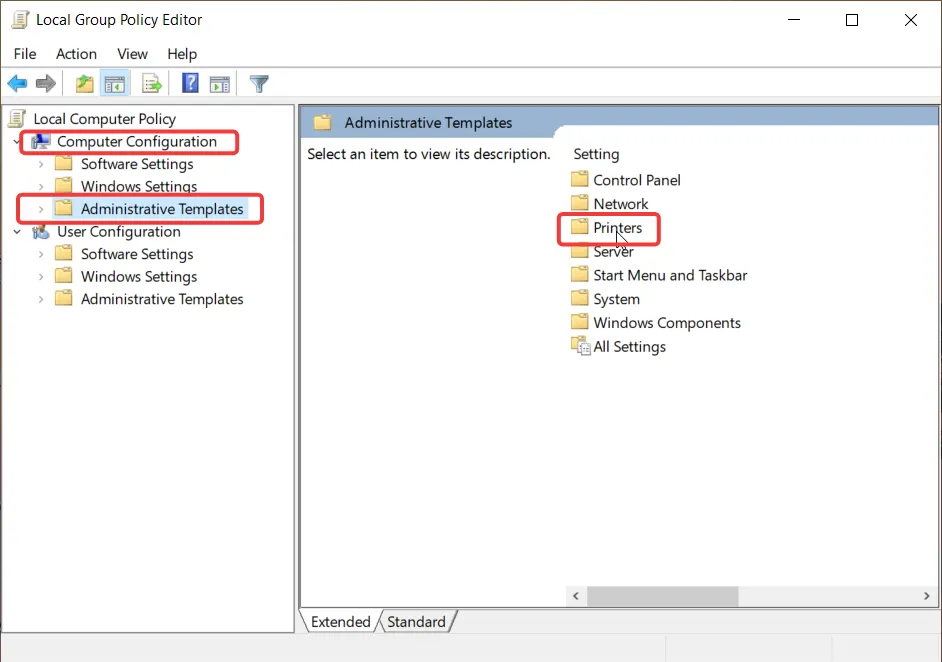
- Double-click Configure RPC connection settings.
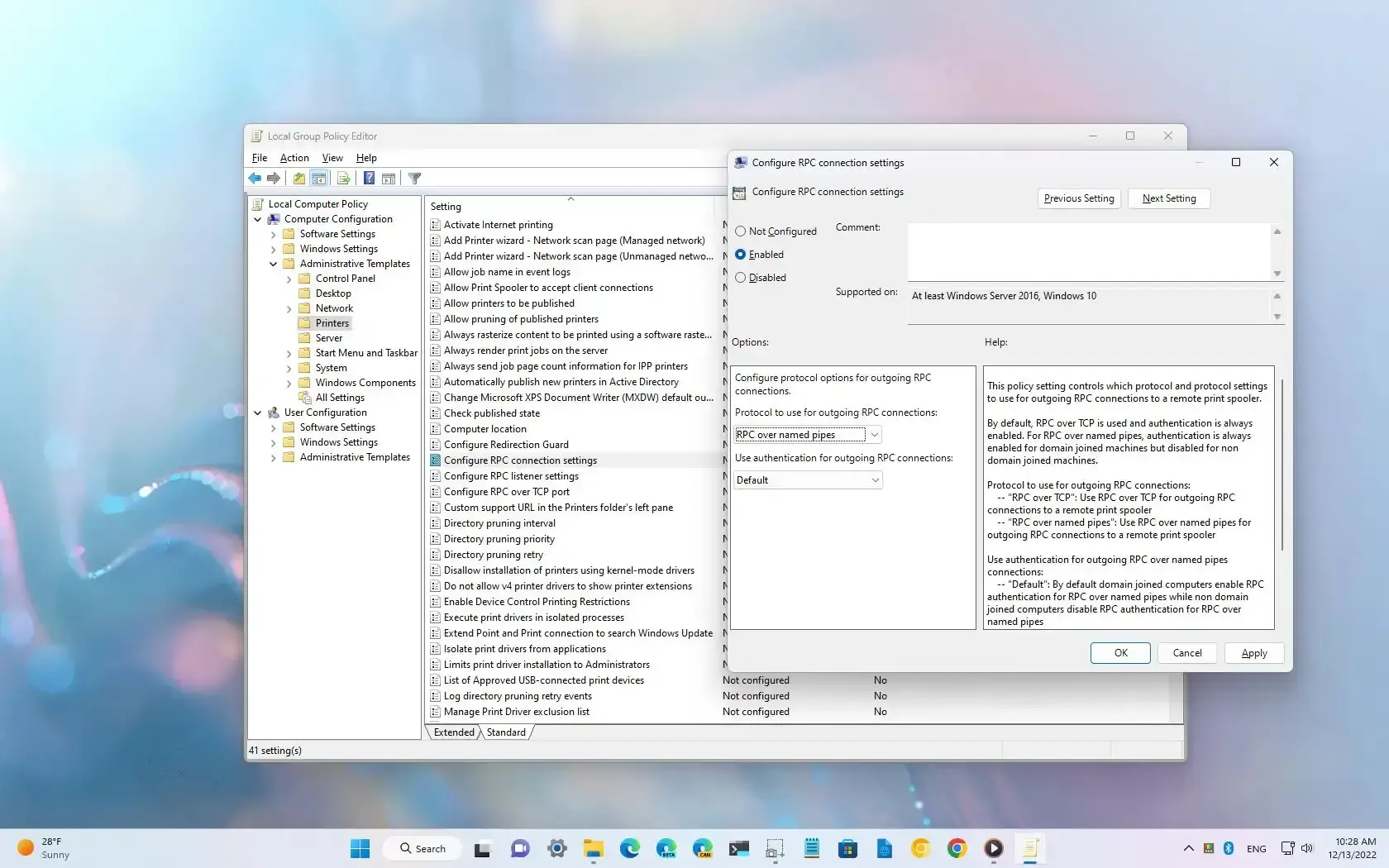
- Enable it, set protocol to use for outgoing RPC connections to RPC over named pipes.
- Click Apply, Then Ok, and restart your computer
If you still receive errors after completing the previous steps, go through them again and attempt using RPC over TCP with authentication toggled to the opposite of whatever is currently selected.
Fix 4: Fix Registry Key Permissions
- Open regedit and navigate to HKEY_CURRENT_USER\Software\Microsoft\Windows NT\CurrentVersion\Windows.
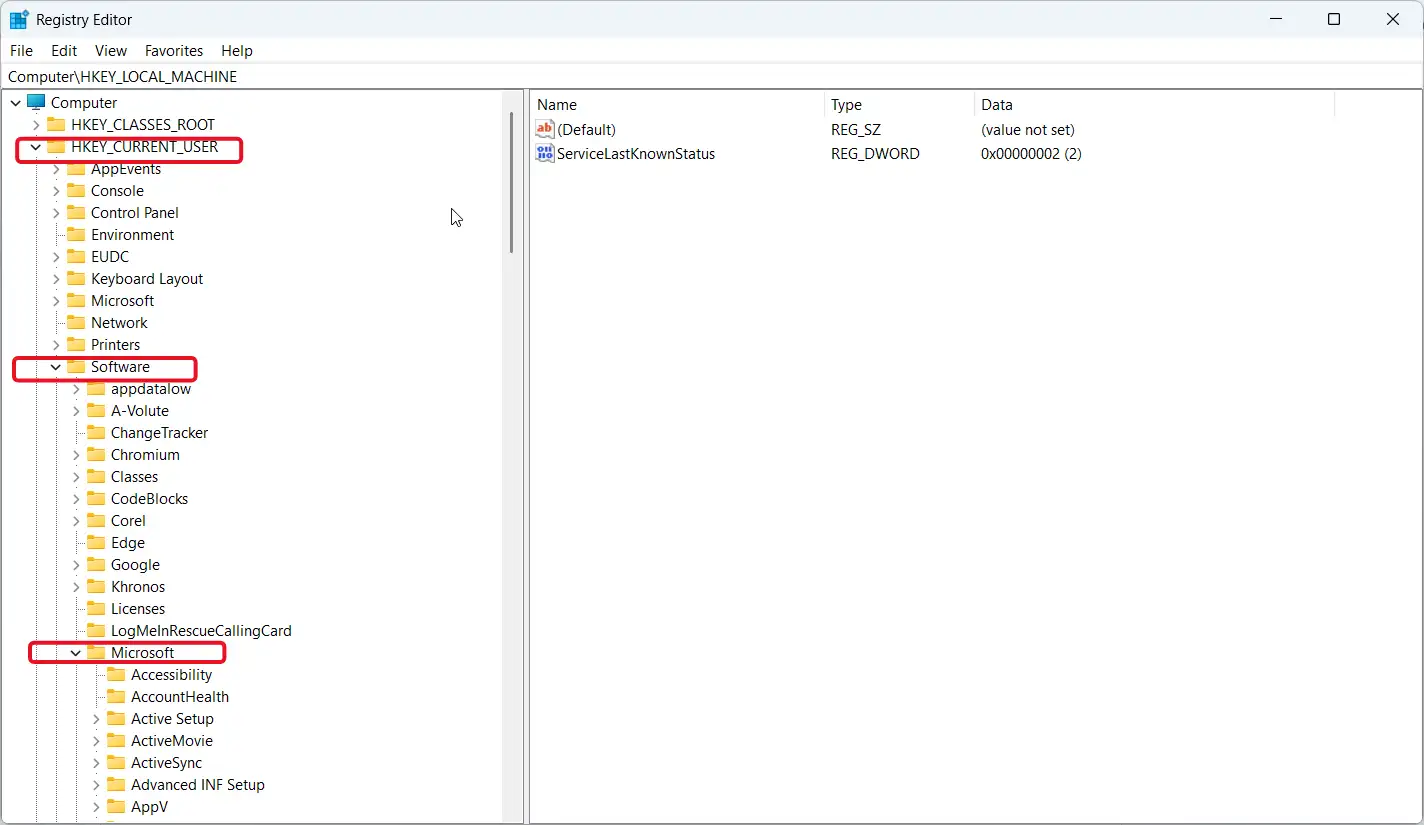
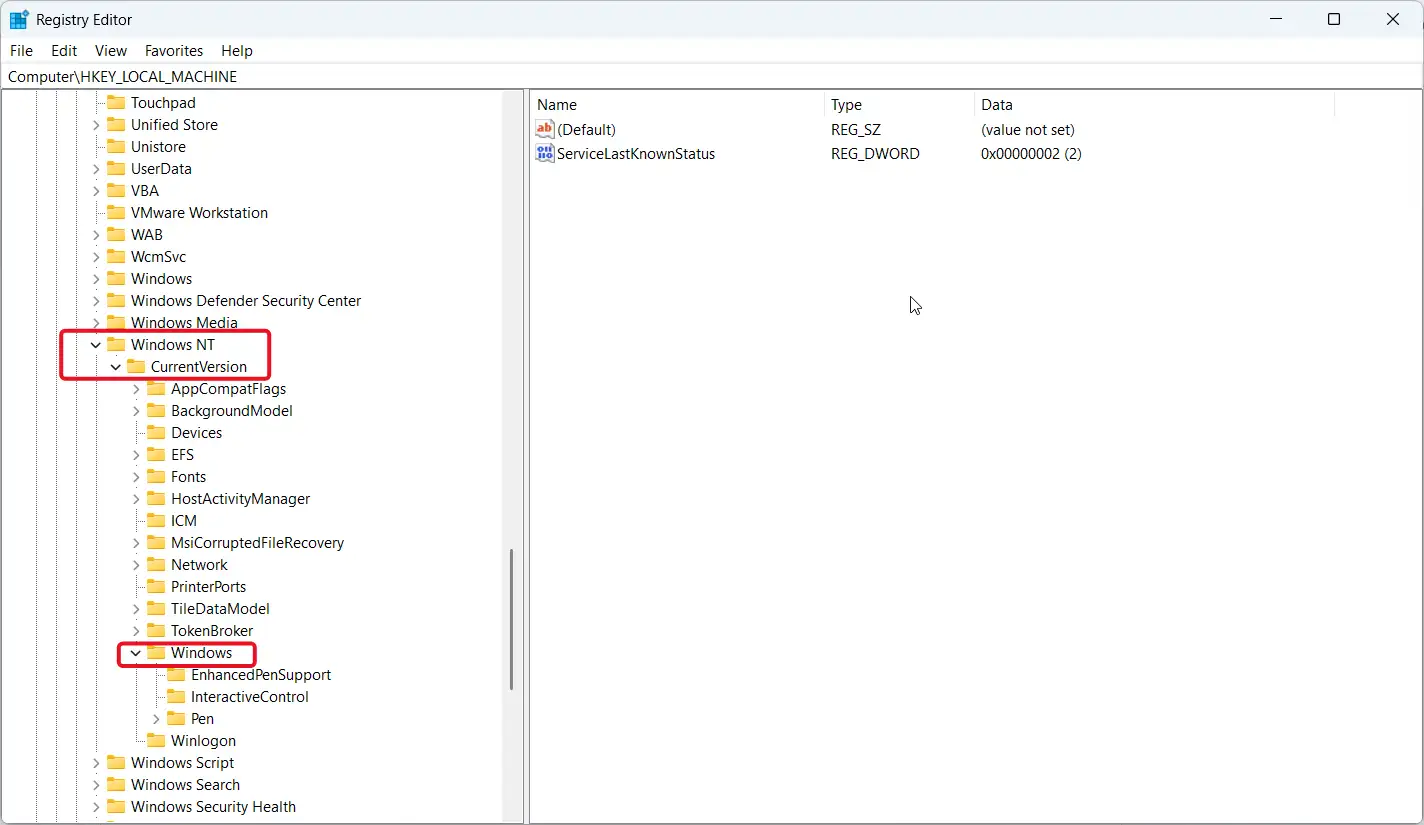
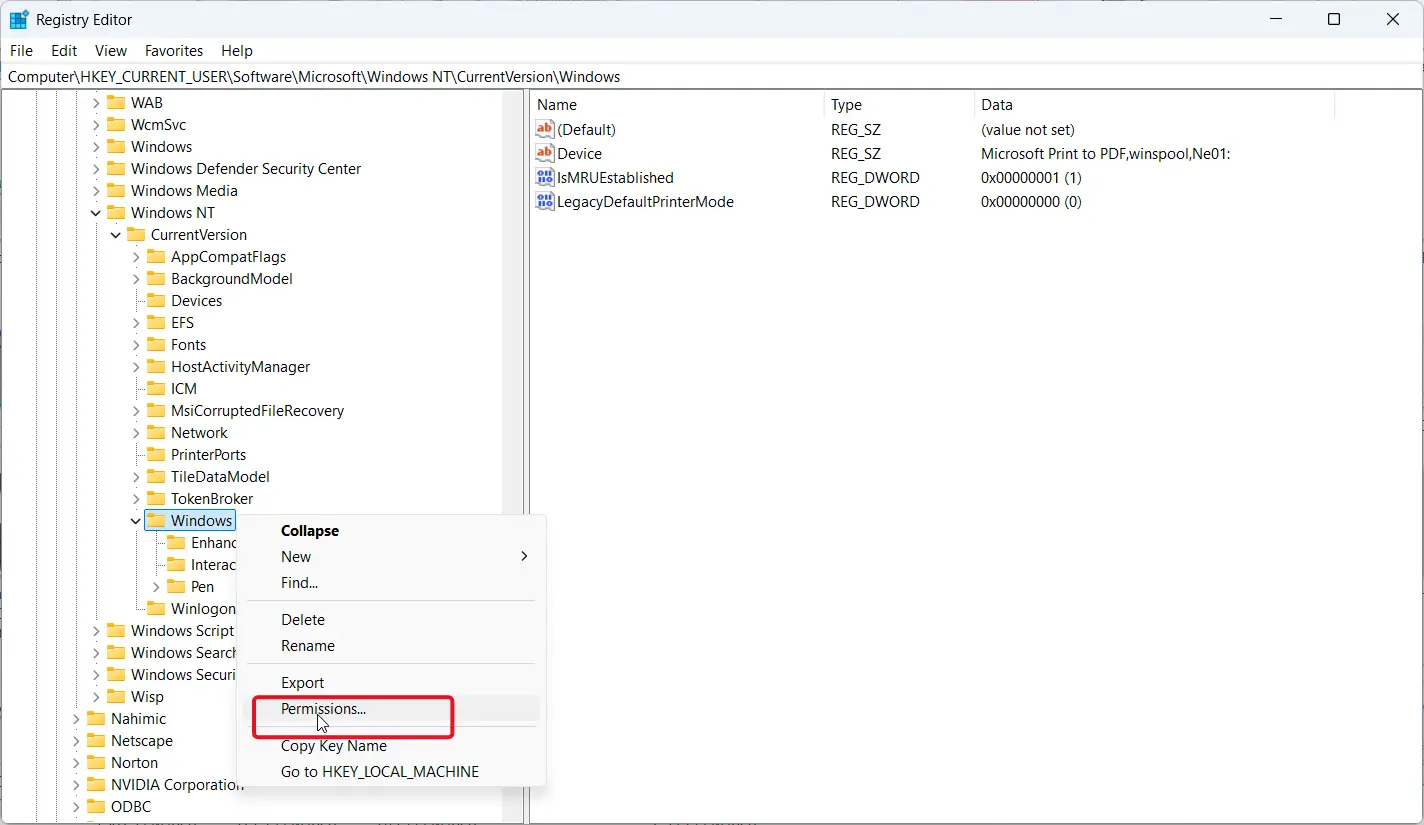
- Right Click the Windows Key > Select Permissions > Then click “Advanced”
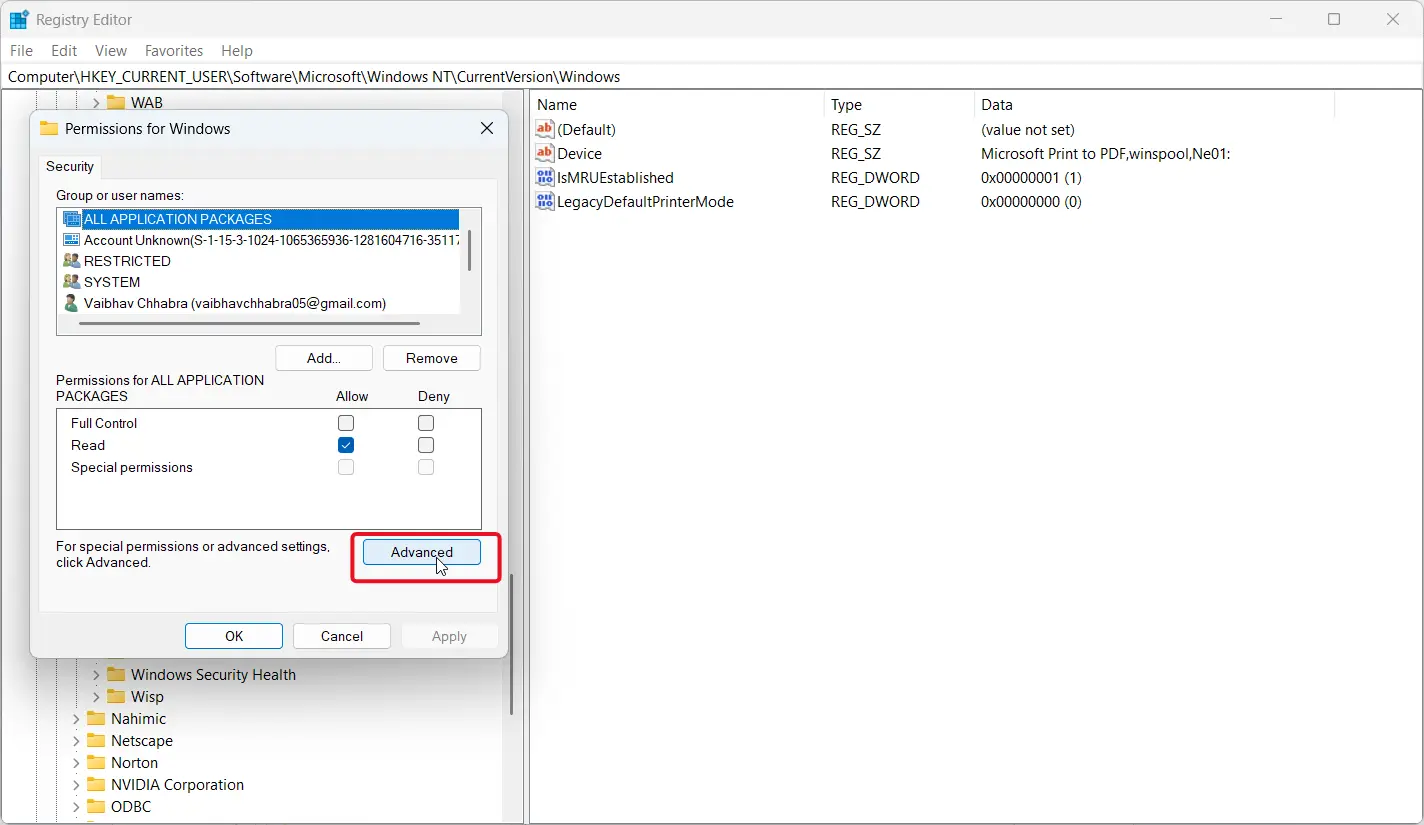
- On the Security tab, confirm System and Administrators have Full Control. Add them with Full Control if they’re missing, or add Everyone with Full Control if the problem continues.
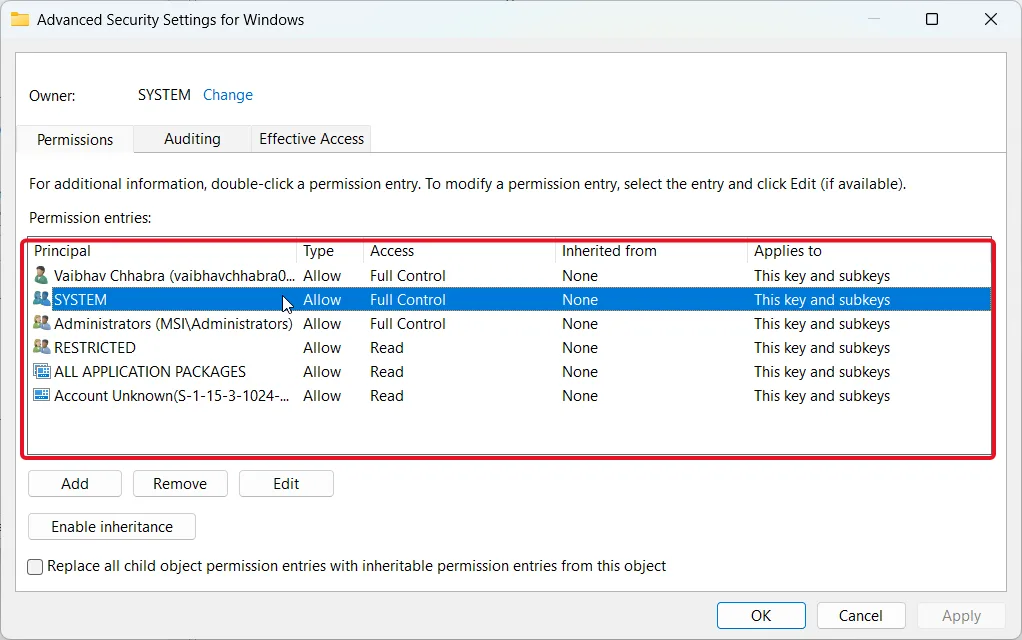
- Save your changes, close regedit, and restart your PC.
Fix 5: Reinstall the Printer Driver
A corrupted printer driver can trigger this error independently of the RPC or registry issues above.
- On your computer go to Settings > Bluetooth & Devices > Printers & Scanners.
- Click your printer, then remove the device.
- Restart your PC and reinstall the printer through the same menu, or from the manufacturer’s site.
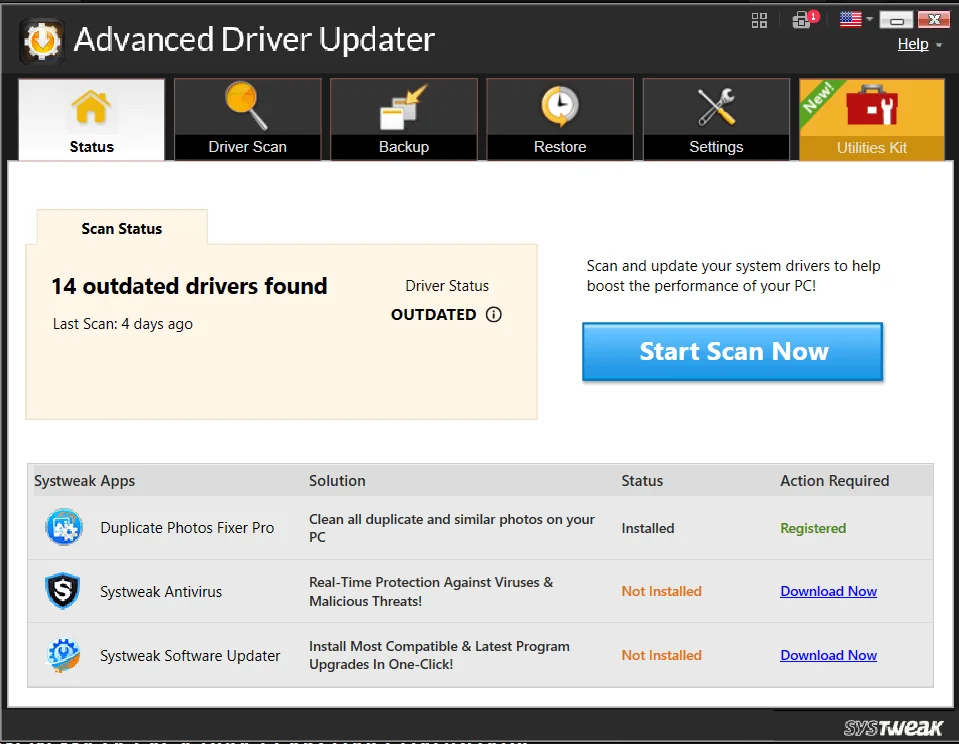
Outdated or corrupted printer drivers can trigger error 0x00000709 and If Windows can’t find the correct driver automatically, Advanced Driver Updater from Systweak can scan for it instead. Once in the Advanced Driver Updater interface click Start Scan Now. After the scanning process has completed click Update Now next to the printer driver when it is located (or Update All if other outdated drivers are identified). Restart your PC and try setting the default printer again.

Fix 6: Uninstall a Recent Windows Update
If an error occurred immediately after one of your last Windows Updates rather than after upgrading to 22H2 itself, that specific update is worth ruling out.
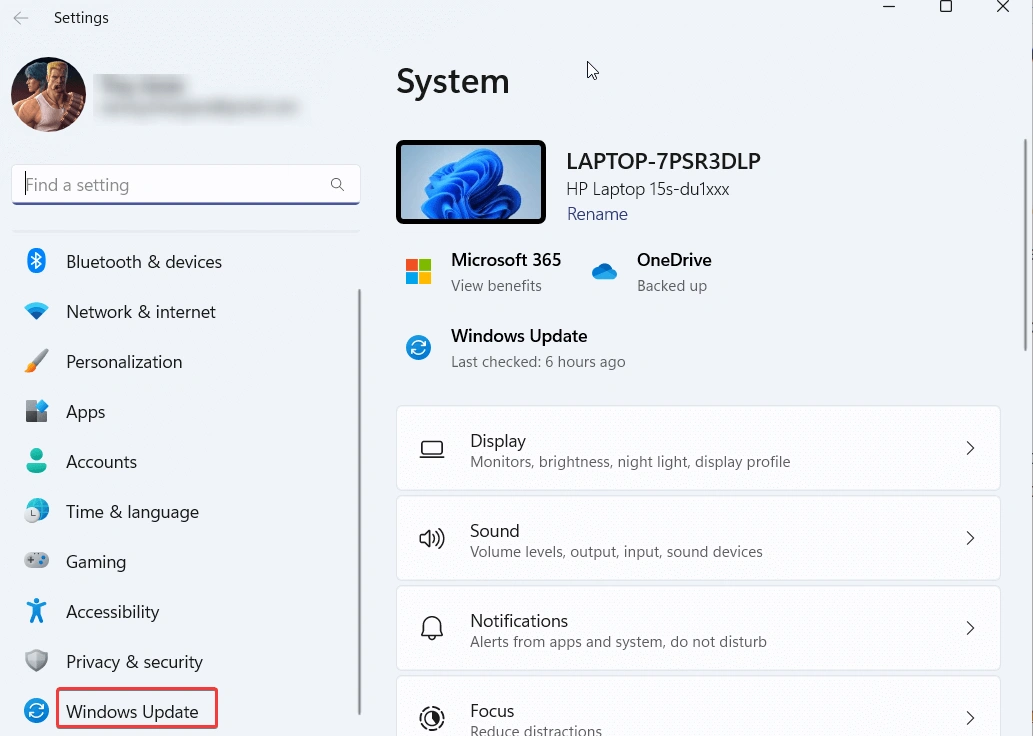
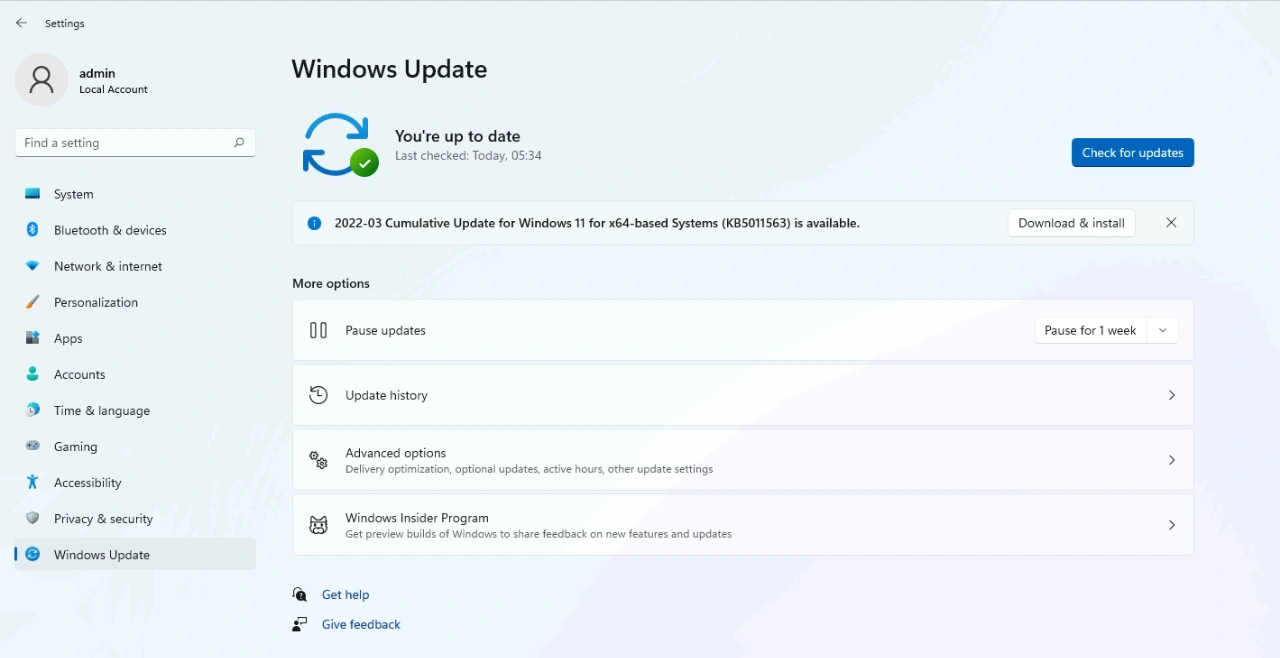
- 1. Go to Settings, then Windows Update, then Update history.
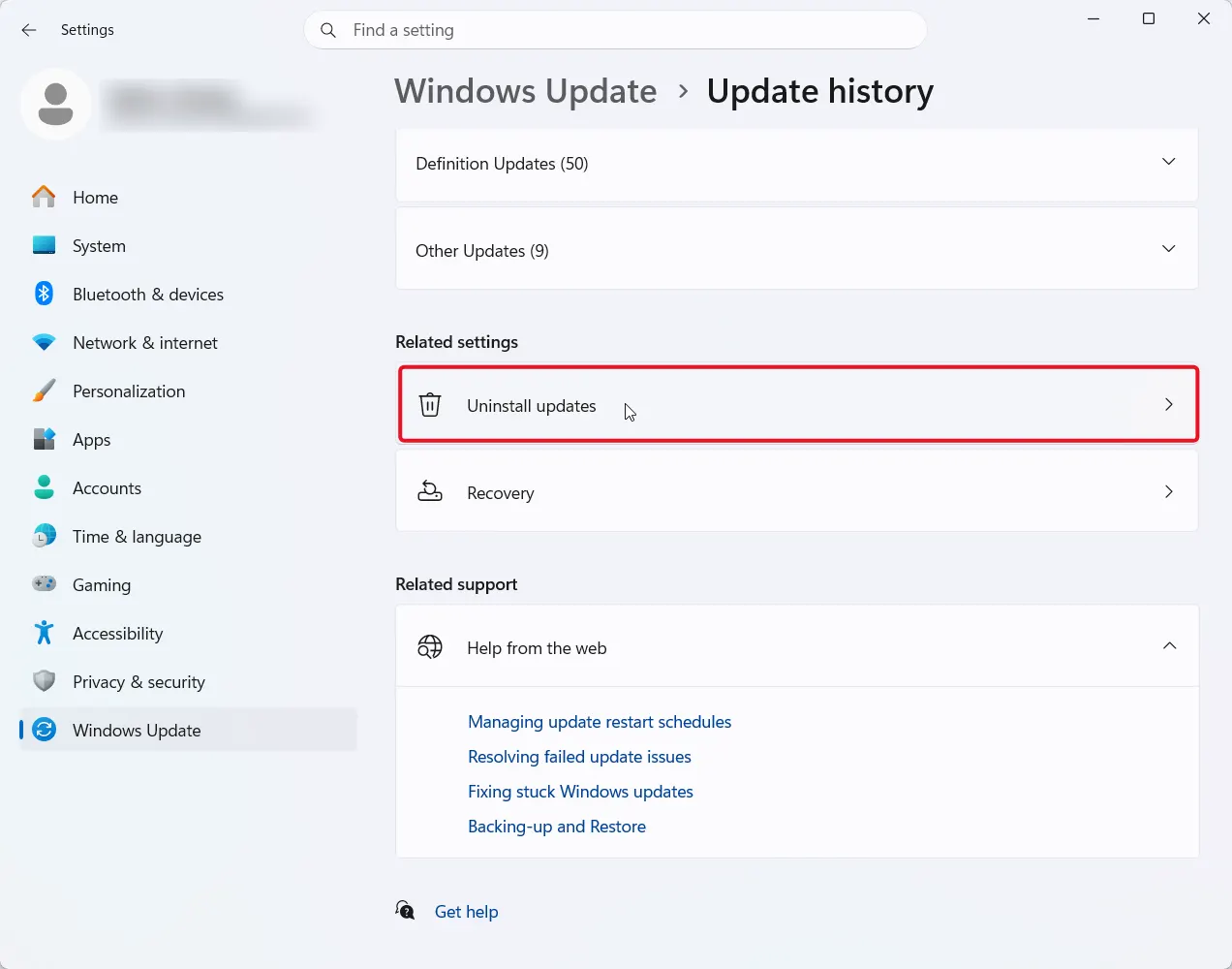
- For uninstalling the updates click Uninstall updates .
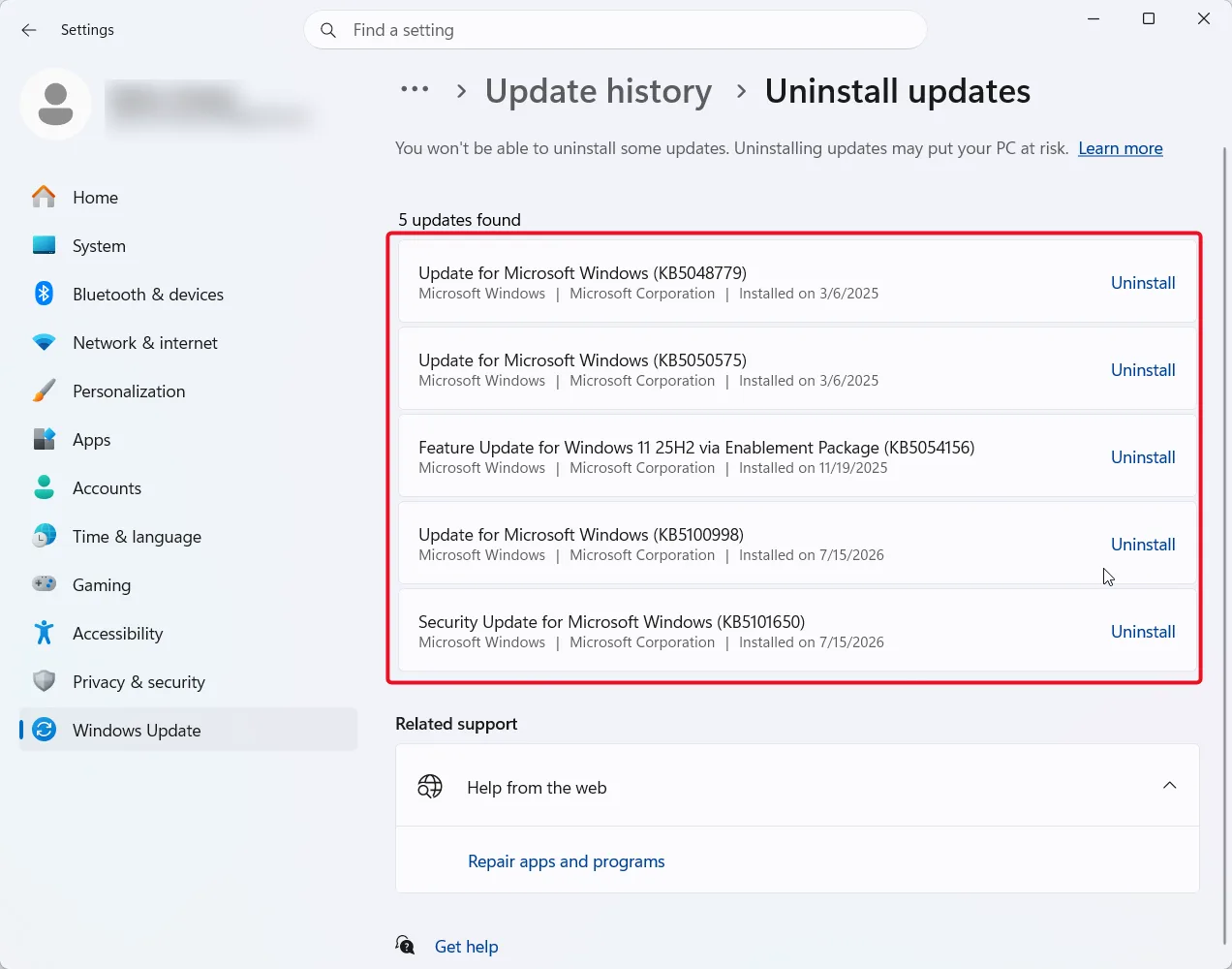
- Find the most recent update and click Uninstall next to it.
Frequently Asked Questions
The Bottom Line
Error 0x00000709 almost always traces back to the RPC connection change Windows 11 22H2 introduced.If you’re still stuck after that, check for duplicate printers, registry permissions, and the printer driver itself before assuming the printer is at fault.