
When suddenly the game you are playing, e.g., Cyberpunk 2077, won’t start, and you see a blank screen with a message not enough video memory, what do you do?
Do you open Task Manager, restart the PC, or reinstall the game?
The smartest way to fix issues like the game not launching is to open Task Manager (Ctrl + Shift + Esc), view memory usage, and check the GPU tab. It will tell what’s wrong.
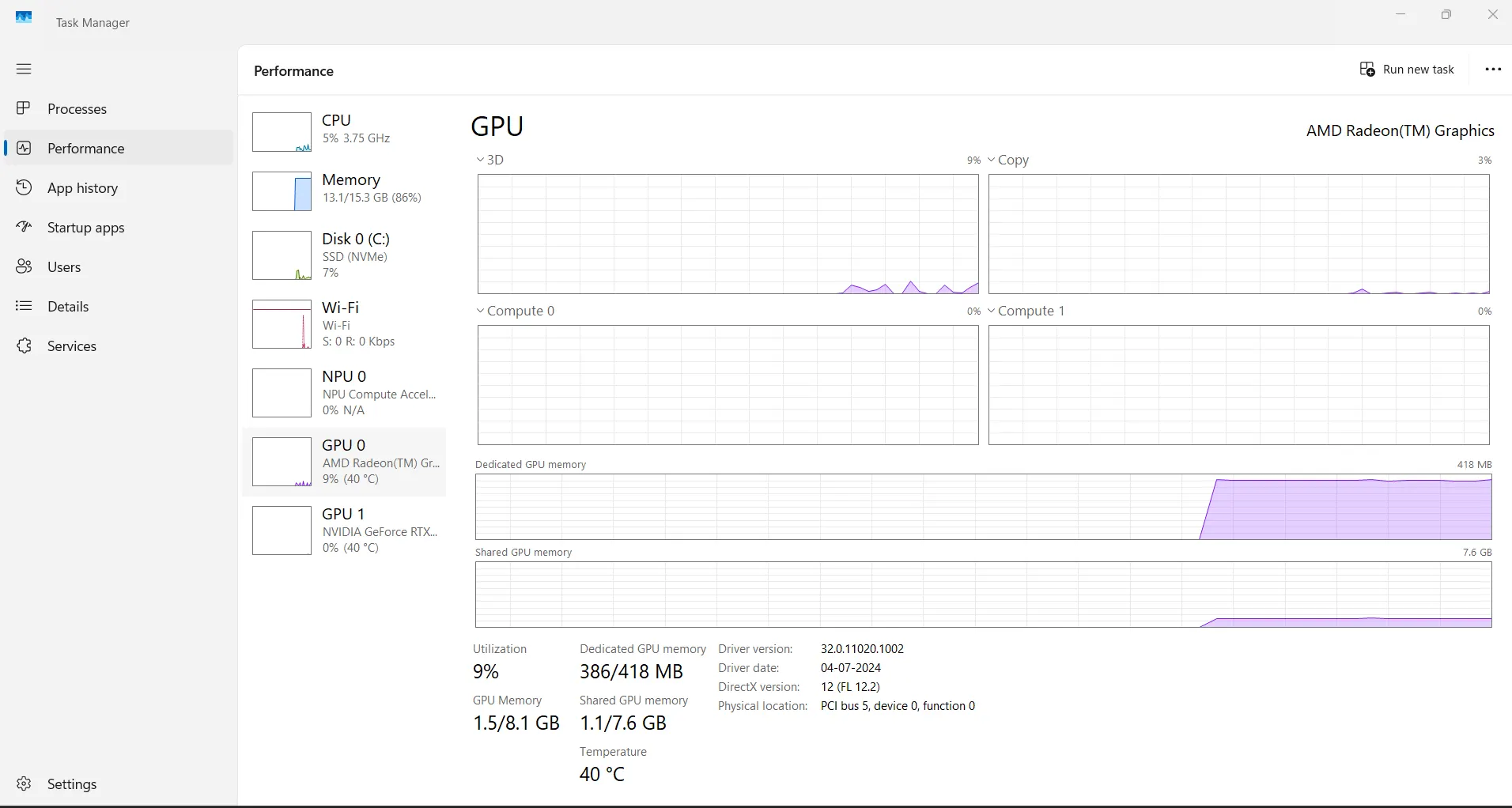
However, when you do so, you will see two numbers under the GPU tab – Dedicated GPU memory 4 GB and Shared GPU memory 16 GB, four times the size of your graphics card.
What is it and why is it there?
It isn’t some free graphics memory that you can use. It is computer memory marked as 16 GB by Windows that can be borrowed, not used by the graphics chip.
If it can’t be used, why is this memory allocated? Well, this is what this post is about and why you get “not enough video memory” because Windows 11 doesn’t explain it.
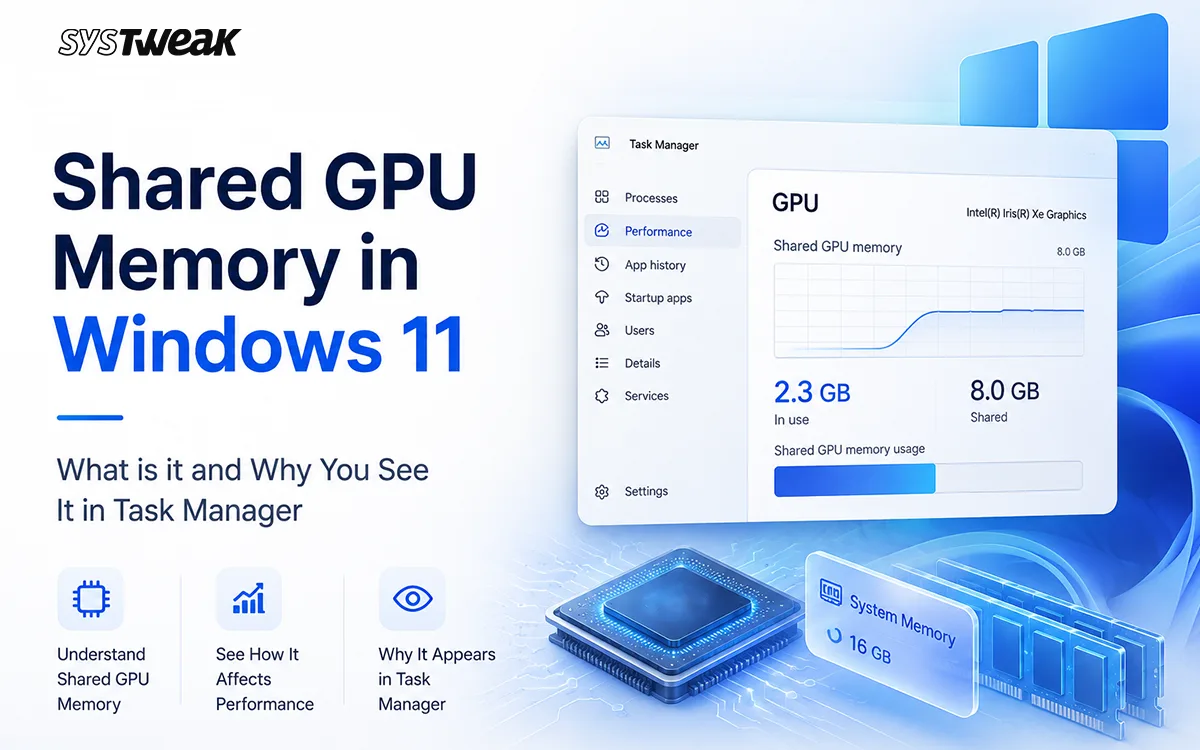
What is Shared GPU memory?
Every PC has two types of graphics memory: dedicated and shared. Where dedicated memory is the physical memory built onto the graphics card, a portion of which is set aside for the graphics chip to be used even before you boot Windows. This is a fixed amount that matches the graphics card or laptop it’s sold with, called VRAM. In contrast, shared memory is not a physical part of the graphics card. It is borrowed from the memory used by the processor, browser, and other active programs, like a permission slip that allows using X amount of memory when dedicated memory is full.
Why Does the Number not Match the Actual RAM?
Many people on Microsoft community forums have raised this issue. They upgraded RAM or reinstalled a graphics driver, and what they see is a change in the allocation of shared memory that doesn’t make sense.
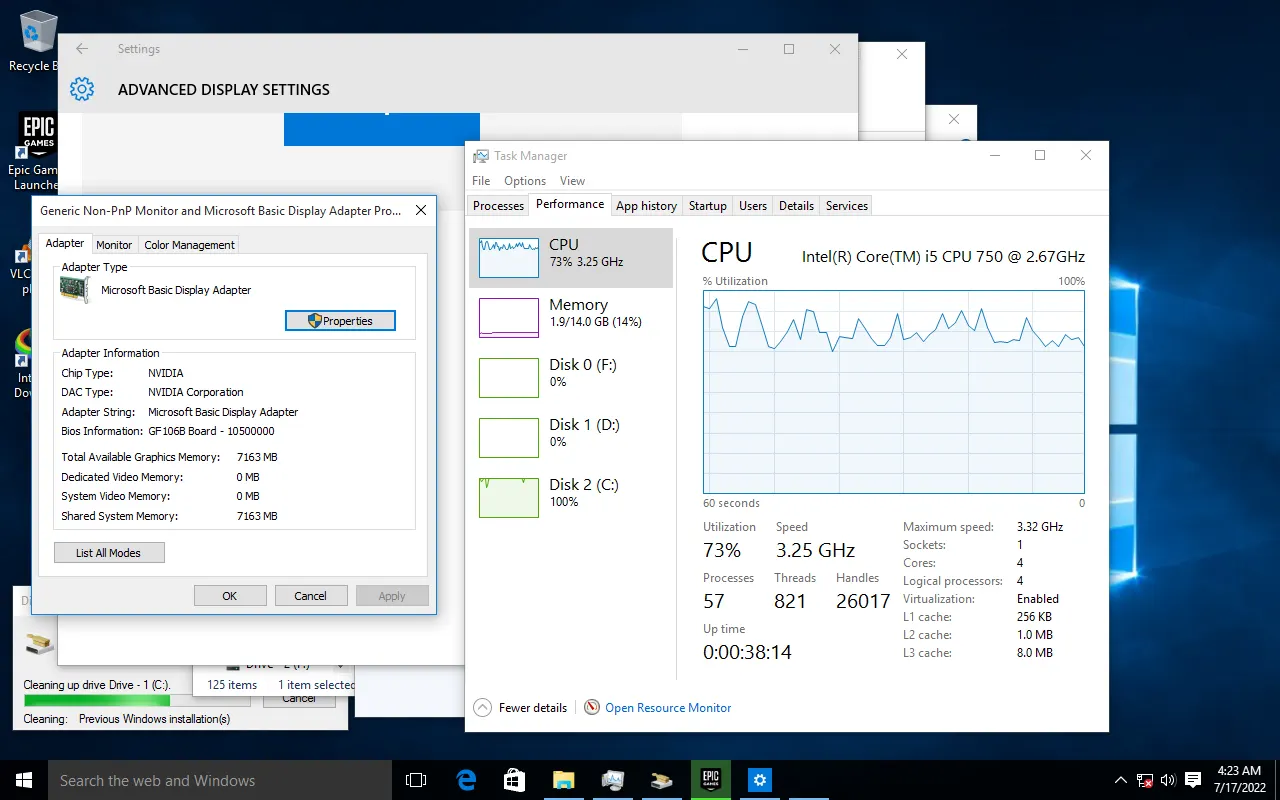
One person went from 7 GB of shared memory to 3 GB after upgrading from Windows 8.1 to Windows 10 and installing a new graphics driver, while using the same 14 GB of RAM without making any configuration changes.
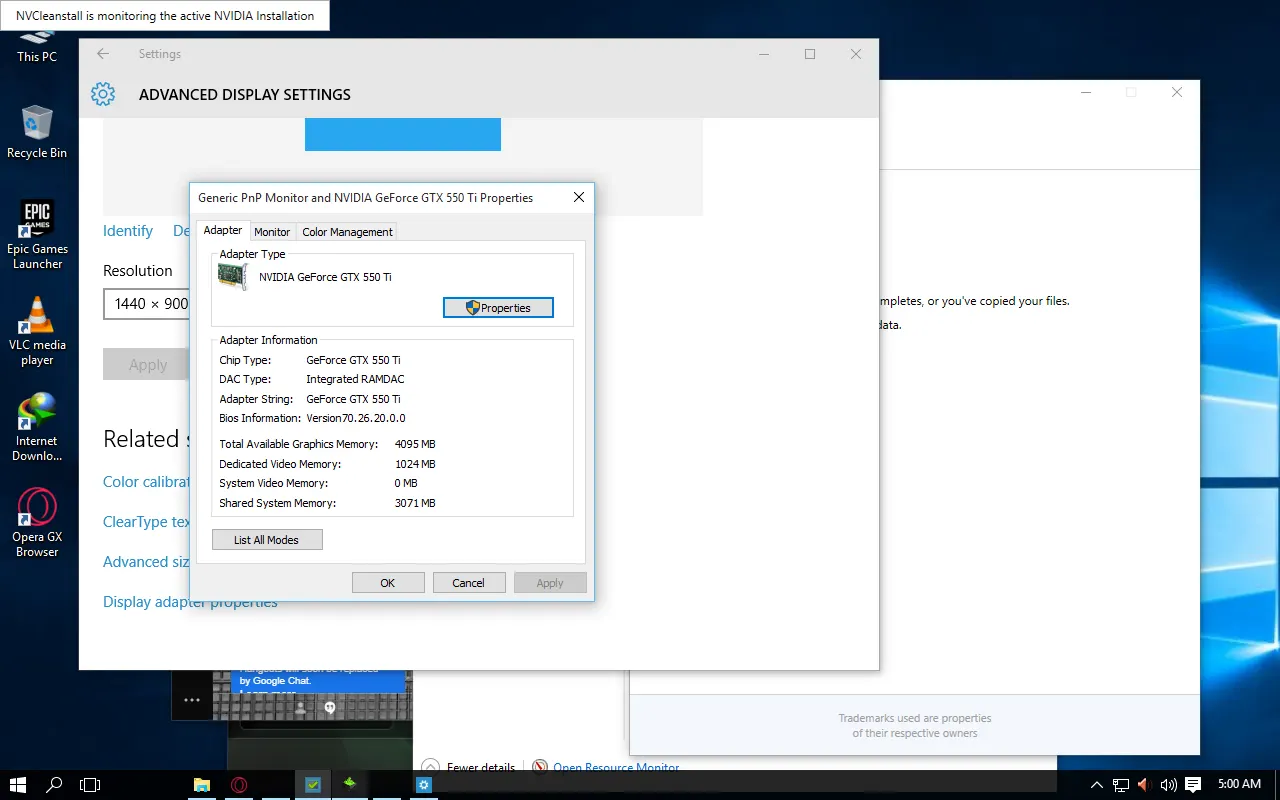
Another thread is about a user with an RTX 3060 and 12 GB of real dedicated memory, who can see a separate 8 GB of shared memory.
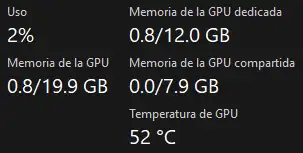
The thread explains it as shared memory is automatically released when an app needs it. This means the memory is not permanently taken away, it is just the standby memory.
This 50% allocation of memory is a general rule but it isn’t fixed because it depends on
1. The graphics software driver version installed
2. Whether there is a separate and an integrated graphics card.
3. BIOS firmware settings, and in some cases, OEM-specific limits.
Not only this, when your system has both a built-in and a separate graphics chip, you see two GPUs listed as GPU 0 and GPU 1 in Task Manager, each with its own dedicated shared numbers.
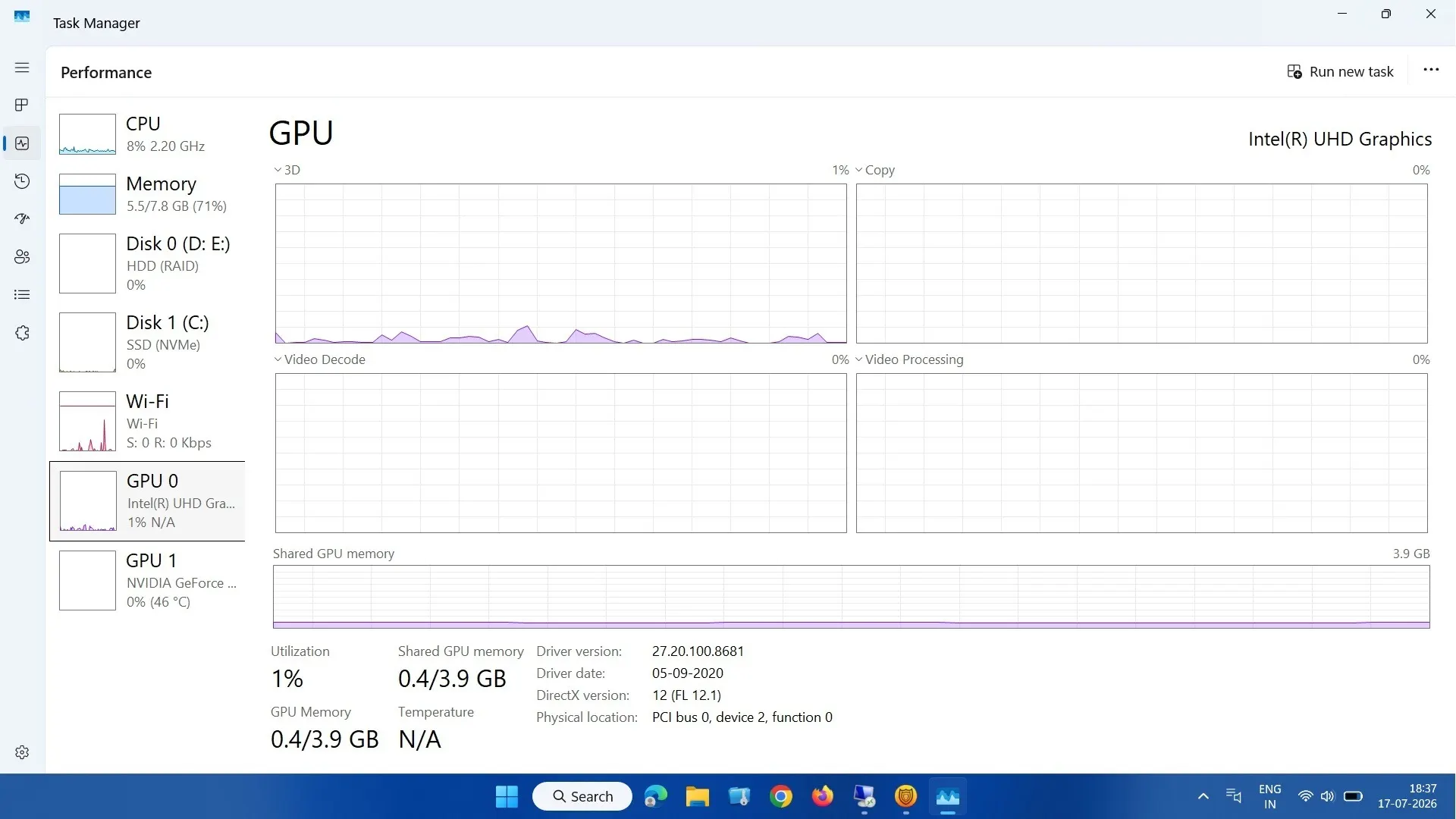
In this kind of setup, games sometimes stutter because, even with a separate graphics card, the game is likely assigned to the built-in graphics chip. In such cases, before applying any troubleshooting, go to the game’s graphics options in Windows and understand why the GPU is missing in Task Manager and why GPU crashes, but the PC stays on. If this doesn’t help, update the graphics driver through Device Manager, by visiting the manufacturer’s website, or with a dedicated driver-updating tool like Advanced Driver Updater.

Dedicated vs. Shared GPU Memory
| Dedicated GPU memory (VRAM) | Shared GPU memory | |
| What it is | Physical memory built onto the graphics card | A reserved or borrowed portion of system RAM |
| Speed | Fast, as built for the use of a graphics chip | Slow as it travels from RAM to the GPU |
| Who else can use it | Nobody except the GPU | CPU and every other active app, when the graphics chip is not using it. |
| Typical size | Fixed at the time of manufacture (4 GB, 8 GB, 12 GB, etc.) | By default, roughly half of the system RAM. However, it is adjustable sometimes. |
| Best for | Gaming, rendering, and video editing. | Backup capacity, light 2D tasks, browser, and video playback. |
Why is the Speed of Shared Memory Slow?
It is because of how the data moves. On a modern graphics card, dedicated memory moves data at roughly 448 GB per second. Whereas, on a PC without it, the memory moves data at less than a quarter of that speed. Not only that, shared memory travels through shared internal connections with limits, while dedicated memory skips these passes.
How to Fix Video Stuttering or Lagging Issues on Windows
Does Increasing Shared GPU Memory Actually Improve Performance?
No, and sometimes things may get worse. If your system has a separate memory card, Windows automatically manages shared memory, and you can’t change that. However, if you are an advanced user with a system that has integrated graphics, changing the pre-allocated amount in BIOS can help in some specific situations, not overall. Tip : Never treat a shared memory number as a physical one. Changing the allocation will only change the amount of RAM reserved before the operating system loads.
Also note that the Hardware-accelerated GPU scheduling setting, found under Settings > System > Display > Graphics > Advanced graphics settings, does not change the RAM percentage marked for sharing.
How to Change Shared GPU Memory in Windows 11
You cannot do it from Windows 11 settings. To do so, you need to access firmware or, if it is newer hardware, then a driver-level control panel.
For Integrated Graphics – BIOS/UEFI
1. Restart your PC and press F2, Delete, or Esc to enter BIOS.
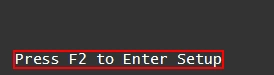
2. Click the Advanced tab.
3. Go to Chipset or North Bridge settings to find a graphics or video memory section.
4. Look for a setting like DVMT Pre-Allocated, IGD Memory, or UMA Frame Buffer Size.
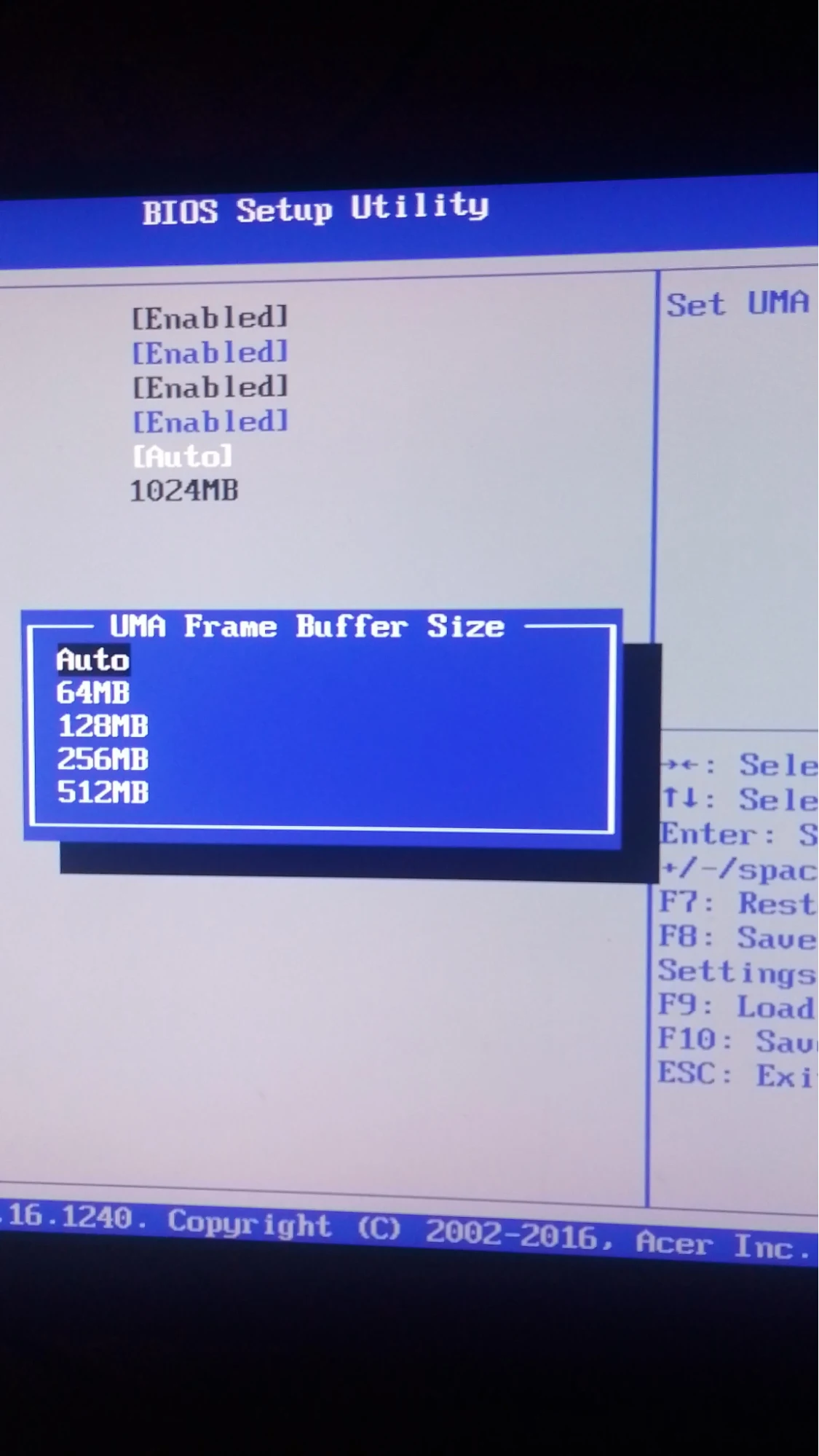
5. Increase the value within the range the BIOS allows.
6. Save and exit to apply changes.
7. On the next reboot, the new allocation will be applied.
Remember, on OEMs, consumer laptops, you may not find this option, as the company keeps it locked to prevent instability issues. Alongside this, you need to understand –
- A higher “Total Available Graphics Memory” number, if it is of shared memory, does not mean you will get better gaming performance.
- On a system with 8 GB of RAM, increasing or decreasing shared memory in the BIOS to meet a game’s minimum requirements will not help. Instead, it will stop other apps from working properly.
- Adjusting shared memory for a separate graphics card via BIOS settings intended for built-in graphics doesn’t work, since the cards are different.
- Increasing physical RAM to fix the “not enough video memory” error will not fix the problem unless you have a dedicated, powerful graphics card.
- Enabling Hardware-accelerated GPU scheduling does not change the number of shared memory pages.
- On a laptop with both built-in and discrete graphics, always check which chip is in use before making any changes to the memory.
- If you do not see a “Dedicated GPU memory” line, do not assume the graphics chip is broken or that there is no memory. You face this problem when the driver is outdated.
- Enable hardware acceleration in Chrome and Edge on a system with an integrated graphics card for better video and page rendering.
For Intel Users running AI models
Good news: if you have an Intel processor from 2025 onward, you can override shared GPU memory without opening the BIOS. Open Intel Graphics Software version 25.26.1602.2, driver version 32.0.101.6974, and built-in Arc graphics, access the “Shared GPU Memory Override” setting, and you are good to go.
By default, it allocated 57% of system RAM and the maximum percentage that can be altered depends on the system’s RAM, which goes to around 87%. Change the settings on when you are performing heavy tasks like running local AI models or performing creative work.
How to Reduce Hardware Reserved Memory too High on Windows
Can Shared GPU Memory be Turned Off?
No, you cannot do it completely. However, as a workaround, an advanced user can disable integrated graphics in BIOS, which means the system will stop reserving RAM for that iGPU. However, on systems where an iGPU or the graphics stack is enabled, allocation will be there regardless of the changes.
Where Does Shared Memory Allocation Matter?
Gaming on a built-in graphics laptop: On such a device, in the name of graphics memory, all you get is shared memory. This is why the speed and RAM you have matter, and 16GB is better than 8 GB.
Top Ways to Enhance RAM Capabilities Without Upgrading It
Using a device with a separate graphics card: Shared memory is just a backup for dedicated memory when it runs out of memory. It does not boost performance. When a game starts to stutter on a PC with a separate graphics card, lower graphics settings, and resolution to allow the game to use dedicated memory properly rather than overflow into shared memory.
Working on a device with both a built-in and a separate graphics card: because each card has its own share, the incorrect chip is sometimes selected, causing a memory problem. Therefore, when running a game on a system with a separate graphics card, if performance lags, check which graphics chip it is using.
Running an AI chatbot on a computer with built-in graphics: this is where modifying shared memory via Intel’s settings or BIOS can matter. As AI requires more memory, changing it will help.
Frequently Asked Questions
Final Words
Shared GPU memory is not physical; it is a portion of memory reserved for graphics to use when its own dedicated memory runs out. Changing it from BIOS does not help much. This is why it has a system with powerful dedicated hardware; graphics are suggested as this helps in better performance. Also, since Windows automatically manages memory on a system with a dedicated card, everything always works flawlessly. We hope you will give it a try and always keep your drivers updated to avoid any issues. Please share your comments or questions in the box below.