Are you facing network issues on your Windows PC? Read the article to learn how to update the HP network driver.
To enjoy glitch-free network connectivity, keeping a network adapter driver is recommended. If you fail to keep the HP Ethernet driver updated, you might face issues connecting to the internet.
Therefore, to help avoid facing connectivity issues in this article, we will explain different ways to update HP network adapter drivers.
Ways to Download/Update HP Network Driver Windows PC’s
Method 1: Download HP Network Adapter Driver Windows 10 via HP’s Website
1. Visit the official HP website.
2. Click the Support tab > select Software & drivers.

3. Select the product for which you are updating the drivers.

4. Input device details and click Submit. If you don’t know about the device, let HP detect it.
5. Expand the section by clicking the arrow > hit the Download button to proceed.

6. Double-click the downloaded driver setup file and follow on-screen instructions to install the update.
7. Restart your HP computer to save changes for the HP ethernet driver.
Also Read- How to Download and Install SM Bus Controller Driver for Windows
Method 2: Update HP Network Driver Using Advanced Driver Updater
Follow these steps to update the HP Network driver using Advanced Driver Updater, the best tool to update all outdated drivers. The tool will auto-detect compatible drivers saving you from going the wrong path.
You can use the trial or the registered version to update drivers. However, the registered version allows updating all outdated drivers at once; while using the trial version, you can update one driver at a time.
1. Download Advanced Driver Updater and install it by double-clicking the downloaded executable file.

2. Open the driver updater for Windows and click the Start Scan Now button.

3. Examine the results of the scan and update problematic drivers. If you use the free version, you update the network controller driver Windows 7 HP by clicking Update driver. However, the registered users can use the Update All button.

4. Allow driver update to be installed.
5. Reboot the PC to bring changes into effect.
If you face any problems using the product or have any other questions related to the program, email the support team at support@systweak.com for further assistance.
Method 3: Use Device Manager
1. Press Windows + X > Device Manager.
2. Double click on the Network Adapters section.

3. Right-click on the network adapter > Update driver.

4. Select, Search automatically for updated driver software.

5. Wait for Windows to update the driver update.
6. Restart the system to apply changes.
Also Read: [Resolved] Missing COM ports in Device Manager Issue on Windows
Method 4: Update Windows
1. Press Win + X to open the Windows Power Menu and choose Settings.
2. Click on the Windows Update Tab in the left panel.
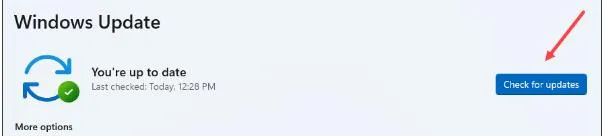
3. Next, click on the “Check For Updates” button on the right side.
4. Windows will automatically check for updates, download, and install them on your PC.
5. Next, click on Advanced Options.
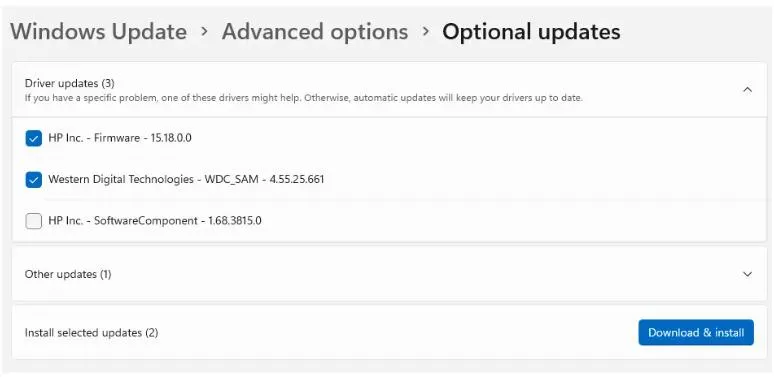
6. On the new page, click on Optional Updates under Advanced Options.
7. Finally, click Driver Updates and check the box before the drivers you wish to update.
8. Click on the Download & Install button and wait for the update process to complete.
9. Restart the computer.
If your PCs Not Connected to the Internet try offline Method
If your PC has no internet follow these steps :
1. Use another device (phone or another PC)
2. Download the driver from the HP website
3. Copy the file to a USB drive
4. Plug the USB into your HP PC
5. Run the installer and restart
Conclusion:
This article explains 3 ways to update HP network adapter drivers on Windows 11,10,8.1,8,7 and other older versions. You can select any of the methods to update the Network adapter.
However, Advanced Driver Updater is a good option if you want to update the driver without investing time.