

Introduction
If you want to know why Copilot is not working, here is the place where you may find the answers to your questions. Often, users face problems like Copilot being unable to start, blank page appearing, problem with loading or connection problems. In some cases, the reason is the server of Microsoft itself, in other cases – your Windows configuration or Internet connection. By following the troubleshooting methods outlined in this guide, you can restore Microsoft Copilot and continue using its AI-powered features for writing, research, coding assistance, and everyday productivity.
Why Is Copilot Not Working?
Before starting troubleshooting, one needs to define the potential reason behind the problem. These may include the following factors:
- Temporary failure of Microsoft servers;
- Poor internet connection speed;
- Outdated Windows version;
- Cache corruption of Microsoft Edge;
- Incorrect regional settings;
- Problems with the synchronization of Microsoft account;
- Disabling of Windows services;
- Firewall/antivirus blocking of Copilot;
- System problems;
Sometimes the problem does not even lie with your computer. In case of Copilot’s outages, one has to wait until Microsoft brings back the service.
Best Methods To Fix Microsoft Copilot Not Working Errors
Method 1: Check if Copilot Is Down
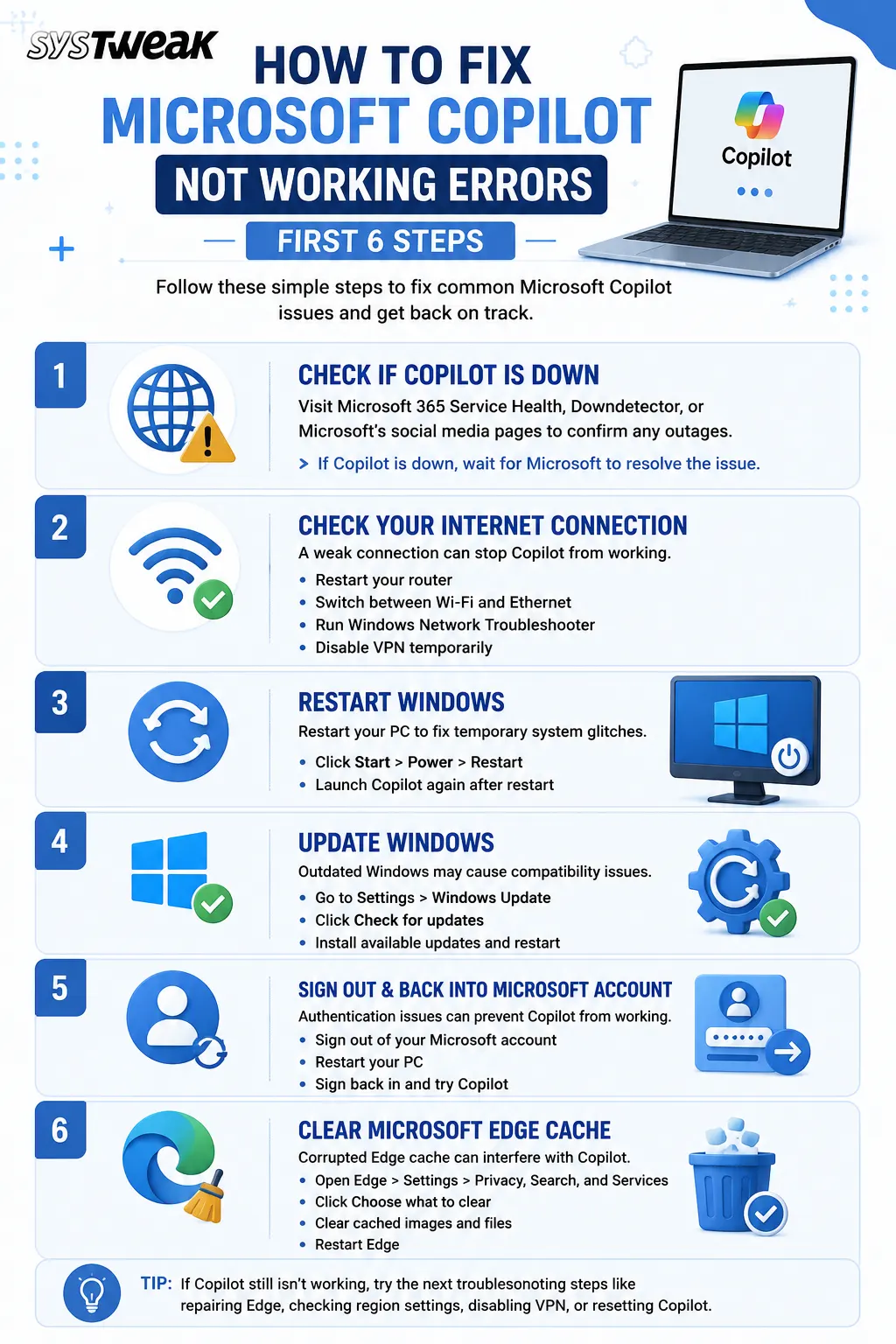
Firstly, you need to check if the problem lies within the realm of Microsoft’s fault. Should the Copilot be out of service, there will be nothing that you could do on your PC to fix it unless Microsoft restores their servers. You can see the status of Microsoft servers here.
- Microsoft 365 Service Health
- X (@microsoft) (Previously known as Twitter)
- Downdetector
- Microsoft community forums
If many users report similar issues, wait for Microsoft to resolve the outage.
Method 2: Check Your Internet Connection
Microsoft Copilot depends a lot on cloud computing. Internet problems might not allow Copilot to respond. Try these methods:
- Restart your router.
- Toggle between Wi-Fi and Ethernet.
- Load multiple sites to check internet connection.
- Run Windows Network Troubleshooter.
- Turn off the Virtual Private Network.
Once you have ensured that the internet is working fine, open Copilot.
Method 3: Restart Windows
In case there is any malfunction in the system that causes problems with Copilot loading, you can simply restart your computer:
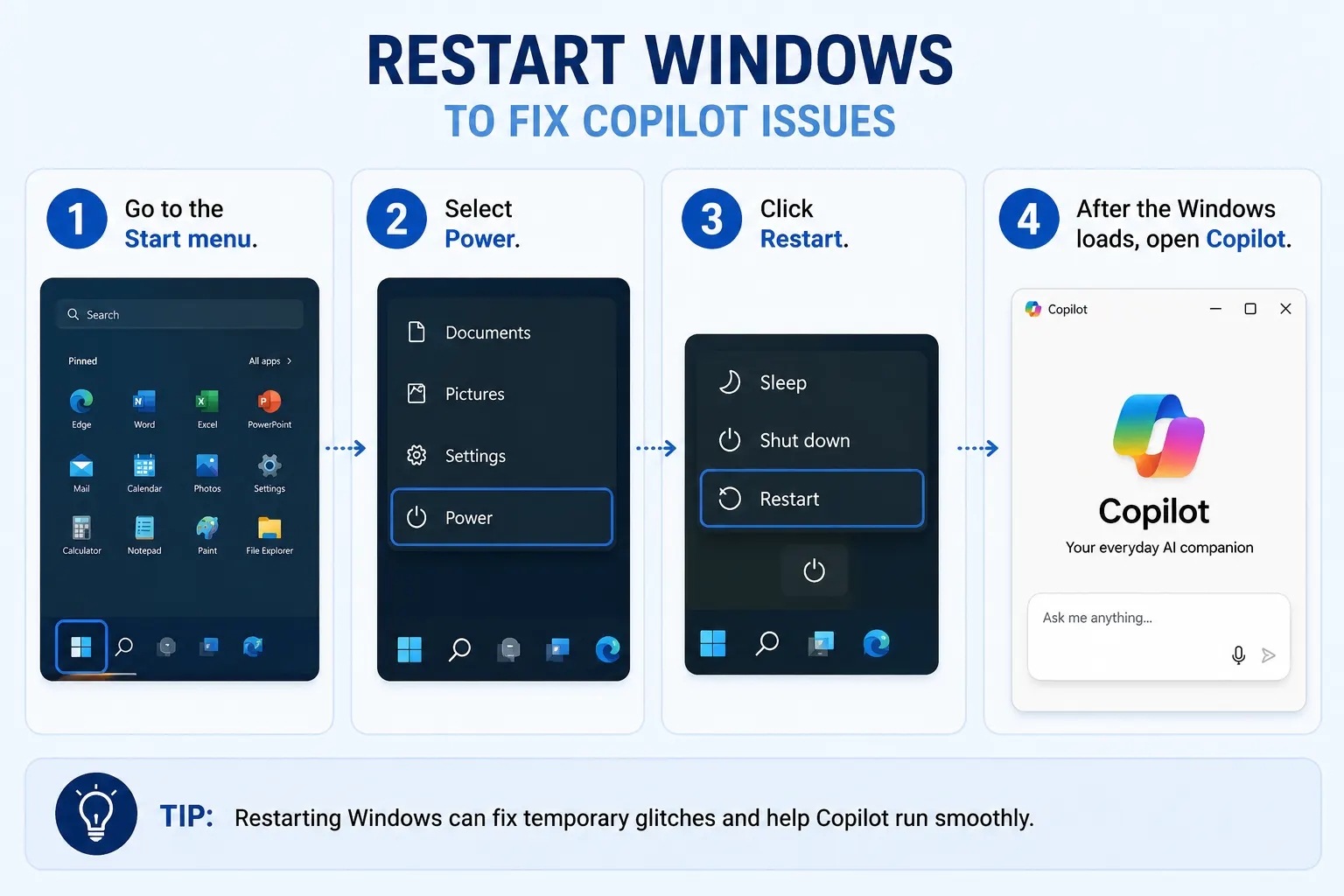
- Go to the Start menu.
- Select Power.
- Click Restart.
- After the Windows loads, open Copilot.
This will solve many temporary issues related to the Windows operating system.
How To Disable Windows Copilot AI – Windows 10 And 11
Method 4: Update Windows
There are frequent updates from Microsoft related to Windows AI functionalities. Outdated Windows is prone to compatibility issues. The following steps will help in updating Windows:
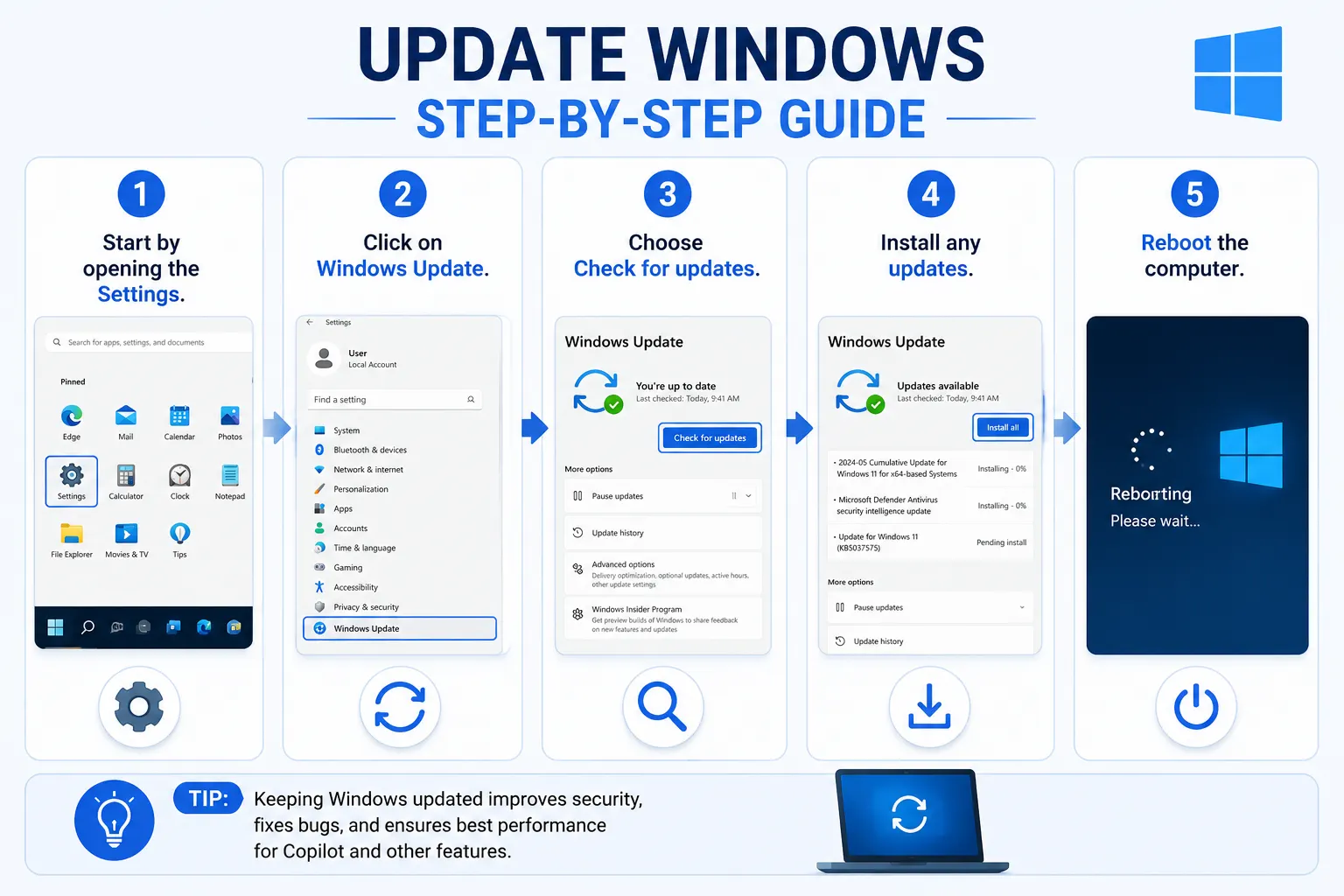
- Start by opening the Settings.
- Click on Windows Update.
- Choose Check for updates.
- Install any updates.
- Reboot the computer.
Method 5: Sign Out and Back Into Your Microsoft Account
Issues of authentication may hinder the proper working of Copilot. Follow the below-mentioned steps for refreshing your account.
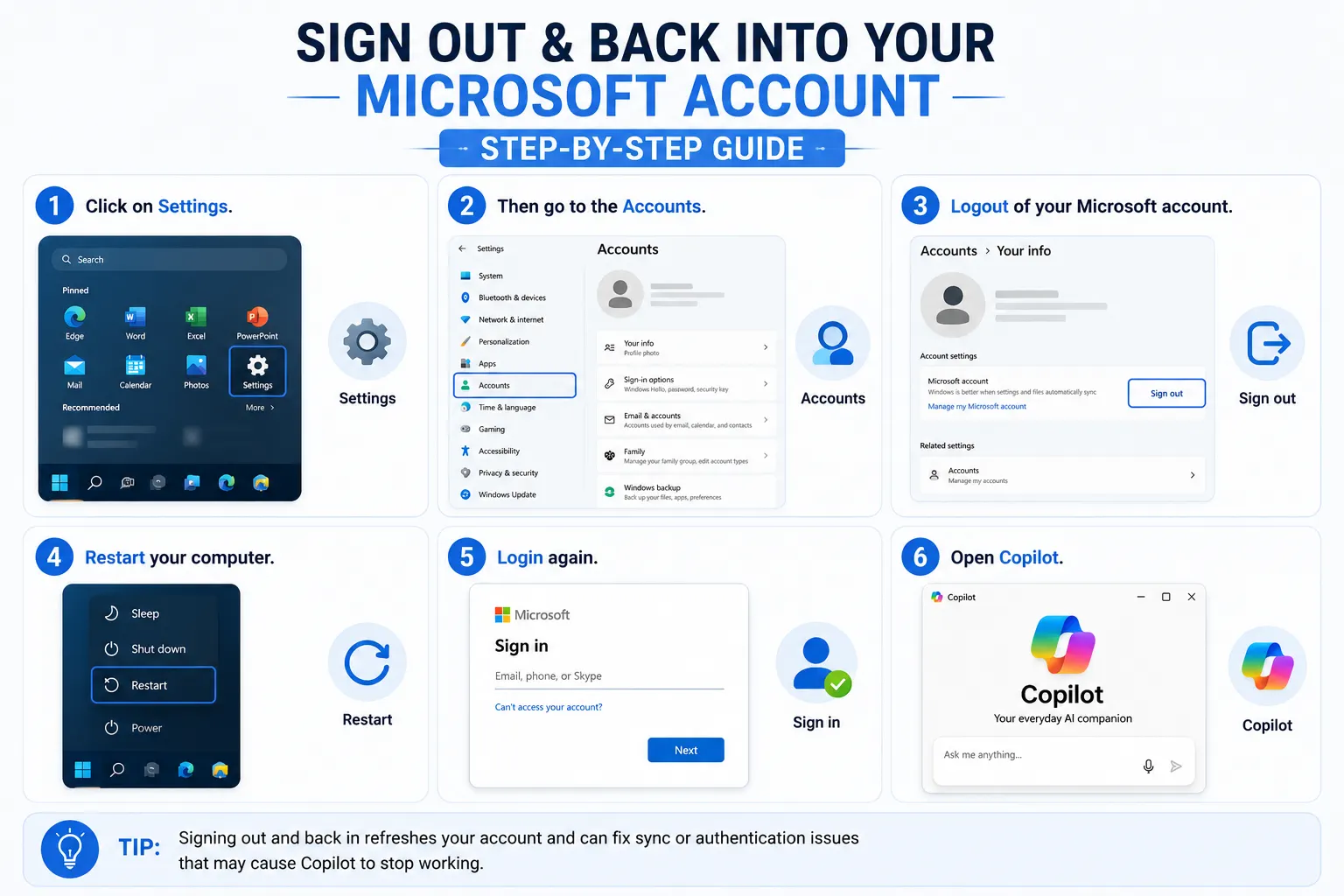
- Click on Settings.
- Then go to the Accounts.
- Logout of your Microsoft account.
- Restart your computer.
- Login again.
- Open Copilot.
This usually helps in overcoming synchronization issues.
Method 6: Clear Microsoft Edge Cache
As Microsoft Copilot depends on the use of the Edge components, a damaged Edge cache might be affecting its function. Please find below the steps to clear cache:
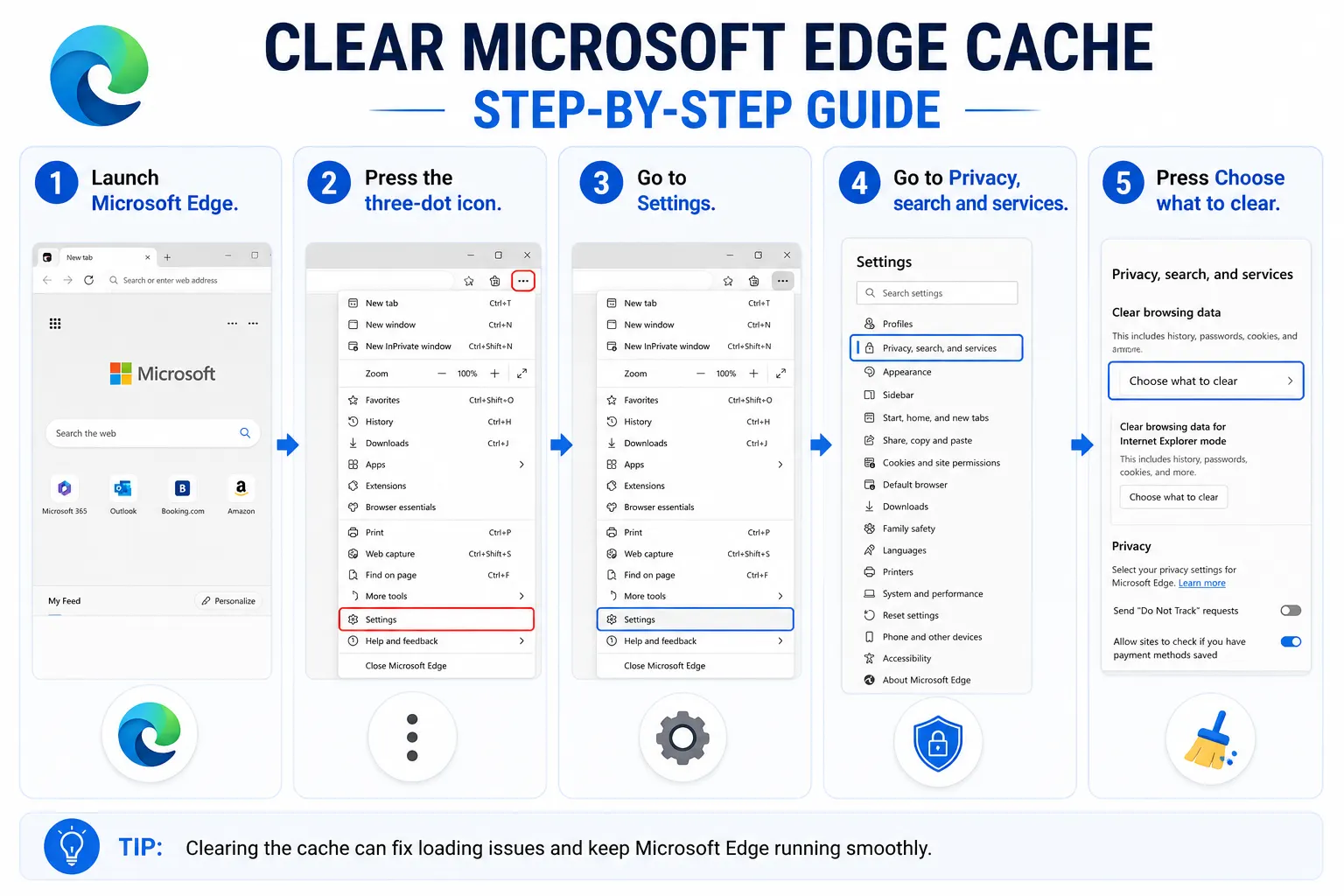
- Launch Microsoft Edge.
- Press the three-dot icon.
- Go to Settings.
- Go to Privacy, search and services.
- Press Choose what to clear.
- Clear the cache.
- Restart Edge.
Now try starting Copilot.
How To Clear Your Browser Cookies
Method 7: Repair Microsoft Edge
In case clearing of cache does not help, repair of Edge will resolve any file issues.
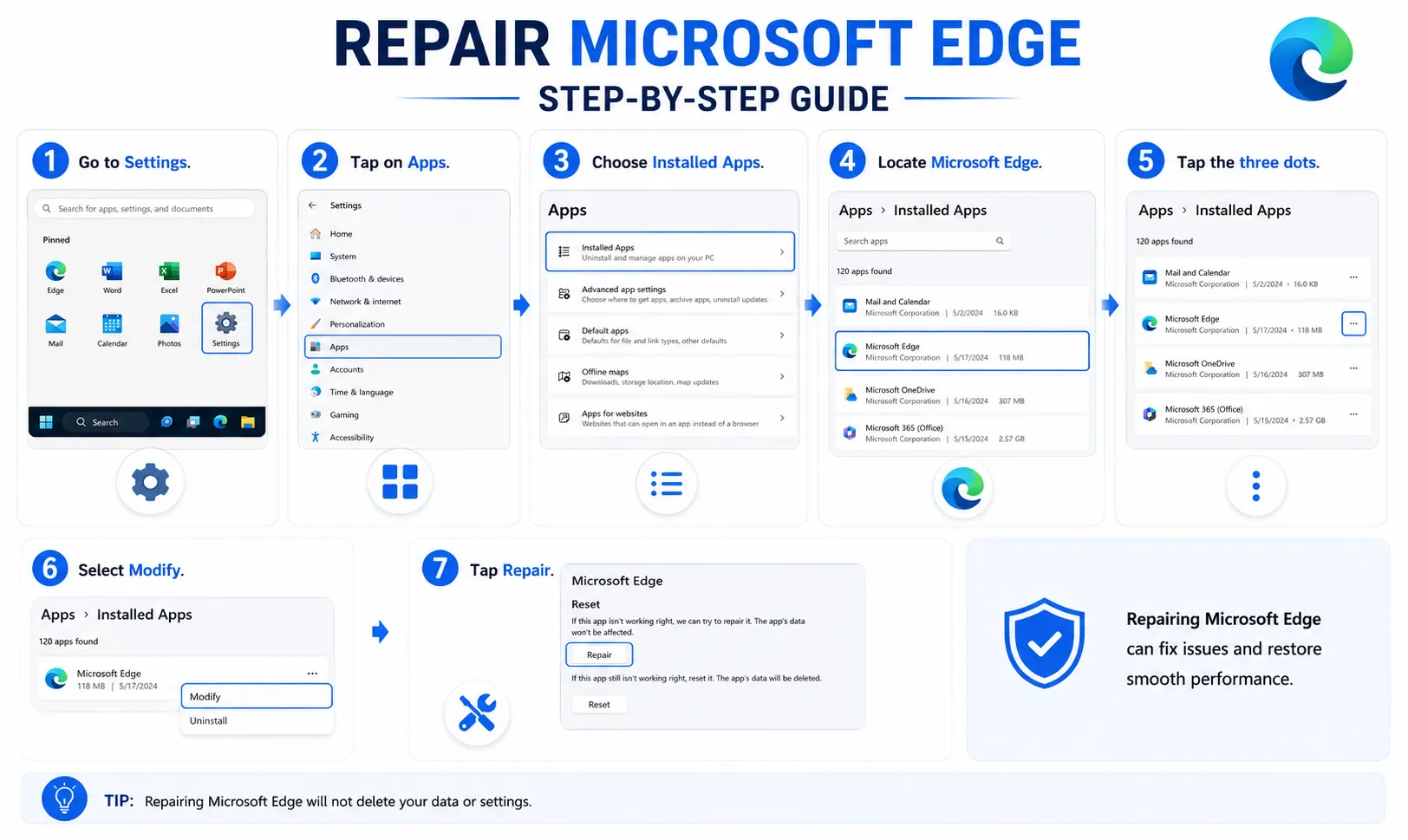
- Go to Settings.
- Tap on Apps.
- Choose Installed Apps.
- Locate Microsoft Edge.
- Tap the three dots.
- Select Modify.
- Tap Repair.
Edge will be reinstalled without deleting any of your personal data.
Method 8: Verify Region and Language Settings
The availability of Copilot depends on supported regions and languages.
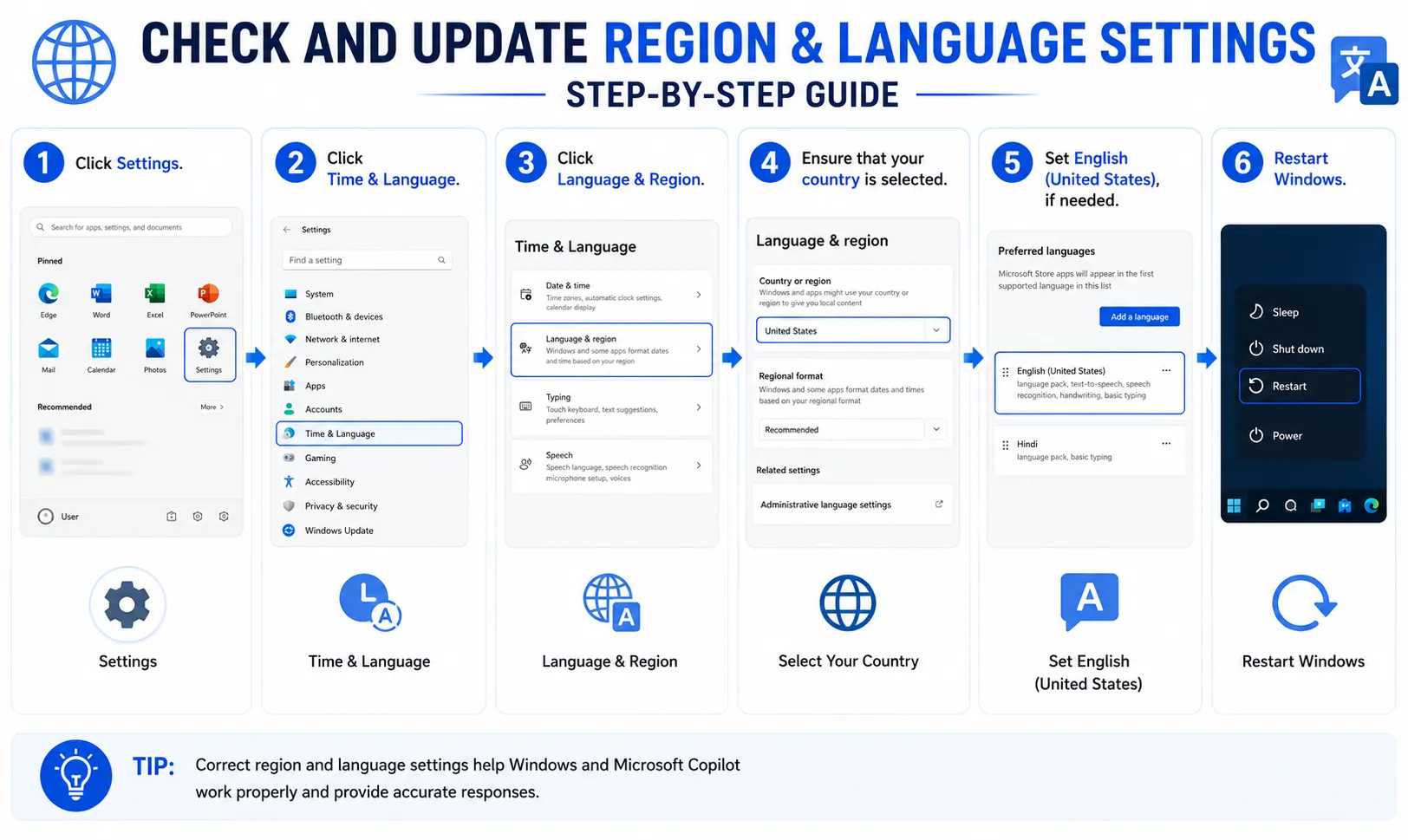
- Click Settings.
- Click Time & Language.
- Click Language & Region.
- Ensure that your country is selected.
- Set English (United States), if needed.
- Restart Windows.
Method 9: Disable VPN or Proxy
The network traffic may be routed via unsupported territories using the VPN.
Disabling the VPN:
- Disable your connection to the VPN.
- Turn off the proxy if activated.
- Re-start Copilot.
If the Copilot works instantly, then there may be problems with the VPN configuration.
A Beginner’s Guide to VPN Safety – Is it Legal to Use?
Method 10: Check Firewall and Antivirus
Sometimes the security software may block Microsoft services. Try to turn off the following for a while and see.
- Third-party antivirus
- Firewall
- Network filtering software
Run Copilot again. If it runs successfully, make an exception for Copilot/Microsoft Edge in your security software and then enable protection again.
Method 11: Reset Microsoft Copilot
In case of file corruption, performing a reset on Copilot could be beneficial.
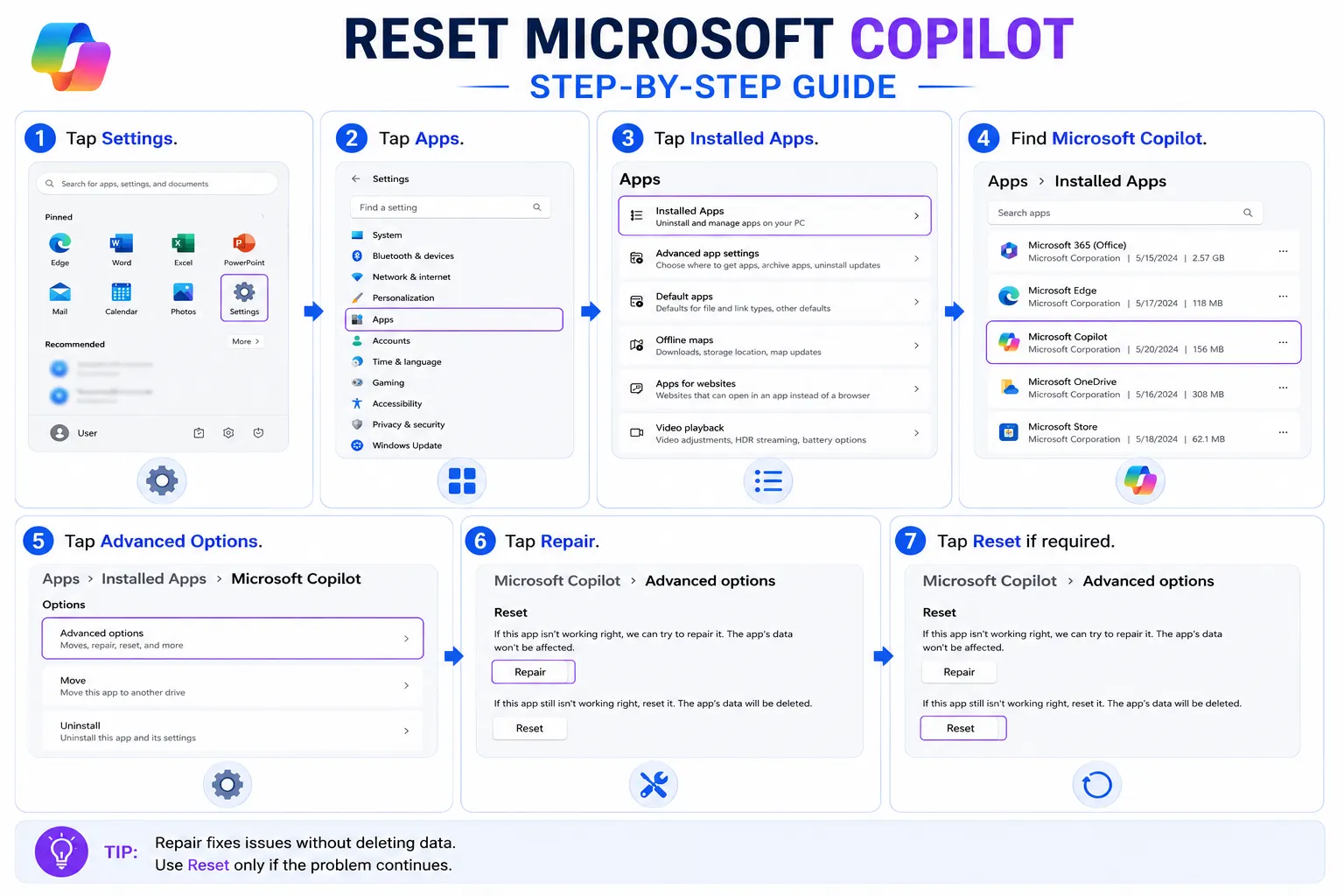
- Tap Settings.
- Tap Apps.
- Tap Installed Apps.
- Find Microsoft Copilot.
- Tap Advanced Options.
- Tap Repair.
- Tap Reset if required.
Method 12: Reinstall Microsoft Copilot
If nothing works from the solutions mentioned above, installing Copilot again would solve all problems. Uninstalling the application from the Installed Apps and then reinstalling it using the Microsoft Store (if available) would help to solve the problem.
Additional Tips to Prevent Copilot Issues
To prevent any issues in the future:
- Keep Windows up to date.
- Use the latest version of Microsoft Edge.
- Have a good internet connection.
- Do not use any registry cleaners unnecessarily.
- Update your Microsoft account details.
- Restart your PC from time to time.
- Install cumulative updates for Windows.
This will ensure that your Copilot functions well.
Frequently Asked Questions
Conclusion
If your Copilot isn’t working properly and disrupting your work process, the solution is simpler than you might think. First of all, find out if Copilot is down, check your internet connection, update Windows, clear cache of Microsoft Edge, and make sure that your Microsoft account works properly. In case you wonder why Copilot is not working, a repair or reset of the program will do the trick. With this article, you will be able to fix Microsoft Copilot and use all its capabilities based on artificial intelligence technology for writing, research, coding support, etc.