
Artificial intelligence is not only available on powerful servers or pricey graphics cards. Currently, many AI models can be used right on a personal computer without transmitting any information to the cloud and without using any external hardware. But before you download any large AI model, you have to ask yourself one critical question – is your PC capable of running such a model without a dedicated graphics card?
Fortunately, having a dedicated NVIDIA or AMD graphics card is not a must to run local AI. Having a good processor, enough RAM and proper AI model might work just fine. Still, the result will be highly dependent on both the type of AI model and your hardware. In this guide, we will show you how to test your PC for the ability to run AI models without using a dedicated GPU.
Is It Possible to Use AI Model Without a GPU?
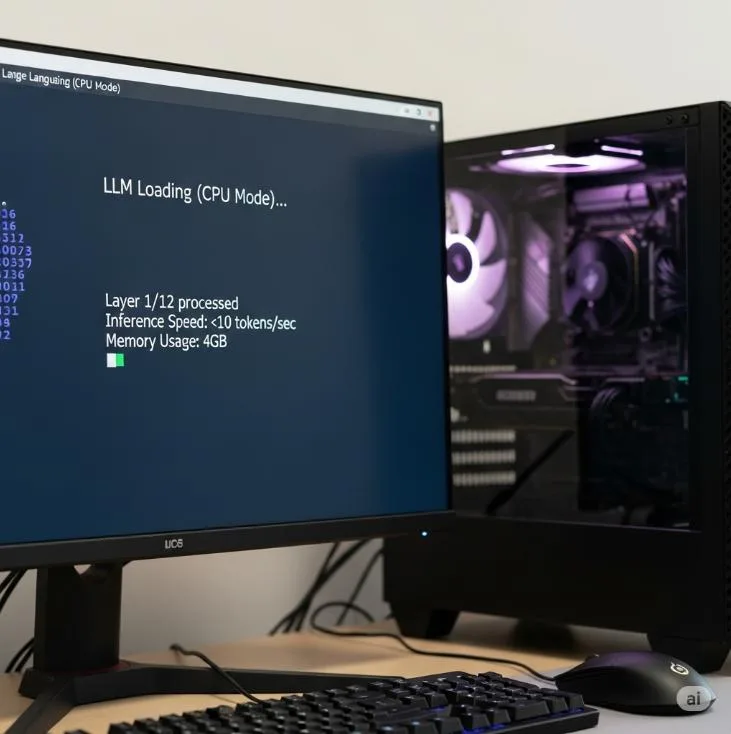 Image Credit – Google
Yes, it is possible to run many AI models without using any specialized GPU at all. It works because GPU makes things faster because it can make several calculations simultaneously, but it is not necessary to have a special GPU to use the model. CPU-based AI became more convenient thanks to the following approaches being used by developers:
- Quantization of the model
- Smaller language models
- Inferencing engine optimization
- Memory precision reduction
- CPU instruction optimizations
However, as always, there is a cost – when you run a model on a CPU, it will give a slower response compared to running the same model on a powerful GPU. There is also a chance that the model will need more RAM than you have available on your PC. The most important thing here is to choose an appropriate model for your PC, not just the largest one you can download.
Can Your PC Run AI Models Without a Dedicated GPU? A Quick Check
Indeed, a lot of contemporary PCs are capable of executing AI models without a dedicated graphics card. In this case, the key considerations include your computer’s CPU, RAM, the amount of storage space and the size and form of the AI model. Quantized and more compact models consume less resources, and therefore, are the easiest way to start working on the local machine without a GPU. Of course, a dedicated graphics card can significantly enhance the performance of an AI model, but it is not necessary when dealing with small models and routine tasks.
Shared GPU Memory in Windows 11 – What is it and Why You See It in Task Manager
What Hardware Do You Need to Run AI Locally?
When checking whether your computer can run an AI model without a dedicated GPU, focus on four main areas:
- Processor
- RAM
- Storage space
- Integrated graphics or AI acceleration hardware
Each plays a different role in determining what models your PC can handle.
1. Check Your Processor
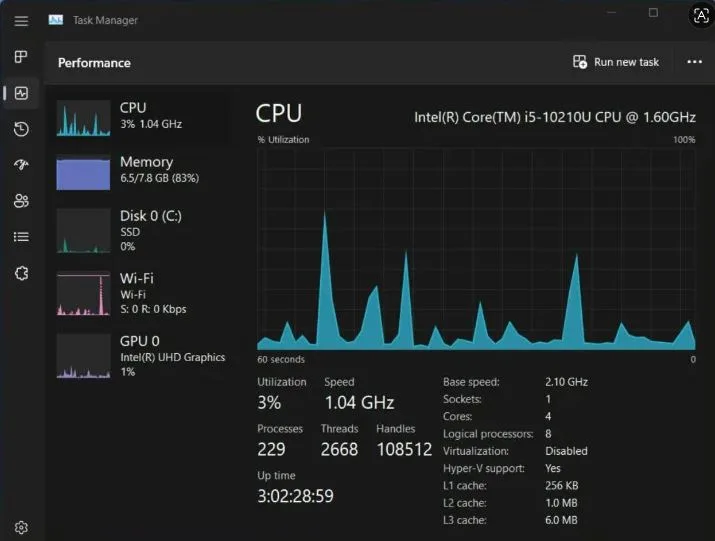
In case there is no separate GPU for running the AI model, then the CPU will be the main processing unit. Nowadays, more advanced multi-core CPUs with updated instruction sets give users a much better experience. Steps to check the CPU in Windows OS:
- Press Ctrl + Shift + Esc to launch Task Manager.
- Go to the Performance tab.
- Click CPU.
- Note the CPU name, frequency, number of cores, and logical processors.
- Alternatively, one may navigate to the following paths:
- Settings > System > About
- The Processor field under the Device Specifications.
A relatively modern CPU, like Intel Core or AMD Ryzen, is capable of running small-scale AI models. The number of cores may come in handy for some tasks, but it is not critical for AI operation.
2. Find Out How Much RAM Your PC Has
In CPU-powered AI, RAM can often be the most significant hardware constraint.
Since when you train your model locally, your computer should have enough RAM to load the model and process the extra data generated while making an inference. Should you not have sufficient RAM installed in your computer, your model might fail to load, and Windows may start using virtual memory excessively. RAM installed in your computer:
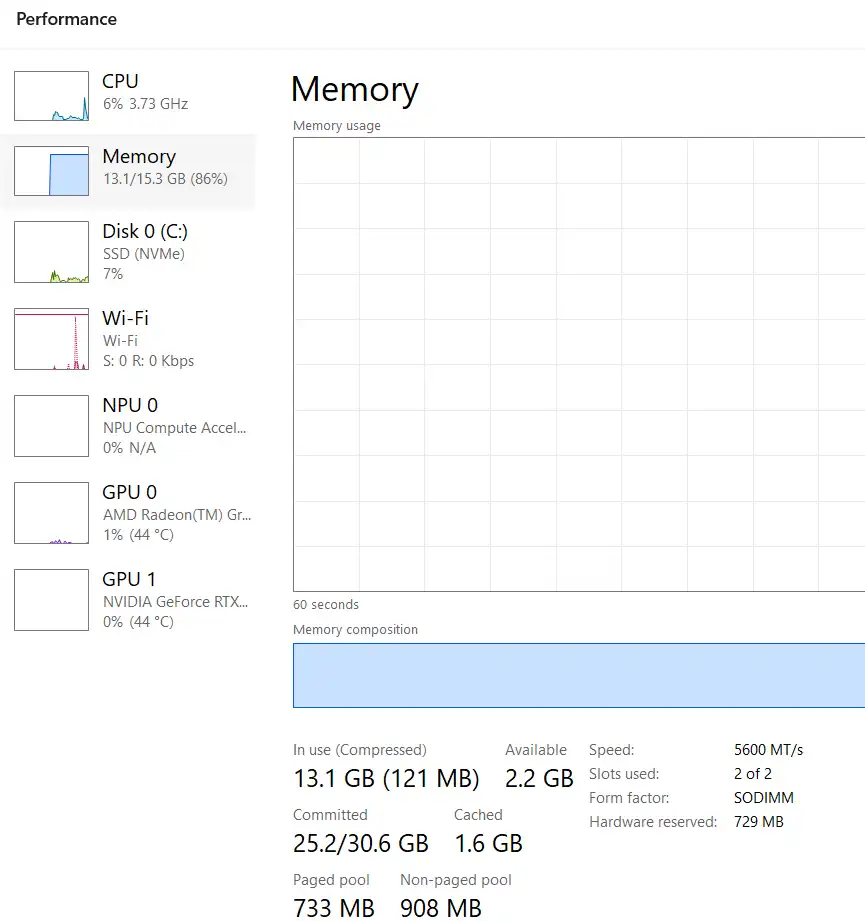
- Press Ctrl+Shift+Esc to open Task Manager.
- Navigate to Performance tab.
- Click on Memory tab on the left pane.
- Here, you will get the installed and used RAM in your computer.
| System RAM | What You Can Expect |
| 8 GB | Very small or heavily quantized models |
| 16 GB | Many small AI models and some moderately sized models |
| 32 GB | Better flexibility for larger local models |
| 64 GB or more | More room for large models and demanding workloads |
These are general guidelines and not hard and fast rules. The memory requirement will vary depending upon the size of the model, how it is quantized, and what software you are using to run it. Note that you also require memory for running your operating system and other programs. If you have 16GB of memory, your computer will not have 16GB for the AI model.
RAM Capacity Is Not the Only Factor
The RAM capacity determines whether or not you have enough memory in your computer to run an AI model; however, performance of the memory can also affect the performance of your computer. In order to train an AI on a CPU, the computer accesses data about the model from memory many times throughout the process of responding. Therefore, two computers with the same RAM capacity will not necessarily perform at the same level.
Understanding AI Model Sizes
AI models are often defined by the number of their parameters – 3B, 7B, or 13B parameters, for instance. On an intuitive level, the larger the model, the higher the computing and memory power needed for processing it. But the size in terms of the number of parameters does not fully define the complexity of running a model. The architecture of storing it and the level of precision required also make a difference.
For example, a quantized model may take up less memory compared to a full-precision one. The reason is the reduced data needed for the storage of model elements. That’s why even a PC incapable of loading a huge model might run a smaller quantized model.
While choosing a model, consider:
- Parameter count of the model
- System memory required
- Format of the model
- Quantization level
- Hardware recommended by the developer
Consider an AI model to be like a suitcase. The model may consist of all necessary things, but effective packing will help fit it in a small space.
3. Check Available Storage Space
Local AI models can take up several gigabytes of storage space. In case you test out different models, the total storage space requirement may increase significantly. Make sure you have enough storage space prior to downloading the models:
- Launch File Explorer.
- Click This PC.
- Find out how much free space there is on your main drive.
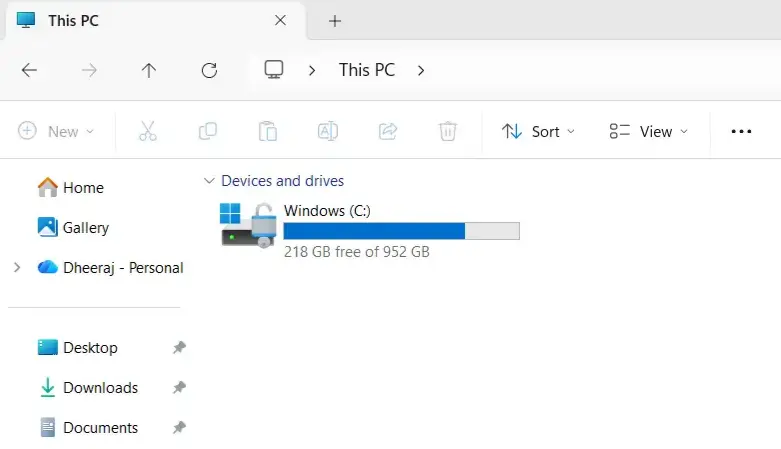 It is suggested to have an SSD for better performance. The speed of the storage device usually does not matter for the generation speed of each response; however, it may influence the speed at which the model file loads. Leave some additional free space for:
- AI model files
- Application files
- Temporary files
- Windows virtual memory
- Additional models and updates
In case your computer has limited storage space, download only the models you will be using.
4. Check Whether Your PC Has an Integrated GPU or NPU
The lack of a dedicated GPU doesn’t necessarily imply the absence of graphical or AI accelerators in your PC. A wide range of CPUs have built-in GPUs, and some recent PCs may feature a dedicated Neural Processing Unit (NPU). It’s possible to verify your graphics hardware through:
Task Manager > Performance > GPU
A built-in GPU might be useful for certain software if they are compatible. Built-in graphics are always shared with the system memory by the CPU; therefore, RAM is still a limiting factor.
Recent AI-oriented systems may also feature a Neural Processing Unit (NPU) that works well with certain machine learning operations. NPUs may boost productivity with the supported software, but you still have to consider software compatibility. It’s not always the case that an NPU is a good substitute for a strong GPU in processing large language models locally.
Check Software Compatibility Before Relying on an NPU
Although an NPU is capable of speeding up some AI workloads, the existence of one does not guarantee that all local AI models will be able to operate faster. AI software requires special features to take advantage of an NPU or graphics hardware that is incorporated into it. Before deciding on a particular model depending on your AI hardware on a PC, you should find out whether the application you intend to use is compatible with the processor or accelerator.
How to Check Your PC Specifications Quickly
If you need a fast overview of your hardware configuration, there are several options available right within Windows.
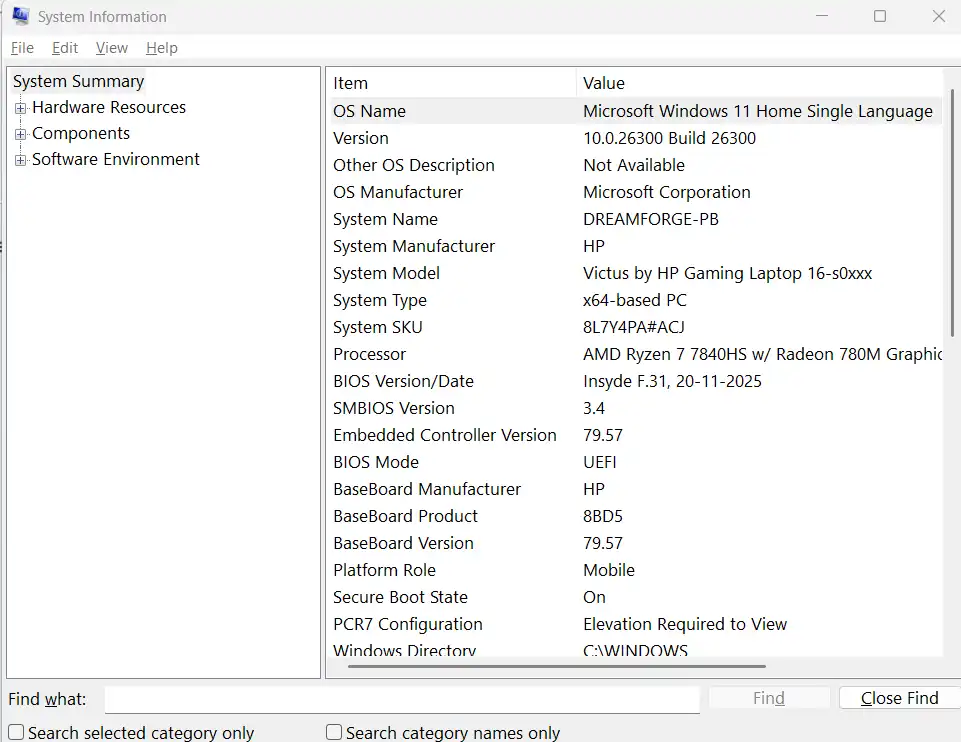
Use System Information Tool
- Press Windows + R, enter:
- msinfo32
- Then press Enter.
System Information will provide an overview of your CPU, installed RAM, operating system and other hardware.
Use DirectX Diagnostic Tool
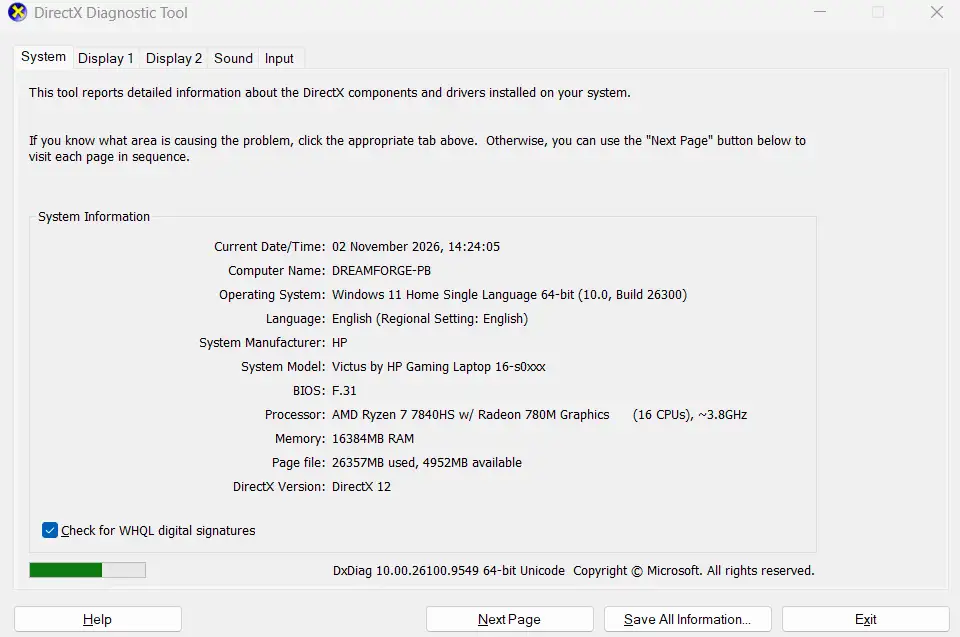
- Press Windows + R, enter:
- dxdiag
- It will give information regarding your CPU, memory and graphics hardware.
Use Task Manager
A quick overview of your hardware usage in real-time is usually provided by Task Manager.
- Task Manager > Performance will give you the following information:
- Model of CPU and its usage
- Amount of installed RAM
- Activity of the disk
- Hardware of GPU
All these values can be monitored even while the AI model is running. You will see the real picture of which component becomes the bottleneck.
A Simple Way to Estimate Whether Your PC Can Run a Model
Before downloading a model, compare its stated memory requirements with your computer’s available RAM.
For example, suppose your PC has:
- A modern six- or eight-core processor
- 16 GB of RAM
- An SSD
- No dedicated GPU
This system may be capable of running many smaller and appropriately quantized AI models. You may need to close memory-intensive applications before launching the model. A computer with:
- An older processor
- 8 GB of RAM
- A mechanical hard drive
A system with 32 GB or more RAM provides more flexibility for experimenting with larger models, although CPU-only generation may still be slower than GPU-accelerated inference.
The best approach is to start with a smaller model and observe how your PC performs.
Test Your PC With a Small AI Model First
It is not necessary to estimate all the possible requirements before you begin the work. It is much easier to make a practical test and learn from it. First of all, try a small model based on a reliable AI application in your area. While it is being loaded and making its predictions, observe your PC. Open the Task Manager and pay attention to the following:
- CPU usage: Large usage of the CPU is typical for CPU inference.
- Memory usage: See if the machine lacks free RAM.
- Disk activity: Large amount of disk activity can be a sign of memory pressure and paging.
- PC performance: Observe whether other applications are unresponsive.
If the PC works fine and the model gives its predictions in an appropriate time, then you might try larger models.
What Is Quantization and Why Does It Matter?
Quantization is one of the reasons why local AI has become more affordable. AI models usually have high-precision numerical values. Through quantization, the precision of some of these values is reduced, leading to reduced memory and storage needs. This leads to smaller models that could easily run on consumer devices.
In some cases, there could be compromises in output quality and performance. But in most cases, quantized models tend to be perfect for people running AI on CPU-only systems. Do not compare AI models solely based on the number of parameters. One 7-billion parameter model could have entirely different hardware requirements compared to another.
How Much Performance Can You Expect Without a GPU?
The answer depends on your CPU and the specific version of the AI. The presence of a dedicated GPU allows for quicker processing of AI calculations, especially for bigger models. In the absence of that, the time required for response will increase. CPU is good enough for testing, summarization, helping you write, and understanding local AI if you want to do so for fun. Longer processing time will be observed in the case of:
- Using bigger models
- Having big prompts
- Having long documents
- Producing longer responses
- Performing multiple AI functions at once
It should not be about trying to get the maximum speed all the time. Running a smaller model locally is enough for some people.
Can a Laptop Run AI Models Without a Dedicated GPU?
Yes, but only if the laptop has enough RAM and an efficient processor. Current laptops with 16 GB of memory or above can run smaller local models. But there are some other factors related to laptops.
Heat and Power Limits
Inference through AI may occupy the processing capacity of the CPU for long periods. This will cause heating issues and make the cooling mechanism of the laptop function harder. Moreover, laptops also try to reduce the processing speed in order to maintain temperatures. Therefore, continuous performance with AI may be different from the same performance on a desktop machine. To use AI for long periods of time, place the laptop on a flat and well-ventilated surface.
Battery Life
The use of AI models on the local machine consumes considerable CPU power. When working on the computer while on battery mode, one can expect faster battery consumption than during low-intensity tasks like web browsing and document editing.
Common Problems When Running AI Models on a CPU
The Model Will Not Load
The reason for this is that the model needs more memory than the computer has.You can try:
- Closing unnecessary programs
- Selecting a smaller model
- Using a more quantized model
- Restarting your PC to free up memory
The PC Becomes Extremely Slow
High CPU and memory utilization affects the whole computer. Use Task Manager to find out whether it is the CPU, memory, or the disk utilization that is approaching its limit. In case Windows is using the disk a lot since physical memory is running full, going for a smaller model would really be better.
Responses Take Too Long
A slow generation process doesn’t always imply that the program is faulty. CPU-based AI technology is naturally less effective than GPU-accelerated AI. The solution to this problem is to:
- Smaller models
- Optimized model formats
- Shorter prompts when appropriate
- AI software designed for efficient CPU inference
When Do You Actually Need a Dedicated GPU?
The purpose of using a GPU will become more prominent if you wish to build larger models, have faster response times, deal with image generation AI, or undertake complicated AI development projects. Some cases where you might wish to use a GPU include:
- Quick response times for large language models
- Image and video generation through AI
- Experimentation with large models
- Training or fine-tuning of models
- Working on multiple AI projects at once
However, for infrequent local AI development purposes, getting a GPU is not necessary.
Final Thoughts
It does not require a dedicated graphics card to experiment with local AI. The most important thing is to realize what your computer is able to handle in real life. First of all, find out the specification of your computer’s processor, RAM, storage, and hardware itself. After that, compare those parameters with the ones required by the AI model you want to use.
For the majority of beginners, it will be the optimal decision to use a smaller or quantized model of AI. While running the model, keep an eye on CPU and memory consumption, and expand the model when your PC is able to run it without problems. Local AI does not necessarily start from a very expensive workstation filled with glowing hardware. Sometimes, the computer that is lying right on your table has enough resources to open the way. You just need to pick the appropriate model.