
Introduction
Hearing about a Windows zero-day vulnerability raises an important question: Is your PC protected?
Installing Windows updates is a good first step, but it does not always confirm that a particular security flaw has been fixed. You need to identify the vulnerability and check whether your Windows version has received the relevant security update.
You can begin with Windows Settings and then verify the installed KB number or OS build against Microsoft’s published security information.
What Is a Windows Zero-Day Vulnerability?
A zero-day vulnerability is a security flaw in a software or firmware that the developers are unaware of. The attackers can write malicious code to exploit that flaw and infect computers around the world that are using that particular software. These are called zero-day attacks and attackers do so to steal data and cause disruption on the attacked machine, ultimately in most cases, to gain monetary benefits.
Before a fix becomes available or before users have had a reasonable chance to apply the fix, machines running those software are prone to infection. Until then, users should follow recommended workarounds to reduce their exposure.
When Microsoft identifies such a vulnerability, it releases a security update to patch it. To give an example in October 2026 Microsoft released a security update to address vulnerability CVE-2026-96951. The flaw allowed attackers to inject vulnerable commands in Windows Shell to completely bypass protections associated with files from untrusted sources. Microsoft released a fix on October 13, 2026.
This example shows why you should verify the specific fix rather than assume your PC is protected simply because it has received updates in the past.
How to Check Whether Your PC Is Patched
Step 1: Check Windows Update
- Open Settings > Windows Update.
- Select Check for updates and let Windows search for available updates.
- Select Check for updates and let Windows search for available updates.
- Restart your PC if Windows asks you to do so. Some updates are not fully applied until after a restart.
After restarting, return to Settings > Windows Update and check the status again. Install any other updates that Windows offers, then restart again if prompted.
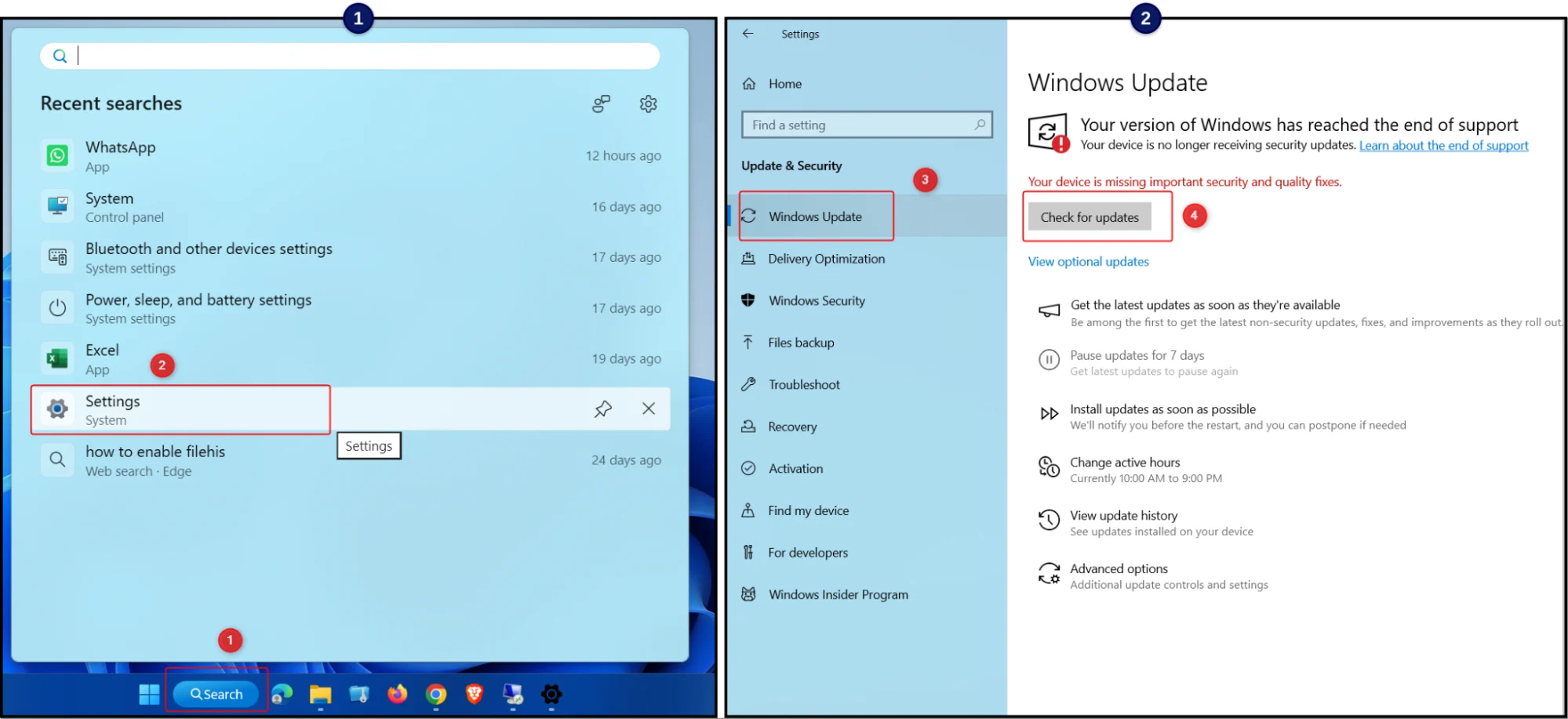
If Windows says you are up to date, it means Windows Update does not currently show additional updates for your device. It does not mean that every possible security risk has been eliminated. If you are checking a particular fix, review Update history and Microsoft’s guidance for that issue.
What Types of Updates Might You See?
Windows Update may offer different types of updates, including quality and security updates, drivers, and security intelligence updates. Not every category appears on every device. Review the description of an update before installing optional items, and use Windows Update or the relevant official Microsoft page as your source of information.
Step 2: Check Your Windows Update History
Update history helps you see which updates Windows has installed and whether any installations failed.
- Open Settings > Windows Update.
- Select Update history.
- Review categories such as Quality Updates, Driver Updates, Definition Updates, or Other Updates, where available.
- Look for recent entries and check whether an update shows as successfully installed or failed.
- If you need to identify a particular update, note its KB number.
A KB number identifies a Microsoft Knowledge Base article or an associated update. You can search the number on Microsoft’s official support site to learn what the update covers and which Windows versions it applies to.
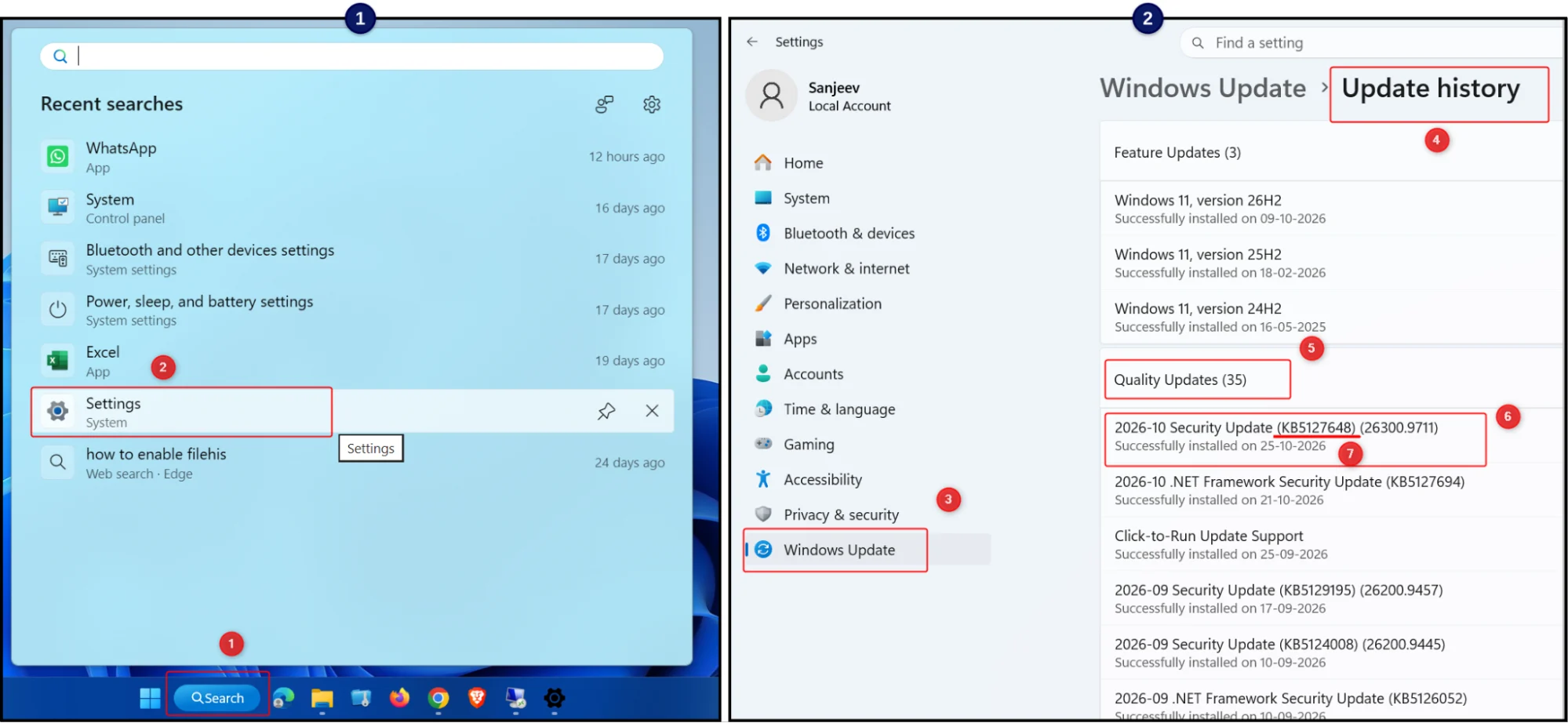
Windows cumulative updates can include fixes from earlier updates. As a result, an older KB number may not appear as the latest installation even if its fixes are included in a newer update. Check the details for your Windows version before concluding that an update is missing.
Step 3: Check Your Windows Version and OS Build
Your Windows version and OS build can help you confirm which release is installed and whether it meets a requirement listed in Microsoft’s update information.
- Press Windows + R.
- Type winver and press Enter.
- Note your Windows version and OS build.
- If you are checking a specific update or security fix, open Microsoft’s official support article or security guidance for it.
- Compare the Windows version and build shown on your PC with the applicable information. Make sure the information applies to your edition and release of Windows.
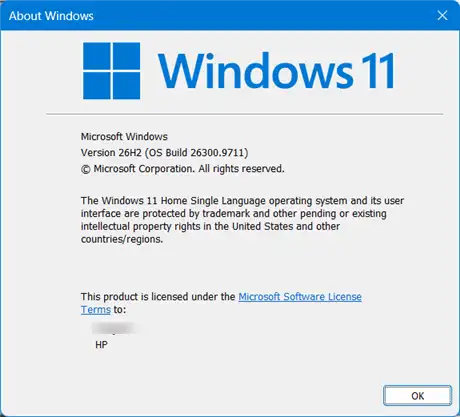
Make sure you compare the correct Windows release, the update offered to your PC can depend on your Windows. The required update can differ between Windows 10, Windows 11, and individual Windows 11 versions.
For example, Microsoft’s October 13, 2026, security update for Windows 11 versions 24H2, 25H2, and 26H2 was KB5127648. Subsequent updates may supersede it, so check Microsoft’s latest release information rather than treating this KB number as the only acceptable result.
For vulnerability-specific checks, the Microsoft Security Update Guide can provide additional detail. For routine maintenance, Windows Update and Update history are the best places to start.
What If the Security Update Is Missing?
If you cannot find the required patch, try these steps:
- Check for updates again: Windows may not have downloaded the latest security update. Ensure that the PC has a working internet connection.
- Restart your PC: A pending restart may prevent an update from completing an installation or offering the next update.
- Investigate update errors: Review Windows Update for installation failures and follow Microsoft’s troubleshooting guidance.
- Check your Windows version: Some older or unsupported releases may no longer receive regular security updates. Confirm that your version is still supported and consider moving to a supported release if needed.
- Install updates from official sources: If you need to download a standalone update, obtain the appropriate package through the Microsoft Update Catalog. Confirm that it matches your Windows version and architecture. Do not install a package just because its number looks similar.
Check for a replacement update: A specific older KB number may be absent because a newer cumulative update includes its fixes. Review the update’s official details before deciding that the patch is missing.
If updates continue to fail, you can find additional guidance in Microsoft’s Windows Update troubleshooting documentation.
What If Microsoft Has Not Released a Patch?
Sometimes, a zero-day vulnerability remains unpatched while Microsoft investigates it or develops a fix. In that situation, Windows Update cannot install a patch that Microsoft has not released. Until then, check Microsoft’s security guidance for recommended workarounds,, and keep checking for updates as new information becomes available.
- Open only files and attachments you expect.
- Download software from official sources only.
- Plug in only USB devices you trust.
- Open Windows Security, then Virus & threat protection, then Manage settings, and turn on Cloud-delivered protection and Tamper protection.
- Keep Windows, your browser, and security software updated, and follow any advice specific to the affected component.
- For work computers, contact your IT administrator before changing security settings. Do not disable essential security protections unless the vendor explicitly recommends a temporary measure.