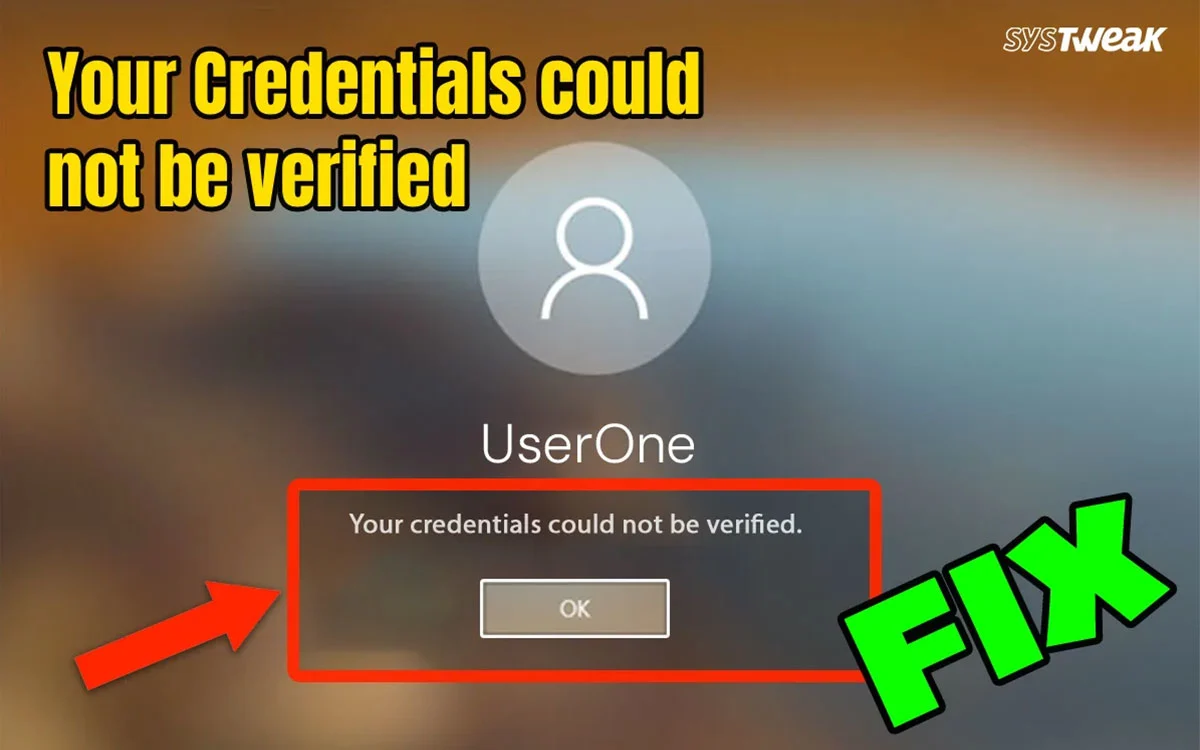
If you get the “Your credentials could not be verified” error on Windows, it means Windows OS is unable to verify your account. Users generally use credentials, like username, password, or authentication token. Despite these being correct, Windows is not able to unlock the account due to a temporary glitch or unforeseen conflict.
Why Does The “Your Credentials Could Not Be Verified On Windows” Error Occur?
The error on Windows appears when you try to sign into your Windows PC. The user is using a pin or password, but the Windows OS cannot confirm their identity. Here are the most common causes.
- Windows stores sign-in information locally in the NGC folder. If these become corrupted or out of sync, verification fails.
- If you use a Microsoft account, your sign-in information must match what Microsoft has stored.
- If the PIN or biometrics configuration becomes damaged, Windows may reject valid credentials.
- Windows uses certificates and time-based validation. If your PC’s clock is wrong, authentication can fail.
- A damaged user profile may prevent Windows from validating stored credentials, especially after forced shutdowns and failed updates.
Prerequisites Before Troubleshooting
- Check your password carefully. Make sure Caps Lock or Num Lock is not interfering.
- If you’re using a Microsoft account, try signing in at account.microsoft.com on another device, like a smartphone, to confirm the password.
- Reboot your PC because a simple restart can fix minor conflicts and errors.

- Power boot your router by turning it off, unplugging the cables, and reattaching them after 1 minute.
How to Fix “Your Credentials Could Not Be Verified” Error
Method 1: Re-enter Account Credentials When Using A Microsoft Account
1. Connect to the internet.
2. At the sign-in screen, choose Sign-in options → Password (instead of PIN/Hello).
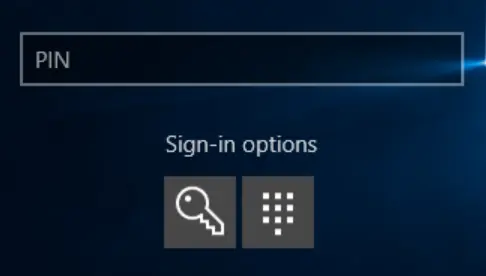
3. Enter your Microsoft account password.
Read Also : Microsoft Account Vs Local Account – Which One Is Better
Method 2: Reset your Microsoft password If You Are A Microsoft Account User
1. If the password changed recently or sync failed:
2. Go to the Microsoft account recovery and reset it.
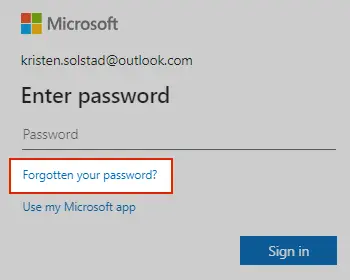
3. Reboot and try again.
Method 3: Remove And Recreate The PIN If You’re Using a PIN Or Windows Hello
Windows Hello can fail if the local authentication data becomes corrupted.
1. On the sign-in screen: Shift → Restart
2. Click on Troubleshoot → Advanced options → Startup Settings → Restart
3. Choose Safe Mode with Networking
4. Sign in with your password

5. Go to Settings → Accounts → Sign-in options → Windows Hello PIN → Remove
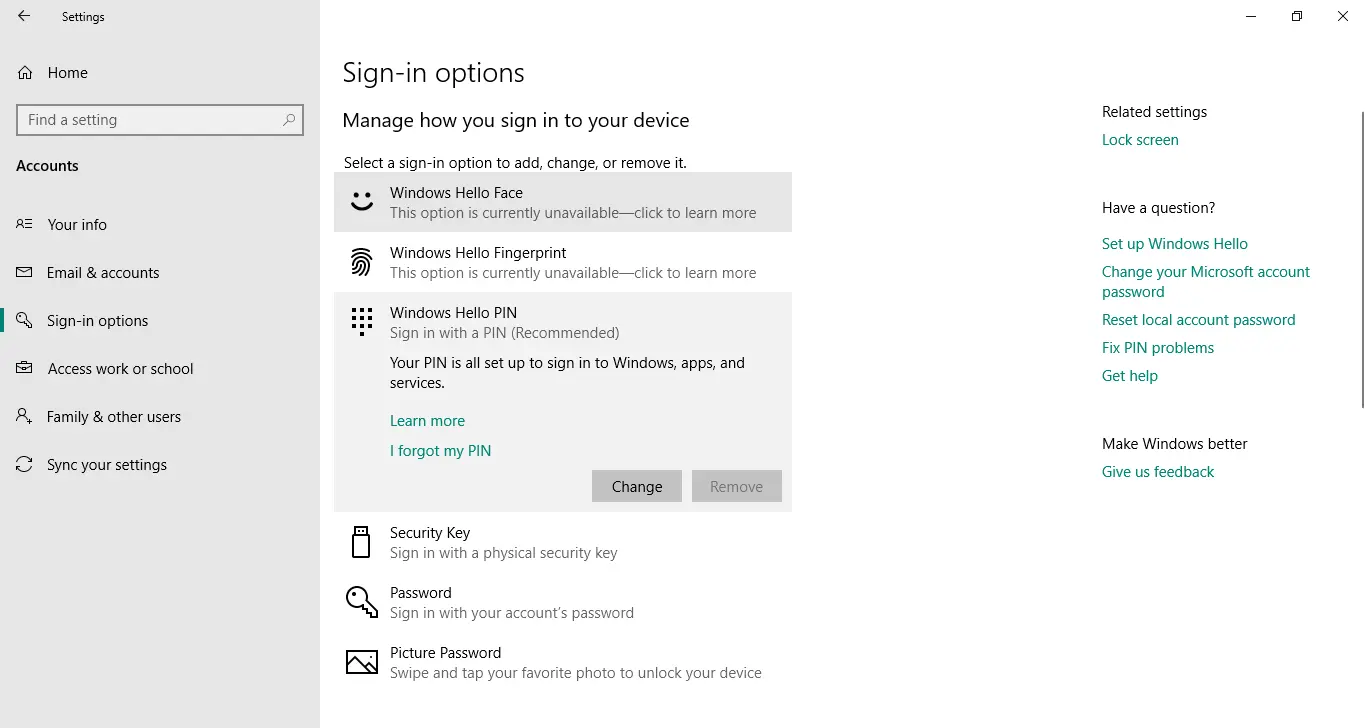
6. Reboot and set a new PIN
Read Also : How To Fix “We Could Not Find A Camera Compatible With Windows Hello Face”
Method 4: For Domain or Work/School Account Users
This error is very common in domain environments. Here are a few issues and quick fixes.
1. Connect to corporate network (Ethernet, VPN, Wi-Fi). If using VPN, sign in on the logon screen → choose Network sign-in.
2. Try logging in with a cached password. Disconnect from the network and try your old password—sometimes cached credentials still work.
3. Sync domain credentials, especially if you changed your password recently. Try to connect to the VPN or corporate network and try signing in again.
Method 5: Recent Changes To Your Account Password
Sometimes Windows still tries to use the old cached token. So try these steps.
1. Tap Sign-in options → Password and use the most recent password
2. Reboot and try again
3. Connect to the internet (for Microsoft accounts)
Method 6: Issues After Windows Update
Updates sometimes break the Local Security Authority (LSA). Here is what you need to do.
1. Reboot into Safe Mode
2. Sign in with a password
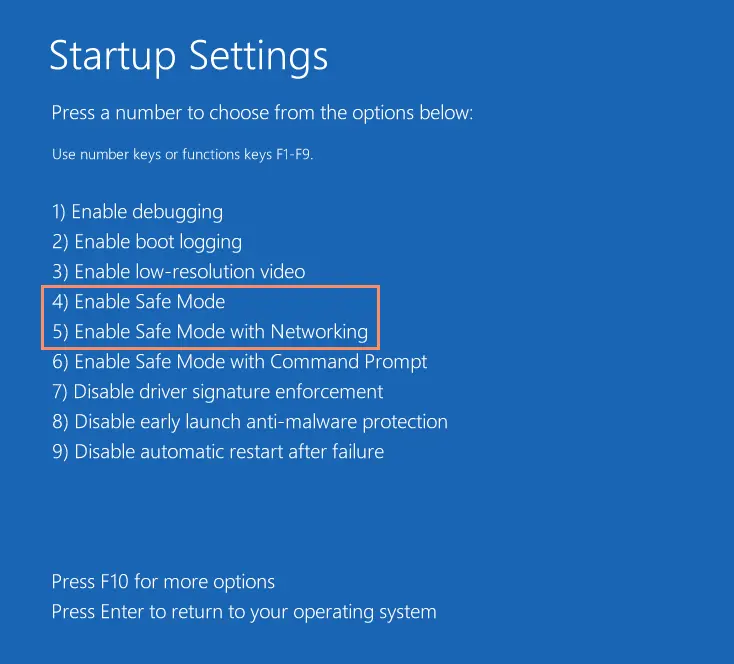
3. Reboot normally
4. If that fails, you may need to uninstall the latest update.
Read Also : Fixed: Local Security Authority Protection Off – Your Device May Be Vulnerable
Method 7: Run The System File Checker In Safe Mode
1. Restart into Safe Mode
2. Open Command Prompt (as Administrator)
3. Run the command sfc /scannow
4. Reboot the PC into normal mode after the scan completes.
Method 8: Restart Windows Credential Manager Service
1. Press Ctrl + Shift + Esc → Task Manager
2. Click File → Run new task
3. Type services.msc
4. Find Credential Manager
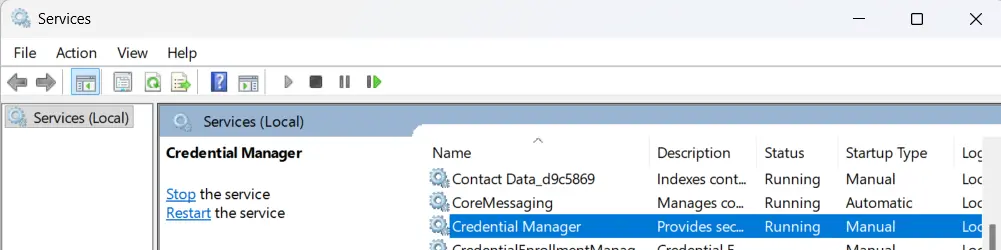
5. Right-click → Restart
6. Set Startup type → Automatic
Method 9: Check Your Keyboard Layout
Sometimes Windows switches layout (e.g., US → UK).
1. On the login screen, press Win + Space to cycle keyboard layouts

2. Or look at the bottom-right language indicator
3. Retry entering the password.
Read Also : How To Fix Keyboard Shortcuts Not Working On Windows
Method 10: Delete Corrupt NGC Folder (Fix PIN/Hello Issues)
If your PIN or Windows Hello stopped working, the NGC folder may be corrupted.
1. Boot into Safe Mode
2. Press Win + R → type this command.
C:\Windows\ServiceProfiles\LocalService\AppData\Local\Microsoft\NGC
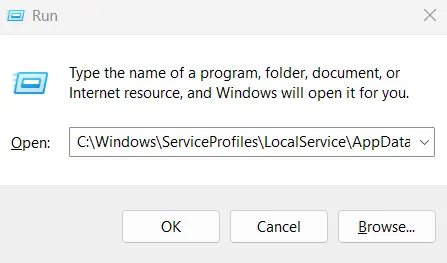
3. Delete all files inside the NGC folder
4. Restart PC
5. Set up a new PIN.
6. Settings → Accounts → Sign-in options → PIN
Method 11: Last Resort: System Restore or Reset
Option A — System Restore
1. From login screen → Shift + Restart
2. Advanced options → System Restore
3. Pick a date before the issue started
Option B — Reset PC (Keep Files)
1. Shift + Restart → Troubleshoot
2. Choose Reset this PC
3. Select Keep my files
Bonus Tip: Use Advanced File Recovery To Recover Your Files
If you are not able to sign in to your Windows and have to format your system, then there is a chance that you will lose your files. We have tried and tested a file recovery software known as Advanced File Recovery that can recover files from formatted and corrupted hard drives. The sooner you install this software and recover the files, the better the chances are of recovering all your files. If the files are overwritten by newer files, then you cannot retrieve older files. Here are the steps to use this software.
1. Download Advanced File Recovery using the Download button provided below.

2. Double-click on the downloaded file and follow the onscreen instructions to install the file.
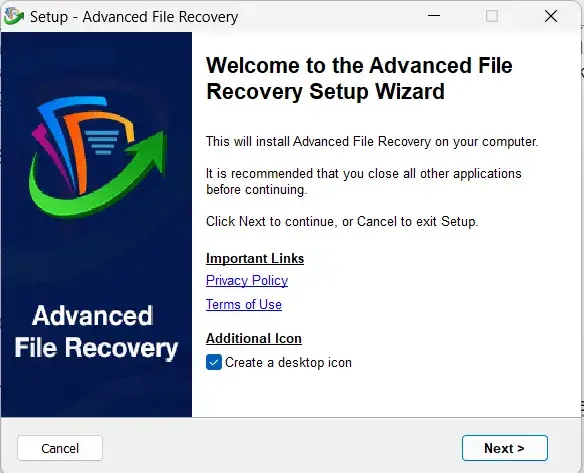
3. Launch the app and choose the drive you wish to scan.

4. Choose the type of files you wish to recover or select “Scan All Data”.

5. Click on the Start Scan button.
6. After the scan is completed, a list of files that can be recovered will be available on the screen, within the app’s interface.

7. Select the files you wish to recover and click on the Recover Now button.
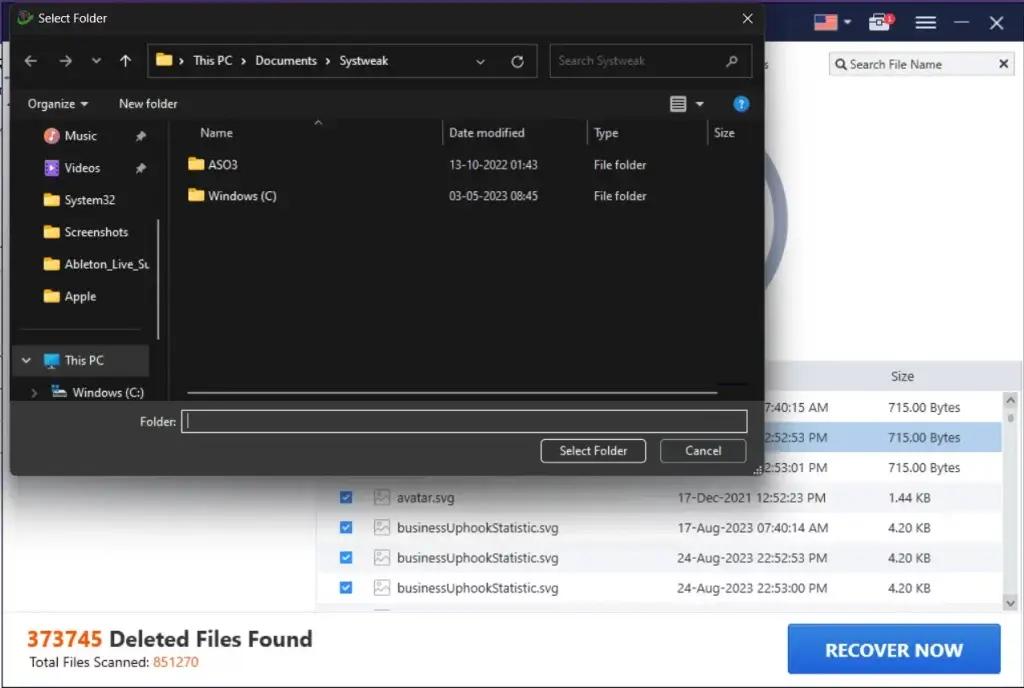
8. Select another drive to recover the deleted files so that the recovered files are not overwritten on the lost files that are being recovered.

9. Wait for the recovery process to complete.
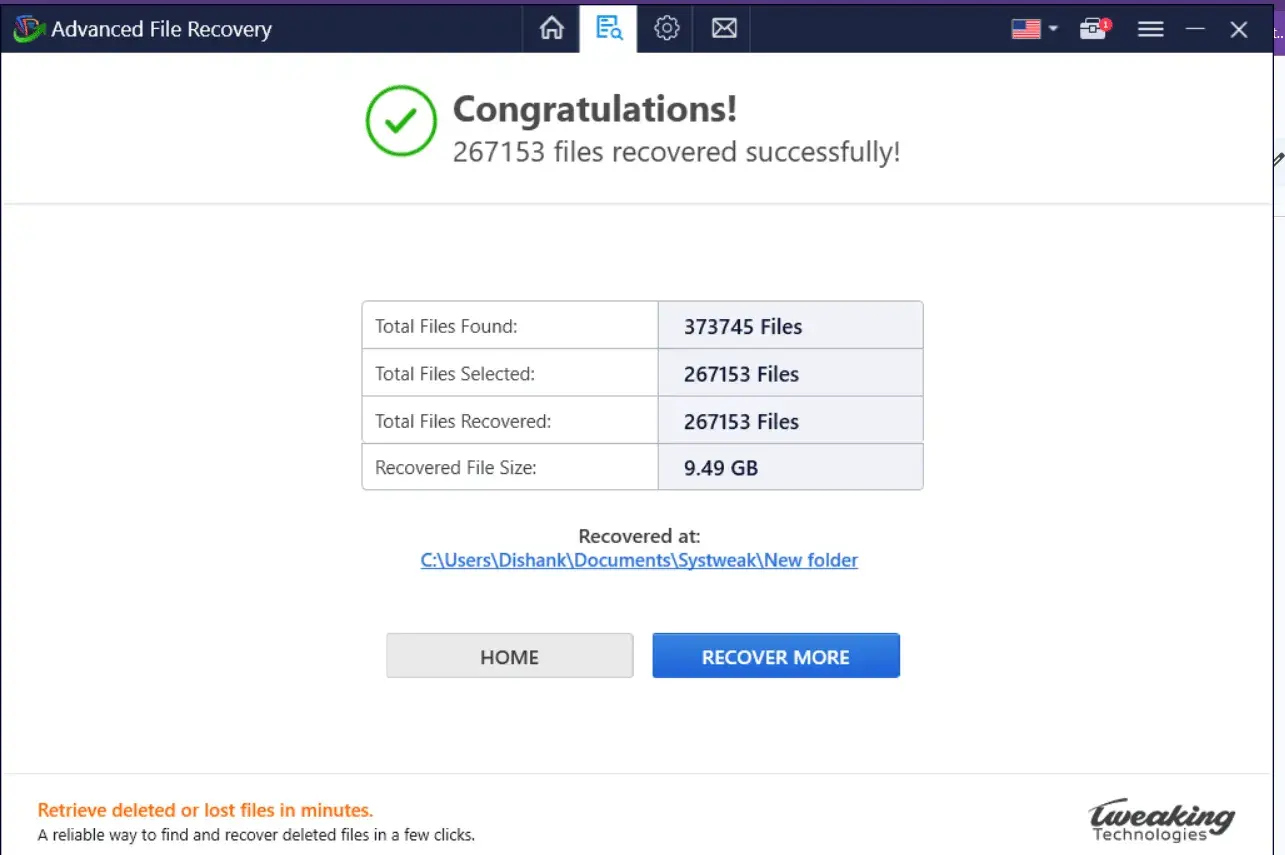
10. A summary will be presented on your screen. You can either recover more files or exit the app.
Conclusion: Are you Able to Log In?
We hope that you can access the desktop screen after logging in to your PC. The error “Your credentials could not be verified” is a common error that can occur due to multiple reasons. Do share your experience with us in the comments section below.
Recommended :