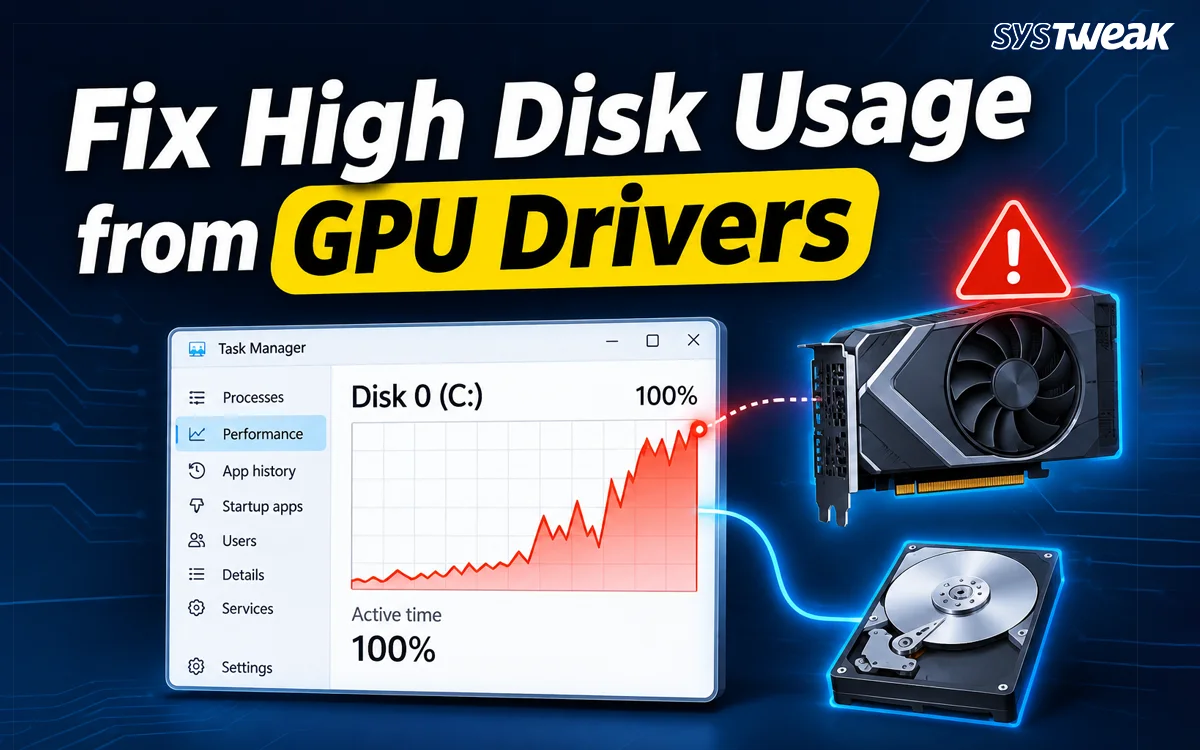

A computer’s graphics driver is an important piece of software for image rendering, video display, and carrying out demanding graphics tasks. However, at times an outdated, corrupted, or faulty graphics driver may cause strange behavior on the PC, which may include excessive disk activity. Although high disk activity does not mean that the culprit is necessarily the graphics driver, it is nonetheless useful to identify suspicious activity associated with GPU processes.
The aim of this guide is to help you learn how to figure out whether or not your graphics driver is responsible for unnecessary disk activity, know what programs/processes to watch for suspicious behavior, track the disk activity, and fix potential issues with drivers.
What Is Unnecessary Disk Activity?
Disk activity is the term used to describe activity made by a disk, including disk read/write activities. Whenever a software application is being used by Windows, disk activity takes place since the disk is always active when there is software being run, when the computer is accessing a system file, or when it creates temporary files and performs background processes. Though some amount of disk activity should be considered normal, unwanted disk activity can occur in the following situations:
- For some background process calling on temporary files over and over again.
- When the graphics driver is producing error messages continuously.
- When applications using the GPU are rebuilding shader caches.
- When installation/update of some driver creates temporary files.
- When applications related to graphics keep obtaining data stored in the cache.
Generally speaking, graphics drivers do not need to be constantly accessed over and over again for them to function well; any continuous disk activity that is associated with graphics-related tasks is something that deserves attention.
Signs Your Graphics Driver Could Be Causing Disk Activity
It’s essential to look for symptoms that will indicate that your graphics driver could be causing disk activity before you make changes to its settings. Some common indicators include:
Disk Usage While Idle
Your computer might show high disk usage even while no applications/processes are running on it. If these activities are caused by processes related to the GPU, however, you might want to look into them.
Frequent Disk Reads and Writes
This can happen if your graphics software (NVIDIA, AMD, or Intel) processes are constantly making read/write actions by accessing the cache folder, temporary directories, or driver folders.
System Slowing Down Unexpectedly
The applications may take longer time to open or the system may freeze, or lag down, or the whole system can get stuck.
Graphics Driver Errors Occur Frequently
If you have a defective graphics driver, it will produce constant errors and/or diagnostic logs. As a result, it may take up storage space and make you perform unnecessary writes.
Disk Activity After Graphics Driver Updates
After installing a newly updated graphics driver, if disk activity becomes abnormal, this could indicate driver incompatibility.
Note : It is also important to note that it should be remembered that this issue is sometimes not only a result of the video card driver issue. There could be other causes for this issue, such as Windows Search, antivirus software, and background updates.
How Can You Determine If Your Graphics Driver Is Causing Unwanted Disk Activity?
1. Monitor Disk Activity Using Task Manager
The first step in checking unusual disk activities is to monitor your computer’s processes in Task Manager. It shows which processes are running in your computer and how much disk activity is generated by each process. The following steps can be followed to check the disk usage in Task Manager:
- Press Ctrl + Shift + Esc to access Task Manager.
- Go to the Processes tab.
- Look for the Disk column.
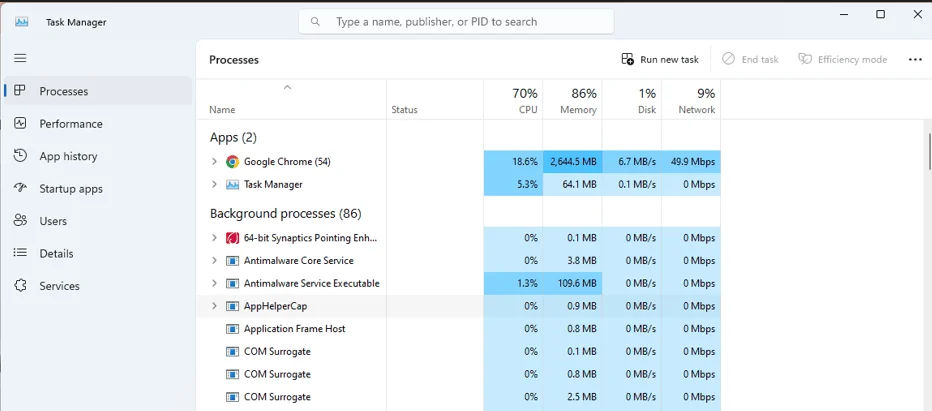
- Sort the processes according to their disk activity through the Disk column header.
- After that, examine the top running processes and see if there are any relevant graphic processes running in the background.
- Keep checking the processes for what their disk activity is.
Similarly, check for all processes associated with your graphics card or the graphics software installed on your computer. Depending upon your hardware, you may see the following processes:
NVIDIA Container
NVIDIA Share
AMD Software
AMD External Events
Intel Graphics Software
Intel Graphics Command Center
Fix – No AMD Radeon Graphics Driver is Installed on Windows 10
What to focus on?
In case the graphics-related process appears to be one of the most consuming processes again, take a note of its name and see whether it continues to operate when the computer is not in use.
2. Use Resource Monitor to Know More about Visual Issues that Impact Disk Usage
Resource Monitor is a powerful tool that provides more information in comparison with Task Manager regarding disk performance. It helps identify what files and folders are used by which applications. This is essential for understanding if the video card driver is overwriting cache files from time to time. Here are the steps to follow:
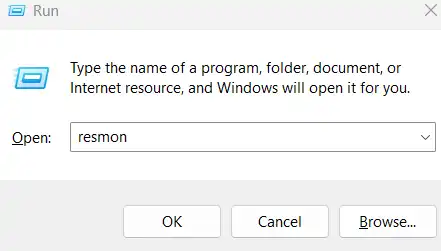
- Use Windows + R to get to the Run dialog box.
- Type resmon and press Enter.
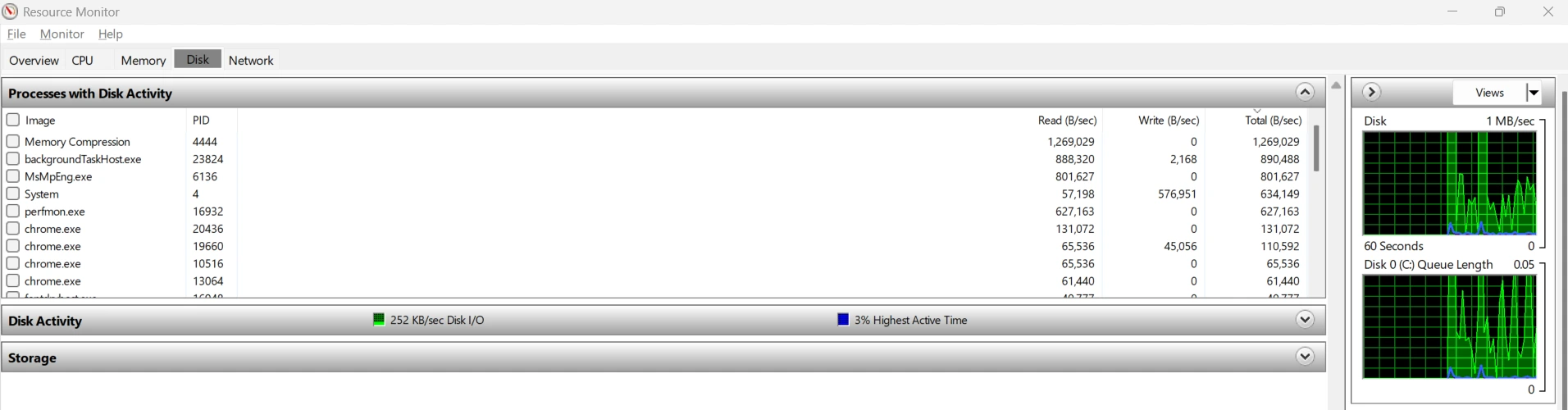
- Choose the Disk option.
- Open the Processes with Disk Activity section.
- Collect information from the Image, PID, Read (B/sec), Write (B/sec), and Total columns.
- Identify the program/process which utilizes the drivers of your graphics card.
- Expand the Disk Activity section.
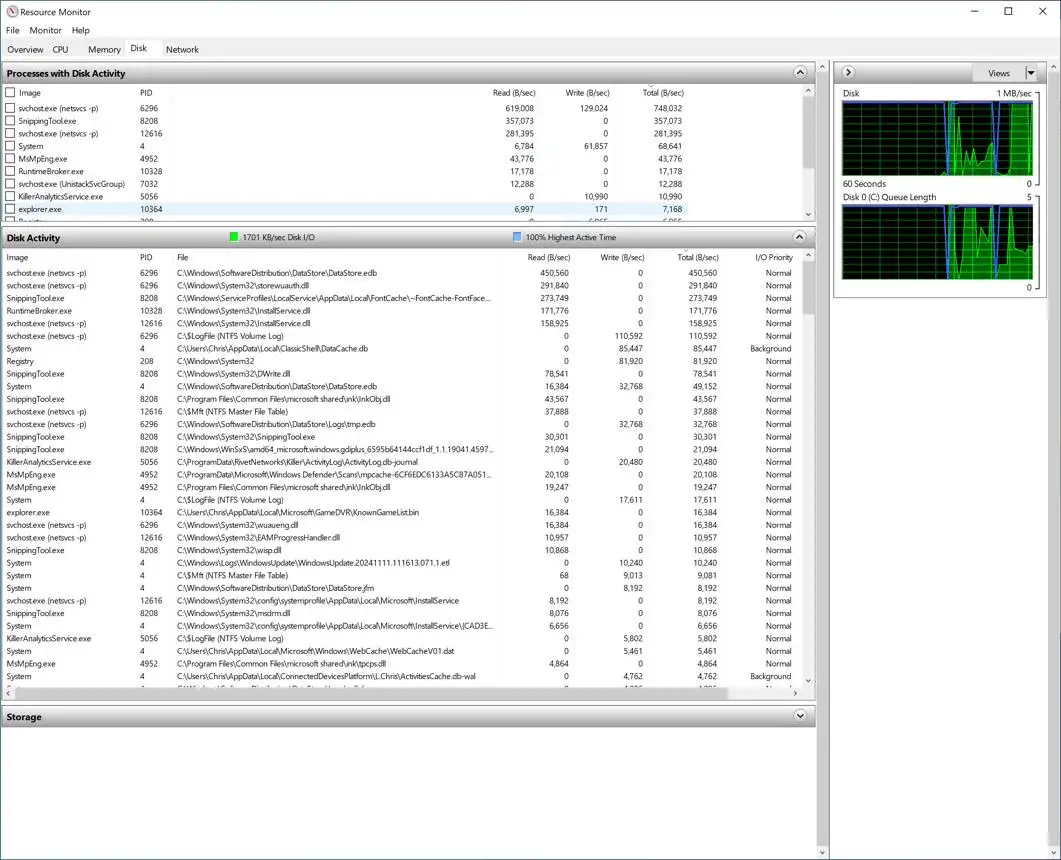
Be mindful of file paths related to graphic software, installation of drivers, folders for temporary keep, as well as folders for shader cache. For instance, when dealing with graphics file activities, the folders may include folders related to NVIDIA, AMD, or Intel software under ProgramData, AppData, or the Windows installation directory.
Fix ‘No Device Drivers Were Found’ Error During Windows Installation
How can the activities be understood?
- If shader cache files were accessed repeatedly, it may imply that the app is creating or updating its cache.
- If logs related to the graphic activity are written frequently, in this case, we can conclude that some problems with the drivers or diagnostics occur here.
- If there is constant access to folders related to driver installations, this means that there is some updating or maintenance.
You cannot state that every access related to graphic files is useless. Activities such as shader compilation, game startups, and updates of graphics applications would generate such access.
3. Monitor Disk Activity Using Windows Performance Monitor
If you want to track disk performance over an extended period of time, then Windows Performance Monitor will fulfill your needs. It provides you with live metrics like the number of disk operations performed, data transfer speed, activity related to processes, etc.
To access Windows Performance Monitor, simply follow these instructions:
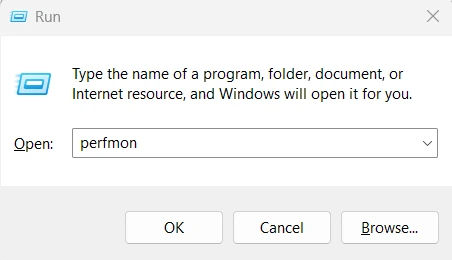
1. Press the Windows key and R together.
2. Type the word perfmon and press Enter.
 3. Find Performance Monitor under Monitoring Tools.
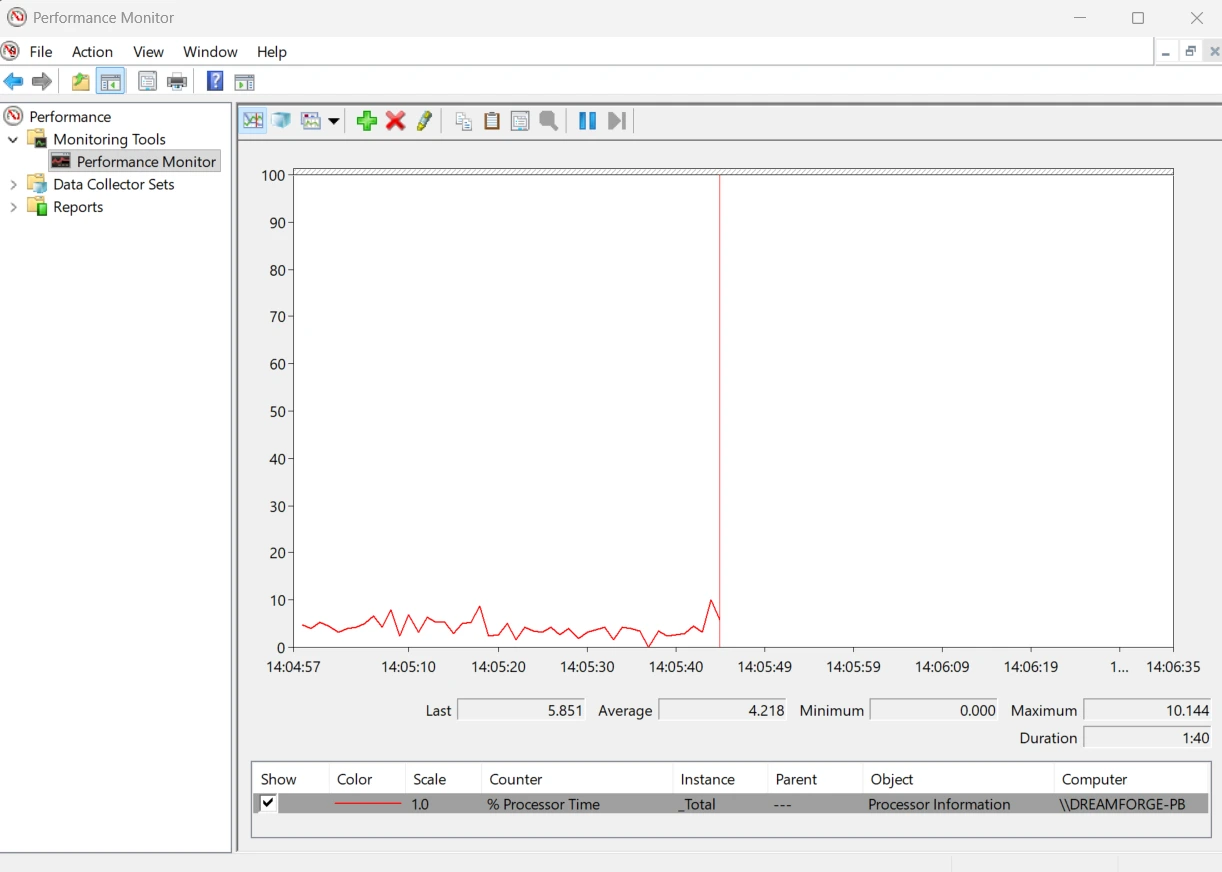
4. Click the green plus sign.
5. Find PhysicalDisk.
6. Add the following metrics:
Disk Reads/sec
Disk Writes/sec
Disk Read Bytes/sec
Disk Write Bytes/sec
% Disk Time
7. Click Add, then OK.
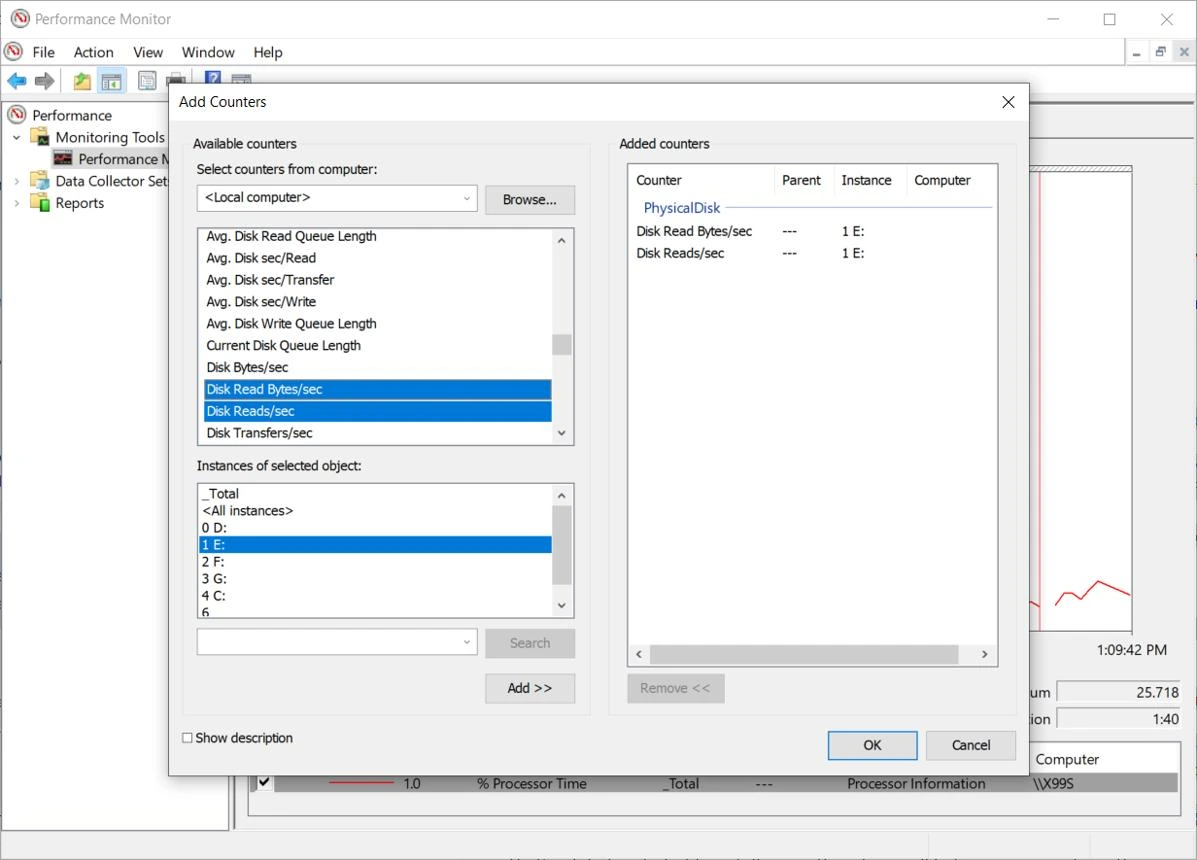
Monitor the graph when your computer is not operational, as well as during intensive processing that uses lots of graphical resources. You can watch the disk usage at any time when the processor is engaged in such activities as: –
- When the computer is idle.
- When launching a resource-consuming application.
- When starting to play a video game.
- When shutting down the application.
- When working on a background GPU-related operation.
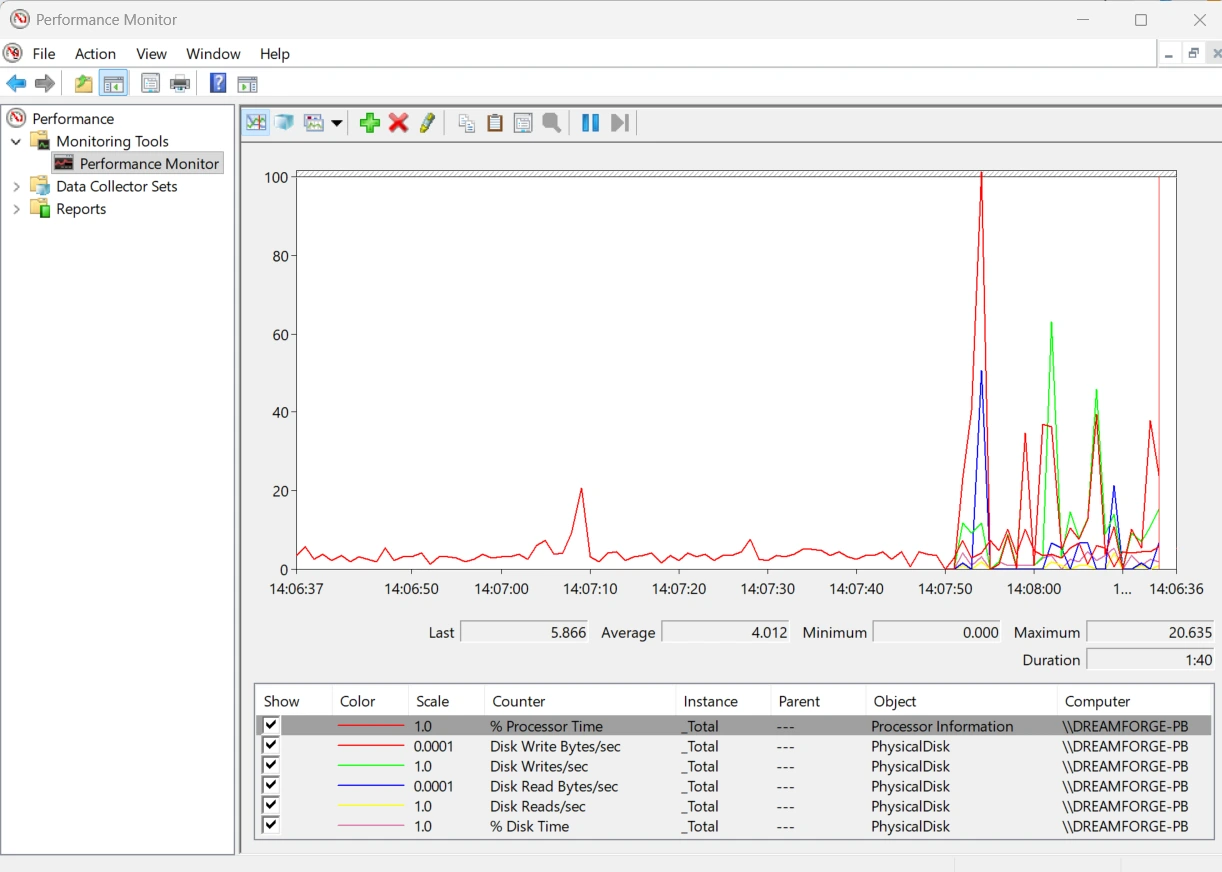
If you find that disk activity rises steadily during resource-intensive graphics operations, make use of Resource Monitor to identify the cause. Although Performance Monitor provides valuable information about the whole system, it is not able to confirm that the graphics driver is indeed the culprit. Therefore, it is necessary to rely on process monitoring as well.
4. Find Out Graphics Driver Information in Device Manager
Outdated or corrupt graphics drivers result in misbehavior of the computer along with background processes. Device Manager helps us to find out the version and details of the graphics driver. Follow the steps below:
- Press the Windows + X keys at the same time.
- Go to Device Manager.
- Expand the section of Display adapters.
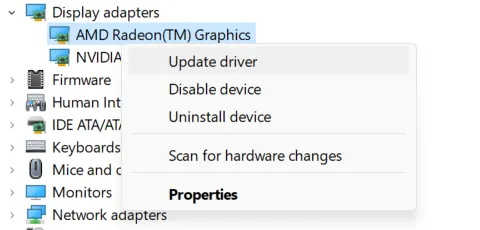
- Right-click on your graphics adapter.
- Go to Properties.
- Go to the Driver tab.
- Check the Driver Provider, Driver Date, and Driver Version fields.
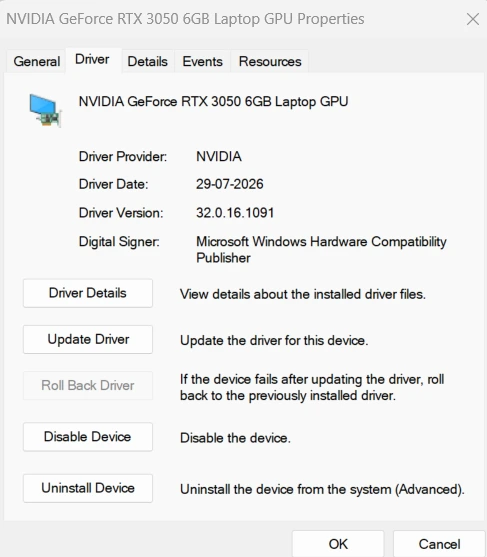
Verify if the driver is current or if the issue began with a recent driver installation. The Drivers details section can be opened to see the files related with the driver that is active.
Considering all the above information, what actions will you take?
- In case your driver is too old, visit your graphics card manufacturer’s official website and check if there is a new eligible driver available.
- If your disk started working too hard shortly after the driver was updated, you may decide to return to the previous version of the driver.
- To revert to the prior driver, enter the Device Manager, locate your graphics card’s properties, go to the Driver option and tap on the Roll Back Driver if the option does exist.
- Follow what appears onscreen. Thus, you need to bear in mind to restart your computer and that the Roll Back Driver option might not be present if Windows uninstalled the previous version of the driver.
5. Check Graphics Driver Logs in Windows Event Viewer
Frequent problems associated with the graphics driver could see either Windows or a graphic design application create a diagnostics report. Event Viewer informs about driver problems. To start Event Viewer, users need to carry out these instructions:
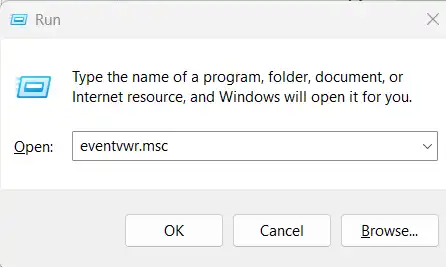
- Press the Windows key and the R key at the same time.
- In the new window appearing on the computer screen, type eventvwr.msc and hit the Enter key.
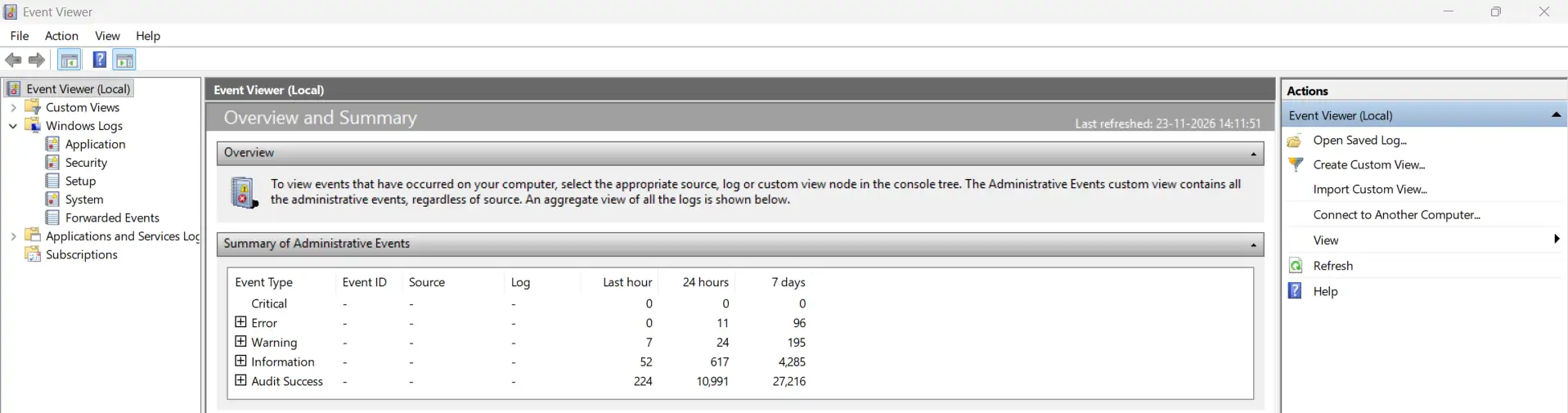
- Click on Windows Logs.
- Click on System.
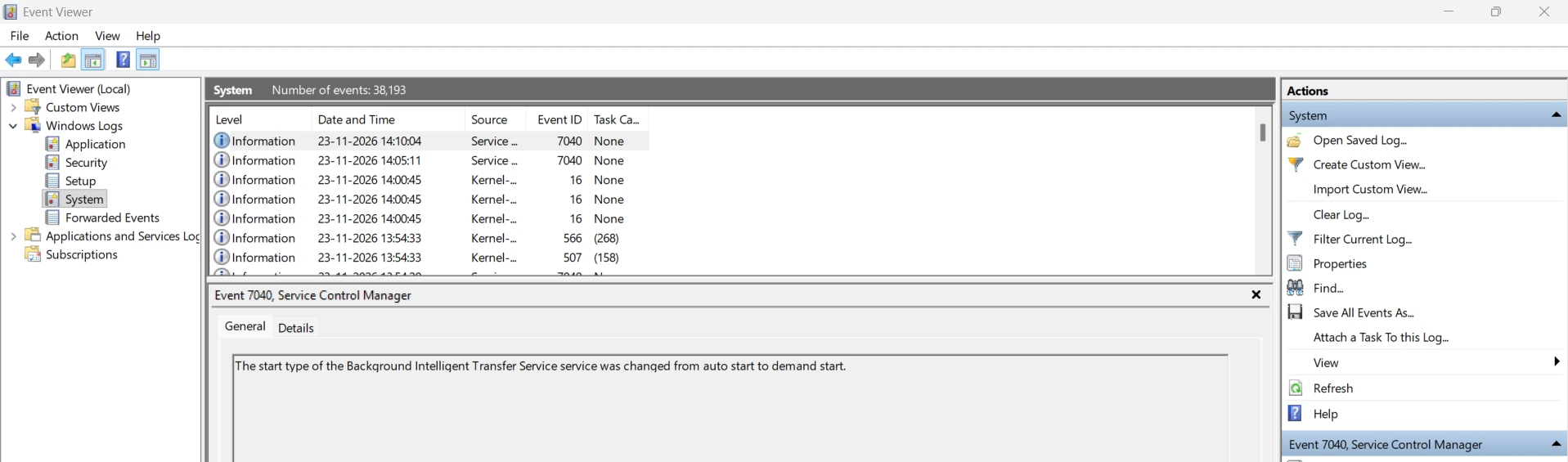
- Click on Filter Current Log.
- Choose the necessary error and warning levels.
- Check events dealing with the corresponding graphics driver or display device.
You may see logs involving screen driver malfunctions, graphics card hold-ups, or driver restarts. For instance, Event ID 4101 has to do with the moment a display driver fails. To clarify matters, have a look at the erratic activity logs to see what they contain regarding the time and date. Then compare the mentioned moments with the periods of unusually strong disk activity. If a constant stream of similar events appears at the same time as the hard disk is very active, the driver should be closely inspected. However, there is no automatic correlation between Event Viewer failures and disk operations performed by the graphics driver.
How to Fix Unnecessary Disk Activity Caused by Graphics Drivers
After identifying that there might be a relation between your graphics drivers and some strange disk operations, perform the troubleshooting measures.
Method 1: Update Your Graphics Driver
By installing an appropriate driver update, you might fix some bugs, increase the compatibility of hardware, and fix some performance issues. Based on your GPU type, you should download the updates from the following sources from the manufacturer:
NVIDIA: NVIDIA Driver Downloads
Intel: Intel Driver and Support Assistant
It is crucial to verify that the driver is compatible with your graphics card and Windows prior to begin the installation process. The driver should be installed and you should check disk usage after restarting the computer post driver installation.
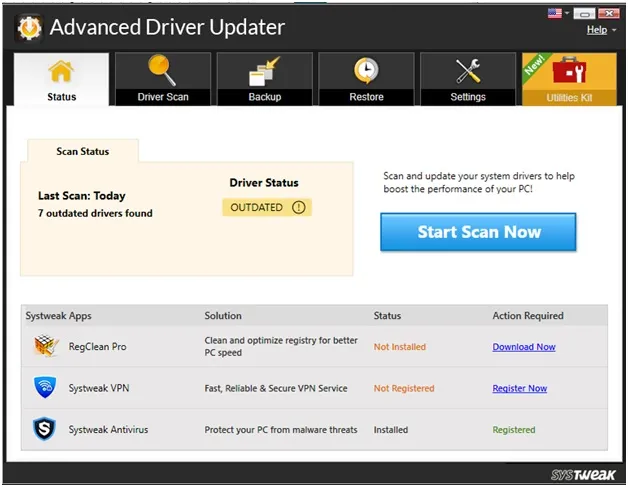
Bonus: Use Advanced Driver UpdaterAdvanced Driver Updater is a driver updater tool for windows that allows users to scan the PC for all installed drivers and identify driver anomalies like outdated drivers, missing drivers, corrupted drivers, and incompatible drivers. It then searches for the most up-to-date OEM drivers available on the internet and presents an option for users to update the drivers. Once the app is installed and configured for the first time, users can schedule automatic driver updates that will assist in updating the drivers in the background. Here are the steps to use this program.
Download & Install Advanced Driver Updater on your PC. Open the app and click on the Start Scan Now button. Wait for the scan to complete and click on the Update button next to the driver you wish to update. After the update process is complete, reboot the PC. |

Method 2: Roll Back to the Latest Updated Driver
If you are facing issues after installing the graphics driver, it is likely that the latest version of the driver may not work on your computer system. Rolling back to the previous stable version will help you ascertain whether the latest version of the driver installed is indeed creating issues with your computer system. You can either use the Roll Back Driver option in the Device Manager or download the older version of the driver from the manufacturer’s website. Do not download drivers from unreliable third-party websites.
Method 3: Perform a Clean Graphics Driver Installation
In case updating or reverting does not work, try reinstalling the graphics driver. This clean install of the driver might replace any problematic driver components and uninstall problematic settings. The NVIDIA installation program may allow you to choose Custom installation with the Perform a clean install option selected. AMD and Intel provide their own installation and cleaning methods depending on the hardware and software version. In general, advanced users might consider using a good driver cleaning utility for persistent problems created by the graphics driver.
Method 4: Clear the Graphics Shader Cache
A faulty or consistently reconstructed shader cache may cause extra storage operations. Windows gives an option to delete the DirectX Shader Cache. You need to:
- Go to Windows Settings.
- Go to System > Storage.
- Tap Temporary files.
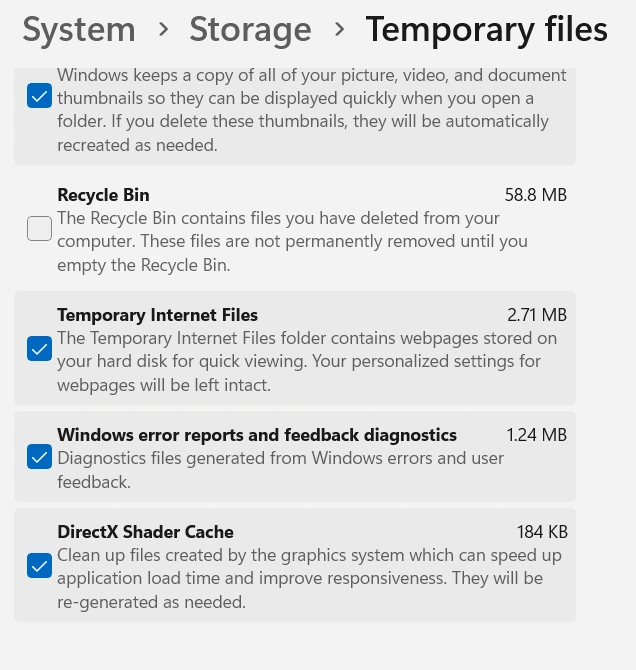
- Find DirectX Shader Cache.
- Tap on it and then Remove files.
Method 5: Disable Unnecessary Graphics Software Startup Applications
There are some graphics utility programs that start automatically when your Windows system boots up. While they are useful, nonessential background programs can lead to increased computer activity. To check which of these programs are running:
- Start Task Manager by pressing CTRL + Shift + ESC simultaneously.
- Go to Startup Programs
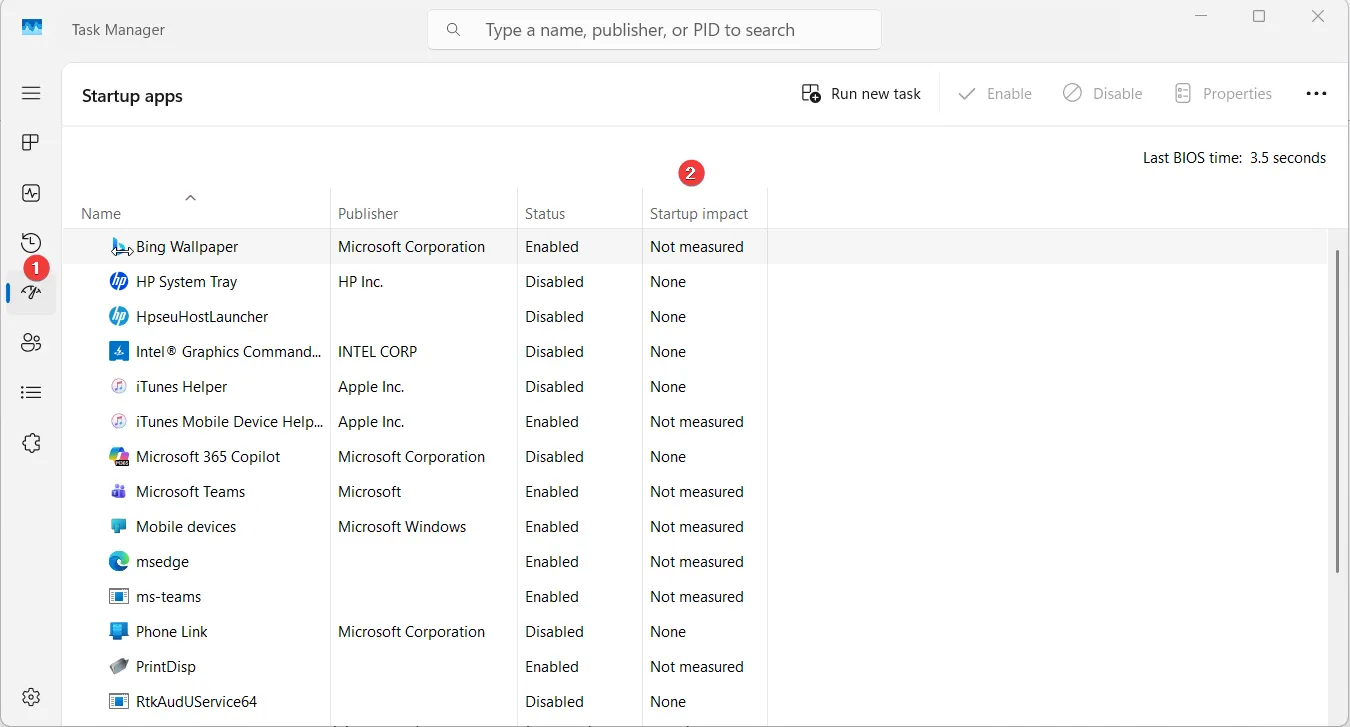
- Check for any graphics-related programs and applications
- Identify any of those programs that are optional and not used frequently
- Right-click on each program you consider unnecessary and choose the Disable option
Make sure not to disable the drivers or components that you need just because the names of the programs in the questions are unfamiliar to you. Disabling non-operational startup programs is different from disabling the driver itself.
How to Check if the Problem Is Resolved
After you have applied the steps, check disk activity on your computer. Use similar monitoring techniques that were employed to analyze the situation before. Pay attention to the following details:
- If the hard drives are still being used when the computer is not working
- If the process related to graphics is still asking for hard drive activity
- If logs are still created on the driver
- If graphics errors are still in the Event Viewer
- If the PC can run without any complications
If the disk activity drops significantly after a reinstallation or rollback of the graphics driver, it means that there might be an issue with that particular driver or its software. If high disk usage continues, identify different possibilities of high disk usage such as Windows Search indexing, among others, scanning by an antivirus program, Windows Update, application caches, and the hard drive health.
Frequently Asked Questions
Conclusion
The level of Windows performance can drop because of unnecessary disk activity. Background processes that are always using the disk might be the reason why the disk activity is high. The graphics drivers cause the disk to work extra, which is not usually the actual culprit for the disk activity increasing. However, problems with the graphics driver, issues with repeated shader caching, or background utilities could cause this.
Windows utilities like Task Manager, Resource Monitor, Performance Monitor, Device Manager, and Event Viewer allow one to analyze the suspicious behavior. Check the disk activity process-wise, check the file activity, and see whether there are graphics driver-related errors. If you find the correlation, it may help to resolve the problems with the computer. The main thing is to find the actual reason for the disk activity before changing anything. It helps avoid unnecessary driver updates.