
Killer Intelligence Center is an app that helps manage the network connection by prioritizing gaming traffic over background downloads, streaming or bandwidth heavy tasks. This is why the error “Service Not Running” is a serious issue and sometimes because of it gamers after trying every way to fix it think about reinstalling Windows. If you too think the same, then wait. This is a common problem faced by Dell, Asus, and Acer users because the manufacturers push updates through Windows Update which break the service registration causing the error. You can fix it in just 30 minutes without reinstalling anything because it is just a broken service that needs fixing.
However, before we get into details you need to check a few things:
- Check internet connection speed if it is fine simply disable the service to avoid getting the error message.
- If it isn’t, follow the steps below.
Note : Since Killer Network Service runs to give gaming traffic a priority over background downloads. If the WiFi and Ethernet work perfectly fine without the service, you can disable it.
What Causes Killer Network Service Not Working Error
Cause 1: Corrupt or Missing Configuration Files
The config files for Killer Performance Suite are saved in C:\ProgramData\RivetNetworks\Killer. If these files get corrupted or don’t exist the service is unable to find files and shuts down.
Cause 2: Driver Dependency Failed (Netwtw12)
The service needs a Netwtw12.sys driver for working. However, when Windows is updated, this driver is sometimes partially overwritten or it loses compatibility. To check if this is the case go to Event Viewer and see if there are Event IDs 7027, 7005, or 7010.
Cause 3: Broken Service Dependency Chain
Killer service doesn’t run alone, it depends on several system services like NDIS, Tcpip, etc. When you get error 1068 it means: “Windows tried to start the service but couldn’t as the dependent service is not working.
How to Fix Killer Network Service Not Running
Preliminary DIAGNOSIS
Step 1: Check If the Service Is Running
1. Press Windows key + R. Type services.msc and press Enter.
2. Look for Killer Network Service and check the status under the Status tab. If it is blank the service is not running, stopped service was running, now stopped, if running it means what it says.
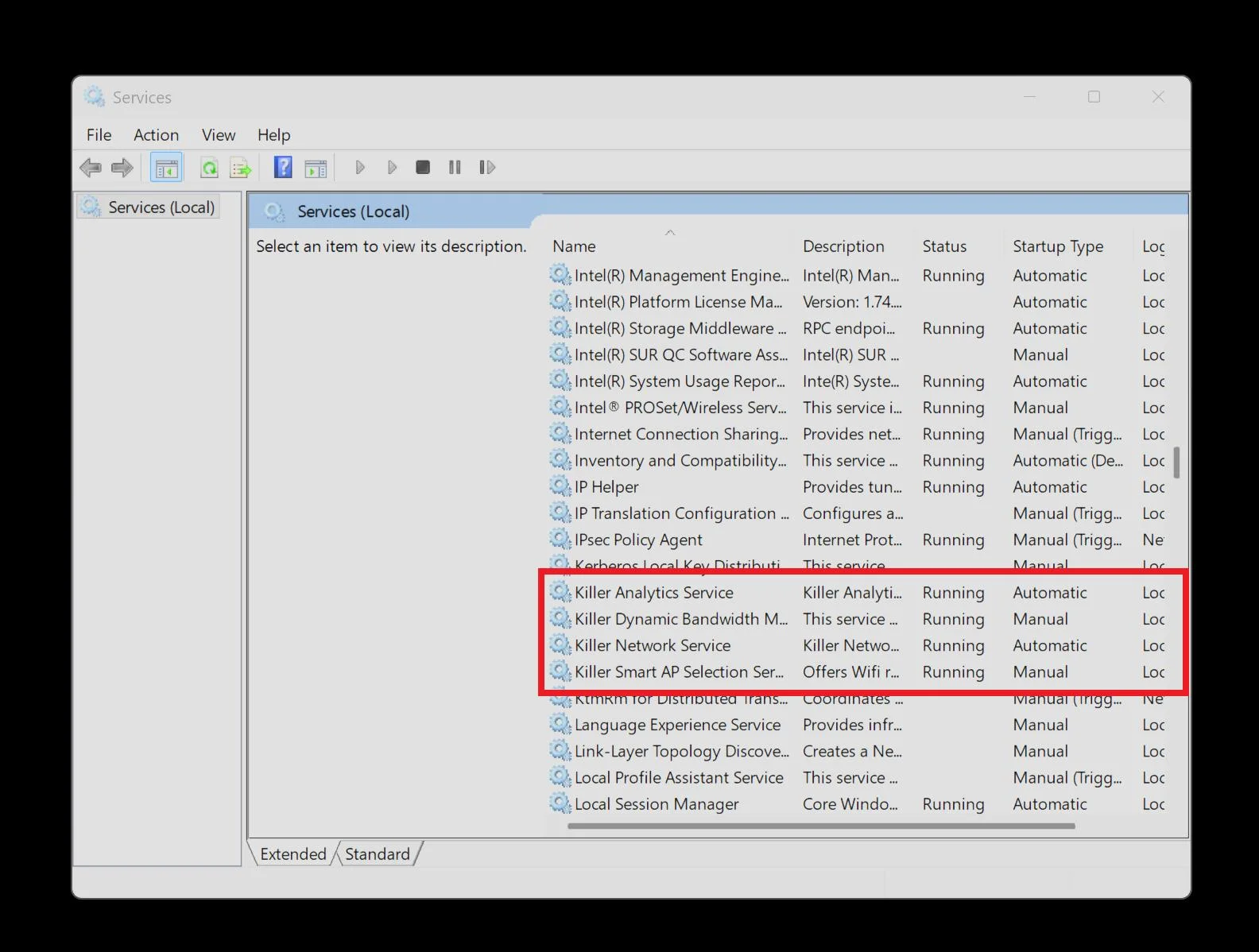
3. Under Startup Type check the type. If it is automatic it means the service starts on boot. If disabled means it is disabled by Windows due to some error.
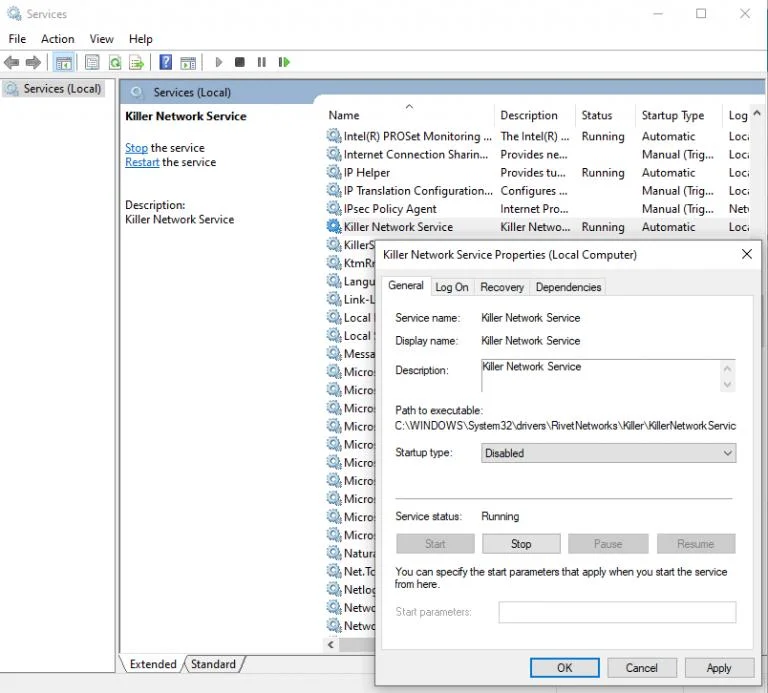
Step 2: Check error code in Event Viewer
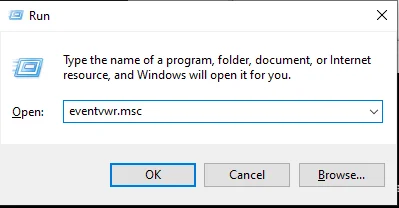
1. Press Windows key + R and type eventvwr.mscpress Enter.
2. Click Windows Logs from the left bar. Click System.
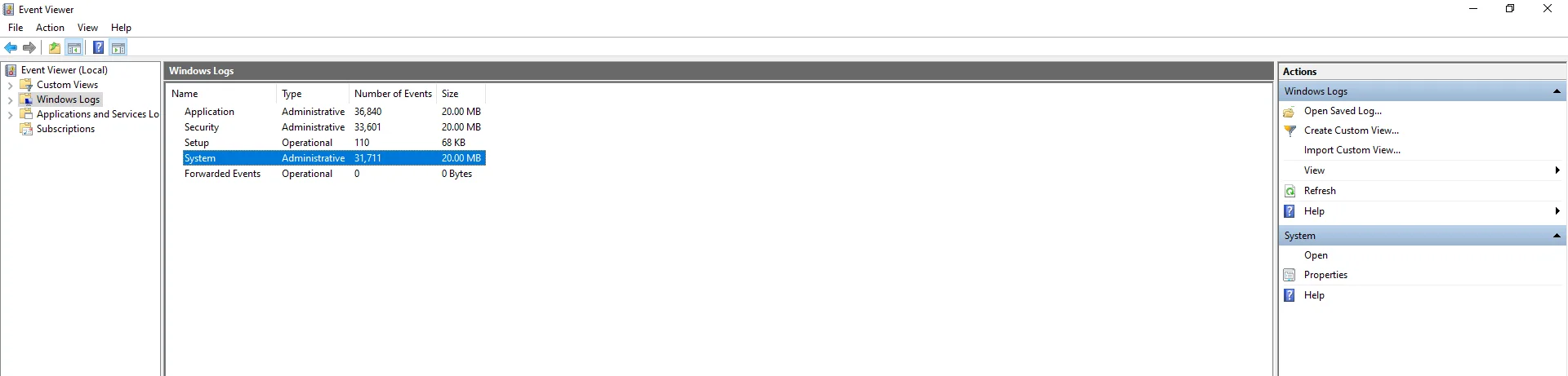
3. Check the recent entries from the last hour to see if you find:
“Killer”
“Netwtw12”
“RivetNetworks”
4. Double-click the entries one by one and note down the Event ID number and read the Description.
5. This error ID will tell you what to do.
Event ID 7027 is related to the Netwtw12 driver and it means your wireless driver files are incomplete or corrupted.
Event ID 16 or Event ID 0 with error message “Service Starting” / “The system cannot find the file specified” / “Error Extracting Config file from Structured Storage” means the service cannot find configuration files in ProgramData.
Event Viewer Shows Dependency Service Error with error message “The service depended on an event which has already been signaled” OR “Cannot start because a required service failed to start.” It means the service on which Killer depends isn’t running or is disabled.
Event Viewer Shows Nothing (No Recent Errors) this means the service is trying to start but unable to before logging as installation is incomplete.
To fix it follow these steps:
- Uninstall Killer Performance Suite. Open Windows Settings > Apps > search “Killer” > Uninstall.
- Restart your computer
- Download fresh Killer Performance Suite from Intel: https://www.intel.com/content/www/us/en/download/19779/intel-killer-performance-suite.html
- Install and restart the PC.
If this doesn’t work you will need to update the driver.
Step 3: Fix Corrupt Configuration File
If you see Event ID 16, 0, or config file errors only then follow this fix
1. Press Windows + E to open File Explorer.
2. Go to: C:\ProgramData\RivetNetworks\Killer
(If you can’t find ProgramData, click View > Options > check “Show hidden files and folders”.)
3. You will see a folder called ActivityLog and files: rn.stg, oem.xml, user.xml.
Case A: Files are missing
1. Delete all the files in the Killer folder
2. Restart your computer and the service will auto start at startup.
Case B: Fixing corrupted files
1. Copy the folder and paste it on the Desktop.
2. Delete all the files in: C:\ProgramData\RivetNetworks\Killer\ConfigurationFiles
3. Do not delete the ActivityLog folder.
4. Restart your computer to rebuild corrupted files.
Once the system restarts, check if the service is running.
1. Press Windows + R and type Services.msc
2. Look for Killer Network Service and check the Status column. It should be “Running.”
3. If it isn’t, fix dependencies and update drivers.
Step 4: Re-Enable the Service & Fix Dependencies
If you see dependency service errors in Event Viewer follow these steps:
1. Press Windows + R and type Services.msc.
2. Look for Killer Network Service. Right-click and select Properties.
3. Set Startup type to “Automatic” and click Start.
In case you get the 1068 error follow these steps:
1. Click the Dependencies tab to know which services Killer needs to run. Usually they are:
- NDIS (Network Driver Interface Specification)
- Tcpip (TCP/IP protocol)
- Ndisuio (NDIS User Mode I/O)
2. For each dependency go to services and check the status tab, it should be Running and the Startup Type should be “Automatic”
- If the Status is blank, right-click and Start
- If Startup is “Disabled” right-click > select Properties and change it to “Automatic” > Start
3. Once all dependencies are enabled try restarting Killer Network Service and check the status it should be “Running.”
If it isn’t you need to Update Driver.
Step 5: Update Driver
When Event Viewer showed Netwtw12 driver errors with Event IDs 7027, 7005, 7010 update network driver to fix the error.
1. Press Windows + X and select Device Manager.
2. Double-click Network adapters and look for Killer adapter, it should be named like:
“Killer E2500 Gigabit Ethernet”
“Killer Wi-Fi 6E”
“Killer Ethernet Controller”
3. Right-click it > Update driver > Search automatically for drivers and let the Windows search for it. If an update is available it will be auto installed.
4. Restart the computer to apply the changes.
5. In case Windows says “You have the latest driver” visit Intel’s support site and download it manually: https://www.intel.com/content/www/us/en/download/19779/intel-killer-performance-suite.html
6. Uninstall the current version, restart the PC and install the fresh version.
7. Restart PC and go to Services. Press Windows + R type services.msc
8. Check Killer Network Service should be Running.
9. If not contact support.
Note : If Killer service is running but Wi-Fi keeps dropping check the router and remove any obstacles. Use Wi-Fi analyzer, update router firmware and check device manager to see if there are any driver warnings. If so, update the driver.
Common Mistakes To Avoid
1. Don’t reinstall windows without checking the Event Viewer.
2. Never update Windows before updating Killer drivers.
3. Avoid deleting config files before system restart.
4. Fixing killer service but not checking Dependencies tab
Final Takeaway
Killer Network Service is not required for your Windows to run smoothly. You can disable it as it is just an optimization layer for gaming. However, if you are into competitive gaming you might need it. To understand which fix to apply go to Event Viewer check the error code and use the fixes explained in the post.