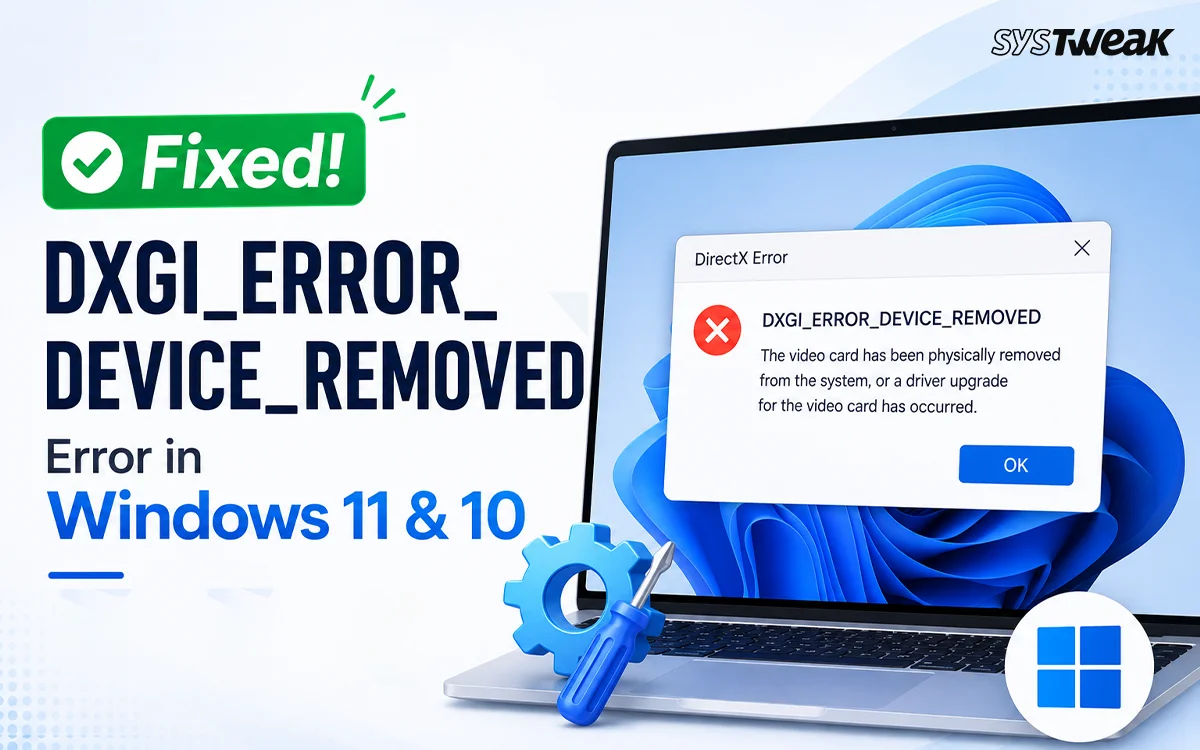

You’re mid-game or mid-render when everything freezes, then crashes with “DXGI_ERROR_DEVICE_REMOVED: The video card has been physically removed from the system, or a driver upgrade for the video card has occurred.” Your GPU is still sitting right there in the case, but as far as Windows is concerned, it just vanished from the system bus. This dxgi error device removed message is more serious than it sounds, but it’s still fixable in most cases, and it almost always traces back to drivers, overclocking, or power delivery rather than a genuinely dead graphics card. Here’s how to work through the real causes in order.
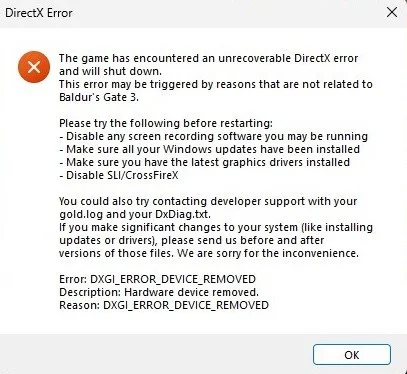
What Causes DXGI_ERROR_DEVICE_REMOVED
This is an error that relates to DXGI_ERROR_DEVICE_HUNG. However, it is not identical. DEVICE_HUNG indicates that the GPU simply took longer than Windows TDR (Timeout Detection & Recovery) time window. DEVICE_REMOVED indicates that Windows has lost all communication with the GPU and considers it “unplugged” or removed from the system bus altogether, which would indicate a much more rapid failure in comparison to a delay.
The most common triggers are a crashing or outdated graphics driver, GPU overclocking pushed past a stable limit, and power delivery issues such as a PSU that can’t sustain the GPU’s load or a loose or degraded PCIe power cable. Catastrophic overheating, where GPU hotspot or memory junction temperatures reach extreme levels, can also trigger an emergency shutdown that produces this same error. A genuinely failing graphics card is possible but it is generally less likely to occur versus one of the above listed repairable faults.
How to Fix DXGI_ERROR_DEVICE_REMOVED
Fix 1: Update or Roll Back the Graphics Driver
A crashing or outdated GPU driver is one of the most frequently confirmed causes of this error.
1. Right-click the Start button and open Device Manager.
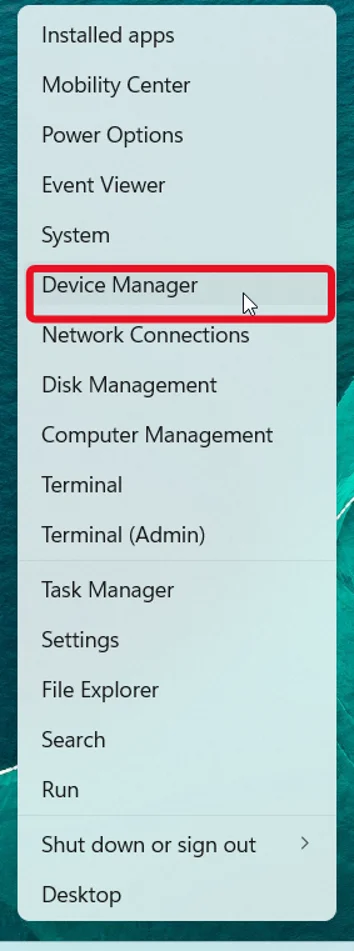
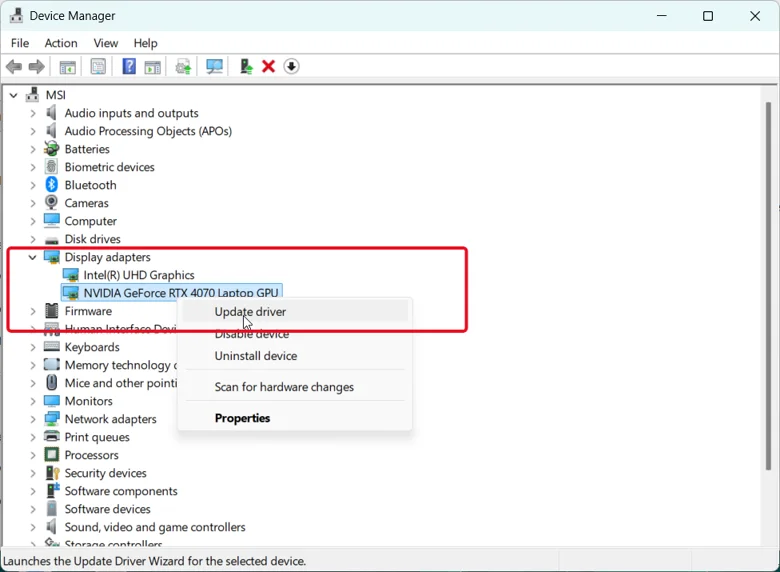
2. Expand Display adapters and right-click your GPU.
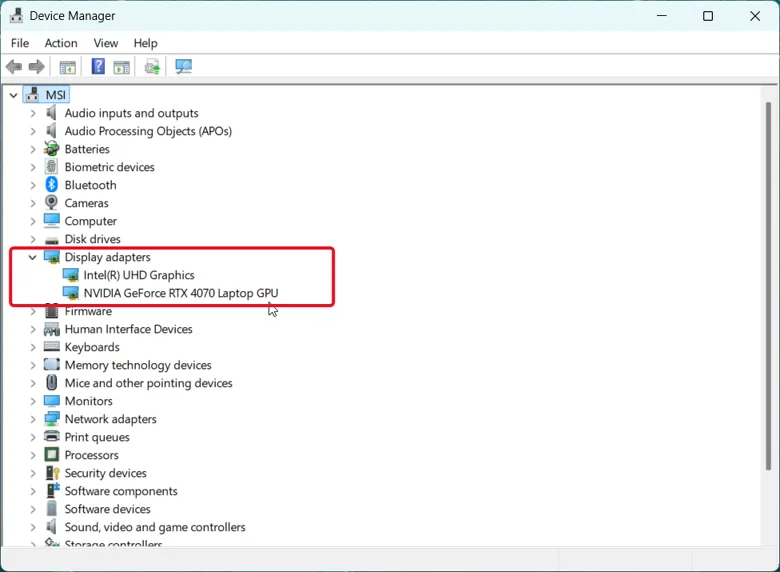
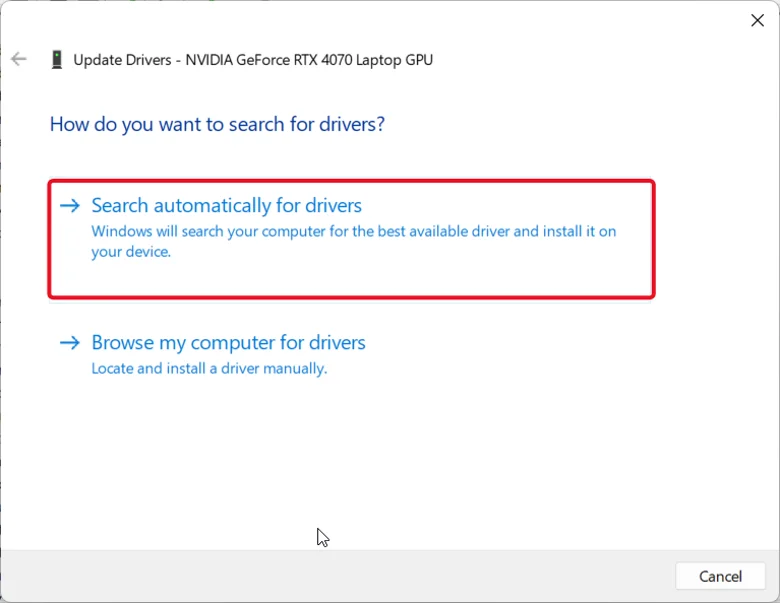
3. Select Update driver, then Search automatically for drivers.
If the errors began immediately after a driver update, find the properties for your gpu in device manager. In the driver section, click on roll back driver.
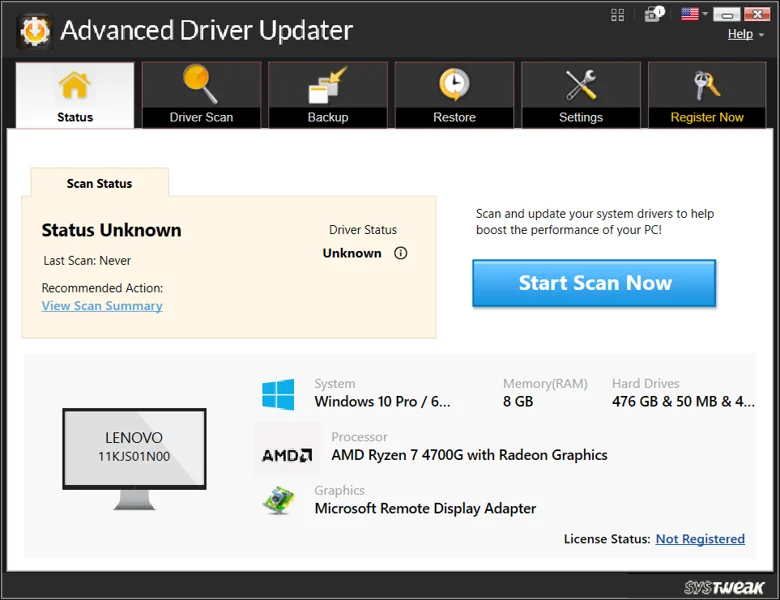
If the Device Manager can’t find an update to newer version, Advanced Driver Updater from Systweak can scan for correct one instead. Open the app and click Start Scan Now. Then click Update Now next to the graphics driver when it shows up or Update All if other drivers show up as well. Restart your computer and try playing the same game again.
The Rollback Process will depend upon your Brand of Video Card (GPU): For Users with an NVIDIA Video Card you may be able to use the NVIDIA APP or GeForce Experience located in the “Drivers” section to rollback; For Users with an AMD Video Card, you may be able to perform the same function using AMD Software: Adrenalin Edition under “Driver & Software” tab; Intel users can check Intel Graphics Software or Intel Driver & Support Assistant for a previous version if Device Manager’s rollback option is greyed out.

Fix 2: Undo Overclocking
Overclocking pushed past what your GPU can sustain is a well-documented cause of this exact error.
1. Restart your PC and enter BIOS (commonly Del, F2, or Esc during boot).
2. From the main screen in BIOS select “Optimized” or “Default” settings.
3. If you overclocked through software, open it and reset your clock and memory offsets to zero.
Fix 3: Check Power Delivery and Cooling
Since DEVICE_REMOVED can mean the GPU briefly lost power rather than just responding slowly, this step matters more here than it would for a DEVICE_HUNG error.
1. Confirm your power supply’s rated wattage comfortably covers your GPU’s requirements, especially after any recent hardware upgrade.
2. Reseat the PCIe power cables running to your graphics card, checking for a loose or partially seated connection.
3. Use your GPU manufacturer’s application to monitor how hot your GPU is running during use, both in terms of GPU temperature and memory junctions. If they are running excessively hot then you should increase airflow within your system or clean your coolers.
Fix 4: Disable ShadowPlay, Overlays, and Anti-Aliasing or DLSS
Some capture and rendering features are known to trigger this error independently of drivers or hardware.
1. Open up GeForce Experience, click on the general tab and turn off “in-game overlay” & “share”.
2. Turn off anti-aliasing & DLSS if it is turned on for the game you’re playing.
3. Restart the game and test whether the crash still occurs.
Fix 5: Adjust the TDR Registry Value
This fix is more reliably effective for DXGI_ERROR_DEVICE_HUNG than for DEVICE_REMOVED, since Windows isn’t just waiting longer for a response, it believes the hardware is gone. It’s still worth trying since some users report success with it.
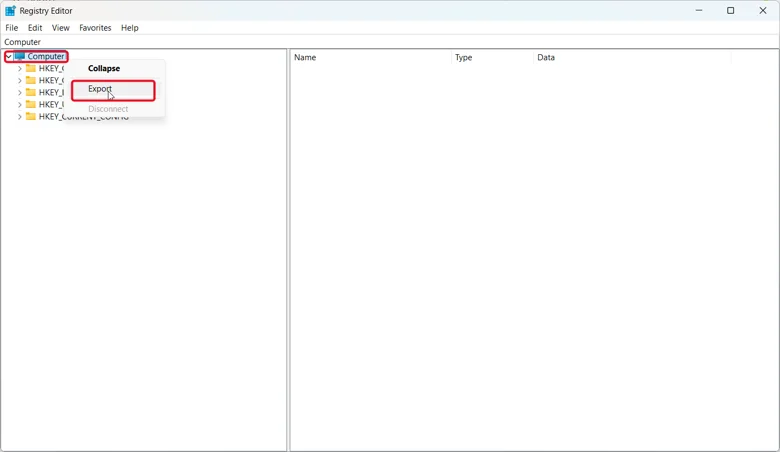
1. Back up your registry first by opening regedit, right-clicking Computer, and selecting Export.
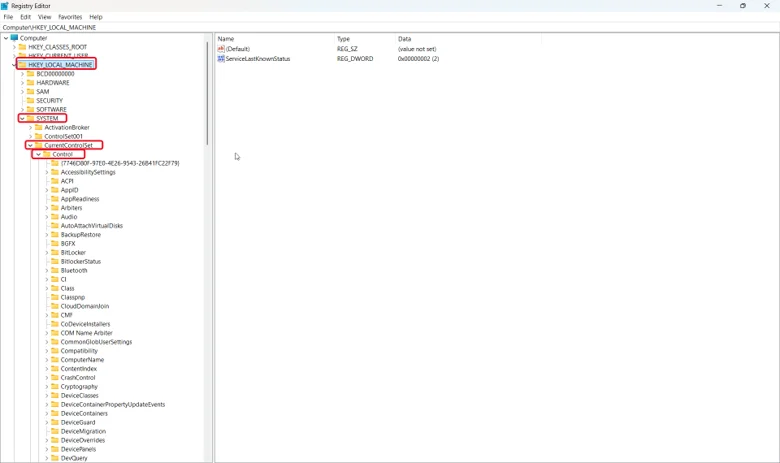
2. Now navigate through the registry tree to: HKEY_LOCAL_MACHINE\SYSTEM\CurrentControlSet\Control\GraphicsDrivers.
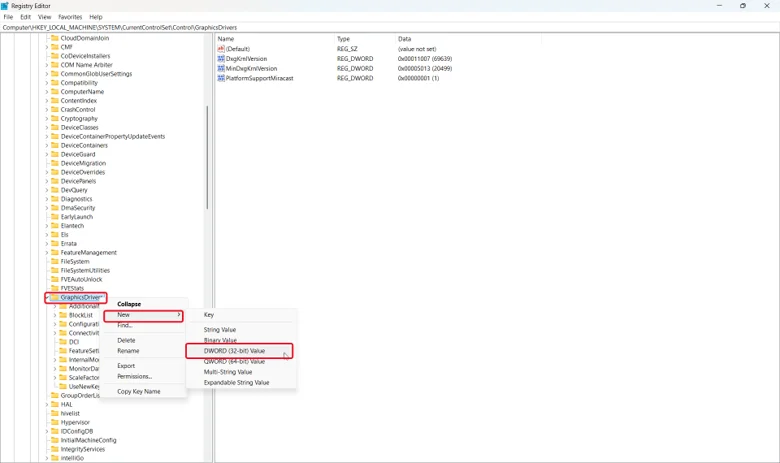
3. Add a DWORD (32-bit) value named TdrDelay set to 8, or delete an existing TdrDelay value if one is already present and causing conflicts.
4. Restart your PC.
Fix 6: Repair System Files
Corrupted system files can interfere with how Windows manages the graphics driver reset process.
1. Right-click the Start button and open Windows Terminal (Admin).
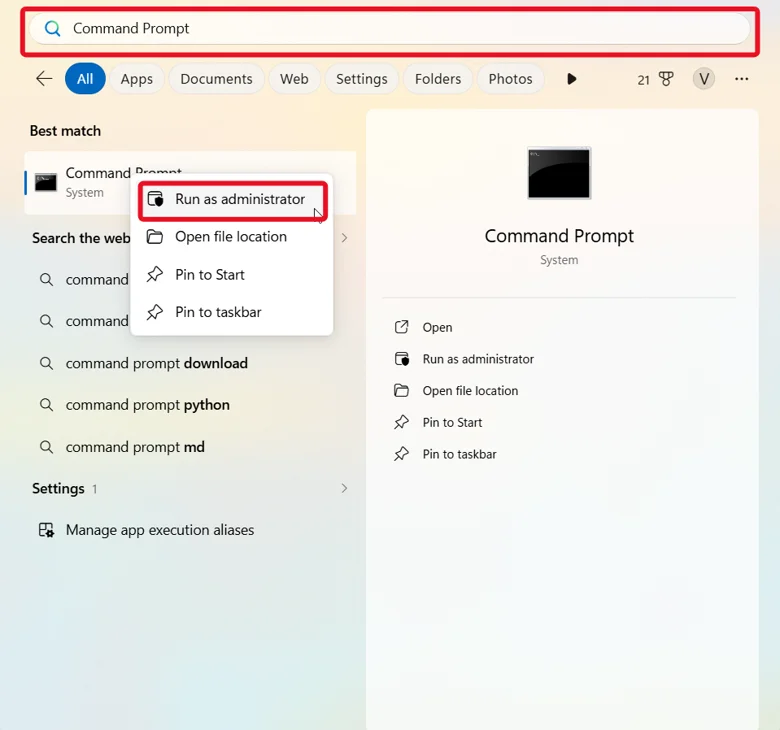
2. Run: sfc /scannow
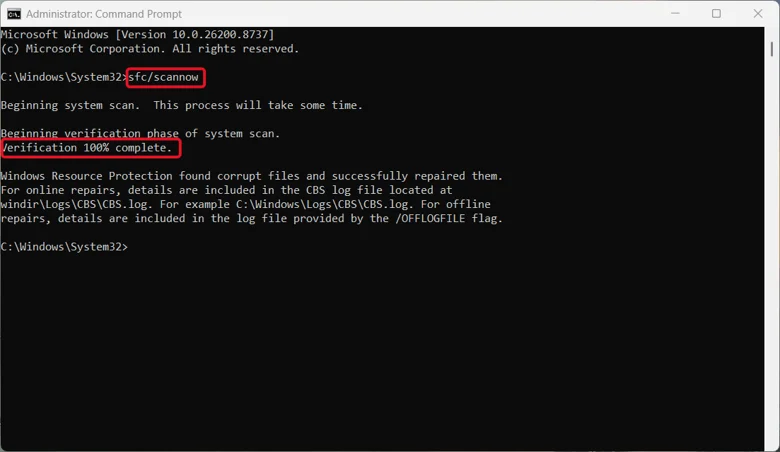
3. Once that finishes, run: DISM /Online /Cleanup-Image /RestoreHealth
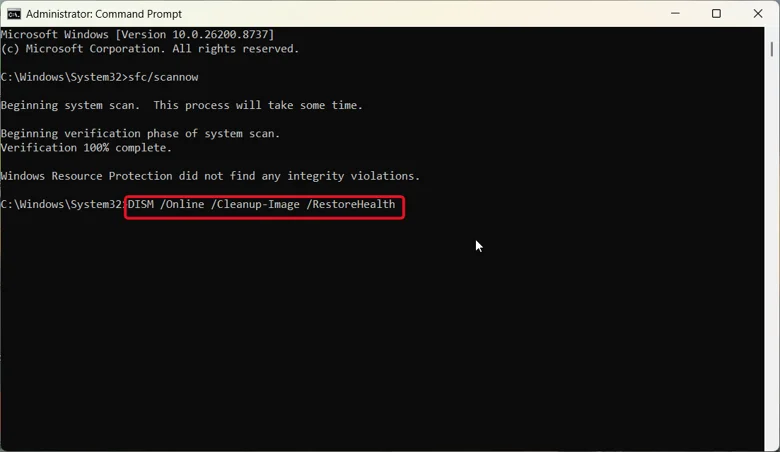
4. Restart your PC once both complete.
Fix 7: Close Resource-Hogging Background Apps
Apps competing heavily for GPU resources alongside your game can contribute to this crash.
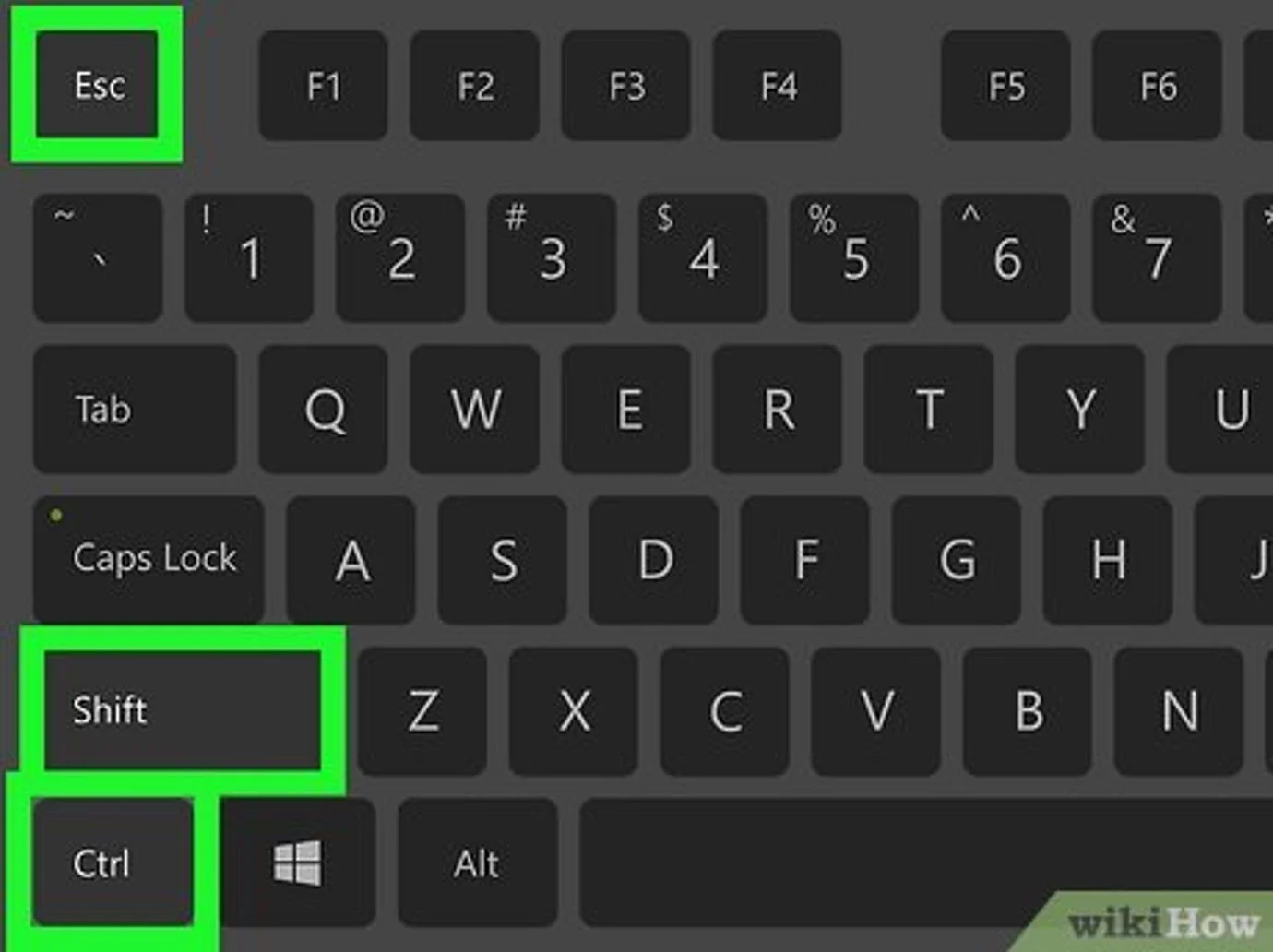
1. Press Ctrl + Shift + Esc together to open Task Manager.
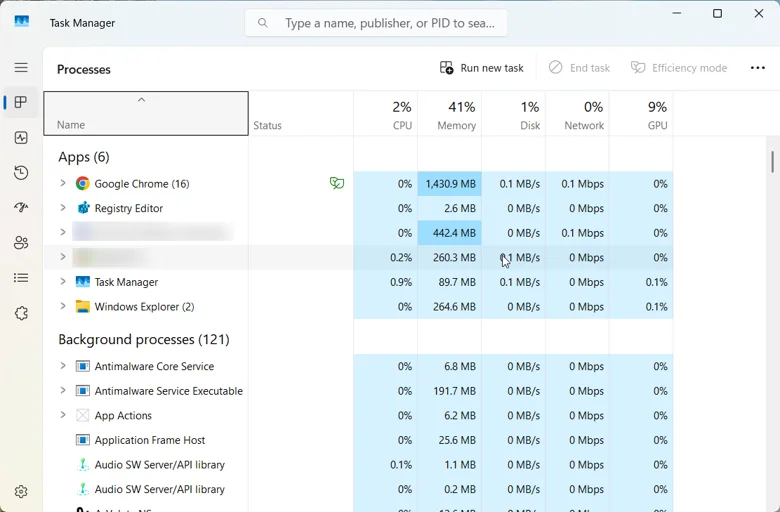
2. In the Processes tab sort by GPU usage and end unnecessary apps that use lots of resources.
3. Restart the game and test again.
Frequently Asked Questions
The bottom line
DXGI_ERROR_DEVICE_REMOVED sounds like your graphics card just died, and while it’s a more serious signal than the related DEVICE_HUNG error, it’s still most often caused by a driver crash, overclocking, or a power delivery issue rather than failing hardware. The first place you should begin addressing this are the fixes for drivers and overclocking issues. Then address your power connection and cooling system next. Finally view the TDR registry fix as a possible solution rather than a guaranteed fix.