
Is your laptop fan making sound, does it get heated, or Windows shuts down in the middle of your work without any notice? To fix these issues do you close unwanted programs, restart the PC or both? Does doing so help? No, do you know why?
Overheating is caused by a combination of two or three things like the dust clogging the fan, power plan settings, outdated graphics and mismanaging power states. Yet most people just concentrate on fixing one aspect leaving others due to which the problem resurfaces. This means if you are cleaning the dust, you need to check the drivers, power settings and other things to fix laptop runs hot permanently.
Before we get into details try this quick fix – close the laptop and flip it over to check whether the exhaust vent has dust. If it does, we will start from there.
What’s a Laptop’s Normal Temperature
Before we start applying the fixes let’s understand what you are dealing with. Is it overheating or is the laptop under load and is performing as it should.
- When the laptop is in idle state and the temperature is between 35–50°C it is normal.
- You are on a video call, over 30 browser tabs are opened or you are editing and the temperature is between 60–80° C. It is ok.
- The temperature is between 80–90°C when you are playing a game.
- The CPU crosses roughly 95–100°C, something is wrong that needs fixing.
Tip : If a laptop is hot to the touch on the bottom but the temperature is 70°C on the CPU sensor this isn't overheating. It is the chassis doing its job.
Methods to Fix Laptop Overheating
Method 1: Clean the vents and fan with compressed air
Dust is one of the common causes of laptop overheating, and it’s easy to clean out.
- Shut down the laptop and unplug the charger.
- Look for exhaust vents at the back of your laptop, near the hinge.
- Hold the can of compressed air upright and spray in short bursts by standing about 2–3 inches from the vent.
- You will now be able to see the fan blades through the vent opening, hold them still with a toothpick, so the airflow doesn’t force the blades to spin past their rated speed. Repeat the process on other vents (if available) and then power on the laptop.
Note : Compressed air cleans the dust from outside. If there is a thick layer of dust packed directly onto the heatsink fins your laptop needs a professional cleaning.
Method 2: Keep it on hard surfaces
Beds, couch cushions, and blankets block the intake vents on the bottom due to which laptops pull air in from underneath and push it out the back or side. To avoid this, place it on a desk, and then use it. It helps fix random overheats.
CPU Overclocking Guide: What It Is and How to Do It Safely
Method 3: Use a stand or pad
If you are using a laptop stand or cooling pad that raises the chassis and opens up airflow underneath, it is okay. But if the stand blocks air intake vents change it as it is blocking the vents.
Method 4: Keep it out of direct heat
Sunlight, rooms without air conditioning, or sunlit windows, can raise the ambient temperature and the laptop’s cooling system has to work against. A laptop that works fine at 22°C room temperature can throttle at 32°C room temperature because the cooling system does not have enough room to dump heat into.
Method 5: Check the battery
If your trackpad is not setting right and you feel unevenness or your laptop cannot be placed flat on your desk or the bottom panel is puffed it seems the battery is swollen and causing laptop overheating. Replace the battery
Method 6: Don’t stack anything on it while it’s running
Never keep anything on top of your keyboard deck. This blocks venting causing overheating.
Windows Settings You Need to Change
Method 7: Switch the power mode
When the power mode is set to “Best Performance,” the CPU boosts aggressively which means more heat. Switching it to “Balanced” reduces sustained fan noise and temperature.
- Press Windows + I to open Windows Settings.
- Select System in the left sidebar > Power & battery.
- Click the dropdown next to Power mode (next to the battery percentage).
- Change it from “Best Performance” to Balanced. If your laptop works on battery, switch to “Best Power Efficiency.”
- Close Settings and check if this helps.
Method 8: Check background apps
Browser sync process, a cloud backup tool, or an old installer are the common processes consuming CPU resources. Close unwanted processes to bring down the temperature.
- Press Ctrl+Shift+Esc to open the Task Manager.
- Click the Processes tab > click the CPU column header to sort from highest to lowest usage and watch it for 20–30 seconds. You will see that the usage spikes and constantly settles.
- If something you do not recognize is consuming more than 10–15% when nothing is open it is the culprit. Right-click it and choose the End task.
- Now check the processes tab and CPU usage. It should be down.
PC Turns Off Randomly But No Overheating: Causes & Fixes!
Method 9: Optimize startup apps
Every app that runs at startup adds to CPU load, this increases the temperature before you open anything yourself. Therefore, removing unwanted apps from startup is suggested
- Press Ctrl+Shift+Esc to open Task Manager.
- Click the Startup apps tab with speedometer icon from the left pane > check the Startup impact column. The apps will be ranked as Low, Medium, or High.
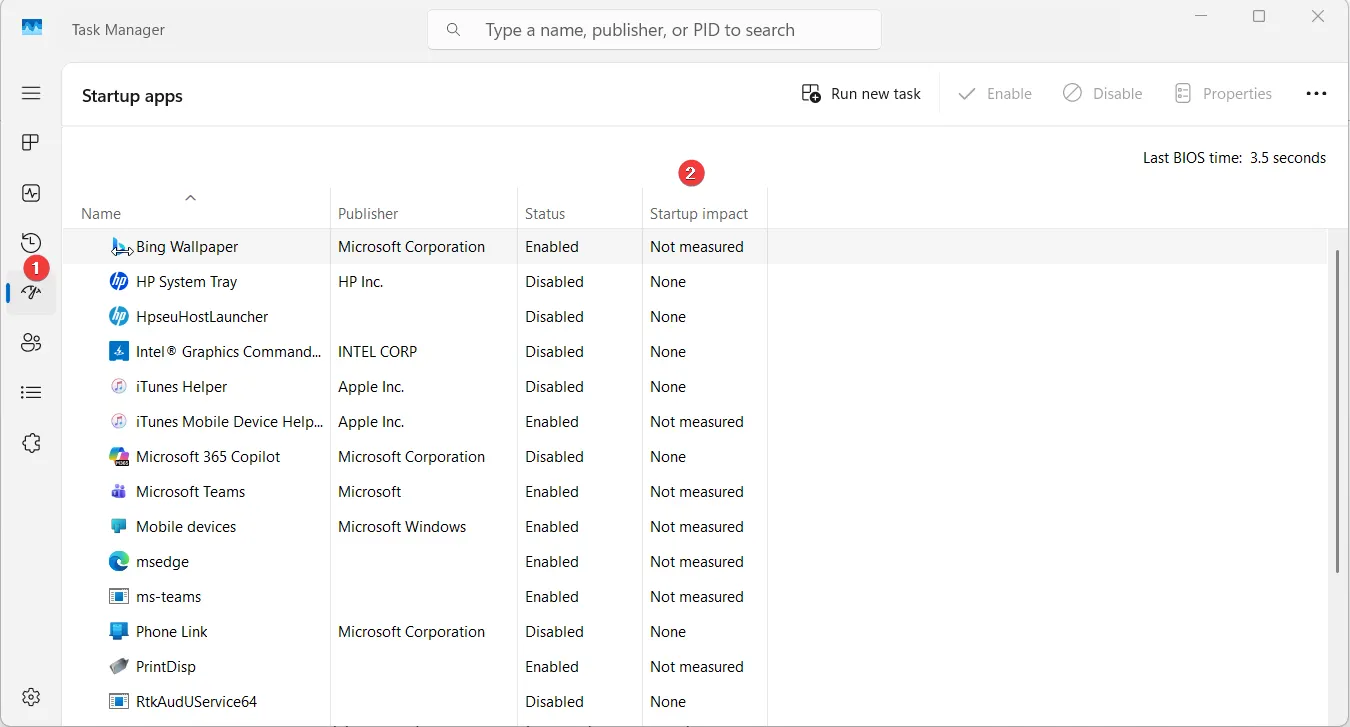
- Right-click apps marked Medium or High and select Disable. They are usually game launchers, chat apps, cloud sync clients.
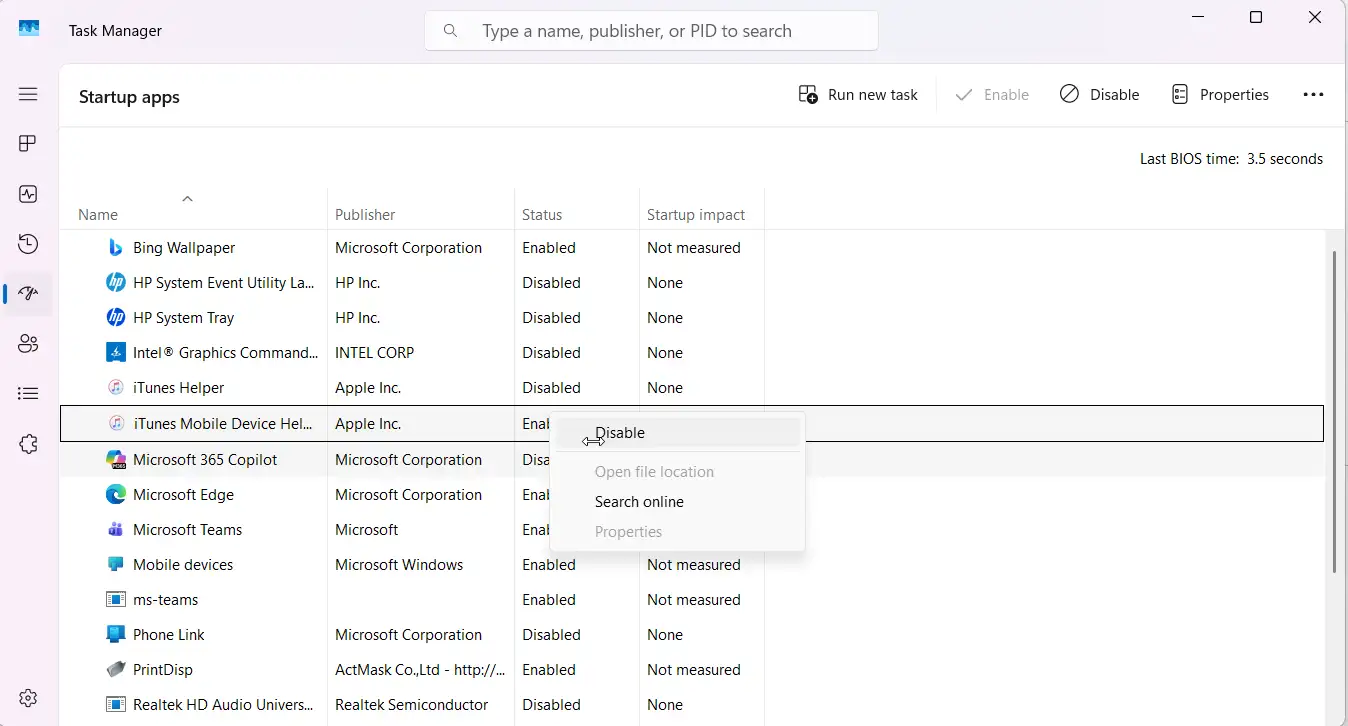
- Leave your antivirus and apps from the laptop manufacturer (Intel, NVIDIA, Realtek).
- Restart the laptop to apply changes and see if it helps.
Method 10: Update Windows
Never leave updates pending as it is one of the common unexplained reasons for temperature spikes. Once Windows updates are completed the problem resolves itself.
- Open Windows Settings > click Windows Update in the left sidebar.
- Check whether it says “Update in progress,” “Restart required,” or shows a percentage.
- If an update is actively downloading or installing, wait for it to finish.
- Restart the PC is required.
- Once it says “You’re up to date,” recheck the temperature. If the fan spike doesn’t settle after that move to the next step.
Method 11: Move daily apps onto the integrated GPU
If your laptop has both integrated and dedicated graphics, tell Windows to keep everyday apps off the dedicated GPU.
- Open Settings > System > Display.
- Scroll down and click Graphics.
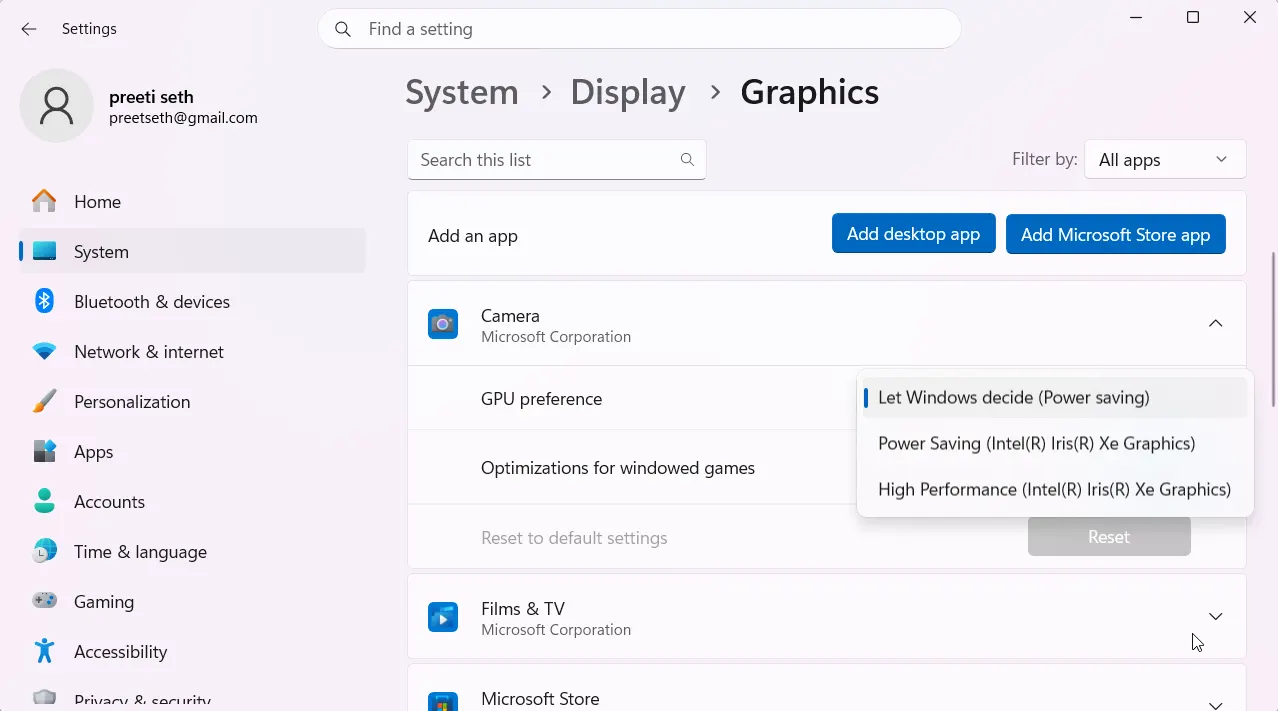
- Under “Custom settings for applications,” click either Add desktop app or Add Microsoft Store app button depending on where the app you want to control is saved. Alternatively, can select the app from the app list if it’s already there.
- Once the app is added double-click it and choose Power saving instead of “High performance” this forces the integrated GPU.
- Exit settings.
Method 12: Check Reliability Monitor
If the laptop restarts unexpectedly, go to the reliability monitor to check the cause.
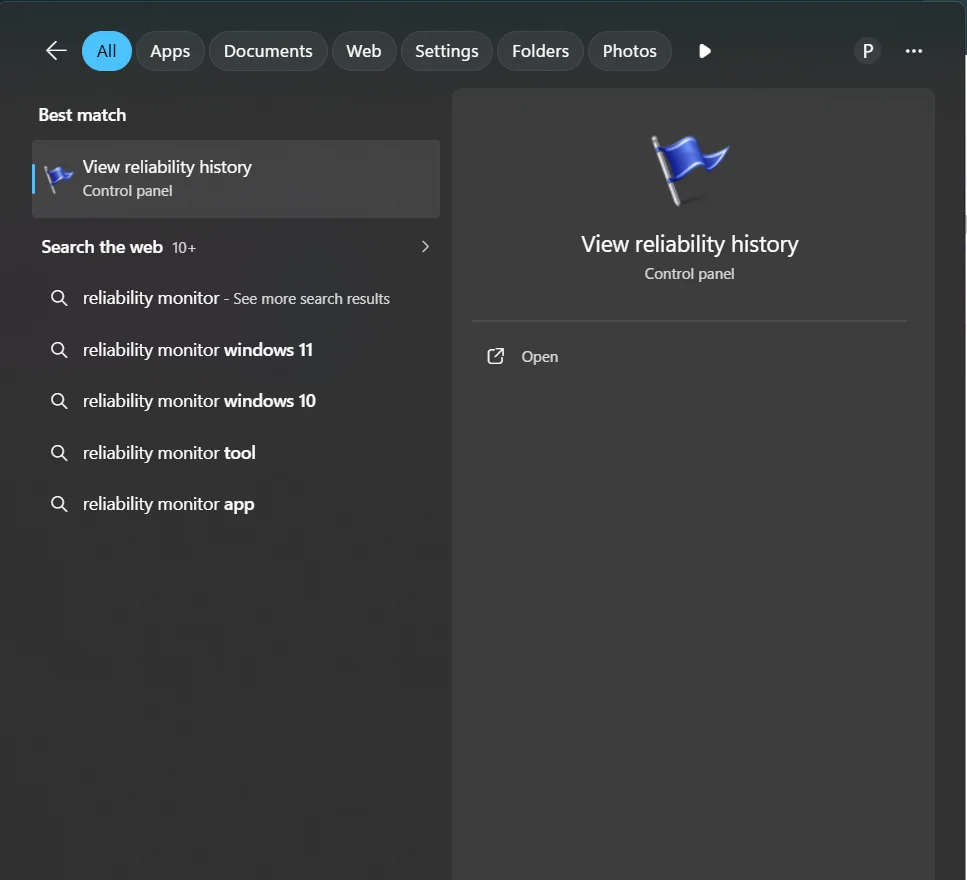
- Click Start and type Reliability Monitor. , Click “View reliability history” from search results.
- You’ll see a timeline graph with red X, exclamation and info icons displaying failures and crashes by date.
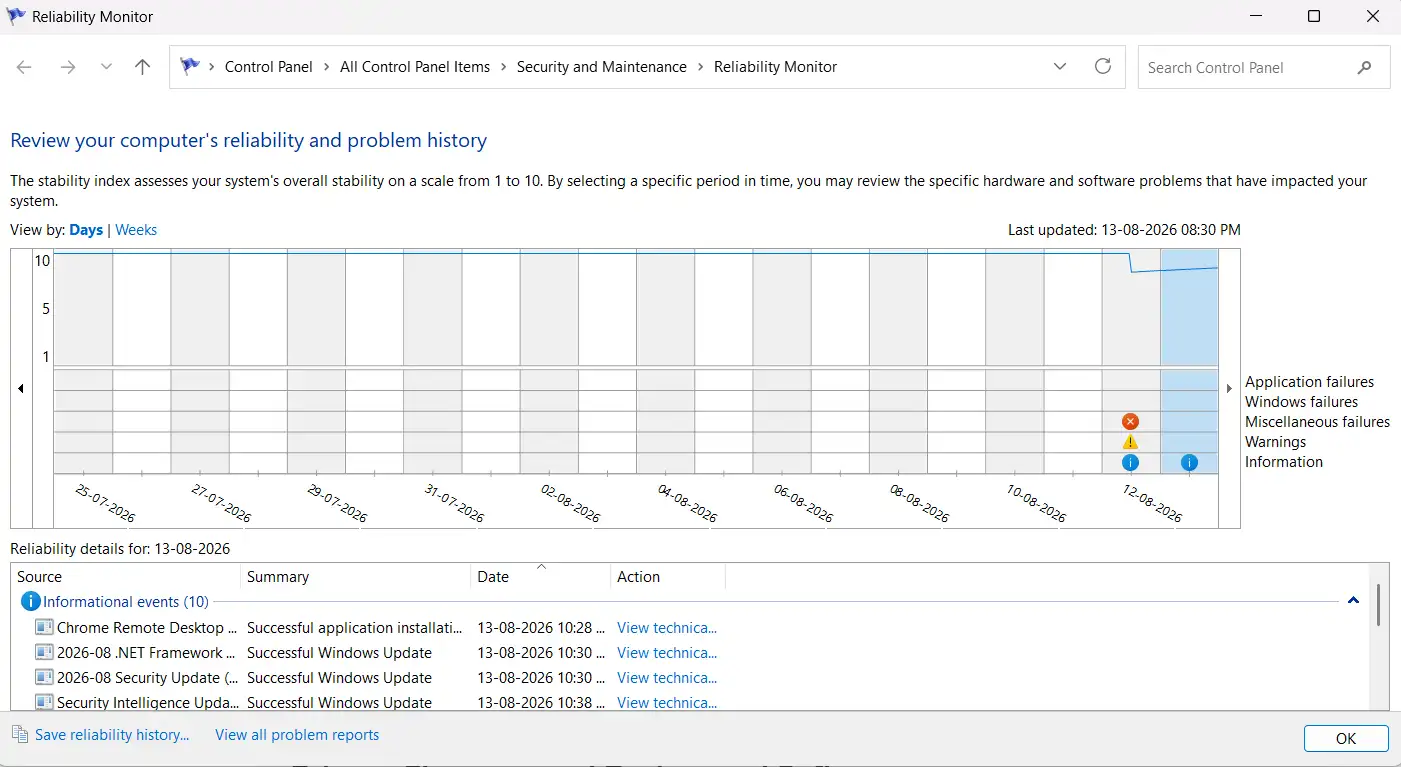
- Click on a date with a red X to see details in the panel below.
- Look for entries mentioning “unexpected shutdown,” “Kernel-Power,” or similar see if the dates clash with the time you were gaming, rendering, or running something demanding.
- If there is no pattern it can be due to a driver or software conflict rather than heat.
How to Fix Computer Suddenly Restarts While Playing Games (not Overheating)
Method 13: Check browser tab count
Video-heavy tabs with autoplay or embedded ads using hardware-accelerated video keep the GPU and CPU active even when idle. Close such tabs as idle tabs with one playing an autoplay video in the background generates more load than a running document editor.
Drivers, Firmware, and Background Software
Method 14: Update your GPU driver
An outdated GPU driver cannot manage power states correctly. Therefore to prevent laptop overheating keep it updated.
- Check your GPU details – Right-click the Start button > select Device Manager, and double-click Display adapters.
- Note the exact name listed (for example, “NVIDIA GeForce RTX 4060 Laptop GPU”).
- Go directly to the manufacturer’s site — nvidia.com/drivers, amd.com/support, or intel.com/content/www/us/en/support.
- Search the exact model name and download the current GPU driver.
- Run the installer and restart the laptop to apply changes.
Note : Manufacturer driver packages (like NVIDIA's full installer) often bundle extra software to skip them being installed and choose a clean install or driver-only option during setup.
Method 15: Update BIOS/firmware
Manufacturers from time to time release BIOS updates to adjust thermal tables and fan curve behavior. If your laptop is getting overheated after a major Windows update, check your manufacturer’s support site for the current BIOS version against what you’re running. If it is old, update the BIOS by following the exact manufacturer’s instructions.
Method 16: Clean junk files
Cluttered data doesn’t generate heat but once you clean them it helps reduce background disk indexing and search-service overhead on laptops. For this, you can use built-in Windows Storage Sense or can use a PC optimization tool.
- Open Windows Settings > click System in the left sidebar.
- Click Storage > look for Storage Sense and toggle it On.
- Click Storage Sense to set how often it runs. “Every month,” “Every week”.
- Under “Temporary files,” check “Delete temporary files that apps aren’t using” and optionally you can set a rule to move files out of Downloads or Recycle Bin automatically after a set number of days.
- Click Run Storage Sense now at the bottom of the page to clear things.
Advanced Fixes
Method 17: Set a custom fan curve
Most gaming laptops allow controlling fan through the manufacturer’s software like Lenovo Vantage, HP Omen Gaming Hub, ASUS Armoury Crate, MSI Center. Use them to switch from the default automatic curve to “Performance” or “Turbo” mode. If you don’t have this option, probably your laptop doesn’t support manual fan control. Check the BIOS setup menu, restart the PC and press F2 or Del to get into BIOS.
Method 18: Undervolt the CPU
Using tools like Intel XTU or ThrottleStop you can undervolt the voltage CPU uses at a given clock speed, to lower heat output. Intel from around the 11th-gen as a security response to an exploit known as Plundervolt disabled voltage/frequency scaling access through the standard interface. This means on newer laptops, undervolting tools won’t have any effect.
Method 19: Replace the thermal paste
To perform this step the chassis needs to be opened which will void the warranty. Hence, we suggest contacting a professional for it.
Editor’s Recommendation
| If you don’t want to find and clean junk files, update drivers, look for startup items and keep the PC optimized manually use Advanced System Optimizer. It is an all in one system cleanup tool that scans the system for outdated drivers, shows updates, helps keep startup applications in check, clean junk files, invalid registry entries and keep disk optimized without manual intervention so that you can enjoy smooth PC performance without doing cleaning and optimization tasks yourself. |

Wrap Up
If you’ve cleaned the vents, fixed the power settings, updated every driver, and the temperature even in idle state is near 90°C, laptop shutdown repeatedly, or the fan is making a grinding or rattling noise then it is a hardware issue that can’t be fixed by software or cleaning.
No Display? GPU Fans Not Spinning? Try These Fixes
Frequently Asked Questions