
An app crashes, and instead of just closing, a window pops up saying WerFault.exe has stopped working or is causing your system to freeze for a few seconds. This error occurs frequently enough that you start to wonder if werfault.exe is broken, or worse, whether it’s something malicious. The werfault.exe application error is almost always a symptom of something else crashing, not a problem with WerFault.exe itself. Therefore, the fix requires locating what was causing it to crash.
What Is WerFault.exe
The WerFault.exe file is part of Windows Error Reporting (WER). WER is a native windows tool used for error reporting. If an application crashes, WerFault will run and generate information about what caused the failure and where it occurred. The generated report may be submitted to Microsoft to help them in their efforts to make future versions of software better. When operating normally, WerFault.exe is a legitimate Microsoft process that runs out of C:\Windows\System32\WerFault.exe.
That location matters because malware occasionally disguises itself using the same filename to blend in with legitimate system processes.
1. Open Task Manager.
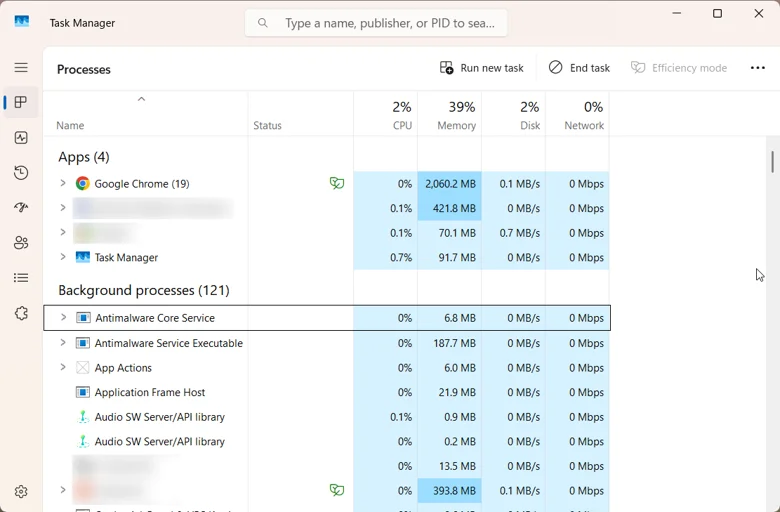
2. Right-Click on the WerFault.exe Process.
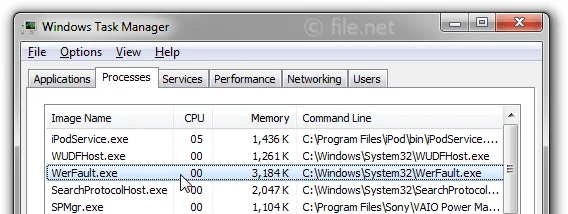
3. Click Open File Location.
4. Verify that it opens to C:\Windows\System32.
If the WerFault.exe is opening anywhere other than C:\Windows\System32 (i.e., if it is opening from a Temp Folder, or from your downloads folder), consider this suspicious activity and run a malware scan immediately.
What Causes the WerFault.exe Application Error
The reason for a werfault.exe error will almost always be caused by something else, because werfault.exe can only run after it has encountered another error. Therefore, some of the most common causes of this type of error are either a damaged or incompatible application, a corrupted or outdated device driver, corrupted operating system files, a corrupted user account, not enough memory (RAM), or even sometimes a malfunctioning Windows Error Reporting Service that continues to report the same crash over and over again. Malicious code may disguise itself as werfault.exe which is far from the norm.
How to Fix the WerFault.exe Application Error
Fix 1: Restart Your PC
A simple restart clears temporary memory issues and stuck background processes, and it resolves this error often enough to be worth trying before anything else. Save your work, restart, and see if the same crash returns under the same conditions.
Fix 2: Find the Actual Crashing App
The main point of this issue isn’t to fix WerFault.exe (the messenger), it’s to identify what caused it to crash. So when you troubleshoot WerFault.exe, you should be focusing on figuring out what app actually caused WerFault to send that message to your desktop.
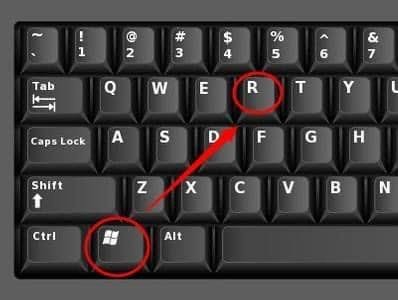
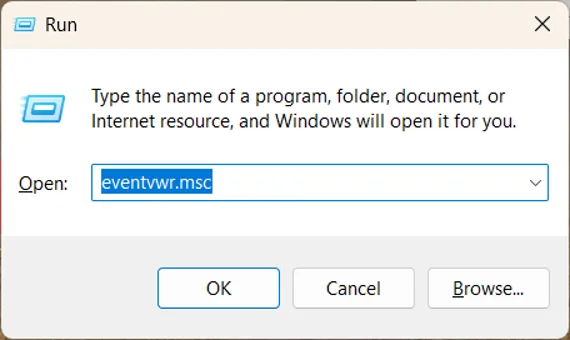
1. Press Windows key + R, type eventvwr.msc, and press Enter to open Event Viewer.
2. Go to Windows Logs, then Application, and filter for Error.
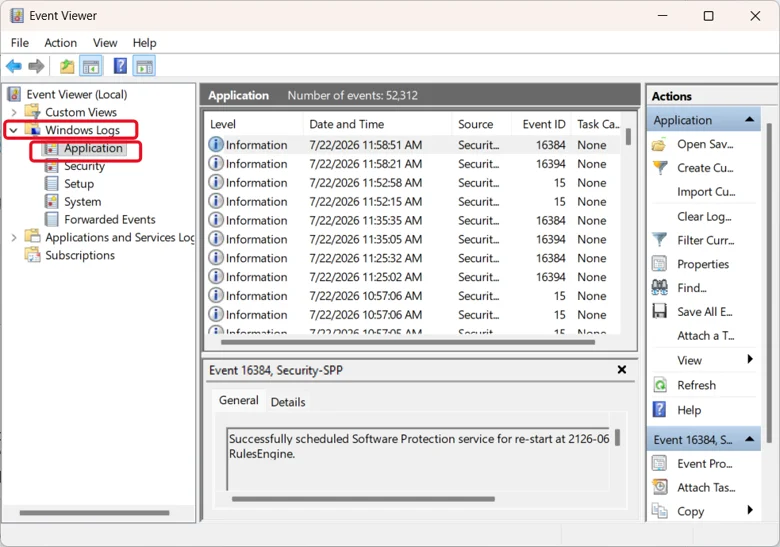
3. Look for entries from around the same time you saw the pop-up message and look at the “Faulting application name” field.
4. Alternatively, search for Reliability Monitor in the Start menu for a simpler, dated timeline of app crashes.
Once you know the actual application involved, update, repair, or reinstall that specific program first.
Fix 3: Run SFC and DISM
Corrupted system files can trigger crashes across multiple apps, which shows up repeatedly as this same error.
1. Right-click the Start button and open Windows Terminal (Admin) or Command Prompt (Admin).
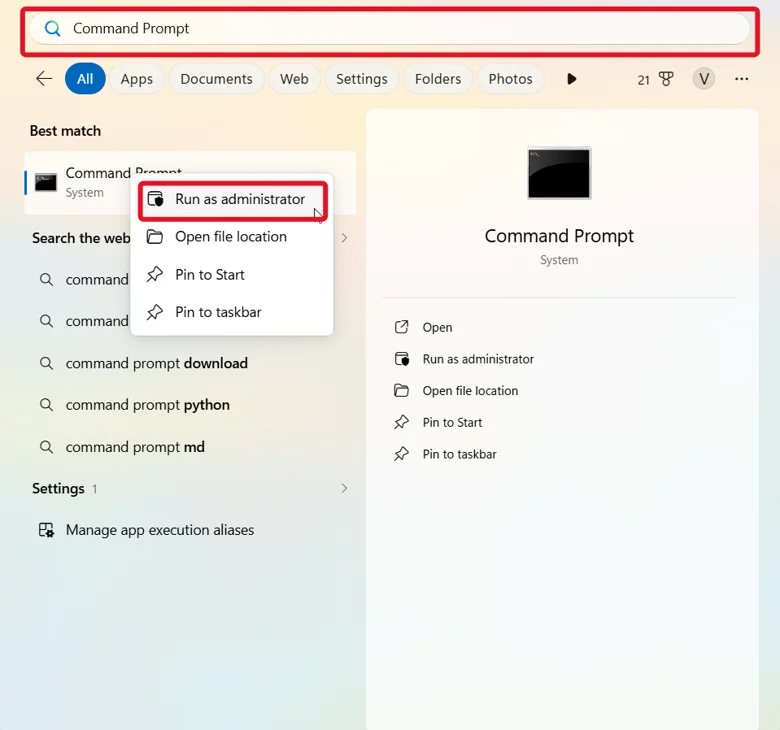
2. Run: DISM /Online /Cleanup-Image /RestoreHealth
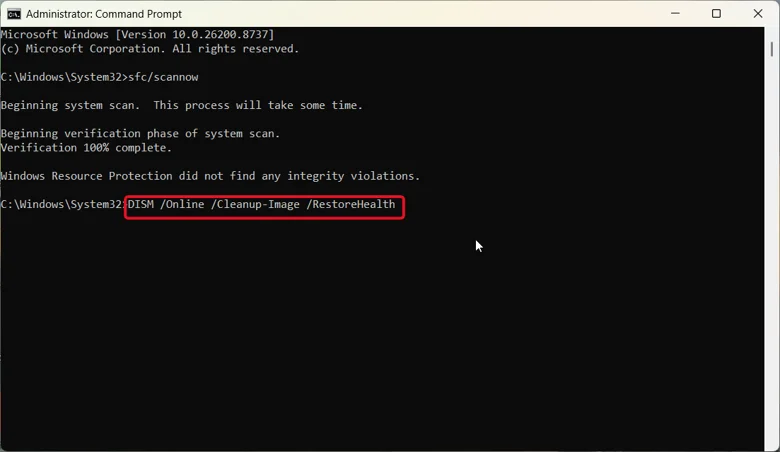
3. Once that finishes, run: sfc /scannow
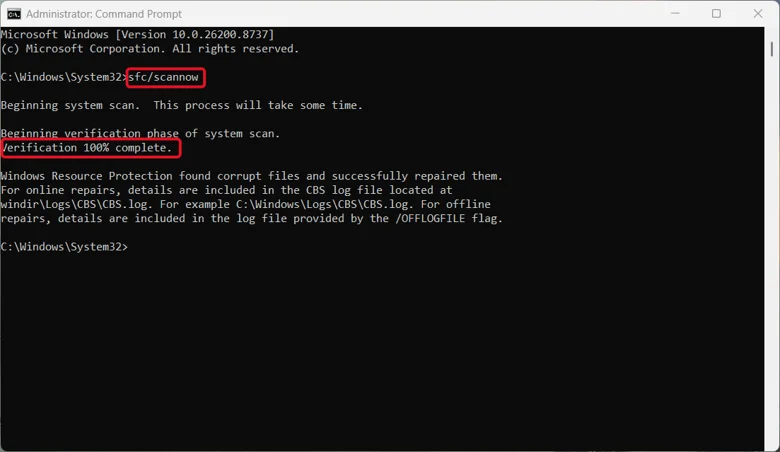
4. Restart your PC once both scans complete.
Fix 4: Update or Roll Back the Relevant Driver
If you suspect the cause of your system crashes are related to your GPU, Audio, Printer or Chipset Drivers based on information in the event logs, that driver is worth checking directly.
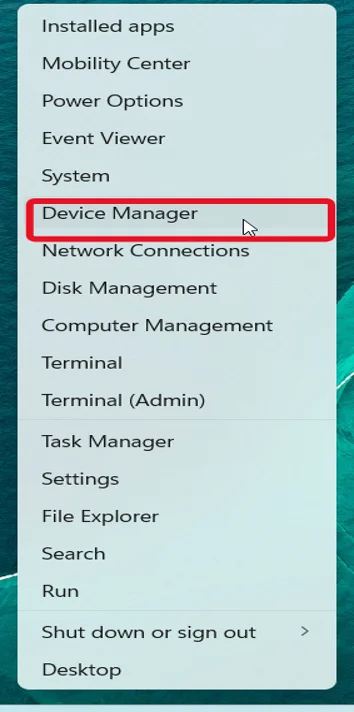
1. Right-click the Start button and open Device Manager.
2. Find the relevant device category and right-click it.
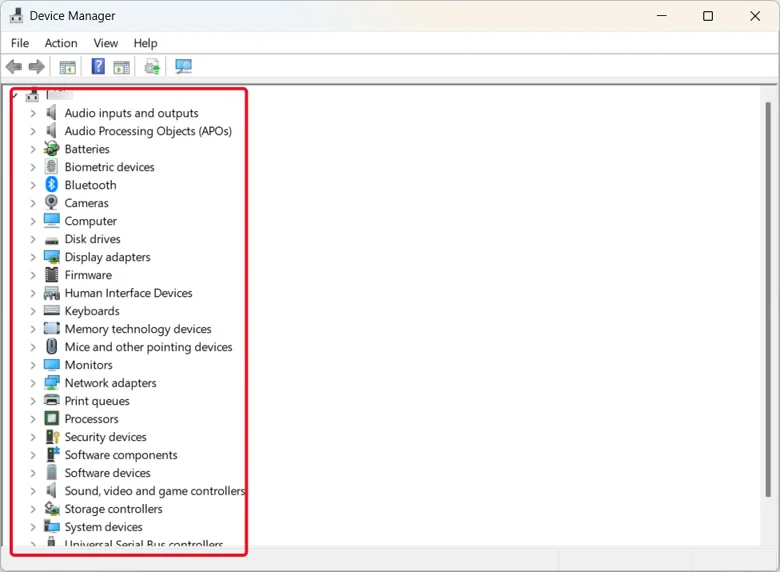
3. Select Update driver, then Search automatically for drivers.
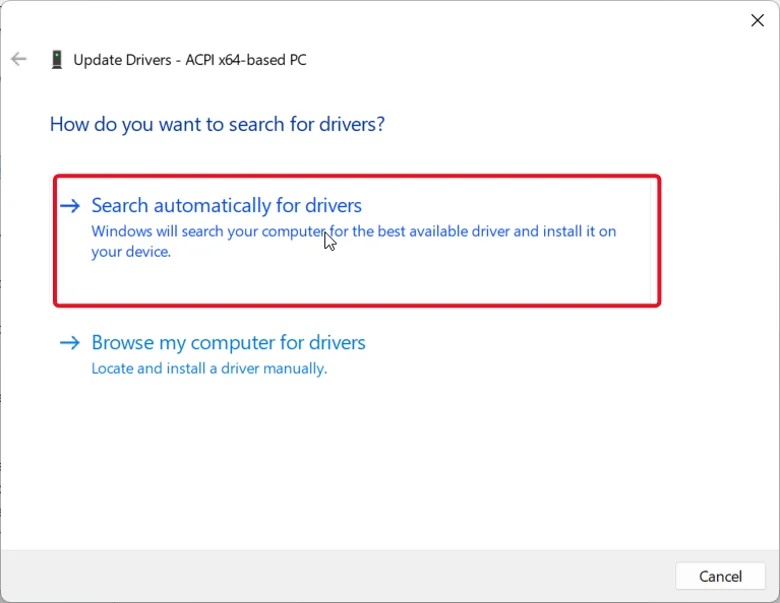
4. If the crash started right after a driver update, choose Roll Back Driver from the same device’s Properties instead.
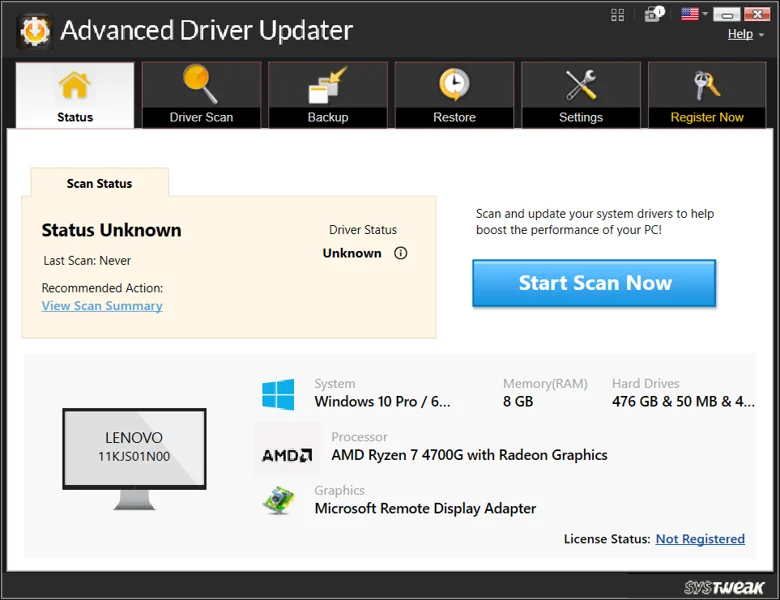
If Windows can’t find the correct driver automatically, Advanced Driver Updater from Systweak can scan for it instead. Once in the Advanced Driver Updater interface click Start Scan Now. After the scanning process has completed click Update Now next to the printer driver when it is located (or Update All if other outdated drivers are identified). Restart your PC and try setting the default printer again.

Fix 5: Restart the Windows Error Reporting Service
If the same crash report keeps looping without resolving, restarting the reporting service itself can clear the stuck state.
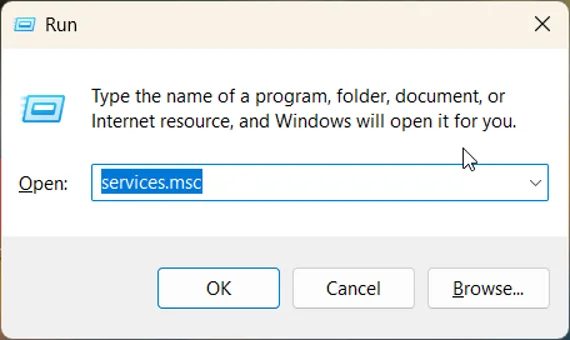
1. Press Windows key + R, type services.msc, and press Enter.
2. Find Windows Error Reporting Service in the list.
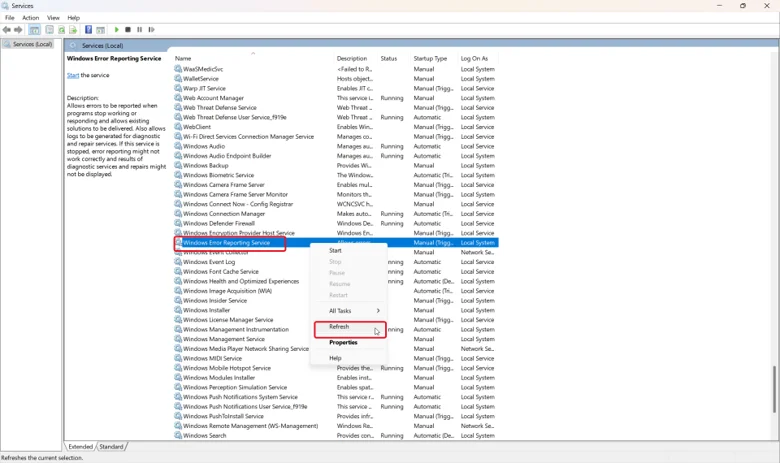
3.Right-click it and select Restart.
4. Leave the startup type at its windows default.
Fix 6: Create a New User Profile
A damaged user profile can cause repeated crashes tied to specific apps or settings that only affect your account.
1. Go to Settings, then Accounts, then Family & other users.
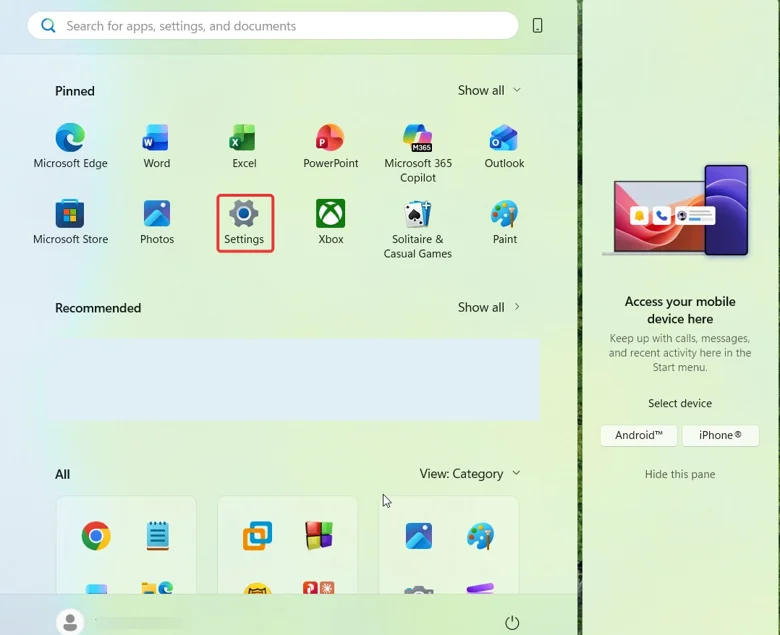
2. Click Add account and create a new local account.
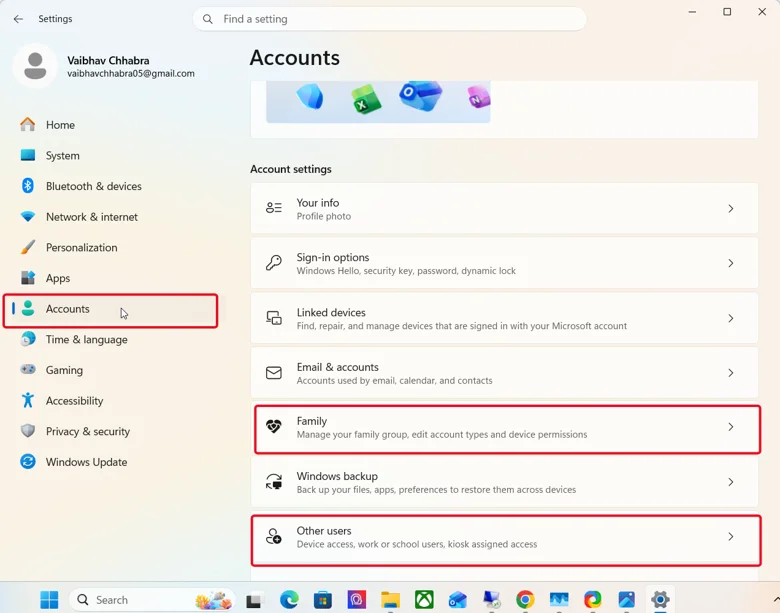
3. Sign into the new account and test whether the same crash occurs there.
If the error disappears under the new profile, move your files over and continue using the new account going forward.
Fix 7: System Restore or In-Place Repair
If nothing above resolves the crash, rolling Windows back or repairing it directly addresses deeper corruption.
1. Search for Create a restore point and open System Restore.
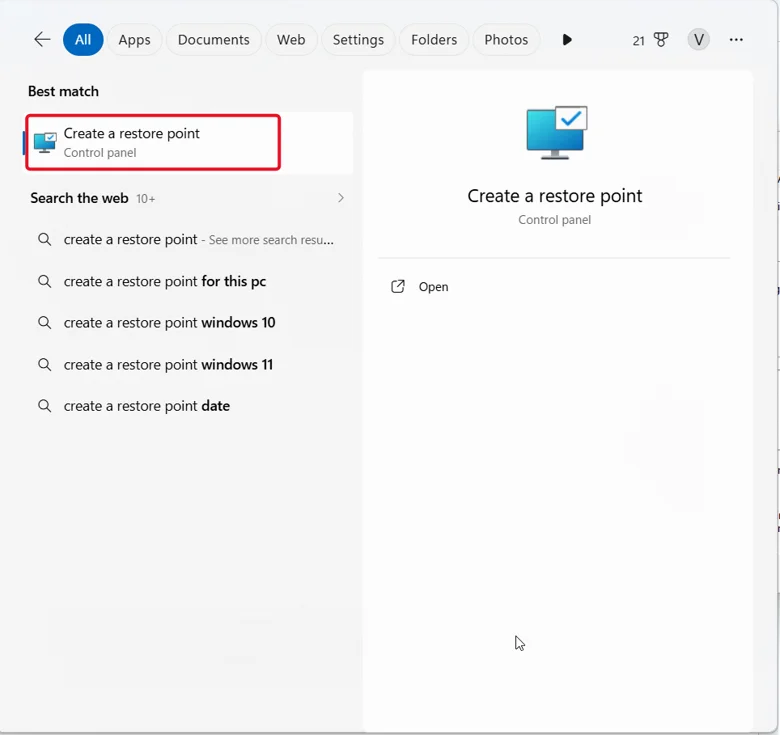
2. Choose a restore point from before the crashes started, and follow the wizard.
3. If no restore point works or exists, download the Windows 11 installation media and mount the ISO, this will replace damaged system files while keeping your personal data.
Frequently Asked Questions
The bottom line
WerFault.exe itself is rarely the problem, it’s Windows telling you something else crashed. Confirm the process is running from System32, use Event Viewer or Reliability Monitor to find the actual crashing app, then perform the normal steps of system file repair and driver update. If all other methods fail, then restore your computer back to its last known good point using System Restore.