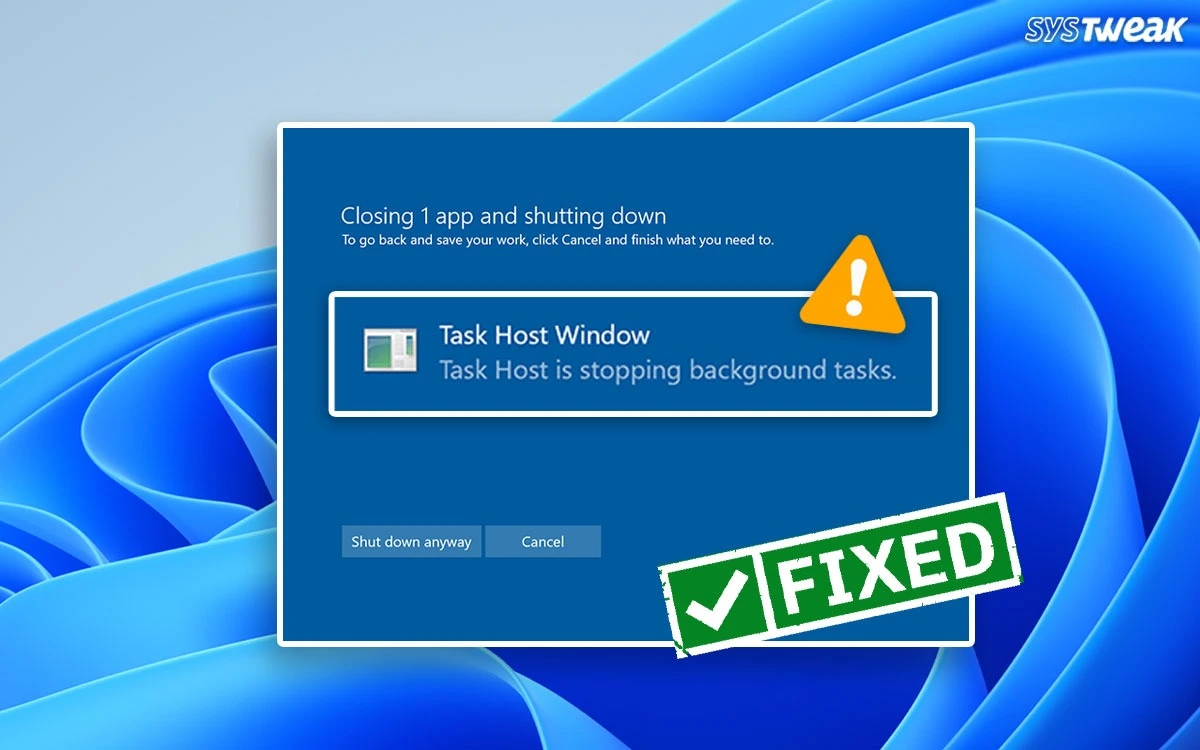

Shutting down your computer should be an easy and quick task. But have you ever faced an error message that reads “Task Host Window is stopping background tasks” while shutting down your computer? The task host window stopping the shutdown of the device is not an error, but it is Windows telling you that some background processes or system tasks are still running on your device. These processes and programs must first be closed to shut down your computer securely.
While it seems easy to resolve, if it is occurring repeatedly, then it can be a serious issue. This issue can be easily fixed with the right approach and easy fixes.
In this guide, we’ll first explore what Task Host Window is and the possible reasons why it’s displaying on your device, and then move to the fixes. Whether you are a casual user or a person who works on a PC regularly, this guide will get your computer shut down easily and quickly again.
What is “Task Host Windows”?
Task Host Window safeguards all the programs and background processes and ensures that they are completed at the time of shutdown. The error “Task Host Windows is preventing shutdown” means that Task Host Windows found some applications or processes that are not finished or closed by the user while shutting down computer. If you have unsaved documents, delayed updates, or services running in the background, your computer might not shut down. Forcefully shutting down the computer might corrupt files and cause system errors on the next startup. By showing the error, Windows warns to complete tasks, close applications, or cancel the shutdown.
In some cases, the error reads “Task Host Window Stopping Shutdown,” which is the same as the previous ones. You can see such errors frequently if there are registry errors, outdated software, or background processes that are not able to close properly. In the next sections, we’ll find the reasons why this error happens and the easy fixes.
Why does it happen?
The notification “Task Host Window Prevents Shut Down” appears when you have some program running in the background that hasn’t finished while shutting down your computer. Task Host Windows takes care of such services and programs. Task Host Windows close these programs properly so that data and files are not lost or corrupted.
Below are the most common reasons your computer is showing this error:
- Incomplete Windows Updates: Background running updates can also cause the Task Host Window to stop the shutdown on Windows.
- Background Programs: If files like antivirus, browsers, or file syncing services remain open and are not properly closed, they may also stop the shutdown.
- Unsaved Work: If there are any unsaved documents you’re working on and shut down Windows in the middle without saving them. This can also lead to the Task Host Window delaying the shutdown.
- Damaged System Files: Damaged Windows files can interrupt the regular shutdown procedure.
- Fast Boot Mode: The Fast Startup feature keeps the background operations active, which will result in shutdown issues.
- Interference from third-party apps: Applications that often lag or don’t close properly can stop the shutdown.
Fixes to resolve “Task Host Window Is Preventing Shutdown” on Windows
1. Wait for some time
Sometimes, the issue is not that serious. Patiently waiting for a few moments can fix it. Windows may complete the pending updates and tasks by itself and shut down smoothly.
2. Close Background Processes
Use Task Manager to close unnecessary background processes. The following are the steps to close background processes:
Step 1: Press ‘Ctrl + Shift + Esc’ to open Task Manager.
Step 2: Under the Processes tab, check for any programs you left open, like Notepad, Browsers, etc.
Step 3: Right-click and select End Task.
Step 4: Try shutting down your PC.
3. Disable Fast Startup (Commonly Responsible)
Fast startup can interfere with and delay the shutdown. Here is how you can disable Fast Startup:
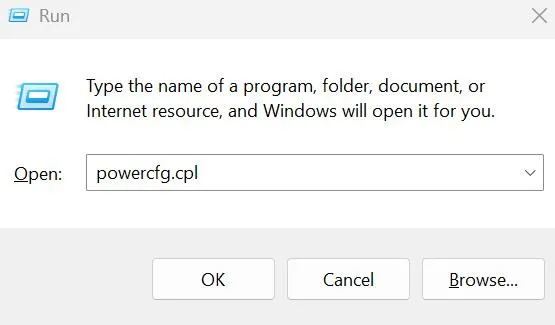
Step 1: Press ‘Windows + R’ and type ‘powercfg.cpl’. Click OK.
Step 2: Select ‘Choose what the Power button does’ from the left.
Step 3: Click on ‘Change Settings that are currently unavailable’.

Step 4: Uncheck ‘Turn on Fast Startup (recommended)’.
Step 5: Now, click on ‘Save Changes’ and shut down the computer.
4. Install Pending Windows Update
Incomplete or pending updates can also cause this issue. So updating them can help to fix the error. The following are the steps to check for updates:
Step 1: Open Settings, then select Windows Updates.
Step 2: Click on Check for Updates and install available updates.
Step 3: Restart your computer and then try to shut it down.
5. Clean up the system using Advanced System Optimizer
Cleaning up the system using Advanced System Optimizer can help fix this issue. Here is how you can do it:
Step 1: Open Advanced System Optimizer.

Step 2: Click Start Smart PC Care to scan for any issues. After the scan, click on Optimize.
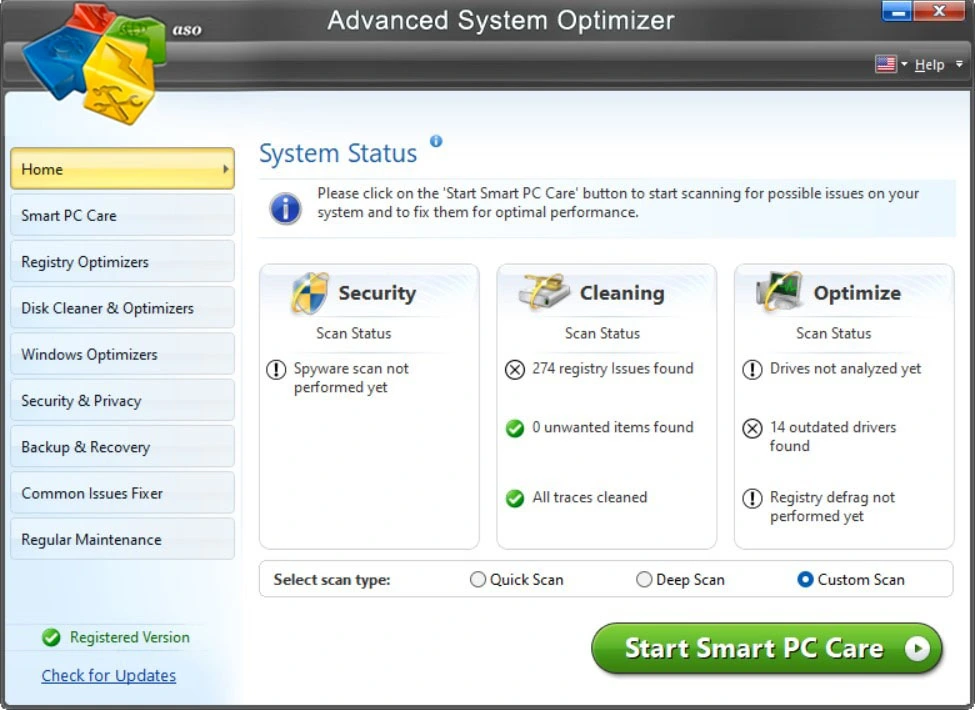
Step 3: Clean the unwanted files using the System Cleaner. Click on Disk Cleaner & Optimizer < System Cleaner.
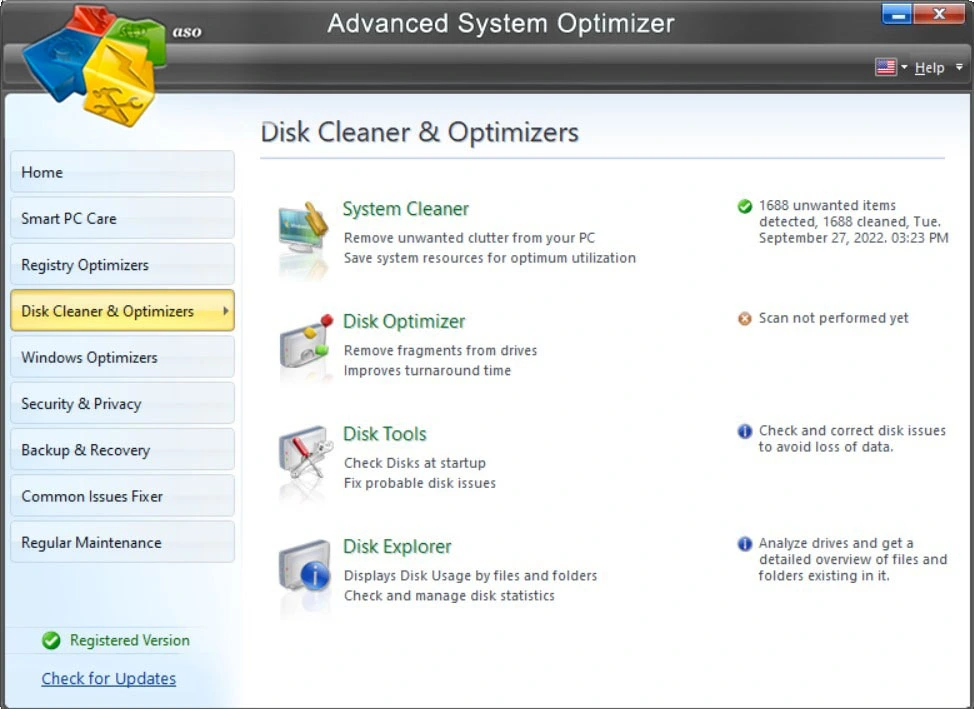
Step 4: Run Registry Cleaner and repair any registry issues. Select Registry Optimizers < Registry Cleaner.

Step 5: Restart your PC after the cleanup.
Important : Back up your system before making any important modifications.
6. Run Power Troubleshooter
There is a built-in Troubleshooter in Windows that can help in finding issues and fixing them. Here is how you can run the Troubleshooter:
Step 1: Go to Settings or press Windows + I.
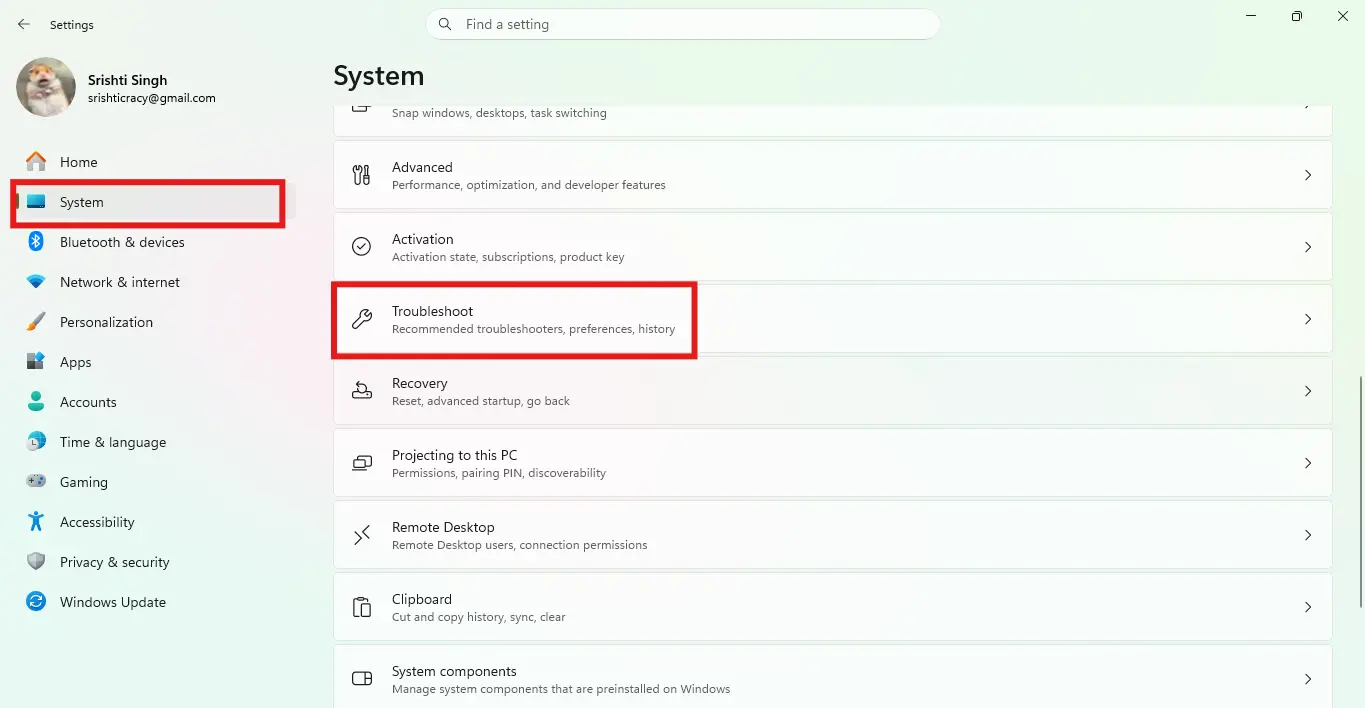
Step 2: Select ‘System’. Scroll down, and click on ‘Troubleshoot’.
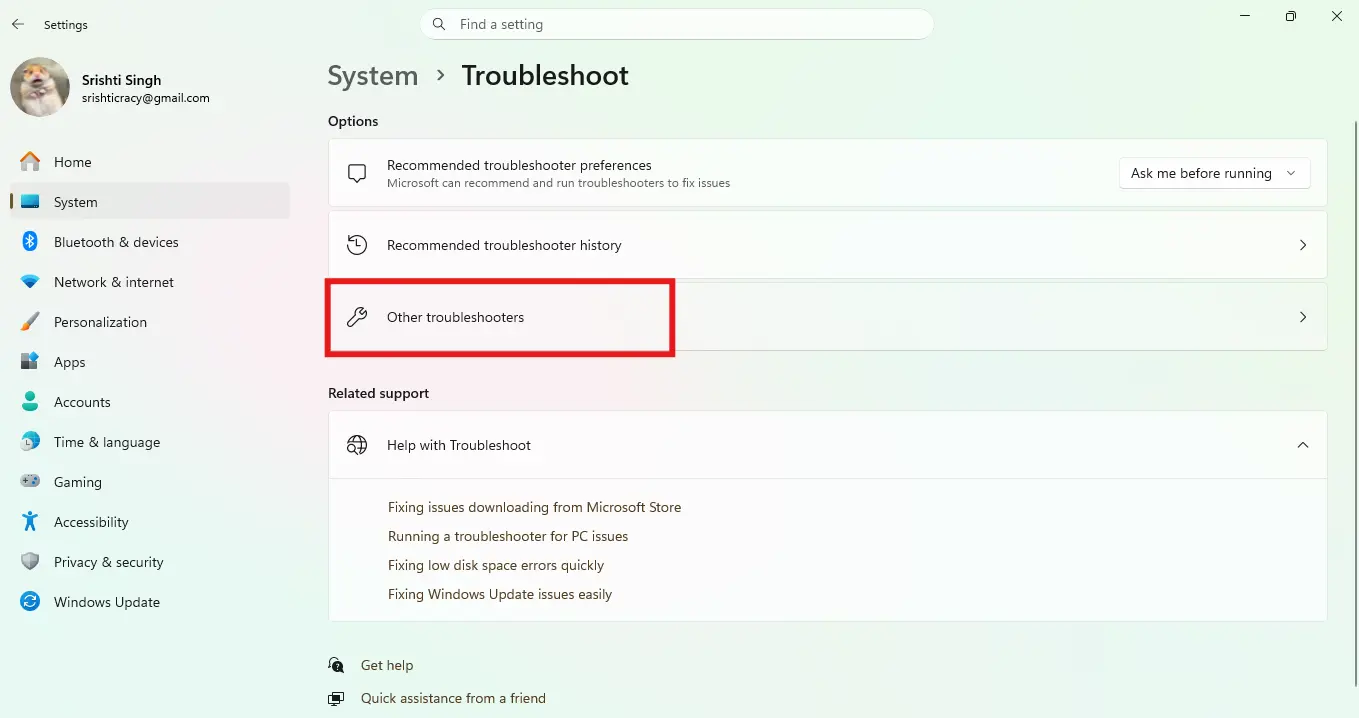
Step 3: Click on ‘Other Troubleshooters’ and find Power Troubleshooter.
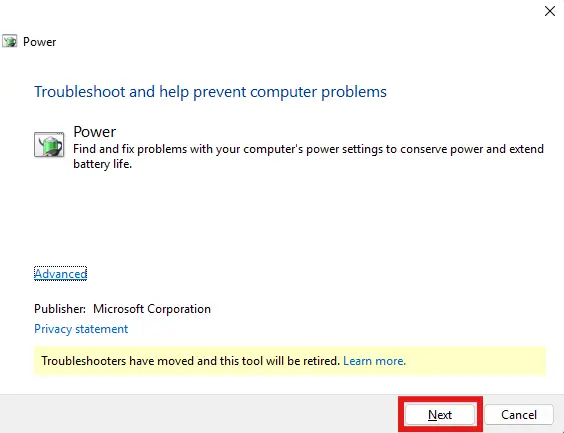
Step 4: Run the power troubleshooter and follow the instructions to fix the issues listed.
7. Edit the Wait Time in Registry (for Advanced users)
If you are familiar with the registry, then you can force close programs on shutdown in Windows. The following are the steps to edit the wait time in the registry:
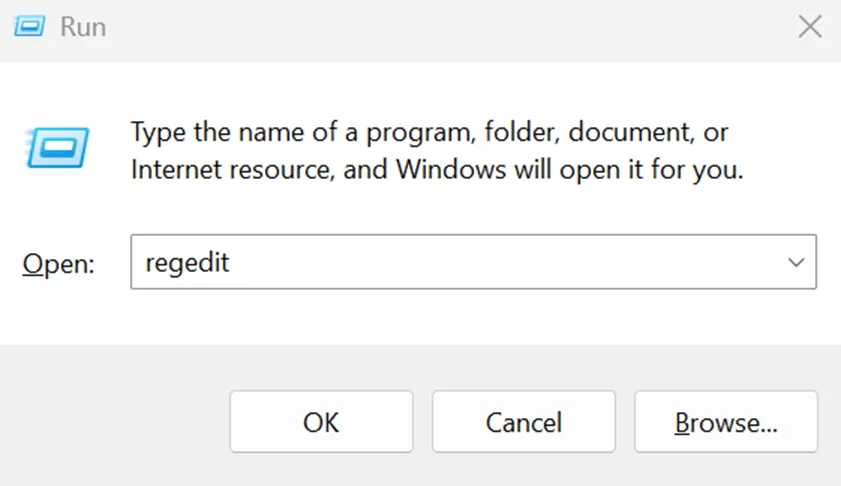
Step 1: Press Windows + R. Type ‘regedit’, and press Enter.
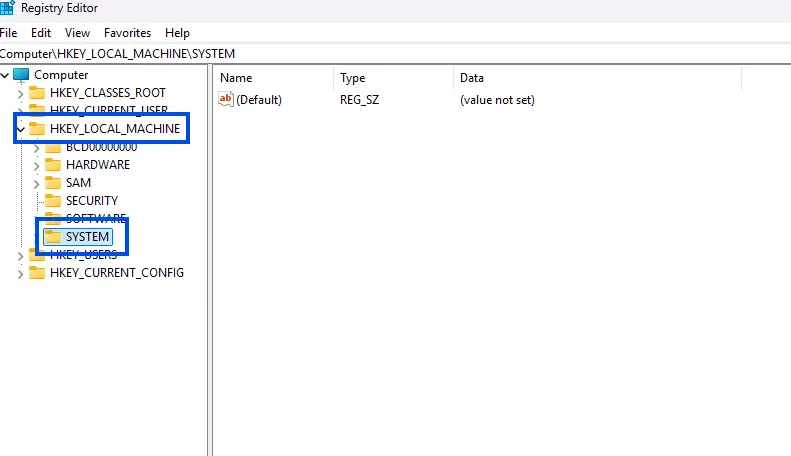
Step 2: Double-click on HKEY_LOCAL_MACHINE and then System.
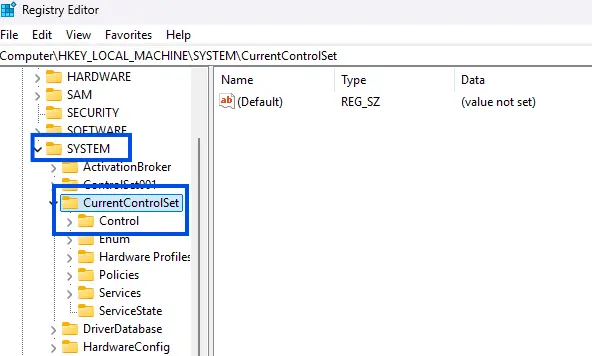
Step 3: Double-click on ‘CurrentControlSet’ and then on Control.
Step 3: Double-click on WaitToKillServiceTimeout.
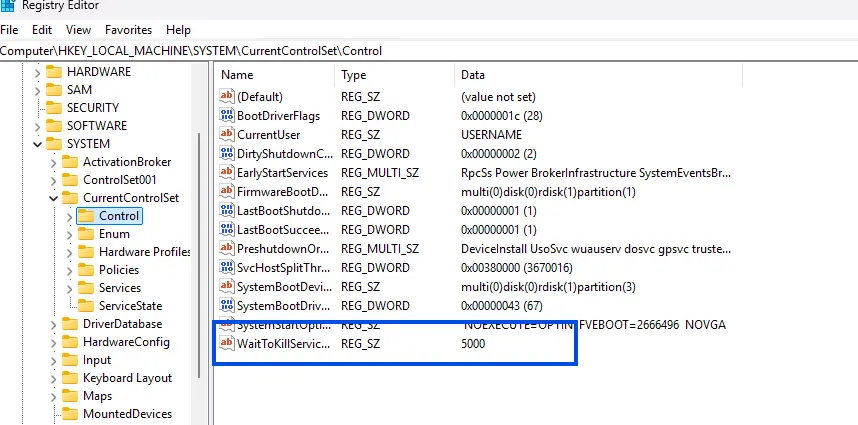
Step 4: Set its value to a smaller number, such as 2000 (which is 2 seconds).
Default is generally 5000 or above. Don’t make it too small.
Step 5: Click OK and close Registry Editor.
Step 6: Restart your computer for changes to take effect.
Note : Always create a backup before making any registry changes.
8. Check Event Viewer Logs
Event Viewer helps you in finding why “Task Host Window” is blocking shutdown by providing system and application logs. This allows you to identify apps or services that stop or slow down the shutdown. The steps below are the procedures:
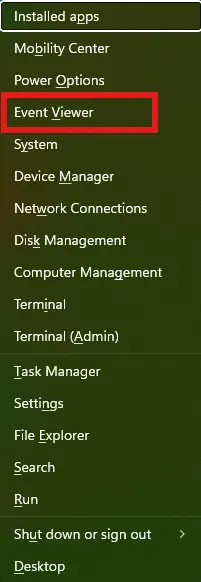
Step 1: Press Windows + X and click on Event Viewer.
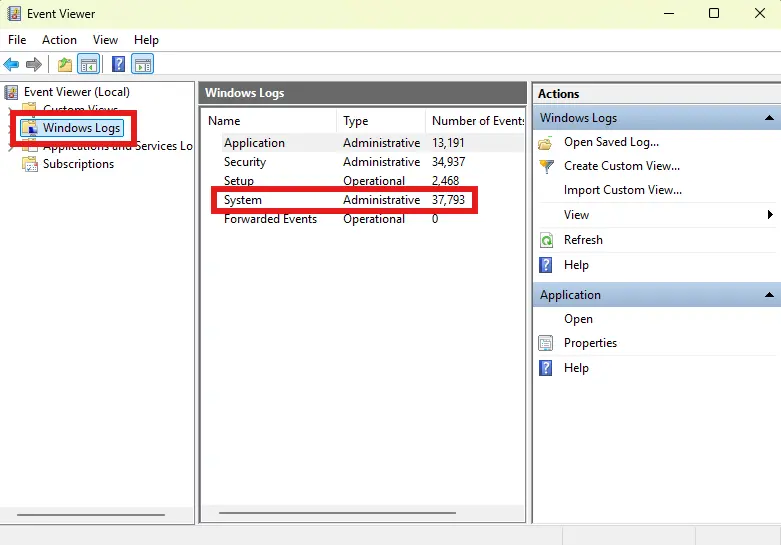
Step 2: Expand Windows Logs and click System.
Step 3: Search for warnings or errors near the time you tried shutting down.
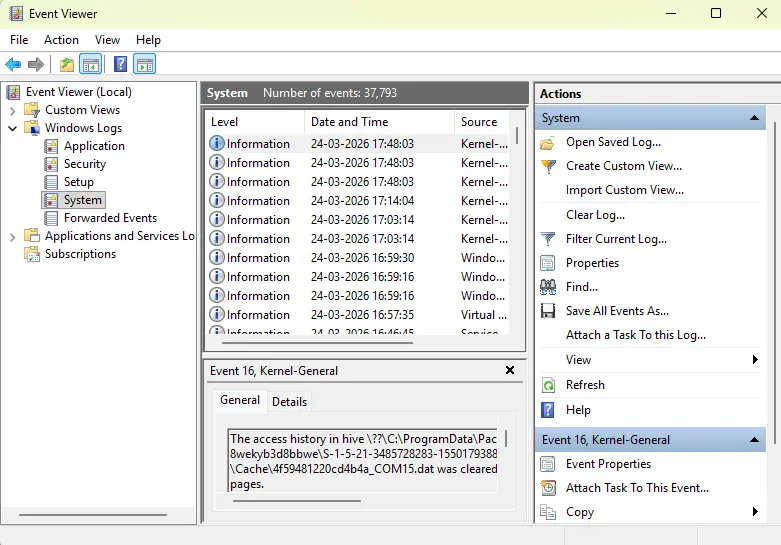
Step 4: Double-click on any suspicious log to see details.
Step 5: Identify the process or service that is causing the delay. Take necessary action, such as disabling it from startup.
9. Use Group Policy to end tasks automatically
Windows can be set to automatically end tasks during shutdown. Here is how you can do it:
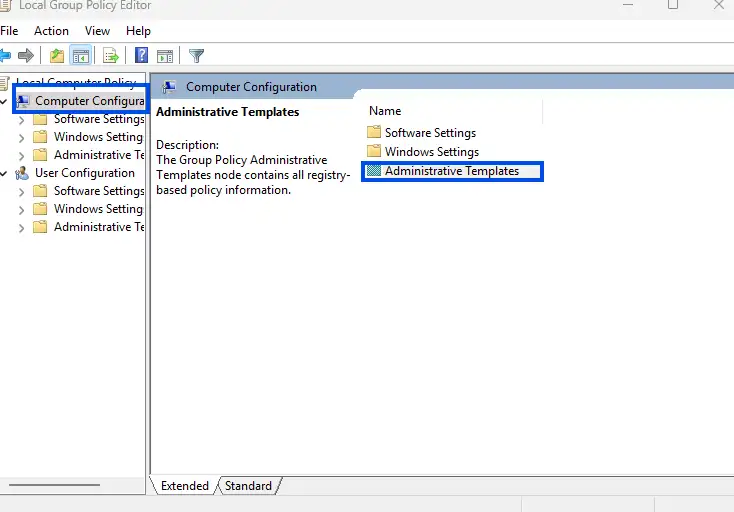
Step 1: Press Windows + R. Type gpedit.msc, and Enter.

Step 2: Click on Computer Configuration > Administrative Templates
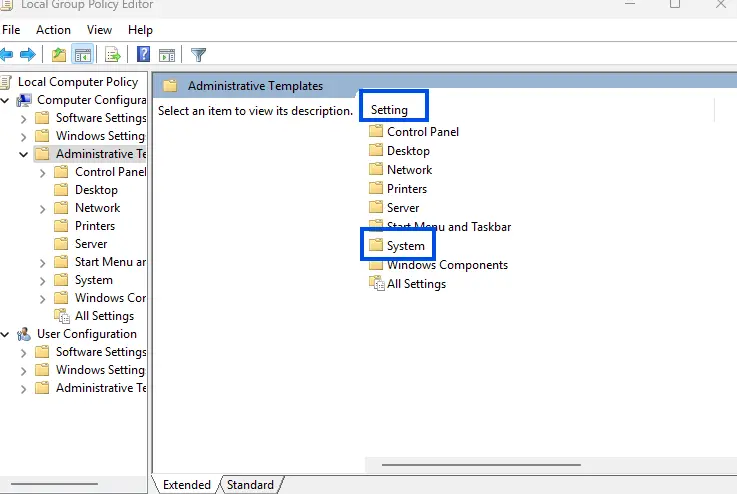
Step 3: Click on Settings and then System.
Step 4: Click on Shutdown Options.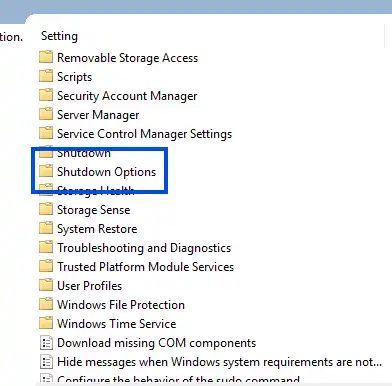
Step 5: Select Turn off automatic termination of applications that block or cancel shutdown.

Step 6: Set it to Disabled.
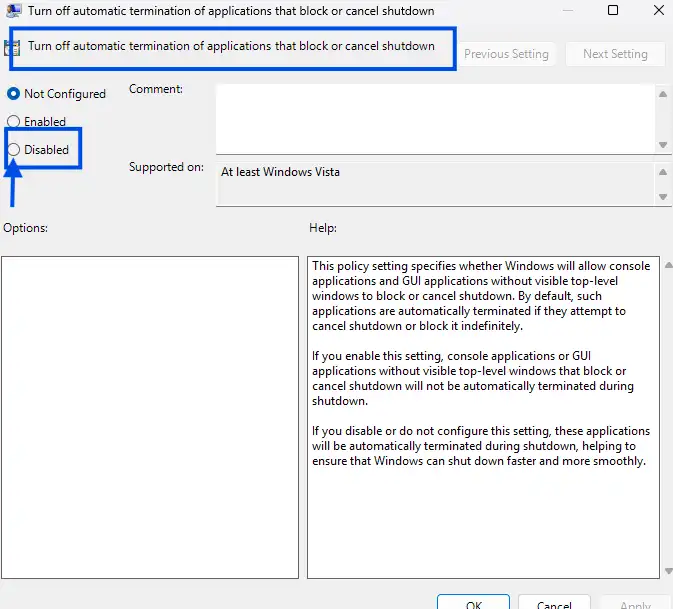
Step 7: Click OK.
10. Do a Clean Boot
It may be the result of third-party applications or services. A clean boot starts only basic services. The following are the steps to do a clean boot:
Step 1: Press Windows key + R. Type ‘msconfig’, and Enter.
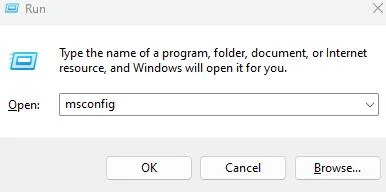
Step 2: Click on the Services tab and tick Hide all Microsoft services. Select Disable all.

Step 3: Switch to the Startup tab and click on Open Task Manager.
Step 4: Disable all items in the startup list.
Step 5: Restart your computer and try shutting down.
11. Use the Command Line to Force Shutdown
There may be times when shutting down normally is not possible. You’d like to just immediately and forcefully shut the system off. You can do this with the run command from the Command Prompt.
Step 1: Open Command Prompt by searching for cmd.
Step 2: Type this exact command and hit Enter:
shutdown /s /f /t 0
/s = shut down
/f = force close open apps
/t 0 = shut down in 0 seconds
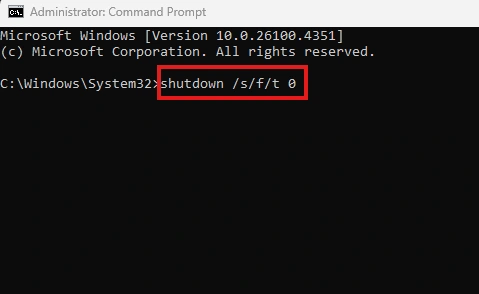
What this command does is directly shut down the system.
12. Run a System File Checker (SFC)
Many things can cause Windows to not shut down correctly. It may also be linked to missing and or corrupt files. The System File Checker tool can help scan and replace missing or corrupt files.
Step 1: Open Command Prompt as an Administrator.
Step 2: Type and enter this command:
sfc /scannow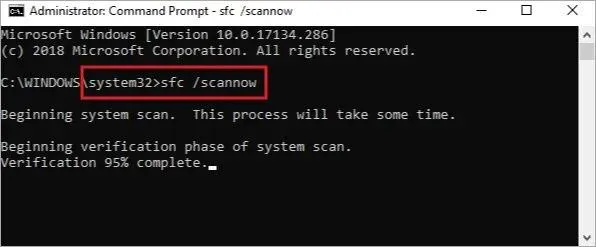
Step 3: Wait for the scan to finish
Step 4: Then reboot your PC
If SFC finds any violations of integrity, it will attempt to repair them automatically, and that may solve your shutdown problem.
Recommended : How To Use CHKDSK To Repair/Fix A Hard Drive?
Conclusion
The “Task Host Window is preventing shutdown” problem can feel frustrating, especially if you are trying to shut down your PC urgently. It is caused by background processes conflicts, pending system updates, or minimal system errors, which can be fixed easily. Easily shutting down Windows with no interruptions can be done by the troubleshooting methods given in this article.
Remember to regularly verify the system or associated drivers for errors by using Windows’ built-in update tools. Applying consistent maintenance solves most problems associated with shutdowns. Test each one, and Windows should resume normal functions.