 Advanced System Optimizer

 Registry Optimizers
Advanced System Optimizer / How to Install Advanced System Optimizer
How to Install Advanced System Optimizer?
If you don’t have Advanced System Optimizer’s installation file, visit our website & get the executable file.
Once the .exe file is downloaded, follow the steps to install and run Advanced System Optimizer on your PC.
- Double click aso3setup_direct-sysweb_pd.exe

- Click Yes, under the UAC notification when prompted.
- You'll now see Advanced System Optimizer’s installation wizard. If you want to create Desktop shortcuts for Advanced System Optimizer and Smart PC Care, keep the box checked; else, uncheck them.

- Click Next to proceed.

- Read the License Agreement, and if you agree, select, I accept the agreement and click Next to proceed with product installation.

- If you want to install the product at a different location, click Browse and select the location. Else you can click Next to proceed.
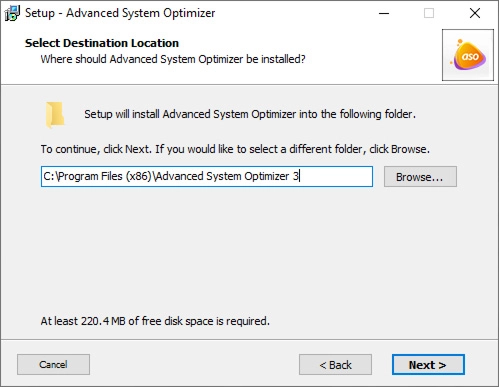
- Wait for the installation process to finish.
- Advanced System Optimizer will automatically launch.
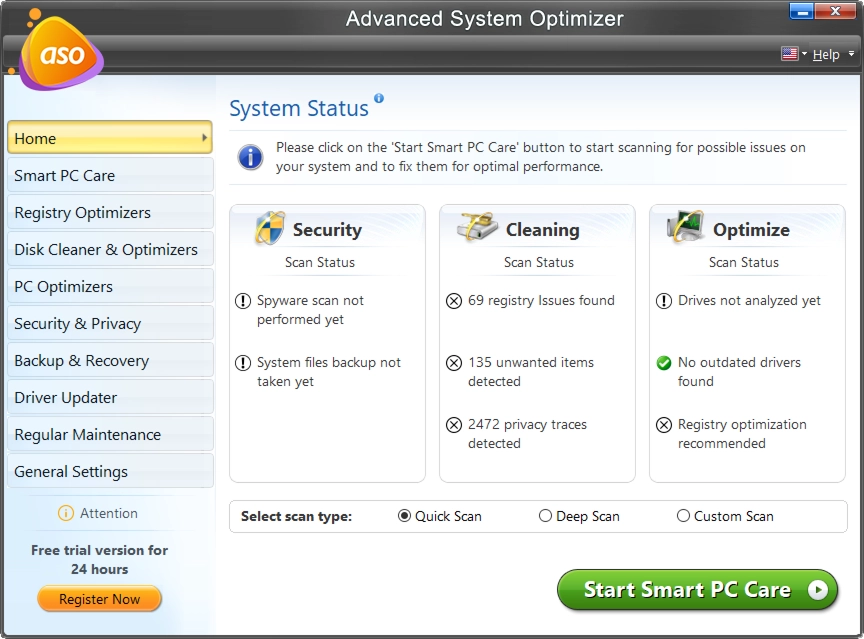
Note: The trial version of Advanced System Optimizer is fully functional for 24 hours.