
Introduction
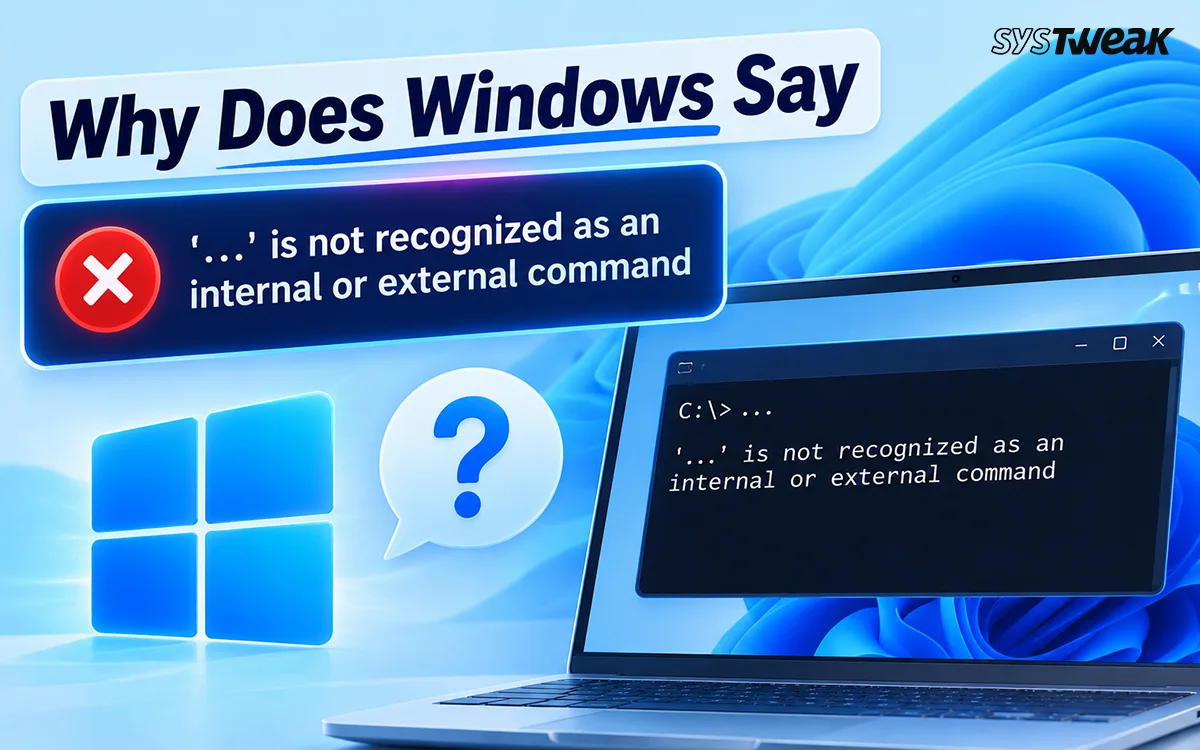
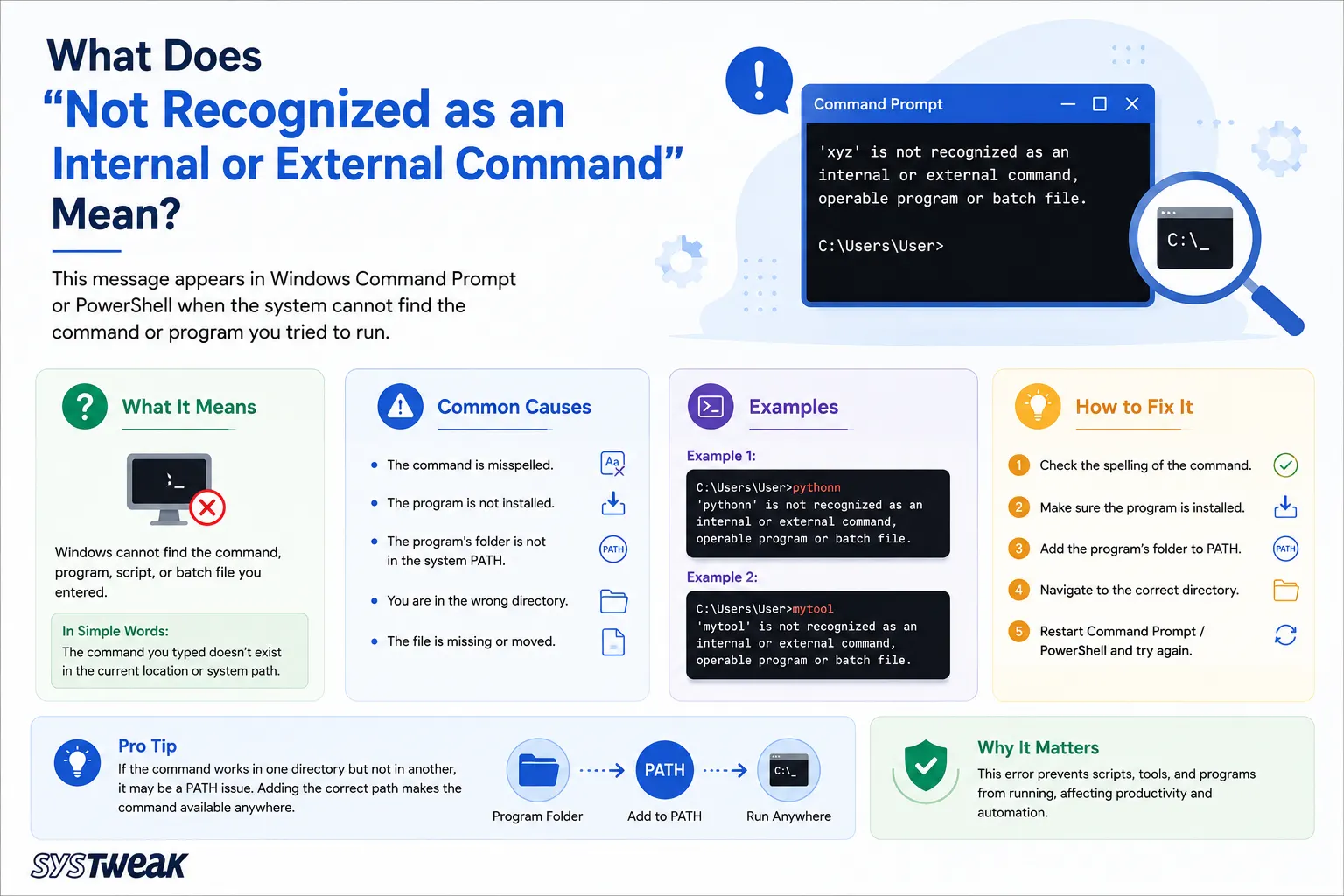
Have you ever typed in Command Prompt a particular command just to be frustrated by the error “is not recognized as an internal or external command, operable program or batch file”? It basically means that Windows does not have the program command file to recognize and process your request.
This is normally caused by the non-installation of the program, the lack of the installation folder path in the environment PATH variable, or even entering an incorrect command in the prompt window.
However, there are a few ways on how to deal with this issue. In this article, we will help you to understand the reason for this message and learn how to solve the “not recognized as an internal or external command” problem.
What Does The Error Mean?
Whenever you enter any command through the Command Prompt window, Windows searches for the executable file for that particular command in certain locations. In case Windows fails to locate the executable file, it will show an error message which looks like ‘‘command’’ is not recognized as an internal or external command.
Why Does Windows Show This Error?
These could be some of the causes for this error:
- The command is misspelled.
- The required application is not installed.
- The executable file has been removed.
- The installation directory of the program is not present in PATH.
- The PATH environment variable is set up incorrectly.
- You are executing the command in an incorrect directory.
- The Command Prompt is launched before the PATH environment variable is updated.
How To Fix “Is Not Recognized As An Internal Or External Command”
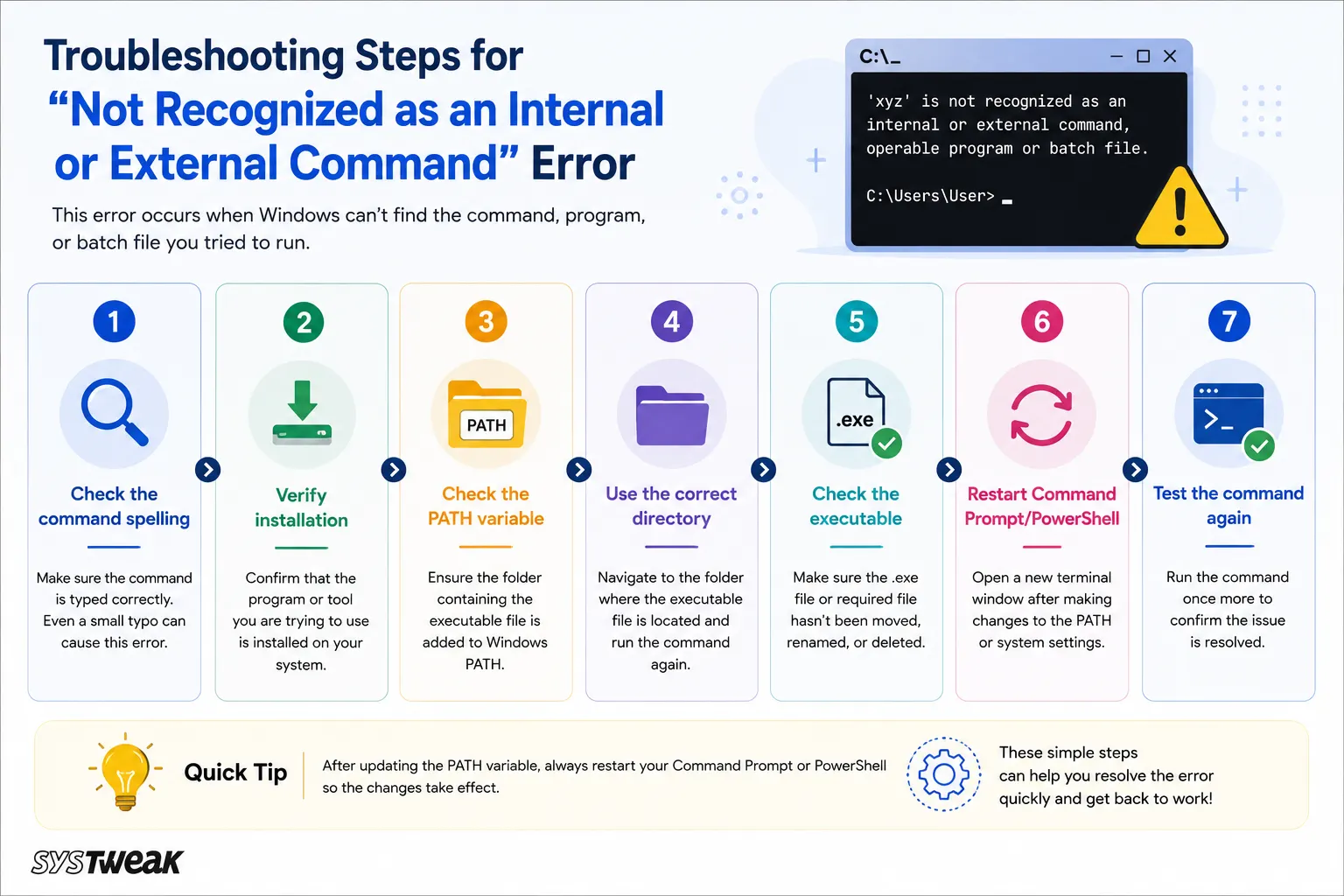
1. Check the Command for Typing Errors
Before altering any of the settings on Windows, ensure that the command was written properly. Also, ensure that there are no unnecessary spaces or characters in the command. In case the command is right but the error is persistent, move to the next step.
2. Ensure That the Program Is Installed
In case of an error when launching an external program, check if the program is actually installed.
- For instance, if the command node is run, then Windows should look for the Node.js application. In case this program is not installed, then Command Prompt won’t be able to run the command.
- Go to Settings > Apps > Installed apps and search for the program.
- In case it is not installed, install it and try running the command in Command Prompt.
How to Fix the Install Error 0x80070103 in Windows 11/10?
3. Run the Command From Its Installation Folder
Occasionally Windows cannot locate an executable because you execute the command from a different directory. It is advisable to change the directory to that which has the executable and then execute the program.
- For instance cd C:\Program Files\ExampleApp
- Now type the name of the executable example.exe
- If the program executes properly, then the issue might be associated with the PATH environment variable.
4. Use the Full Path to the Executable
Alternatively, one could circumvent the use of PATH by giving the entire address of the executable file.
- Example C:\Program Files\ExampleApp\example.exe
- Where the application runs through its path but fails when just the name of the file is entered,
- There is a strong indication of a problem with the PATH.
5. Check the PATH Environment Variable
PATH is an environment variable that specifies the location of the executable files in Windows. If the directory of the executable file is not part of the PATH variable, then it may fail to understand the command. The steps to verify PATH variable are:
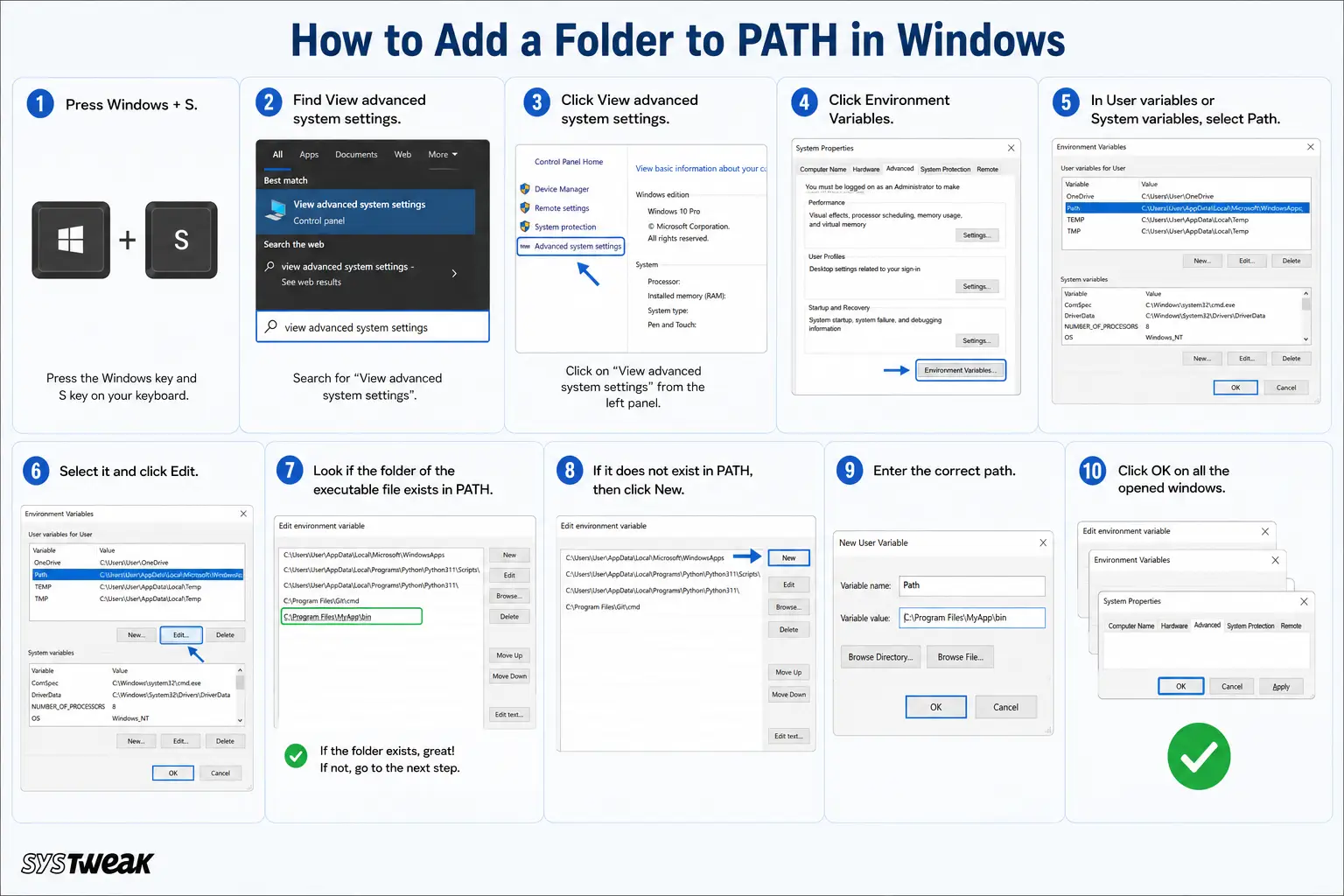
1. Press Windows + S.
2. Find View advanced system settings.
3. Click View advanced system settings.
4. Click Environment Variables.
5. In User variables or System variables, select Path.
6. Select it and click Edit.
7. Look if the folder of the executable file exists in PATH.
8. If it does not exist in PATH, then click New.
9. Enter the correct path.
10. Click OK on all the opened windows.
Note : Do not replace the PATH variable with a new value; instead, add the required folder path in it.
6. Restart Command Prompt
In case you have just installed a new application or changed PATH, the existing instance of the Command Prompt will not be able to detect this change. Close Command Prompt entirely.
1. Reopen Command Prompt.
2. Type the command.
3. Press Enter.
You may even restart your computer if the problem persists.
7. Use the Correct Command Prompt or Terminal
There are some commands which are meant to be used by a certain shell or application only. Take an example of a command used in PowerShell, it might not perform in the same manner in Command Prompt. Likewise, commands that use Git might need Git to be installed in order to be executed properly.
8. Reinstall the Problematic Program
However, if your program is installed and your PATH variable seems to be set correctly, but the command still doesn’t work, there is a problem with your installation process and your program is either corrupted or not installed completely. Therefore, you should first try uninstalling your program and installing it again.
- When installing, pay attention to the following checkbox:
- Add to PATH
- And if it is present, activate it.
9. Restart Windows
In case there have been changes made to the environment variable or the installation of a new development tool has taken place, restarting the windows machine can prove to be useful. The following needs to be done post-restart:
1. Open Command Prompt.
2. Enter the problematic command.
3. Press Enter.
How to Prevent the Error
The possibilities of encountering this message again can be minimized through the following:
- Always make sure to check the commands before pressing the enter key.
- Install programs using reliable and reputable providers.
- Avoid deleting PATHs arbitrarily.
- Append the paths of the applications to the PATH only when required.
- Create a new terminal window after the installation of command line applications.
- Remember where the command line applications were installed.
- Run `where` to confirm whether Windows can find the executable file.
Bonus Feature – Recover Your Files with Advanced File Recovery Software
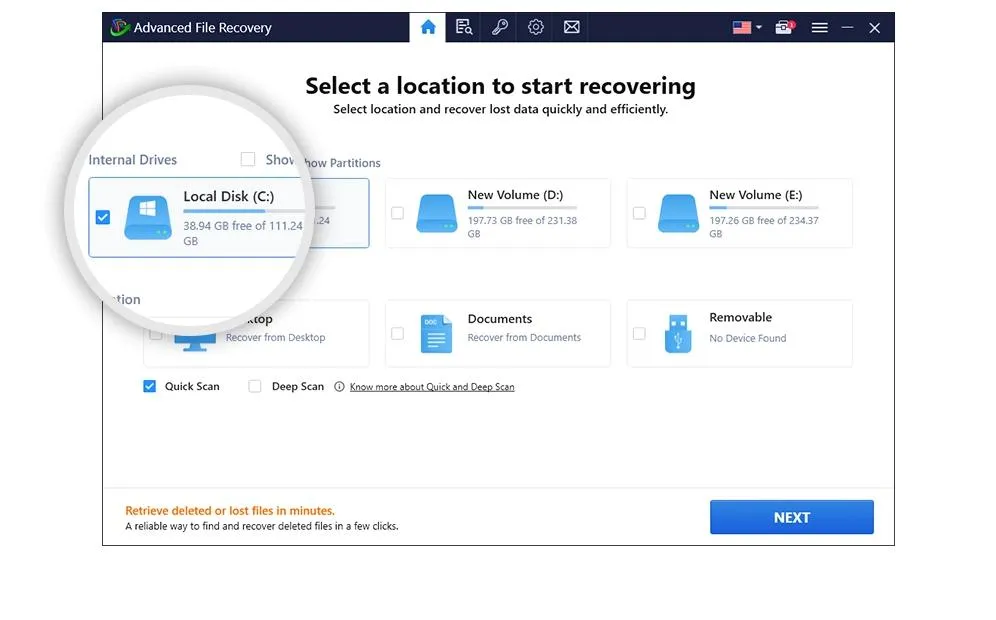

In case when some files become deleted or lost because of various problems with the system, Advanced File Recovery may be helpful in retrieving your data. This application looks for recoverable files, which might have been lost and may not be available anymore within the Windows environment. This software might be handy in case you need to retrieve files which were previously deleted or lost due to accidental formatting or partitioning of the drive. In order to increase the possibility of your success, try not to add any new information on this drive.
Conclusion
When you get the error “is not recognized as an internal or external command,” it is usually because Windows cannot find the command itself or the file that executes it. You just need to check the command and update the PATH variable to fix it. And here are some easy ways to do it.