
Introduction
There are many ways of opening PowerShell in Windows 11. Whatever your preferred way might be, from using graphical methods to keyboard shortcuts, it can be done in just a few steps.
PowerShell is more efficient than Command Prompt since it consists of many features such as scripting, system administration, and more. PowerShell will help you perform tasks such as gathering information on your system, working with files and directories, troubleshooting issues on the Windows Operating System, among others.
Methods on How to Open PowerShell in Windows 11
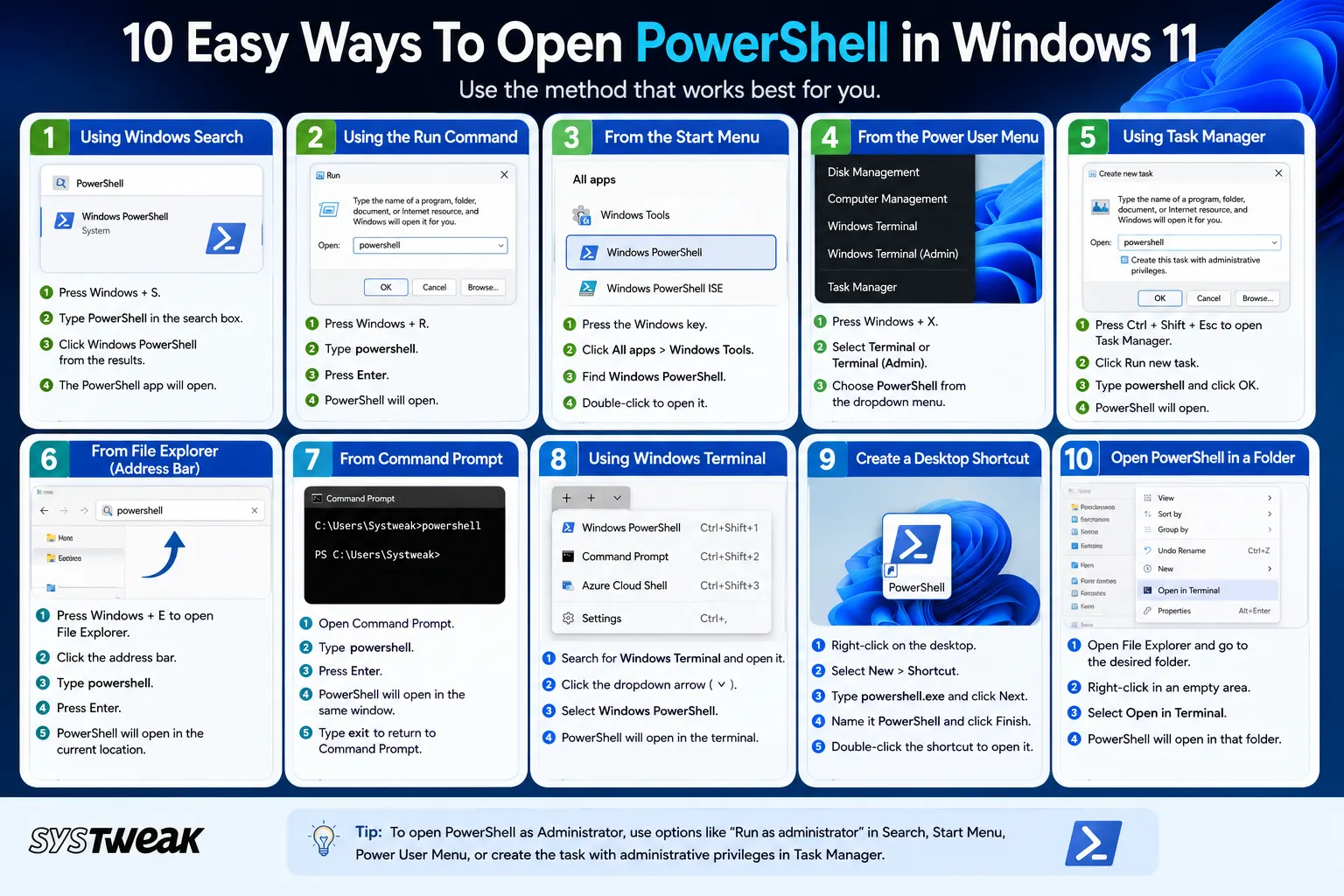
We have described 10 distinct ways to start the PowerShell window on a Windows 11 computer. In case one specific method is not working or seems difficult for you, then there are other alternatives available to you. We will discuss each of the methods in detail along with their step-by-step instructions.
Method 1. Open PowerShell Using the Windows Search app
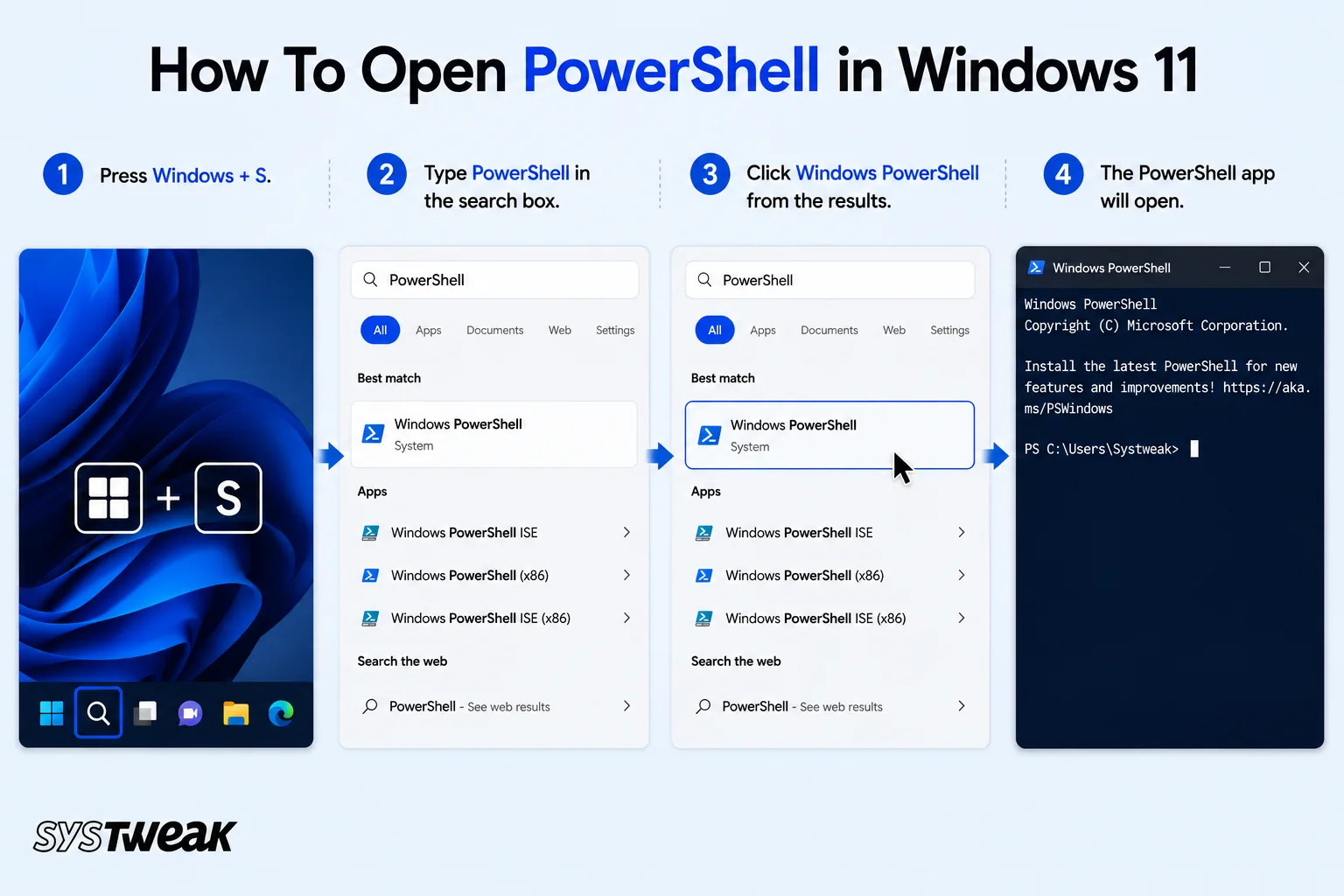
Windows Search is the quickest method to open any application. Below are the steps for doing so.
1. Press Windows + S keys on the keyboard.
2. Type PowerShell in the search bar.
3. Click on Windows PowerShell from the options shown.
4. The PowerShell application will open.
Effective Ways to Get Rid of Powershell.exe Pop-Up Virus on Windows
If you want administrator access, choose the option Run as Administrator from the options displayed on the right.
Method 2. Open PowerShell Using the Run Command
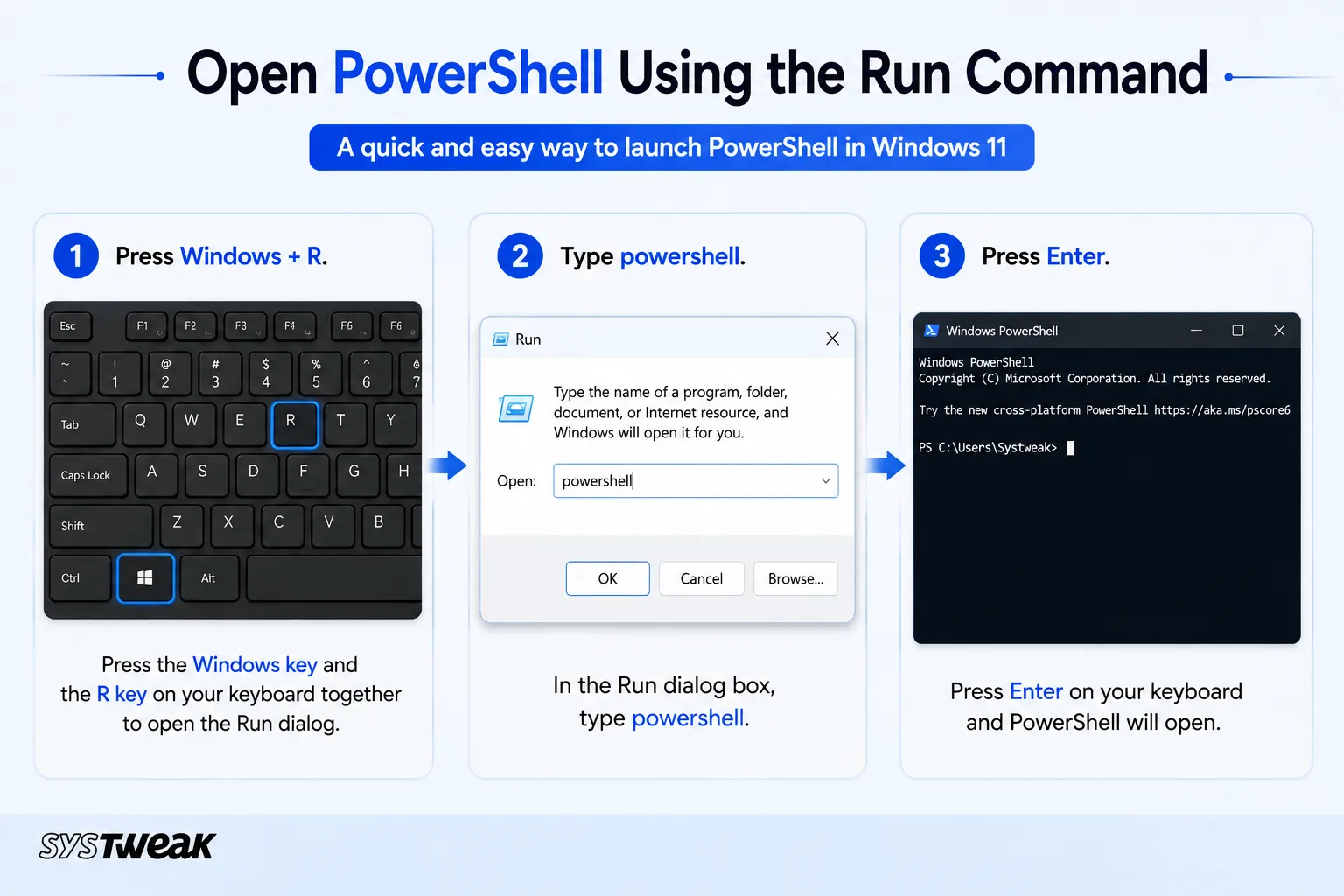
Another fast way of running PowerShell is using the RUN dialog box. This is how it can be done.
1. Hit the keys Windows + R.
2. Type powershell.
3. Press the Enter key.
How To Enable/Disable Hidden Administrator Account on Windows 11
PowerShell will be launched instantly. To run it as an administrator, press the key combination Ctrl + Shift + Enter. This approach is particularly convenient when you know the name of the utility in the Windows OS that needs to be started. There is no need to look for it in the menu.
Method 3. Open PowerShell From the Start Menu
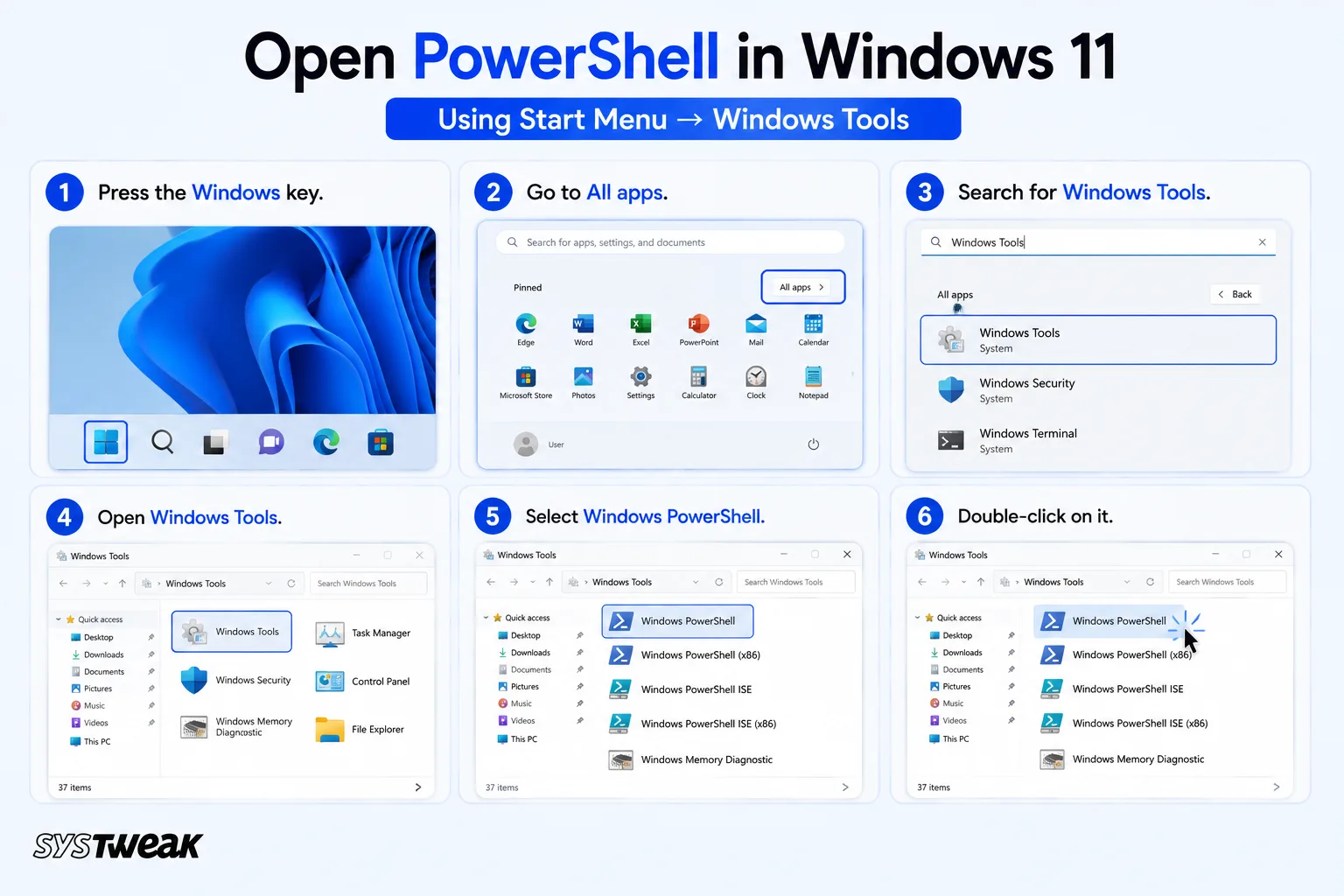
PowerShell can be opened directly from the Start menu.
1. Press the Windows key.
2. Go to All apps.
3. Search for Windows Tools.
4. Open Windows Tools.
5. Select Windows PowerShell.
6. Double-click on it.
It is also possible to run PowerShell as an administrator by right-clicking it.
Method 4. Open PowerShell From the Windows 11 Power User Menu
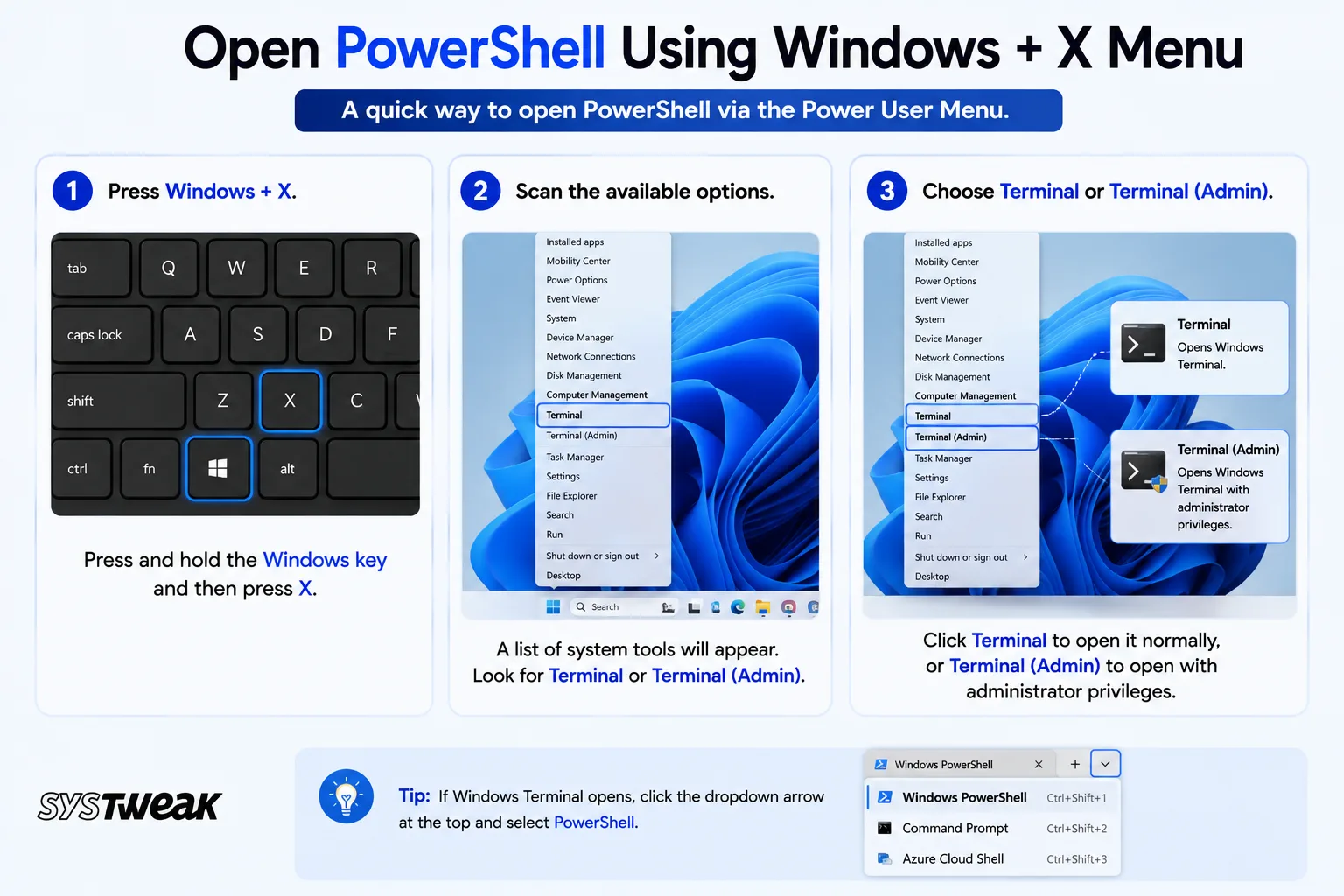
There is an excellent Power User menu that has various shortcut links to important system utilities in Windows 11.
1. Press Windows + X.
2. Scan the available options.
3. Choose Terminal or Terminal (Admin).
In new installations of Windows 11, there would be a new app called Windows Terminal which replaces the old PowerShell application. You should switch between different shells by clicking on the arrow at the top.
Method 5. Open PowerShell Using Task Manager
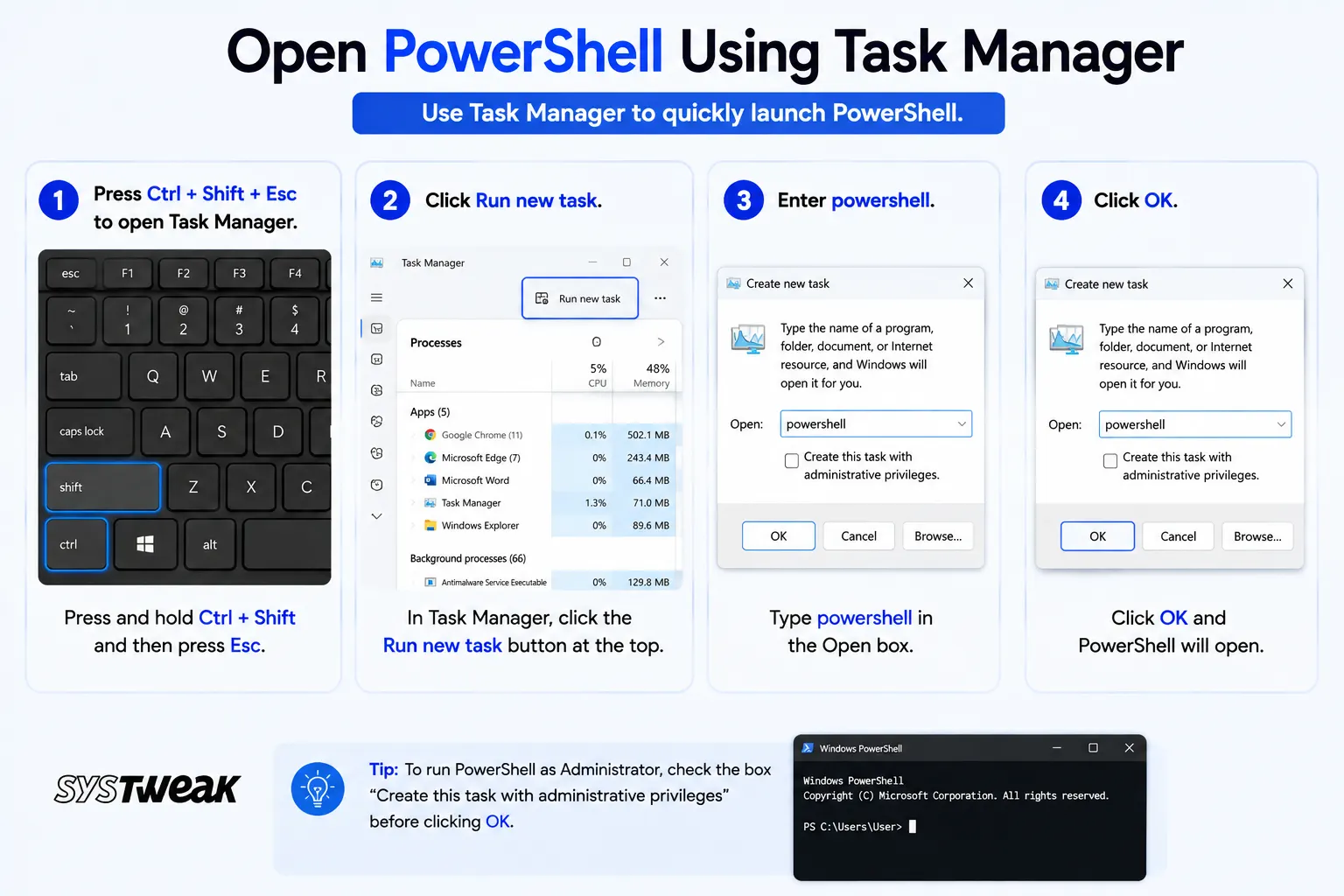
Task Manager not only enables you to view applications and processes. It can be used to run PowerShell too.
1. Press Ctrl + Shift + Esc to open Task Manager.
2. Click Run new task.
3. Enter powershell.
4. Click OK.
To run PowerShell with elevated privileges, choose the option “Create this task with administrative privileges” before clicking OK. Such an approach is recommended when Windows Search or the Start Menu does not function properly.
Method 6. Open PowerShell From File Explorer
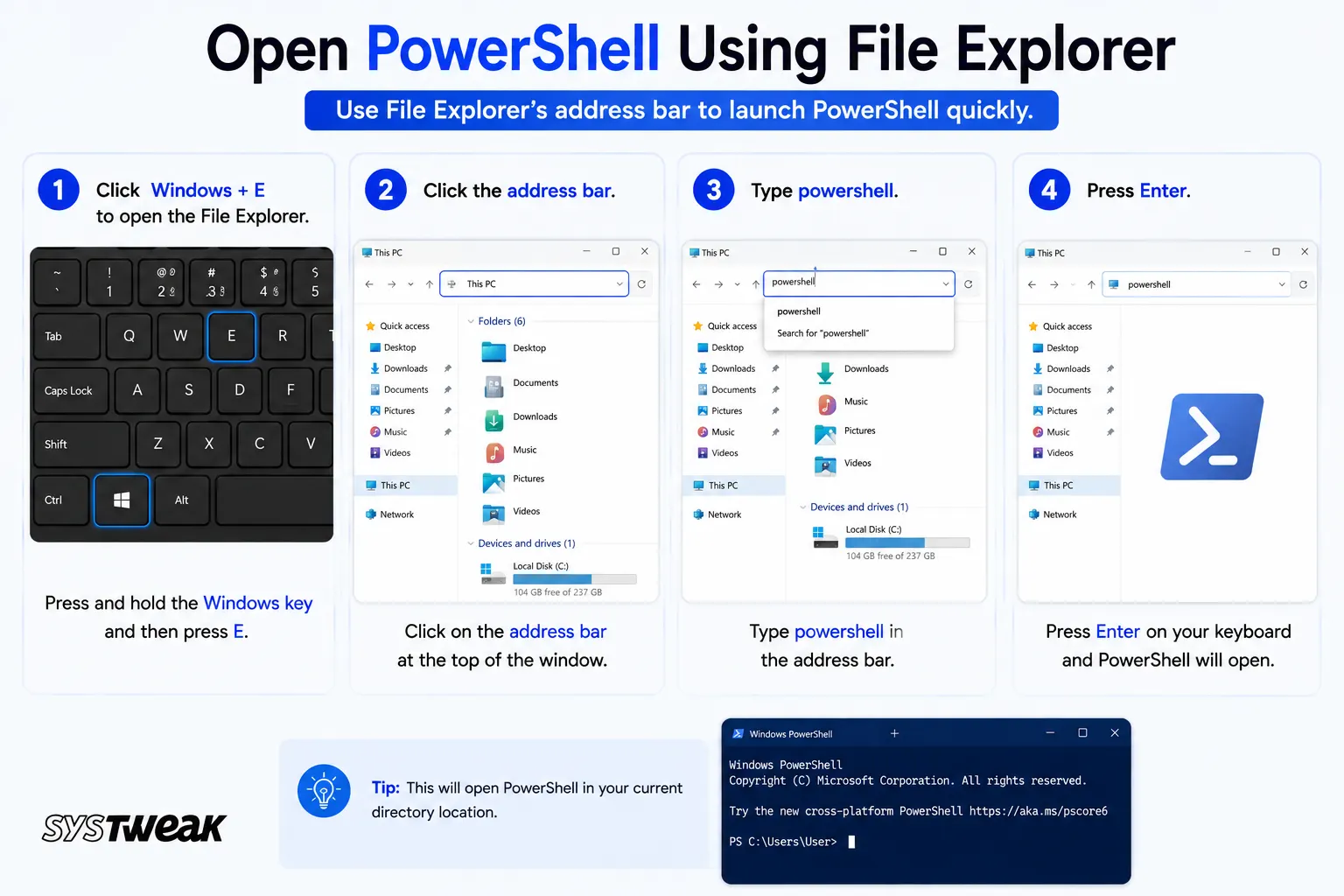
You can start PowerShell directly from the File Explorer.
1. Click Windows + E to open the File Explorer.
2. Click the address bar.
3. Type powershell.
4. Press Enter.
How to Get Help With File Explorer in Windows: A Beginner’s Guide
PowerShell will open with the current directory as its active directory. This method will save time whenever you need to execute a command for the files within the directory.
Method 7. Open PowerShell From Command Prompt
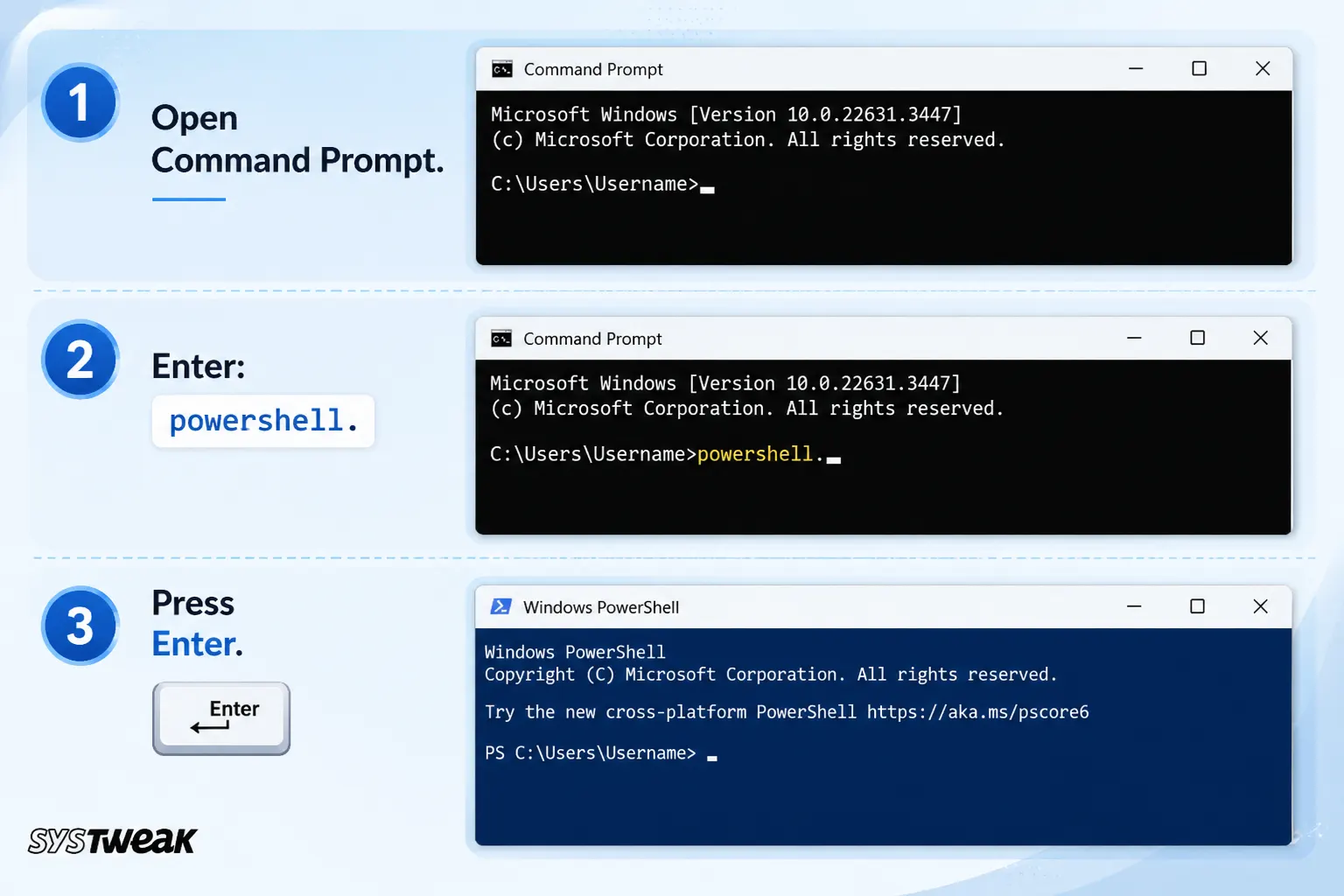
Is your Command Prompt already open? You don’t need to close it and then look for PowerShell.
1. Open Command Prompt.
2. Enter: `powershell.`
3. Press Enter.
Your PowerShell would run inside the already opened Command Prompt window. Go back to Command Prompt by entering: `exit`and pressing Enter.
Method 8. Open PowerShell Using Windows Terminal
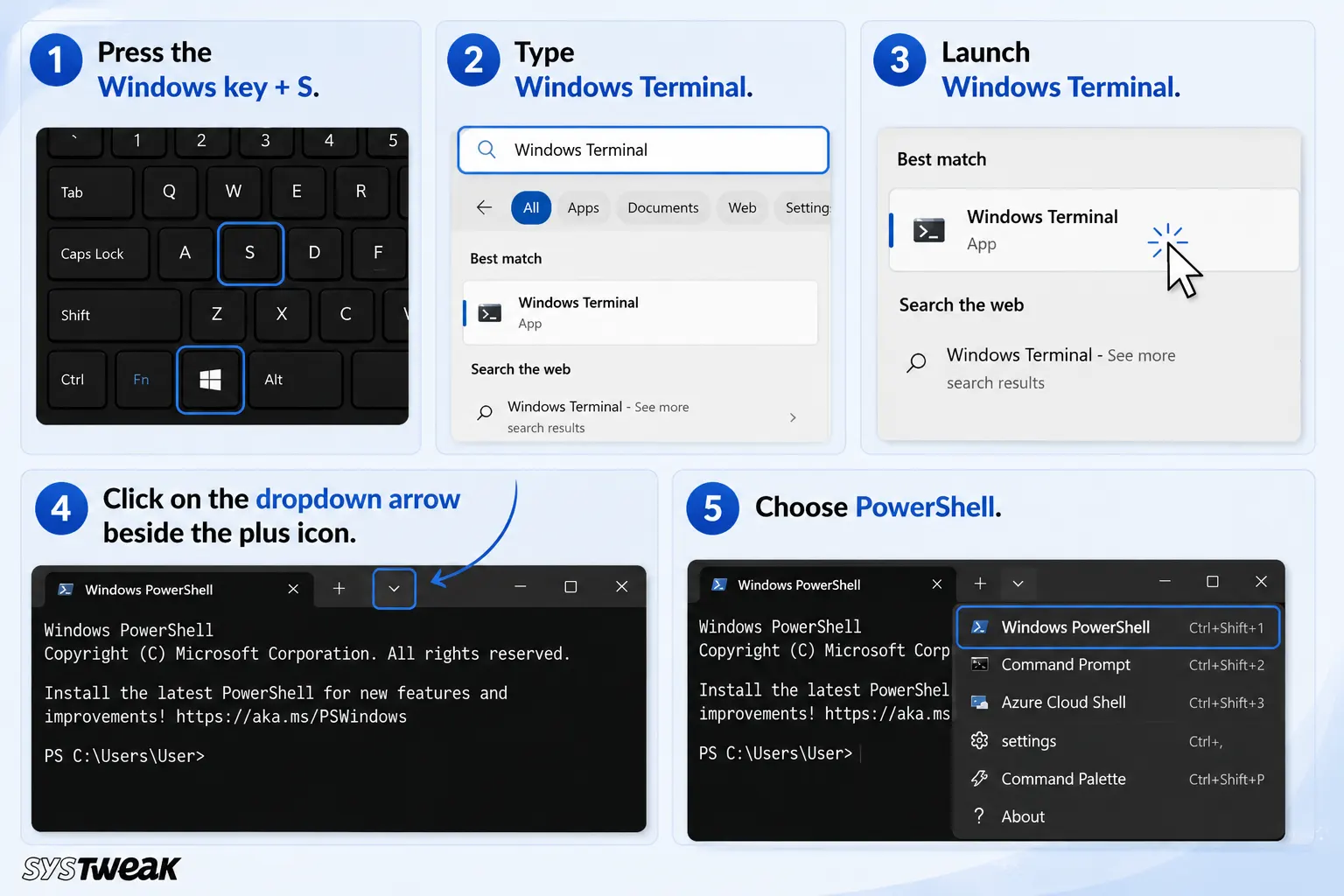
Windows Terminal is the updated version of the command-line interface that comes with Windows 11. The software supports more than one command-line environment, among which are PowerShell and Command Prompt.To open PowerShell via Windows Terminal:
1. Press the Windows key + S.
2. Type Windows Terminal.
3. Launch Windows Terminal.
4. Click on the dropdown arrow beside the plus icon.
5. Choose PowerShell.
How To Fix Run As Administrator Option Grayed Out
PowerShell may be launched either by searching for it directly or through the Windows Terminal app in your Windows 11 setup. If you require elevated privileges, search for Windows Terminal, right-click it, and select “Run as administrator”. Afterwards, choose PowerShell from the dropdown menu.
Method 9. Create a PowerShell Shortcut on the Desktop
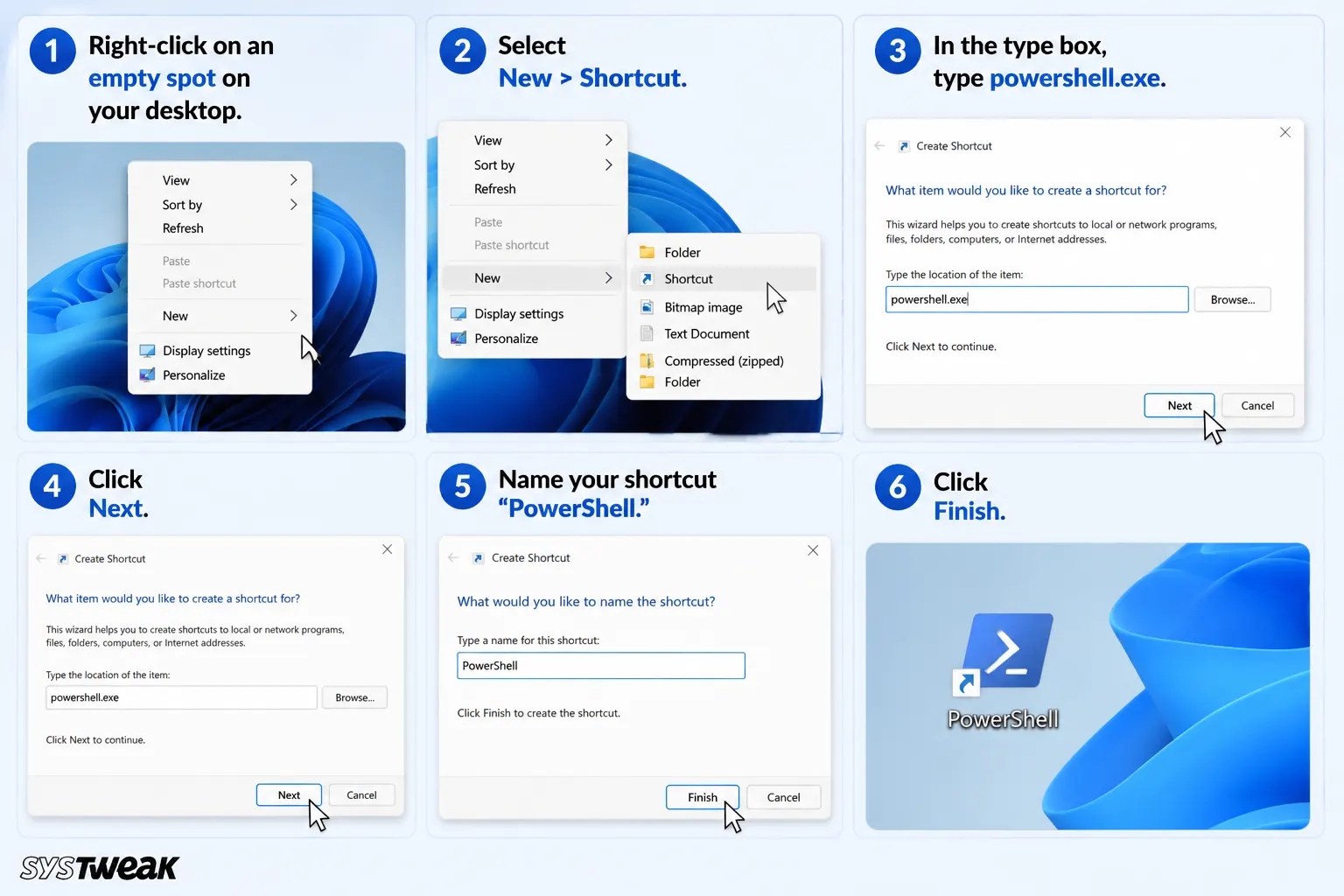
If you find yourself using PowerShell very often, then creating a desktop shortcut will make your life even easier.
1. Right-click on an empty spot on your desktop.
2. Select New > Shortcut.
3. In the type box, type `powershell.exe`.
4. Click Next.
5. Name your shortcut “PowerShell.”
6. Click Finish.
All you have to do now is double-click your shortcut to open up PowerShell. For more advanced users, there are ways to edit the properties of this shortcut to run PowerShell as an administrator.
Method 10. Open PowerShell From a Folder
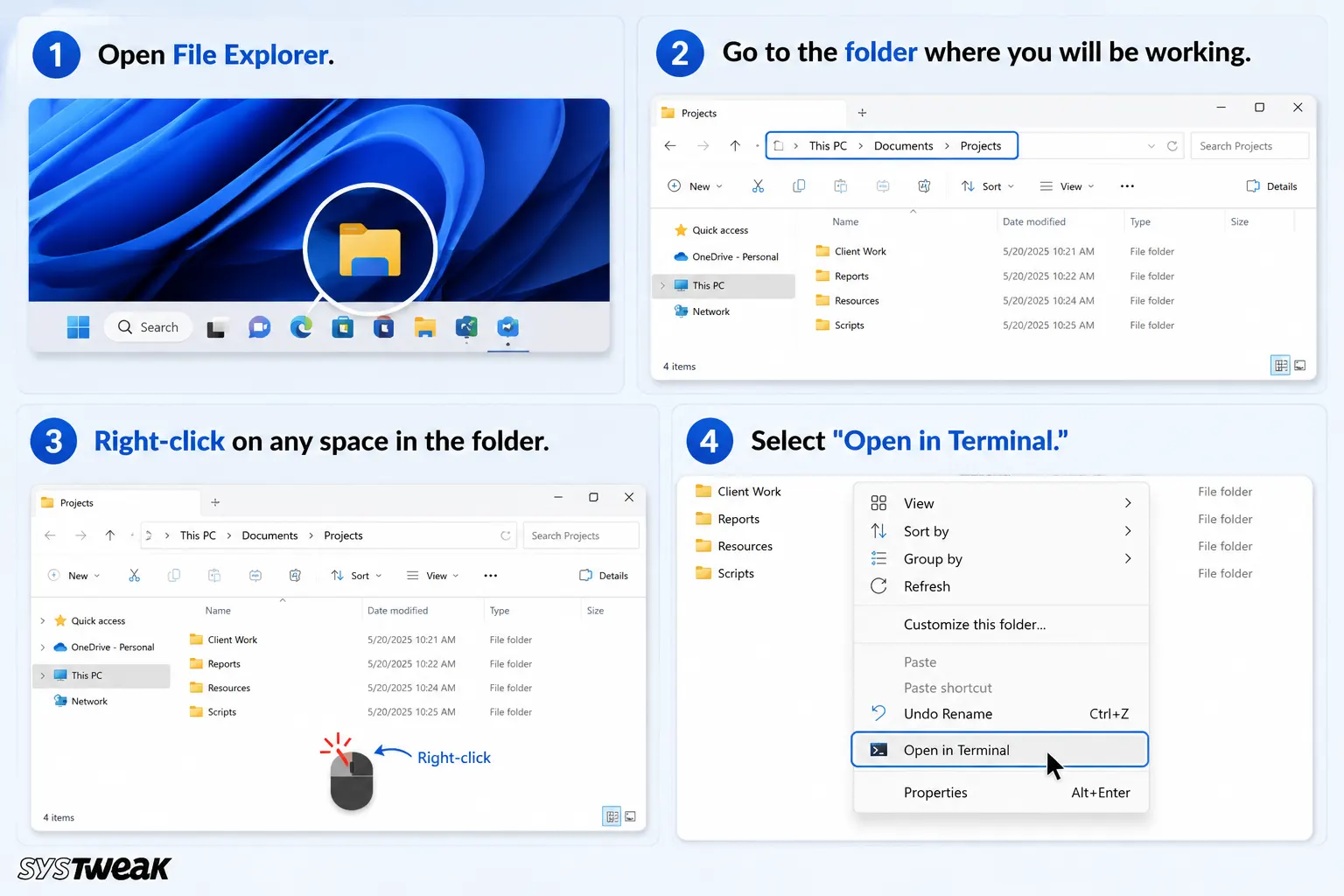
In addition to the above, it also becomes easy to open a terminal in a specific folder using Windows 11.
1. Open File Explorer.
2. Go to the folder where you will be working.
3. Right-click on any space in the folder.
4. Select “Open in Terminal.”
A new terminal window will be opened in that folder. However, if the default profile is PowerShell, then the terminal will open in PowerShell directly. This becomes especially useful when you are using files or folders in a script and do not want to navigate to that location in PowerShell.
Bonus: How To Open PowerShell as Administrator
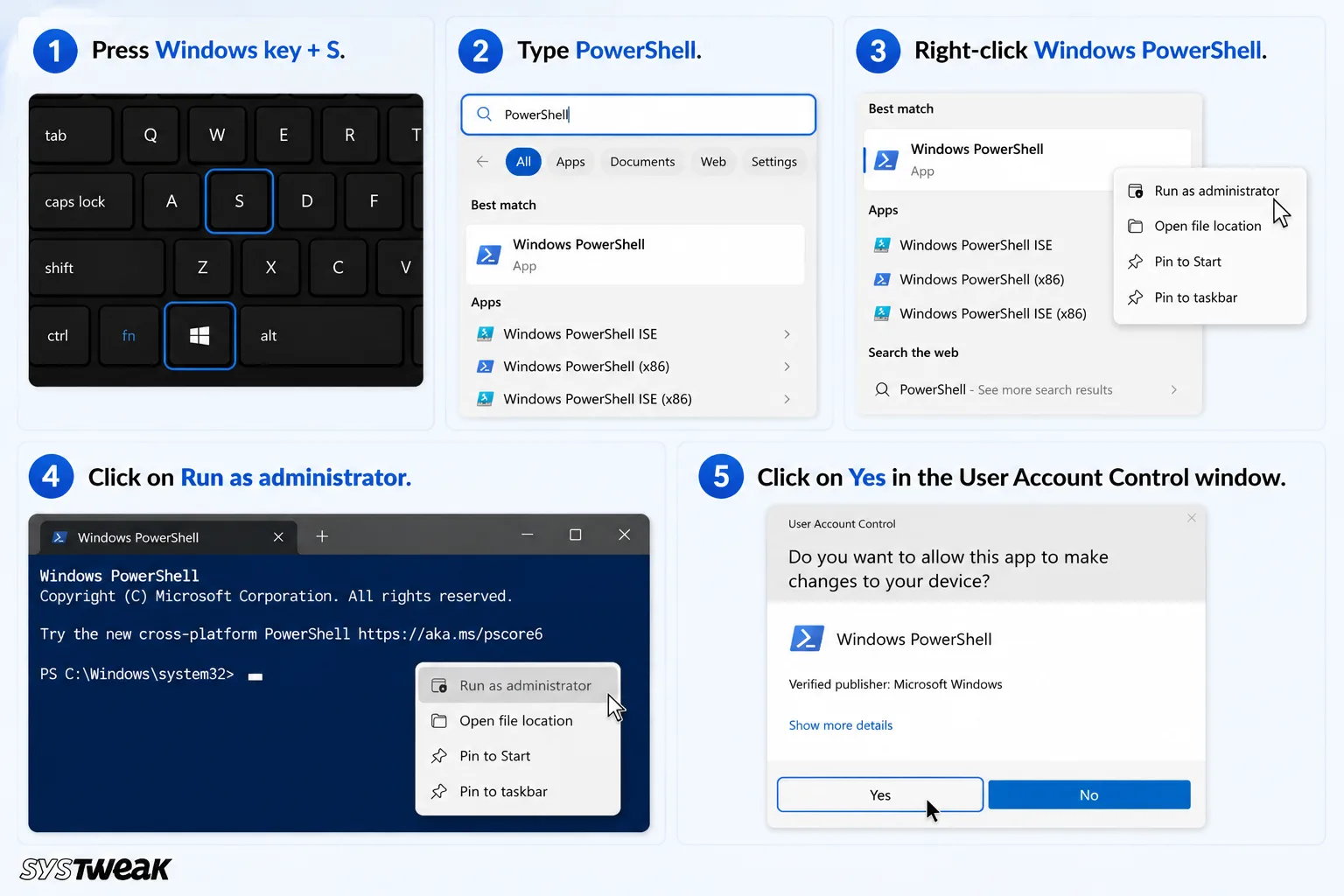
Some instructions require administrative rights. To achieve this, run PowerShell as an administrator. You may do it in this way:
1. Press Windows key + S.
2. Type PowerShell.
3. Right-click Windows PowerShell.
4. Click on Run as administrator.
5. Click on Yes in the User Account Control window.
The title of the window will say Administrator: Windows PowerShell. Keep in mind that administrator-level PowerShell can access your computer more, so be careful with commands you write.
Conclusion
PowerShell is one of the most useful command-line utilities in Windows 11. With its help, you can not only execute commands and manage files but also automate processes and fix issues in your system.
Good news is that there is no need to remember complicated procedures in order to open PowerShell. You can do this using the Windows Search, Run, Task Manager, File Explorer, Windows Terminal, or Power User menu.
If you often use Windows commands, then you may want to create a desktop shortcut or use Windows Terminal.