If you have ever worried about your PDF getting copied
Have you ever shared a PDF and worried someone might copy it or pass it off as their own? That’s where a watermark comes in. A watermark is simply text, a logo, or even an image placed on your PDF pages to show who the document belongs to, or to add important details like your brand, copyright, or identity. Think of it as a personal stamp on your file. And nowadays people don’t add watermarks just to say Draft or Final and give the status of the document. They add them for ownership, personalization, and protection, like putting their brand logo, signature, or even a copyright mark. It’s more about making the PDF theirs and ensuring others recognize its source or can’t misuse it easily.
In this guide, I’ll explain what a watermark in a PDF really is, why it’s useful for personalization and security, and show you step-by-step how to add one on Windows, both using Systweak PDF Editor and Microsoft Word. (your all-in-one PDF tool).
What is a Watermark in a PDF?
Watermarks are basically those labels or stamps that are usually placed in the background of the PDF page content. It can be any “Text”, for example your company’s name or confidential, anything, or an “Image”, for example your company logo. You must have seen them in contracts, reports, or drafts to indicate status, ownership, or to prevent misuse.
Why You Need to Add a Watermark in PDF
Here are some common reasons people use watermarks:
- Security: Mark files as Confidential or For Internal Use Only.
- Branding: Add your business logo to keep documents professional.
- Draft Indication: Clearly show that a file is still in draft mode.
- Copyright Protection: Prevent others from misusing or claiming your document.
- Professional Look: Makes your files look official and trustworthy.
Ways to Add a Watermark to a PDF on Windows
1. Add a Watermark to a PDF Using Systweak PDF Editor
If you want a simple and reliable way, use Systweak PDF Editor:

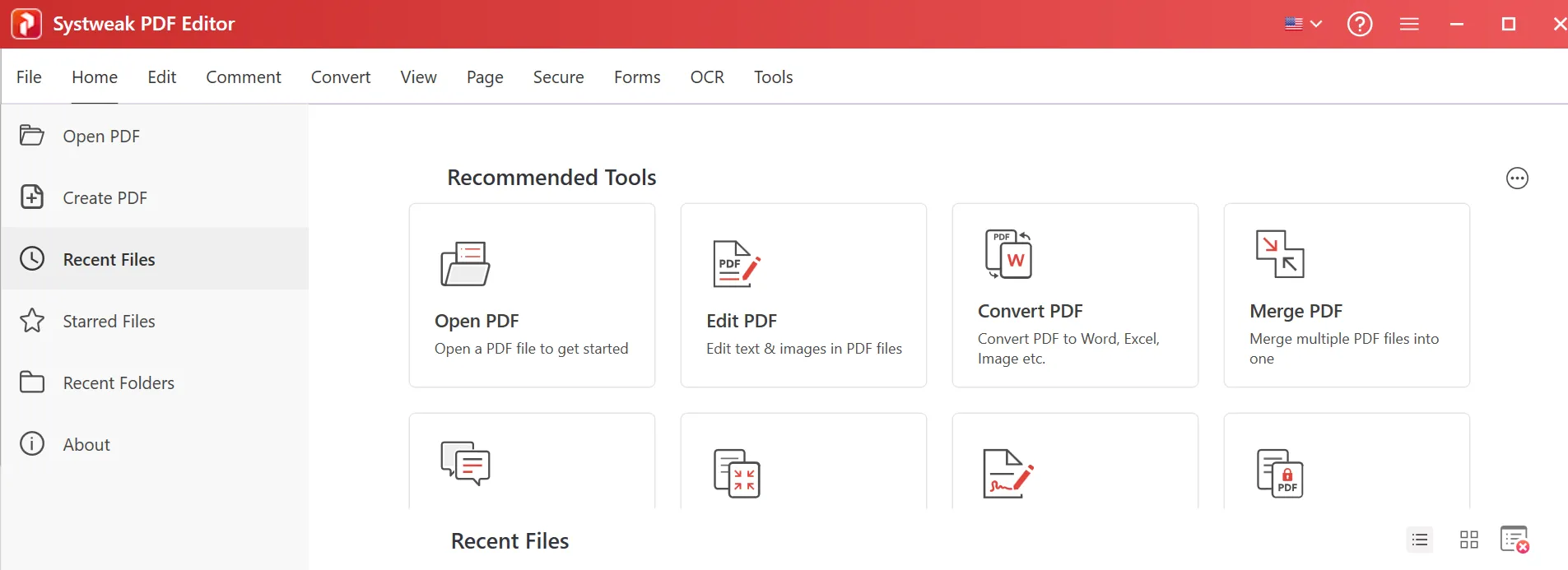
1. Download Systweak PDF Editor in your system and open it.
2. Open the PDF in which you want to add a watermark in.
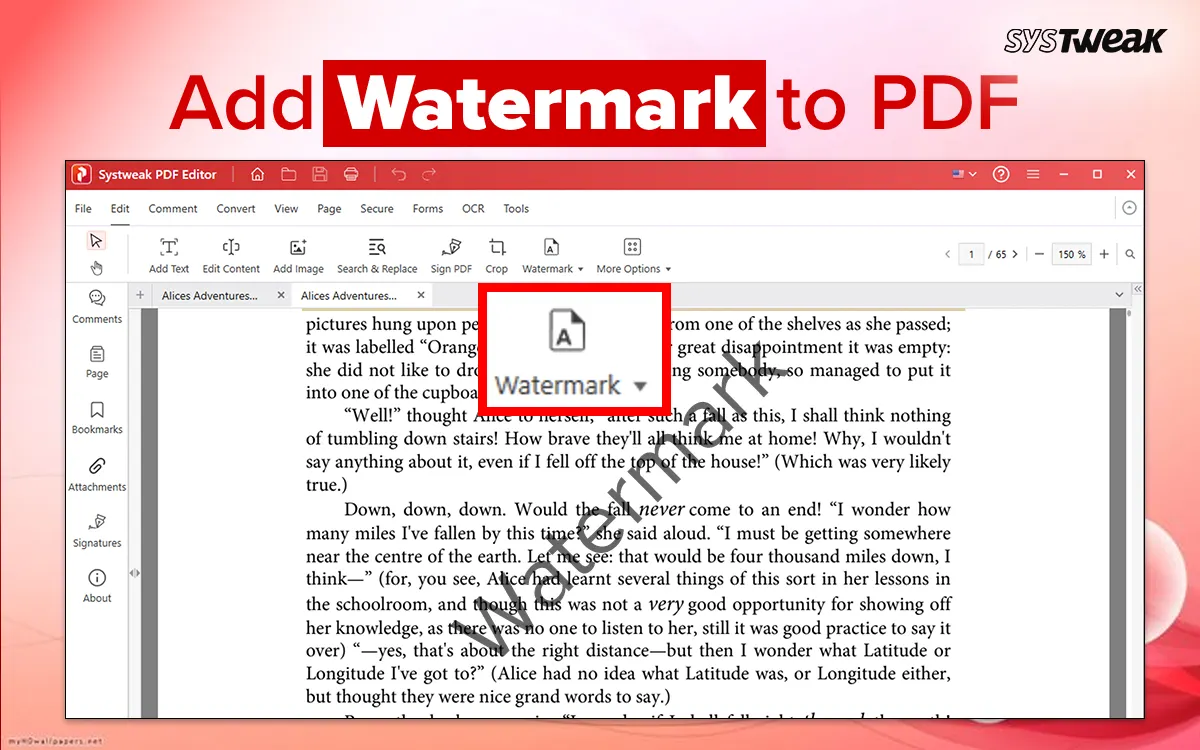
3. Go to the Edit Tab

4. And click on Watermark.
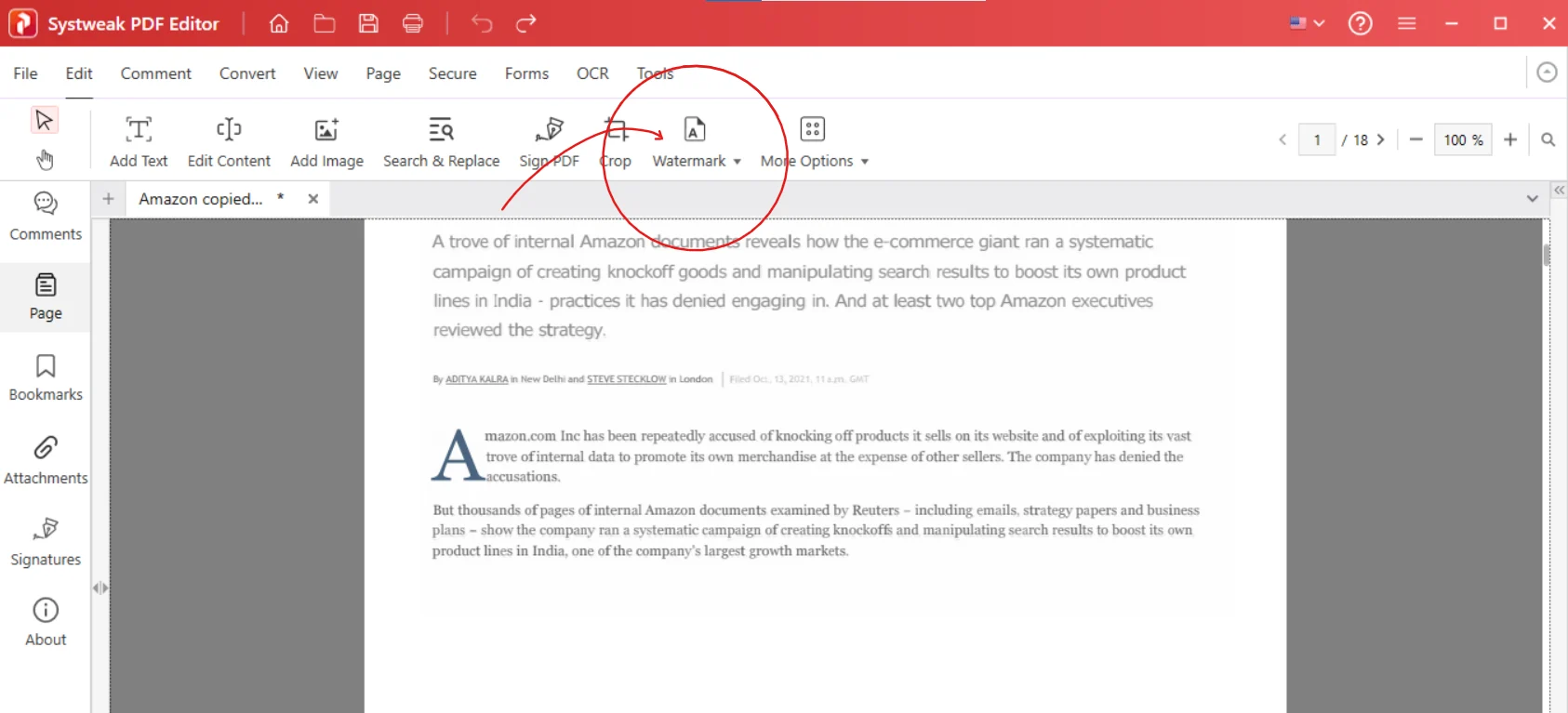
5. Choose whether you want to Add Watermark or Remove Watermark.

6. For adding a Watermark, click on Add Watermark.

7. You’ll see something like this
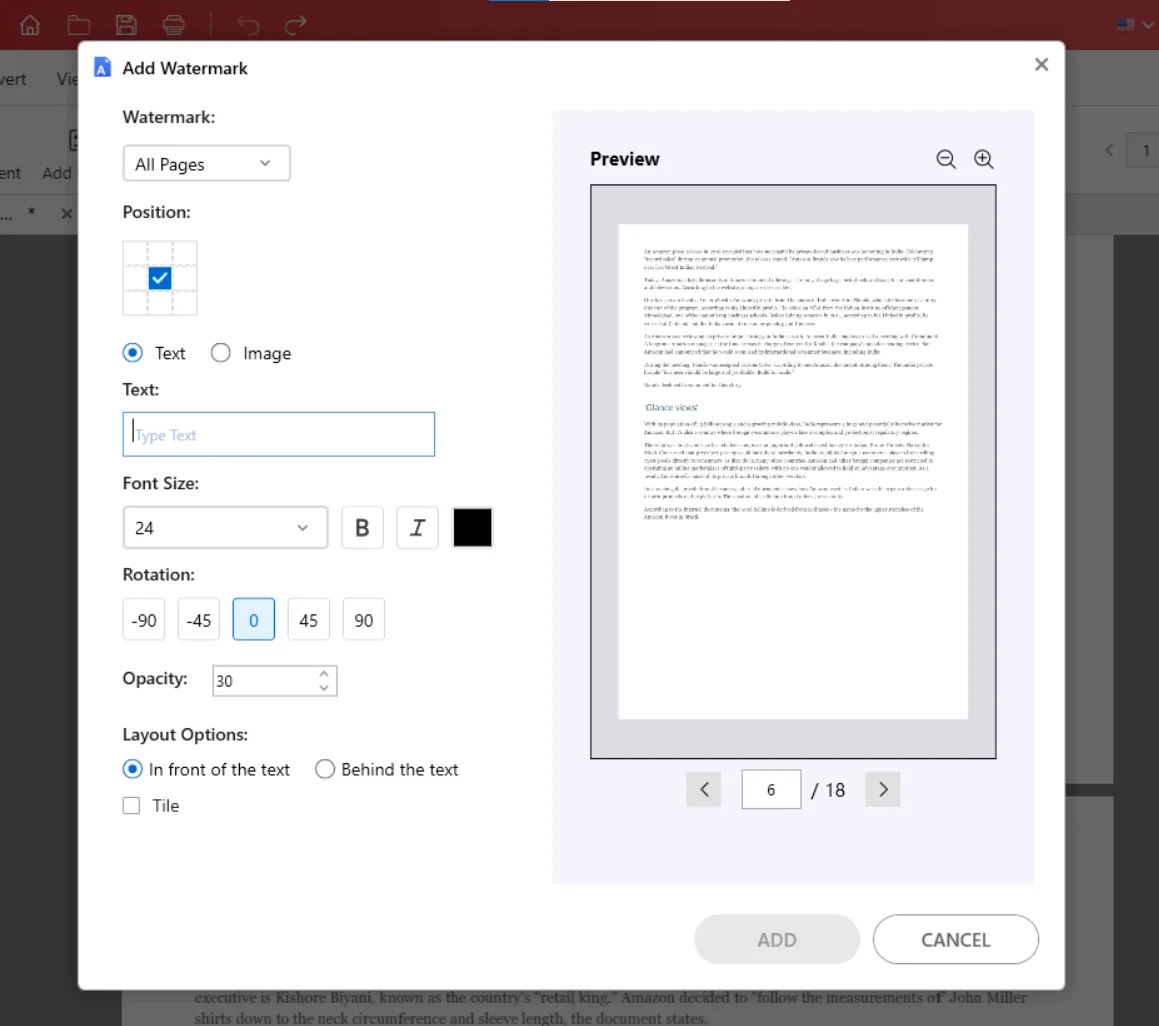
8. Here you can set all your preferences for your Watermark
9. Start with selecting pages from the options on which you want a watermark to be added.

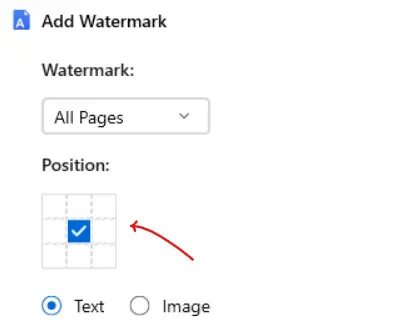
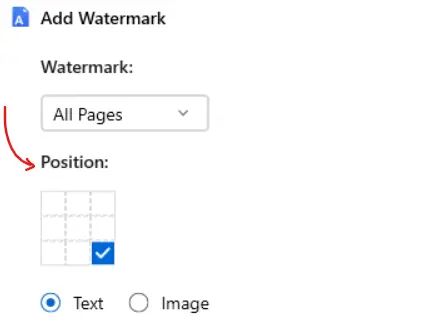
10. Then set the position of the mark, because watermark placement really matters, your watermarks should not overshade your document’s content or make it unclear.


11. Then set the watermark’s form, a Text or an Image.
If you want to add a “Text” as your watermark, then select Text and type the Text in the column below.

For a Text watermark set other preferences as well, like the Font size, Bold text, Italic style, and colour of the text.
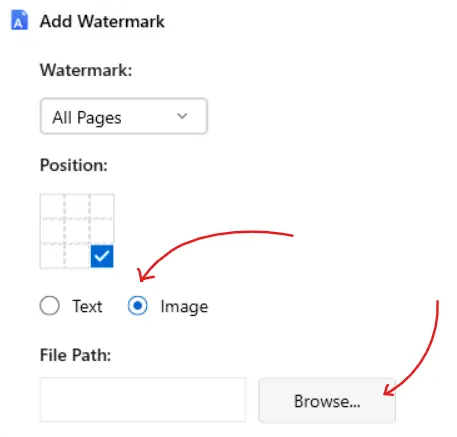
If you want to add the watermark in an Image form then select “Image” and click on Browse to pick it from your system.
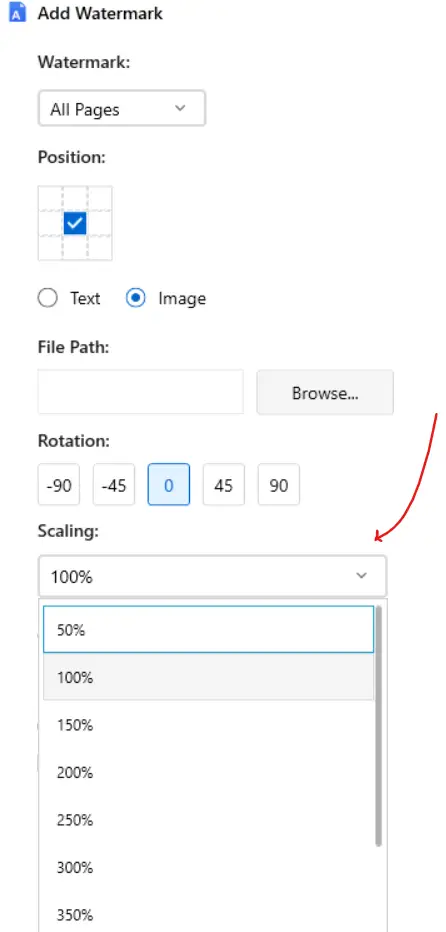
12. You can rotate your watermarks to match your needs and adjust them on the page to make sure they look good.
13. If you have selected “Image watermark” then you’ll see an option “scaling”, this is to adjust the image as your needs. (this scale will zoom in or zoom out the image it make it fit in)
14. Then set Opacity of the watermark
15. Lastly set the Layout option and choose whether you want your watermark to be in front of the text or behind the text.
16. Once everything is set, click on Add, and your Watermark will be added in a second.
For example, this is all that we set.
 And clicked on ADD, our watermark was added.
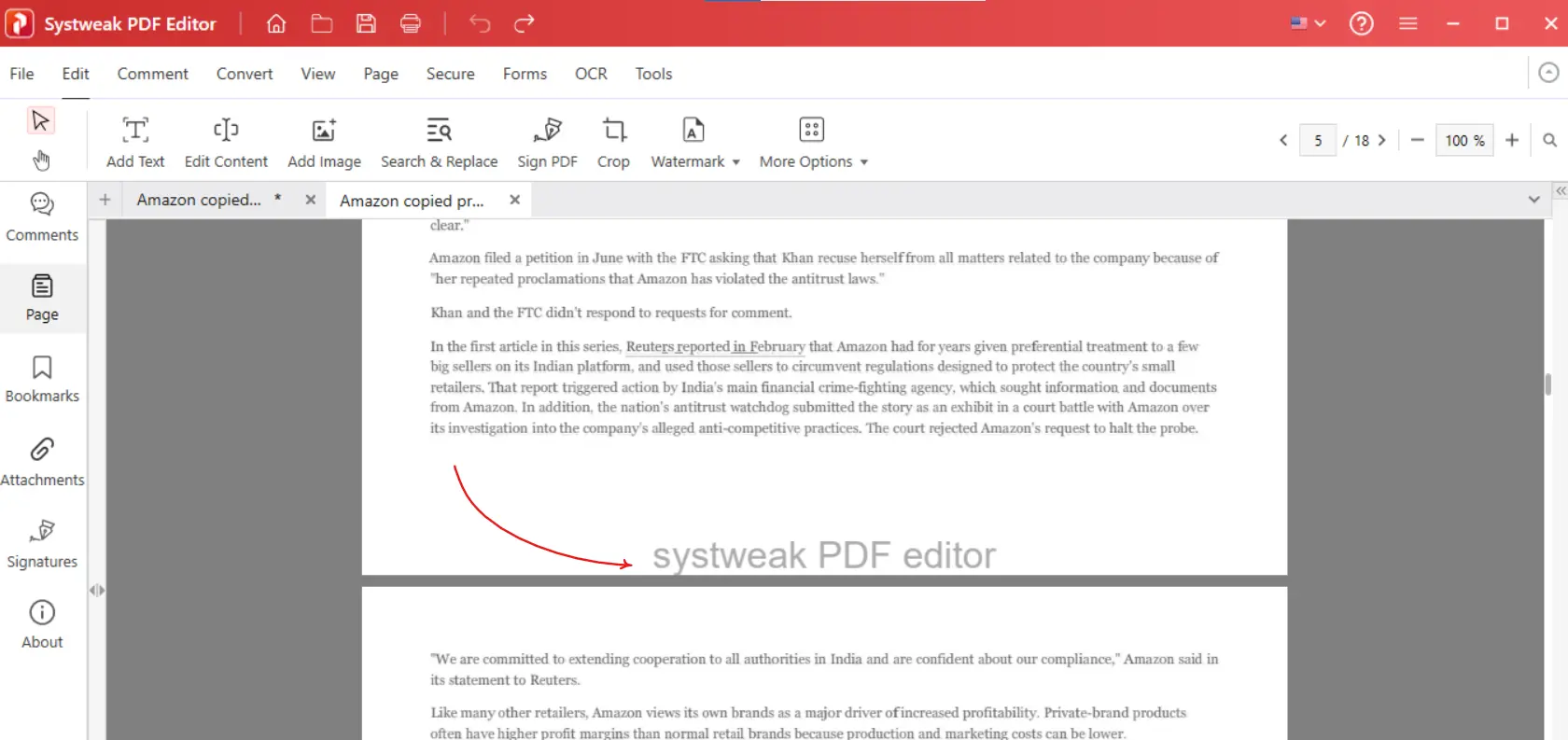
17. Save your PDF after viewing it, go to File and click on Save As
That’s it, your file now has your mark of security or branding.
2. Use Microsoft Word to Add a Watermark to a PDF
If you don’t have a PDF editor, don’t worry you can use Word as a workaround:
1. Open Microsoft Word

2. Open your PDF in Microsoft Word.

3. Then click on the Design tab from the top menu.

4. You’ll see a Watermark option on the right corner in the Design tab, click on it.

5. You can choose from the built-in options like Confidential, Do not copy, etc.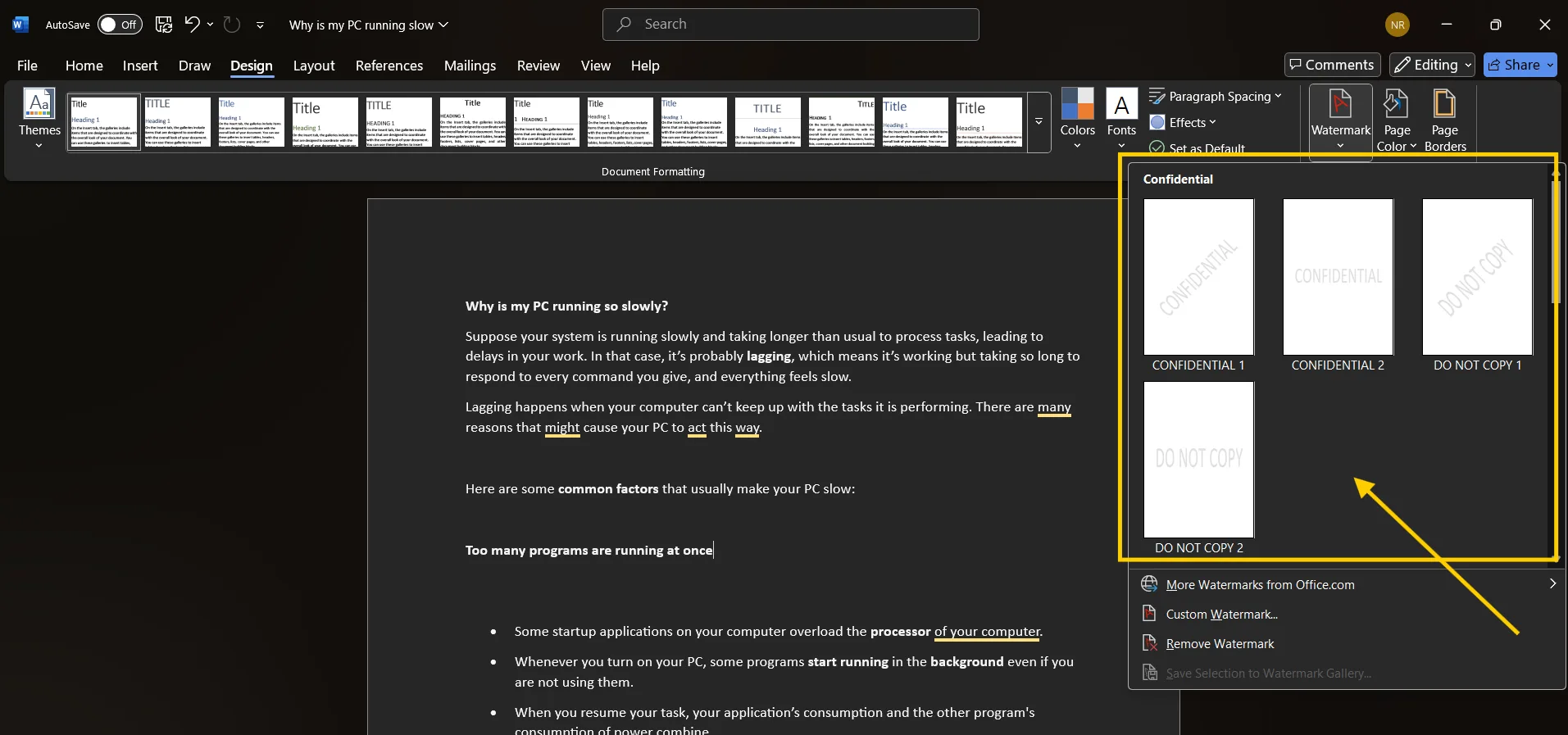
6. You can add your custom watermark as well.
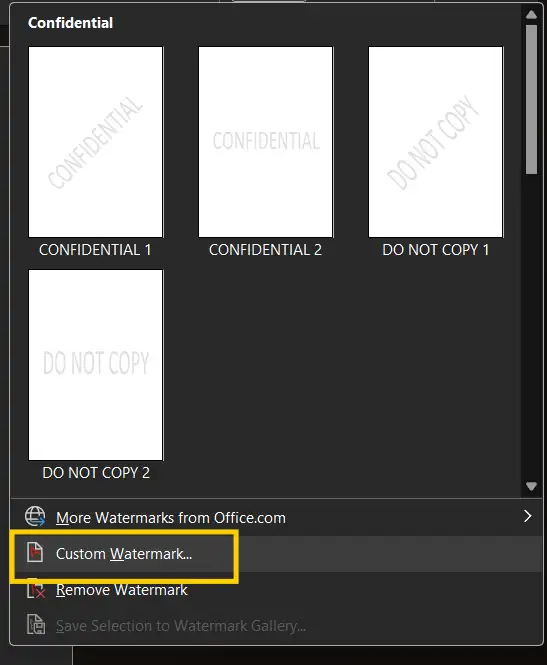
7. Click on Custom Watermark and you’ll see something like this
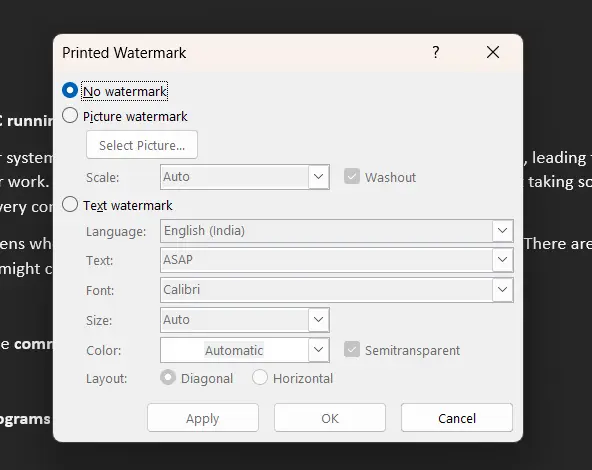
8. Here you can select if you want to add a Picture Watermark or a Text Watermark.
If you want to add a picture watermark, select it from your system and scale it as your needs.

If you want to add a Text watermark, select Text watermark and set your preferences.
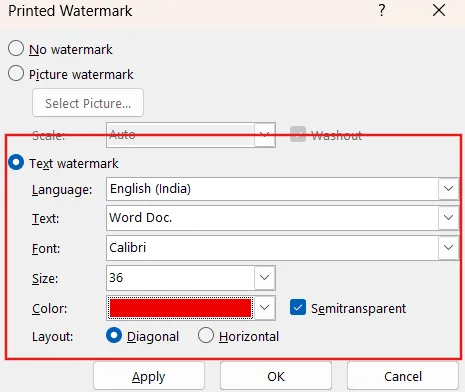
9. Once done click on Apply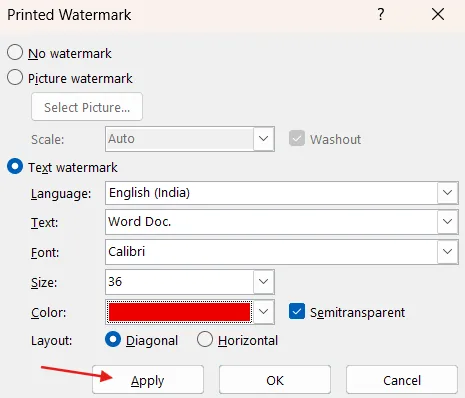
10. Your watermark will be added on your PDF. View it.

11. Now save your PDF again, go to File and click on Save As.
Keep this in mind: Sometimes formatting changes when importing/exporting between Word and PDF.
Conclusion
Adding a watermark to your PDFs is just a way to protect your content, mark ownership, or keep them professional. So whether you want to mark your file as confidential, or put your logo, or simply label a document as draft. And having a PDF editor like Systweak PDF Editor makes this whole process even easier and quick.
So from now on add a watermark before sharing any important document.
FAQs
1. Can I add a watermark to a PDF without Acrobat?
Yes of course! There are many tools in the market like Systweak PDF Editor or even Microsoft Word that let you do it easily.
2. Will adding a watermark increase file size?
Usually not much. Adding images may slightly increase the size, but text watermarks barely affect it the original size.
3. Are online watermarking tools safe for sensitive documents?
Not always, it’s better to use a trusted offline tool like Systweak PDF Editor if your document is confidential.
4. Can I make a signature image as a watermark?
Yes! Just upload your signature image and set it as a watermark. Perfect for contracts or approvals.
Recommended : How To Remove Watermark From PDF