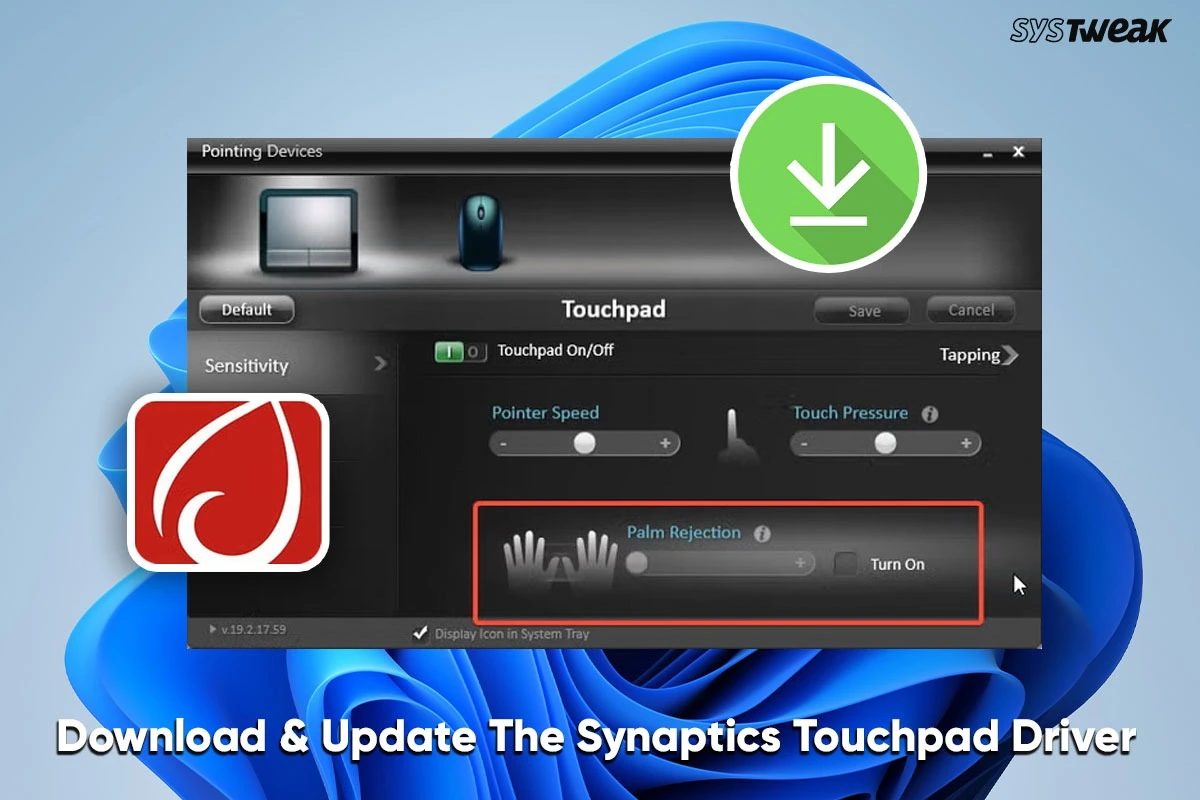

Synaptics TouchPad drivers are essential for all laptops using Synaptics hardware. These drivers help facilitate communication between hardware and software. In this regard, it can be stated that Synaptics TouchPad drivers are no different. If these drivers become outdated, corrupt, or even deleted unintentionally, it is impossible for you to use your TouchPad on your laptop. If you are not in the mood to go out and purchase another mouse for your laptop, it is high time we began downloading the Synaptics TouchPad drivers for your laptop.
What Is Synaptics TouchPad Driver, And Do You Need It?
Synaptics TouchPad Driver helps your TouchPad communicate with its firmware, enabling it to translate its movement to perform functions like clicking, highlighting, and scrolling for your mouse.
Read Also : How to Fix Mouse Highlighting/Selecting Everything on Windows
If your ToucPad is not working, not responding, or giving you trouble, it is probably because your driver is outdated. You can download this driver and configure it according to your needs to resolve this problem and start using your Synaptics TouchPad Driver. You can even set your cursor size and sensitivity using this software.
Download and Update Synaptics Touchpad Driver On Windows 11/10
Method 1: Download From The Synaptics Website
All hardware manufacturers maintain an official website where they upload the latest drivers and other resources for their customers. In the past, the manufacturers used to provide CDs with drivers, and customers used to receive emails with driver links. But now, drivers have been made public, and anyone can access them through the official OEM website. Synaptics touchpad drivers are available through Lenovo or Dell OEM websites. Here are the steps to download the Synaptics Touchpad Driver through the manufacturer’s website.
1. Navigate to the Official Lenovo or Dell website by clicking on the relevant link.
Lenovo Synaptics Drivers
Dell Synaptics Drivers
2. Scroll down the page until you see the download button.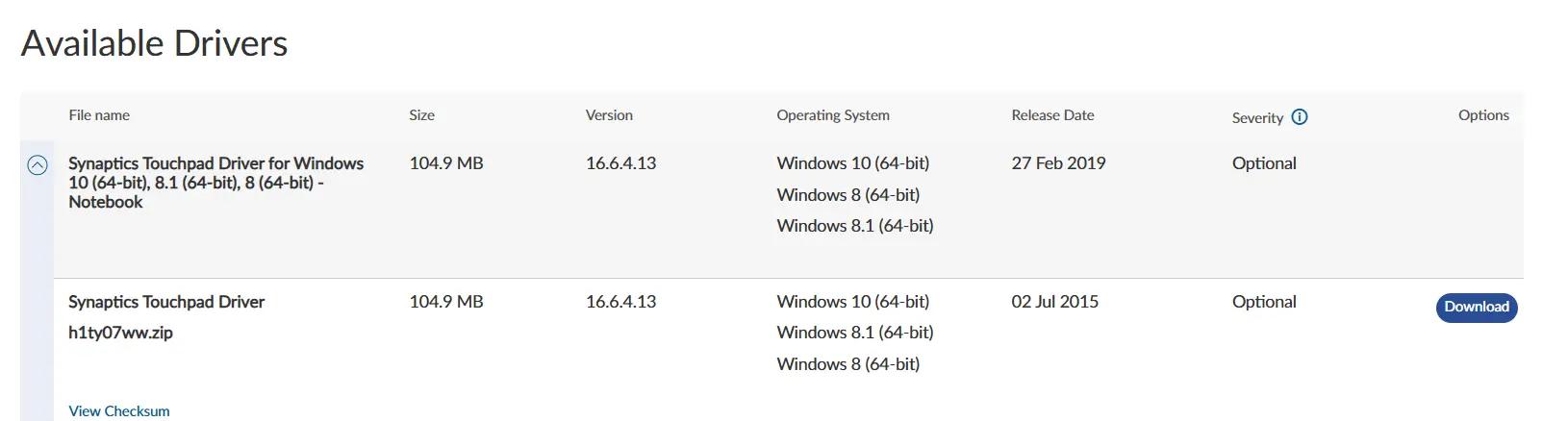
3. Click on the Download button and fill in the required information.
4. After the file has been downloaded, double-click on it and follow the onscreen steps to complete the instructions.
5. Restart your PC after the installation process has been completed.
Method 2: Update Windows
Microsoft provides free updates to its users, which contain new features, driver updates, bug fixes, and security features. Driver updates can be obtained from the Microsoft server. Here are the steps to perform a complete update of the Windows OS.
1. Press Win + X to open the Windows Power Menu and choose Settings.
2. Click on the Windows Update Tab in the left panel.
3. Next, click on the “Check For Updates” button on the right side.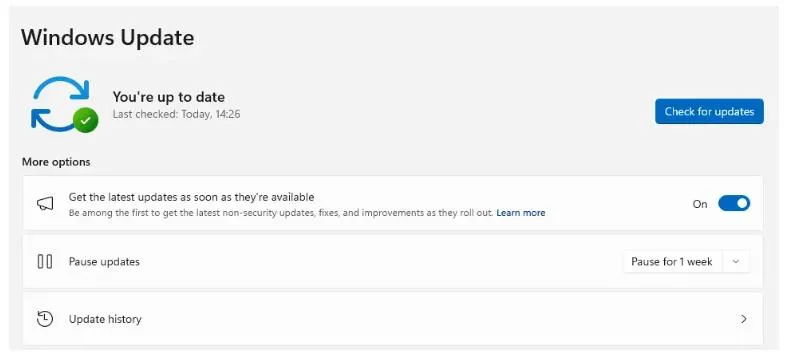
4. Windows will automatically check for updates, download, and install them on your PC.
5. Next, click on Advanced Options.
6. On the new page, click on Optional Updates under Advanced Options.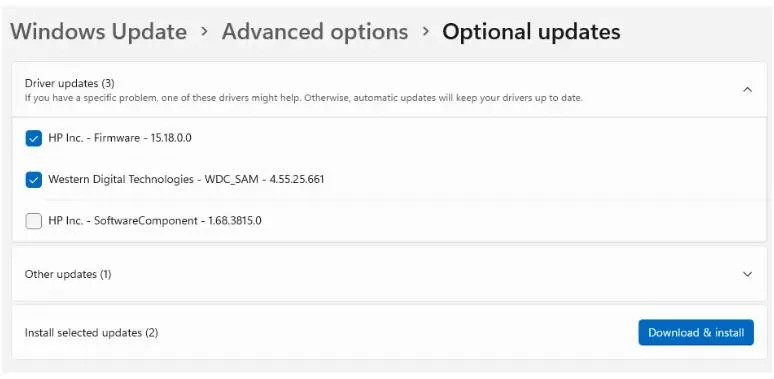
7. Finally, click Driver Updates and check the box before the drivers you wish to update.
8. Click on the Download & Install button and wait for the update process to complete.
9. Restart the computer.
Method 3: Use The Device Manager
Microsoft offers an in-built driver updater tool to all Windows users. The tool is known as the Device Manager. This tool facilitates the downloading of all necessary drivers from the Microsoft Server. Here are the steps to use the Device Manager.
1. Press the Windows + X keys to launch the Windows Power Menu.
2. Choose Device Manager from the list of options.

3. A new window will open. You must locate and click on the Mice and other pointing devices category to expand it.

4. Locate the Synaptics Touchpad option and right-click to view the context menu.
5. Choose Update Drivers and follow the onscreen options to download and update the latest Synaptics Touchpad Drivers.
Method 4: Use Advanced Driver Updater
Advanced Driver Updater is an amazing tool that can scan your computer, identify abnormalities in your drivers, and fix them for you. You just have to click a few buttons, and new and upgraded ones will replace all your outdated, missing, and corrupt drivers. Here are the steps you have to follow to use Advanced Driver Updater.
1. Download and install Advanced Driver Updater from the official website or click the download link below.

2. Once installed, launch the software and click the Start Scan Now button on the app’s home screen.

3. Wait for the scan to complete, and a list of driver anomalies will appear on the screen.

4. Locate the Synaptics Touchpad Driver among the list and click on the update link next to it.
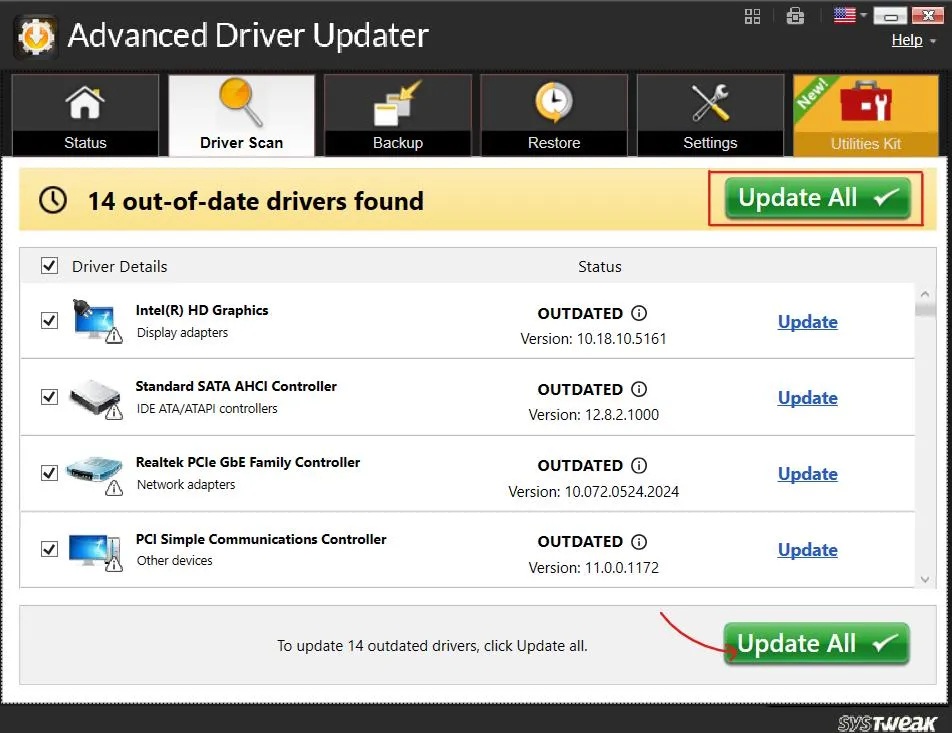
5. The update process will now begin. Wait for the driver to be updated completely and reboot your PC.
Bonus Tip: Reinstall TouchPad Drivers
1. Open Device Manager.
2. Right-click on either Synaptics/Elan device > select Uninstall device > confirm the action and restart the PC.
3. Upon restart, the default driver will be automatically installed.
4. Now try to use your TouchPad.
Conclusion:
Synaptics Touchpad drivers are essential for utilizing Synaptics devices and for smooth laptop functioning. If you do not have these drivers installed, it would be difficult for you to work on your laptop’s touchpad, unless you have an external mouse connected to your laptop.
We hope that the above-mentioned methods will help you download and update your Synaptics Touchpad drivers. The best method to update your drivers without having to search for them on the internet is to use Advanced Driver Updater. It is an exceptional tool for updating drivers on your computer, enabling you to work smoothly on your laptop.
Recommended :
Synaptics Pointing Driver Update for Windows 11/10 — Easy Steps Inside