

Introduction
With the help of Modern Standby, users can synchronize emails, receive notifications, and download updates even if their PC looks like it is sleeping. Modern Standby is considered one of the most problematic power features introduced in Windows 11. Users complain about high battery consumption, overheating of laptops that are kept in backpacks while being in sleep mode, wake-up at unexpected times, fans running despite the PC being in sleep mode, etc.
What Is Modern Standby in Windows 11?
Modern Standby (S0 Low Power Idle) is a low-power state where the CPU remains partly operational but still reduces power consumption. As opposed to the classic S3 Sleep, Modern Standby enables the computer to perform tasks in the background, such as:
- Emails reception
- Cloud file syncing
- Software updates
- VoIP alerts
- Scheduled maintenance tasks
It works just like modern smartphones, which are always on but with the display switched off.
Why Disable Modern Standby?
Even though it seems like a good feature, Modern Standby may not work well on all Windows machines. Some reasons why people may turn off Modern Standby include the following:
- Battery drains faster during sleep mode
- Computer gets hot in a bag
- Battery drains unexpectedly overnight
- Fans keep running
- Unnecessary wake-up cycles
- USB devices stay on
- Linux dual boot is more compatible
- Prefer old-style Sleep (S3)
Check Whether Your PC Uses Modern Standby
Before making any modification, ensure that your system does support Modern Standby mode.
- Windows + X.
- Choose Terminal (Admin).
- Enter: cmd powercfg /a
- Press Enter.
If you have the ‘Standby (S0 Low Power Idle)’ option, your PC supports Modern Standby mode.
If you find ‘Standby (S3)’, it means your computer already has the traditional Sleep feature.
Methods On How to Disable Modern Standby in Windows 11?
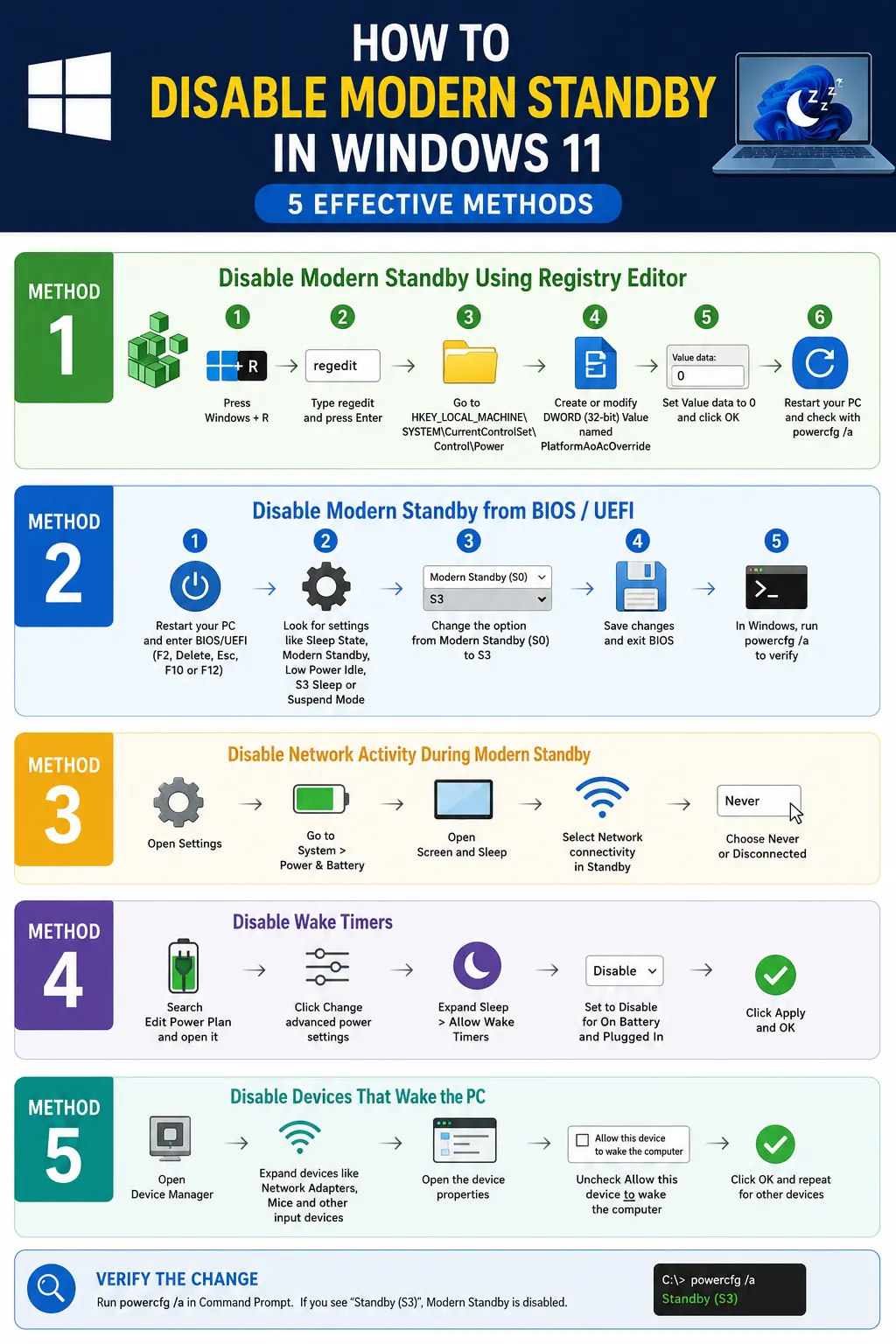
Method 1: Disable Modern Standby Using Registry Editor
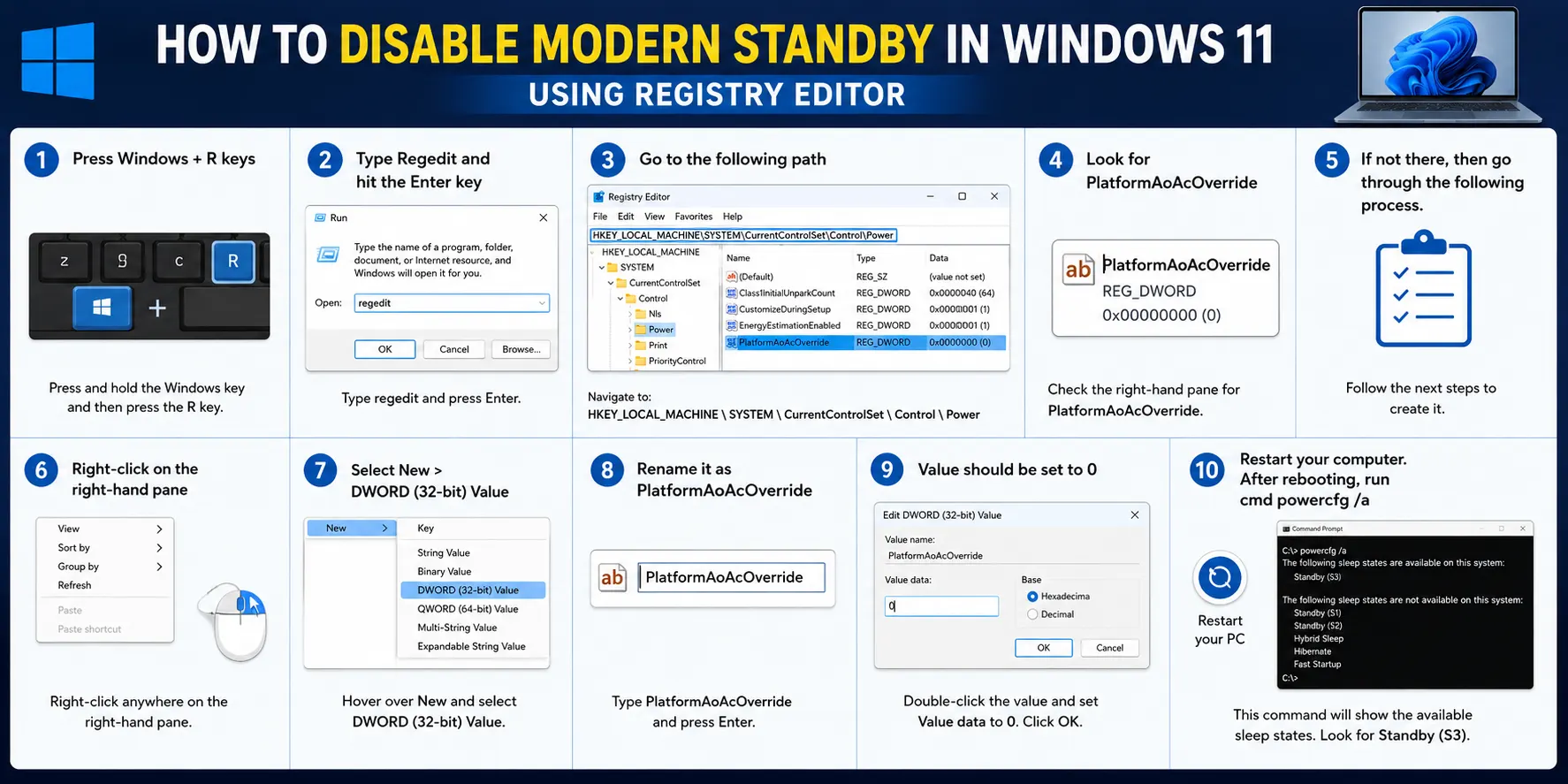
It will work on some compatible computers.
- Press Windows + R keys
- Type Regedit and hit the Enter key
- Go to HKEY_LOCAL_MACHINE \ SYSTEM \ CurrentControlSet \ Control \ Power
- Look for PlatformAoAcOverride
- If not there, then go through the following process.
- Right-click on the right-hand pane
- Select New > DWORD (32-bit) Value
- Rename it as PlatformAoAcOverride
- Value should be set to 0
- Restart your computer.
- After rebooting, run cmd powercfg /a
Note : When S3 Sleep is seen, it will mean that the change was successful.
Method 2: Disable Modern Standby from BIOS or UEFI
Many vendors provide the option of toggling between Modern Standby and S3 Sleep modes.
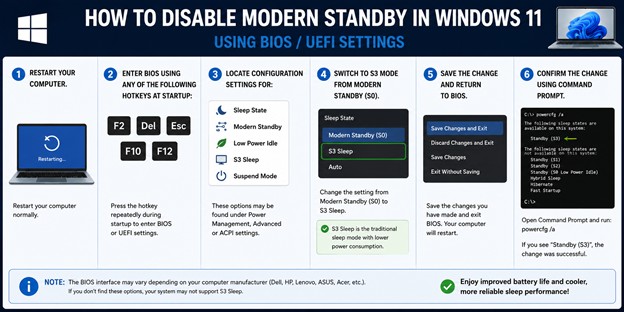
- Restart your computer.
- Enter BIOS using any of the following hotkeys at startup: F2, Del, Esc, F10, or F12.
- Locate configuration settings for Sleep State, Modern Standby, Low Power Idle, S3 Sleep, and Suspend Mode.
- Switch to S3 mode from Modern Standby (S0).
- Save the change and return to BIOS.
- Once Windows loads, execute the cmd powercfg /a command to confirm the change.
Method 3: Disable Network Activity During Modern Standby
Should your computer lack support for completely turning off Modern Standby, then there are ways to minimize power consumption from the battery.
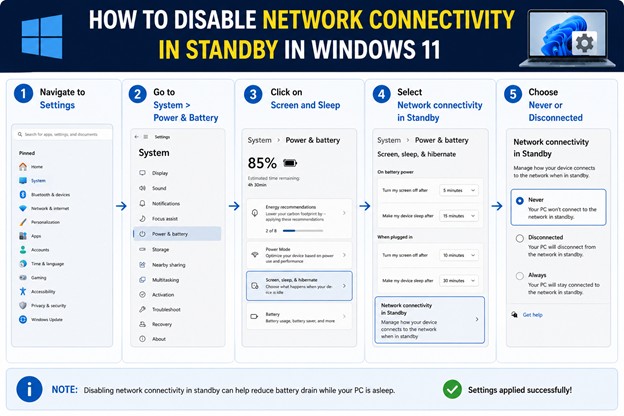
- Navigate to Settings
- System > Power & Battery
- Screen and Sleep
- Network connectivity in Standby
- Never or Disconnected
This will stop the background synchronization.
Method 4: Disable Wake Timers
Wake timers can make your PC leave sleep unexpectedly.
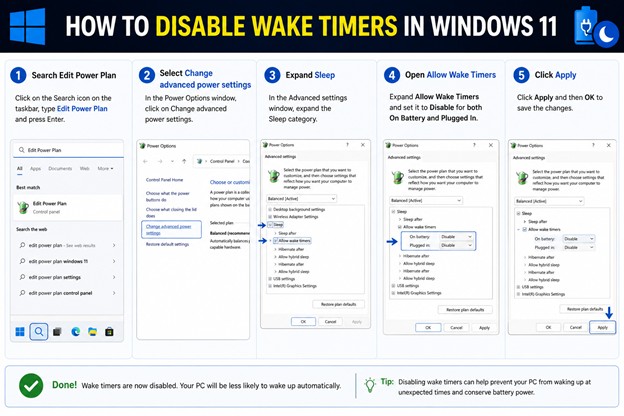
- Search Edit Power Plan
- Select Change advanced power settings
- Expand Sleep
- Open Allow Wake Timers
- Set Disable for both – On Battery & Plugged In
- Click Apply.
Computer Freezes After Waking Up From Sleep – How To Fix It?
Method 5: Disable Devices That Wake the PC
Sometimes hardware devices continuously wake the computer.
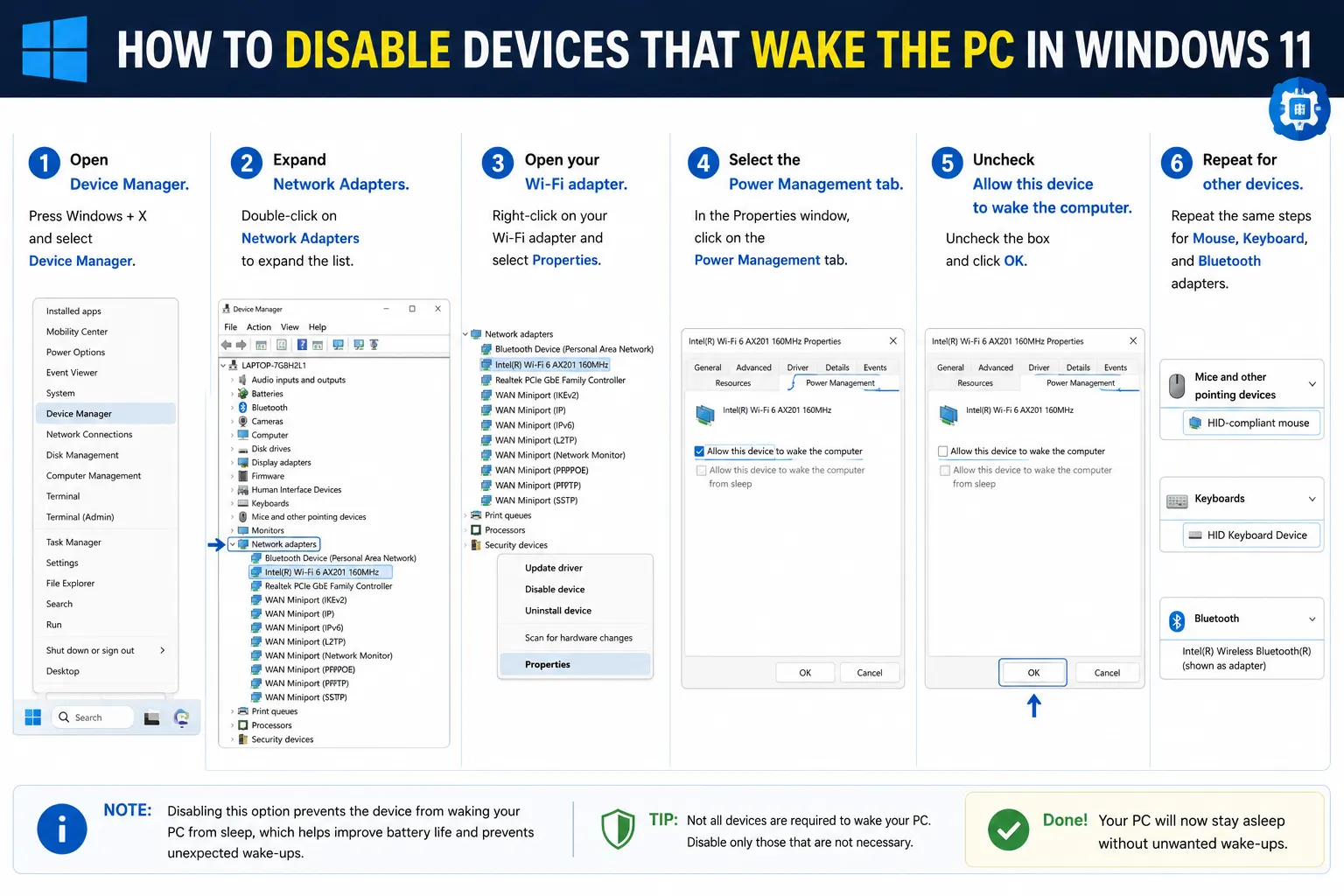
- Open Device Manager.
- Expand Network Adapters
- Open your Wi-Fi adapter.
- Select the Power Management tab.
- Uncheck Allow this device to wake the computer
- Repeat for Mouse, Keyboard, and Bluetooth adapters.
Verify That Modern Standby Is Disabled
Run cmd powercfg /a
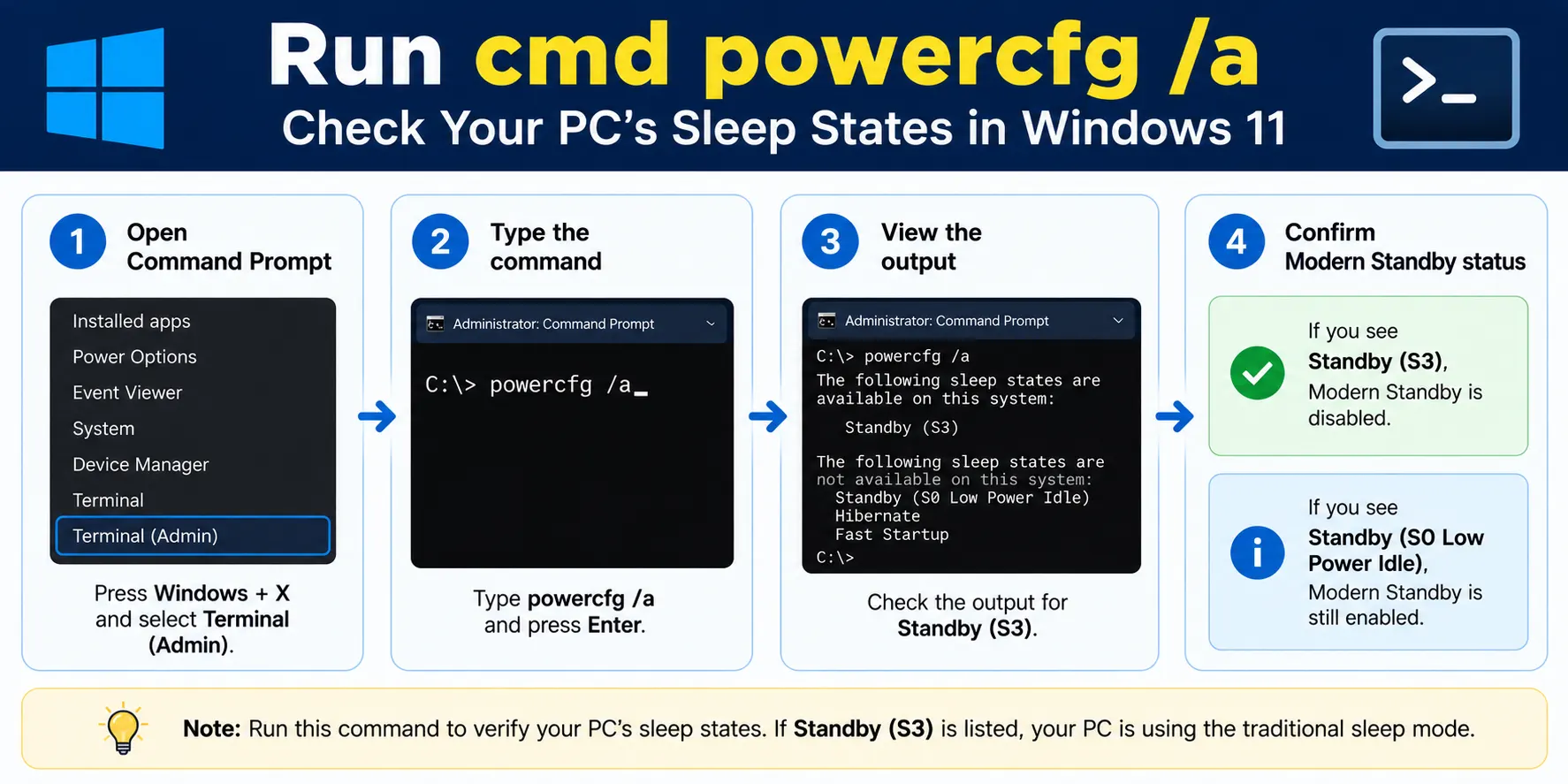
If successful, you’ll see Standby (S3) instead of Standby (S0 Low Power Idle)
Advantages of Disabling Modern Standby
Many users experience noticeable improvements after switching back to traditional sleep.
- Lower battery drain
- Cooler laptop temperatures
- No unexpected wake-ups
- Fans remain off during sleep
- Better battery life while traveling
- Reduced overnight battery loss
- Improved compatibility with certain peripherals
Possible Drawbacks
Before disabling Modern Standby, understand what you may lose.
Potential disadvantages include:
- No instant email syncing during sleep
- Delayed notifications
- Windows updates won’t install while sleeping
- Cloud files stop syncing until wake-up
- Slightly longer wake times
For many users, these trade-offs are worth the improved battery life and cooler operation.
Frequently Asked Questions
Conclusion
Modern Standby was meant to enable Windows laptops to work more like smartphones in that it allows them to stay online even while in sleep mode. It can, however, cause some devices to waste a lot of battery power, heat up and even wake up suddenly.
If your computer can use the traditional S3 Sleep state, opting for disabling Modern Standby will allow you to enjoy sleep mode that is more reliable and efficient. Should your hardware be able to use only the S0 Low Power Idle state, you can ensure better performance of the battery by eliminating network operations while sleeping, wake timers, updating drivers and using Hibernate if necessary.