
Introduction:
Connecting the AirPods to a Windows device is not a simple and easy process. Even if the AirPods do connect, some users have complained that they cannot hear any sound after connection or that they keep disconnecting every few minutes. While most users complain that AirPods refuse to show up in Bluetooth settings due to cross-platform settings.
However, the good news is that all AirPods connection to Windows PC issues can be fixed with a few different methods. This guide will explain all these methods in detail so that you can hear sound on your AirPods again, starting with the simplest step and moving to more advanced solutions. Do remember to check your AirPods connection after successful completion of every method, and this way you can avoid the remaining methods once your connection has been established with the Windows PC.
Why AirPods Struggle to Connect to Windows in the First Place?
Let us know about the common reasons as to why AirPods face problems connecting with Windows devices, but at the same time, they connect easily with Apple devices.
AirPods require Apple-specific Hardware. There are a few features like Spatial Audio, Automatic Switching, and One-Tap pairing that require Apple’s proprietary W1/H1/H2 chip magic. Windows cannot detect these features due to hardware constraints, making it difficult to connect.
Driver mismatch. Windows Bluetooth drivers are mainly manufactured by Intel, Realtek, Qualcomm, and Broadcom. While the updated versions of these drivers are compatible with Apple, some outdated versions of the driver may mishandle AirPods’ pairing handshake.
Cached Pairing Data Conflicts. If you have paired the AirPods with an iPhone or Mac, a Bluetooth profile is stored that will create a conflict while pairing with Windows. It is advised to reset your AirPods before attempting to connect to Windows.
Power and proximity issues. Low battery in the AirPods or the case lid if closed mid-pairing also leads to connection issues.
Expert Recommended Methods To Fix AirPods Not Connecting to Windows
Method 1. Start With Basic Steps
Before we jump to hardcore troubleshooting methods, we advise you to follow these checkpoints that might help you to fix the issue in a snap.
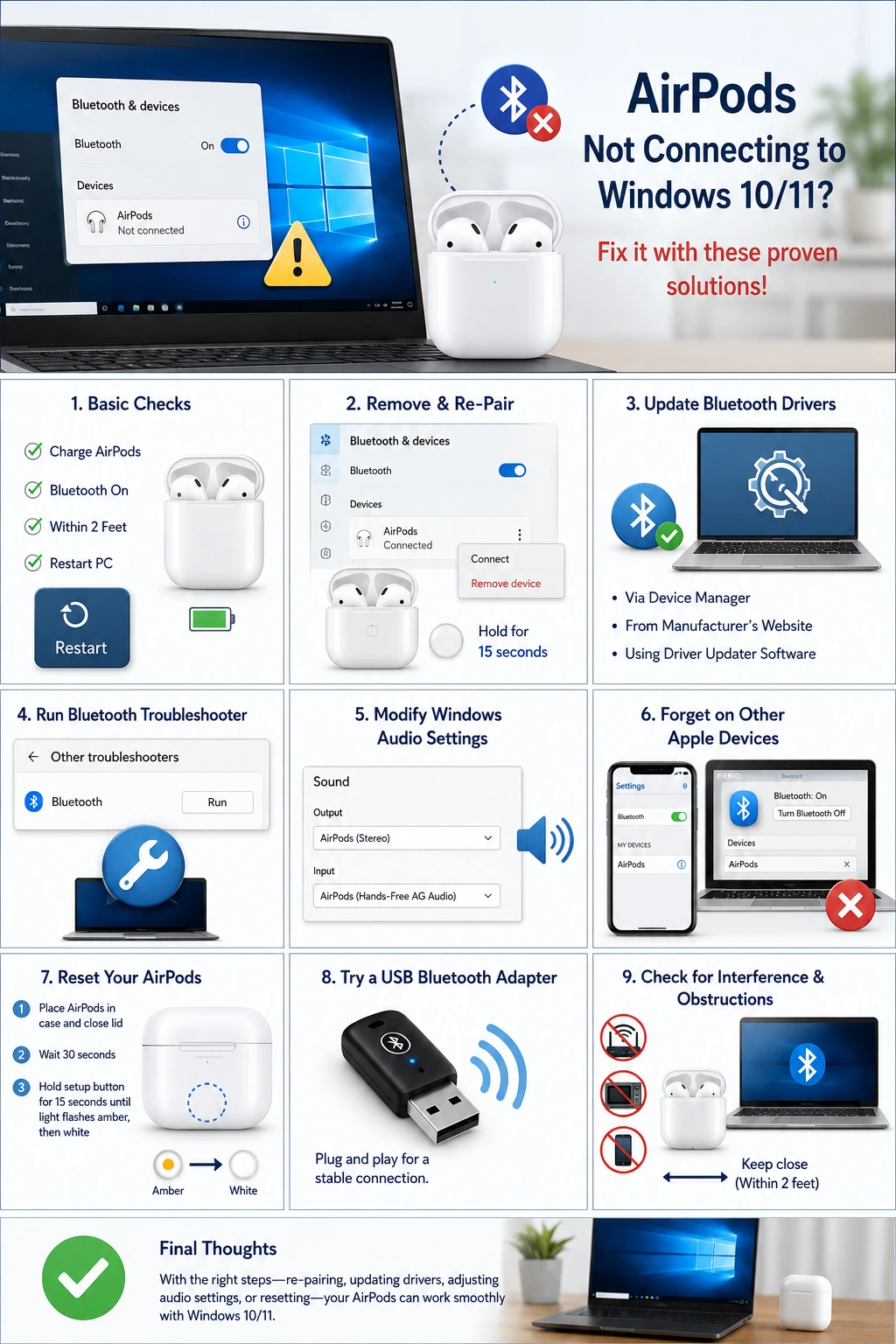
- Charge the AirPods by placing them in the case for at least 15 minutes.
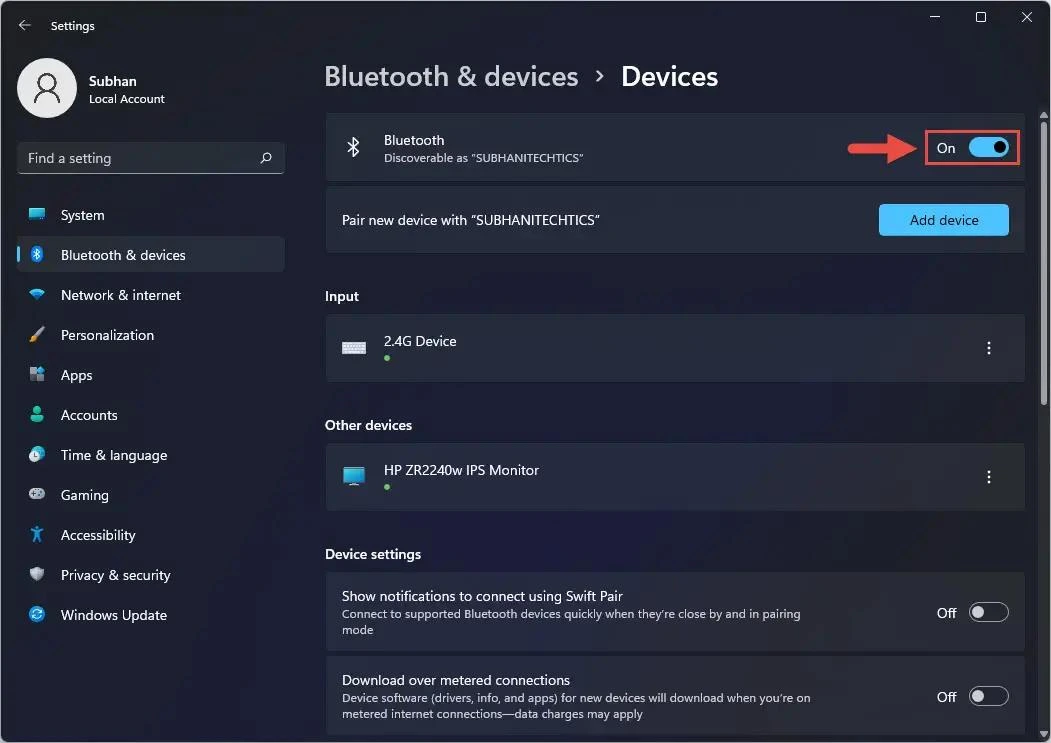
- Check the Bluetooth settings of Windows. Go to Settings > Bluetooth & devices and confirm the toggle is switched on.
- Make sure your Desktop has Bluetooth hardware. Most older desktops do not have a Bluetooth adapter built-in. You will have to attach an external adapter via a USB port.
- Make sure that the distance between the PC and AirPods is not more than 2 feet while the pairing process is going on.
- Reboot the computer to clear the temporary files and any glitches that may prevent AirPods from connecting.
Method 2. Remove And Re-Pair The AirPods
If the above checks did not work, then we suggest that you repair the AirPods. Did you know that the old pairing data is stored to make connections faster, but sometimes this data gets corrupted, and this ghost connection does not allow AirPods to connect to Windows. Here are the steps to remove old connections and repair AirPods.
1. Click on Windows and I to open the Settings box.
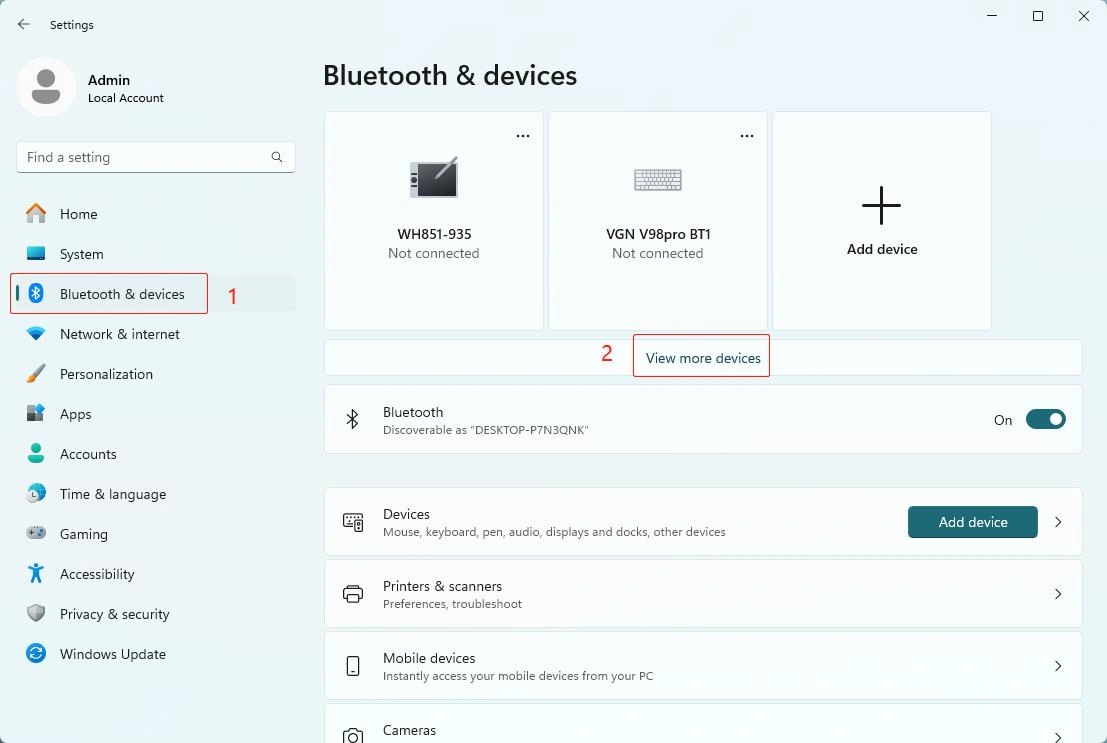
2. Click on Bluetooth & devices.
3. Look for AirPods in the list and click on the 3-dot menu to view more options. Choose the Remove Device option.
4. Close the Settings app and restart the Windows PC.
5. Open the AirPods case and press and hold the small circular setup button on the back of the case until the status light flashes in White color.
6. Now launch the Windows Settings app again and click on Bluetooth & Devices in the left panel.
7. Click on Add device, followed by Bluetooth.
8. Wait for the AirPods to appear in the list and select them.
9. Windows will confirm in a short while and display the message “Your device is ready to go.”
Method 3. Update Your Bluetooth Drivers
The next method to fix airpods not connecting to PC is to update the Bluetooth drivers on the Windows PC. There are 3 different ways to update the drivers. We have explained all the methods below in detail.
Update Driver Using the Device Manager:
1. Press the Windows and the X keys on the keyboard to launch the Power menu and choose Device Manager.
2. Click on Bluetooth to expand this section.
3. Look for your Bluetooth driver and right-click on it. Choose Update Driver and then click on Search automatically for drivers.
4. Follow the steps to update the drivers.
5. If Windows does not find an update, then right-click on your Bluetooth device again and choose the Uninstall option.
6. Follow the steps to remove the driver from your PC and reboot your PC.
7. The Driver will be automatically installed on the PC. This will refresh the driver and clear any glitches that were unexpectedly created.
Update Driver Using the Manufacturer’s website:
You can visit the PC manufacturer’s website to download the latest driver for your PC. Download the drivers and install them. Most PC manufacturers have driver software that will scan and detect driver anomalies and automatically fix the issue. You can also try contacting the tech support of the device manufacturer for assistance with updating drivers.
Update Drivers Using the Advanced Driver Updater:
Another method to update drivers easily and quickly is by using a driver updater software like Advanced Driver Updater. This application can scan, identify driver issues, and download as well as install the latest and most compatible driver for your system. Here are the steps to update the driver on your PC.
1. Download and install Advanced Driver Updater from the link provided below.

2. Open the software and click on the Start Scan Now button.
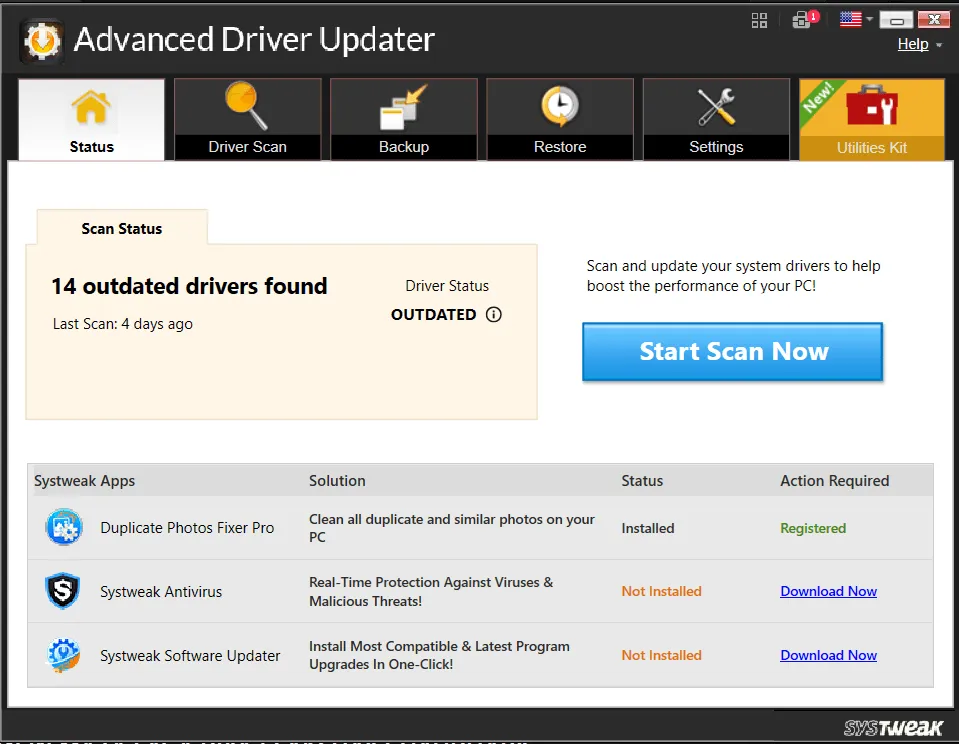
3. A scan identifying the driver anomalies will commence on your system. Wait for the scan to complete, and a list of driver issues will be available on your screen.
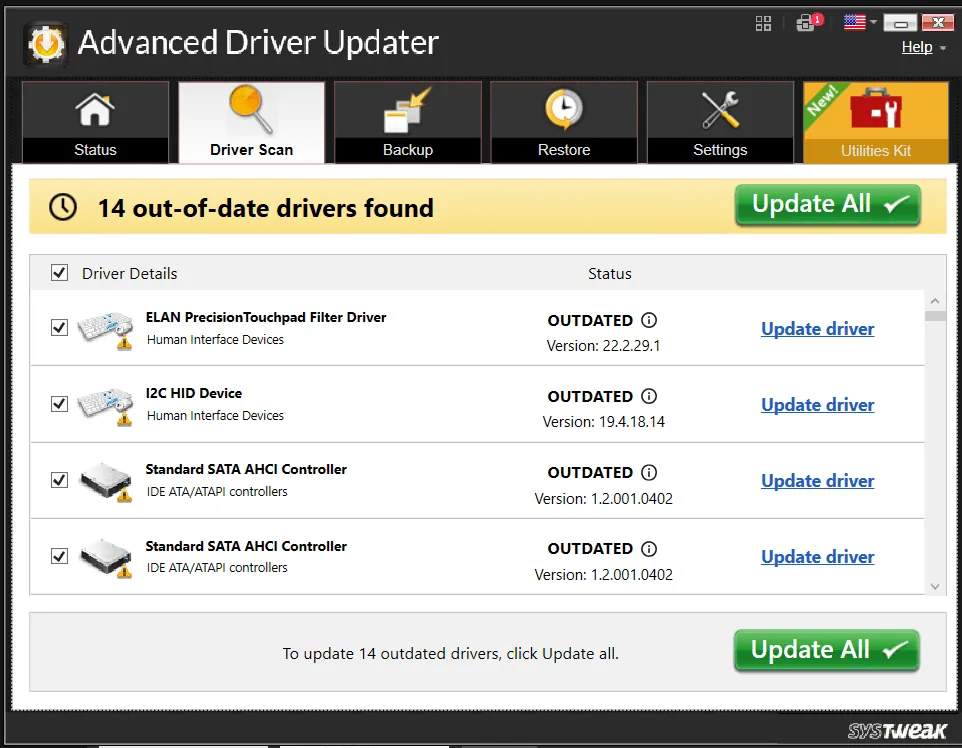
4. Look for the Bluetooth driver in the list and click on the Update link next to it, and the latest Bluetooth driver for your hardware will be installed on the PC.
5. After the driver update process completes, restart the PC for the change to take effect.
Method 4. Run the Windows Bluetooth Troubleshooter
The Windows OS includes a few built-in troubleshooters that can help fix minor issues within the Windows OS. Here are the steps to run this troubleshooter.
1. Press the Win + I keys to open the Settings window.
2. Next, click on System in the left panel, followed by Troubleshoot in the right section and then Other Troubleshooters.
3. In the list of troubleshooters, look for Bluetooth and click on the RUN button next to it.
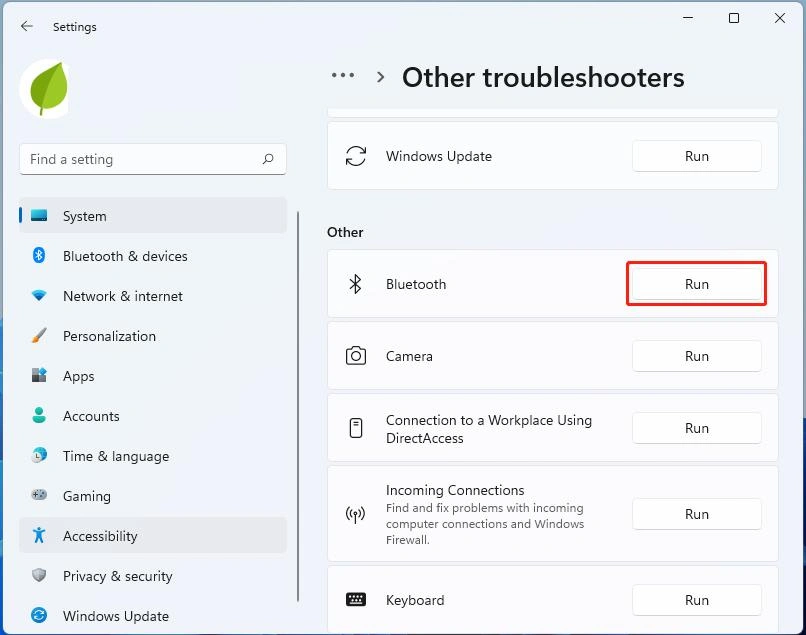
4. Follow the onscreen prompts, and Windows will try to fix the issue of AirPods not connecting.
Method 5. Modify Windows Audio Settings
In one of the issues revolving around how to connect airpods to a laptop, users face an issue where the AirPods connect successfully, but no sound is heard. This is an audio routing problem and can be fixed by setting AirPods as the default playback device. Here is what you need to do.
1. Right-click the speaker icon in the system tray located on the bottom right of your screen.
2. Choose the Sound Settings option.
3. Look for Output and select AirPods using the dropdown menu.
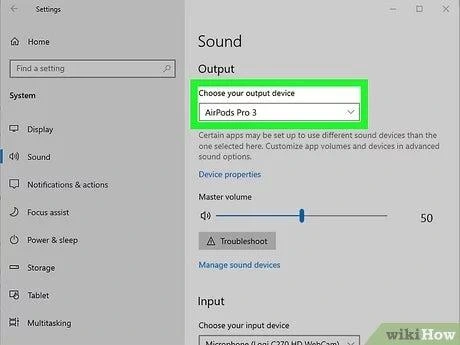
4. You can also locate the Input option and choose the AirPods here to enable the microphone option.
Note : Some experts have warned that Windows connects AirPods using the Hands-Free profile, and if the microphone option is enabled, then the audio quality can be lower than usual.
Method 6. Forget the Device on Other Apple Products Temporarily
If you have connected your AirPods to multiple Apple devices that are lying nearby, then it is possible that they might not connect to Windows at all and prefer connecting to Apple devices instead. This happens due to Apple’s automatic device-switching feature.
1. Disable the Bluetooth option temporarily on your iPhone, iPad, or Mac.
2. Follow the steps from the beginning to connect the AirPods to your Windows PC.
3. After the AirPods connect successfully to Windows, you can enable the Bluetooth option on other devices.
Method 7. Reset Your AirPods Completely
Apple has suggested resetting AirPods on its forums if they are not able to connect to a particular device. A full reset helps to clear internal Bluetooth memory of the AirPods and resolves any corrupted temp files issue. Here are the steps to reset AirPods.
1. Place both AirPods in the case and close the lid.
2. Wait about 30 seconds.
3. Open the lid, then press and hold the setup button on the back of the case for 15 seconds, until the status light flashes amber, then white.
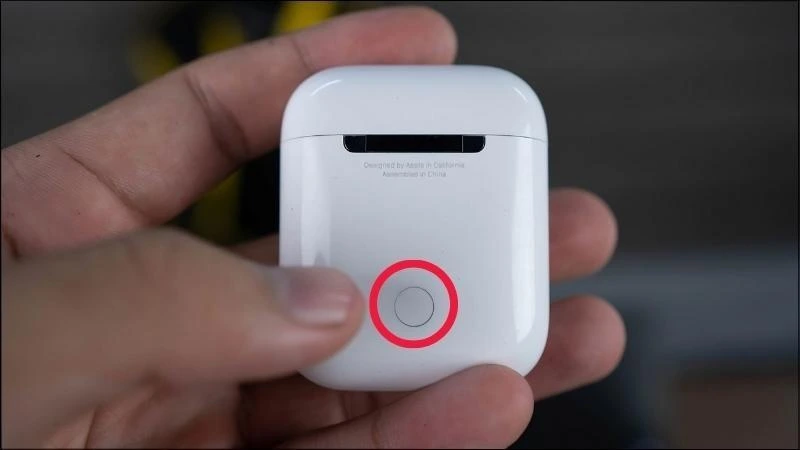
4. This erases all previous pairings. Re-pair with Windows.
Note : Resetting the AirPods will remove all its established connections with all the devices.
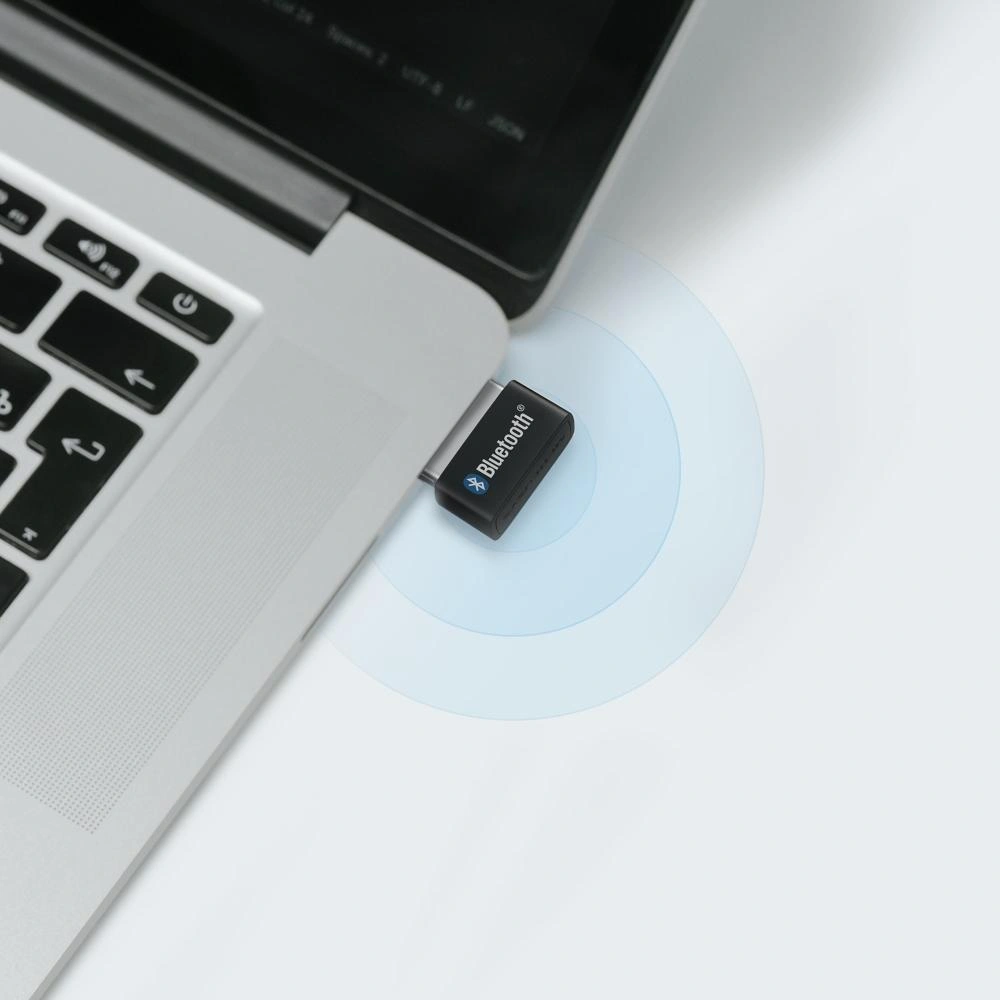
Method 8. Try a USB Bluetooth Adapter
Some older desktops do not have a Bluetooth adapter or have an old and low-powered adapter that cannot connect to the new AirPods. In this case, you could try to use a new USB Bluetooth Adapter that can connect easily to the AirPods. These adapters are plug-and-play on Windows 11 and offer a stable connection.
Method 9. Check for Interference and Physical Obstructions
Bluetooth operates on the 2.4GHz frequency, which is the same band used by Wi-Fi routers, microwaves, and many other wireless peripherals. If you’re in a crowded wireless environment, then it could be challenging to connect airpods to your PC. Here is what you should do.
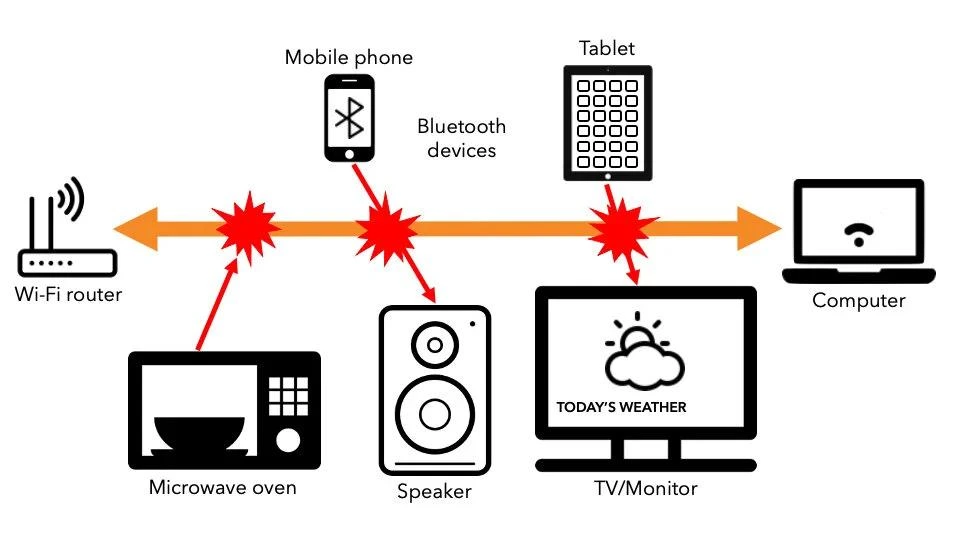
- Move your AirPods closer to your PC when pairing them.
- Turn off Bluetooth devices and other mobiles, PC and tablets for some time.
- Remember not to pair near a microwave or router, as the channel can get congested.
Method 10. Restart the Windows Bluetooth Service
Moving on, we have another resolution to pair airpods with PC, and that involves restarting the Bluetooth service. Here is what you need to do.
1. Press Win + R, type services.msc, and press Enter.
2. Find Bluetooth Support Service in the list.
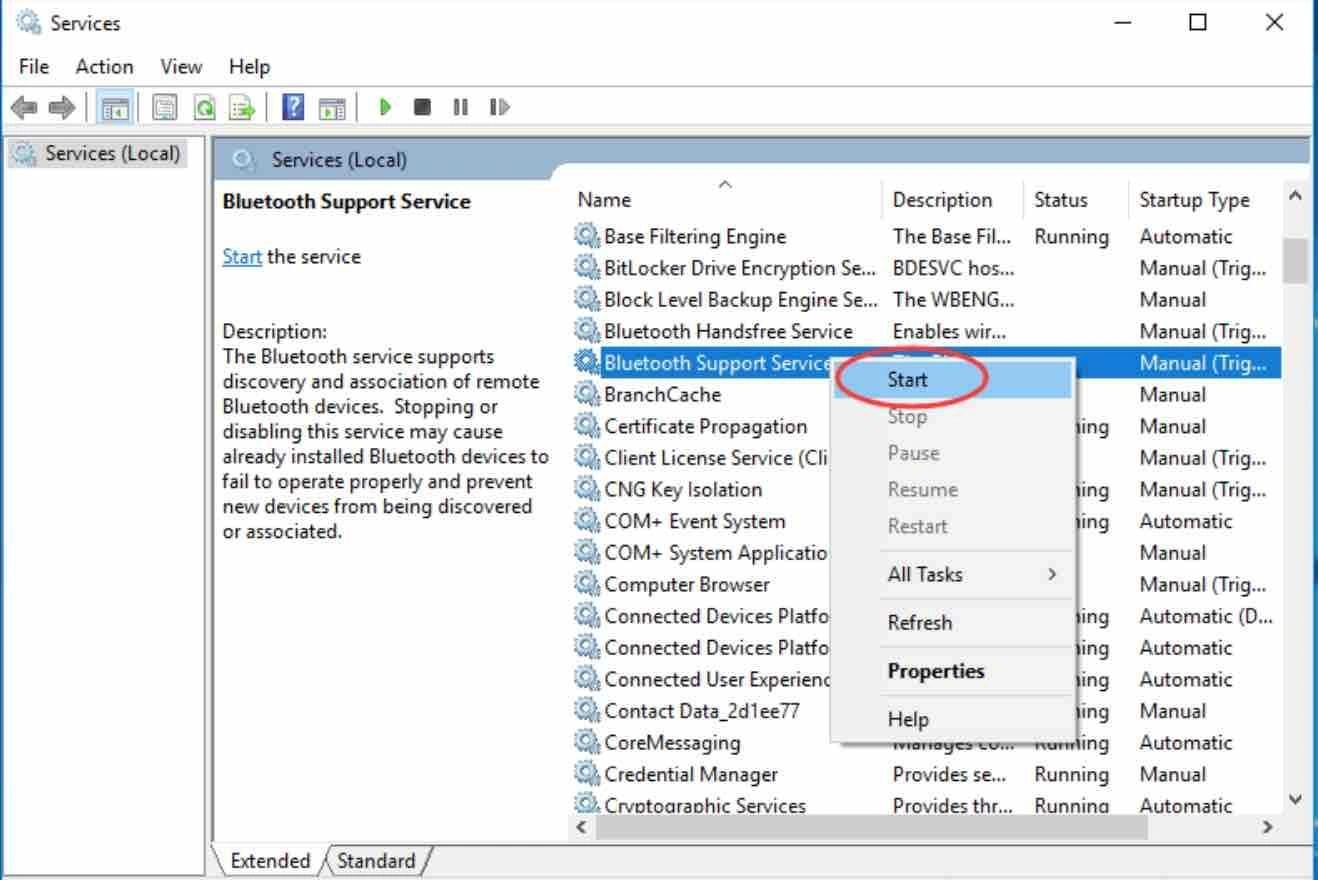
3. Right-click it and select Restart.
4. If it’s stopped, click Start instead.
5. Restart your PC and try connecting your AirPods again.
Method 11. Registry fix: “Allow Windows to turn off this device” / PnPCapabilities
1. Press Win + R, type regedit, and press Enter.
2. Navigate to:
HKEY_LOCAL_MACHINE\SYSTEM\CurrentControlSet\Enum
3. Locate your Bluetooth adapter (Intel, Realtek, Qualcomm, etc.) and find the Device Parameters key.
4. Double-click PnPCapabilities.
5. Change its value to 24 (Hexadecimal) to disable the power-saving option.
6. Close Registry Editor and restart your PC.
Method 12. Disabling audio enhancements / Spatial Sound
Sometimes Windows audio enhancements interfere with Bluetooth audio, causing AirPods to produce no sound or disconnect.
1. Right-click the Speaker icon in the taskbar and select Sound settings.
2. Select your AirPods under Output.
3. Click Audio enhancements and set it to Off.
4. Go back and click Spatial sound, then select Off.
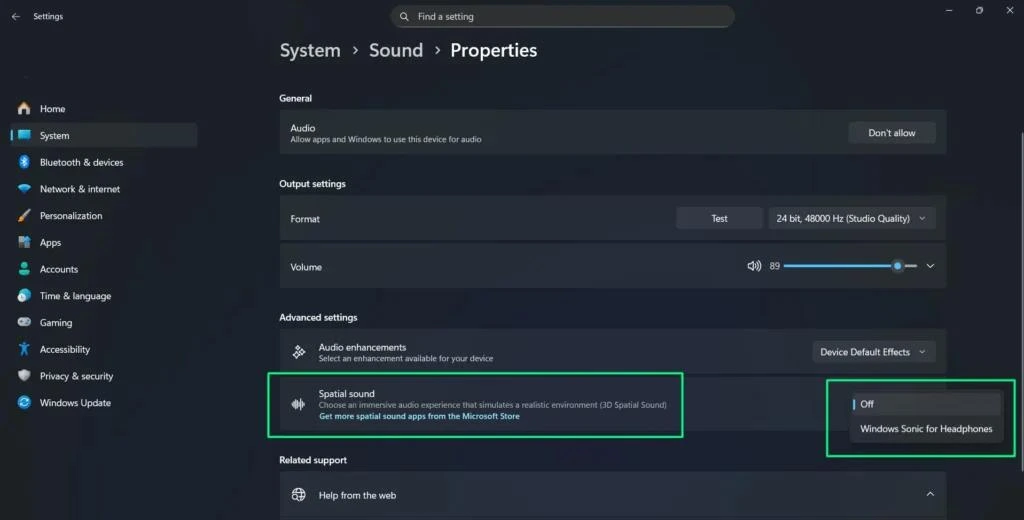
5. Reconnect your AirPods and check if the audio works properly.
Method 13. Update Windows
1. Press Win + I to open Settings.
2. Go to Windows Update.
3. Click Check for updates.
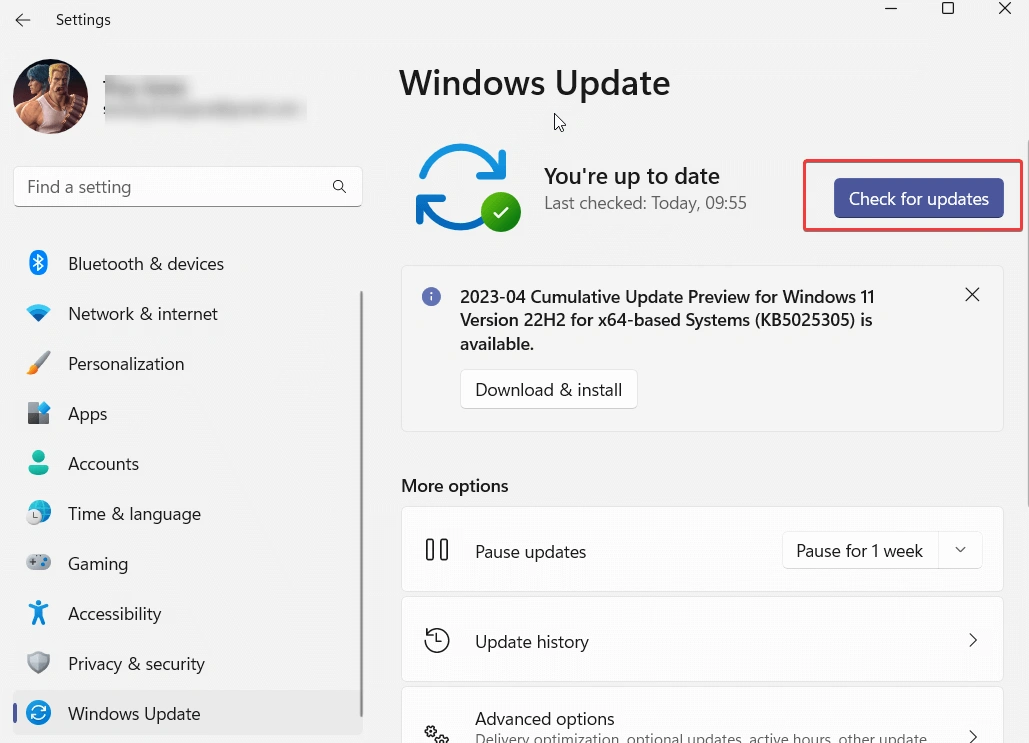
4. Download and install any available updates.
5. Restart your PC and try connecting your AirPods again.
Method 14. AirPods firmware update
1. Link your AirPods to any nearby iPhone, iPad, or Mac.
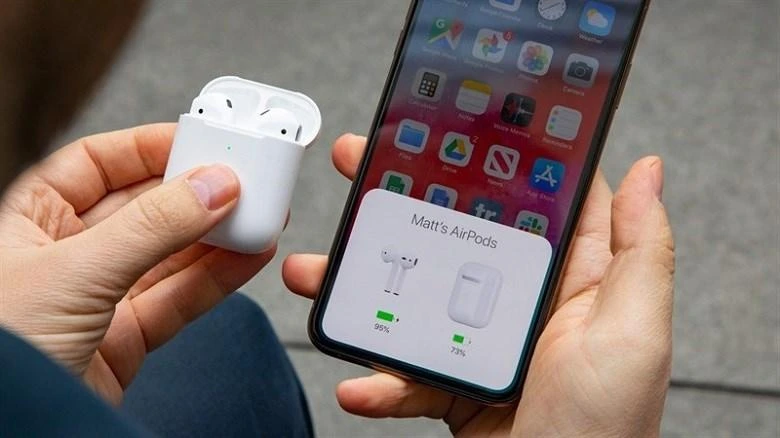
2. Put your AirPods into their respective charging box and plug it into an electrical outlet.
3. Ensure that your Apple device is close by with its Wi-Fi and Bluetooth capabilities turned on.
4. Be patient for about half an hour. If there is any firmware update available, it will be automatically downloaded.
5. Check whether the connection problem persists once you link your AirPods to your Windows computer.
Note : AirPods firmware cannot be updated directly from a Windows PC.
When Should You Contact Apple or Your PC Manufacturer?
If you have done all troubleshooting but still find that AirPods do not connect, then maybe it is time to get professional help.
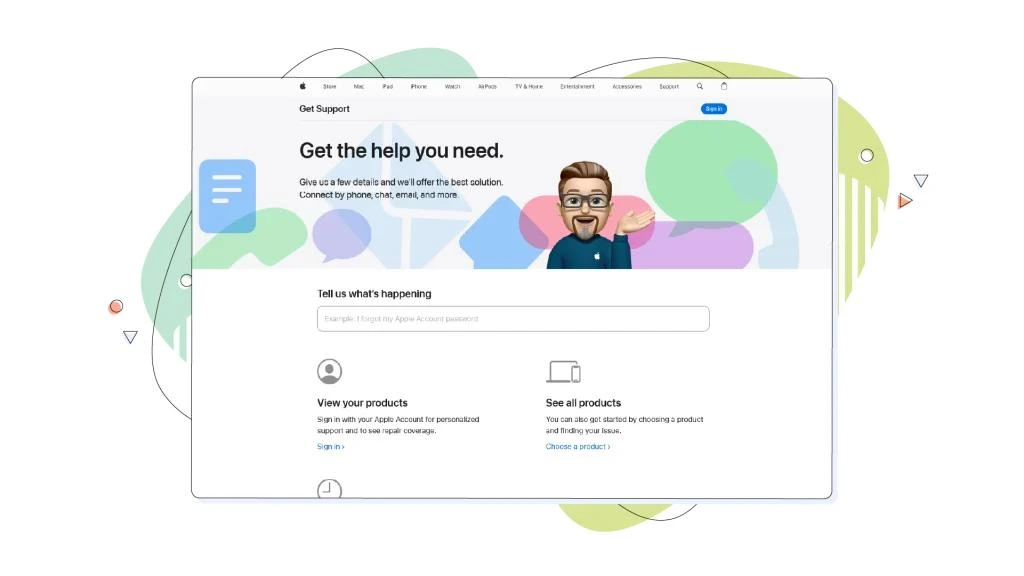
For assistance, contact Apple Support if:
- AirPods fail to go into pairing mode.
- Status light does not behave as expected after reset.
- AirPods cannot connect to any device, including iPhone, iPad, or Mac.
- Think there could be a hardware or battery problem with your AirPods.
Contact your PC manufacturer for assistance if:
- Bluetooth is not available in Device Manager and Windows Settings.
- Bluetooth adapter is not recognized despite driver reinstallation.
- Driver updates are not successful or Bluetooth hardware is broken.
Frequently Asked Questions
Final Thoughts
While it is true that AirPods and Windows were not engineered to communicate effectively as they do with iPhones, this does not imply that having a solid connection is hard to achieve. Connection problems appear to be caused by one of three things: old pairing information, out-of-date Bluetooth drivers, or incorrect audio routing. Performing the actions described above in the following order – starting with simply charging AirPods and re-pairing them, then moving to driver updates and potentially a total reset of AirPods – will solve practically every issue. Despite the fact that Apple devices are high-end products, it is still possible for Windows users to pair their products with AirPods and keep the pair connected for a long time.