
To reduce Windows startup time safely, measure your current boot time, turn off startup apps you do not need, delay non-critical third-party services instead of disabling them, and check that Fast Startup is on. Leave Windows services, security software and drivers alone. Microsoft warns that changing default service settings “might prevent key services from running correctly.”
A slow boot rarely needs drastic tweaks. Apps and services that load at sign-in all add to the wait, so the safest gains come from trimming what loads, not from switching off parts of Windows. This guide provides an easy-to-follow method to shorten your window’s start-up time and also shorten the amount of time it takes to get into Windows. The methods provided here will allow you to determine how to tell essential items from optional ones, and how to undo every change.
What Makes Windows Boot Time So Slow
Several things can stretch a boot; too many apps launching at sign-in, a drive short on free space, pending Windows or driver updates, damaged system files and a slow or aging drive. These next few steps will walk you through the easiest first approaches that do not involve making changes directly within windows.
Measure Your Startup Time First
Record a baseline so you can see what each change achieves.
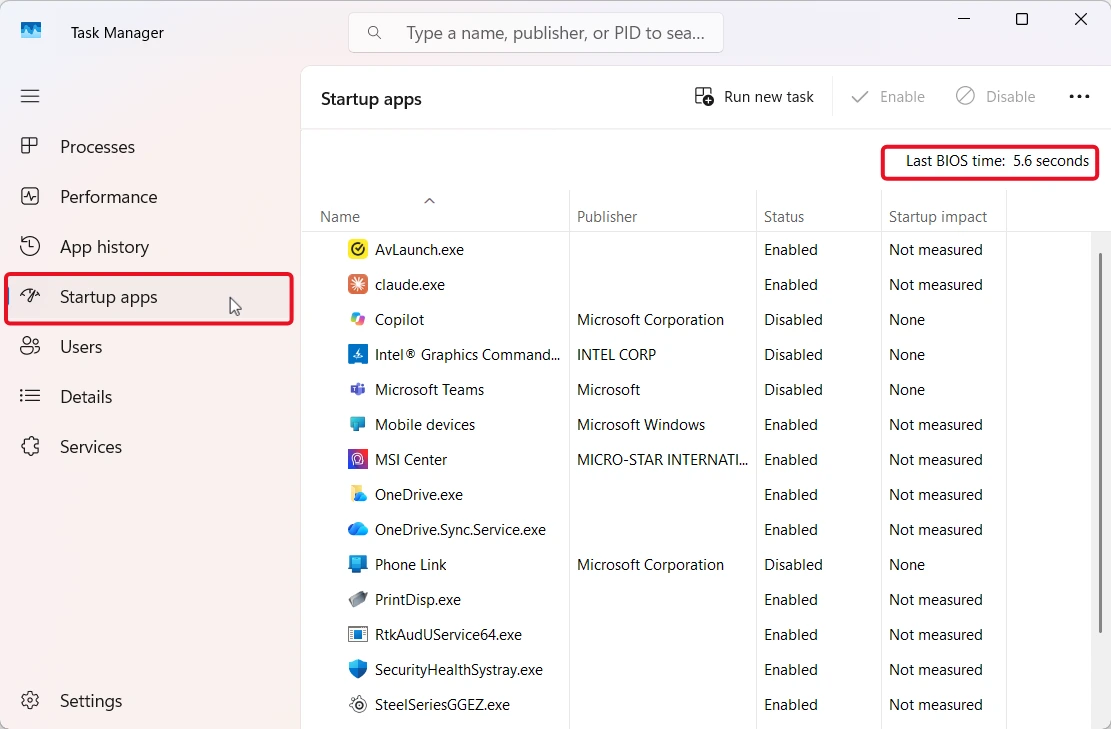
- Right-click Start and select Task Manager, then open the Startup apps tab. On UEFI systems, Last BIOS time appears at the top right. This indicates the amount of time that the firmware took from when it was started until windows opened. Therefore, none of the actions you take in the next few sections will affect this value.

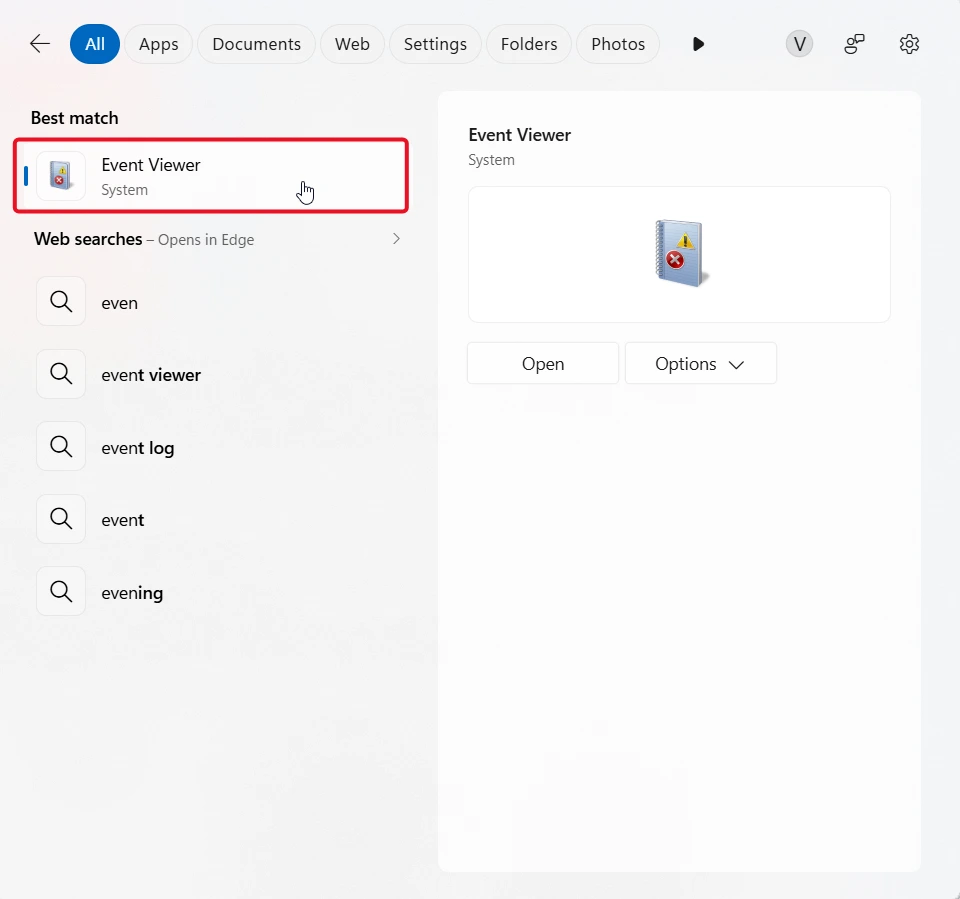
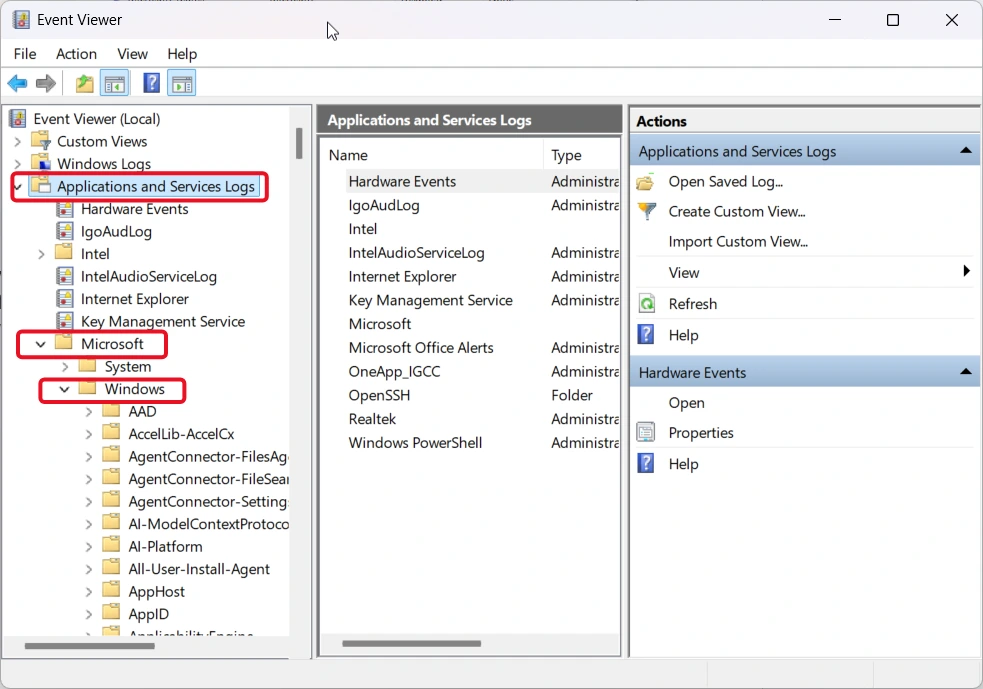
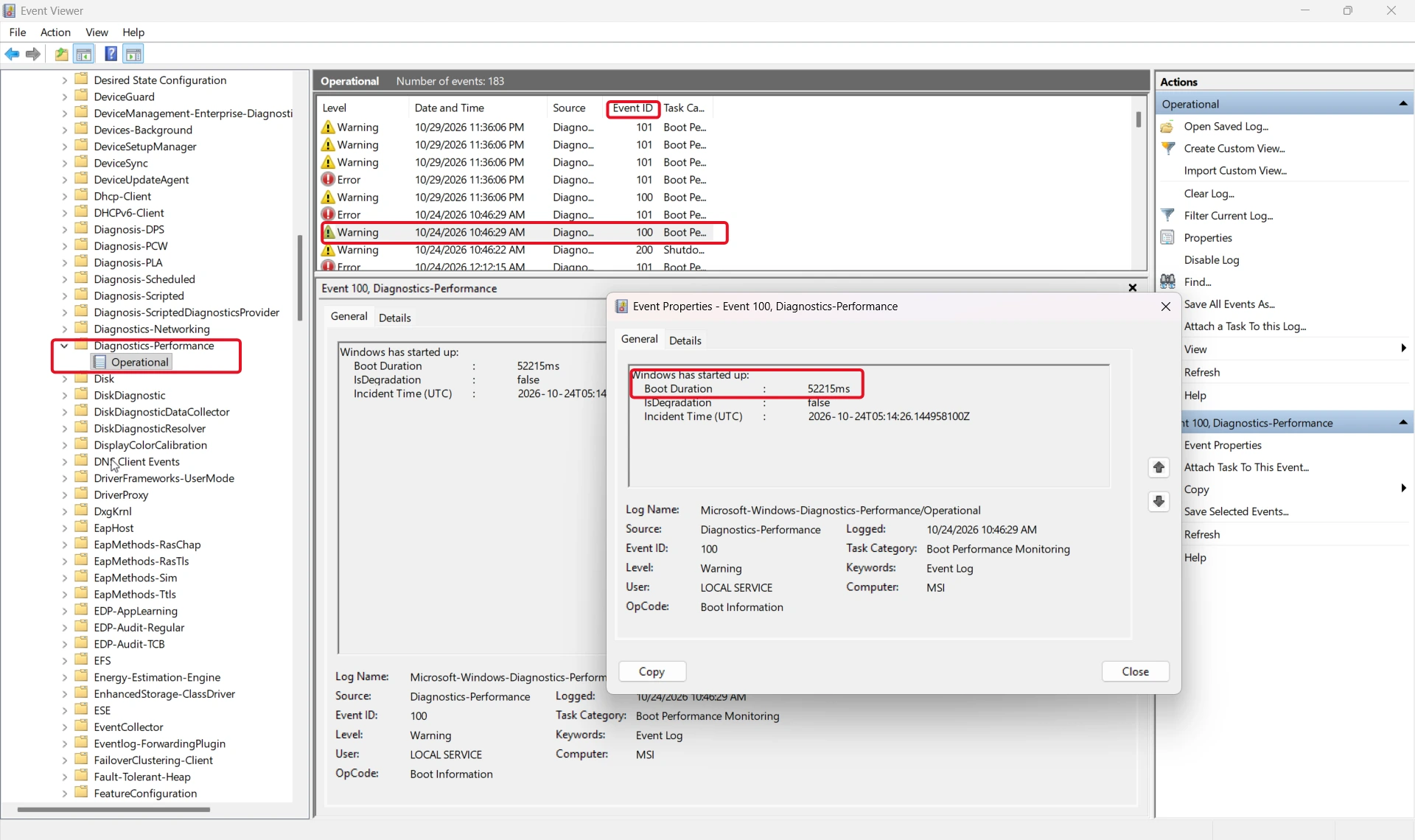
- For a Windows-only figure, open Event Viewer and go to Applications and Services Logs > Microsoft > Windows > Diagnostics-Performance > Operational. Filter the log for event ID 100. Event 100 (“Windows has started up”) records the Boot Duration in milliseconds.
- Make a note of this number as you will be comparing it later.
What Is Essential and What Is Not
Before you change anything, sort what starts with Windows into three groups. This is general guidance, so check any unfamiliar name before acting on it.
| Group | Examples | What to do |
| Optional | Chat and video call apps, music and game launchers, cloud storage clients, third-party updaters, printer or webcam utilities | Stop them starting automatically. You can still open them yourself. Cloud storage clients stop syncing until you do. |
| Review first | Apps whose purpose you do not recognize | Search the name, or leave it enabled until you know what it does |
| Leave alone | Windows Security and other security software, graphics, audio, storage and touchpad drivers, Windows services | Do not disable |
How to Reduce Windows Startup Time Step by Step
Work through these five steps in order and change one thing at a time. Each step can be undone.
Step 1: Turn Off Startup Apps You Do Not Need
Startup apps are the safest place to start. Microsoft’s steps are:
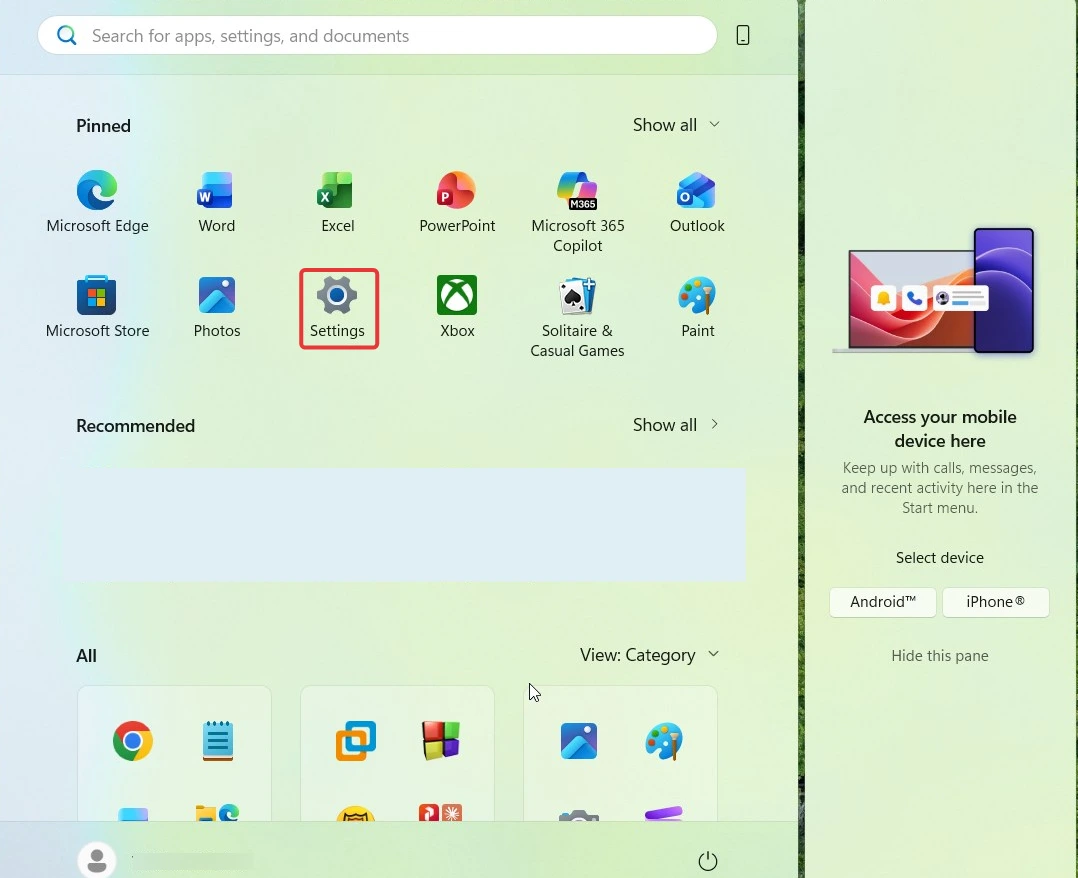
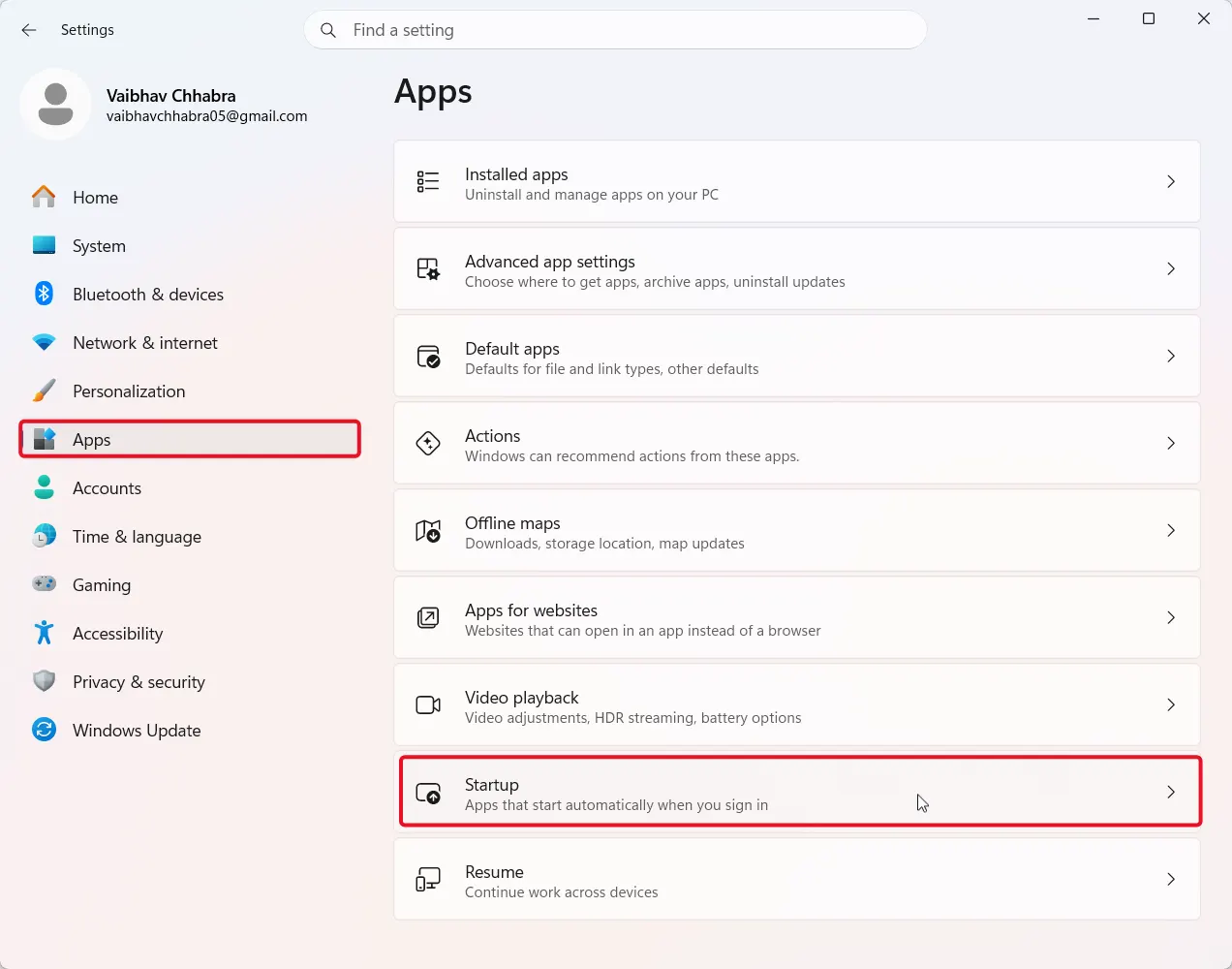
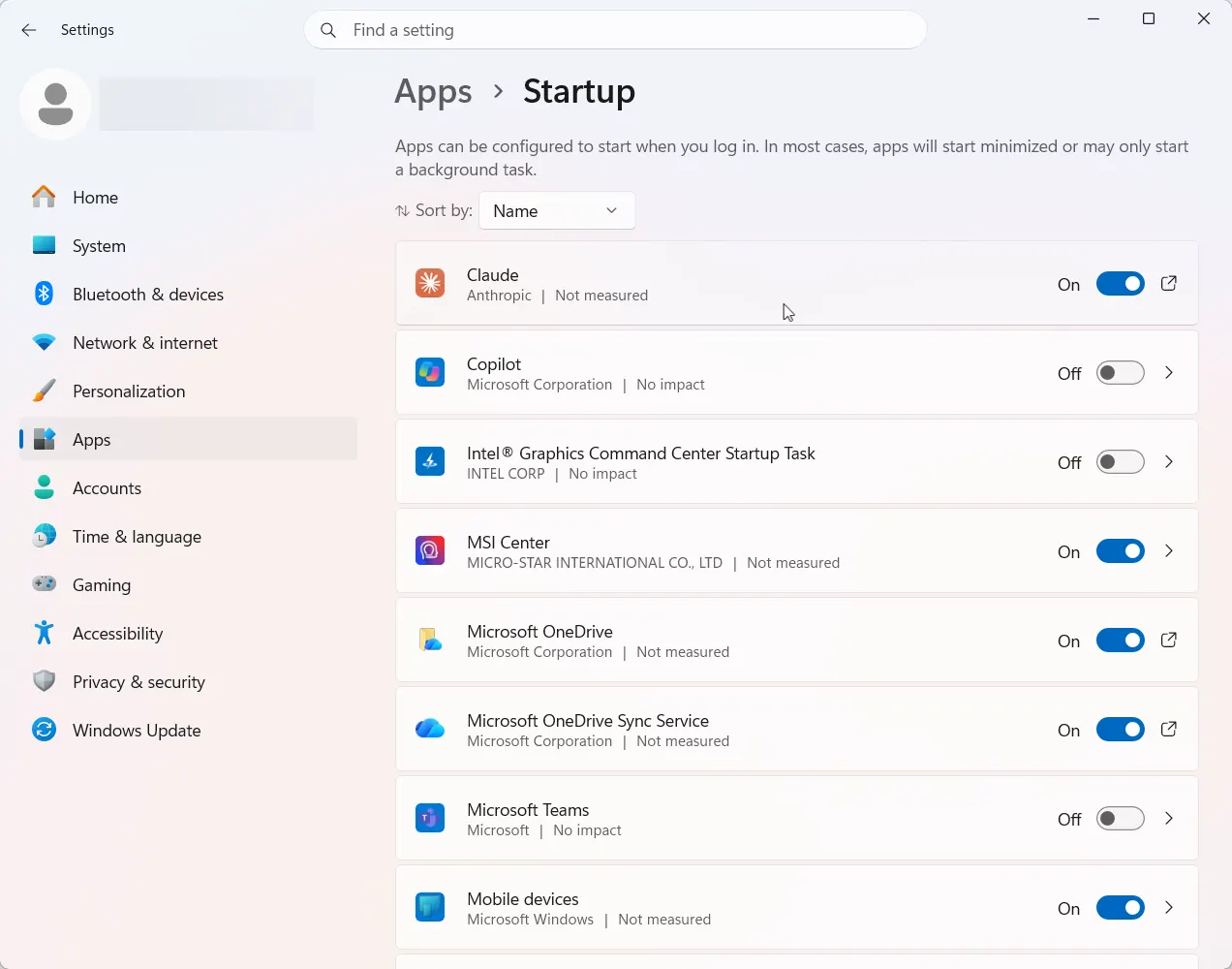
- Go to Start > Settings > Apps > Startup.
- Set the toggle to Off for each app you do not need at sign-in.
- Or open Task Manager > Startup apps, select an app and click Disable.
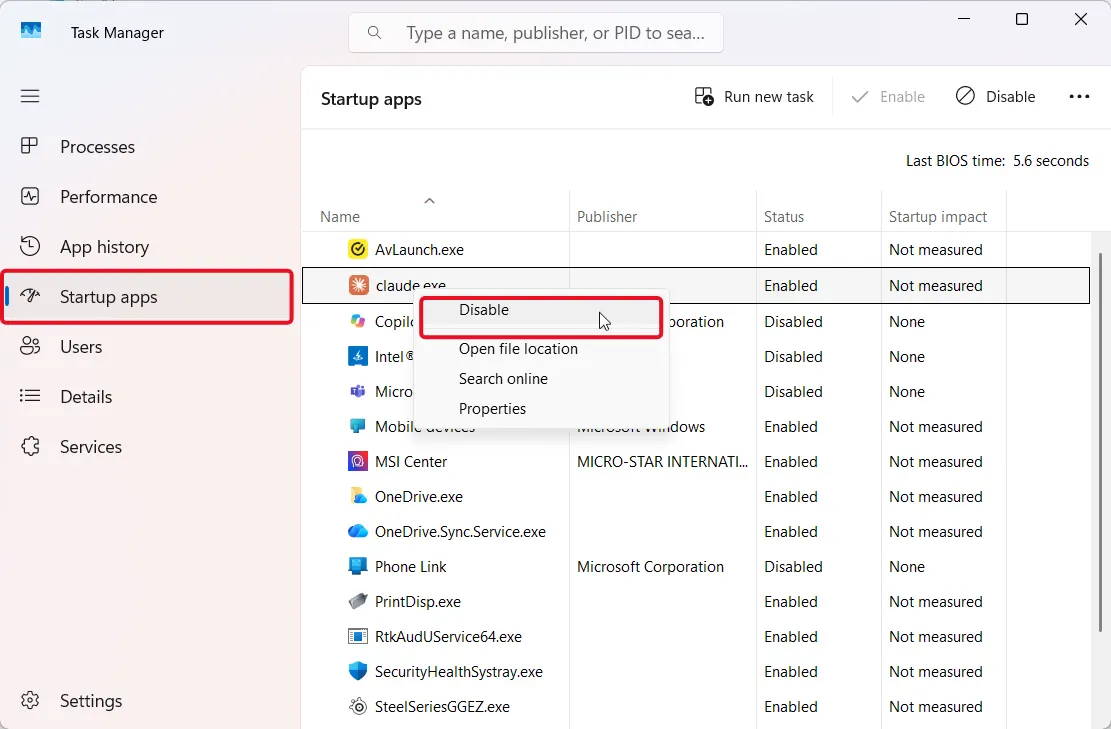
Task Manager rates each app’s Startup impact. Per Microsoft, High impact means over 1 second of CPU time or over 3 MB of disk usage. Medium impact is 300 ms to 1 second of CPU time, or 292 KB to 3 MB of disk. Low impact is under 300 ms and under 292 KB. Start with high-impact apps you do not need.
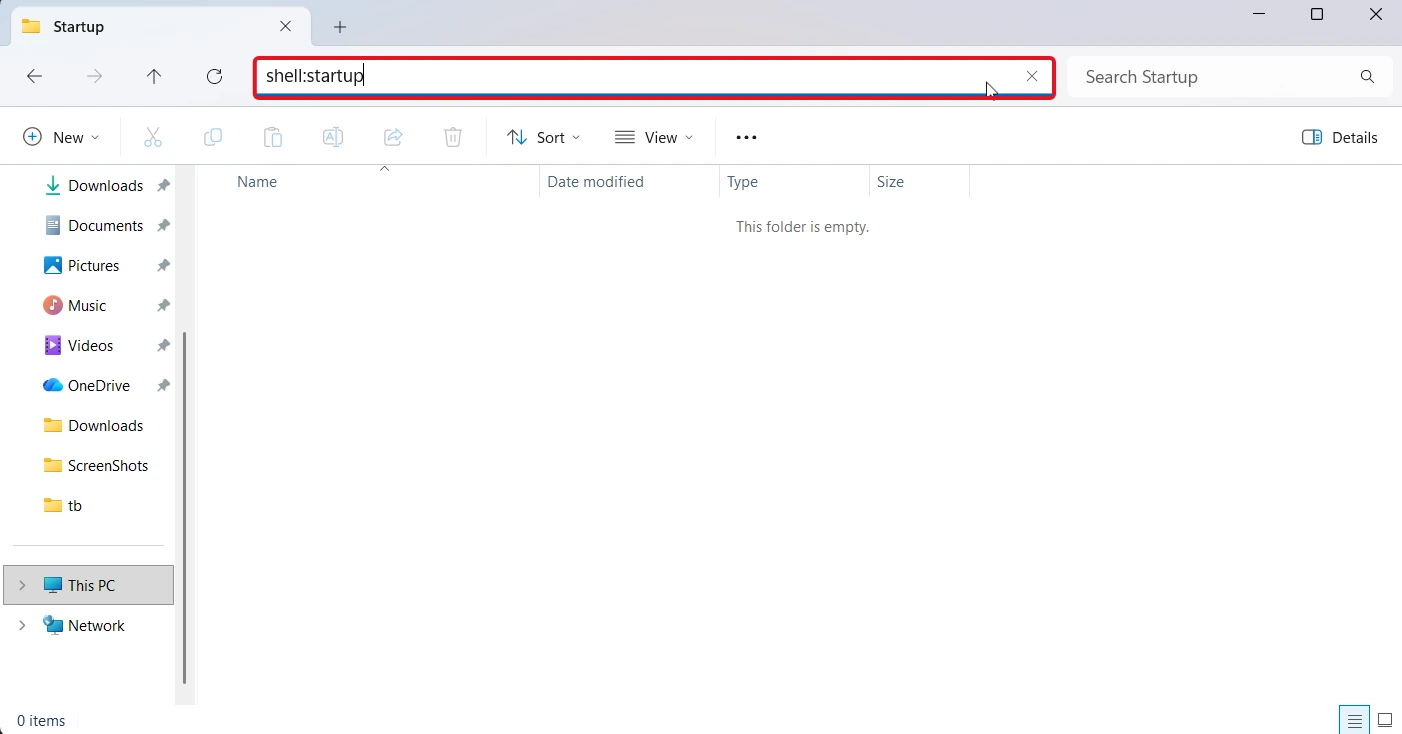
These steps apply to both Windows 11 and Windows 10. Disabling does not uninstall anything, and you can switch the app back on at any time. If an app is missing from both lists, Microsoft says to check the Startup folder(Location : C:\Users\<YourUsername>\AppData\Roaming\Microsoft\Windows\Start Menu\Programs\Startup) : type shell:startup in File Explorer’s address bar.
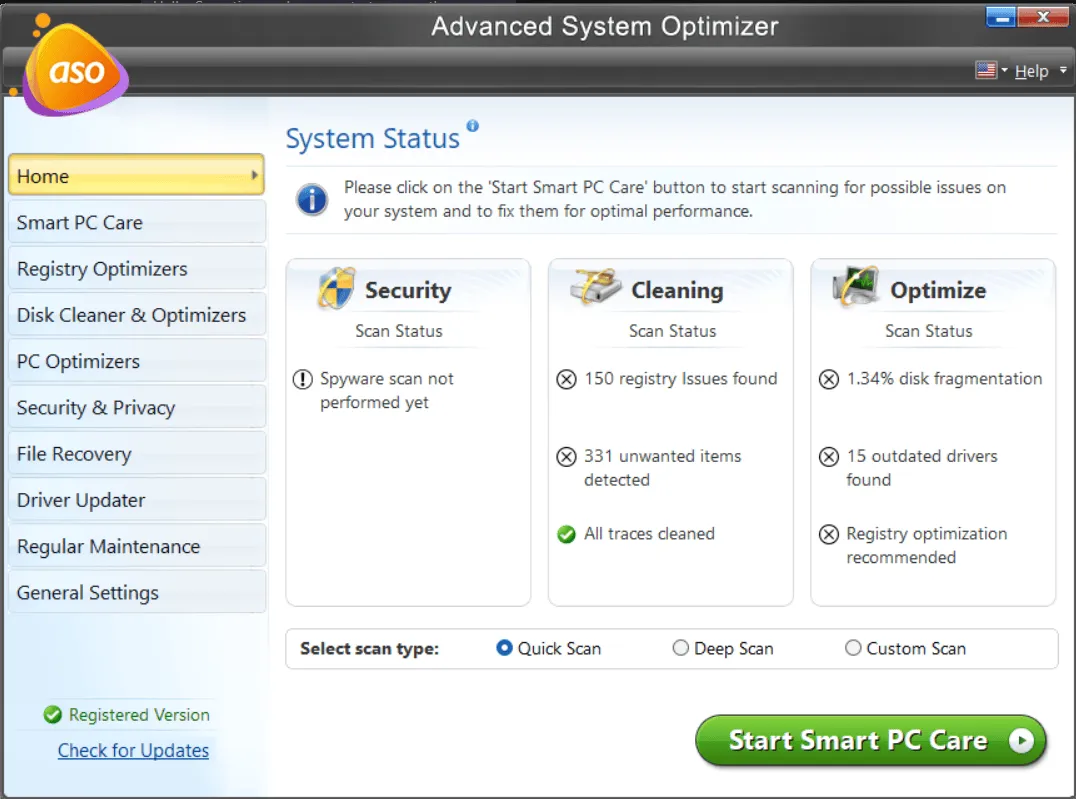
Want a tool for this step? Advanced System Optimizer is a Systweak PC optimization suite for Windows 11, 10, 8.1, 8 and 7. Its Startup Manager helps you manage applications that run at boot time and fix slow startup and slow PC speed issues by disabling unnecessary startup programs. Apply the same rule as above: switch off only the optional entries and leave security software and drivers alone. The suite also includes a System Cleaner that deletes unwanted junk/temporary files which support Step 4.

Step 2: Delay Non-Critical Services Instead of Disabling Them
Disabling services is where most boot-speed advice goes wrong. For a third-party service you want but do not need immediately, use Automatic (Delayed Start). It loads the service after the rest of the startup is done.
- Press Win + R, type services.msc and press Enter.

- 2.Double-click the third-party service you recognize.
- On the General tab, set Startup type to Automatic (Delayed Start).
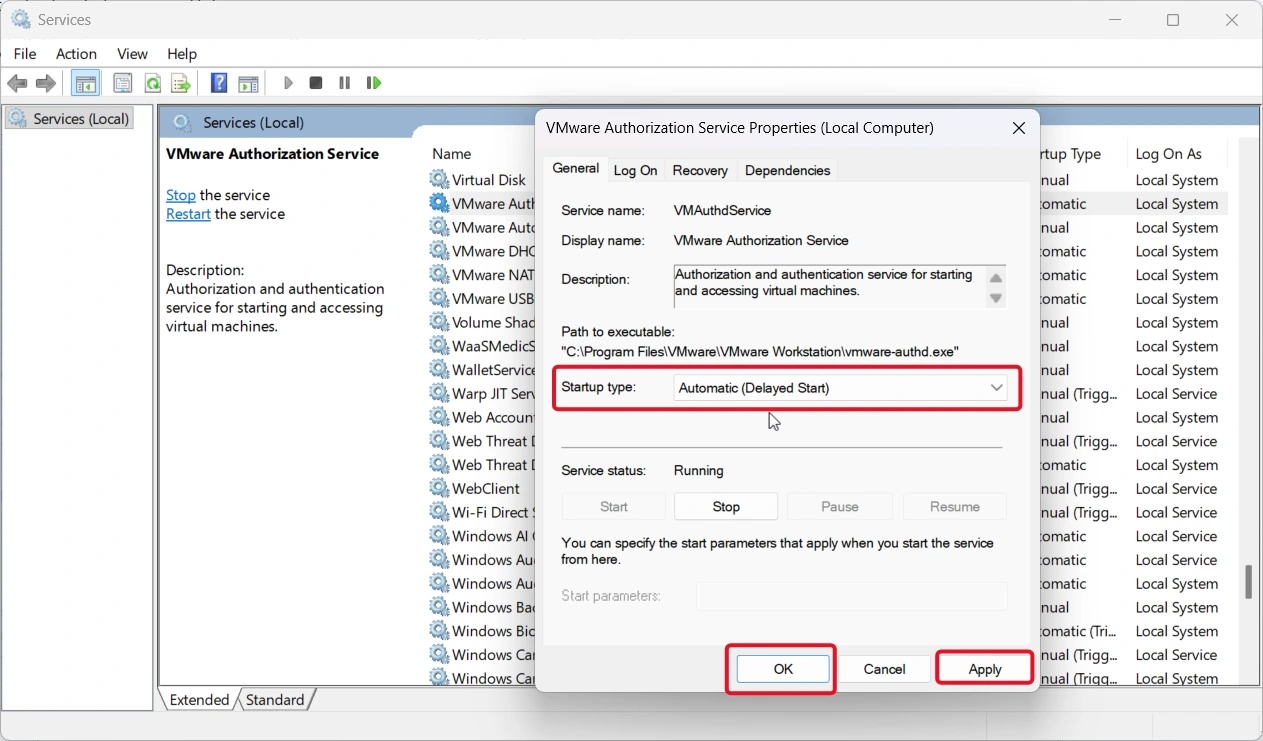
- Once you’ve made the selection above, click Apply, then, click OK again
Delayed-start services do not start until all other auto-start services have started, and the default delay is about two minutes. Note each service’s original startup type first. Change only services from software you installed. If a change causes trouble, Microsoft says Safe Mode starts core services with default settings regardless of your changes.
For entries that Settings and Task Manager do not show, Microsoft’s Autoruns lists programs configured to start at boot or sign-in. Its Hide Signed Microsoft Entries option leaves only third-party items. Unchecking an entry disables it, so record what you change.
Step 3: Check That Fast Startup Is On
Fast Startup is an alternative to the normal Shutdown method. It does allow you to save your kernel and all other driver files in memory (to disk) so they can be quickly restored when you start up again rather than having to rebuild everything as with the Normal Shutdown.
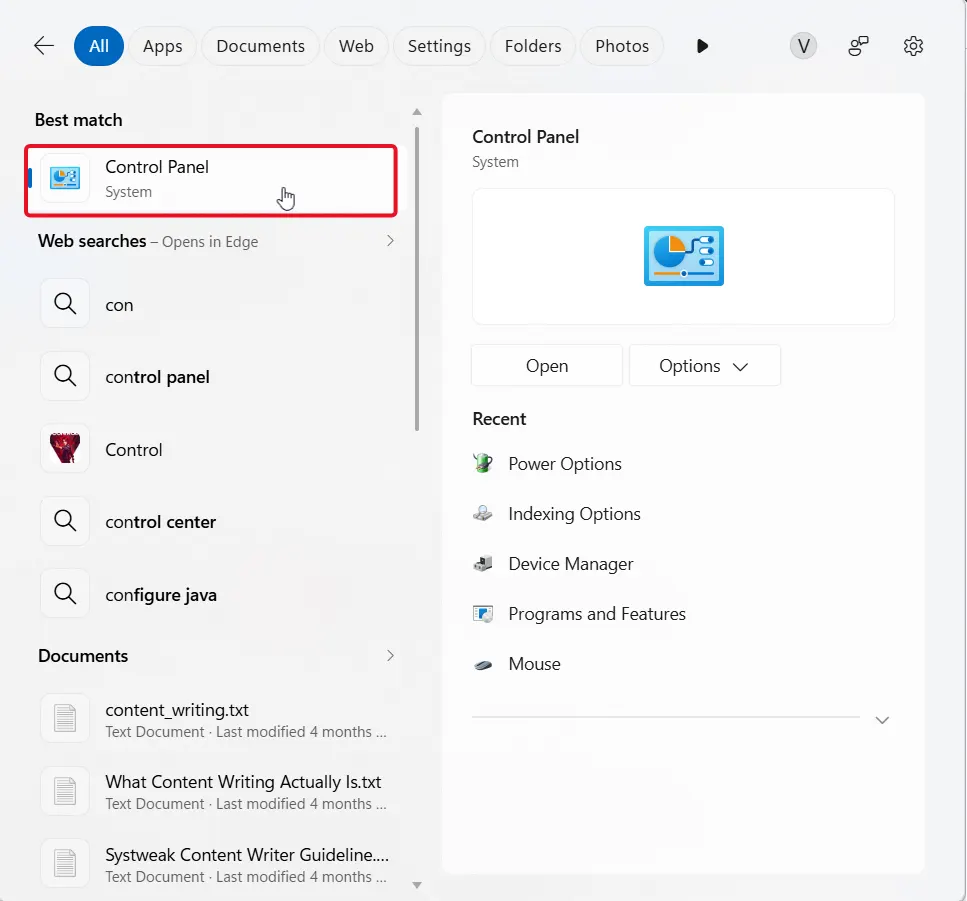
- Open your Control Panel > Hardware and Sound > Power Options.
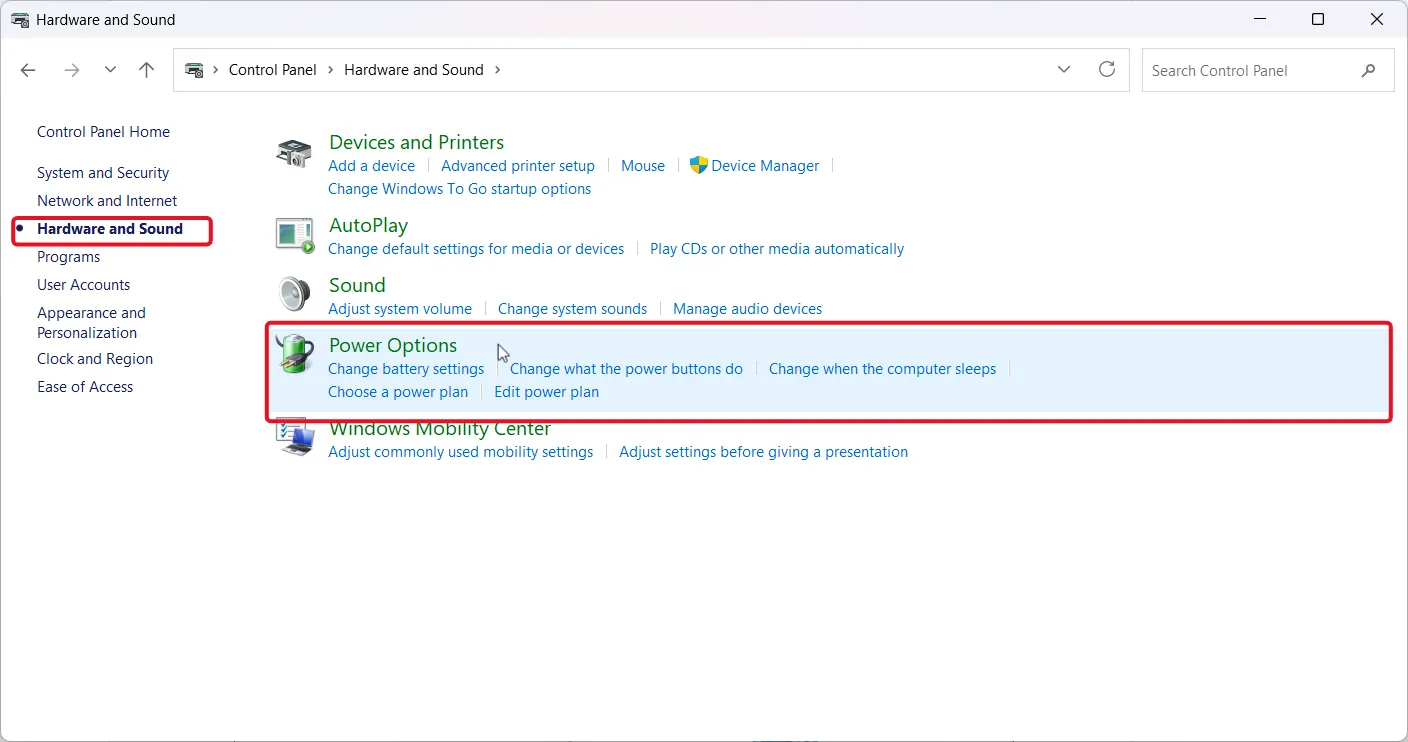
- Click “Choose What The Power Buttons Do” and then Change settings that are currently unavailable.
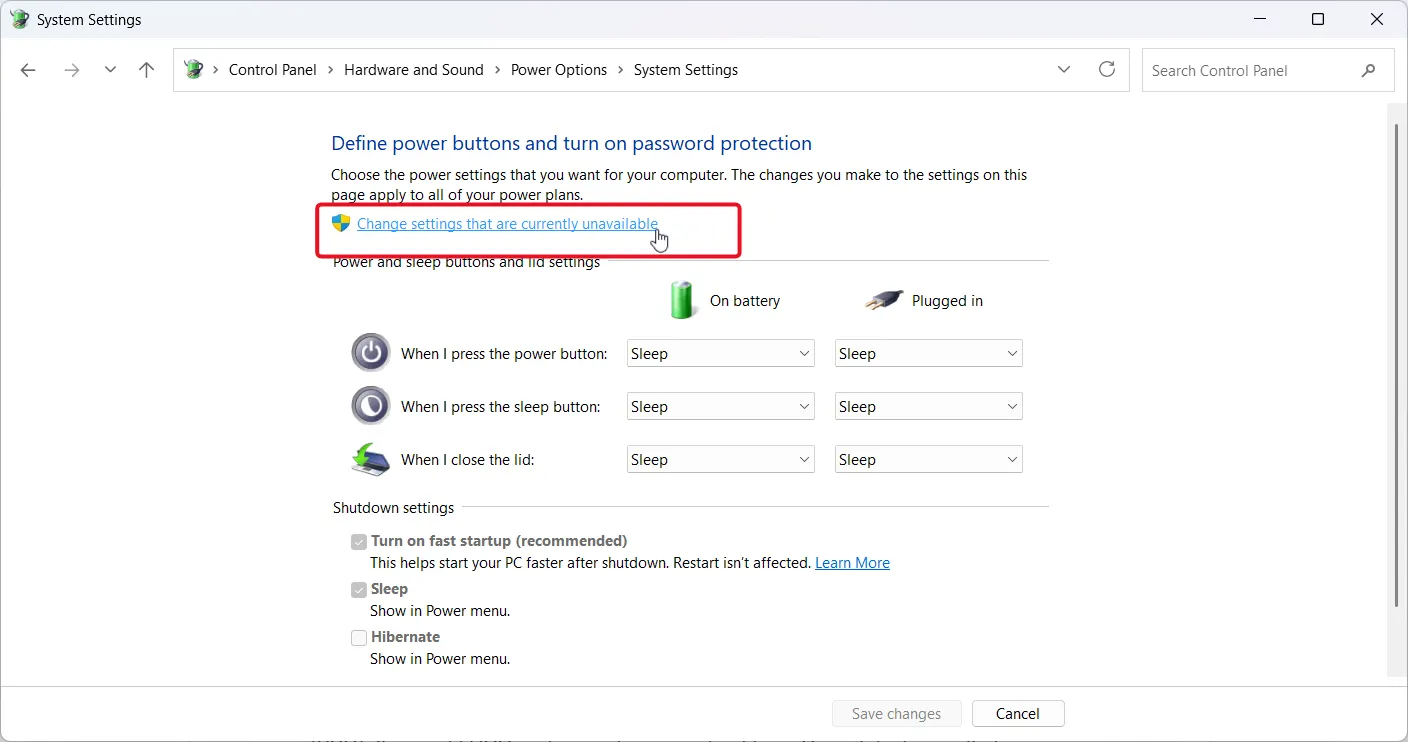
- Check ‘Turn On Fast Startup’ and click ‘Save Changes’.

If the Fast Startup option is missing, hibernation is probably off. Open Command Prompt as administrator, run powercfg /hibernate on, then reopen Power Options and check again. If you dual boot or notice problems with updates, drivers or shutdown; turn off fast Startup. The trade-off will be a slowest boot time, so do the Boot Duration test again to compare.
Step 4: Free Up Space, Update Windows and Check Your Drive
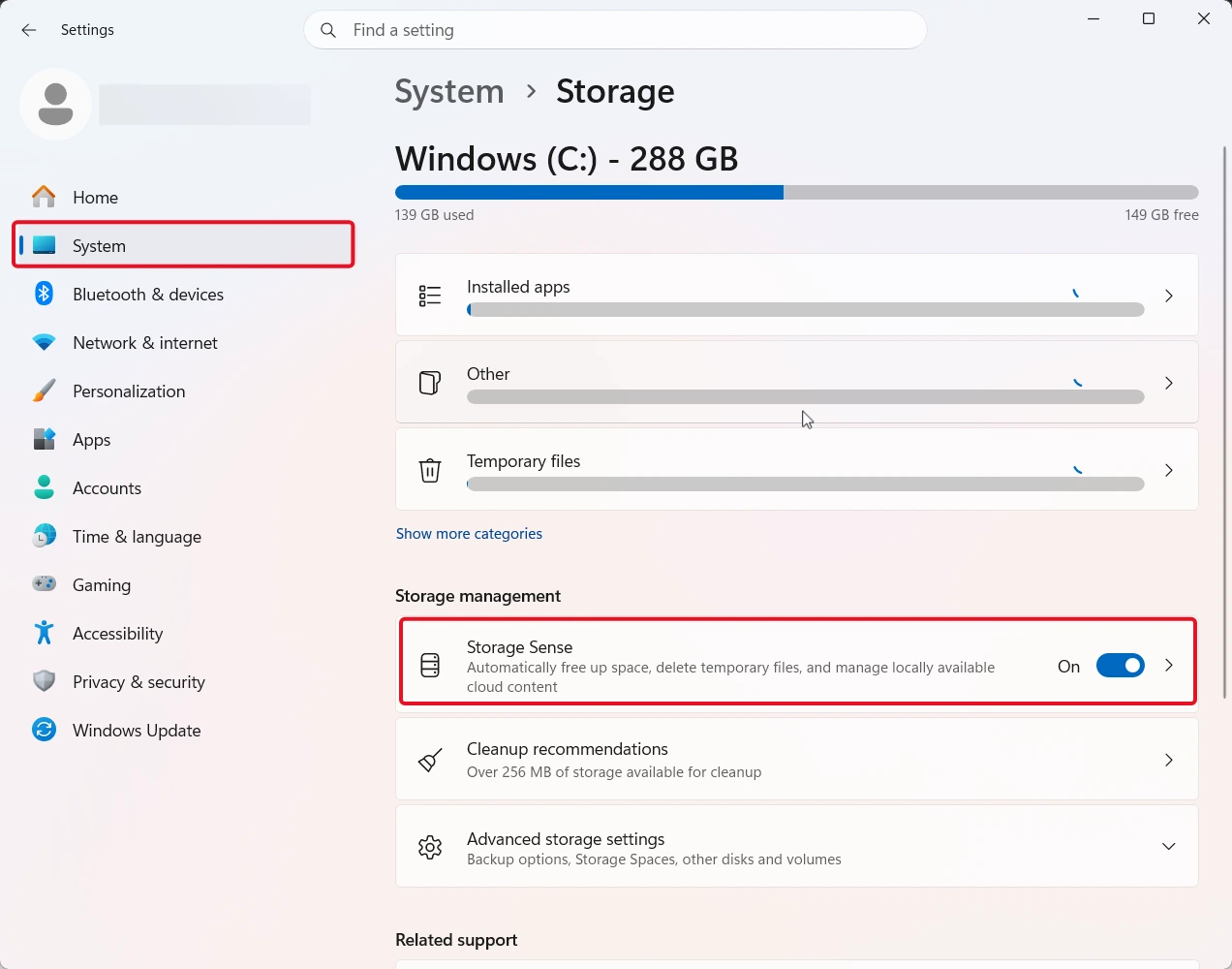
Low free space and pending updates can slow startup. Open Settings > System > Storage and turn on Storage Sense, as Windows Report suggests. Then go back to Windows Update and apply all pending updates, which will include driver updates. You should defragment a Hard Disk Drive (HDD) but do not defragment an Solid State Drive (SSD). If your old HDD is slowing down your boot time, Pureinfotech says that one solution would be to replace it with an SSD and add some RAM.
Step 5: Check Two Firmware Settings (Optional)
These changes happen outside Windows, so make them only if the earlier steps were not enough. Open your PC’s firmware settings (UEFI/BIOS) with the key your manufacturer lists, often Delete, F2 or F10, and change one setting at a time.
- Boot Order. Put the drive that holds Windows first, so the system will look for it first instead of another device on the system.
- Fast Boot. This firmware option, different from Windows Fast Startup, starts only the devices needed to boot, as Eleven Forum explains. The trade-off is that you may not be able to boot from a USB drive, the size of your boot menu key window could also decrease; therefore, disable this feature prior to implementing a Dual-Boot System or using recovery media.
If Startup Is Still Slow
- Find the culprit. Event Viewer events 101 to 110 flag which component slowed startup, such as apps, drivers or services.
2. Try a clean boot to diagnose, not to keep. In System Configuration (msconfig), disable only non-Microsoft services, restart, then re-enable them one at a time. - Scan for problems. Run a malware scan, and run sfc /scannow to check system files.
- Take it further. A Guide to finding out what is slowing down your Windows PC goes into detail about other causes of slowness on your Windows beyond startup.
Frequently Asked Questions
The Bottomline
To reduce Windows startup time without breaking anything, measure first, then change one thing at a time: turn off optional startup apps, delay non-critical third-party services, keep Fast Startup on, and free up space. If that is not enough, check your boot order in firmware. Leave Windows services, Security Software, and Drivers alone. After every change you should measure again, to see if there were any improvements, so you know what helped.