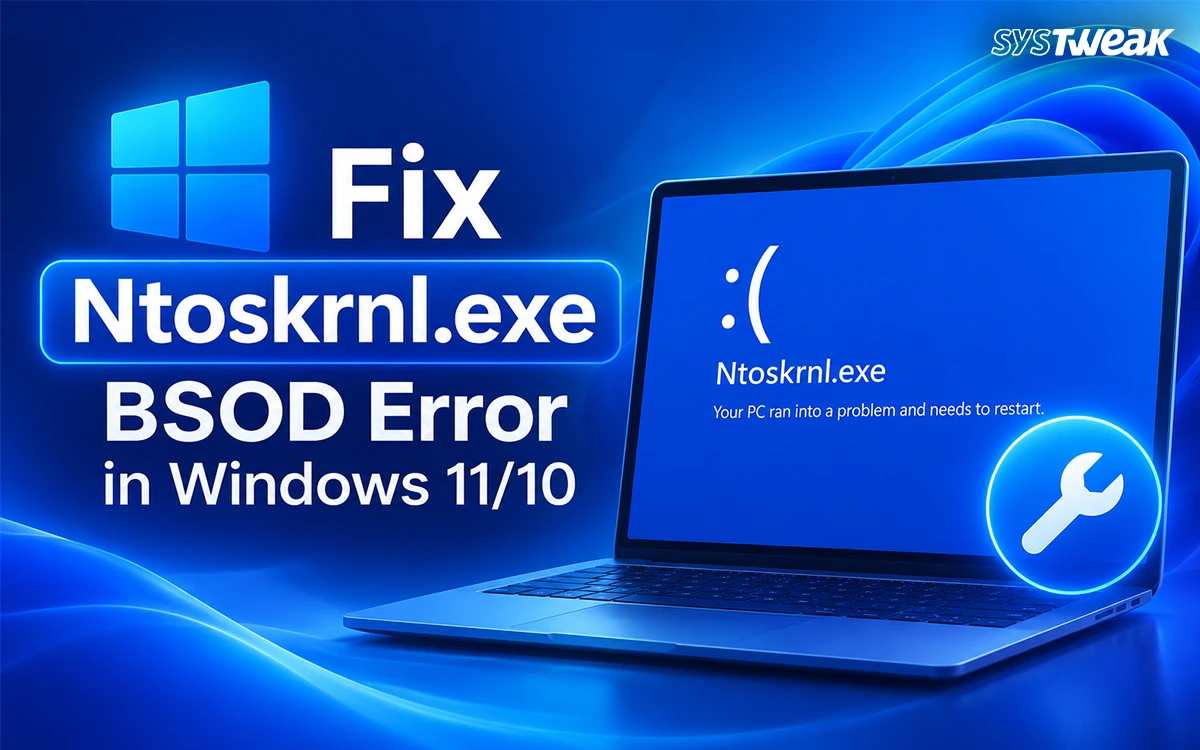

The Windows kernel is responsible for performing various system operations, including the memory management process and hardware interaction, among others. In case anything goes wrong at this level, Windows will crash, and an error relating to ntoskrnl.exe will appear.
Common reasons why you might be experiencing this error include corrupted RAM, drivers or update problems, faulty drivers, overheating, disk problems, problematic updates, and overclocking, etc. In case you experience an error message like “ntoskrnl.exe failed” on Windows 11, there is no need to worry, as the ntoskrnl.exe file may not be corrupted.
What Is Ntoskrnl.exe?
It means “Windows NT Operating System Kernel.” It is an important Windows system file that controls many functions such as memory management, hardware virtualization, process scheduling, and resource allocation.
Since it is part of Windows, issues related to drivers, memory, hard drive, or even system files could trigger errors that mention ntoskrnl.exe. The error could show up with different BSOD stop codes such as:
- IRQL_NOT_LESS_OR_EQUAL
- MEMORY_MANAGEMENT
- PAGE_FAULT_IN_NONPAGED_AREA
- SYSTEM_SERVICE_EXCEPTION
- KERNEL_DATA_INPAGE_ERROR
- CRITICAL_PROCESS_DIED
This means that to fix Ntoskrnl.exe Blue Screen Error, one has to know the real cause behind it.
What Causes the Ntoskrnl.exe BSOD Error?
An ntoskrnl.exe related problem could be caused by the following:
- Damaged or missing Windows system files
- Hardware driver issues
- Bad memory
- Issues with hard drive/SSD
- Computer overheating
- Malware
- Outdated Windows components
- Incorrect BIOS settings
- Overclocked CPU/RAM
- Newly installed software/hardware
As a first step before further troubleshooting, restart your computer to see if the BSOD comes up again. It could have been just a temporary glitch in the system.
How To Fix Ntoskrnl.exe BSOD Error in Windows 11/10
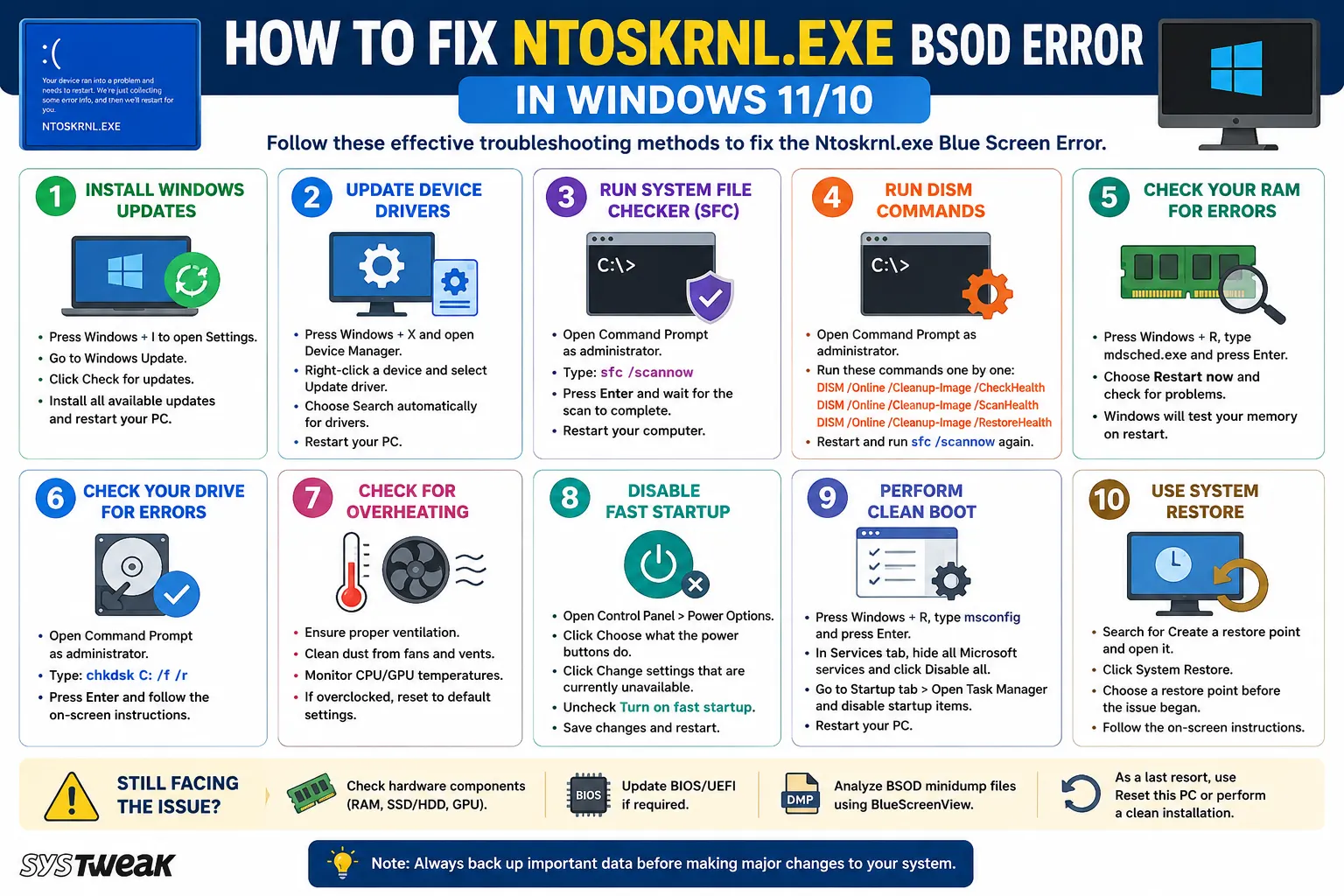
Note : Try the methods listed below one by one. After trying each method, make use of your computer as usual to determine whether the BSOD problem has been fixed.
Method 1: Apply Windows Updates
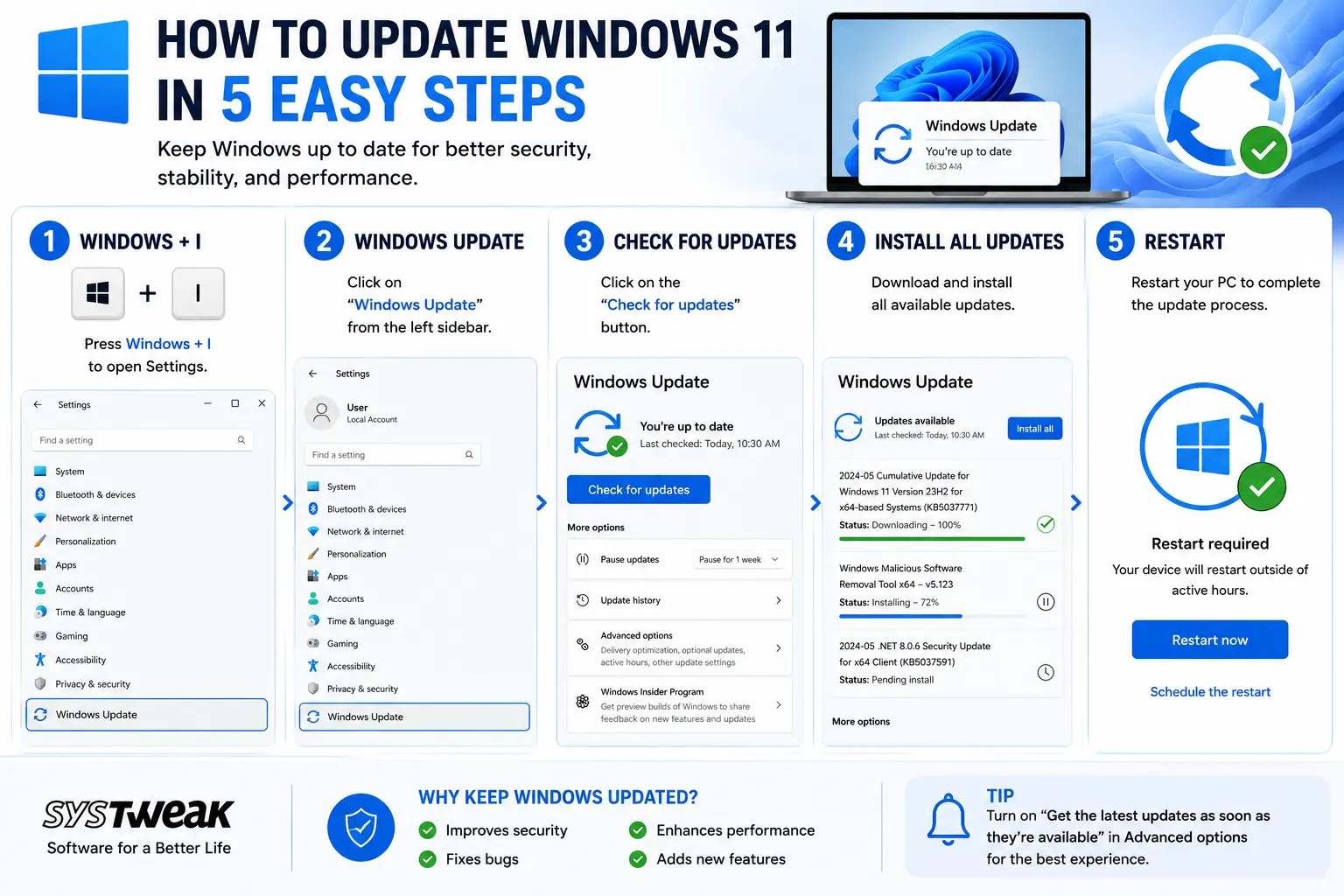
Microsoft always releases Windows updates with security patches and fixes. Sometimes, installing such updates helps fix compatibility issues that cause crashes associated with kernel errors. To update Windows, you need to do the following:
1. Press Windows + I.
2. Click on Windows Update.
3. Press “Check for updates.”
4. Install any available updates.
5. Restart your computer.
In case the “ntoskrnl.exe failed” Windows 11 error appeared after updating, however, the problem may lie in the update itself.
Method 2: Update Device Drivers
Broken, old or mismatched drivers have been known to be some of the major reasons behind BSOD errors. Special care should be taken for graphics, chipset, networking, storage, and audio drivers. You can either update the drivers through the Device Manager by downloading the driver updates from the Windows server or using Advanced Driver Updater software.
Updating Drivers Through the Device Manager
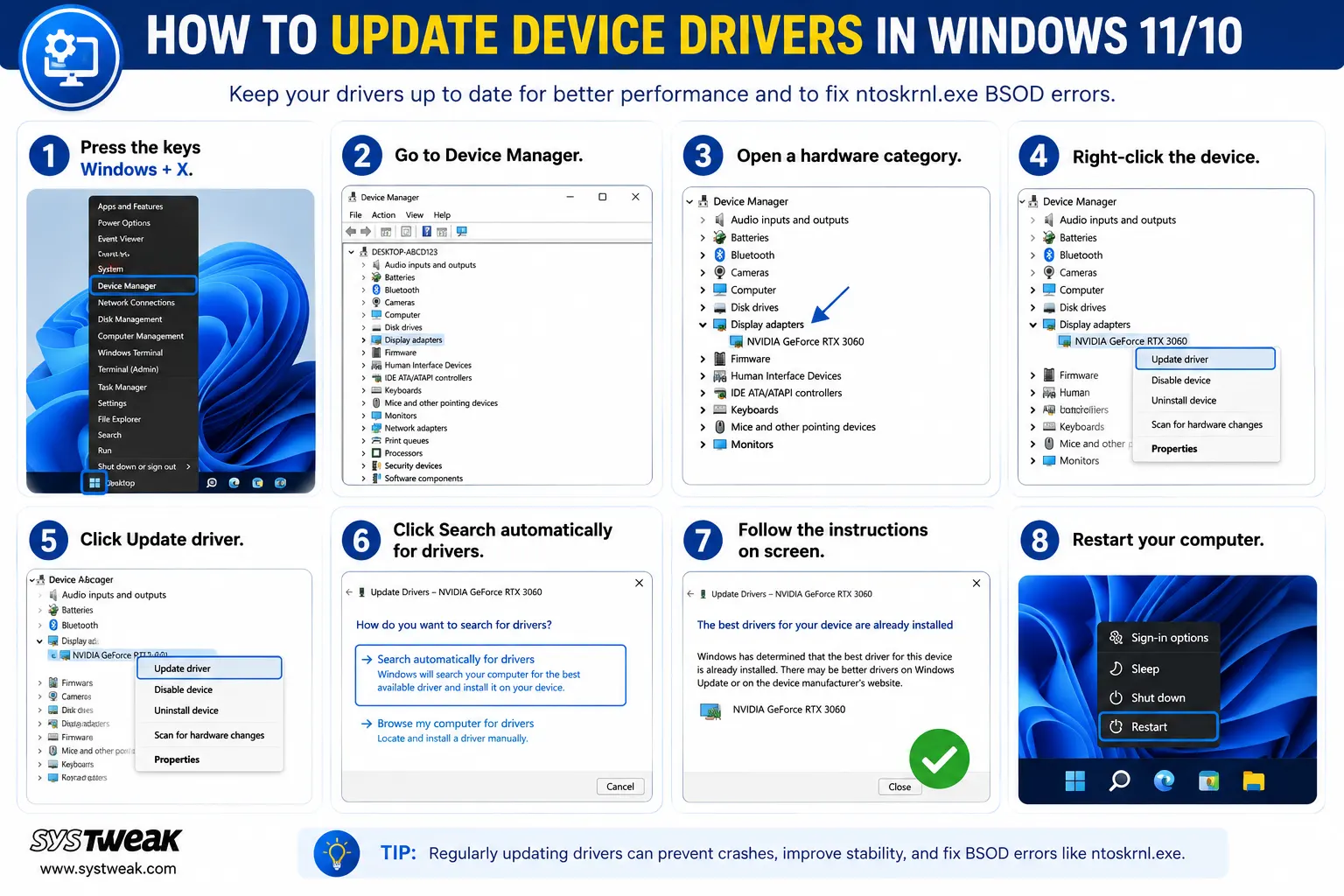
1. Press the keys Windows + X.
2. Go to Device Manager.
3. Open a hardware category.
4. Right-click the device.
5. Click Update driver.
6. Click Search automatically for drivers.
7. Follow the instructions on screen.
8. Restart your computer.
If the error occurred right after installing the driver, go into the properties of that device and click on the Roll Back Driver option from there.
Update Drivers Using Advanced Driver Updater.
1. Download and install Advanced Driver Updater.

2. Open the app and click on the Start Scan Now button.
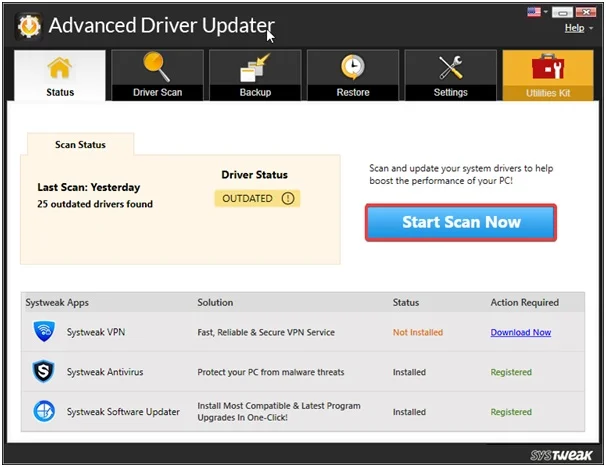
3. A list of driver anomalies will appear on the screen.
4. Locate the Drivers that require updates among the list and click on the update link next to it.

5. The update process will now begin. Reboot your PC once the update is completed.
Method 3: Run System File Checker
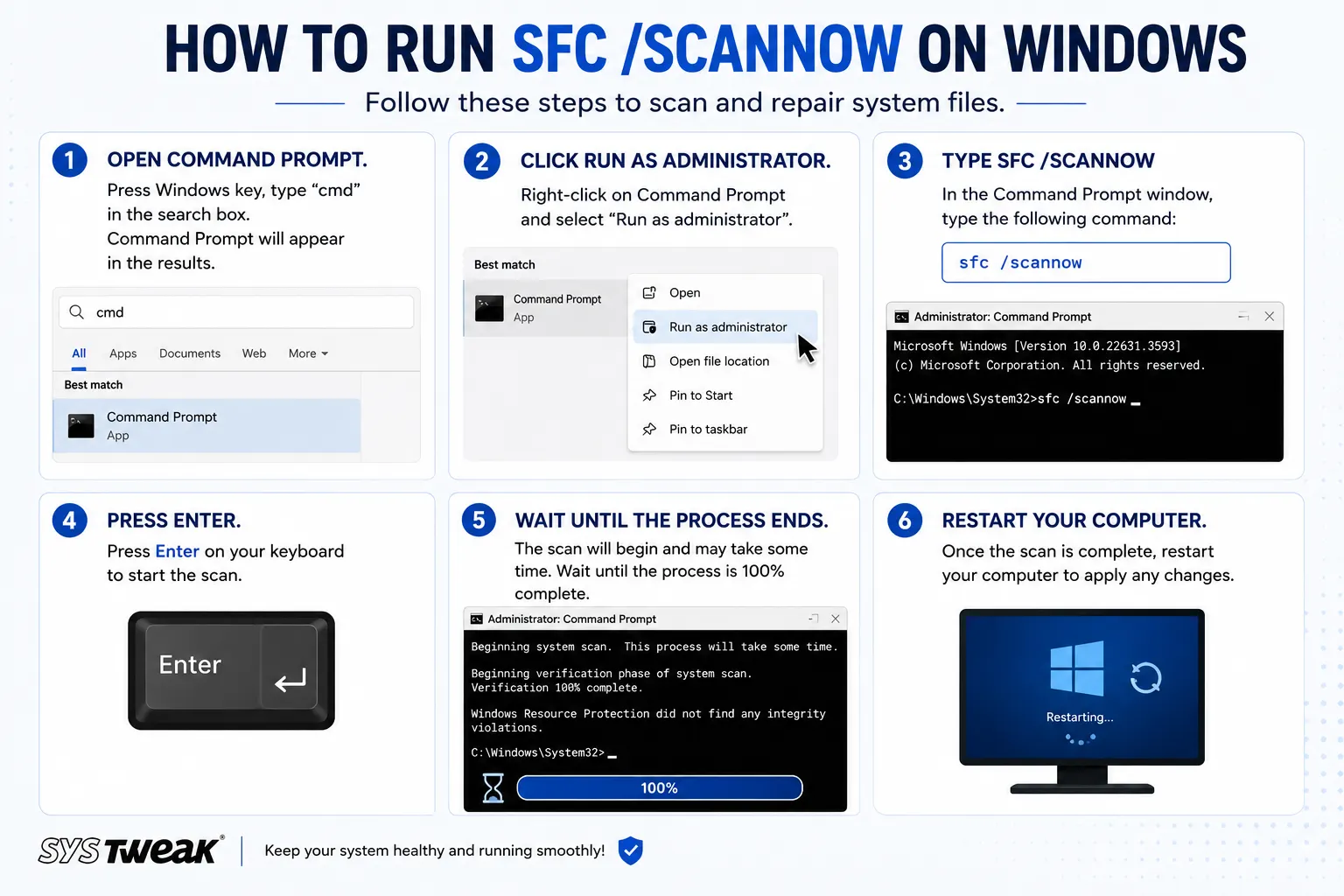
A corrupt version of Windows system files could lead to the crashing of your computer and could even cause ntoskrnl.exe failed messages. System File Checker (SFC) is an application in Windows that checks for any corrupt files and tries to fix them.
1. Open Command Prompt.
2. Click Run as Administrator.
3. Type sfc /scannow
4. Press Enter.
5. Wait until the process ends.
6. Restart your computer.
If SFC is unable to fix all files, proceed to the next process.
Method 4: Run DISM Commands
The DISM (Deployment Image Servicing and Management) application can solve issues with the component store used by the SFC utility.
In Command Prompt, run as administrator, enter the following commands one by one:
DISM /Online /Cleanup-Image /CheckHealth
DISM /Online /Cleanup-Image /ScanHealth
DISM /Online /Cleanup-Image /RestoreHealth
Complete each of the commands before entering the other ones and restart your PC and try again sfc /scannow.
Method 5: Check Your RAM for Errors
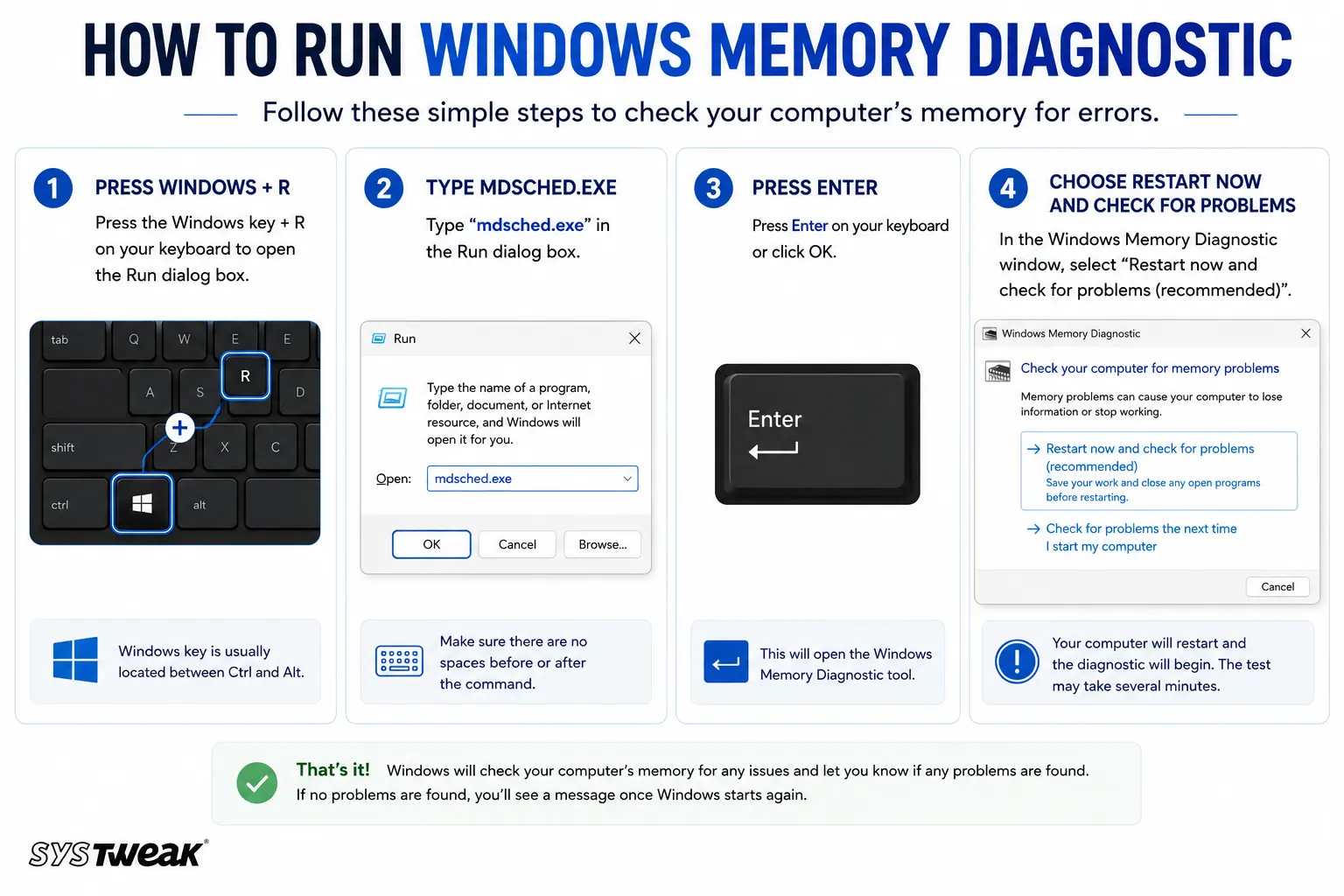
Because ntoskrnl.exe is responsible for memory management, damaged RAM often results in kernel-based BSODs. Windows Memory Diagnostic can help detect possible issues with your memory.
1. Press Windows + R
2. Type mdsched.exe
3. Press Enter
4. Choose Restart now and check for problems
The computer will restart to conduct a memory test. If there are any errors, turn off the computer and verify the RAM modules. With a desktop computer, you can even test memory sticks separately when having more than one module installed.
Method 6: Check Your Drive for Errors
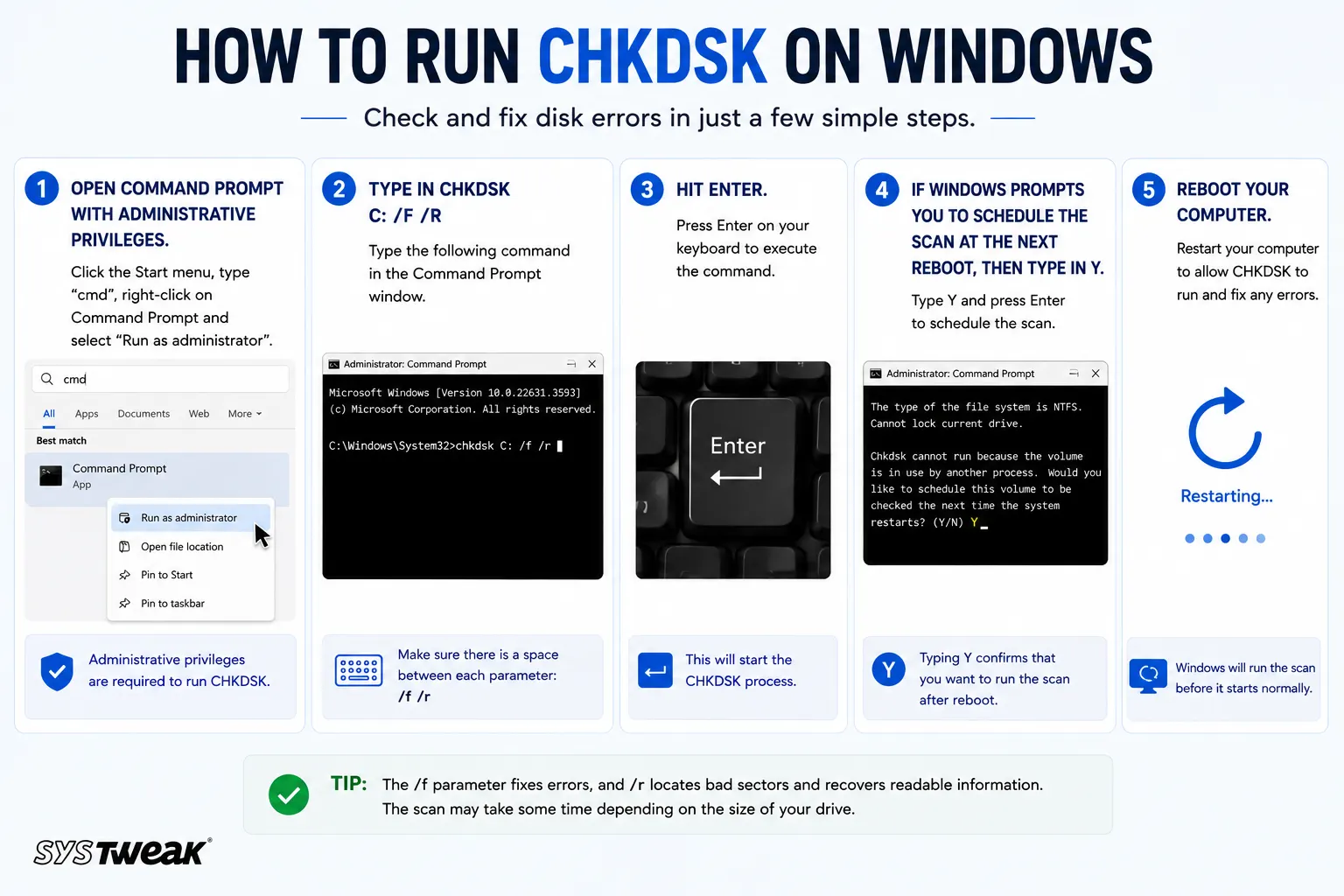
Storage issues might cause the computer to crash since the computer will not be able to access system files or any other necessary information. For scanning the system drive:
1. Open Command Prompt with administrative privileges.
2. Type in chkdsk C: /f /r
3. Hit Enter.
4. If Windows prompts you to schedule the scan at the next reboot, then type in Y.
5. Reboot your computer.
It can take quite a long time to run this check, especially if the drive is large or corrupt.
Method 7: Check for Overheating
High CPU and GPU temperatures can lead to instability and blue screen of death (BSOD). Ensure that your PC has proper ventilation. Remove any dust that may be inside the air vents or on the cooling fans, and ensure that the cooling system is functioning well. In case you have overclocked the CPU, GPU, or RAM, then undo the changes.
Method 8: Disable Fast Startup
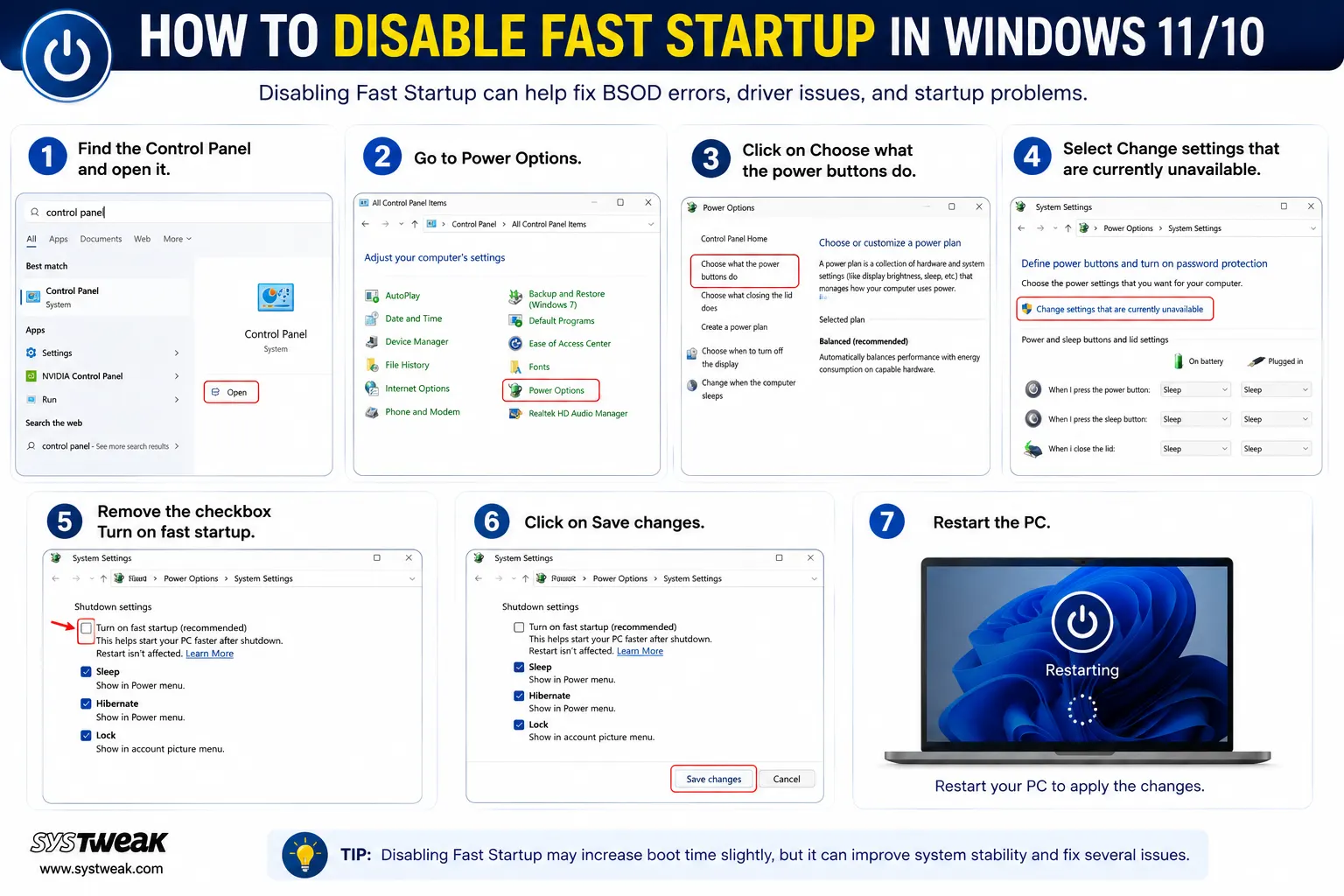
Sometimes, Fast Startup may be responsible for some compatibility problems when shutting down or starting up your PC. To turn off the function:
1. Find the Control Panel and open it.
2. Go to Power Options.
3. Click on Choose what the power buttons do.
4. Select Change settings that are currently unavailable.
5. Remove the checkbox Turn on fast startup.
6. Click on Save changes.
7. Restart the PC.
Method 9: Perform a Clean Boot
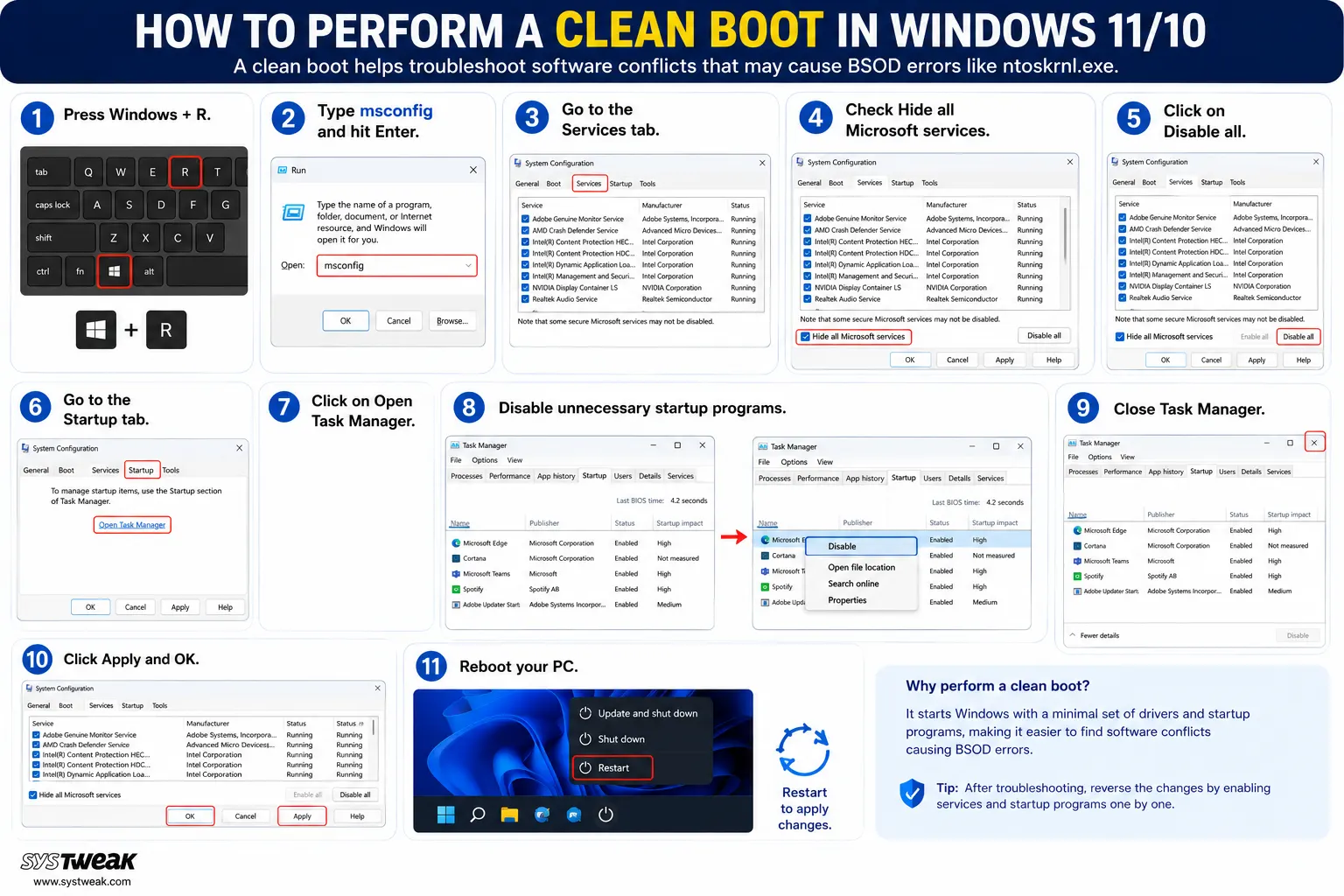
Third-party programs and background processes may conflict with Windows and cause crashes. Clean Boot will start your Windows using only basic drivers and services.
1. Press Windows + R.
2. Type msconfig and hit Enter.
3. Go to the Services tab.
4. Check Hide all Microsoft services.
5. Click on Disable all.
6. Go to the Startup tab.
7. Click on Open Task Manager.
8. Disable unnecessary startup programs.
9. Close Task Manager.
10. Click Apply and OK.
11. Reboot your PC.
If the BSOD issue is resolved, you should re-enable services and programs to detect the culprit.
Method 10: Use System Restore
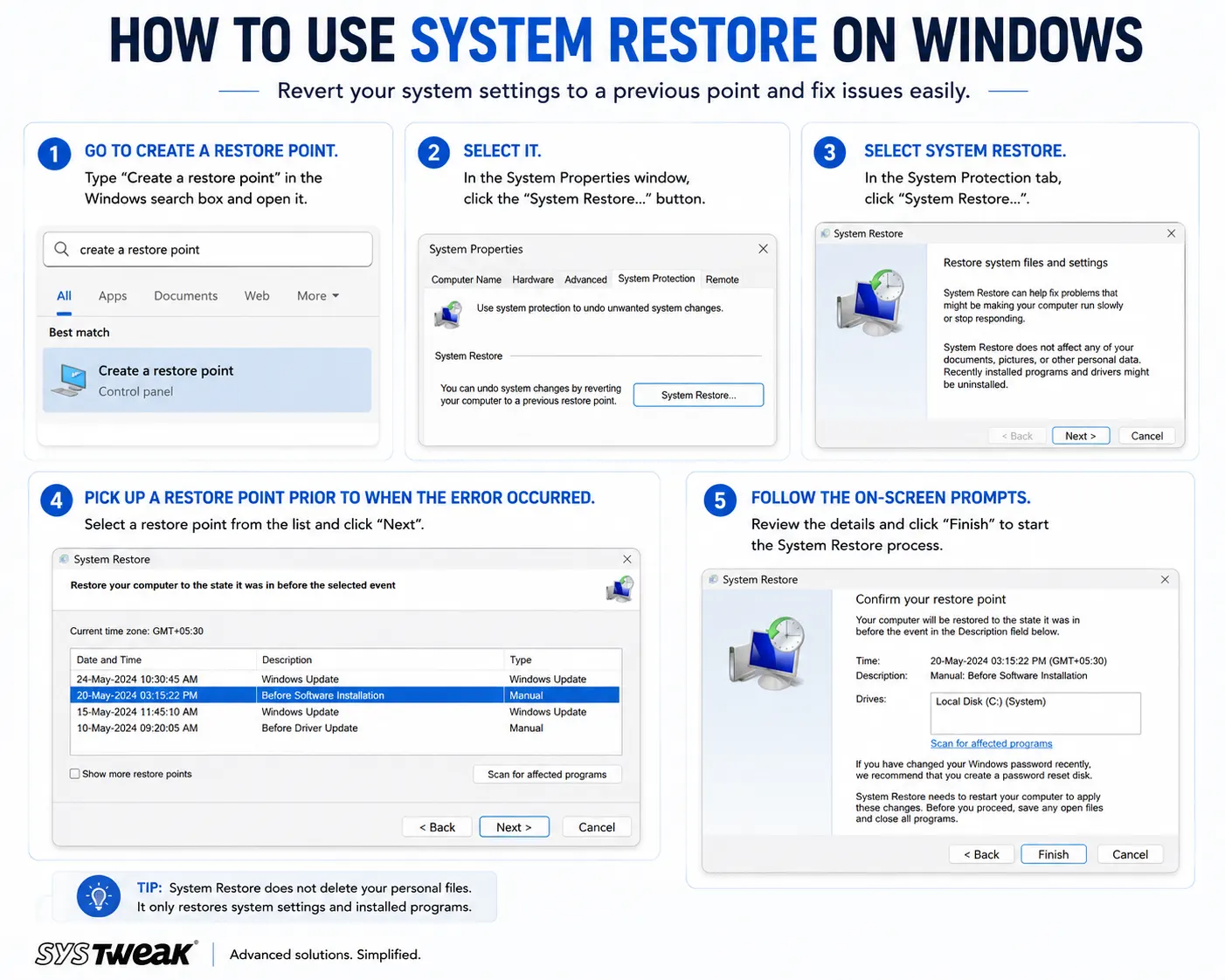
In case the Ntoskrnl.exe Blue Screen Error occurred after the installation of a driver, application, or any other system change, System Restore can help in restoring Windows to its previous stable condition.
1. Go to Create a restore point.
2. Select it.
3. Select System Restore.
4. Pick up a restore point prior to when the error occurred.
5. Follow the on-screen prompts.
System Restore generally does not affect your personal data but can delete recently installed software programs, drivers, and system changes.
Fix ‘No Device Drivers Were Found’ Error During Windows Installation
What If Ntoskrnl.exe BSOD Keeps Appearing?
If none of the troubleshooting methods prove effective, then there might be an issue with the hardware itself or the Windows OS installation. You may want to check:
- Memory modules
- SSD/HDD status
- CPU temperature
- Graphics card stability
- BIOS/UEFI configurations
- Newly added hardware
- Newly added drivers and software
Moreover, you may want to check the Windows Event Viewer or BSOD minidumps, which will help find the problematic driver or hardware component that causes the system to crash. In case Windows becomes very unstable, try using Reset this PC or Windows.
Conclusion:
The ntoskrnl.exe blue screen error has multiple reasons why this issue may occur, and hence, there is no universal cure for this problem. The file ntoskrnl.exe itself does not usually cause the problem. Other reasons behind this problem can be corrupted system files, corrupt drivers, bad memory, storage-related issues, overheating, or instability in the hardware.
You should first try easy methods like applying windows and drivers updates. Then, execute SFC/DIS commands, scan your RAM, analyze your storage drive and explore any signs of overheating or recent installations of new software.
If you are specifically looking for a fix to “ntoskrnl.exe failed” or “ntoskrnl.exe failed Windows 11,” this process will lead you to solving the problem.