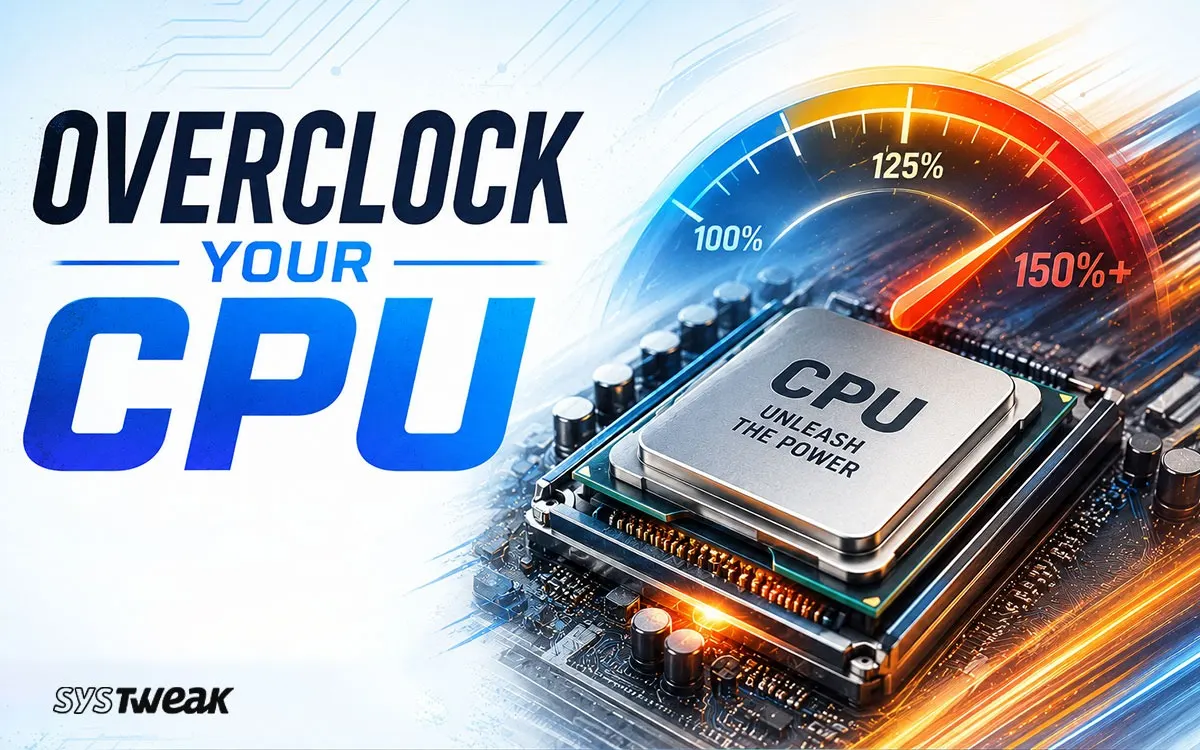

Your CPU runs at a clock speed the manufacturer sets based on what is stable and reliable across all types of systems and cooling configurations. This clock speed may or may not be the maximum speed that your particular chip is capable of running. Overclocking allows you to increase this clock speed beyond its factory set value and if done properly, provides a noticeable performance gain without spending money on new hardware.
This guide covers what overclocking is, whether it is worth it for your configuration, and how to do it step by step on both Intel and AMD processors.
What is Overclocking
Every CPU has a clock speed measured in GHz (gigahertz) for how fast it can perform one cycle per second. For example, if your CPU is running at 4.0 GHz your CPU will be able to perform four billion cycles per second. The manufacturer sets this speed to ensure reliability across systems with minimal cooling, average power delivery, and mainstream motherboards.
Overclocking allows users to operate their processor at increased clock rates, above what they were designed for. In this way, processors are able to execute computationally intensive processes (such as video editing, rendering 3D graphics, or playing games) faster and with fewer interruptions.
Overclocking is the practice of increasing the clock rate of a processor to make it function at a speed greater than its original design intent. The clock rate effectively controls how many tasks a processor can perform per second, so increasing that increases its capabilities in turn.
Besides the CPU, you may be able to increase clock speeds of both your GPU and RAM. To do this for the RAM, the simplest method will be to enable XMP or EXPO in your BIOS. This will enable an XMP or EXPO profile which will cause the RAM to operate at its rated speed instead of operating at some much lower default value. Since these values were chosen and validated by the RAM’s manufacturer, you should find them to be completely safe and compatible with those same modules. It is recommended to try this before even attempting to overclock your CPU as many users have reported very significant increases in real world performance without adding any risk.
Is overclocking worth it for your setup
Honestly, overclocking is less impactful than it was before. Current CPU models already boost aggressively out of the box. This leaves little room for manual overclocking. AMD’s 3D V-Cache chips such as the Ryzen 9800x3D deliver excellent gaming performance at stock and have limited manual overclocking support. Additionally, Intel’s 13th & 14th generation chips already run near their thermal ceiling.
There are many CPUs that don’t have much overclocking headroom, and unless you take your time and do it carefully, you can make your system unstable until you revert the changes. That said, there is often extra performance to be found, and for the right setup it can be genuinely worthwhile.
Overclocking can be the best choice for your system in these cases:
- You own an older mid-range CPU which has become a bottleneck to achieving higher speed.
- Your processor is either an unlocked Intel K-Series or AMD Ryzen Series processor on a compatible motherboard.
- You already have a capable aftermarket cooler installed.
Do not consider this option if you have a Laptop; Your current Motherboard is one of those “budget” boards lacking high-quality Power Delivery capabilities; You are still utilizing the Stock Cooling System.
Before you start: check compatibility and update BIOS
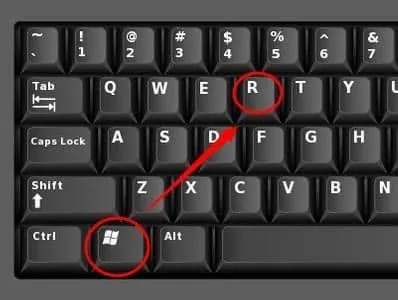
Check your CPU & motherboard first. Hit Windows key + r, enter “msinfo32,” hit enter. Look for Processor model & baseboard product in the system information window to determine whether your CPU is locked or unlocked. Most modern AMD Ryzen desktop processors are unlocked, including the Ryzen 5000/7000/9000 series, paired with a B- or X-series motherboard. For Intel, multiplier overclocking requires K, KF, or KS processors on a Z-series motherboard such as Z690, Z790, or Z890.

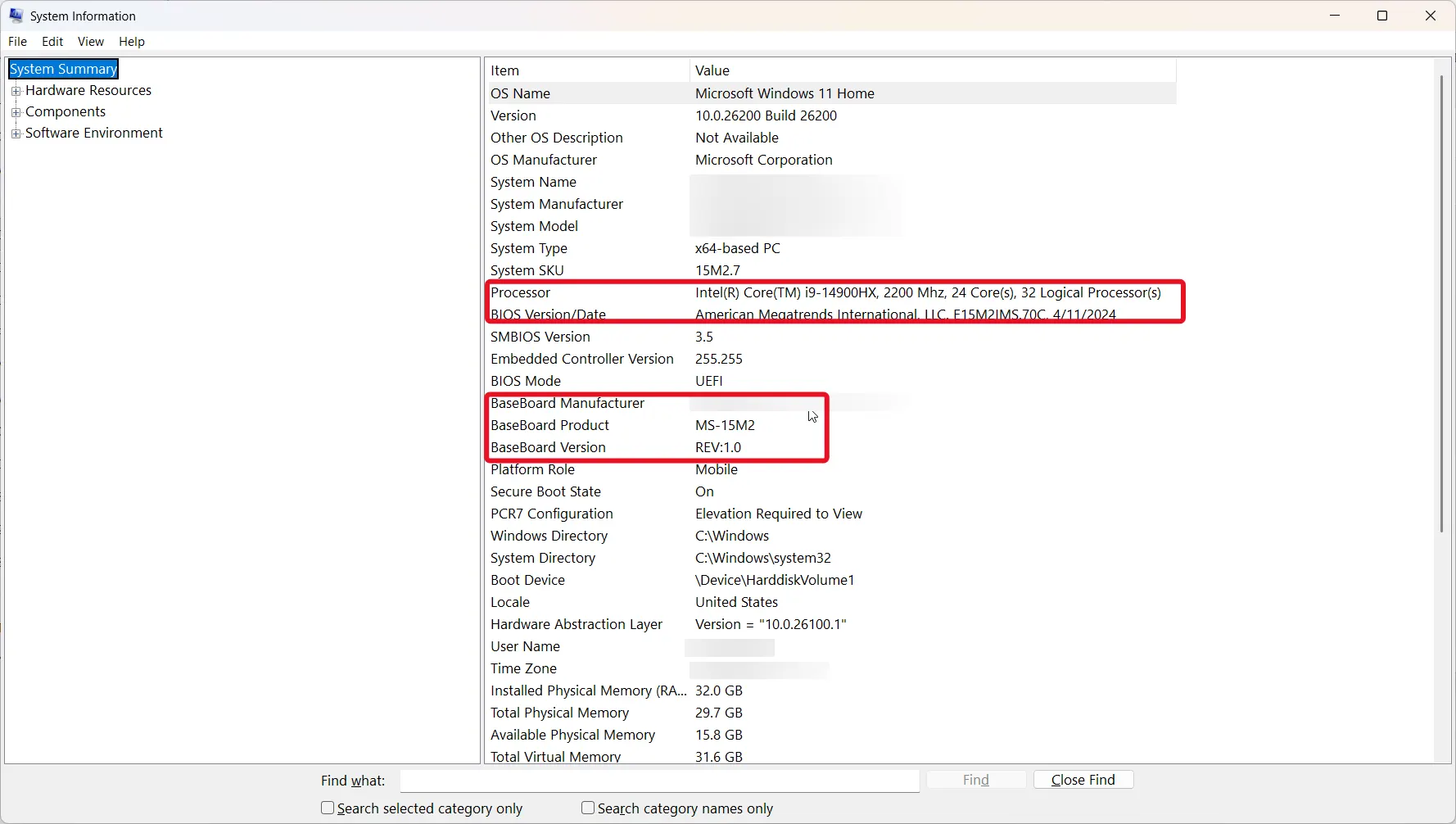
Update your BIOS first. Motherboard manufacturers frequently improve CPU compatibility, stability, and voltage management through BIOS updates. A lot of beginner problems can be avoided by updating your bios to the most current version prior to attempting to over clock. To do this visit your motherboard manufactures website, go to their software section and download the latest version of bios for your exact motherboard and then follow the bios update directions.
Laptop owners stop here. Overclocking the CPU of a laptop is theoretically possible but almost never practical. Due to the tight packing of the internal components inside laptops they have much more limited cooling than a desktop , when you run an overclocked cpu on a laptop for extended periods it will overheat causing potentially irreparable damage. Most laptop CPUs are also locked against multiplier changes.
What you need
An overclockable CPU and compatible motherboard as described above.
An aftermarket cooler. The stock cooler is designed for factory speeds, not overclocked operation. A quality air cooler (such as a Noctua NH-D15 or be quiet! Dark Rock 4) or a 240mm AIO liquid cooler is the minimum. For high-end chips (Core i7/i9, Ryzen 7/9), a 280mm AIO or larger is recommended.
A sufficient power supply. Overclocking increases power draw. Ensure your PSU has enough capacity above your system’s total wattage at stock.
Tools to download
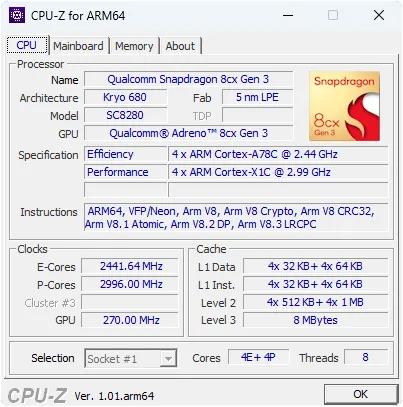
CPU-Z – shows current clock speed, voltage, and multiplier in real time
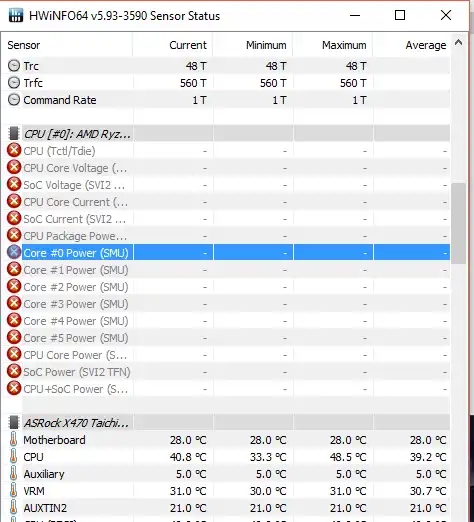
HWiNFO64 or Core Temp – monitors CPU temperature per core
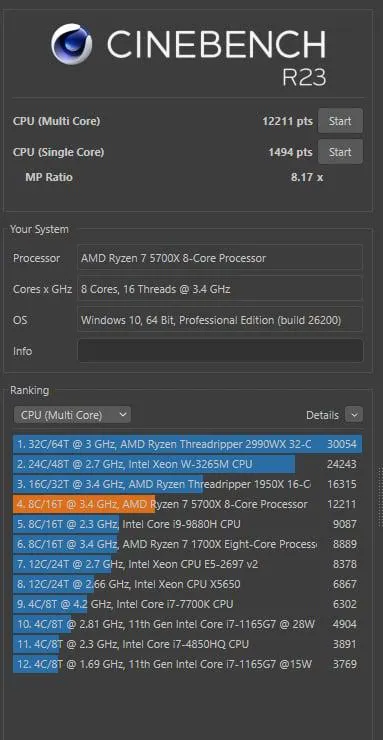
Cinebench R23 – benchmarks CPU performance with a repeatable, comparable score
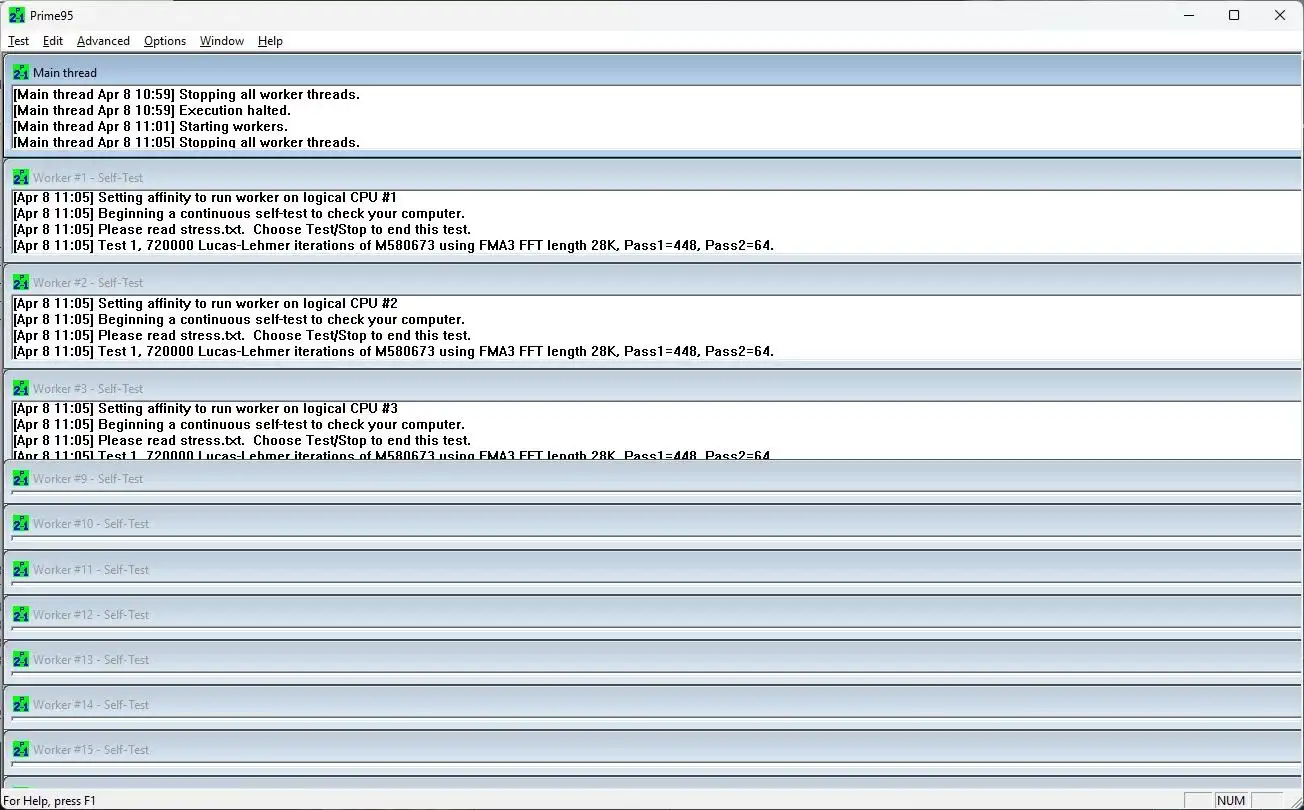
Prime95 – stress tests all CPU cores at 100% load for stability testing
Steps to Overclock your CPU
Step 1: Record your baseline
To begin with, run Cinebench R23, and note the score. Record both your system’s idle temperature as well as your system’s temperature while it is being loaded by a full Cinebench R23 run. Those temperatures are going to serve as reference points when making changes to help evaluate how those changes impact your system.
You have to first determine what your CPU’s current operating temperature is. Overclocking the processor increases its operating temperature, so if your computer is currently running hotter than normal, this needs to be corrected prior to starting an overclock. If the temperature of your processor exceeds 70°C during maximum loading on stock settings, then your current cooling solution for your processor is likely not capable of keeping up, your cooler may not be powerful enough and you should address cooling before attempting any overclock.
Step 2: Enter the BIOS
Shut down your PC completely. As it restarts, you will need to continue pressing the key used to access the bios of your system. Depending upon what type of motherboard is installed inside your pc this can be Delete , F2, or F10. If your BIOS opens in EZ Mode, press F7 to enter Advanced mode where overclocking settings are found.
Step 3: Raise the multiplier
The CPU’s clock speed is equal to the base-clock(BCLK) in MHz (usually 100 Mhz), times the cpu ratio. If you have a ratio of 45, then 100 * 45 = 4500 MHz (or 4.5 Ghz). If you have a ratio of 50, then 100 * 50 = 5000 MHz (or 5.00 Ghz).
Leave the BCLK at 100 MHz and increase only the CPU multiplier (also called CPU ratio or clock ratio), one increment at a time. Save and exit the BIOS, boot into Windows, and run a stress-test before making another cpu multiplier adjustment. Don’t jump over multiple adjustments that will help determine how many steps your processor can handle.
Step 4: Stress test
Run Prime95 (Small FFTs Preset) with a 30 minute continuous stress test. While running Prime95 continuously, monitor your CPU temperature using HWiNFO64. A maximum of 95 degrees Celsius on a CPU under continuous load is acceptable on all new generation processors. Staying under 85°C is preferable for long-term reliability.
If you have successfully completed this 30 minute test period and did not experience either a crash or throttling event as well as no bluescreens, then proceed and run CineBench to measure the gain. If stable, return to the BIOS and raise the multiplier by one more step.
Step 5: Adjust voltage if needed
If your CPU crashes while running at a high multiplier or won’t start up then you will need to go to voltage. Usually VCore (voltage for the CPU) is defaulted to auto or 1.25V. Start with increasing the voltage to 1.35V. Only increase by .025V at a time and run a stress test immediately after changing. Be very aware of your temperature readings because increased voltage means increased heat generation. Do not use over 1.4V on 7nm and lower CPUs without a significant cooling system.
Step 6: Repeat until stable
Continue the process: increase the multiplier > stress test > check temperature > adjust voltage if needed. You will eventually reach a point where no amount of voltage stabilises the system or temperatures become unsafe. Go back to the last stable multiplier and do another one-hour long stress test with prime95 to ensure the overclock has a solid foundation without crashing or throttling of CPU.
Intel-specific notes
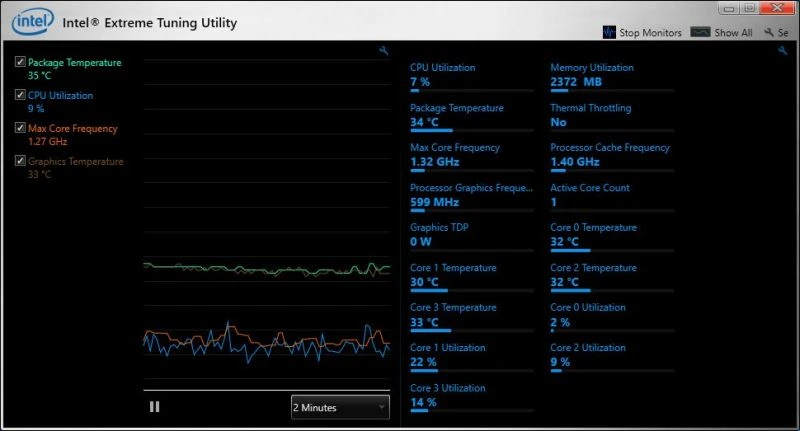
The Extreme Tuning Utility (XTU) by Intel is an easy-to-use, free Windows based utility to let you manually increase your multiplier, voltage and power limits — all with out having to get into the bios. Generally speaking, you will see better stability over time if you do most of your overclocking in the bios.
The BIOS contains many options including Load Line Calibration (LLC). LLC prevents the voltage level from dropping when the CPU is under a heavy load; Power Limits (PL1 & PL2) are used to determine how long you can keep the CPU at high clock speeds. On supported chips, make sure to enable Intel Thermal Velocity Boost. This option will automatically push clocks higher when temperatures allow.
AMD-specific notes
Ryzen Master is AMD’s Windows utility for real-time adjustments without the BIOS. For most Ryzen users, the best first step is enabling Precision Boost Overdrive (PBO) in the BIOS, which allows AMD’s own algorithm to push boost clocks beyond stock limits dynamically and safely. Combine PBO with Curve Optimizer to fine-tune performance per core.
Enable EXPO profiles for your RAM in the BIOS. Running your RAM at its rated speed typically provides more noticeable gains than attempting a small overclock of your CPU.
Safe Temperature Reference
| Processor Generation | Max recommended temperature under load |
| Intel 12th gen (Alder Lake) | 85°C |
| Intel 13th/14th gen (Raptor Lake) | 95°C |
| AMD Ryzen 5000 series | 90°C |
| AMD Ryzen 7000/9000 series | 95°C |
Note : An overclock that remains stable during the winter months can create excessive heat issues during warmer summer months. Revisit fan curves and re-run a stress test after significant seasonal temperature changes.
Frequently Asked Questions
The bottom line
Overclocking for free performance can be done on the right hardware when followed in a systematic way. First, update your BIOS then record a base line before making any adjustments. Raise the multiplier one step at a time and immediately do a stress test after each adjustment.Never raise voltage as a first response to instability ,lower the multiplier first and see if stability returns. The biggest risk is not damaged hardware, it is an impatient approach that skips stress testing and leaves you with an unstable daily driver. If your PC passes an hour of Prime95 without crashing or throttling, your overclock is solid.