
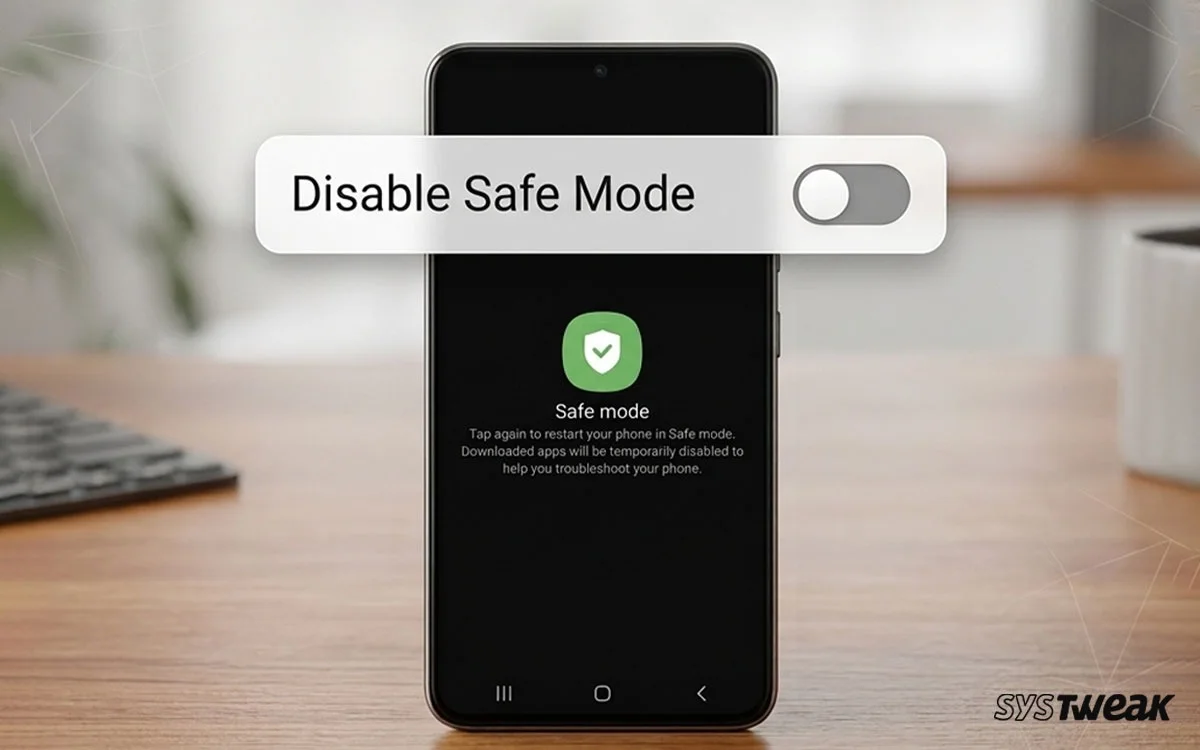

You pick-up your phone and find out that the words “Safe Mode” is in the lower left hand side of your screen. Apps will not load, everything seems slow, and you’re unsure as to how this occurred. One of the more confusing aspects of android is when an app goes into safe mode on its own. Safe Mode can be a frustrating experience for users who didn’t choose to put their phone into Safe Mode. The purpose of this article is to explain what Safe Mode is, why it would go on by itself, and give you a list of all the ways to disable Safe Mode.

What is Safe Mode and Why Did It Turn On?
Safe Mode is an android built-in function to boot up your device with only the original system apps running as well as disable all of the third party applications you have installed. The purpose of this feature is to help troubleshoot your Android device. If you can find no issues when your phone is booted into safe mode, then it is most likely one or more of the third party applications that are causing problems on your device.
Safe Mode could have been turned on by accident from holding down both the Power Button and Volume Down button at the same time, Your phone crashed and restarted, causing the device to go into Safe Mode or The Physical Volume Down Button has become stuck or is being partially pressed.There are several methods to disable “Safe Mode” which are listed below.
Method 1: Restart your phone
Restarting your phone is a good place to begin. It will work the majority of the time when restarting.
1. Press and hold the Power button.
2. Tap Restart or Power off.
3. Wait for your phone to reboot.
4. Check the bottom-left corner of your screen. If “Safe mode” is not there anymore, you’re good to go.
If the phone restarts into safe mode again, look for the next method.
Method 2: Use the Notification Panel
Some Android devices have a safe mode option on the notification panel. This can be used as a simple solution with just one tap.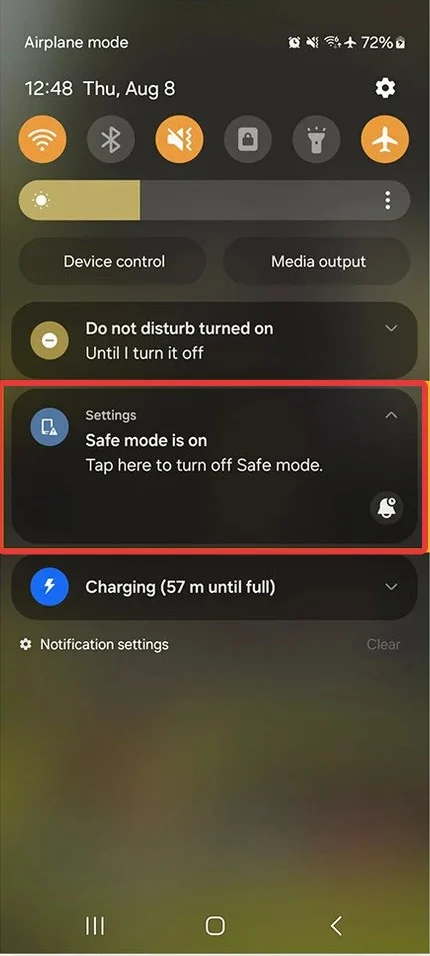
1. Open your notification panel by swiping down from the top of the display.
2. Find the “Safe Mode” icon or notice in the notification section.
Tap it.
3. Your device will automatically restart and return to its normal operating mode.
If you don’t find a safe mode option in your notification menu, then you are either using an Android version or a device model that does not support this feature.
Method 3: Use the Power and Volume Buttons
If you can’t fix your problem by simply restarting your device, you may need to force a full restart using these steps.
1. Press and hold the Power button and Volume Up button at the same time
2. You will be presented with the power options list. Tap the Restart option to begin the process of forcing a complete restart of your mobile device.
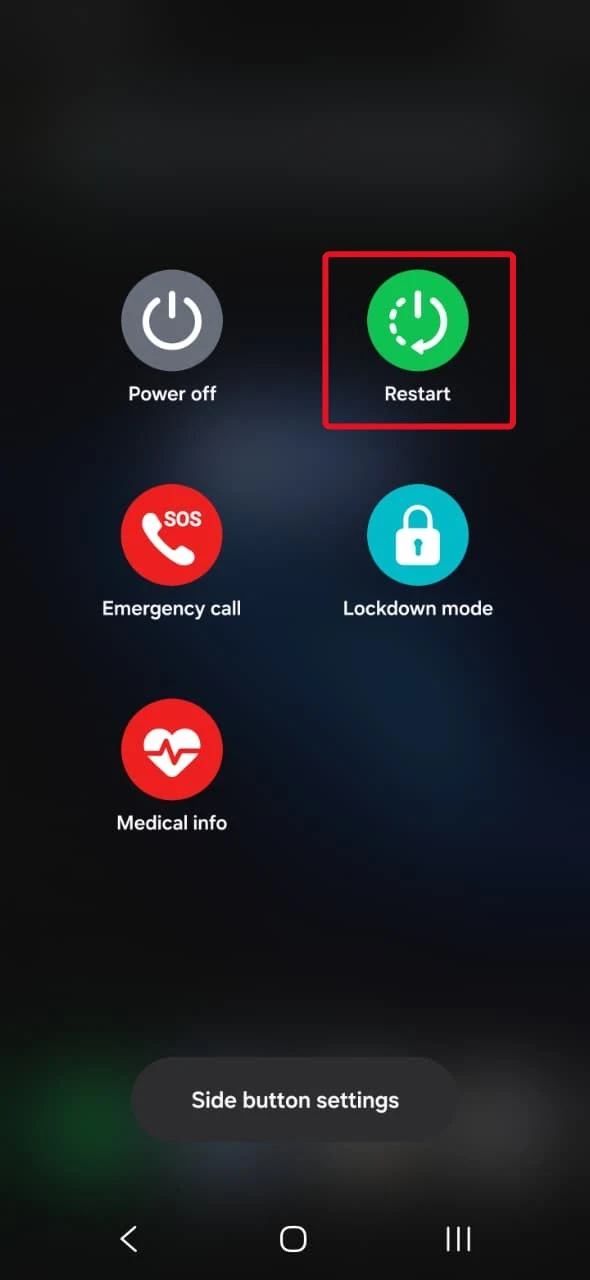
3.Once your mobile device has restarted in “Normal” Mode, you have successfully completed the task of performing a Forced restart of your mobile device.
Method 4: Clear Cache or Uninstall a Problematic App
Sometimes Safe Mode is activated because an app has either caused their device to fail or is in conflict with other applications. To avoid losing an app that you really like, clear the cache of the application before attempting to uninstall it. The Cache is where all of your temporary data goes while you are using an app. Removing this will remove all of the temporary data from the application but keep both the application and all its previous settings unchanged.
1. Go into Settings>Apps.
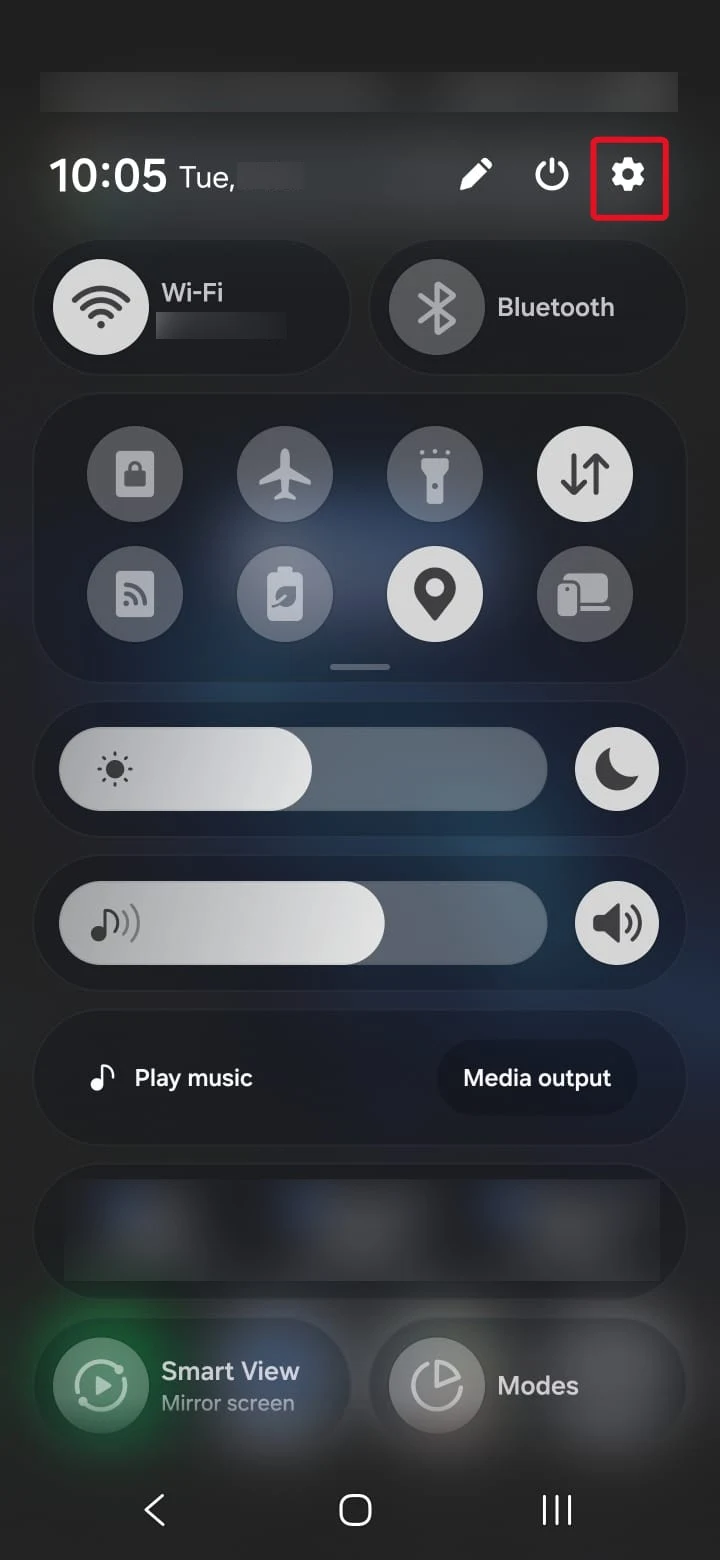
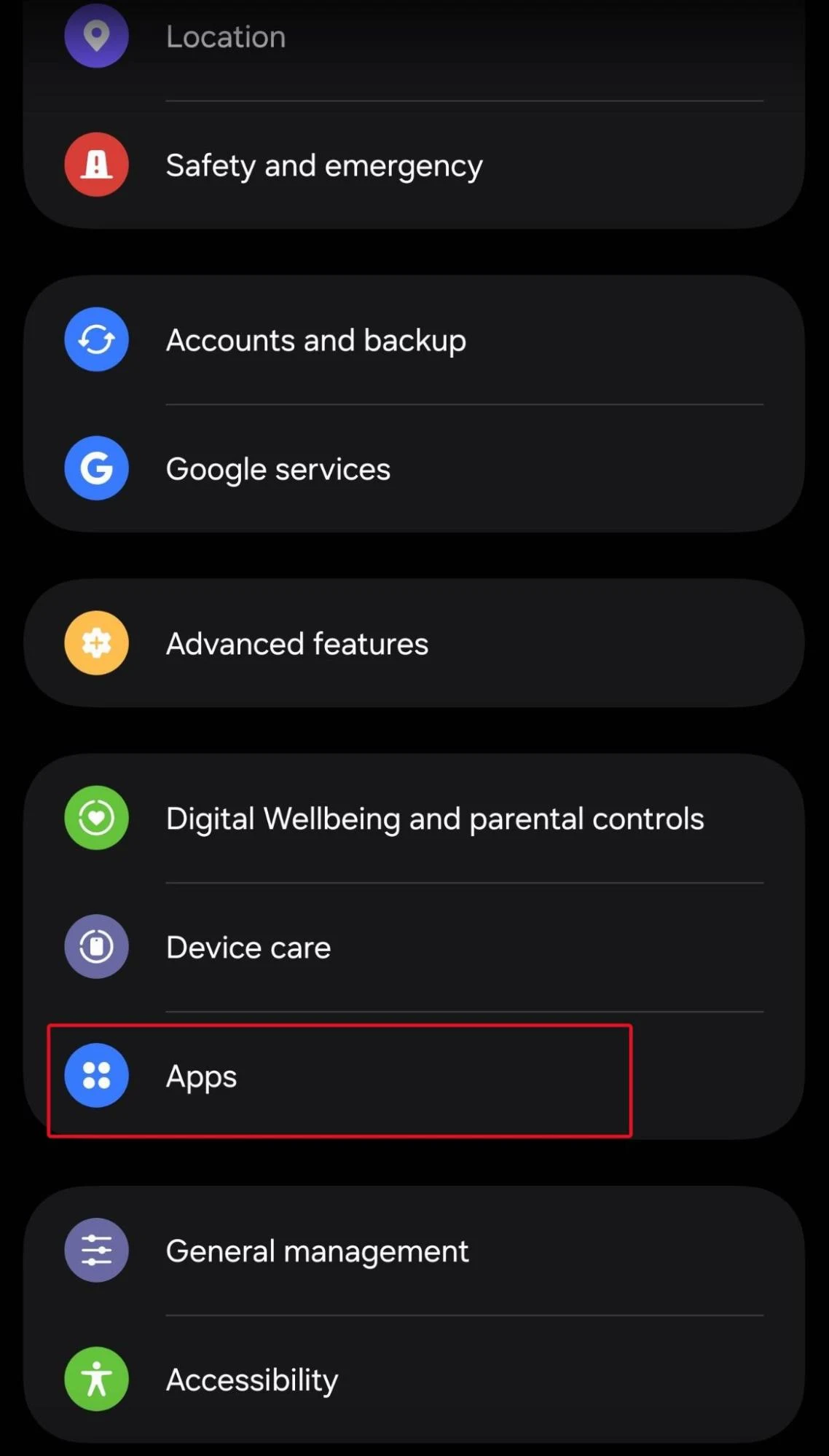
2. You will see all installed apps over here and now find the last used or updated application by using a filter.
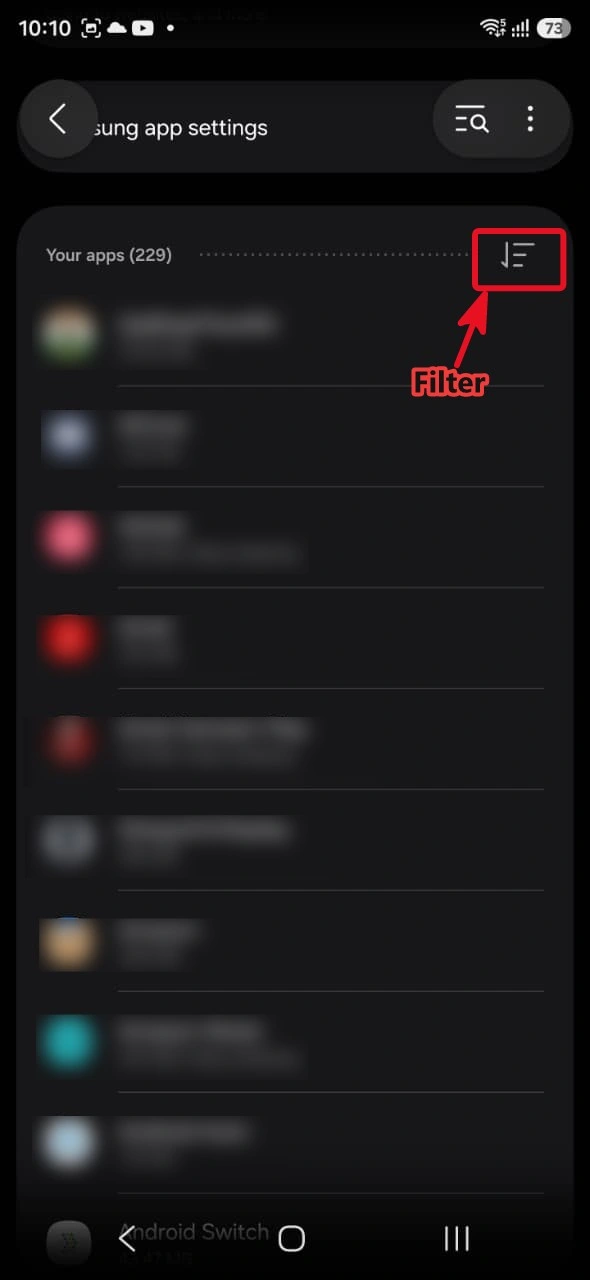
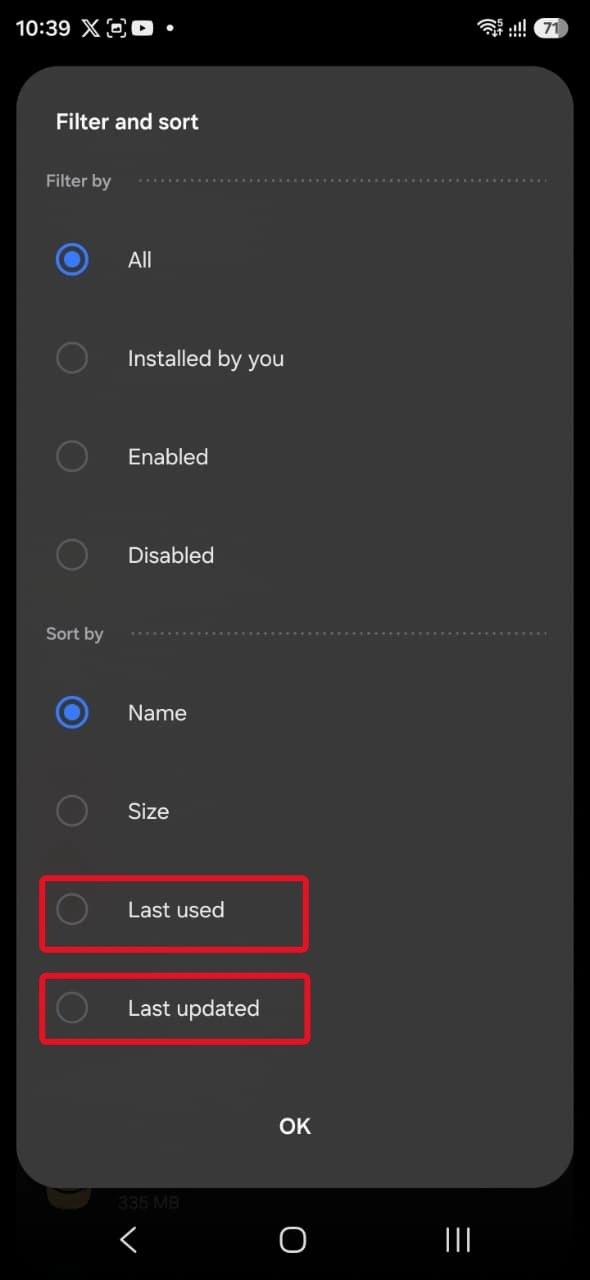
3. Tap “Storage” by tapping on a particular app.
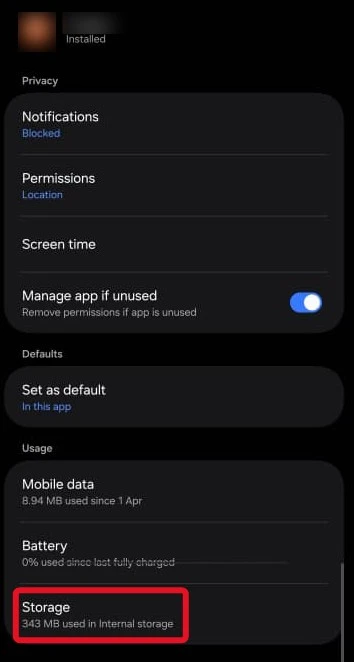
4. Tap on “Clear Cache”
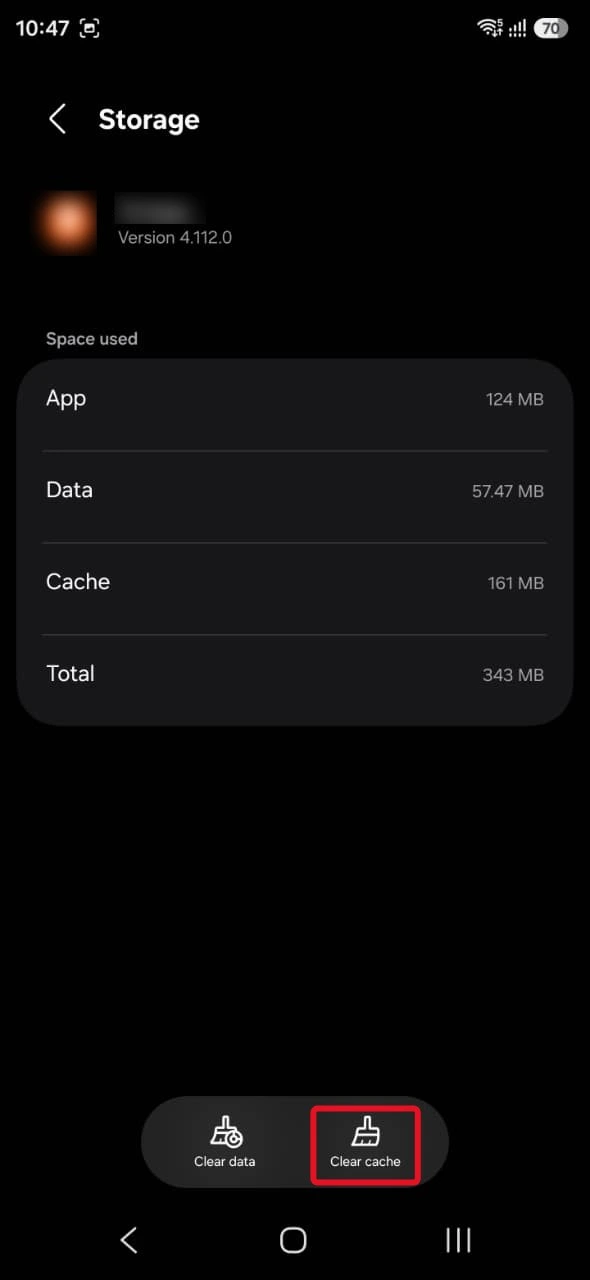
5. Restart your phone normally.
If clearing the cache does not resolve this issue, try uninstalling the app.
When you can’t tell which of your apps might be causing the issue, try to determine which app was installed on your device shortly after you began seeing the “safe mode” message. Apps that were recently installed/updated are most likely to be the problem.
Method 5: Check for a Stuck Volume Button
Stuck volume button is the most common cause that guides often ignore, and which causes the majority of phones to boot into safe mode every time they are restarted, regardless of how many times the user has tried to exit from safe mode.
When you hold down the volume button on an Android device long enough, your Android device will read this action as either entering, or staying in safe mode. If your volume button is physically damaged, jammed, or stuck, then each time your phone reboots it will go back into safe mode.
Carefully check your volume button. Try pressing it a few times to see if it feels normal. Look at the gap around the button, is there some type of debris (lint), dirt or residue, If so try using a soft, dry cloth, or a toothpick to very gently remove the debris. If the button feels physically damaged or unresponsive, it’s likely due to damage to the button and it is best for you to get a repair done.
After removing the debris or after repairing the button, restart your phone. Your phone should now no longer be in safe mode.
Method 6: Factory Reset (Last Resort)
Only use this if every other method has failed.Factory resets erase everything from your phone including apps, photos, Settings and data to how it was when you bought it. Back up everything before doing so.
1. Go to “Settings” > “General Management” > “Reset”.
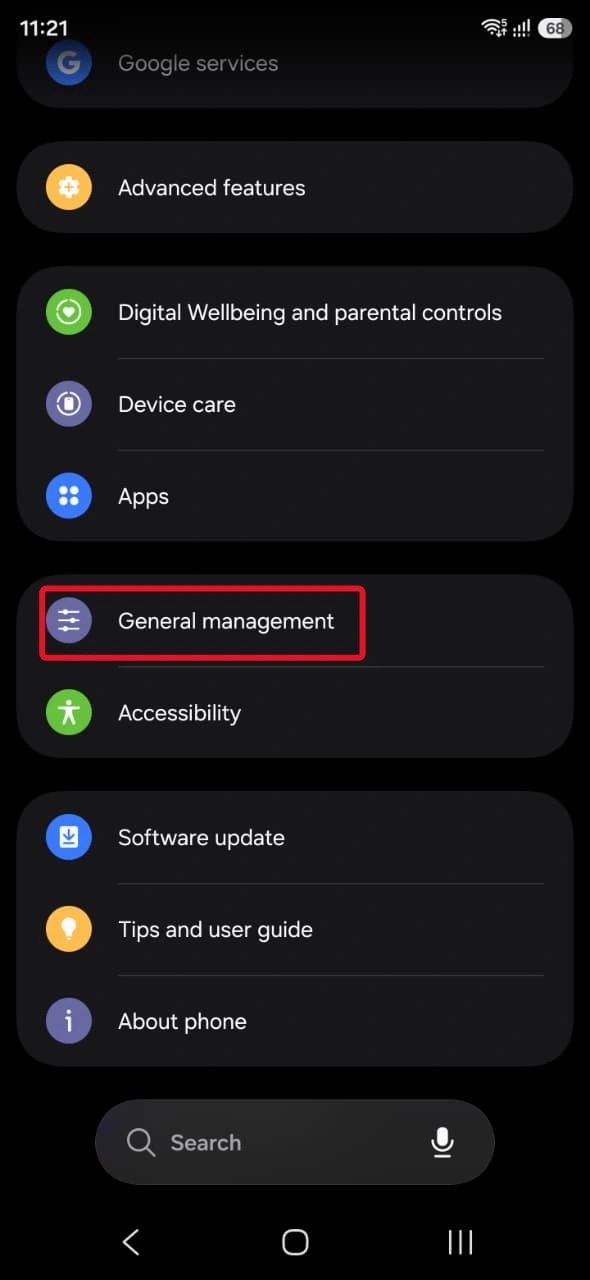
2. Read the warning carefully. Tap “Factory data reset” and then confirm.
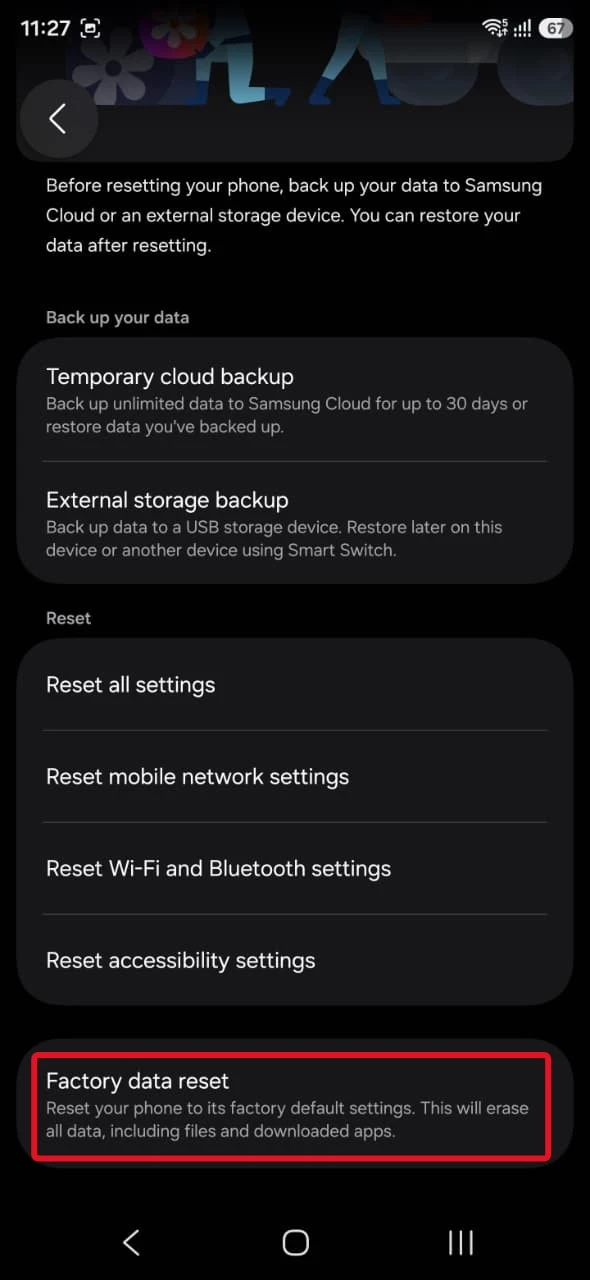
3. Your phone will restart and the process will begin.
After the reset,restore your data manually and reinstall apps one by one to avoid restoring the problematic app that caused safe mode.
Frequently Asked Questions
The bottom line
Most of the time, simply restarting your Android will turn off safe mode. However, if you are still experiencing trouble, then you can either use one of the common methods listed above to exit safe mode. If, however, Safe Mode returns every single time you restart your device, do not immediately jump to conclusions about a deep-rooted software issue as the most overlooked cause is generally a stuck Volume Down button. A factory reset should only be done when absolutely necessary as this action will wipe all your data and settings.