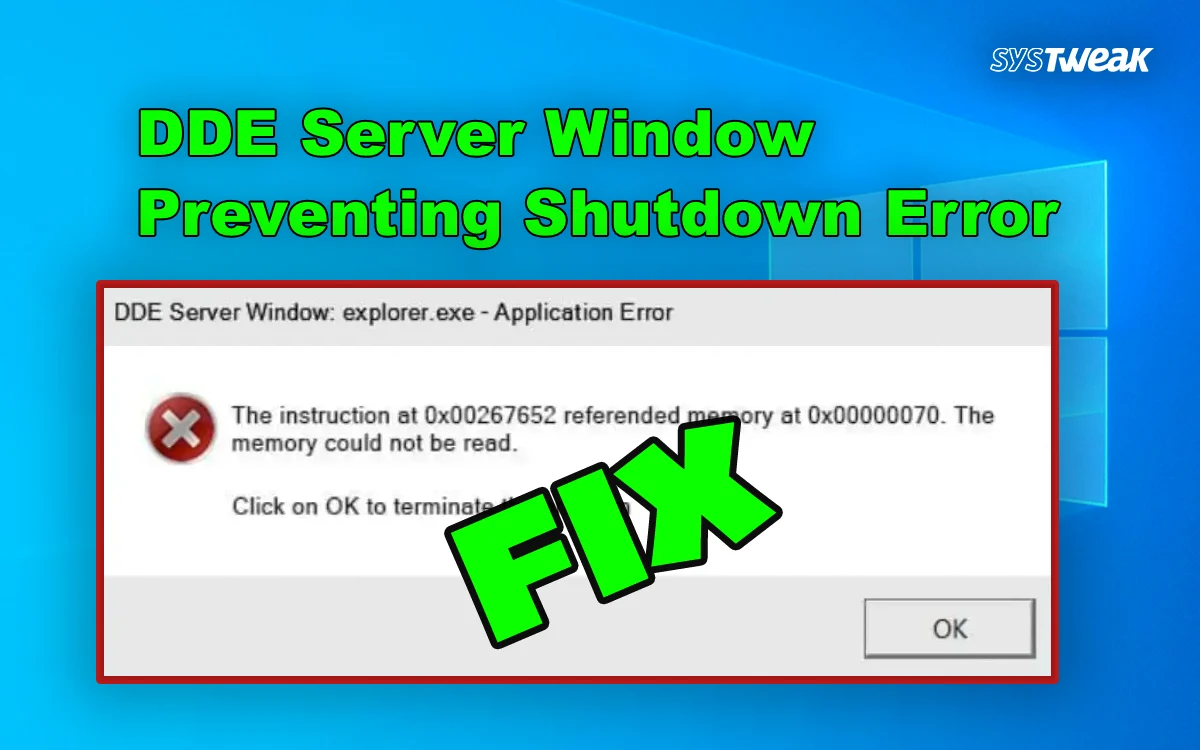

Some Windows users have complained about the “DDE Server Windows Explorer.exe System Warning” issue. This is not a serious issue, but it simply means that Windows does not shut down when the user tries to shut it down. Instead, it displays error messages like “DDE Server Windows Explorer.exe system” warning. This guide will help users fix all DDE Server issues with swift and simple methods.
What Is the DDE Server Window?
Dynamic Data Exchange or DDE is an outdated method of communication in Windows, which enables programs to interact during processing of data like data saving or shutting off.
When windows is closed, it requests all the applications running to do the following;
- Save data
- End background processes
- Release system resources
If an app using DDE doesn’t respond in time, Windows pauses the shutdown and shows this warning.
What Is Causing The DDE Server Window Is Preventing Shutdown Error?
- This error occurs when windows tries to close down but one or more applications become unopened.
- Background applications can also be executing tasks without any user interface even after you have closed the window of the application.
- When File Explorer (explorer.exe) crashes or does not close up correctly, it may cause the DDE Server Window message.
- Fast Startup mode confuses DDE processes, especially after updates or driver changes.
- Damaged Windows files can break the shutdown communication chain, causing DDE services to stall
- Third-Party Software Conflicts can hook into shutdown events and delay or block DDE responses.
Methods To Fix The DDE Server Window Preventing Shutdown Error
There are a few methods that have been tried and tested by our experts to fix the “DDE Server Windows Explorer.exe System Warning” issues. You can check if the issue resolves after executing each method and ignore the remaining methods.
Method 1. End Explorer.exe Manually
Sometimes Windows Explorer gets clingy.
1. Press Ctrl + Shift + Esc to open Task Manager
2. Find Windows Explorer process.
3. Right-click it and choose End task.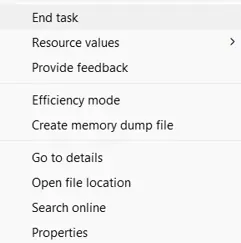
4. Click File → Run new task, type explorer.exe, press Enter
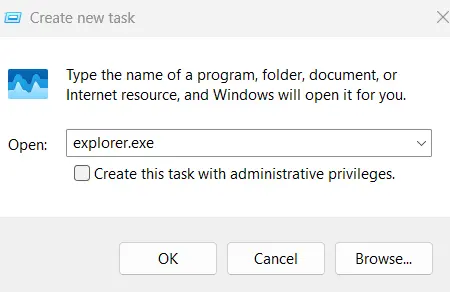
5. Now try shutting down again.
Read Also : How to Get Help With File Explorer in Windows: A Beginner’s Guide
Method 2. Turn Off Fast Startup
Fast Startup can confuse the shutdown process.
1. Open Control Panel by pressing Win + R and typing “Control”.

2. Go to Power Options.
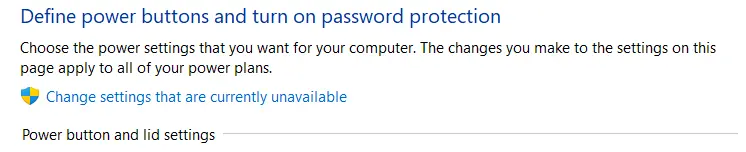
3. Click Choose what the power buttons do.

4. Select Change settings that are currently unavailable.
5. Uncheck Turn on fast startup.
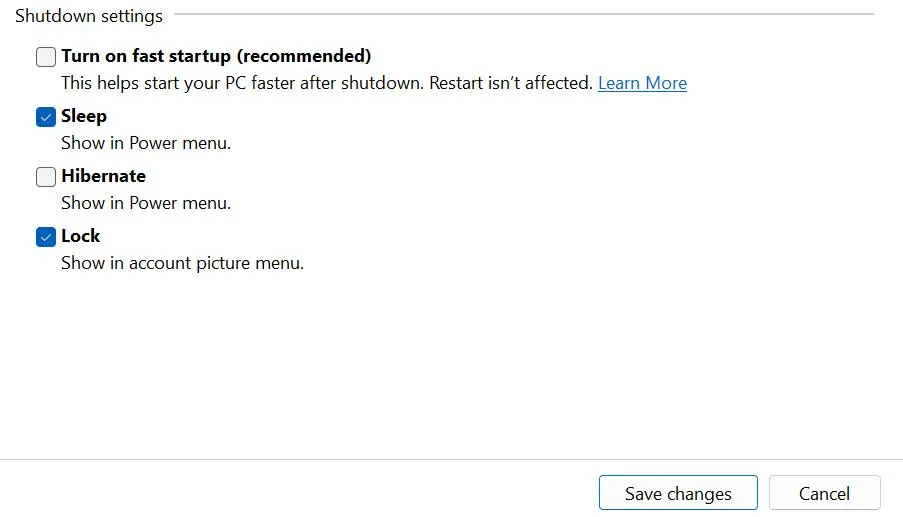
6. Click Save changes and restart.
Method 3. Disable Antivirus or Third-Party Apps Temporarily
Apps like browsers, Adobe tools, or Office sometimes refuse to close properly.
1. Save your work and temporarily disable your antivirus
2. Close all open programs manually
3. Then shut down
4. If this helps, one of those apps is the culprit.
Method 4. Update Windows
Outdated system files can trigger DDE errors.
1. Press Win + I.
2. Go to Windows Update.
3. Click Check for updates.
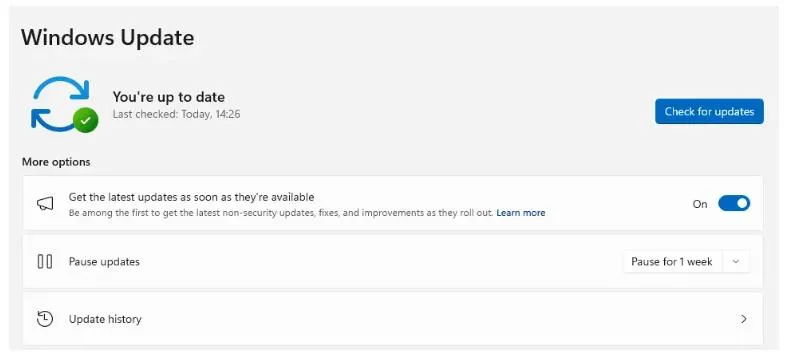
4. Install everything available and restart.
Method 5. Run System File Checker
Contaminated files have the ability to congest the shutdown process. The following are the procedures to check and redefine system files.
1. Search Command Prompt.
2. Right Click on it and select Run as administrator.

3. Copy and paste this command sfc /scannow followed by the Enter key.
4. Wait until scan has been completed, and restart.
Method 6. Do Clean Boot (Advanced Check)
This can be used to determine whether third-party software is being problematic.
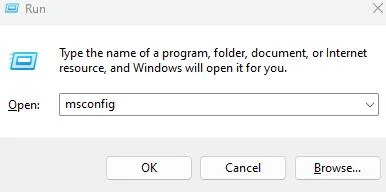
1. Press Win + R, type msconfig, and press Enter.
2. Go to Services
3. Check Hide all Microsoft services.

4. Click Disable all
5. Reboot and attempt to shut down.
6. If the error disappears, re-enable services gradually to find the troublemaker.
Method 7. Outdated Drivers
Outdated Drivers can cause problems between the hardware and software. You must update your drivers always. Here are three ways to update drivers.
Update Via Device Manager
Microsoft has given free driver updater tool to all users. It is called Device Manager.
1. Open the Device Manager by pressing Win + X and selecting Device Manager.
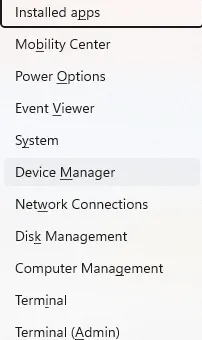
2. Expand the driver categories that display the yellow exclamation mark.
3. Right-click on these drivers one by one to view the context menu.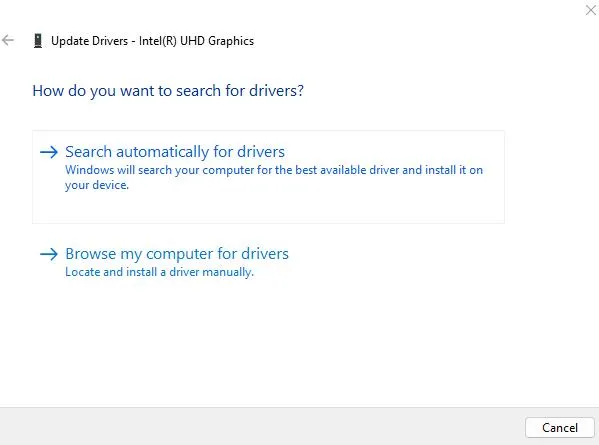
4. Select Update Driver and choose Search automatically for updated driver software.
Use The Advanced Driver Updater
The second method is to use the Advanced Driver Updater, an app that can identify outdated, corrupted, and missing drivers on your computer and download/install the most compatible drivers with a few mouse clicks. Here are the steps to use this tool.
1. Download and install Advanced Driver Updater.

2. Open the app and click the Start Scan Now button.

3. A list of driver anomalies will appear on the screen.
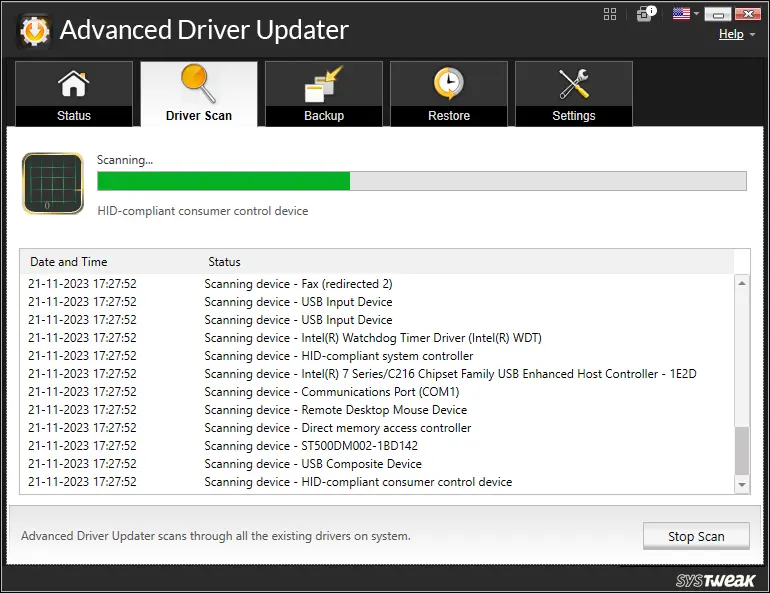
4. Locate the outdated drivers in the list and click on the update link next to them.
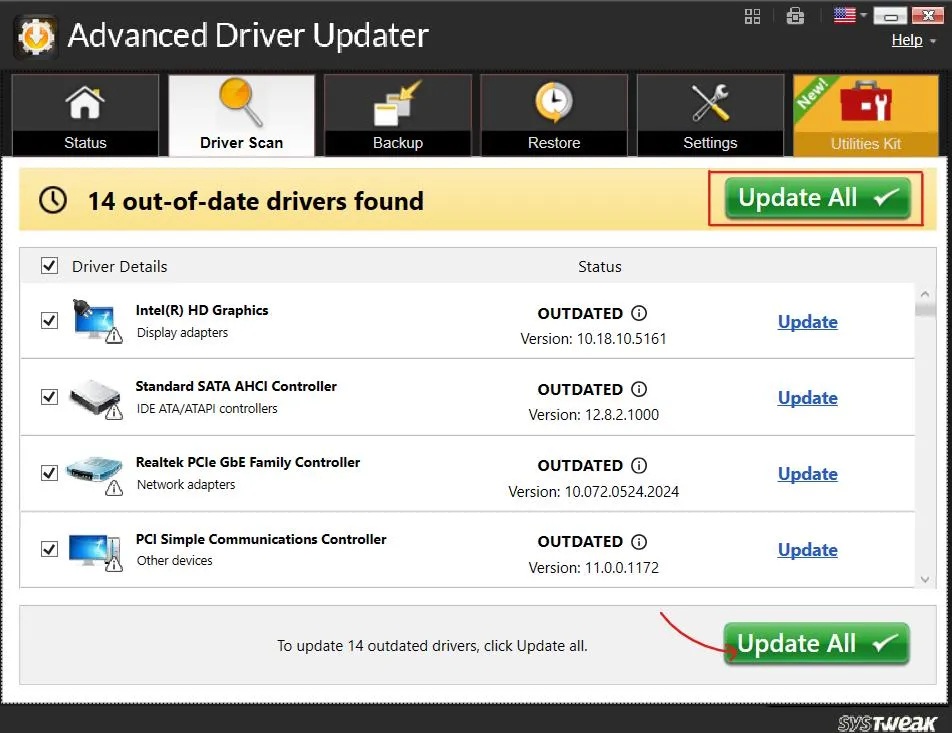
5. The update process will now begin. Reboot your PC once the update is completed.
Method 8. Disable The Autohide Taskbar Feature.
1. Right-click on the Taskbar and choose Taskbar Settings.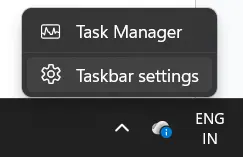
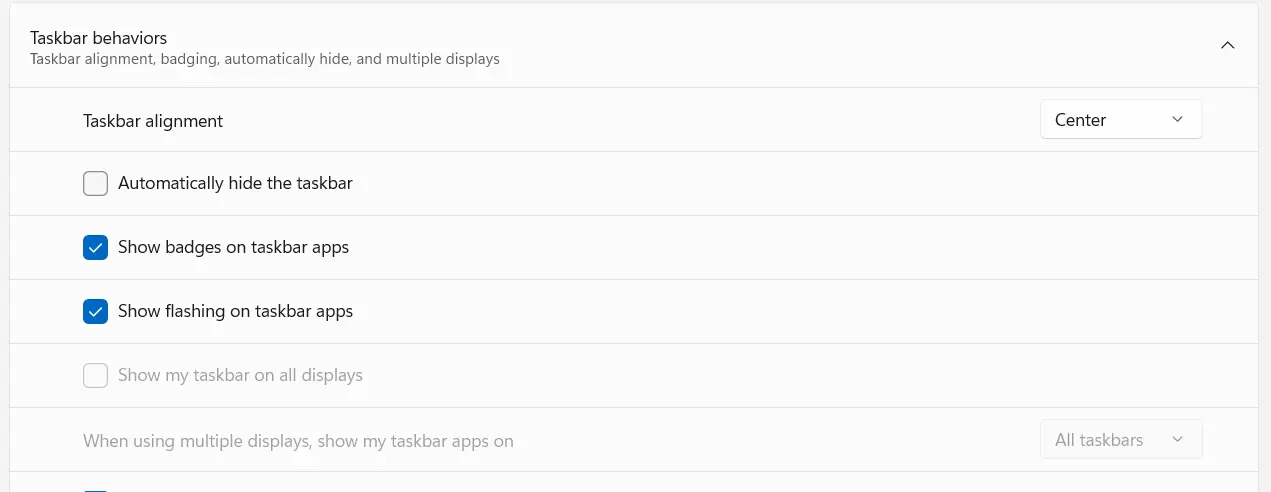
2. Click on the Taskbar Behaviours option.

3. Uncheck the Automatically Hide the Taskbar setting and exit the Settings window.
Method 9. Activate DISM
If SFC didn’t help, then use the DISM command.
1. Open Command Prompt (Admin) again.
2. Run these commands one by one:
DISM /Online /Cleanup-Image /CheckHealth
DISM /Online /Cleanup-Image /ScanHealth
DISM /Online /Cleanup-Image /RestoreHealth
3. Once done, restart your PC and try updating again.
Read Also: How To Fix DISM /Online /Cleanup-image /Restorehealth Is Stuck On Windows
Method 10. Perform A System Restore
If you have created a system restore point before this error occurred, then there is a great chance that you can restore your system back in time to a state before the error occurred. Here is what you need to do.
1. Press the Windows key and type “System restore”.

2. Click on “Create A Restore Point”.

3. In the new window, click on the System Restore button.
4. Choose a restore point and click on Next to restore your system to a previous point of time.
Conclusion: Have You Fixed The DDE Server Window Preventing Shutdown Error?
We hope that the above methods have helped you fix the DDE Server Window Preventing Shutdown Error on Windows. Do share your experience and queries in the comments section below.
Recommended : Solution for Task Host Window Preventing Shutdown on Windows